

Yes, you can watch IPTV on multiple devices at the same time, and share one subscription across your household, but the number of screens you can use at once depends entirely on your subscription plan and your provider’s connection limits. Most IPTV services allow between one and ten concurrent connections per account, so your whole household can watch different channels on different screens without buying separate subscriptions, as long as you stay inside your plan’s limit and your provider’s terms on device and account sharing.
A reliable provider for IPTV Canada supports up to five or more simultaneous devices across smart TVs, Fire Sticks, smartphones, tablets, computers, and IPTV boxes. To make it work smoothly you need three things: the right plan for your household size, proper setup on each device, and a few simple habits that prevent surprise disconnections. This guide covers all three, including step-by-step setup for every major device type, what your provider’s terms allow when it comes to sharing, and how to give each family member their own profile.
1. How Many Devices Can Stream at the Same Time?
The connection count is set by your plan, and choosing correctly matters, since too few connections means someone always gets locked out, while paying for more than you need wastes money. Licensing agreements with content owners are the real reason providers cap concurrent streams by tier, not an arbitrary limit designed to upsell you: basic packages typically allow one to two devices, standard tiers cover most couples, and premium tiers give larger families the freedom to watch completely different content on separate screens without interruptions.
Always check the connection count before subscribing, and if your household grows, most providers let you upgrade or add device slots from the billing or plans section of your account.
2. What Devices Are Compatible?
IPTV runs on virtually anything with an internet connection, one of its biggest advantages over cable. The same subscription can power your living-room TV, your phone on the commute, and your tablet in bed, all at once:
- Smart TVs: Samsung, LG, Sony, and any Android-based TV with app support.
- Amazon Fire TV Stick: one of the most affordable and popular IPTV devices.
- Android TV box: a dedicated box that turns any TV into a smart hub.
- Apple TV, iPhone, and iPad: via IPTV apps on the App Store.
- Windows and Mac computers: using VLC, dedicated players, or web players.
- Gaming consoles: PlayStation and Xbox, through compatible apps or the browser.
- MAG and Formuler boxes: purpose-built IPTV set-top boxes.
The formula is the same everywhere: install a compatible player app such as IPTV Smarters Pro, TiviMate, GSE Smart IPTV, or IBO Player, all of which support M3U and Xtream Codes, enter your credentials, and stream. The next several steps walk each device type in detail.
3. Set Up IPTV on a Smart TV or Android Box
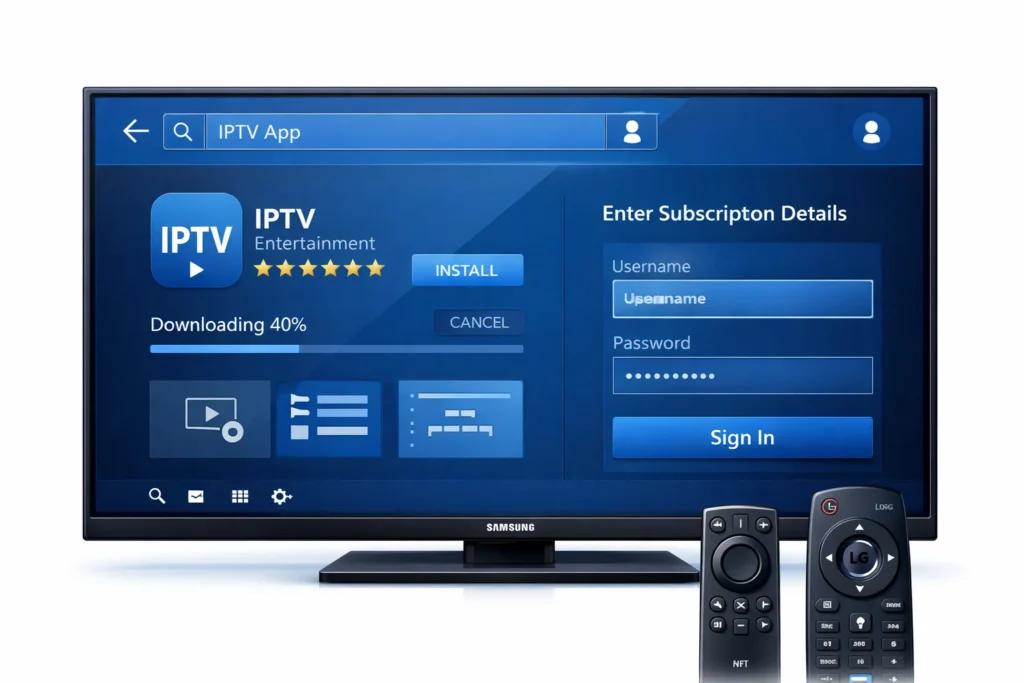
On a Samsung, LG or Android TV:
- Turn on the TV and confirm it’s connected to the internet over Wi-Fi or Ethernet.
- Open your TV’s app store: Samsung Store, LG Content Store, or Google Play on Android TV.
- Search for your IPTV app, for example IPTV Smarters Pro, select it, and press Install.
- Open the app from your home screen. On first launch it asks for your subscription details, a playlist URL, a code, or a username and password.
- Enter the information exactly as your provider supplied it, then confirm.
- Wait while channels and categories load, then pick a channel and press play.
On an Android TV box:
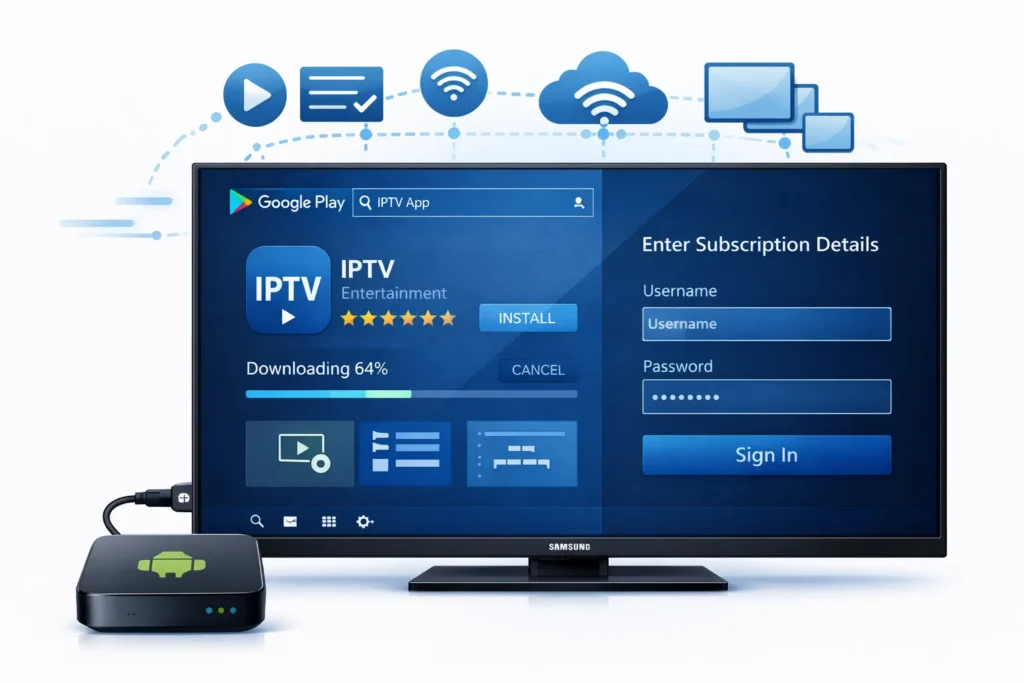
- Connect the box to your TV with an HDMI cable and power it on.
- Connect to the internet; Ethernet is best for the main viewing TV, Wi-Fi otherwise.
- From the home screen, open the Google Play Store and search for your IPTV app.
- Tap Install, wait for it to finish, and open the app.
- Enter your IPTV details, playlist URL, code, or login, exactly as provided.
- Wait for the channel list to load, then start watching.
4. Set Up IPTV on an Amazon Fire TV Stick
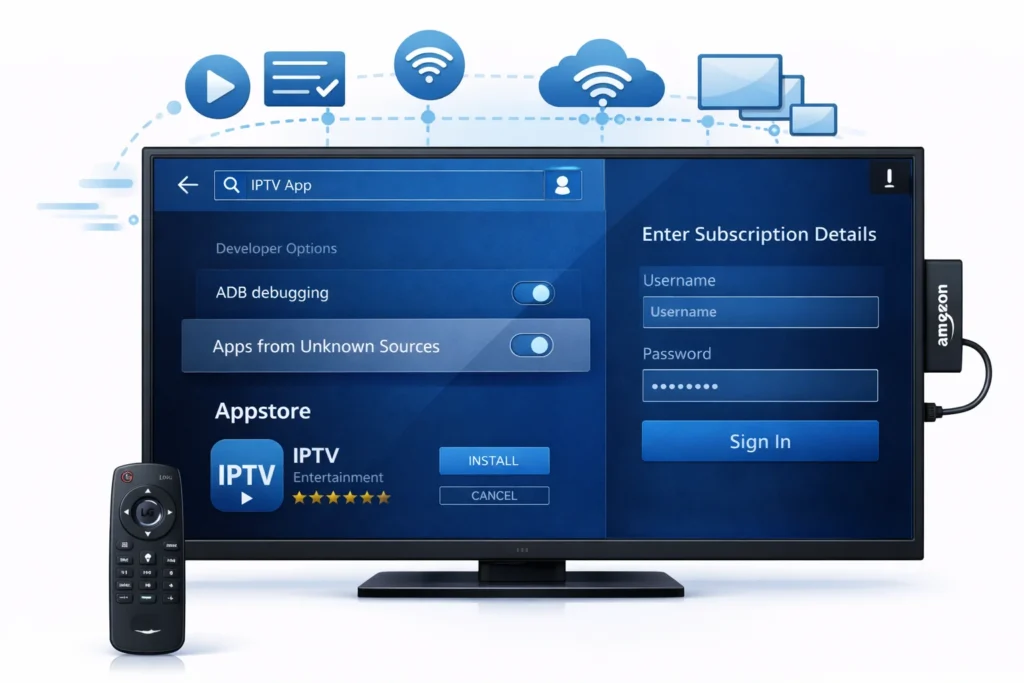
- Plug the Firestick into your TV’s HDMI port, connect its power, and join your Wi-Fi.
- Open the built-in Appstore, search for your IPTV player, and install it.
- If your provider’s recommended app isn’t in the store, enable sideloading first: go to Settings, My Fire TV, About, click the Firestick name seven times to unlock Developer Options, then turn on Apps From Unknown Sources under Developer Options, and only install APKs from a link your provider supplies.
- Open the app and enter your IPTV details, playlist link, code, or login.
- Wait for the channels to load and start watching.
5. Set Up IPTV on a Smartphone, Tablet, or Computer
For phones and tablets: connect the device to the internet, open the Play Store on Android or the App Store on iPhone and iPad, install your IPTV app, enter your details, and start watching. The same credentials from your TV work here, using one of your plan’s connection slots.
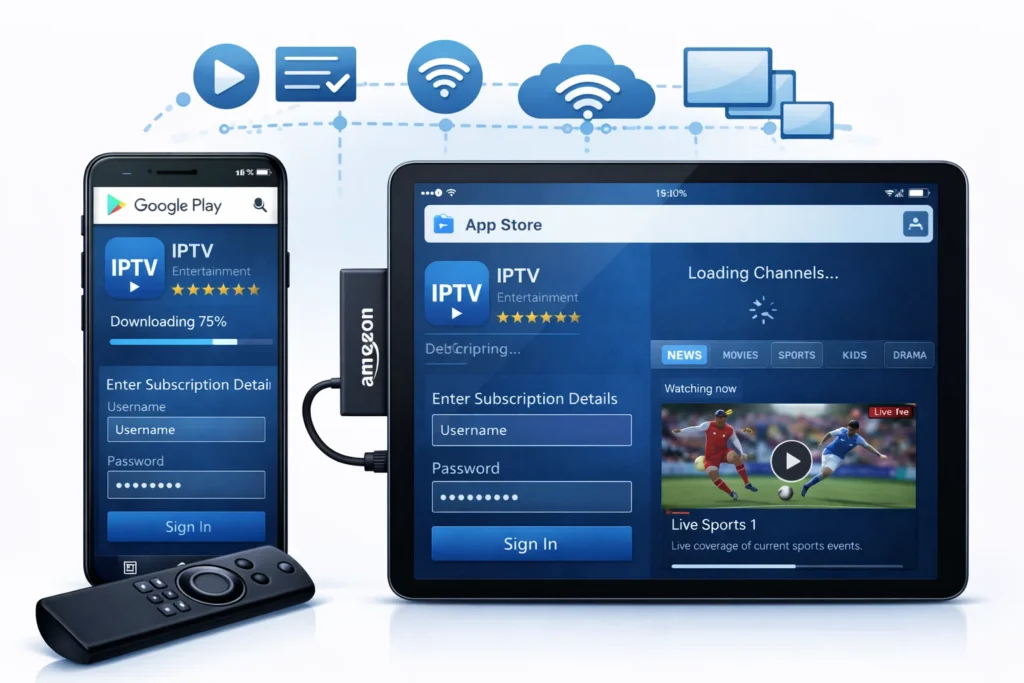
For Windows or Mac, choose one of two routes. With a player app such as VLC or Kodi, download and install the player, open its settings or playlist section, and add your playlist URL, M3U file, or login. Without an install, open your browser, go to the web player link your provider supplies, and log in or paste your playlist link. Either way, wait for the channels to load, pick one, and press play.
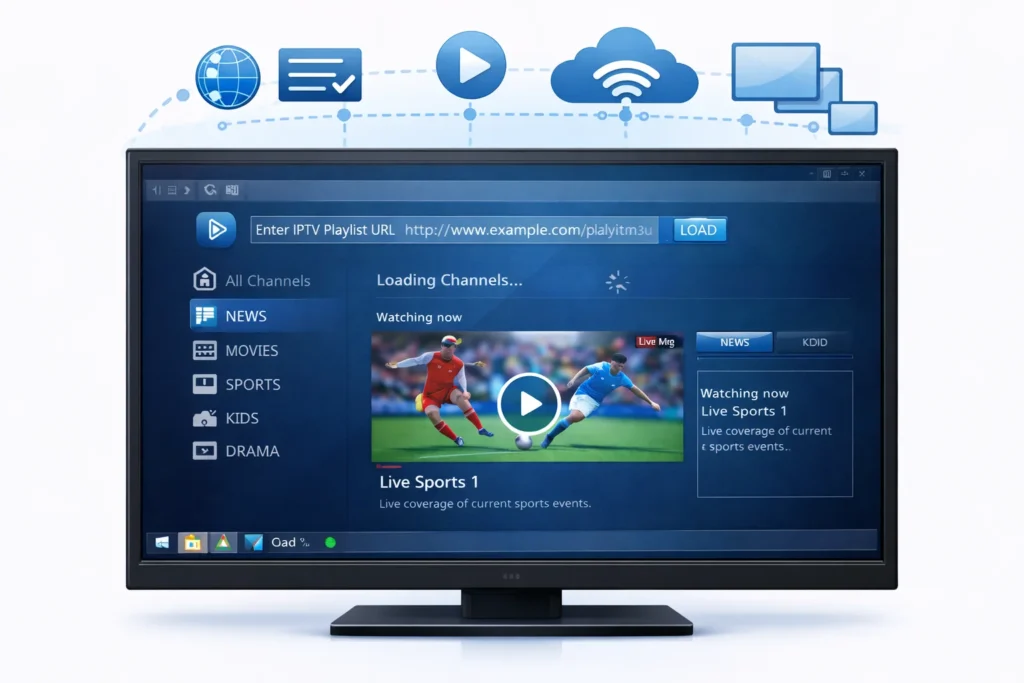
6. Can You Share One IPTV Subscription Across Your Household?
Yes, you can share your IPTV subscription across your household, but you’re bound by your provider’s concurrent-connection limit and device-authorization terms, not by the number of people using it. Most plans permit one to ten simultaneous connections depending on your tier, and licensing agreements with content owners are the reason providers enforce that cap: device restrictions and bandwidth limits also protect their server infrastructure from overload.
Exceeding your plan’s connection limit through credential sharing or playlist cloning violates your provider’s terms and can trigger a suspended or disconnected account, and unauthorized redistribution beyond your own household can expose you to copyright issues as well. Staying compliant is straightforward:
- Verify your provider’s concurrent-connection limit before adding any devices.
- Use your provider’s device management dashboard, if it has one, to register and monitor active sessions.
- Prefer Xtream Codes credentials over device-locked activations for flexibility across devices.
- Create sub-accounts if your provider offers them, and share the password through a dedicated password manager rather than a group chat.
- If you regularly need more concurrent streams than your plan allows, upgrade rather than trying to work around the limit.
7. Give Each Family Member Their Own Profile
Profiles and connections are two different things, and it’s worth being clear about which one you need. A connection is a simultaneous stream, set by your plan, and it decides how many people can watch at the same time. A profile is a separate setup inside the app, with its own favourites, channel order and restrictions. Profiles cost nothing and don’t use extra bandwidth on their own; they just stop your partner’s sports channels and your kid’s cartoons from landing in the same favourites list.
Pick an app that supports it. TiviMate on Android and Fire Stick has a built-in multi-profile feature, and each profile keeps its own favourites, channel order and EPG settings. IPTV Smarters Pro lets you add several playlists or logins and switch between them, which works the same way in practice. On iPhone or iPad, GSE Smart IPTV holds multiple remote playlists you can switch between.
On Android or Firestick
1. Use TiviMate on Android or Firestick, it has a built-in multi-profile feature that lets you create separate user accounts inside one app.
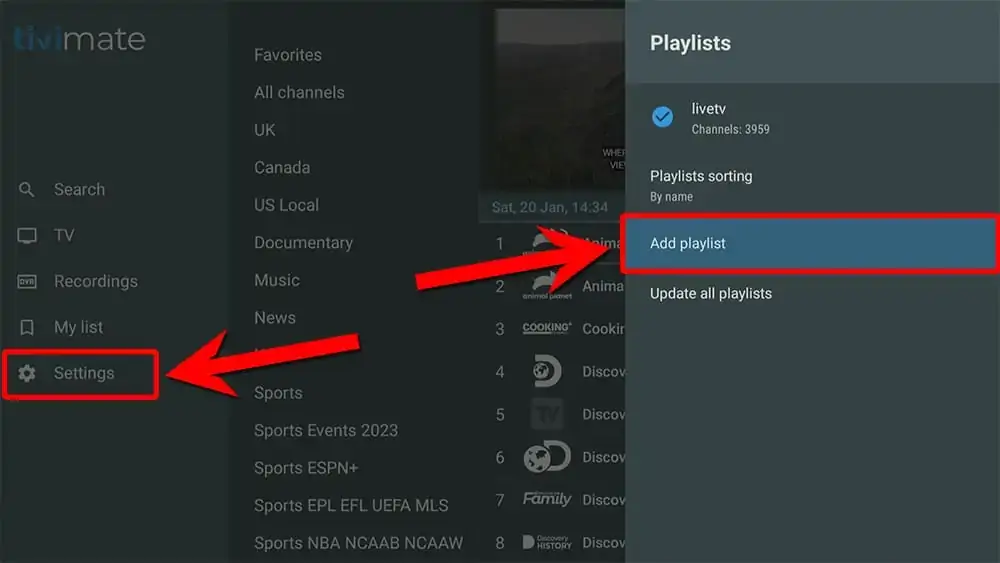
2. Each TiviMate profile keeps its own favorites, EPG settings, and channel order completely independent.
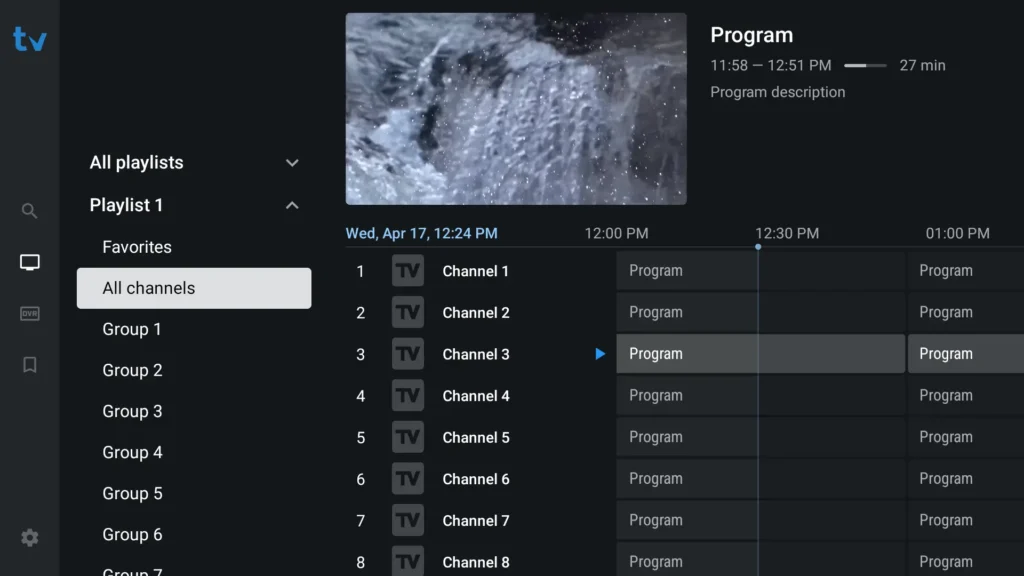
On other devices
1. If TiviMate is not available on your device, use IPTV Smarters Pro which allows you to add multiple playlists under different usernames.
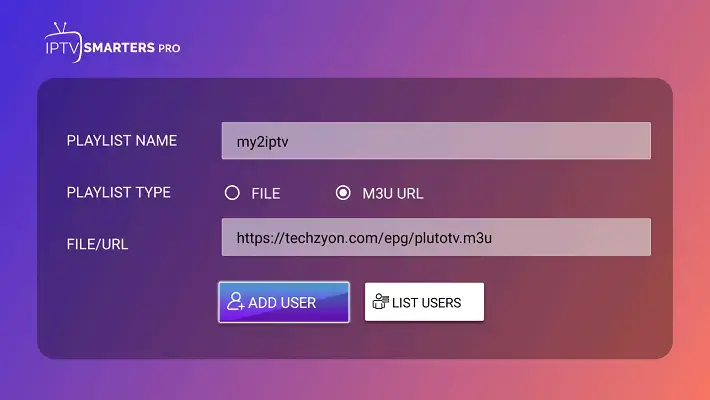
On iPhone or iPad
1. On iPhone or iPad, GSE Smart IPTV lets you add several playlists and switch between them as separate profiles.
2. Open the app, go to the menu on the left, then select “Remote Playlists“.
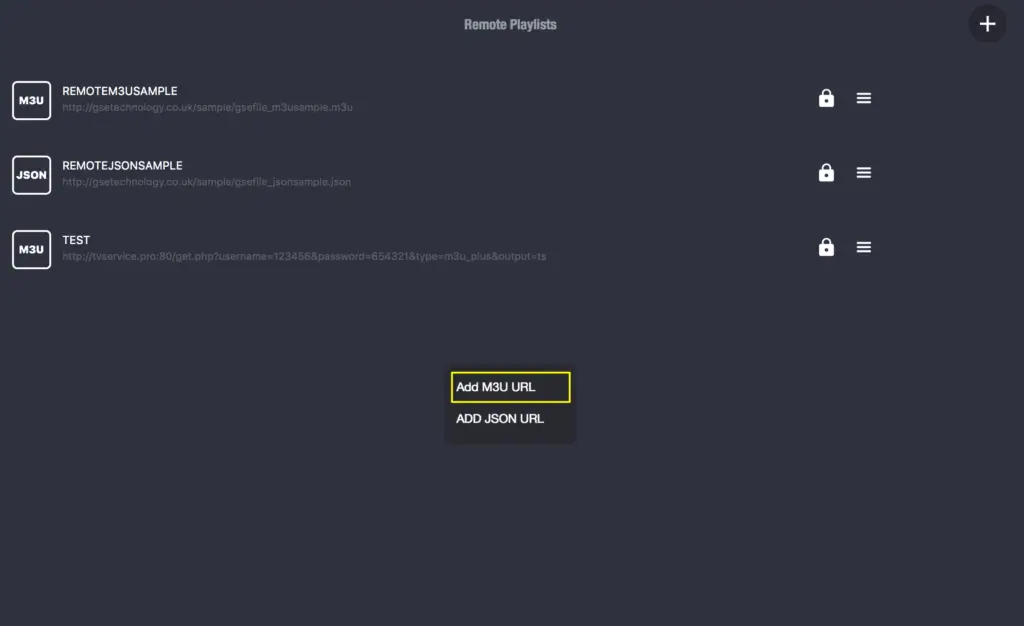
3. Next, click the (+) icon at the top right to fill in your details.
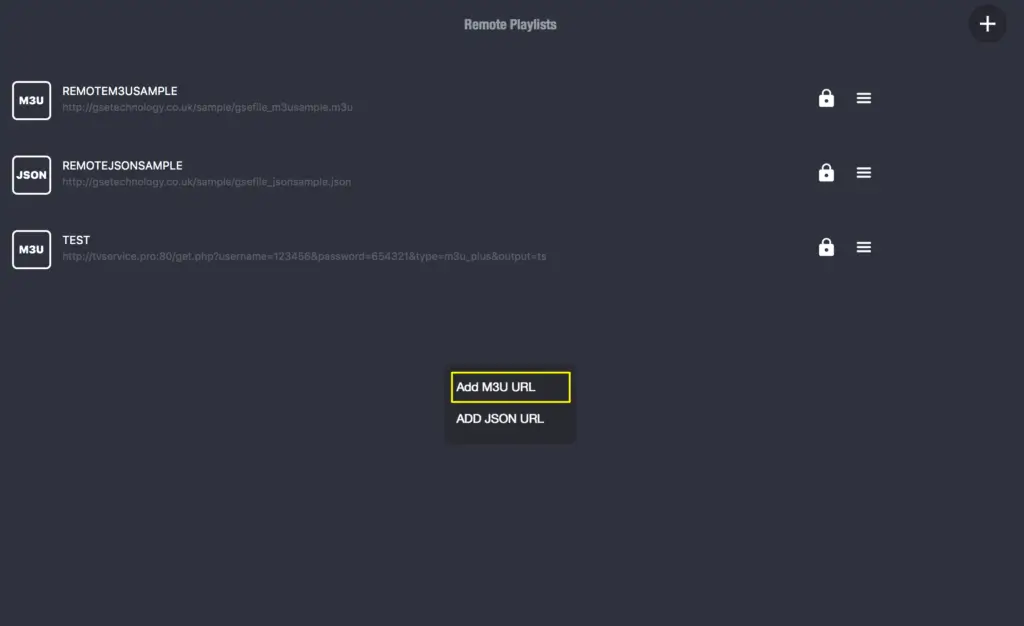
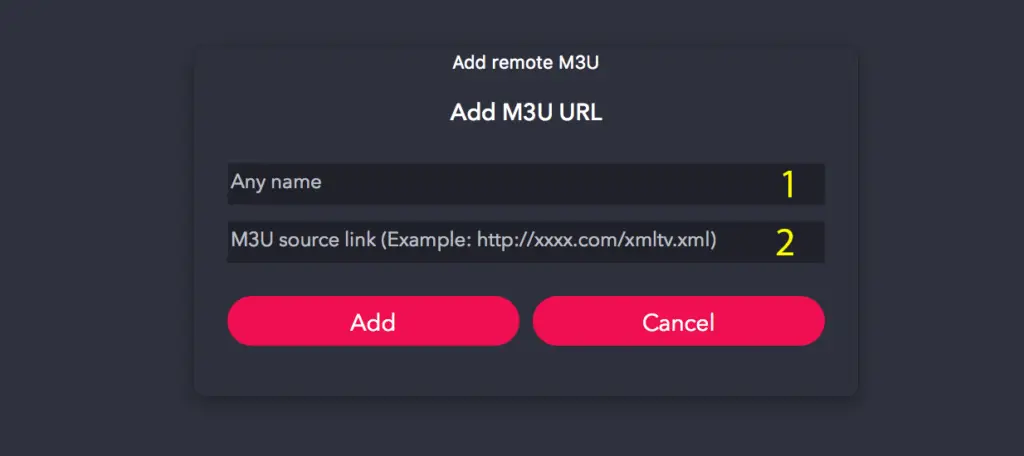
4. Click on “Add M3U URL.”
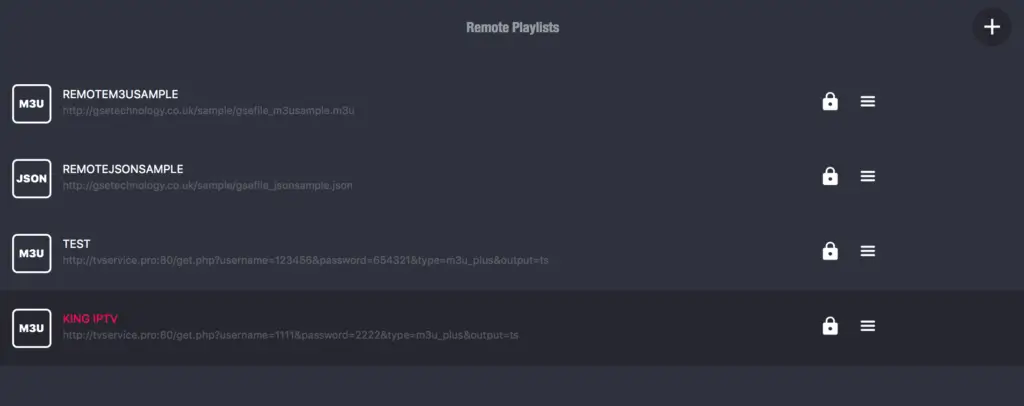
5. Tap on your playlist name and enjoy live channels!
Our roundup of the best free IPTV apps covers what each one supports.
Ask your provider about sub-accounts. Some providers issue separate credentials per family member on the same plan, which keeps each person’s viewing separate and makes it easy to see who is using a connection slot. If yours doesn’t, the same login works in every profile; only the favourites and restrictions differ.
Set each one up:
- Open your player’s profile or account section in the settings menu.
- Create a profile per person and name it clearly, so everyone knows which one to pick.
- Add the login or playlist URL to each profile, using sub-account credentials if your provider issued them.
- Set the language, channel categories and guide layout to suit that person.
- On a child’s profile, turn on parental controls and lock adult categories behind a PIN. Our guide to the parental control password covers the setup, and in TiviMate you can also PIN-protect the settings menu so children can’t switch profiles.
Then tidy up each one. Switch into each profile and mark favourites that match that person, hide categories they never watch, move the most-watched channels to the top, and set a default channel group to open with the app. Our guide on clearing favourites helps if a list gets messy.
Test before you hand it over. Open each profile, play a few channels, confirm the favourites are the right ones, and check that a locked channel actually prompts for the PIN on a child’s profile. If one profile shows someone else’s channel list, delete it and recreate it with fresh credentials.
8. Does Multi-Device Streaming Reduce Quality?
Only if your internet can’t carry the combined load. The IPTV service itself doesn’t degrade quality as devices join; the bottleneck is almost always your bandwidth or Wi-Fi signal. Each HD stream needs roughly 15 to 25 Mbps, so budget accordingly using our full breakdown of internet speed for IPTV.
If streams start buffering or pixelating when a second screen joins: run a speed test, connect the main TV by Ethernet, make sure your router can handle multiple simultaneous streams, lower the resolution on secondary devices, and pause large downloads competing for the same connection.
9. Can You Use the Same Account From Different Locations?
Usually yes. You can watch at home while a family member streams on their phone from a hotel in another city, which makes IPTV convenient for travellers and split households. Two caveats apply. Some providers restrict how many unique IP addresses can connect at once, and too many different IPs can flag the account or temporarily block access. Cross-household sharing also isn’t always permitted under your provider’s terms, so review the account-sharing rules and, if you actually need multi-home use, ask support about multi-home add-ons or extra connection slots rather than risking the account.
10. What Happens If You Exceed the Device Limit?
The extra device is simply blocked. You’ll see an error saying the maximum number of connections has been reached and another device must disconnect first. It’s the most common multi-device complaint, and the easiest to fix:
- Fully close the app on unused devices, exiting completely rather than minimizing, to release the connection.
- Log out of forgotten devices; an old phone or box in a drawer may still hold an active session.
- Restart the app on the device you’re using to force the server to refresh your connection count.
- Upgrade your plan if you hit the wall regularly: open your account’s billing or plans section, check the connections line, and move up a tier or add device slots.
- Set household rules for peak evenings so the connection slots go where they’re needed.
Frequently Asked Questions
Can I watch IPTV on my phone and TV at the same time?
Yes, as long as your plan supports at least two simultaneous connections and your internet speed can carry both streams without buffering.
Do I need a separate subscription for each device?
No. Most plans allow multiple devices on a single account. Just pick a plan with enough connections for your household.
Can I share my IPTV account with someone in another city or household?
Technically often possible, but some providers cap unique IP addresses per account and restrict cross-household sharing in their terms. Check the policy, and ask support about multi-home add-ons if you need them; it’s safer than risking a flagged account.
How many devices can use one IPTV subscription?
Most plans permit between one and ten simultaneous streams depending on your tier. Basic packages typically allow one to two devices, while premium tiers may authorize up to eight or ten concurrent connections.
Are there legal risks to sharing IPTV across multiple devices?
The device count itself changes nothing; what matters is that the streams are licensed and that you stay within your provider’s connection limit and sharing terms. Use a legitimate provider, respect its terms of service, and avoid workarounds for geo-blocked content.
Will watching on multiple devices cause buffering?
Only if your internet is too slow for the combined load. Keep 15 to 25 Mbps available per HD stream, wire the main TV, and lower resolution on secondary screens if needed.
What’s the best IPTV app for multi-device use?
IPTV Smarters Pro and TiviMate are the most popular and reliable, both handling multi-device setups with clean interfaces. GSE Smart IPTV is a strong pick for Apple-heavy households.
What’s the difference between a profile and a connection?
A connection is a simultaneous stream set by your plan; a profile is a separate setup inside the app with its own favourites and restrictions. Profiles don’t use extra bandwidth unless two of them are streaming at once.
Can I create profiles without buying a second subscription?
Yes. Profiles live inside the app, so one subscription covers them. You only need extra connections if several profiles will stream at the same time.
Do all IPTV apps support multiple profiles?
No. TiviMate has built-in profiles; IPTV Smarters Pro and GSE Smart IPTV use multiple playlists or logins, which works the same way. Basic players often have neither.
How do I stop my kids switching to another profile?
Turn on parental controls with a PIN on the child’s profile, and PIN-protect the settings menu in apps that allow it, such as TiviMate.
Can two people watch completely different channels at the same time?
Yes. Each connected device streams independently, so two people can watch entirely different channels with no conflict.
Conclusion
Watching IPTV on multiple devices, and sharing that subscription across your household, comes down to matching three numbers: your plan’s connection count to your household size, your internet speed to the number of simultaneous HD streams, budgeting 15 to 25 Mbps each, and your setup effort to the devices you actually use, since Smart TV, Android box, Firestick, phone, and computer all run the same credentials through the same short install routine. From there, small habits keep everything stable: fully close apps on idle devices so they release their connection slots, wire the main TV, respect your provider’s IP and sharing terms, and upgrade the plan the moment “connection limit reached” becomes a weekly message rather than a rare one. Set up a profile per person on top of that, so favourites and parental controls stay separate even when everyone shares the same plan. A free IPTV trial is the easiest way to confirm a plan’s real connection limit before you commit to it. Get those pieces right with a reliable provider, and one subscription quietly powers every screen in the house, different channels, different rooms, zero fighting over the remote.