

 Written by Rana
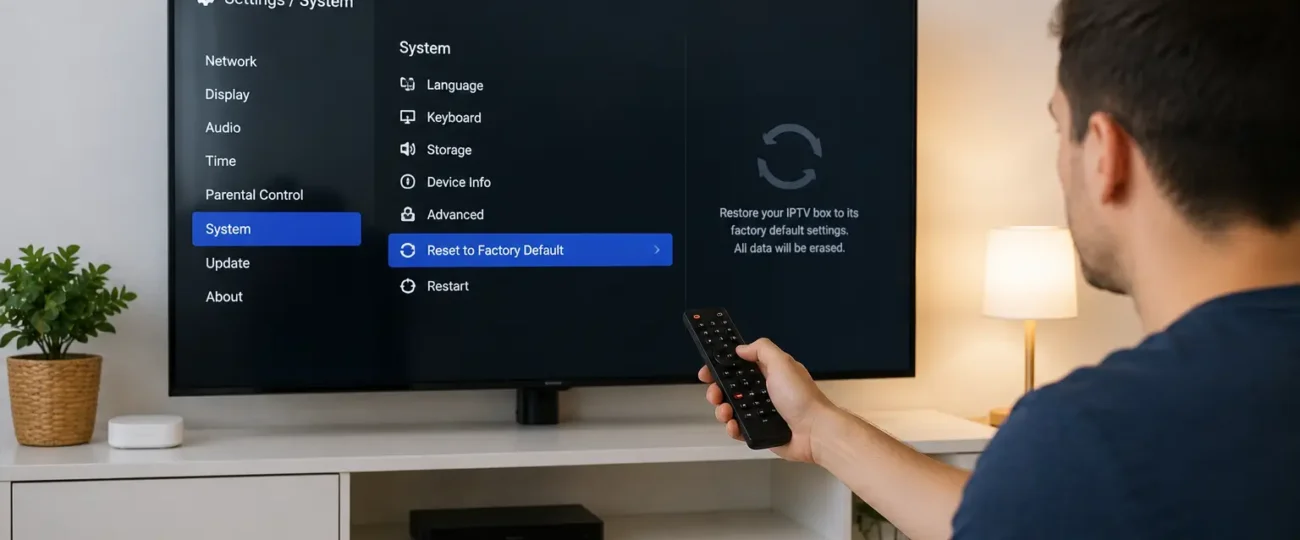
Resetting an IPTV box takes six steps: diagnose the real cause first, power off and disconnect cables, choose between a soft reset and a factory reset, open the Settings menu, run the reset, then reconfigure the box and reload your subscription from your IPTV Canada provider. This guide also covers the five most common reasons a box stops working in the first place, because in most cases a full reset is not even needed and a faster fix gets you back to watching in minutes.
A soft reset simply restarts your IPTV box and clears its memory without deleting anything, while a factory reset wipes every setting, app and saved playlist and returns the device to its out-of-box state. Always try the soft reset first. It fixes temporary glitches, frozen menus and slow performance, and it costs you nothing.
A factory reset is the deeper tool. It removes corrupted settings, damaged app data and most software problems, but you will need to re-enter your portal URL or M3U playlist afterward. According to the Canadian Centre for Cyber Security, a factory reset removes data from the user interface but does not always erase external storage like SD cards, so pull those out first if you plan to sell or recycle the box.
Your subscription itself is never affected. It lives on your provider’s server, not on the device.
Your IPTV box is most likely failing because of one of five causes: a weak or dropped internet connection, a loose power or HDMI cable, an expired subscription or outdated playlist URL, a corrupted app or cache, or a temporary problem on the provider’s servers. The box hardware itself is rarely the fault, so run through this table before wiping anything:
| Symptom | Likely cause | Quickest fix |
| No light or blank screen | Power or HDMI cable | Reseat cables, confirm the TV input |
| Constant freezing or buffering | Weak internet | Switch to Ethernet, reboot the router |
| App opens but no channels | Expired subscription or old URL | Check subscription status and credentials |
| App crashes or runs very slowly | Corrupted app or cache | Clear the cache, then soft reset |
| Nothing loads, other apps work | Provider server issue | Wait it out or contact support |
| Box freezes across all apps | Device-level glitch | Power cycle, then factory reset |
A quick test that saves hours: open another streaming app on the same box. If it also struggles, your network is the problem, not your IPTV service. Our guide on the best internet speed for IPTV without buffering explains the numbers to aim for, and if the app is just sluggish, clearing the IPTV cache often fixes it without any reset at all.
If channels stopped for everyone at once, the outage is on the provider’s side. Check whether IPTV is down today before touching your box.
Write down four things before any factory reset: your portal URL or M3U playlist link, your username and password, your Wi-Fi credentials, and your EPG link if you use a custom one. Most consumer IPTV boxes have no built-in backup function, so a written record (or a photo of the settings screen) is the fastest insurance you can get.
Also worth doing:
A clean power-down is the most skipped step in IPTV troubleshooting, and rushing into menus while the device is under load can corrupt settings. Do it properly:
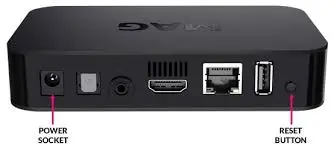
Once a hardware reset triggers, the screen goes black briefly and then shows a recovery or boot menu. Nothing within 90 seconds means the sequence did not register, so try again.
The reset menu lives in a different place on every box, so match the steps to your hardware:
Power on the device.
Immediately press and hold the Setup button on your remote.
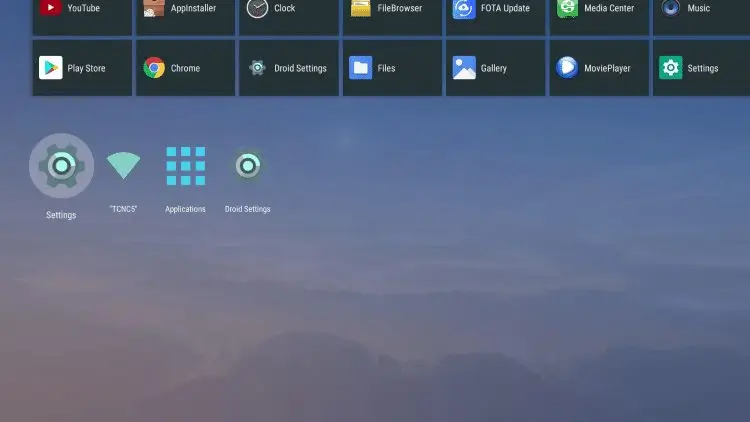
Look for Storage and Reset.
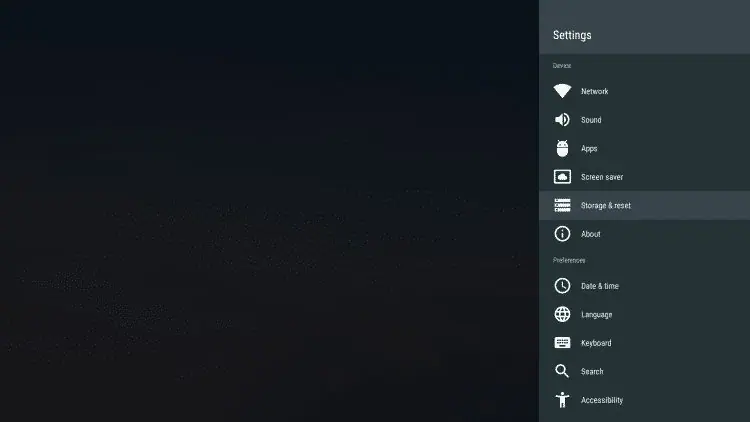
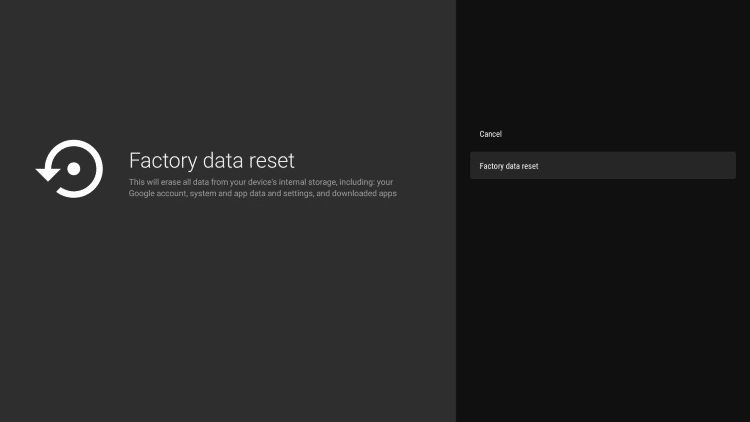
Navigate to Factory Default in the system menu.
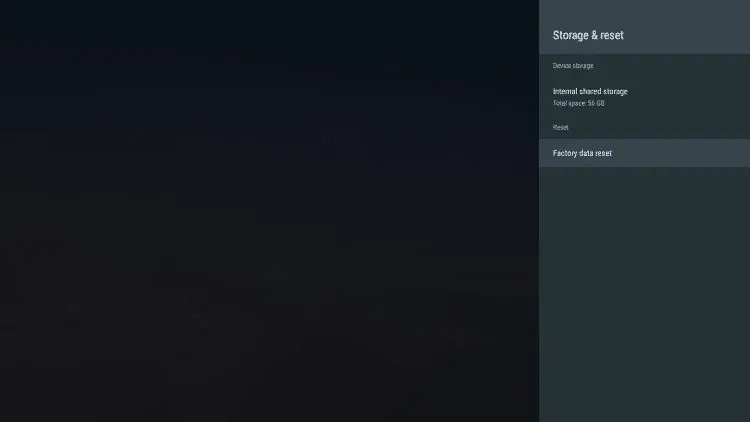
Confirm the reset.
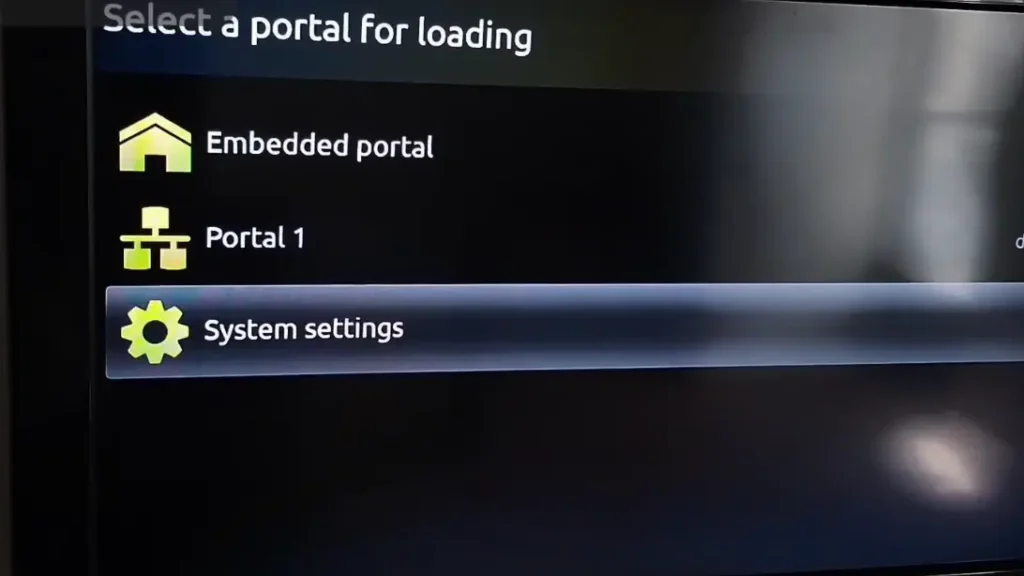
Open System Settings → Advanced.
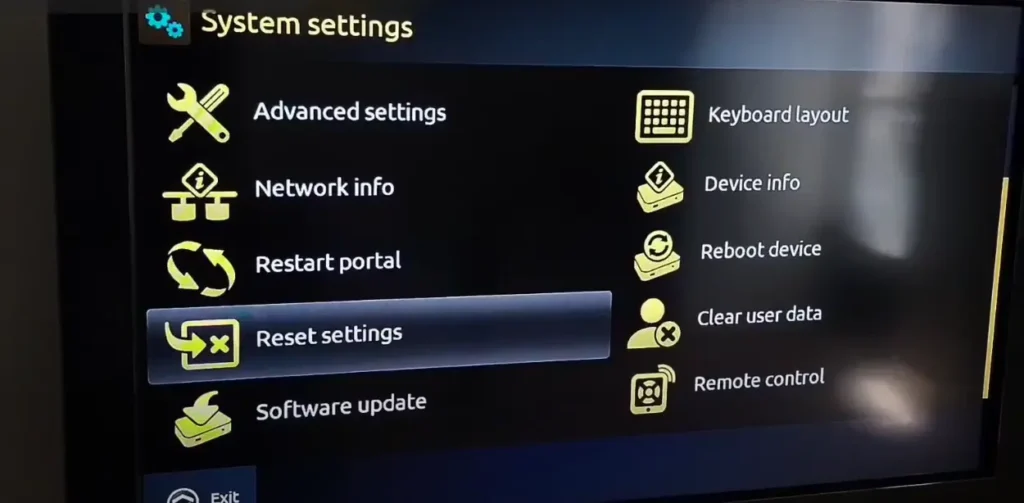
Select Reset Settings.
Confirm.
If your MAG 254 remote is unpaired, re-sync it first, hold the pairing button close to the box’s IR receiver until the LED flashes twice.
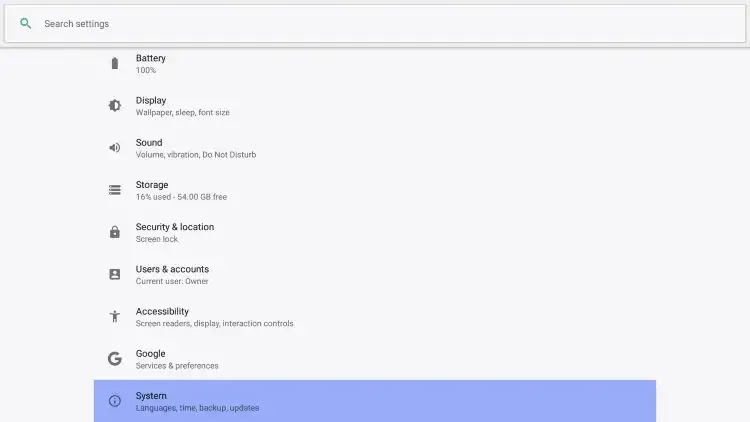
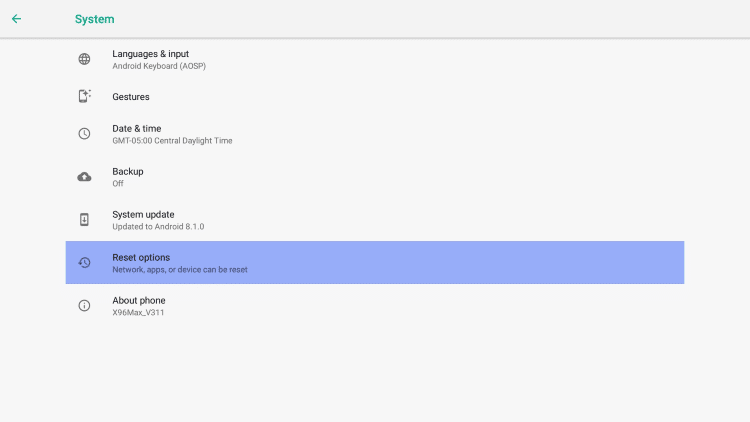
Go to Settings, System, Reset options, Factory reset. Android shows two choices. Reset wipes apps and settings but may keep some data; Erase Everything does a full wipe. Pick Erase Everything for a complete fix, and remember to sign out of Google first.
Click System.
Go to Reset option
→ Factory reset.
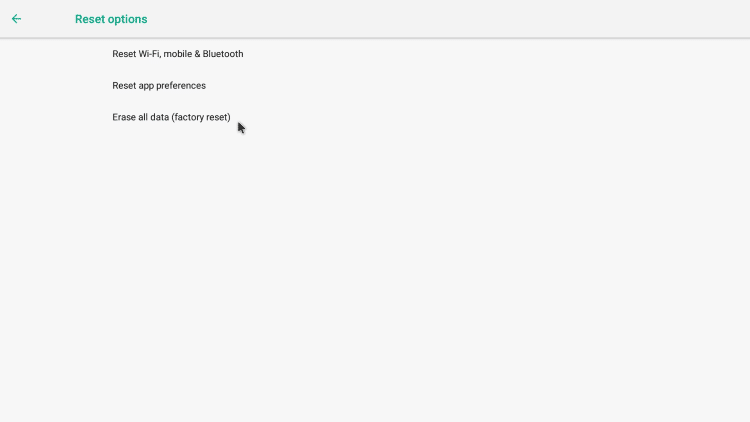
Important: Sign out of any linked Google Account first. Skipping this triggers a Factory Reset Protection (FRP) lock that bricks your box until you re-authenticate.
If the screen shows a “No Command” error on the Android Recovery screen, hold Power + Volume Up simultaneously to wake the recovery menu.
The system menu appears during boot, not in the normal interface. Power cycle the box, watch for the TVIP splash screen, and press the designated remote key before the main interface loads. Miss the window and you reboot and try again.
Type the device’s local IP address into a browser, log in with the admin credentials, and use Restore Default Settings from the web panel. No remote required.
Once you confirm the reset, the device takes over, and the one rule is never unplug it mid-reset, because a cut power feed at this stage can permanently brick the box. Typical completion times:
The screen goes dark, a progress bar appears, and the box reboots once or twice on its own. If the remote stops responding during setup, plug a USB keyboard or mouse into the box, or use the Google Home app on your phone as a temporary remote. A box that freezes entirely usually recovers with a cold boot: unplug, wait 30 seconds, replug.
Reconnecting your service takes three inputs: your network, your portal URL or M3U link, and your personal settings. Work through them in order:
If you switched providers or your server address changed, follow our walkthrough on changing the URL on an IPTV box rather than guessing at menus.
If streams still buffer, freeze or fail after a clean reset, the problem is no longer your box, so move up the chain: network first, then subscription, then provider. Check them in this order:
Freezing that only happens in the evening is its own pattern with its own causes; our guide on why IPTV freezes at night covers it.
A factory reset every 6 to 12 months is reasonable maintenance, or whenever persistent problems survive normal troubleshooting. In between, a few small habits prevent most issues:
Streaming IPTV in Canada is legal when the service holds the rights to the content it distributes, and a reset changes nothing about that equation. Two practical points are worth knowing. First, cheap unbranded boxes occasionally ship with firmware-level malware that survives a factory reset; sticking to known hardware like MAG, Formuler or mainstream Android TV devices avoids the problem, and our guide to choosing a good IPTV box lists safe options. Second, if you are disposing of a box, remember the factory reset does not wipe external storage, so remove SD cards and USB drives.
On the service side, unverified third-party streams carry real risks: dead channels, disappearing servers and zero support when something breaks. A licensed, reliable provider is the difference between a 5-minute reconfiguration and a wasted evening. If you are evaluating services, start with a free IPTV trial so you can test stability before paying.
No. Your subscription lives on your provider’s server, so the reset only clears local settings and app data. You re-enter your portal URL or M3U playlist afterward and everything comes back.
An expired subscription, an outdated server URL or a provider-side outage are the most likely causes. If the app opens but channels are empty, check your credentials and renewal date first.
Most resets finish within 2 to 5 minutes. Android boxes can take up to 10 minutes if they download a fresh system image during the restore.
Yes. A USB keyboard works as a substitute; navigate with the arrow keys and Enter. The web-interface method also works if the box is on your network.
Sometimes. Corrupted cache and misconfigured network settings are common buffering culprits, and a reset clears both. Buffering that persists after a clean reset is upstream, either your connection or the provider’s servers.
A black screen is usually a cable, HDMI input or power issue rather than a software one. Reseat every cable, select the correct TV input and do a full power cycle before considering a reset.
Yes. Locally saved favourites and channel groups are erased, so screenshot your list before you start and re-mark them after reconnecting.
An interrupted reset, a corrupted firmware update or a failing power adapter are the usual suspects. Unplug for 60 seconds, try a different adapter, and if it still will not power on, the box may need repair.
After. A reset clears corrupted system files first, so the new firmware installs on a clean base. Updating before a reset can trigger boot loops if the old firmware was already unstable.
After you have checked cables, internet, subscription and the app. If all four are fine and channels still fail, the provider should investigate their side.
A reset is a maintenance tool, not a last resort: diagnose the cause first, back up your credentials, run the right reset for your device, and reconfigure in under 15 minutes. Most “broken” boxes turn out to be a loose cable, a lapsed plan or a congested network, so work through the checklist before wiping anything. And if problems keep coming back no matter how cleanly you reset, the weak link is the stream source, not your hardware. Test a better one risk-free with a free trial before you commit.

Premium IPTV subscription built for Canadian viewers