 Written by Rana
To set up IPTV on Android TV you install a compatible player from the Google Play Store, allow installs from unknown sources if you need to sideload, enter your M3U URL or Xtream Codes credentials, load your EPG, and test a few channels during peak hours before settling in. The whole process takes under 15 minutes on a stable connection, and it works the same way whether your TV runs plain Android TV, Google TV, or an NVIDIA Shield box, since all three share the same Play Store and the same app ecosystem. Pairing a quality player with a dependable IPTV Canada subscription is what actually determines whether your channels load fast and stay smooth.
Android TV is the underlying operating system, and Google TV and the NVIDIA Shield both run on top of it, which is why the IPTV setup is nearly identical across all three. Google TV mainly swaps in a different home screen and a recommendations feed built around Google’s own content; it doesn’t change how you install or run an IPTV app. The Shield uses the same Android TV foundation but adds far more powerful hardware, including AI upscaling that can noticeably sharpen lower-bitrate streams, which matters for anyone chasing the cleanest possible picture. Sony, TCL, Hisense, and most other Android TV brands follow the exact same logical steps described below, so this guide covers the shared setup once, then breaks out the handful of things that differ by device toward the end.
A clean, updated system avoids most of the problems people hit during setup, so run through this checklist first regardless of which Android TV device you own:
Skipping these checks is the most common reason an IPTV install fails on the first try, on any of the three devices covered here.
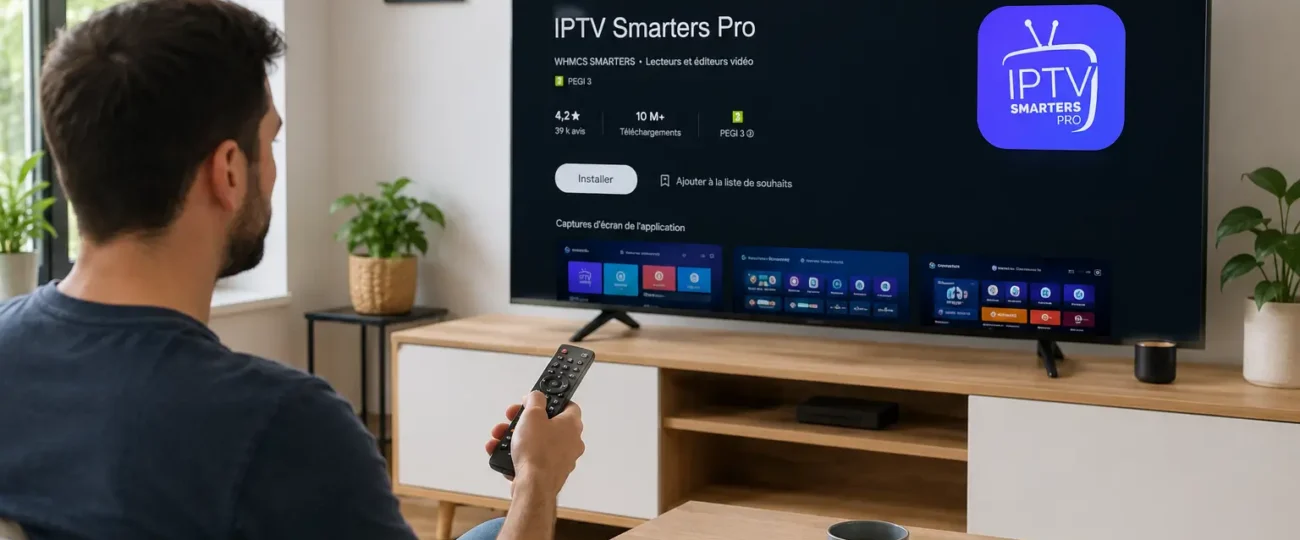
Choose and install a player from our roundup of best free IPTV apps; TiviMate, IPTV Smarters Pro, XCIPTV, and GSE Smart IPTV all run cleanly on Android TV, Google TV, and the Shield alike.
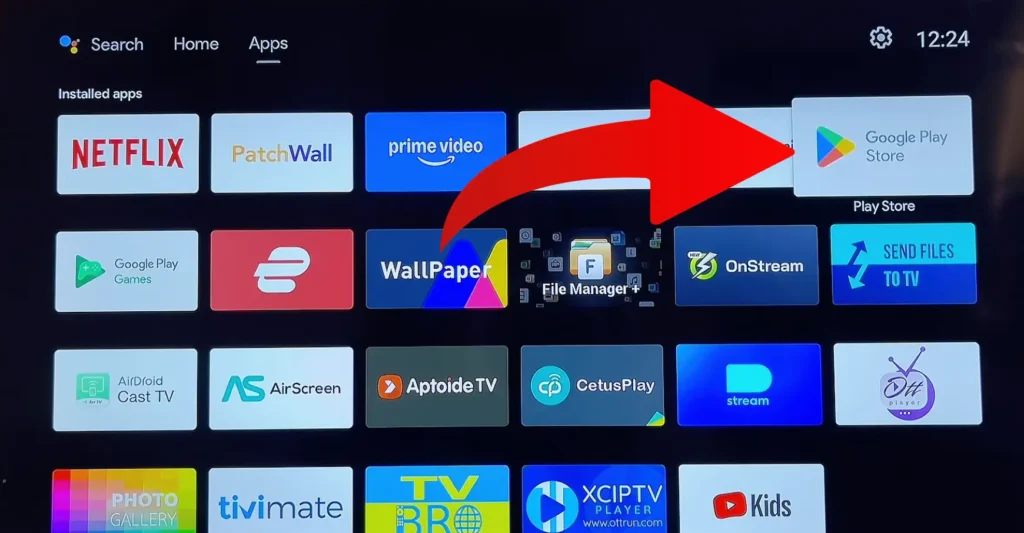
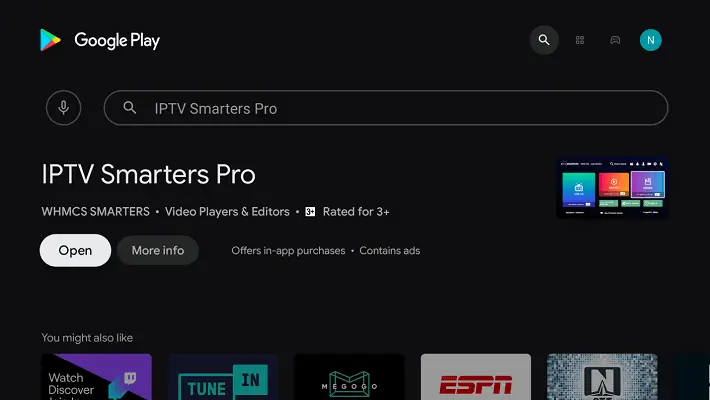
If your chosen app isn’t listed in the Play Store for your region, sideloading is an option, but only from verified sources. According to Android Authority, Android TV supports sideloading through trusted methods like a file-transfer app or cloud storage, provided you enable installs from unknown sources first.
Skip this section entirely if your app installed directly from the Play Store. If you’re sideloading an APK:
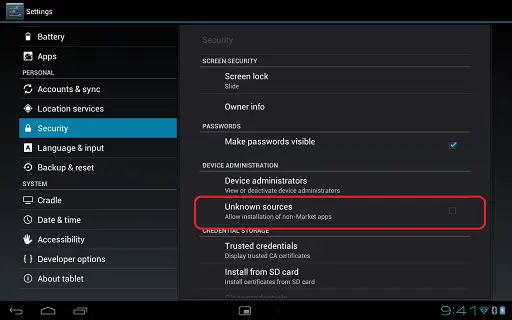
As CIRA Canadian Shield, the cybersecurity service from Canada’s national domain authority, highlights, only download APK files from sources you trust. Sideloading from random websites exposes your device to malware and puts your personal data at risk.
Open your installed IPTV player
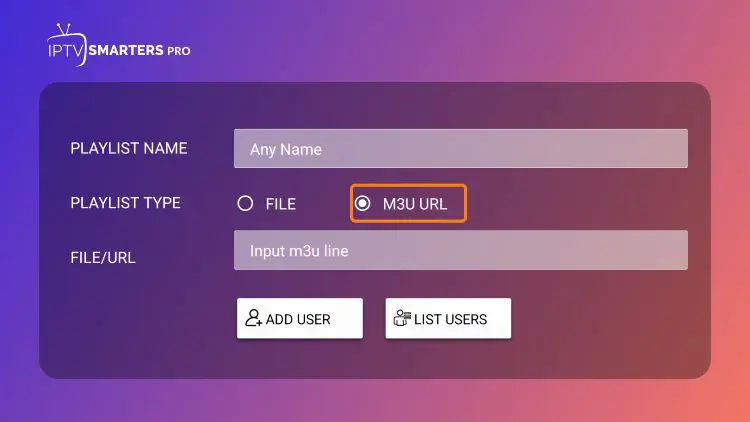
Navigate to the Add Playlist or Remote Playlist section
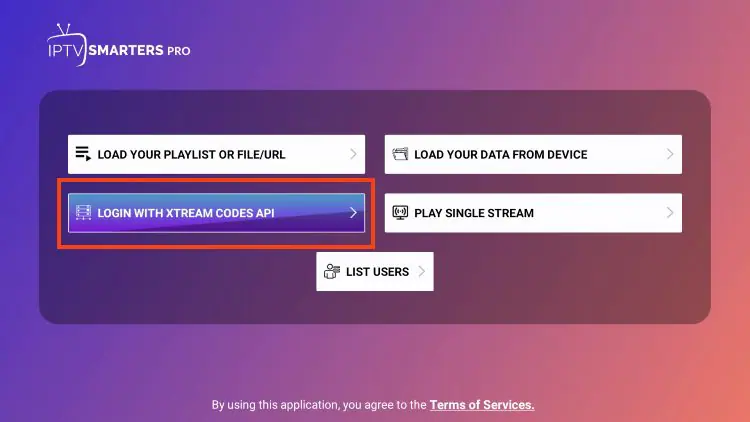
Choose between M3U URL
Or Xtream Codes API
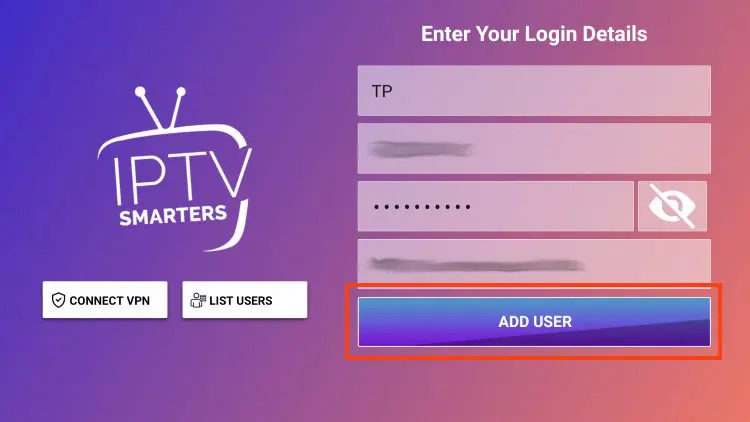
For M3U: paste your provider’s playlist URL exactly as given
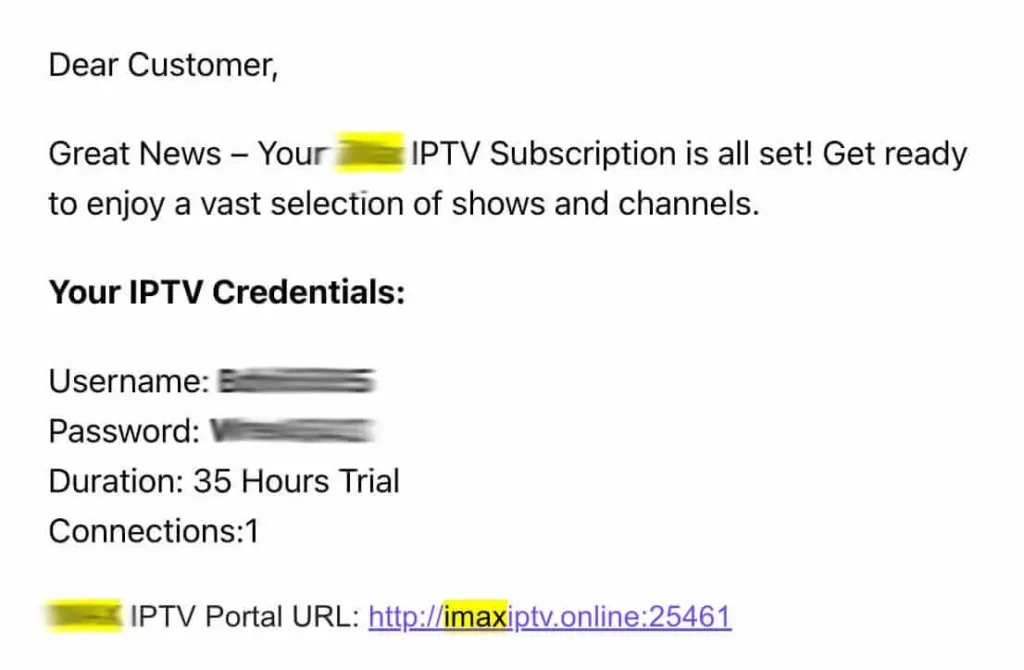
For Xtream Codes: enter the server URL, username, and password separately
Give the playlist a memorable name (e.g., “My IPTV”)
Click Save or Add and wait 30–60 seconds for channels to load
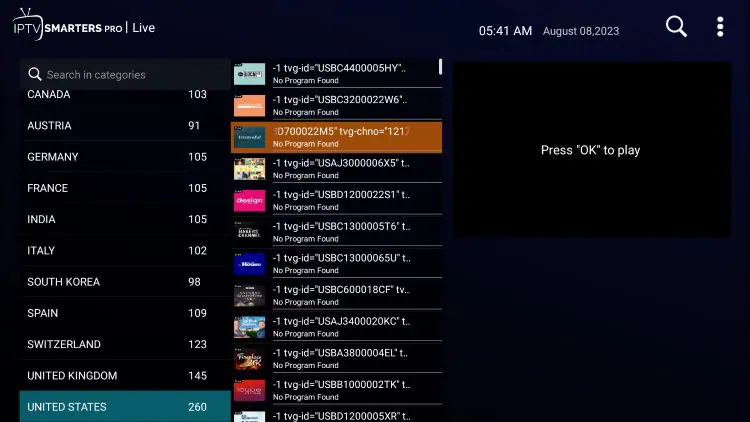
Xtream Codes is the better option whenever your provider supports it. It updates automatically when servers change, integrates more cleanly with EPG data, and handles VOD libraries better than a basic M3U link.
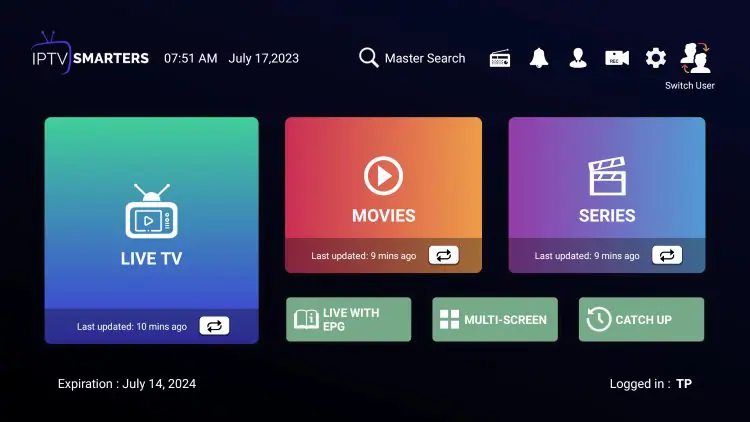
A properly configured EPG turns a raw channel list into a real TV guide:
Hardware acceleration matters most on high-bitrate streams. Without it, even fast hardware can stutter.
The core setup above is identical everywhere. These are the only real differences by device.
Sony, TCL, Hisense, and most other Android TV brands follow the steps exactly as written above, with no extra menus or workarounds. The Play Store, the app install, and the credential entry screen all look the same as on any Android TV set.
Google TV runs the standard steps above with one cosmetic difference: the home screen and its recommendations feed pull mostly from installed streaming apps, so most of your IPTV browsing happens inside the player itself rather than on the Google TV home screen. The Play Store sits under the Apps tab, and you can use the Google Assistant voice button on the remote to search for your player by name instead of typing. Everything else, from the credential screen to the EPG setup, is the same process described in sections 2 through 6.
The NVIDIA Shield TV follows the same setup as any other Android TV device, with one feature worth turning on afterward: AI upscaling. Once your channels load, open the Shield’s own picture settings and enable AI upscaling to sharpen lower-resolution streams, which is one of the main reasons the Shield is a favourite device for IPTV. Because the hardware is more powerful than a typical Android TV box or stick, it also handles 4K playback and fast channel switching a little more comfortably under load.
Before settling in for a full viewing session, run this quick test on whichever device you’re using:
If channels still freeze after these checks, the issue is almost always upstream, meaning your provider’s servers rather than your device. A reliable IPTV provider with stable Canadian infrastructure removes this problem from day one, and a free IPTV trial is the fastest way to confirm a provider holds up before you commit to a full subscription.
Setting up IPTV on Android TV, Google TV, or an NVIDIA Shield is the same quick, repeatable process once you know the steps, with only a handful of small differences worth knowing by device. The Shield’s extra horsepower and AI upscaling reward users chasing the sharpest picture, while Google TV’s interface changes nothing about the actual setup. The most important factor for long-term satisfaction isn’t the player or the device, it’s the IPTV service feeding your stream. Choose your provider carefully, prioritize stability and support over the lowest price, and any of these three devices will deliver a reliable streaming experience for years.
Do I need a special Android TV device to use IPTV? No. Any Android TV, Google TV, or NVIDIA Shield device running Android 7.0 or higher supports modern IPTV apps like TiviMate, IPTV Smarters Pro, and XCIPTV.
Is Google TV the same as Android TV? Google TV runs on top of Android TV, so they share the same app support and the same IPTV setup steps. Google TV mainly changes the home screen and its recommendations.
Why is the NVIDIA Shield considered good for IPTV? The Shield pairs full Android TV app support with stronger hardware and AI upscaling, which sharpens lower-resolution streams and reduces lag on demanding 4K channels compared with basic streaming sticks.
Why won’t my IPTV channels load after setup? The most common causes are an expired M3U URL, a typo in the credentials, or your provider’s server being temporarily down. Double-check the URL and try a browser test before contacting support.
Do I need a VPN to use IPTV on Android TV, Google TV, or Shield? Not always. A VPN helps if your ISP throttles streaming traffic or you need to keep access to your usual content while travelling; our VPN for IPTV guide covers exactly when it’s worth adding one.
What internet speed do I need for 4K IPTV streaming? A minimum of 25 Mbps, though 50 Mbps is recommended for stable 4K streaming with no buffering during peak hours.
Can I use the same IPTV subscription on multiple Android TV devices? Yes, but the number of simultaneous streams depends on your provider’s plan. Our guide on watching IPTV on multiple devices explains how connection limits work.
Should I use Wi-Fi or Ethernet for IPTV on Android TV? Ethernet is strongly preferred whenever possible. A wired connection delivers more stable bandwidth and lower latency, especially for 4K streams and live sports.
Why is my EPG empty after setup? This usually means your provider supplies a separate EPG URL that wasn’t entered during setup. Open your player’s EPG settings and paste the XMLTV URL your provider sent.
Premium IPTV subscription built for Canadian viewers