
To set up IPTV on Apple TV, install IPTV Smarters Pro (free) or GSE Smart IPTV Pro (paid) from the App Store on the Apple TV itself, then add a playlist with the Xtream Codes details or M3U link from your IPTV Canada provider. Live TV, movies and the TV guide load in a few minutes, all controlled with the Siri Remote.
Apple TV only installs apps from its own App Store, so there’s nothing to sideload and nothing to unlock: the whole setup is a search and a login. Setting up an iPhone, Fire Stick or smart TV as well? Our IPTV setup guide has the steps for each.
1. How IPTV Works on Apple TV
An IPTV app on Apple TV is a player: it connects to your provider’s server with your login and shows the channel list, the TV guide and the on-demand library in a layout built for the remote. The app has no channels of its own; those come from your IPTV subscription. Because tvOS is closed, you can only use players that Apple lists in the Apple TV App Store, which is why this guide sticks to the two that are there, maintained and reliable.
2. Check Your Apple TV First
- Its tvOS version. Smarters Pro needs tvOS 15.6 or later. Check under Settings, General, About, and update under Settings, System, Software Updates. On an older Apple TV that can’t update, check whether Smarters Player Lite is offered in your App Store.
- Your Apple Account. The App Store needs you signed in; GSE also needs a payment method on the account, since it’s a paid app.
- Your login details. The server URL, username and password (or M3U link) from your welcome email. Typing them is easiest with the Apple TV Remote on your iPhone, which brings up the iPhone keyboard. No subscription yet? An IPTV free trial sends working details to test with.
- A steady connection. About 25 Mbps for HD and 50 Mbps for 4K. If your Apple TV has an Ethernet port, use it; our internet speed guide explains how to test the line.
3. Smarters Pro or GSE Smart IPTV?
| App | Cost | Login types | Best for |
|---|---|---|---|
| IPTV Smarters Pro | Free, with upgrades | Player API (Xtream Codes), M3U | Most people; the same app as on iPhone and TVs |
| GSE Smart IPTV Pro | Paid app | Xtream Codes, M3U, separate EPG link | People who want a detailed TV guide and don’t mind paying once |
Not sure? Start with Smarters Pro: it’s free and you log in right on the TV.
4. Option 1: IPTV Smarters Pro
Step 1: Find it in the App Store
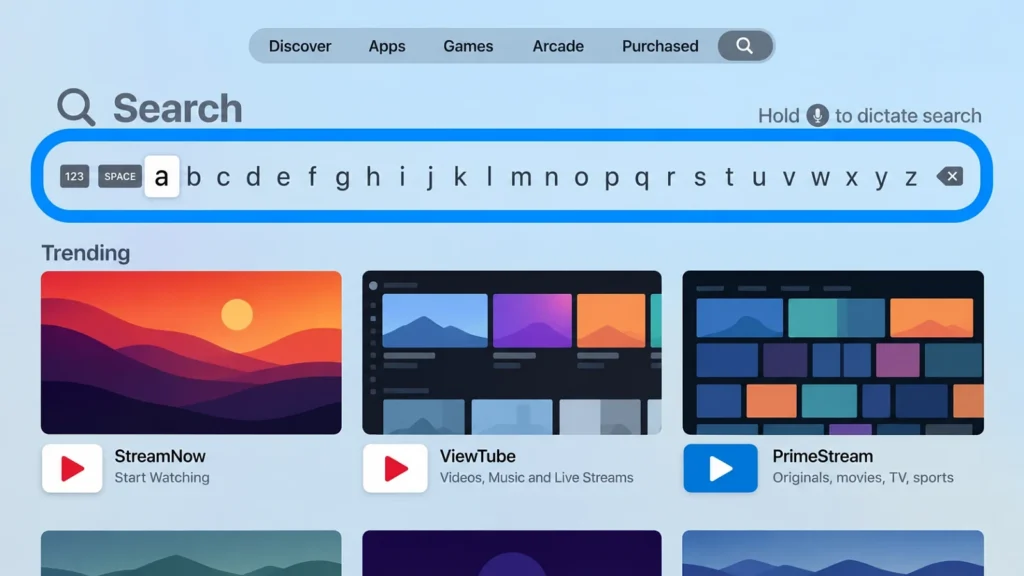
Open the App Store, go to Search and type Smarters Pro, then pick the one by Tech Smarters Private Limited. It needs tvOS 15.6 or later; on an older Apple TV, check whether Smarters Player Lite is offered in your App Store instead.
Step 2: Get it and open it
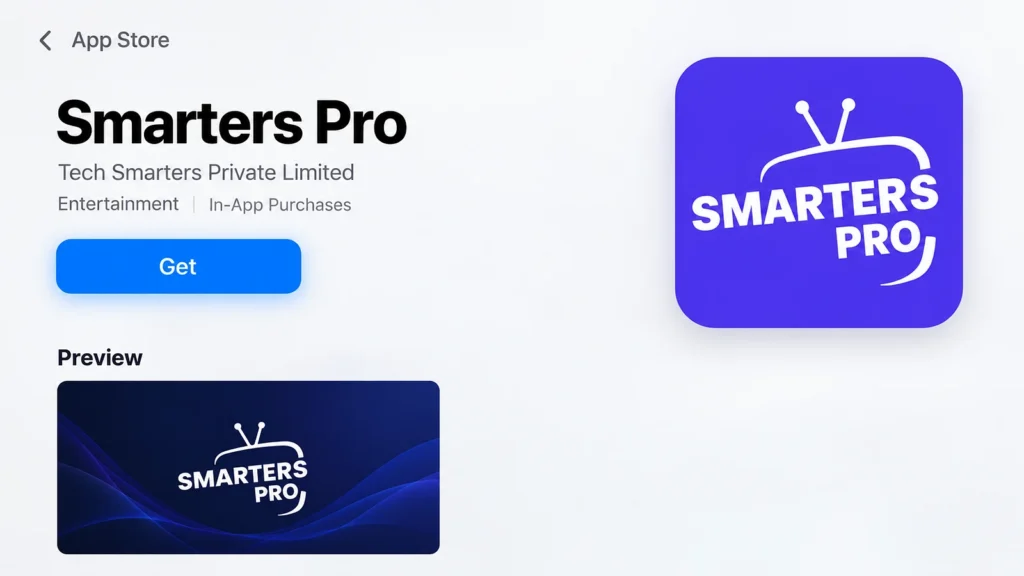
Select Get, then Open. Check the listing says Smarters Pro by Tech Smarters Private Limited; similar names belong to other developers.
Step 3: Choose the login type
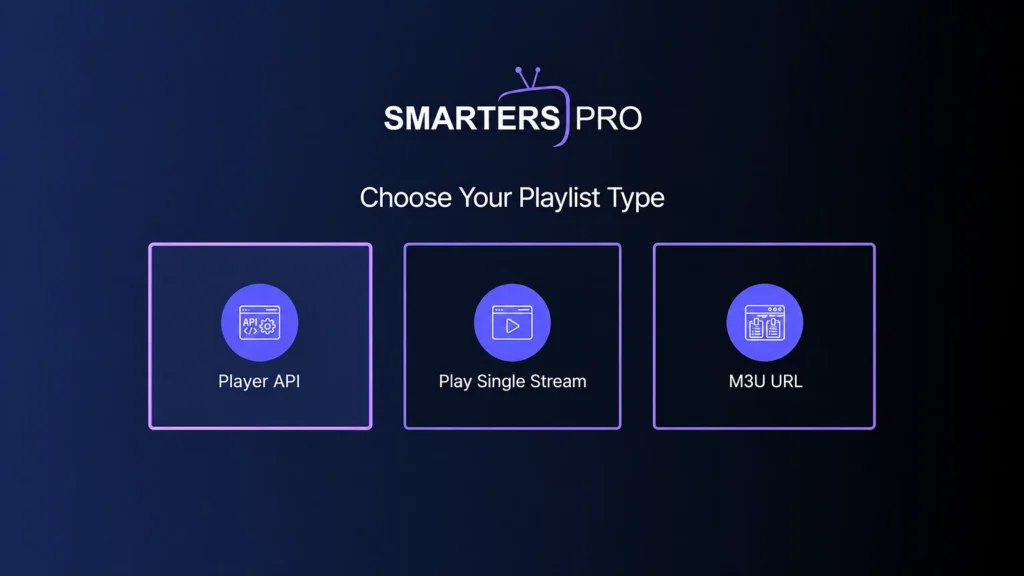
Choose Player API (some versions call it Xtream Codes API). For an M3U link, choose M3U URL instead.
Step 4: Enter your details
Enter a playlist name, then your username, password and server URL exactly as they appear in your welcome email, with a port number only if your email includes one.
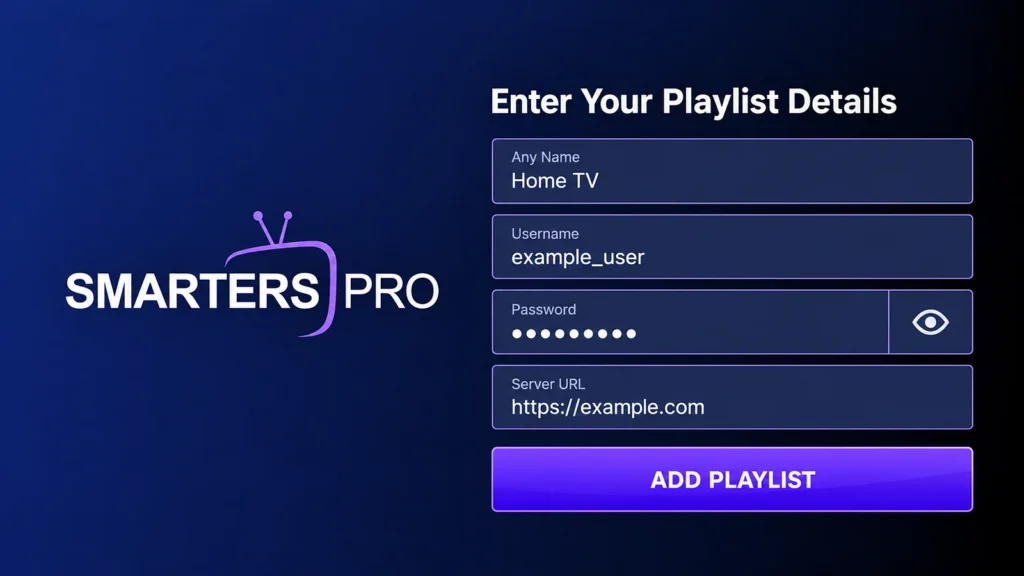
Step 5: Add the playlist
Select Add Playlist (or Add User) and wait while Live TV, Movies and Series load.
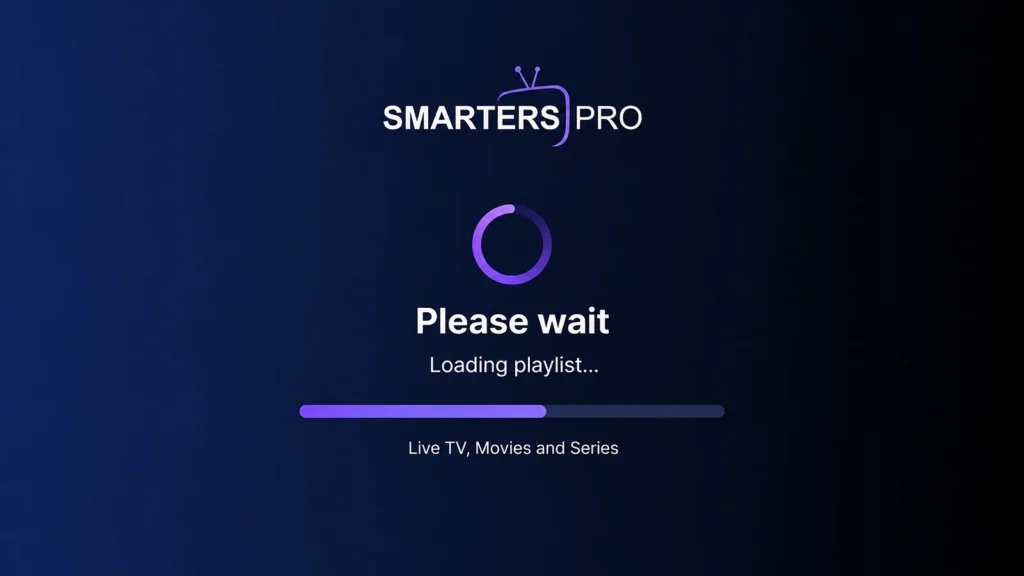
Smarters Pro on an iPhone or iPad doesn’t pick up this playlist by itself, so add the same details there too; our IPTV Smarters Pro guide covers the login on every device.
5. Option 2: GSE Smart IPTV Pro
Step 1: Install the app
Open the App Store on your Apple TV, search for GSE Smart IPTV and install GSE SMART IPTV PRO. It’s a paid app, a one-time purchase.
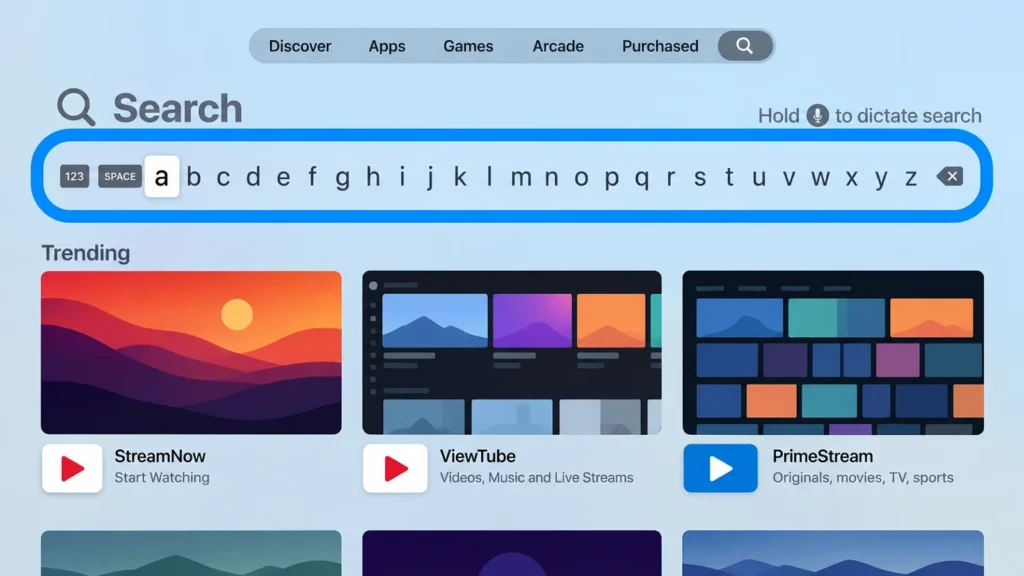
Step 2: Find the playlist menu
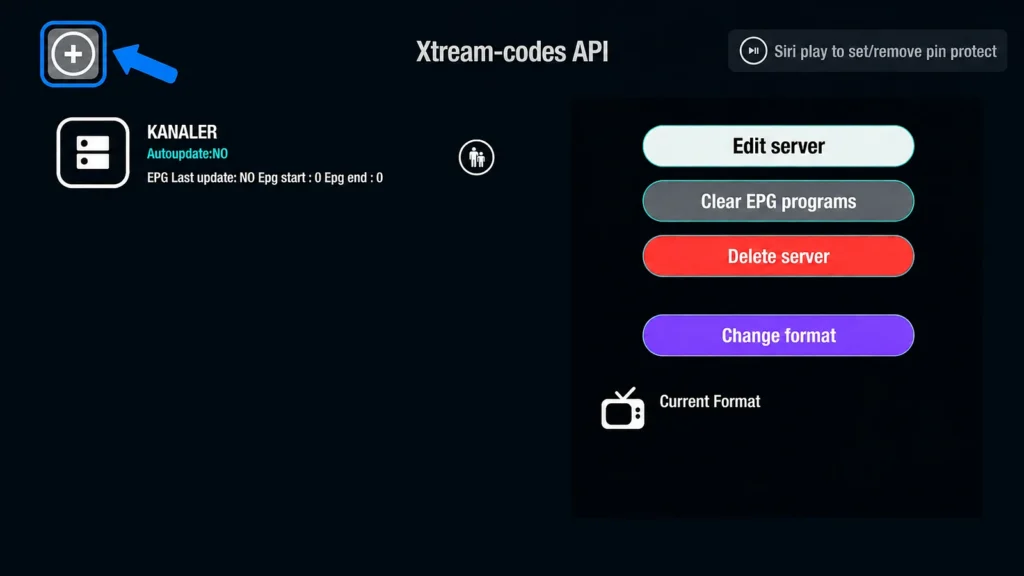
Open the app. The menu has Remote Playlists (for M3U links) and Xtream-codes API.
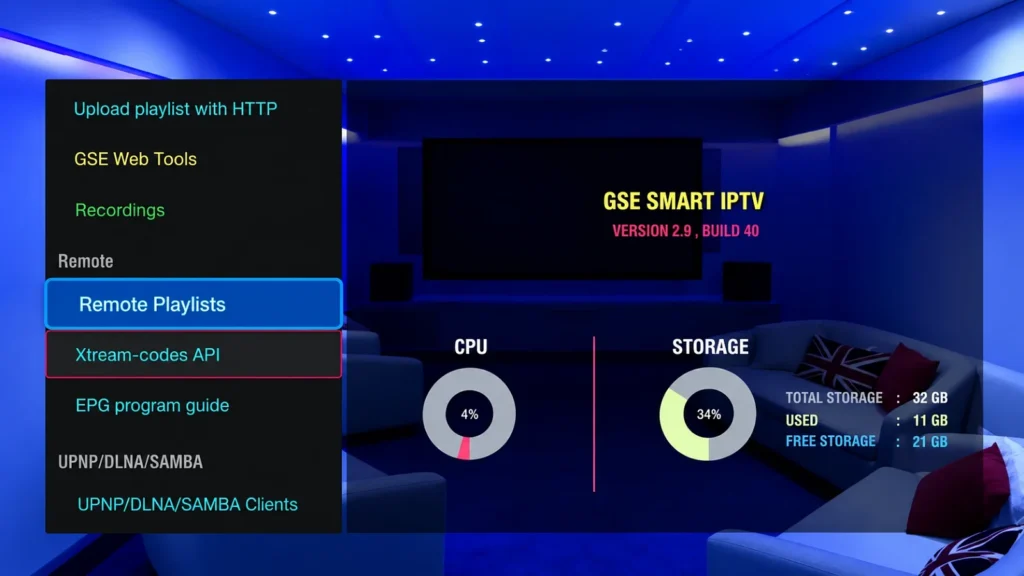
Step 3: Add your service
For Xtream Codes (recommended), open Xtream-codes API and select +. For an M3U link, use Remote Playlists and its add option instead.
Step 4: Log in
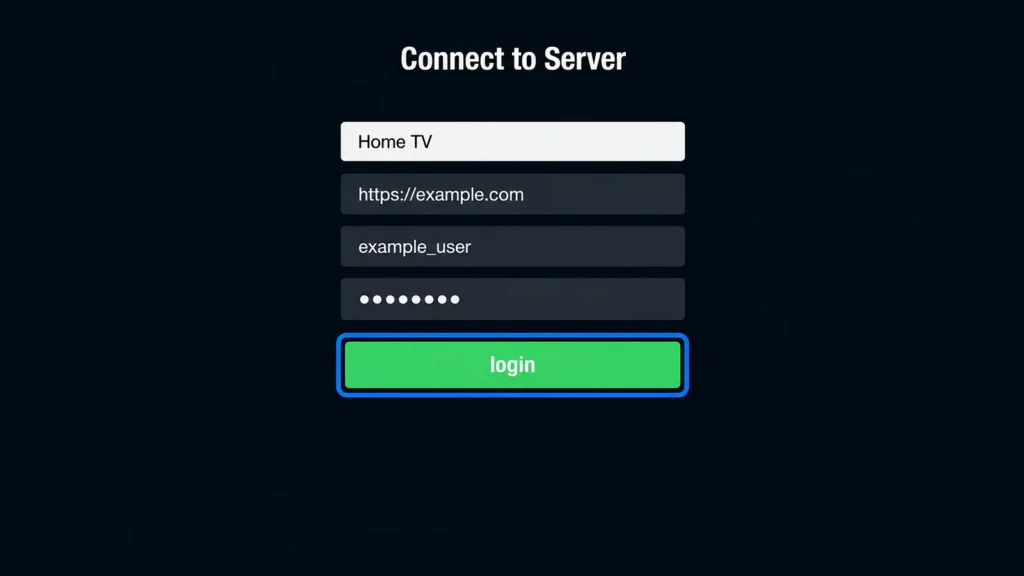
Enter a playlist name, then the server URL, username and password from your welcome email, and select login.
Step 5: Open the TV guide
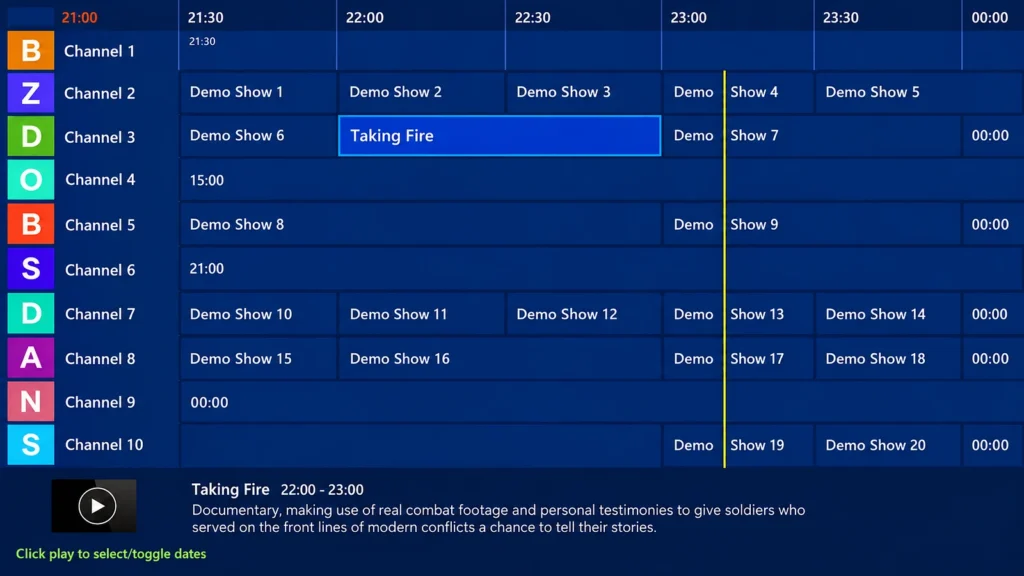
Wait for the channels to load, then open the EPG to see the TV guide. If guide data is missing, add your EPG (XMLTV) link in the app’s EPG settings.
GSE runs on iPhone and iPad too, as a separate purchase; our GSE Smart IPTV guide goes through its settings.
6. Make the Picture and Guide Look Right
Two Apple TV settings make a visible difference with IPTV, because channels come in different frame rates (25, 30, 50 and 60) and some in HDR:
- Match Frame Rate. Under Settings, Video and Audio, Match Content, turn on Match Frame Rate so sports don’t judder. Turn on Match Dynamic Range too if your TV supports HDR. Apple explains both on its Match Content support page; expect a brief blank screen when the TV switches.
- The guide. Xtream Codes logins fill the TV guide on their own. With an M3U link, add the EPG link in the app; our EPG guide covers missing listings and wrong times.
- Favourites and a PIN. Mark the channels you watch most, and use the app’s parental lock for adult categories; see our parental control guide.
7. Or Watch From Your iPhone With AirPlay
If you already use an IPTV app on your iPhone or iPad, you can send a channel to the Apple TV with AirPlay instead of setting up a second app: play the channel, tap AirPlay and choose the Apple TV. Both need to be on the same Wi-Fi, and it only works when the app and the stream support AirPlay. A dedicated app on the Apple TV is steadier for long viewing, since the phone doesn’t have to stay on. Our iPhone guide has the details.
8. Troubleshooting on Apple TV
| Problem | Likely cause | Fix |
|---|---|---|
| Smarters Pro won’t install | tvOS older than 15.6 | Update tvOS, or check whether Smarters Player Lite is offered |
| Login fails or the list is empty | A typo, an extra space, or a port that isn’t in your email | Re-enter the details exactly; leave the port out unless your email has one |
| Sports look jerky | Frame rate mismatch | Turn on Match Frame Rate |
| Buffering in the evening | Wi-Fi or a busy network | Use Ethernet if your model has it; pick the HD version; see our buffering and outage guide |
| Guide empty or at the wrong times | M3U login without an EPG link, or time zone | Add the XMLTV link; check Settings, General, Time Zone |
9. Legal Basics in Canada
Both apps in this guide are listed and reviewed by Apple and are perfectly legal; they’re only players. Whether IPTV is legal depends on the service: a licensed provider holds the rights to what it streams, an unlicensed one doesn’t, and unlicensed services are the ones that disappear without notice. Our guide on whether IPTV is legal in Canada covers what to check before you pay.
Frequently Asked Questions
What is the best IPTV app for Apple TV?
IPTV Smarters Pro for most people: it’s free and you log in on the TV. GSE Smart IPTV Pro is a paid alternative with a more detailed TV guide.
Is Smarters Pro free on Apple TV?
Yes, it’s free to download, with optional upgrades in the app. You still need an IPTV subscription for the channels.
Why can’t I find Smarters Pro on my Apple TV?
It needs tvOS 15.6 or later, so an older Apple TV won’t show it. Update tvOS if you can; otherwise check whether Smarters Player Lite is offered.
What does Player API mean in Smarters Pro?
Player API is Smarters Pro’s name for the Xtream Codes login: server URL, username and password. Pick it if your welcome email has those three details.
Can I sideload an IPTV app on Apple TV?
Not in any practical way. Apple TV installs apps from the App Store, and both players in this guide are there.
Do I need a 4K Apple TV for IPTV?
No. An Apple TV HD runs both apps for HD channels. You need an Apple TV 4K, a 4K TV and about 50 Mbps for 4K channels.
Can I use the same subscription on my Apple TV and iPhone?
Yes. Add the same details in each app; each device watching at the same time uses one of your plan’s connections. Our guide on watching IPTV on multiple devices explains the limits.
Have another question? Find more answers in our IPTV FAQ.
Conclusion
Apple TV is the simplest box to set up for IPTV because there’s only one way in: the App Store. Pick Smarters Pro if your Apple TV runs tvOS 15.6 or later, GSE if you’d rather pay once for its detailed guide, and the rest is typing your details once with the iPhone keyboard.
The one setting worth a minute afterwards is Match Frame Rate. IPTV channels mix 25 and 60 frames per second, and without it a hockey game can judder even on a fast connection. Turn it on, wire the Apple TV if it has a port, and it stays one of the smoothest ways to watch.