
To install IPTV on a Fire Stick, unlock Developer Options, add the free Downloader app from the Amazon Appstore, and use it to install TiviMate with the code 272483. Then sign in with the Xtream Codes details or M3U link from your IPTV Canada provider, and your channels and TV guide load in a few minutes. No computer or phone is needed at any point.
One check before you start: the Fire TV Stick 4K Select and newer Fire TV Sticks run Amazon’s Vega OS, which only installs apps from the Amazon Appstore, so these steps don’t work on them. Every older Fire TV Stick, Fire TV Cube and Fire TV smart TV is fine. On a different device? Our IPTV setup guide has the steps for it.
1. How IPTV Works on a Fire Stick (and Why You Sideload)
IPTV players like TiviMate aren’t listed in the Amazon Appstore, so you install them by sideloading: fetching the app’s installer file directly with a downloader tool instead of the store. It’s a normal process that Amazon builds in through the Developer Options menu, and it doesn’t modify the Fire Stick’s system. Once installed, the player works like any other app: it connects to your provider’s server, pulls in the channel list and EPG guide, and streams over your internet connection.
The player itself has no channels. Your IPTV subscription supplies the content; the app is just the screen it plays on.
2. Check Your Fire Stick Before You Start
The Fire Stick is the easy part. Most failed installs come from one of four things: the wrong model, a slow remote-typed login, a full stick, or a weak Wi-Fi signal behind the TV.
- Your model. Open Settings, My Fire TV, About. If it says Fire TV Stick 4K Select or a newer stick on Vega OS, sideloading isn’t possible; chat with us and we’ll suggest another way to watch.
- Your login details, close at hand. The Xtream Codes details (server URL, username, password) or M3U link are in your welcome email. You’ll type them with the remote, so have them on your phone screen. No subscription yet? An IPTV free trial gives you working details to test with tonight.
- Some free space. About 300 MB is comfortable. If the stick has been slow, restart it first (Settings, My Fire TV, Restart).
- A steady connection. A Fire Stick tucked behind the TV often gets the weakest Wi-Fi in the room. HD needs about 25 Mbps and 4K about 50 Mbps; an Ethernet adapter fixes most evening buffering. Our internet speed guide has the details.
3. Which App to Install: TiviMate or Kodi
TiviMate is the player to pick for most people: it takes Xtream Codes and M3U logins, has one of the clearest TV guides of any IPTV app, and is built for a TV remote. Live TV and the guide work in the free version; TiviMate Premium is an optional paid upgrade for the app itself, separate from your Mode IPTV plan. Kodi is the alternative if you want a full media centre rather than just live TV. Both install through Downloader.
IPTV Smarters Pro used to be the usual choice on Fire TV, but its download site is no longer online and there’s no official Fire TV version, so we don’t recommend it here. For other players by device, see our best free IPTV apps, and for everything TiviMate can do once it’s set up, our TiviMate guide.
4. Step 1: Unlock Developer Options and Allow Unknown Apps
Open Settings, then My Fire TV, then About. Select your device name (for example “Fire TV Stick 4K Max”) and press OK on the remote seven times, until a message says you’re now a developer. Press Back: Developer Options now appears under My Fire TV.
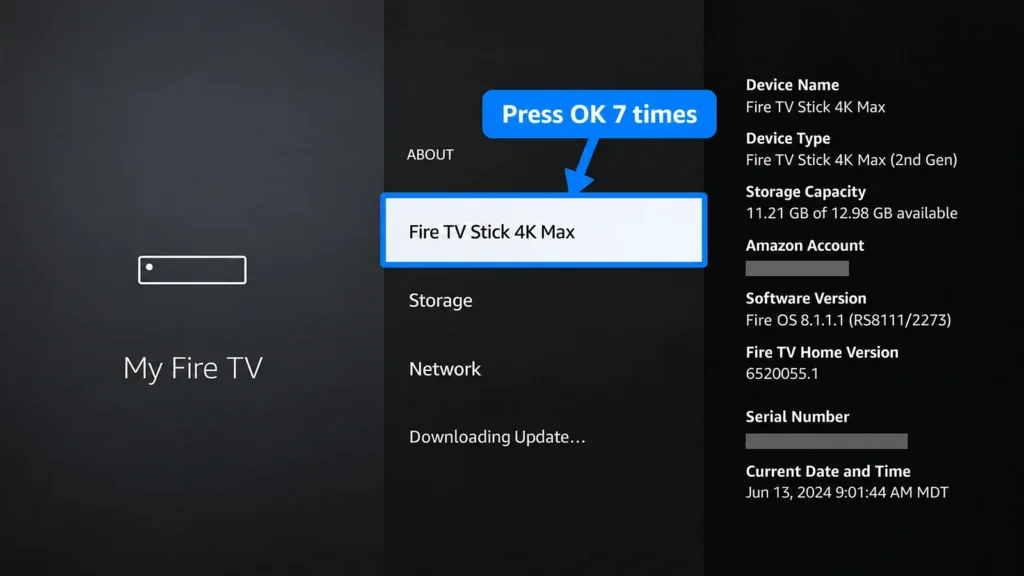
Inside Developer Options you’ll find Install Unknown Apps (or Apps from Unknown Sources on older software). You’ll turn it on for Downloader right after the next step installs it. Amazon describes the Developer Options menu in its Fire TV developer documentation. It’s safe as long as you only install apps from official links, and you can switch it back off afterwards.
5. Step 2: Install the Downloader App
Downloader is the free orange app that fetches your IPTV player. It’s in the Amazon Appstore and comes from AFTVnews, which makes it.
- On the home screen, open Search (or Find) and type “Downloader”.
- Select the orange Downloader app and choose Get or Download.
- Go back to Settings, My Fire TV, Developer Options, Install Unknown Apps, and turn Downloader on.
- Open Downloader and allow file access when it asks.
6. Step 3: Download and Install TiviMate
TiviMate isn’t in the Amazon Appstore. Open Downloader and enter the code 272483 in the address field (or type tivimate.com/apk), press Go, then select Install and open TiviMate.
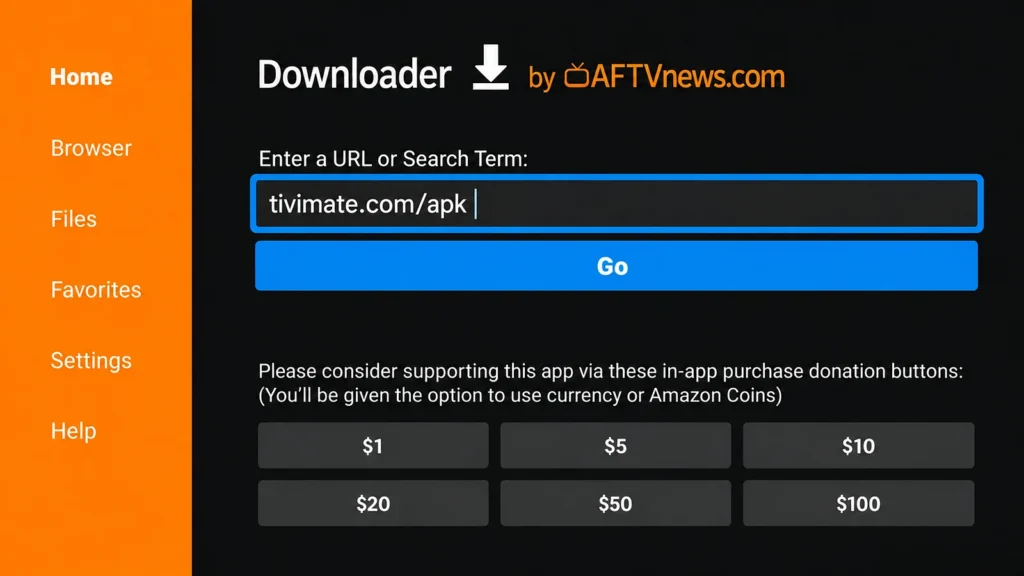
Type slowly: the on-screen keyboard is fiddly and one wrong character sends you somewhere else. After “App installed”, choose Done, then Delete and Delete again to remove the leftover installer and free up space. Use only the official tivimate.com source; random APK sites are the usual way Fire Sticks pick up unsafe software.
7. Step 4: Sign In With Xtream Codes or an M3U Link
This is where TiviMate connects to your subscription. Enter everything exactly as your welcome email shows it, watching for stray spaces and capital letters.
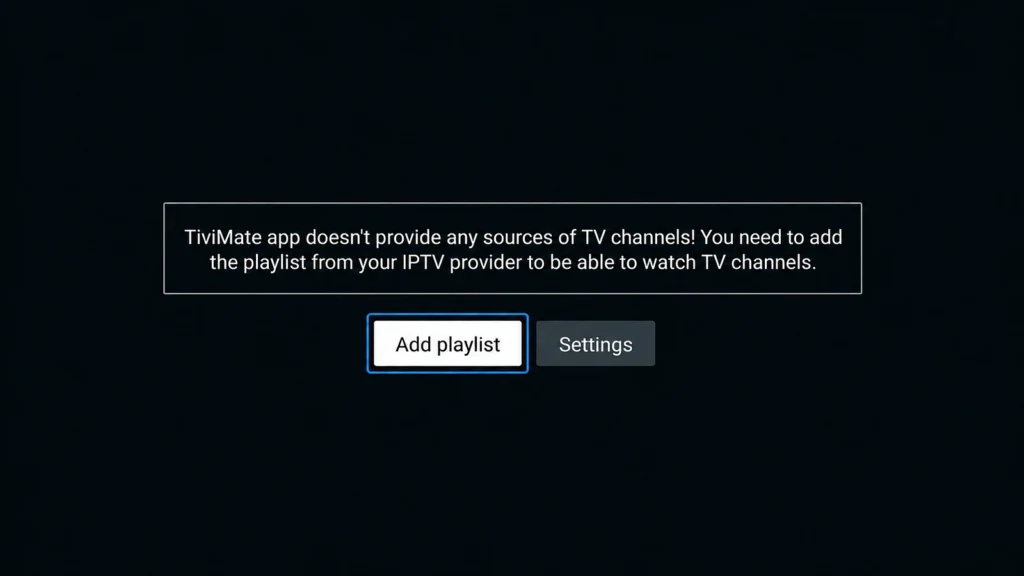
Add a playlist
Open TiviMate from Apps and Channels and select Add playlist.
Choose the login type
Choose Xtream Codes (recommended), or M3U playlist if you have a playlist link.
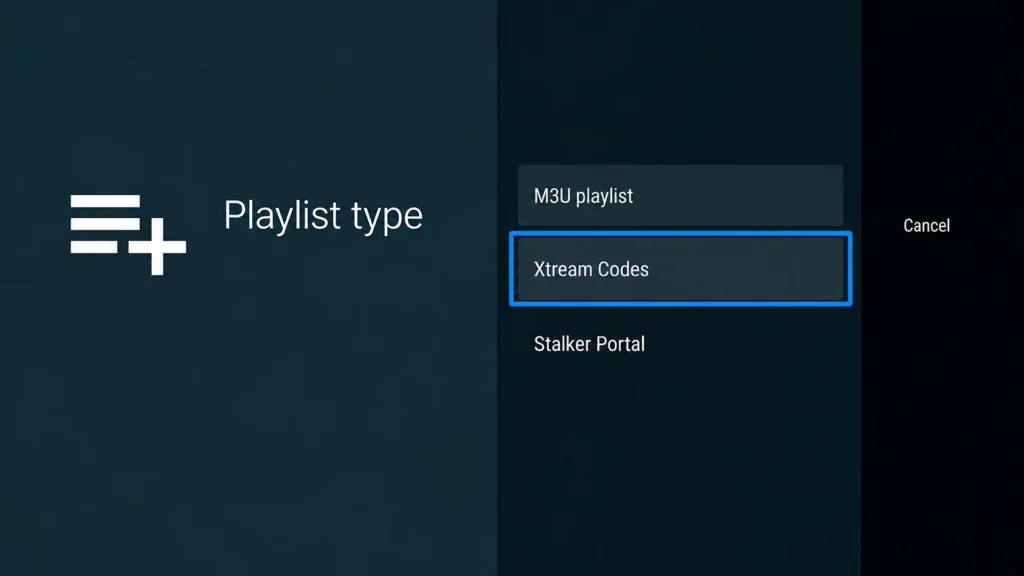
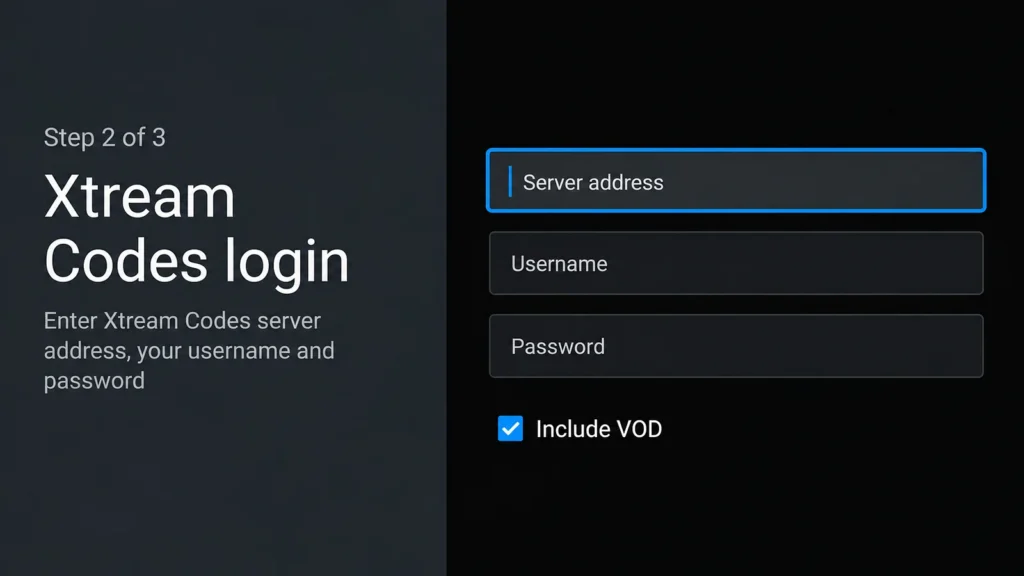
Enter your details
Enter your server URL, username and password, select Next and wait while TiviMate loads your channels. With an M3U link, paste the whole link instead.
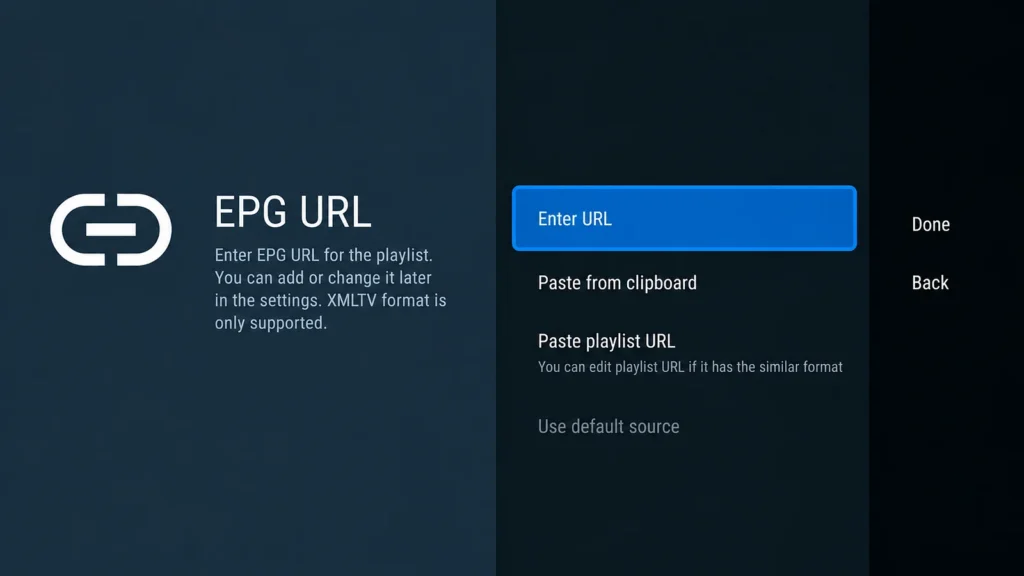
Add the TV guide (M3U only)
Using an M3U link? TiviMate asks for an EPG URL next. Paste the XMLTV link from your email so the TV guide fills in. Xtream Codes logins bring the guide with them.
An empty channel list after signing in is almost always a typo in the details or an expired plan, not an app problem. Our guide on where your IPTV URL and login come from explains each field.
8. Option 2: Install Kodi Instead
Kodi suits people who already use it for films and music and want live TV in the same place. It reads an M3U link through a free add-on. Unlock Developer Options and install Downloader first (steps 1 and 2 above), then:
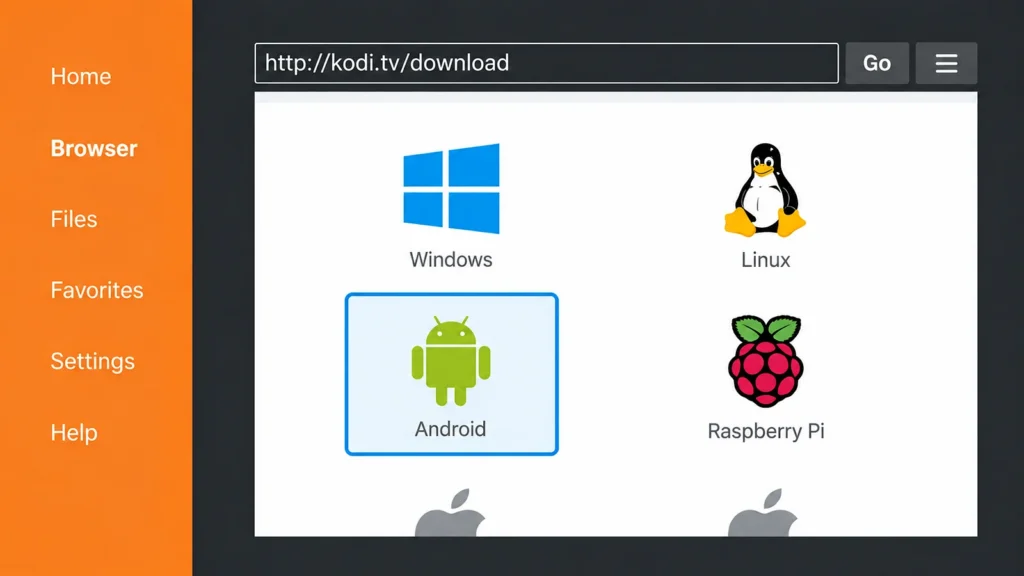
Get Kodi. Open Downloader, type kodi.tv/download in the address field and select Go.
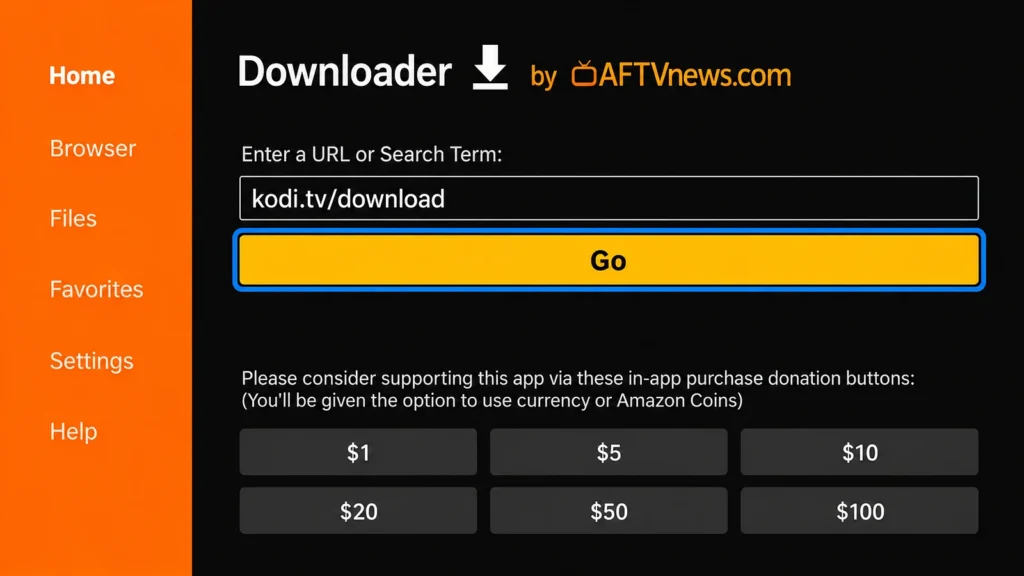
Pick the Fire TV version. Select Android, then ARMV7A (32BIT), and choose Install when your Fire TV asks. Kodi’s official Android download page also offers a 64-bit build; the 32-bit one is the safe choice on Fire TV.
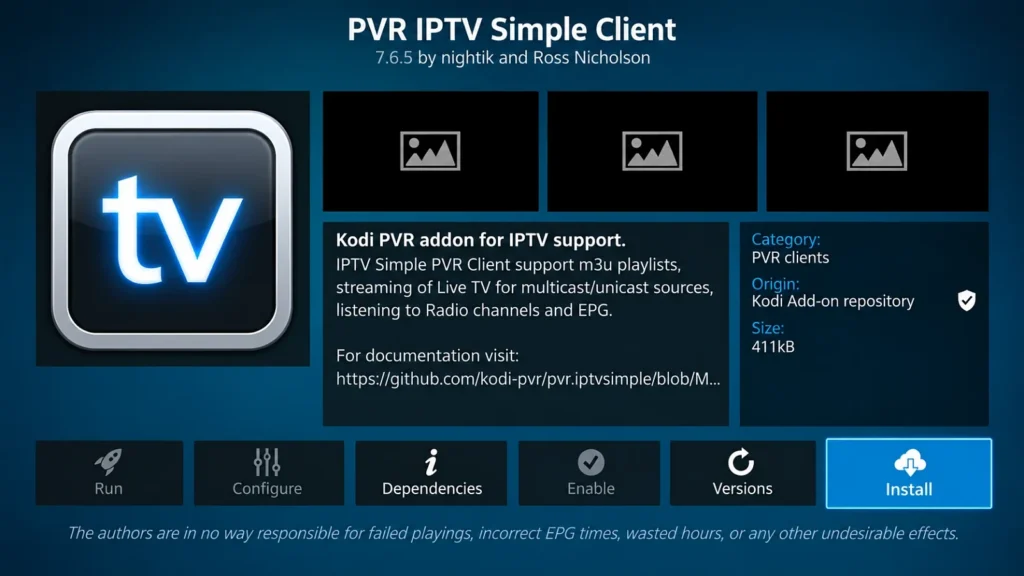
Install the IPTV add-on. Open Kodi and go to Add-ons, Install from repository, PVR clients, PVR IPTV Simple Client, then select Install.
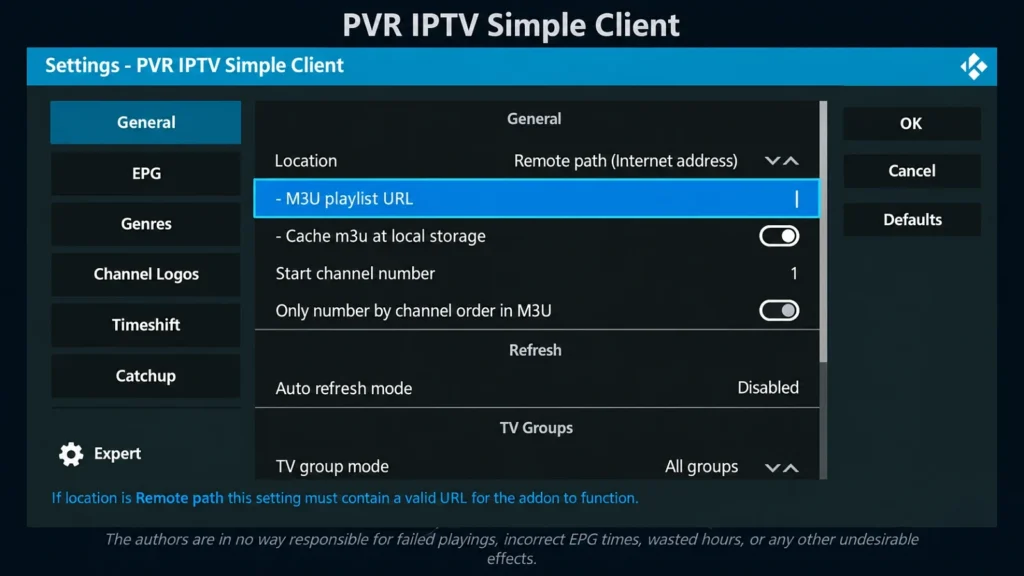
Add your playlist. Select Configure, set Location to Remote path (Internet address), paste your M3U link, then paste your EPG link in the EPG settings.
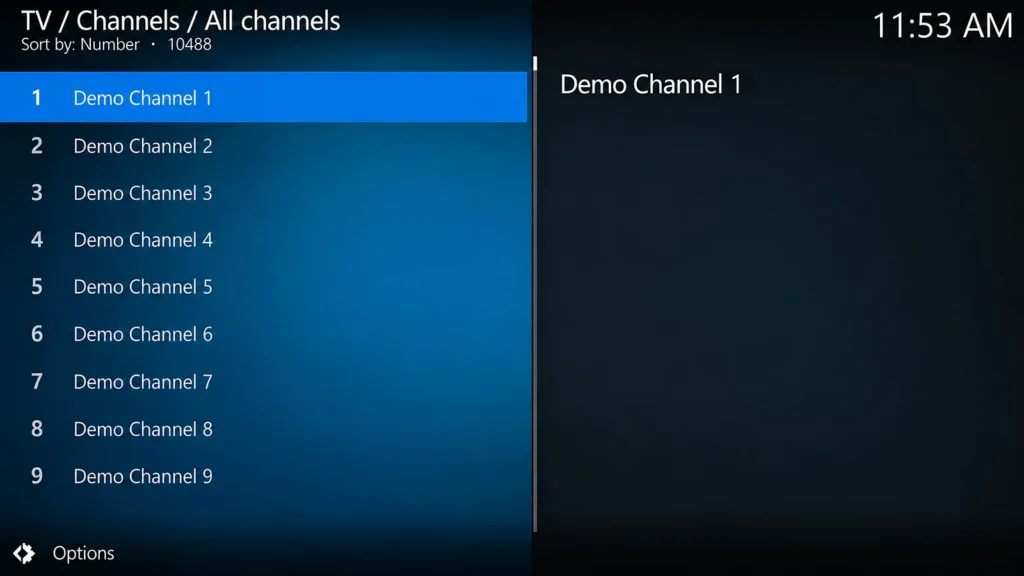
Restart and watch. Restart Kodi. Your channels appear under TV, with the guide.
Kodi has more settings than TiviMate and a steeper learning curve; our Kodi guide covers them in depth.
9. Set Up the Guide, Favourites and Picture Quality
A raw channel list of thousands of entries is hard to use with a remote. Ten minutes in the settings makes the Fire Stick feel like a cable box:
- Refresh the guide. In TiviMate, open Settings, EPG, and update it. If listings are missing for some channels, give it a few minutes after the first load.
- Mark favourites. Long-press OK on a channel to add it to Favourites, so news and sports sit one click away.
- Hide what you don’t watch. Hiding unused country groups makes scrolling much faster.
- Match quality to your line. Forcing 4K on a 20 Mbps connection guarantees buffering. Pick the HD version of a channel if the 4K one stutters.
- Set a PIN. Lock adult and late-night categories before children use the remote; our parental control guide shows how in TiviMate.
10. Fix Common Fire Stick Problems
Start with the connection: a wired adapter and the right picture quality prevent most Fire Stick buffering before you need to look at the app.
| Problem | Likely cause | Fix |
|---|---|---|
| Downloader can’t install the app | Install Unknown Apps is off for Downloader, or a Vega OS stick | Turn it on under Developer Options; check your model under About |
| Empty channel list | Typo in the login, or an expired plan | Re-enter the details character by character; check your renewal date |
| Buffering or freezing | Weak Wi-Fi behind the TV, or 4K on a slow line | Use Ethernet or 5 GHz Wi-Fi; lower the quality; see our buffering and outage guide |
| Freezes only in the evening | Busy home network or provider throttling | Test at 8 p.m. with other devices off; read whether ISPs can block IPTV |
| Stick gets slow over weeks | Full storage and cache | Clear TiviMate’s cache, uninstall apps you don’t use, restart weekly |
| No guide listings | EPG link missing (M3U logins) | Add the XMLTV link from your email in TiviMate’s EPG settings |
If your provider is managing video traffic at peak times, a VPN on the Fire Stick can help; our VPN guide explains when it’s worth it.
11. Legal and Practical Basics in Canada
Installing a player app on your Fire Stick is legal, and so is IPTV when the service holds the rights to what it streams. The app is neutral; the stream source is what matters. Unlicensed services that resell channels without the rights bring problems that show up fast on a Fire Stick: dead channels, servers that disappear mid-season and no recourse when a payment goes wrong. Two habits keep the setup safe: install apps only from official sources, and test a provider during evening peak hours before you pay for a long plan. Our guide on whether IPTV is legal in Canada covers what to check.
Frequently Asked Questions
What is the Downloader code for TiviMate?
272483. Enter it in Downloader’s address field and press Go, or type tivimate.com/apk instead. Both open TiviMate’s official download.
Why isn’t TiviMate in the Amazon Appstore?
Amazon doesn’t list IPTV players like TiviMate, so you sideload them with Downloader. It takes a few minutes and needs no computer.
Is sideloading safe, and does it void the warranty?
Sideloading on a Fire Stick is safe when you use official links like tivimate.com and kodi.tv. It uses Amazon’s own Developer Options and doesn’t change the Fire Stick’s system.
Why won’t my new Fire Stick let me sideload?
The Fire TV Stick 4K Select and newer Fire TV Sticks run Vega OS instead of Fire OS, and it only installs Amazon Appstore apps. Check your model under Settings, My Fire TV, About.
Can I use IPTV Smarters Pro on a Fire Stick?
Not officially. There’s no Fire TV version of the current Smarters Pro, and the old download site is offline. Use TiviMate or Kodi instead.
Do I need to pay for TiviMate?
No. Live TV and the TV guide work in the free version. TiviMate Premium is an optional upgrade for the app’s extra features, separate from your IPTV plan.
What internet speed does a Fire Stick need for IPTV?
About 25 Mbps for HD and 50 Mbps for 4K, per stream. Ethernet or 5 GHz Wi-Fi keeps it steady in the evening.
Can I use IPTV on more than one Fire Stick?
Yes, if your plan has enough connections. Each stick playing at the same time uses one; our guide on watching IPTV on multiple devices explains the limits.
Will TiviMate update by itself?
Yes. The version from tivimate.com checks for updates and offers to install them. Kodi doesn’t, so rerun the Downloader steps when a new Kodi version comes out.
Have another question? Find more answers in our IPTV FAQ.
Conclusion
Most of the work on a Fire Stick happens once: unlock Developer Options, add Downloader, and TiviMate is three keystrokes away with code 272483. After that it behaves like any other app on the home screen, and a reinstall on a new stick takes a couple of minutes. If the stick is one of the newest Vega OS models, sideloading is off the table, so check the model before you buy a long plan for it.
Keep your login details in a note on your phone; you’ll type them more often than you expect, every time you add a second stick or reset one. And if the picture stutters at night, move the stick closer to the router or plug in an Ethernet adapter before you change anything else.