

 Written by Rana
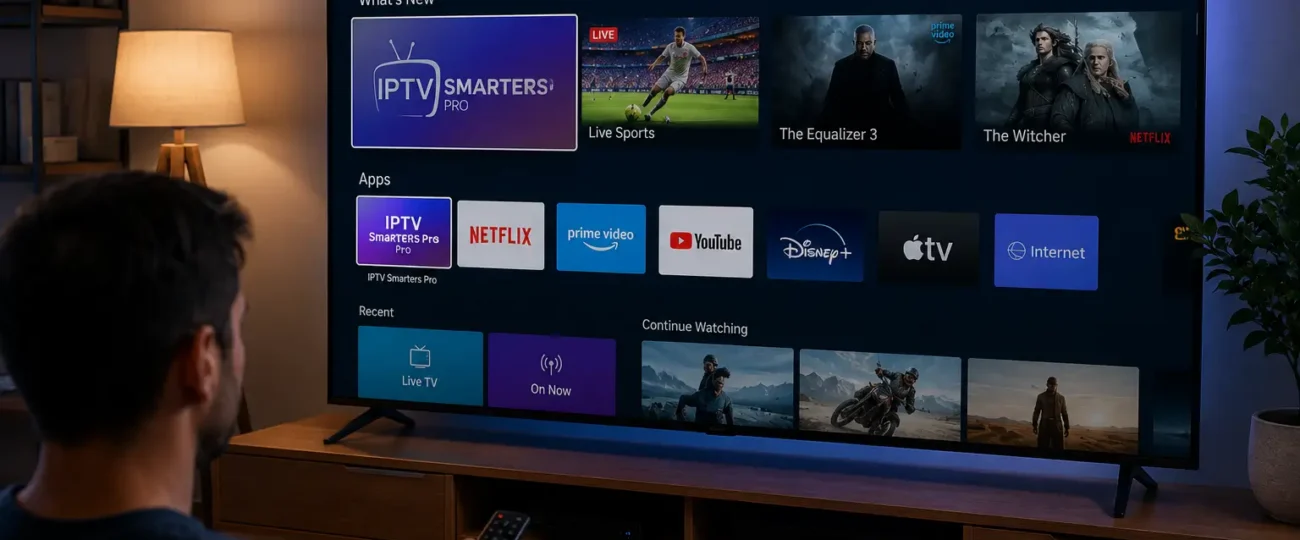
Installing IPTV on your Samsung Smart TV takes 6 steps: connect your TV to a stable internet connection, sign in to your Samsung account, open the Samsung App Store and install a compatible IPTV app like IPTV Smarters Pro or Smart IPTV, launch the app and enter your M3U URL or Xtream Codes credentials, save the settings and let the channel list load, then test channels and adjust your preferences.
The whole process takes about 10 minutes on most Samsung models onward. A reliable IPTV Subscription from a trusted Canadian provider gives you a working M3U URL, EPG link, and step-by-step setup support to make the entire installation effortless.
This guide walks you through every step, from initial setup to your first channel test.
Start with a stable, high-quality internet connection:
Open Settings on your Samsung TV remote.
Navigate to Network →
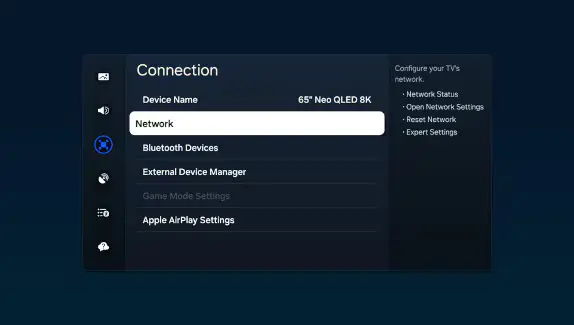
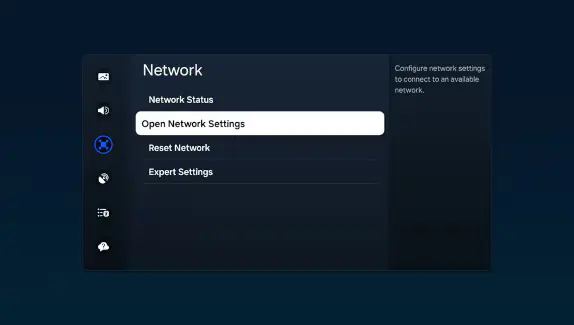
Network Settings.
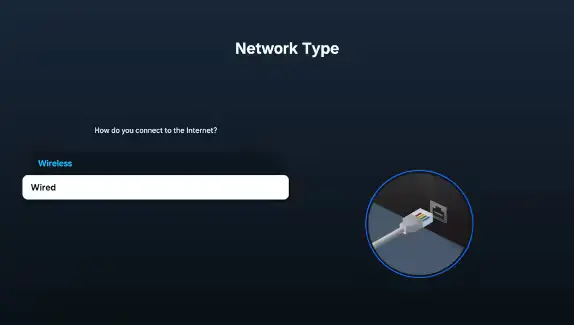
Choose Wireless for Wi-Fi or Wired for Ethernet.
Enter your Wi-Fi password if needed and confirm.
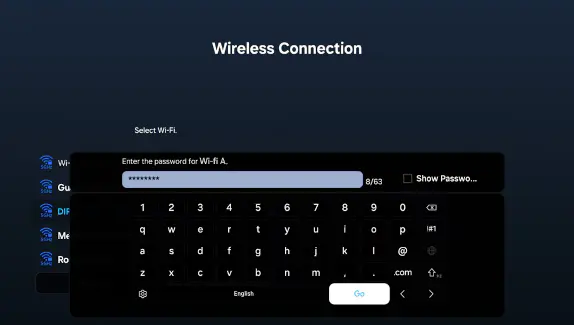
Run a network test under Network → Network Status to verify the connection.
Aim for at least 25 Mbps for HD or 50 Mbps for 4K streaming.
A wired Ethernet connection is always preferable when possible, it eliminates buffering caused by Wi-Fi interference and provides the most consistent stream quality, especially during peak hours when Wi-Fi networks tend to slow down.
Recent Samsung TVs require an account to install apps and sync settings:
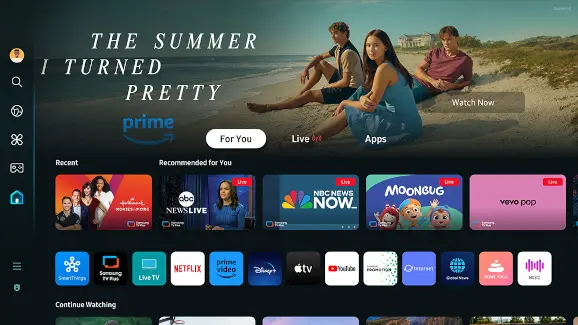
From the Home screen, navigate to the left menu and select Sign In.
Enter your Samsung account email and password.
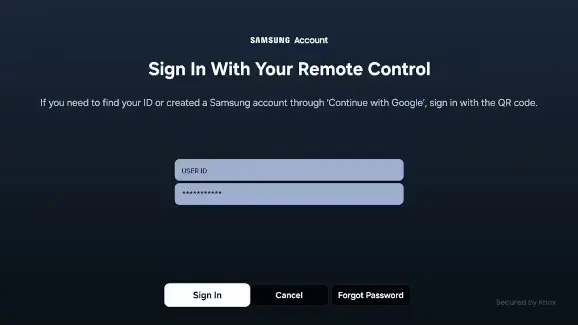
If you don’t have an account yet, create one at account.samsung.com.
Confirm your account on the TV after signing in.
Enable any sync preferences if prompted.
A Samsung account also unlocks features like Samsung TV Plus, app sync across devices, and personalized recommendations, reviewing the privacy settings on connected devices like Smart TVs is recommended to better understand what personal data is collected and how it’s used after sign-in.
The Samsung App Store hosts several IPTV-compatible apps directly:
Press the Home button on your remote.
Navigate to Apps in the main menu.
Click the Search icon (magnifying glass) at the top right.
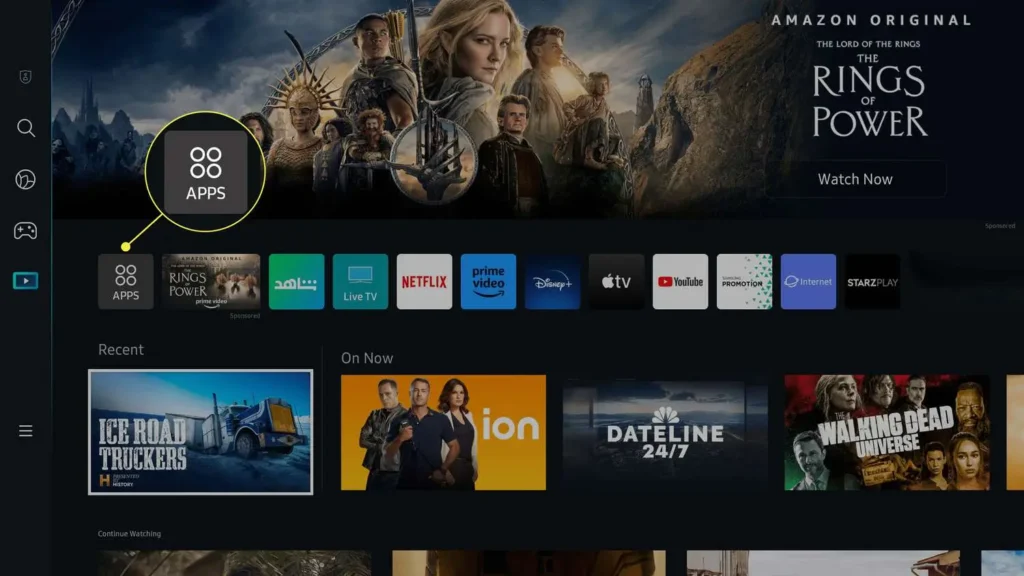
Type the name of your IPTV app (IPTV Smarters Pro, Smart IPTV, or similar).
Select the app from the search results.
Click Install and wait for the download to complete.
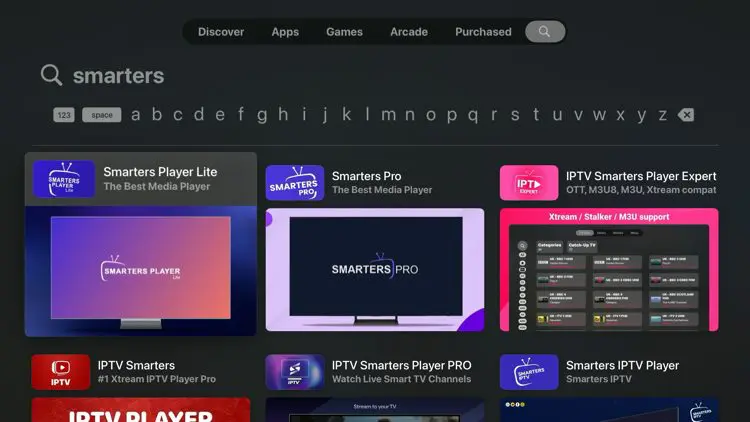
Select Add to Home to pin the app to your home screen.
Stick with well-known, established IPTV apps, they receive regular updates and are known to work cleanly with Tizen OS. Avoid generic apps with vague names or no clear developer information; these often disappear or stop functioning after a few weeks.
Now connect your installed app to your IPTV provider’s source :
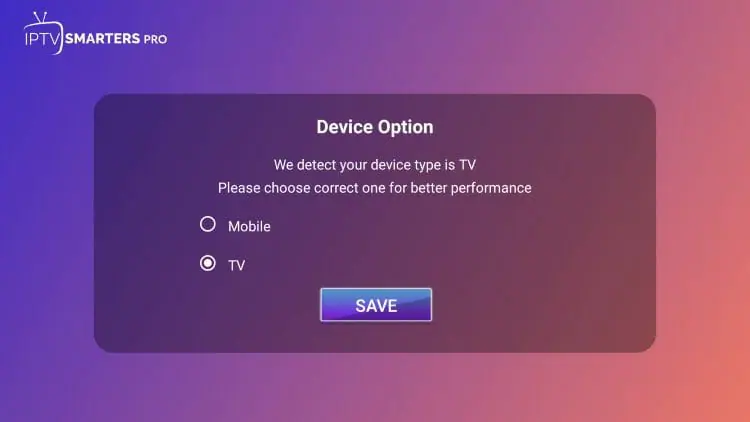
Launch the IPTV app from your home screen, select TV and click Save.
Choose between M3U Playlist or Xtream Codes API during setup.
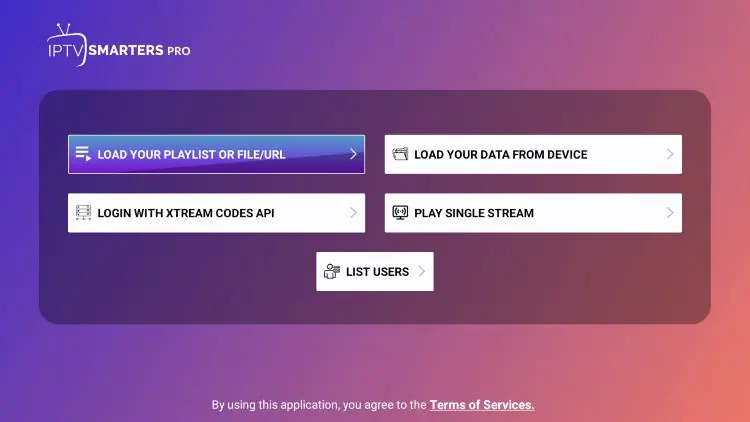
For M3U : paste the playlist URL exactly as your provider gave it.
For Xtream Codes : enter the server URL, username, and password separately.
Add a name for the playlist (e.g., “My IPTV”).
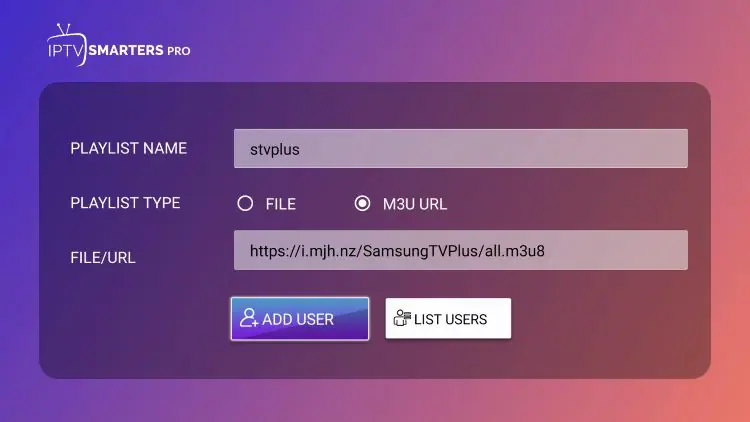
Click Save or Add User to confirm.
A typo in the URL is the most common reason for installation failure. Take an extra few seconds to double-check every character, particularly the protocol (http:// or https://), the port number (often :8080 or :25461), and any special characters in your username or password.
After entering your credentials, give the app a moment to populate everything:
Click Save to confirm your IPTV configuration.
The app will start fetching channels and EPG data automatically.
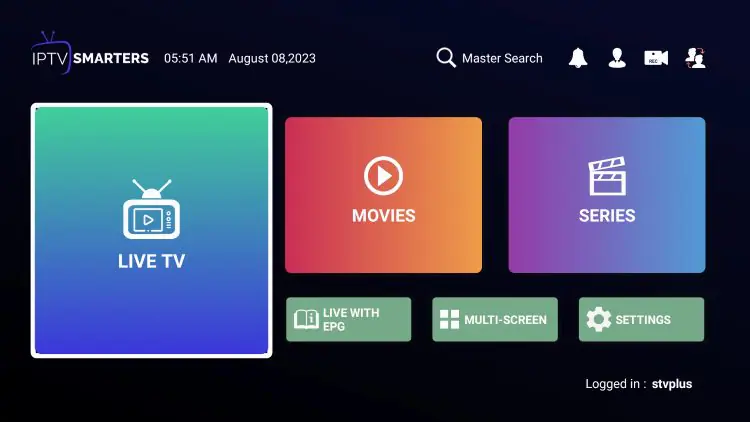
Wait 30 to 60 seconds for the full channel list to populate.
Don’t restart or close the app during the initial load.
If channels don’t appear, manually trigger a Refresh Playlist option.
This first load is when most things go right or wrong. If channels remain empty after a full minute, the issue is almost always a typo in the URL, an expired link, or your provider’s server being temporarily down. Double-check the URL by pasting it into a web browser as a quick test.
Confirm everything works smoothly before settling in for a long viewing session:
Browse through several channel categories (sports, news, kids, etc.).
Open 3 to 4 channels and verify they load within 3 seconds.
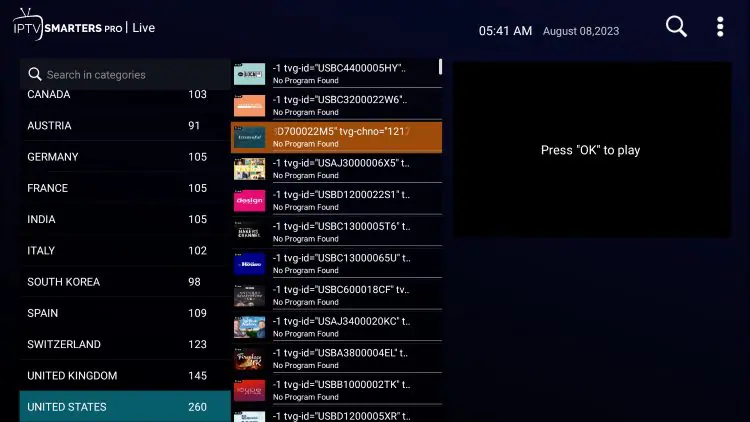
Test channel zapping speed — switching should feel near instant.
Open the EPG and confirm the program guide reflects current shows.
Adjust audio language, subtitle settings, and parental controls.
Test playback during peak hours (7 to 10 PM) for real-world stability.
Reviewing your privacy settings is also worth doing, the Office of the Privacy Commissioner of Canada recommends checking what data your Smart TV apps collect, especially around viewing habits and voice features, and disabling anything you don’t actively need.
Installing IPTV on a Samsung Smart TV is genuinely simple if your TV runs Tizen OS 3.0 or higher (most models from 2017 onward). The Samsung App Store delivers compatible IPTV apps directly, the setup process is straightforward, and the entire installation takes about 10 minutes from start to first channel test. No external hardware, no complicated workarounds, no technical expertise required.
The biggest factor for long-term satisfaction isn’t the app or the TV, it’s the IPTV service feeding your stream. A flawless Samsung setup paired with an unstable provider will still buffer; a basic setup paired with a reliable, well-maintained service runs smoothly year after year.
Choose your provider for stability, transparent licensing, and active customer support, your Samsung Smart TV will handle the rest beautifully.
Most Samsung Smart TVs from 2017 onward (running Tizen OS 3.0 or higher) support IPTV apps directly. Older models may need an external streaming device.
IPTV Smarters Pro and Smart IPTV are the most popular choices on Tizen OS. Both support M3U URLs and Xtream Codes, and both receive regular updates.
The most common causes are an outdated TV model, insufficient internal storage, or an old Tizen OS version. Update your TV firmware first, then retry.
Yes, recent Samsung Smart TVs require a Samsung account to access the Smart Hub and download apps from the official store.
No, Tizen OS doesn’t natively support sideloading like Android TV. You’re limited to apps available in the Samsung App Store, or you need an external device.
Typos in the M3U URL, expired credentials, or your provider’s server temporarily being down are the three most common causes. Verify the URL in a browser as a quick test.
Samsung restricts certain apps based on regional licensing. If a popular IPTV app doesn’t appear in your Canadian Samsung App Store, try changing the TV’s region settings under Settings → General → System Manager → Location, or use an alternative IPTV app that’s officially available in Canada.
Limited compatibility exists on these models. Tizen OS versions prior to 3.0 often lack support for modern IPTV apps. The simplest workaround is connecting an external streaming device (Fire TV Stick, Android TV box, Chromecast) via HDMI, which bypasses the TV’s outdated software entirely.
IPTV Smarters Pro is fully free, with multi-user support and a polished UI. Smart IPTV charges a small one-time activation fee per device but is known for excellent stability and reliability on Tizen OS. Both support M3U URLs and Xtream Codes equally well.
No. Installing IPTV apps from the official Samsung App Store does not void your warranty. Sideloading apps (which isn’t natively supported on Tizen anyway) or attempting firmware modifications could void it, but standard IPTV setup is completely safe.
Freezing usually points to insufficient memory, an outdated firmware version, or background apps consuming resources. Close all other apps, restart your TV, and check for firmware updates under Settings → Support → Software Update. If the issue persists, switch to a wired Ethernet connection.
Updates happen automatically when your TV is connected to the internet. To trigger a manual update, open the Apps section, click Settings (gear icon), navigate to your IPTV app, and select Update if available. Keeping apps updated ensures the latest streaming protocol support.

Premium IPTV subscription built for Canadian viewers