

 Written by Rana
To install IPTV on an LG Smart TV, connect the TV to the internet, open the LG Content Store, install an IPTV player app, then either log in with your Xtream Codes credentials (or M3U link) or activate the app with your TV’s MAC address — your channels load right away.
Good news for LG owners: any model from 2017 onward (webOS 3.5+) runs IPTV player apps natively, so you usually don’t need an external box. To watch anything, you’ll need a reliable IPTV Subscription, a legal service from a licensed provider — that supplies your login details or playlist. This guide walks you through all ten steps, from connecting your TV to fixing the most common issues.
LG webOS runs IPTV apps natively. Open the LG Content Store, install an IPTV player, then connect it with your Xtream Codes/M3U login or by activating your TV’s MAC address. The whole process takes about 5–10 minutes.
Before you start, it helps to know how LG handles IPTV, because it differs from Android-based TVs. LG Smart TVs run webOS, LG’s own system, and you install apps from the LG Content Store rather than a generic app store. The good part is that the workflow is simple and the Magic Remote makes it easy.
The process is similar on a Samsung TV; if that’s what you own instead, see our guide to installing IPTV on Samsung.
Most setup problems come from an older model or a missing detail. Take a minute to confirm your TV can run IPTV apps and to gather what you’ll need. This avoids interruptions partway through.
A stable connection is the foundation of smooth playback, so set this up before installing anything. For a fixed TV on a large screen, a wired connection is always preferable to Wi-Fi, especially for 4K. Confirm the TV is actually online before continuing.
Press Home on the Magic Remote and open Settings.
Go to Network and choose Wired (Ethernet) or Wi-Fi.
Enter your Wi-Fi password if needed and confirm the connection.
Verify the TV can reach the internet.
The LG Content Store is the official place to get IPTV player apps on webOS. It appears on the home launcher bar, though its icon varies by webOS version. If you can’t see it, you can add it from the launcher’s edit menu.
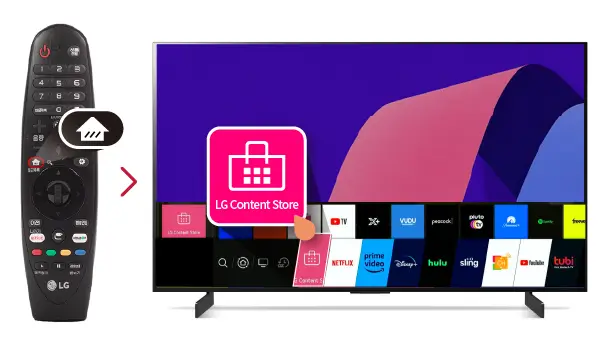
Press Home to bring up the launcher bar at the bottom.
Scroll along the bar to the LG Content Store (briefcase or bag icon).
On newer webOS versions, it may simply be labelled “Apps.”
If it’s missing, open the edit (pencil) icon and add it.
Inside the store, you’ll search for an IPTV player app and install it. Several reliable players exist for webOS; pick one that matches the connection method your provider supports (direct login or MAC activation). Installation works like any other app.
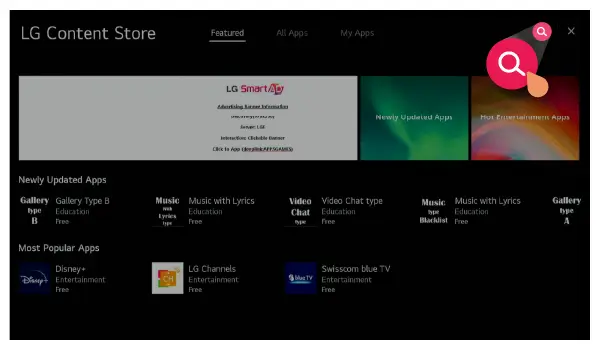
Select the search icon and type “IPTV Smarters Pro“.
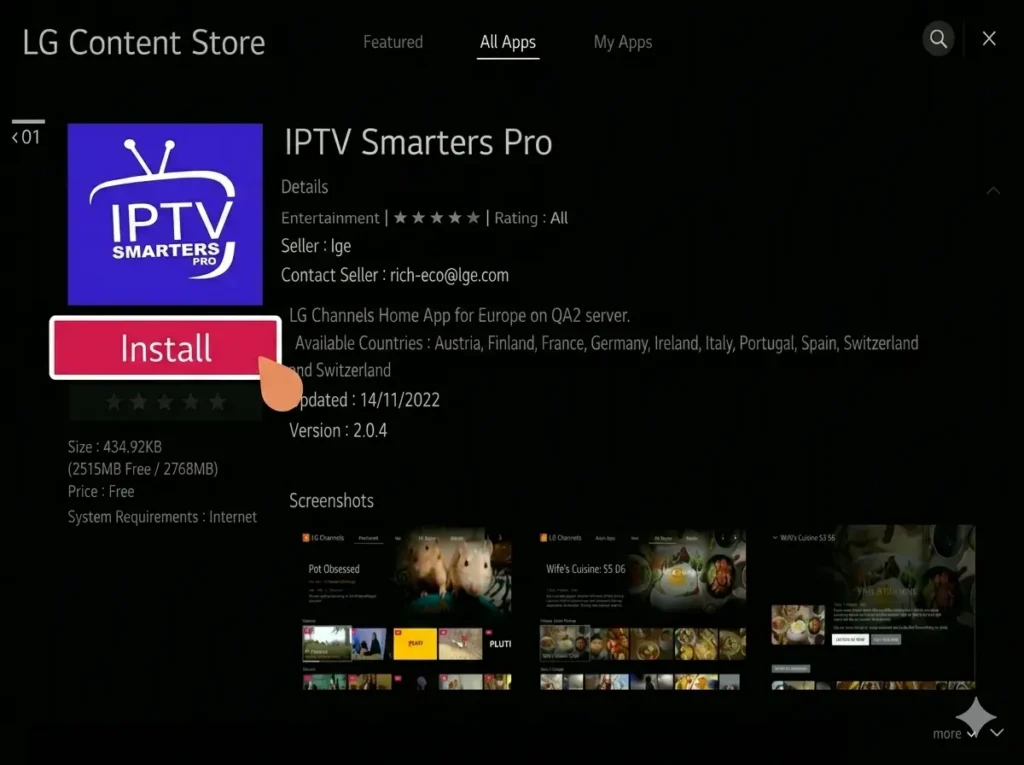
Select Install and wait for the download to finish.
Open the app from your apps panel.
LG player apps connect to your service in one of two ways, and your provider determines which one you’ll use. Knowing this in advance saves confusion. Some apps let you log in right on the TV; others link your account through a web page using the TV’s MAC address.
Direct login: enter your Xtream Codes or M3U details inside the app.
MAC activation: link your playlist on the app’s website using the TV’s MAC address.
Your provider will tell you which method their service supports.
Both methods end with your channels syncing to the TV.
If your app supports direct login, this is the quickest route: everything happens on the TV with no second device needed. Enter the exact details from your provider, since a single typo will block the connection. This method is ideal for Xtream Codes accounts.
Open the player app and choose to add a user or playlist.
Select “Login with Xtream Codes” or “Add M3U URL.”
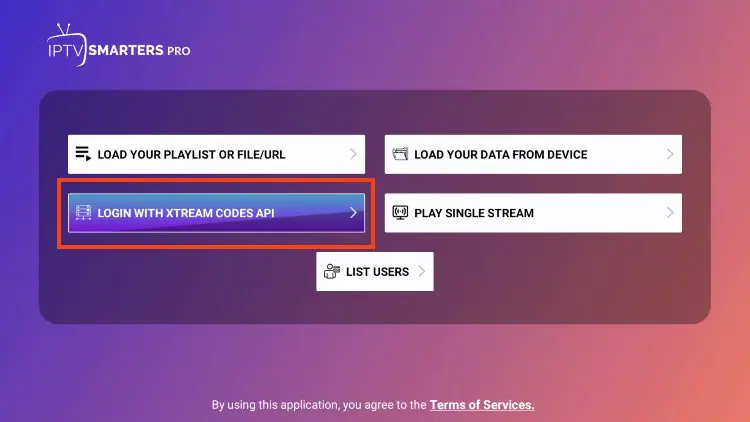
Enter your server URL, username, and password (or paste the M3U link).
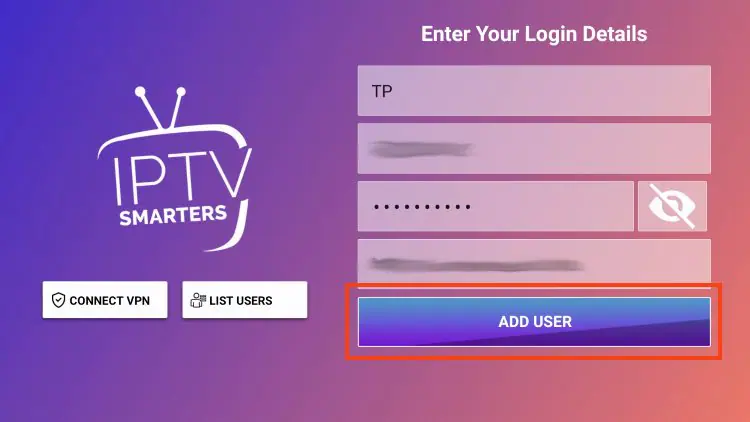
Confirm and wait for the channels and guide to load.
Some webOS apps link your account through their website using the TV’s MAC address, then push your playlist to the TV. You’ll need a phone or computer for this step. Find the MAC address first, then complete the activation online.
Once connected, take a moment to confirm everything works before settling in. The first load and guide sync can take a couple of minutes. Browse the sections to make sure your content is there.
Open the live channels list and test a few of them.
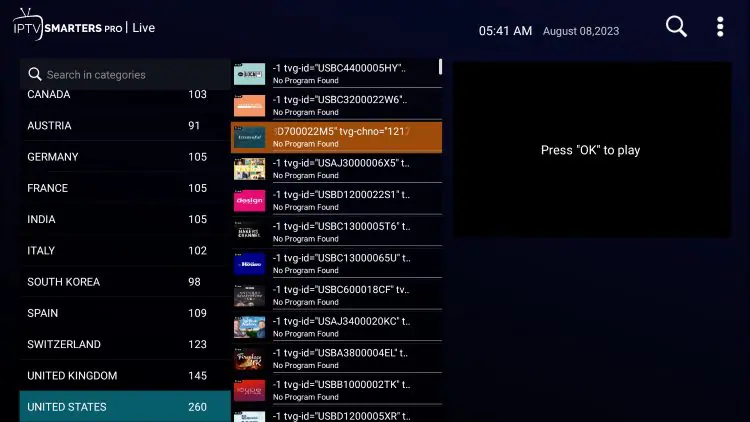
Check the Movies and Series (VOD) sections if your plan includes them.
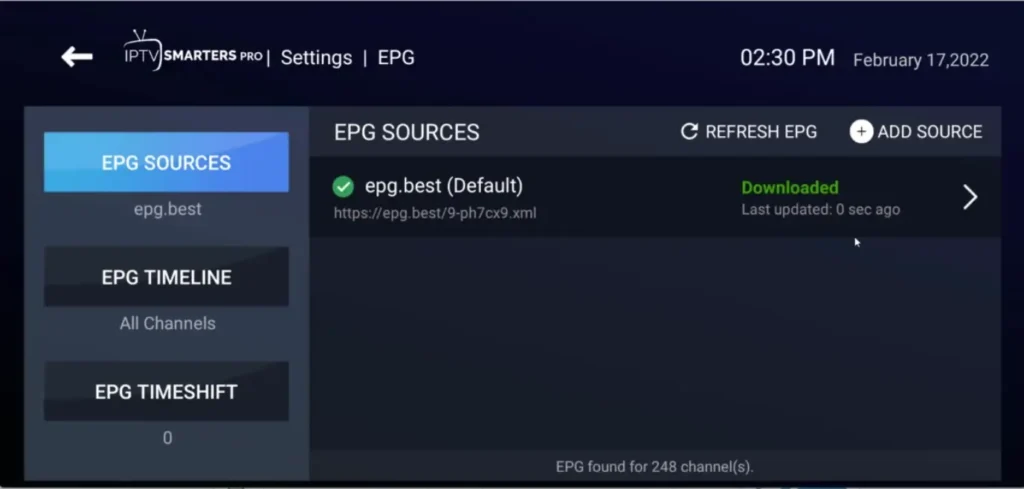
Confirm the program guide (EPG) is showing.
Set your favorite channels for quicker access.
A few final adjustments ensure smooth playback and fix the most common LG-specific issues, like a black screen on certain channels. On webOS, a black screen usually points to a video codec the TV can’t decode. Connection stability is the other big factor.
Most can, as long as the TV runs webOS 3.5 or later — which covers LG models from 2017 onward, including OLED, QNED, NanoCell, and UHD lines. These TVs run IPTV player apps natively from the LG Content Store, so no extra hardware is needed.
Pre-2017 models have very limited app support and are better served by an external streaming box. If you’re unsure, check your webOS version under Settings > About, then plan accordingly.
For most owners, no. From 2017 onward, webOS runs IPTV apps directly, and the built-in hardware on 2018+ models handles 4K streams comfortably.
An external box only makes sense if you have an older LG TV that can’t install a suitable app, or if you want a specific player that isn’t available in the LG Content Store. For everyday use on a modern LG, the native app experience is smooth and convenient.
App availability varies by region, so a player that exists in one country’s store may not appear in another’s. If your search returns nothing, try a different player app that’s available in your region, or change your LG account’s country in your account settings and search again.
As a fallback, some apps can be linked through their website using your TV’s MAC address. If none of that works on an older model, an external box is the simplest path.
Direct login means you type your Xtream Codes (server URL, username, password) or M3U link straight into the app on the TV — quick and self-contained.
MAC activation means the app shows your TV’s MAC address, and you link your playlist through the app’s website on a phone or computer; the channels then sync to the TV. Your provider decides which method applies, and both end with the same result. Direct login is usually faster when it’s available.
On LG webOS, a black screen on specific channels usually means the stream uses a video codec the TV can’t decode, most often H.265 (HEVC). Hardware HEVC decoding is reliable on LG models from 2018 onward; older sets may struggle.
The quickest workaround is to switch to the SD or HD version of the same channel, which typically uses the more widely supported H.264. Restarting the app and reloading the playlist can also help.
For smooth, uninterrupted HD playback, plan for at least 25 Mbps, and at least 50 Mbps for 4K. Beyond raw speed, connection stability matters most: a wired Ethernet link almost always outperforms Wi-Fi on a fixed TV, and it dramatically reduces buffering during peak evening hours.
If several devices use the network at once, add up their needs so the TV isn’t starved of bandwidth.
The LG TV itself and the player apps are perfectly legal, they’re just tools. Legality depends entirely on the service you connect to. As long as you use a licensed provider that holds the broadcasting rights to its content, you’re in the clear.
Unlicensed operations, by contrast, face real enforcement in Canada: the RCMP’s cybercrime team has charged operators in large-scale illegal IPTV busts, as reported by Broadcast Dialogue. Be wary of offers promising thousands of premium channels for a few dollars — a classic sign of an unauthorized service.
Installing IPTV on an LG Smart TV is quick once you know the path: connect the TV to the internet, open the LG Content Store, install an IPTV player app, and connect it either with your Xtream Codes/M3U login or by activating your TV’s MAC address through the app’s website. On any LG from 2017 onward, the whole thing takes about ten minutes and needs no extra hardware.
If you hit a black screen, remember it’s usually a codec issue on older models, easily sidestepped by choosing the HD version of a channel. Above all, keep in mind that the TV and the app are only tools — the quality, stability, and legality of your experience depend on choosing a reliable subscription from a licensed provider. With a stable connection and a trustworthy service, your LG Smart TV becomes a full IPTV streaming centre on the big screen.

Premium IPTV subscription built for Canadian viewers