
To tell whether IPTV is down or the problem is on your side, try a few channels on a second device and a second connection, such as a phone on mobile data. If they fail everywhere, the provider’s servers are likely down, so ask support whether there is a known outage. If only some channels fail or streams buffer, the cause is usually your network, app or playlist, and most fixes take minutes.
IPTV usually stops for one of seven reasons: ISP throttling during peak hours, server overload during live events, expired M3U playlists, outdated EPG data, app cache corruption, device-level issues, or provider infrastructure problems. Persistent downtime points to an unreliable provider rather than a setup issue, and the lasting fix is a service with redundant servers, transparent uptime and 24/7 support, like IPTV Canada.
1. Is IPTV Down for Everyone or Just You?
Test on a second connection and a second device first, because that one check tells you where the problem is before you change anything.
- Try another app or device. Open the same channel on a different device, or with a different IPTV app on the same account. If it fails everywhere, the fault is with the service or your internet, not the device.
- Try your phone’s hotspot. Connect the streaming device to your phone’s mobile data. If channels load right away, your home internet is the issue: an outage, throttling or a block. If it still fails, the provider’s server is the likely cause.
- Check another streaming app. If other video apps play fine on the same TV and network, your internet is healthy and the problem sits with the IPTV service.
- Check the provider. Look at its status page, support channel or social accounts. A widespread outage is usually acknowledged within minutes.
- Check the time. Failures that only happen between 7 and 11 PM, or during a big game, point to congestion or throttling rather than a broken setup.
If the answer is “just me”, sections 4 to 9 are your fixes. If it’s “everyone”, skip to section 10.
2. What Your Symptoms Tell You
Match what you see on screen to the likely cause before you start fixing, since a black screen and a spinning wheel need completely different fixes.
| What you see | Most likely cause | Where to go |
|---|---|---|
| Black screen, no error, on every channel | Provider outage, expired account, or login rejected | Sections 9 and 10 |
| Spinning wheel, picture stutters then plays | Weak Wi-Fi, low bandwidth, or busy network | Sections 5 and 7 |
| Buffering only in the evening | Network congestion or ISP throttling | Section 7 |
| Fine on mobile data, fails on home internet | ISP throttling or a block | Section 7 |
| Channels slow to open, then play fine | Slow DNS or an oversized buffer on weak hardware | Sections 7 and 8 |
| Stutter that got worse over weeks | Bloated app cache | Section 6 |
| One channel fails, the rest are fine | The provider’s source for that channel | Section 10 |
| Video but no sound, or sound but no picture | Decoder mismatch | Section 7 |
| Guide says “No Information” | Stale or missing EPG data | Section 9 |
| Freezing and sound cuts right after you changed a setting | Buffer set too low | Section 8 |
| Channels disappeared overnight | Playlist URL changed, or the service was blocked or shut down | Sections 3 and 9 |
3. Why IPTV Freezes at Night but Works Fine During the Day
Evening freezing is almost always congestion: between roughly 7 and 11 PM, your street, your household and your provider’s servers are all at their busiest, and the stream gets whatever bandwidth is left. A plan sold as 100 Mbps can deliver far less at 9 PM than it does at 2 PM, and IPTV needs a steady rate rather than a high peak, so the picture freezes or pixelates exactly when you sit down to watch.
Three different things cause the same symptom, and the tests below tell them apart:
- Neighbourhood congestion. Shared capacity in your area is oversubscribed at peak times. Common on cable and fixed wireless connections.
- Household congestion. Someone is downloading a game, backing up photos or on a video call, and your TV is last in line.
- Provider-side load. The service’s own servers are overloaded, which hits everyone on it at once.
How to tell which one you have:
- Compare peak with off-peak. Play the same channel for five minutes at around 3 PM and again at 9 PM. If only the evening stutters, it’s congestion somewhere, not your setup.
- Run a speed test at both times, on the streaming device itself. A big evening drop points at your connection rather than the service.
- Test wired against Wi-Fi. If an Ethernet cable is steady at 9 PM while Wi-Fi stutters, the bottleneck is inside your home, not on your ISP’s network.
- Pause everything else. Stop downloads, backups and other streams for ten minutes. If the freezing clears, it’s household congestion.
- Try your phone’s mobile data at 9 PM. Smooth on cellular but frozen on home internet points at your ISP connection.
- Check other video apps at the same moment. If they struggle too, the problem isn’t your IPTV service.
- Ask your provider about server load, and whether an alternative server is available for peak hours. If evenings stay unwatchable whatever you try, it may be time for an IPTV subscription built on stronger servers.
Some ISPs manage congestion by prioritizing or slowing certain traffic at peak times, which can look identical to ordinary congestion from the sofa. Rather than assuming it, test it: section 7 covers the VPN comparison that either confirms it or rules it out. Whatever the cause, the fixes that help most in the evening are the same ones in sections 5 to 7: wire the TV, keep other traffic off the network, drop from 4K to HD during peak hours, and, if every test points upstream, change server or provider.
4. Why IPTV Goes Down: The Provider-Side Causes
Four causes sit entirely outside your home, and no setting on your device will fix them.
Server overload during live events. Playoff games, big fights and finals can send many times the normal traffic to a provider’s servers within minutes. Services without spare capacity drop exactly when everyone tunes in.
Court-ordered blocking. Canadian ISPs are required to block a list of unauthorized IPTV services. The first site-blocking order, reported by CBC News in 2019, set the precedent, and a Federal Court order issued in July 2026 now lets rights holders add new targets without going back to court. Unlicensed services can go dark faster and with less warning than before. Our guide on whether IPTV can be blocked by internet providers explains how the blocking works and how to tell if you’re affected.
Provider shutdowns and seizures. When an unlicensed service is taken down, every subscriber loses access at once, usually with no message and no refund.
Server and URL changes. Providers move servers and change playlist addresses for load balancing and maintenance. If your app still points at the old address, channels vanish even though the service is running fine.
5. First Fixes: The 60-Second Power Cycle and a Wired Connection
Power-cycle everything for a full 60 seconds, then wire the TV, because those two steps clear the large majority of failures and buffering between them.
The power cycle:
- Unplug the router, the modem (if separate), and the streaming device or box, all at once.
- Wait a full 60 seconds, not 10. That’s what clears stale network sessions and memory.
- Plug the modem and router back in first and wait for the internet light to go steady.
- Then power on the streaming device and open the app.
If a restart alone doesn’t bring channels back, our guide to resetting an IPTV box covers the full sequence, including a factory reset as the last resort.
The wired connection: Wi-Fi is the most common cause of buffering and evening freezing, and a cable fixes it in most homes.
- Run an Ethernet cable from the router to the TV, box or console. Most devices have a port.
- Fire Stick has no Ethernet port, so use an Ethernet adapter made for it.
- Router too far away? A powerline adapter sends your internet through the home’s electrical wiring, and a MoCA adapter uses spare coax outlets, which many Canadian homes still have from old cable service.
- Turn off Wi-Fi on the device once it’s wired, so it doesn’t quietly switch back.
- Stuck on Wi-Fi? Use the 5 GHz band, keep the router out in the open, and consider a mesh system if the TV is in a weak-signal room.
The full speed figures (25 Mbps for HD, 50 Mbps for 4K, per stream, with headroom for peak hours) are in our guide to the best internet speed for IPTV.
6. Clear the App Cache and Free Up the Device
Clearing the cache takes under a minute and fixes stutter that seems to come from nowhere, because temporary files build up and corrupt playback over time.
Fire Stick
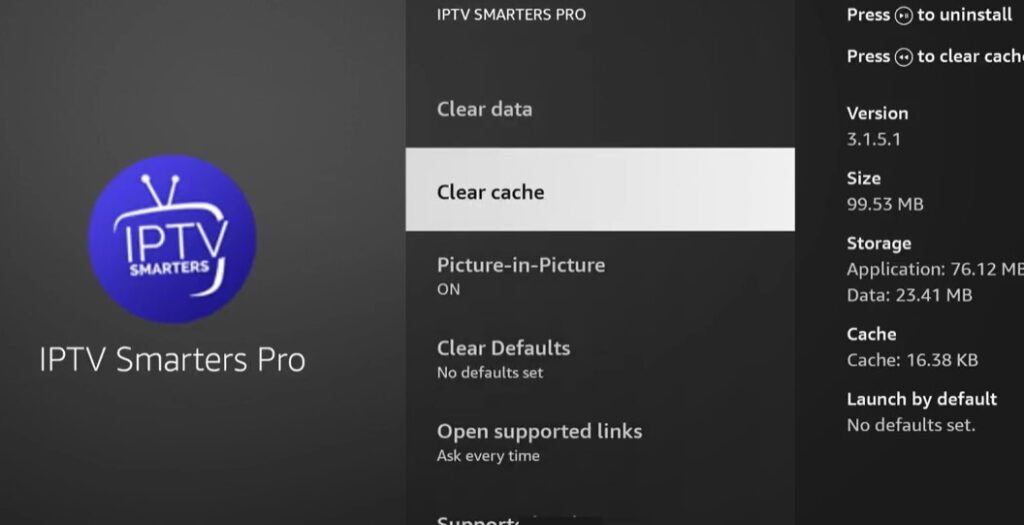
Settings > Applications > Manage Installed Applications > your IPTV app > Clear Cache, then Force Stop and reopen. If that doesn’t work, Clear Data too (you’ll re-enter your login), or reinstall the app.
The Amazon Firestick accumulates cached data aggressively, and that buildup frequently corrupts playback, even when your IPTV server status is perfectly healthy.
Go to Settings → Applications
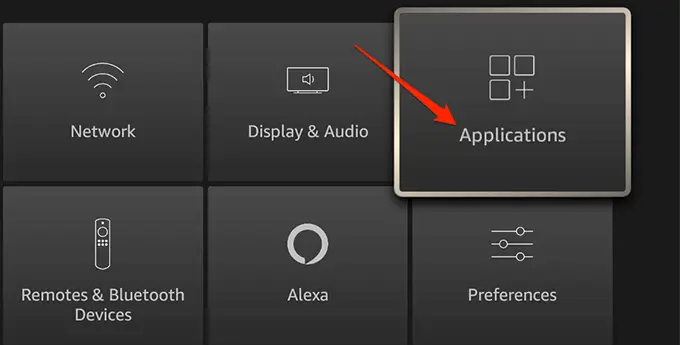
→ Manage Installed Applications
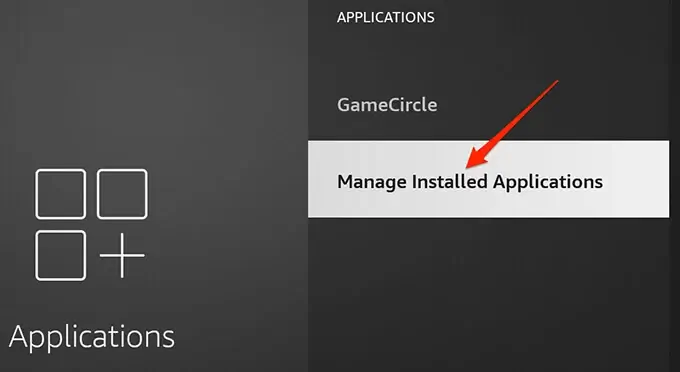
Select your IPTV app (TiviMate, IPTV Smarters, etc.)
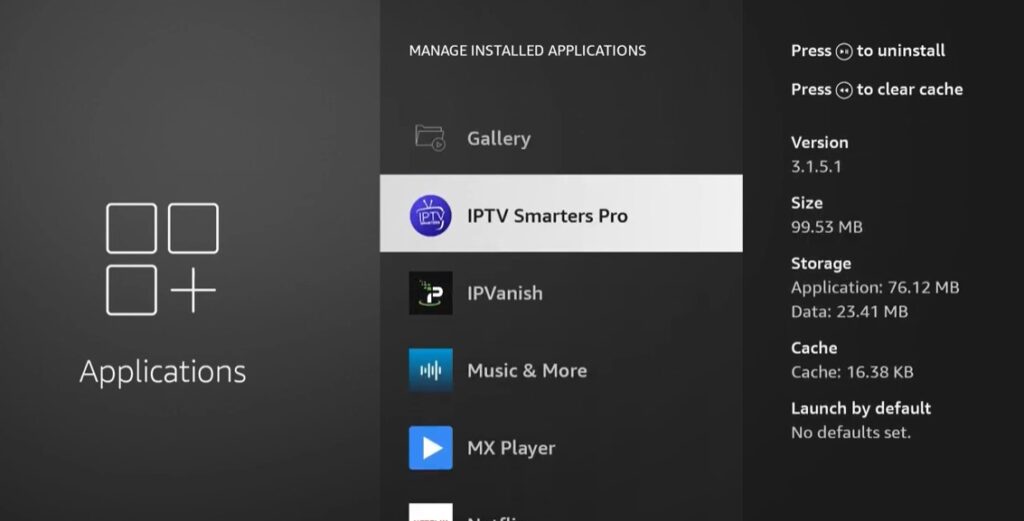
Tap Clear Cache, then Clear Data
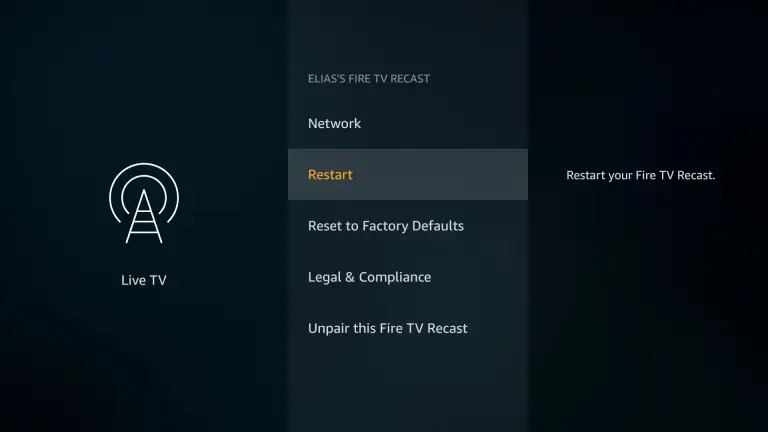
Restart the Firestick completely — unplug it from power for 30 seconds
Relaunch the app and test playback before changing any other settings
If clearing cache doesn’t resolve it, uninstall the app entirely and reinstall a fresh copy. A simple update won’t fix corrupted core files — only a clean reinstall will.
Android TV or Android box
Settings > Apps > your IPTV app > Storage > Clear Cache, then restart the app.
Samsung and LG smart TVs
Most don’t offer a cache button, so uninstall and reinstall the app.
iPhone and iPad
Delete the app, restart the device, reinstall from the App Store and log in again.
Windows or Mac
Use the app’s clear-cache option if it has one, or reinstall.
A clean reinstall matters when clearing the cache doesn’t help. An update installs over broken files; a fresh install replaces them. Our step-by-step guide to clearing the IPTV cache covers more devices.
While you’re at it, free up the device. Close background apps, unplug a stick that feels hot and give it some airflow (an overheating stick slows itself down), and disconnect devices on your network that are downloading or updating.
7. Network and Player Fixes: DNS, Throttling, Quality and Decoders
Once the connection and cache are sorted, these four changes clear up most of what’s left.
Change your DNS
Slow DNS causes the pause before a channel opens and loading loops that look like outages. Set Cloudflare (1.1.1.1 and 1.0.0.1) or Google (8.8.8.8 and 8.8.4.4) on the router, which covers every device, or on the device itself: on Fire Stick under Settings > Network > your network > Advanced; on Android boxes and smart TVs under the network’s advanced options with the IP set to static. Restart the device afterward.
Test for ISP throttling, both ways
If streams play fine on mobile data but buffer on home internet in the evening, your ISP may be slowing streaming traffic. Connect a reputable paid VPN to a server near you, turn on its kill switch, then open the IPTV app. If buffering stops with the VPN on and returns when it’s off, throttling is confirmed. If it makes no difference, or makes things worse, throttling wasn’t the problem, and a VPN won’t fix weak Wi-Fi, a slow plan or an overloaded server. Our VPN for IPTV guide covers when it’s worth keeping on.
Lower the stream quality
Dropping from 4K or Full HD to HD roughly halves the bandwidth you need. Turn off auto quality if the app has it, since auto mode keeps reaching for the top resolution and stumbles whenever your speed dips.
Switch the player or decoder
Video with no sound, or sound with no picture, is usually a decoder mismatch. In the app’s player settings, switch between the hardware and software decoder (in IPTV Smarters: Internal Player, HW Decoder or SW Decoder), or try a different player engine, and test the same channel after each change. Built-in smart TV players often struggle with some stream formats; if they keep failing, a streaming stick on the same TV usually solves it.
8. Adjust the Buffer Setting (Advanced)
Change the buffer setting only after sections 4 to 7, and only one step at a time, because it trades start-up speed against stability.
The buffer is how much video the app loads ahead of what you’re watching. IPTV Smarters and several other players let you change it in the player settings; the name and scale vary by app and version.
- A larger buffer makes channels a little slower to start but rides out short dips in your connection. This is the usual fix when streams keep stalling.
- A smaller buffer makes channels open faster and uses less memory, but leaves less margin. Only try it when channels are slow to open on a connection that’s otherwise stable, typically on older sticks and budget boxes.
Test each change on the same channel: open it fresh, switch away and back, and skip forward once or twice. If things feel faster and stay smooth, keep it.
Signs you’ve set it too low: constant buffering, short freezes every few seconds, or sound cutting in and out, starting right after the change. Raise it again a step at a time until playback is smooth. Avoid a small buffer for live sports, where fast motion looks jumpy exactly when it matters.
What the buffer won’t do: it doesn’t change how much data you use, it doesn’t speed up the program guide (that’s a separate download), and it won’t cool down an overheating device. The same value can also behave differently on Android TV, Fire Stick and iPhone.
9. App and Playlist Fixes: Expired Links, Xtream Codes and the Guide
A corrupted install, an expired playlist or stale guide data can make a healthy service look completely broken.
- Start clean. In TiviMate or IPTV Smarters, remove the playlist, uninstall the app, reinstall it from the official store, and add your login again.
- Get the current playlist URL. If channels vanished overnight, your provider may have changed its server address. Ask support for the current link and re-enter it; our guide on changing the URL on an IPTV box shows where it goes on each device.
- Use Xtream Codes instead of M3U. An Xtream login (server, username, password) follows server changes on its own, so it breaks far less often than a static M3U link. Most providers offer both; ask for Xtream details. Our Smarters login guide walks through entering them.
- Refresh the guide. A “No Information” guide usually means stale EPG data. In TiviMate, go to Settings > EPG and update it; elsewhere, re-enter the EPG URL your provider sent. Our EPG guide covers the rest.
- Check your subscription dates. An expired account often still shows cached channels that won’t play. If you need to renew, see how to recharge an IPTV box online.
- Keep a backup. Store a second playlist URL or server address from your provider somewhere safe, so a server change doesn’t leave you starting from scratch.
A routine that prevents most repeat problems: restart the router every week or two, keep the IPTV app updated, clear the cache monthly, note your renewal date, and keep the main TV wired.
10. When It’s the Provider: What to Do Next
If you’ve been through sections 4 to 9 and IPTV still fails on a wired connection, on more than one device, the problem is the service, not your home.
Contact the provider’s support and ask three things: whether there’s a known outage, whether you should switch to a different server, and whether your account is active and within its connection limit (see how many devices can stream at once). A reliable provider answers within hours and fixes server-side problems quickly. One that can’t is telling you something.
Watch for patterns that point to a weak or unlicensed service: outages every time there’s a big game, channels that disappear with no notice, no working support channel, or a service that went dark after a blocking order. Streaming IPTV in Canada is legal when the provider holds the rights to what it carries, and licensed services aren’t on any ISP blocklist. Unlicensed ones can vanish mid-subscription with your money, and the July 2026 order makes that more likely, not less. Our guide on whether IPTV is legal in Canada explains what to check.
If your current service keeps failing these tests, try another one on your own connection before you pay. An IPTV free trial lets you check stability during peak evening hours, which is exactly when weak services fall over.
Frequently Asked Questions
How do I know if IPTV is down for everyone or just me?
Test on your phone’s mobile hotspot and on a second device. If it works there, the problem is your home network or device; if it fails everywhere, the provider is likely down.
Why does my IPTV only freeze at night and work fine during the day?
Evening hours between 7 and 11 PM are when your street, your household and your provider’s servers are busiest, so the stream gets less steady bandwidth. Compare the same channel at 3 PM and 9 PM to confirm the pattern.
Is 25 Mbps enough for IPTV at night?
25 Mbps is enough for one HD stream on paper, but real speeds often drop at peak hours, so 50 Mbps gives you the headroom to avoid evening freezing.
Why did my IPTV suddenly stop working?
The most common causes are a provider outage, an expired subscription, a changed playlist URL, or a court-ordered block on the service. Check your account dates and the provider’s status before troubleshooting your own setup.
Why is my IPTV buffering even with fast internet?
Fast internet doesn’t guarantee a steady signal to the TV. Weak Wi-Fi, evening congestion, a full app cache or slow DNS can all cause buffering on a 100 Mbps plan.
Will an Ethernet cable really fix IPTV freezing?
Yes, in most homes. Wi-Fi is the biggest single cause of freezing and buffering, and a cable removes the signal drops and interference behind it.
Does a VPN fix evening freezing?
Only when your ISP is slowing streaming traffic at peak times. Test with it on and off at 9 PM; if there’s no difference, the cause is elsewhere.
How often should I clear my IPTV app cache?
Once a month is enough for most people, or straight away if the app starts stuttering on channels that used to play fine.
Is it worth lowering the buffer limit in IPTV Smarters Pro?
Only if channels open slowly on an otherwise stable connection. Lower it one step at a time; if video starts freezing or losing sound, raise it again.
Why do I get video but no sound on IPTV?
Usually a decoder mismatch. Switch between the hardware and software decoder in the app’s player settings and test the same channel again.
Should I upgrade my internet plan to stop IPTV freezing?
Not first. Wire the TV, clear the cache and pause other traffic before paying for more speed, since the bottleneck is usually Wi-Fi or household congestion rather than the plan.
What’s the fastest fix when IPTV goes down?
Power-cycle the router and device for a full 60 seconds, clear the app cache, then test on a mobile hotspot. That sequence either fixes it or tells you the problem is the provider.
Have another question? Find more answers in our IPTV FAQ.
Conclusion
When IPTV stops working, check before you fix: a mobile-hotspot test and a second device tell you in a minute whether the problem is yours or the provider’s, and a 3 PM against 9 PM comparison tells you whether it’s congestion. On your side, work in order: a 60-second power cycle, a wired connection to the TV, a cache clear, a DNS change, a traffic test with and without a VPN, lower stream quality during peak hours, the right decoder, and only then the buffer setting, one change at a time. On the provider’s side, freezing every evening on a wired line that tests clean, outages during big games and vanishing channels all point to a weak or unlicensed service. Keep the main TV wired, the app updated and a backup playlist saved, and most downtime becomes a five-minute fix rather than a lost evening.