

 Written by Rana
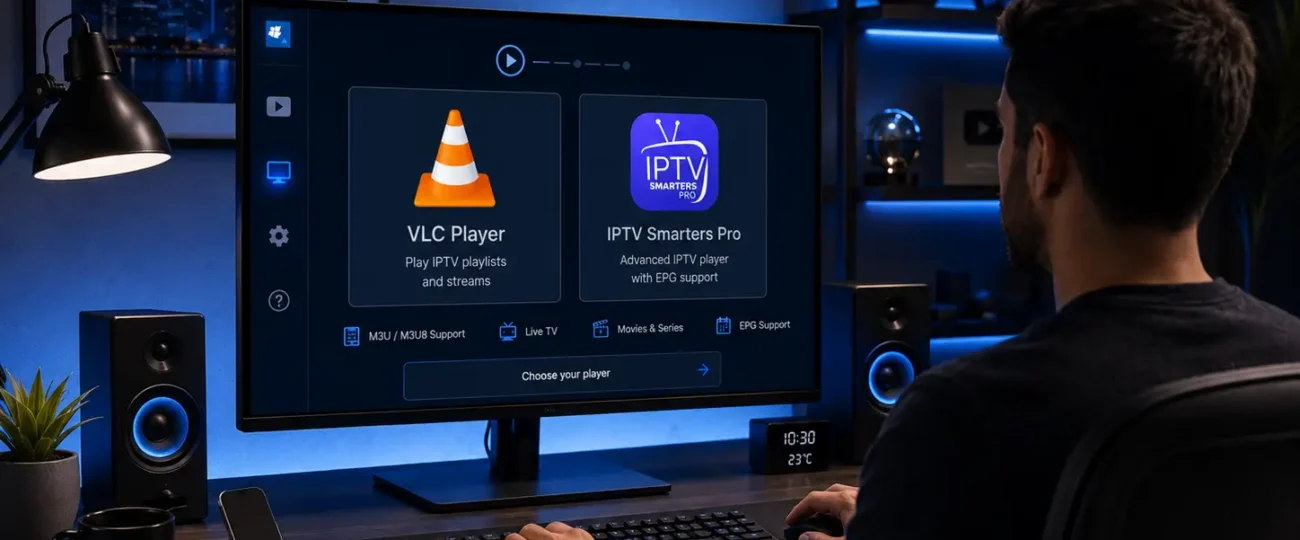
To watch IPTV on a Windows PC, you have three simple paths: install an IPTV player app from the Microsoft Store and sign in with your Xtream Codes or M3U details, open your playlist in a media player that supports network streams, or log in to your provider’s web player in any browser — then your channels play right on your computer.
A Windows PC makes a flexible IPTV screen because you can watch at your desk or connect it to a TV. Whichever method you choose, you’ll need a reliable IPTV Subscription, a legal service from a licensed provider, that gives you Xtream Codes credentials or an M3U link. This guide walks you through all ten steps, from picking a method to fixing the most common issues.
On Windows you can watch IPTV three ways, a player app from the Microsoft Store, a media player that opens a network stream/M3U, or a browser-based web player. All you need is your subscription’s Xtream Codes or M3U link.
Before you start, it helps to know that Windows itself doesn’t “do” IPTV — a player does, using the details from your subscription. Windows is flexible, so you have more than one way to play your stream. Knowing the options up front helps you pick the easiest route for your setup.
A quick check now prevents headaches later. Make sure your PC is up to date and that you have your provider’s details on hand. A solid internet connection is just as important as the software.
There’s no single “right” way to watch IPTV on Windows, the best method depends on what your provider gave you and how much you want to install. Here are the three main approaches, from most full-featured to most lightweight. Pick the one that suits you and follow its steps below.
Method A: a dedicated IPTV player app from the Microsoft Store.
Method B: a general media player that opens a network stream or M3U file.
Method C: a web-based player you open in your browser.
Most people start with Method A for the most complete experience.
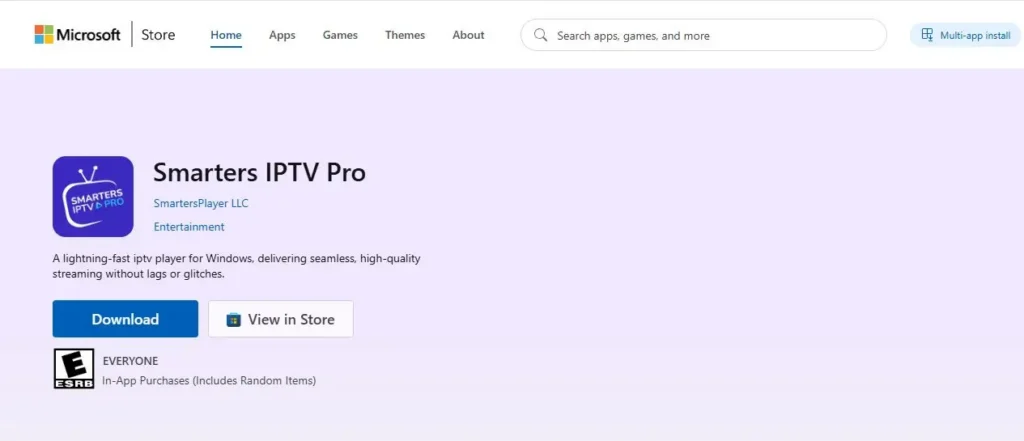
A dedicated player app gives you the fullest experience on Windows, with channel lists, categories, and often a program guide. The Microsoft Store is the safest place to find one. Installation works like any other Store app.
Open the Microsoft Store from the Start menu.
Search for player as “IPTV Smarters Pro” and pick a player app that suits your needs.
Select Get/Install and wait for it to download.
Launch the app once it’s installed.
With the app open, you connect it to your service using your provider’s details. Xtream Codes is usually the smoothest option because it loads channels, on-demand content, and the guide together. Enter everything exactly as provided, since small typos cause most connection errors.
Choose your Device.
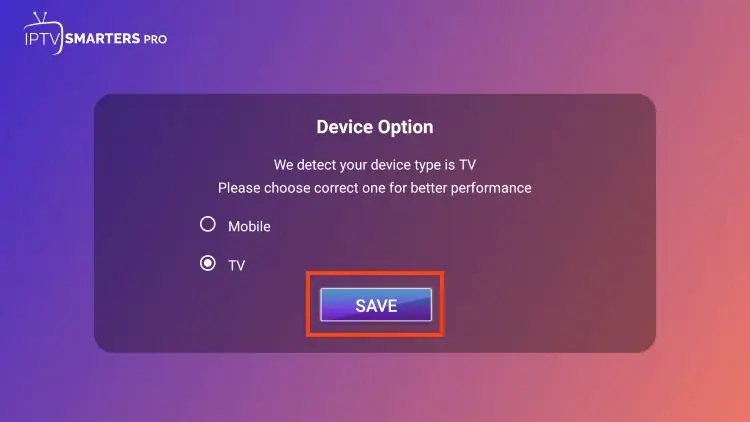
In the app, choose to add a playlist or user.
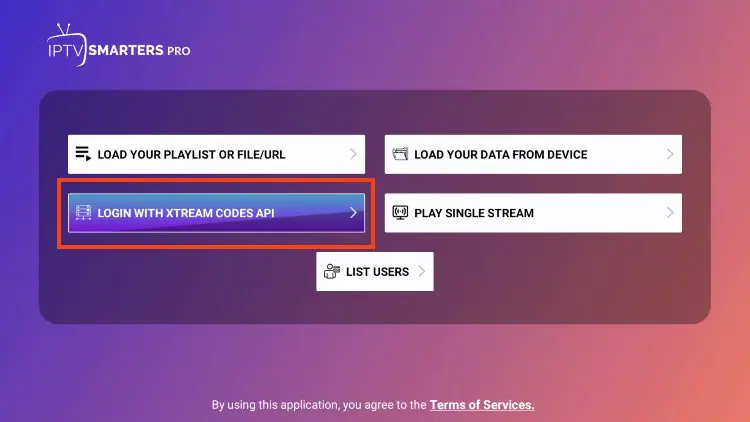
Select “Xtream Codes” and enter the server URL, username, and password (or load your M3U link).
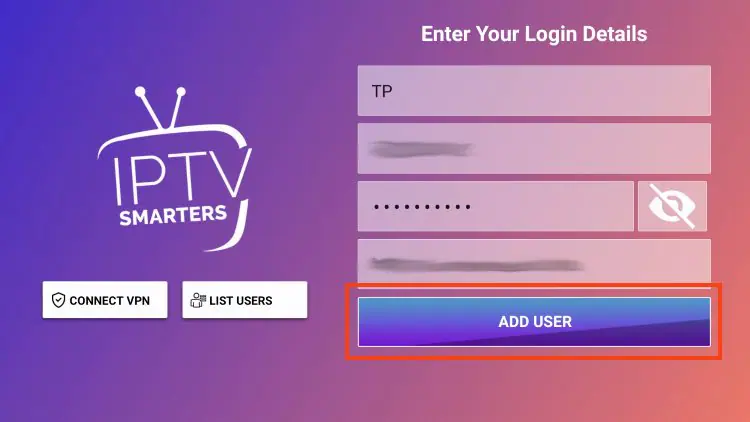
Confirm and wait while the channel list downloads.
Browse Live, Movies, and Series to confirm everything loaded.
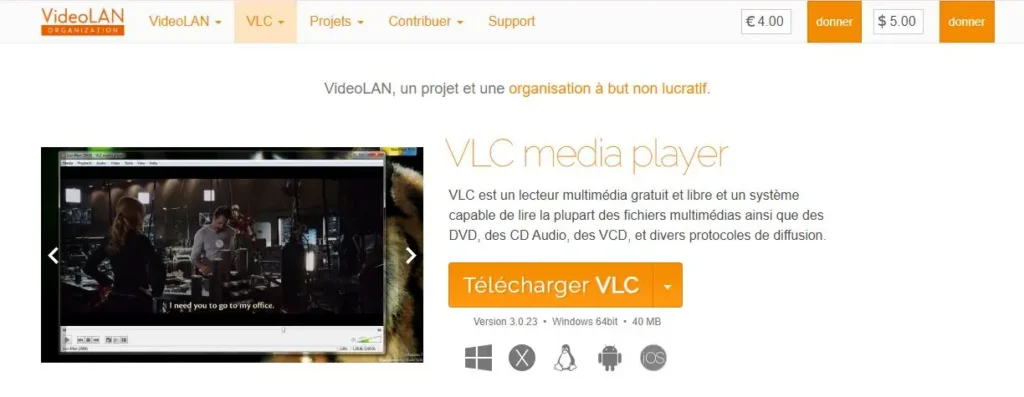
If you’d rather not install a dedicated app, many general-purpose desktop media players can open a network stream or an M3U file directly. This is the most lightweight route and works well for quick viewing. It helps to understand what an M3U playlist is before you start.
Open your media player and find the “Open Network Stream” option.
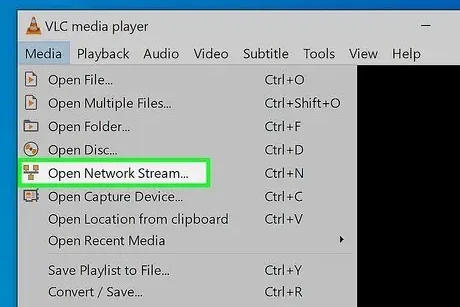
Paste your M3U URL and start playback.
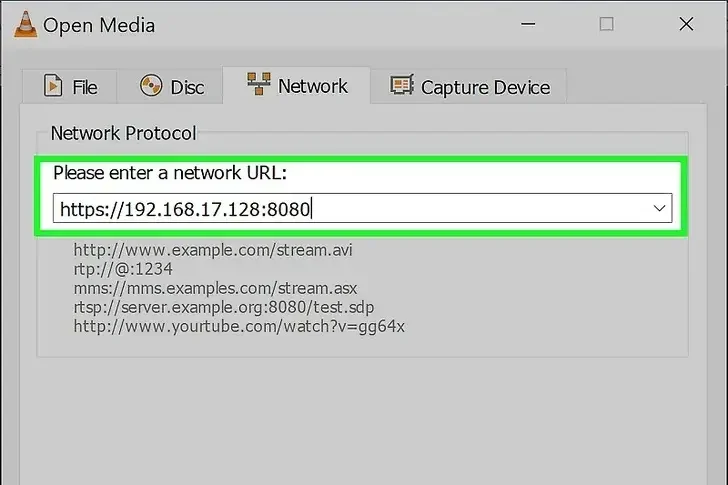
Alternatively, open a downloaded .m3u file directly in the player.

Use the player’s playlist panel to switch between channels.
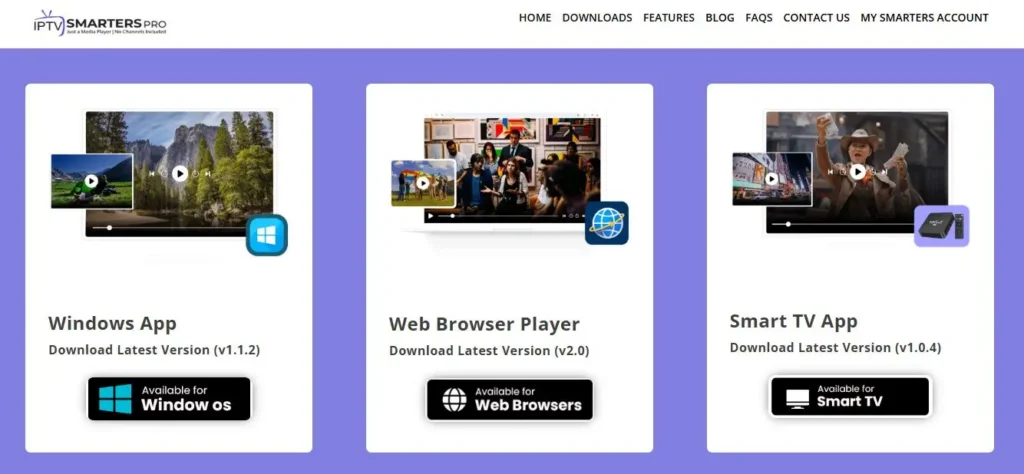
Some subscriptions include a web player you can use without installing anything. You simply log in on your provider’s site and watch in the browser. This is the quickest option on a shared or work computer where you can’t install apps.
Open your browser and go to your provider’s web player page.
Log in with the credentials from your welcome email.
Select a channel to start streaming in the browser.
Use full-screen mode for a cleaner viewing experience.
Once your channels load, a little organizing makes daily use far easier. Dedicated apps usually offer favorites, categories, and a program guide; lightweight players keep things simpler. Give the guide a couple of minutes to populate.
Mark your favorite channels for quick access.
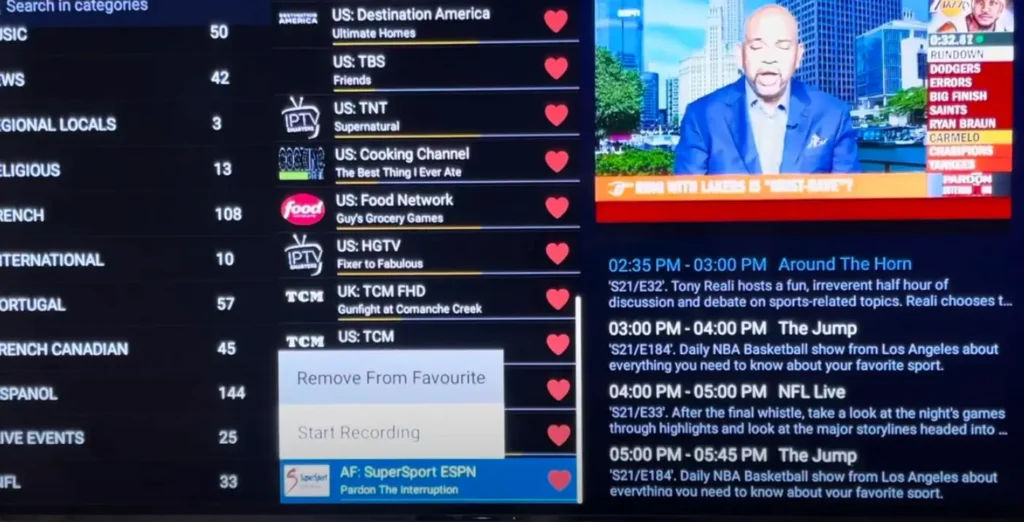
Group or filter channels by category to cut clutter.
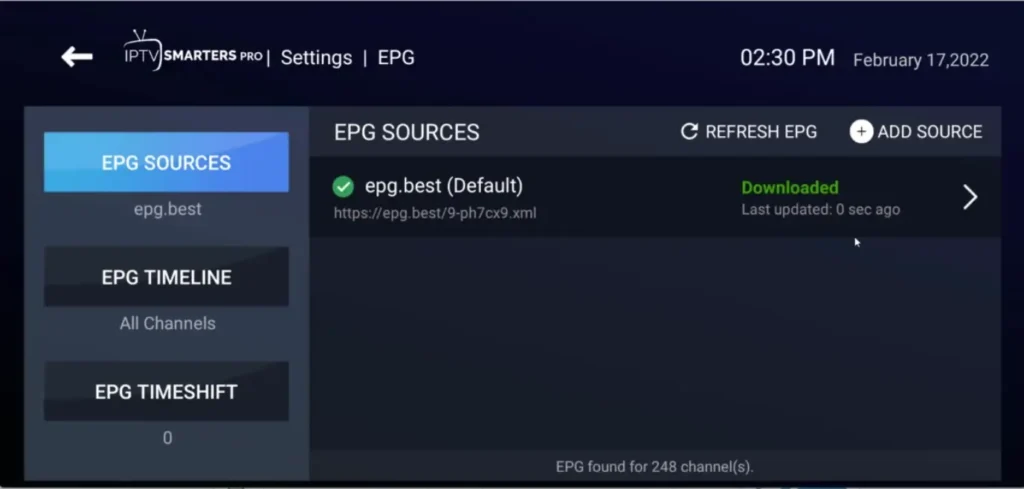
With Xtream Codes, the guide usually loads automatically.
With an M3U setup, add the EPG/XMLTV URL separately if your provider offers one.
One of the best things about using a PC is that you’re not stuck at your desk. You can connect the computer to a TV and enjoy IPTV on a large screen. This turns any Windows laptop or desktop into a living-room media source.
A few final adjustments keep playback smooth and fix the most common problems, like buffering or a channel that won’t load. Connection stability is the biggest factor, and a few channels may need a specific video codec. Keep your player and Windows updated.
Yes, and a PC is one of the most flexible devices for it. You can use a dedicated IPTV player app from the Microsoft Store, open your playlist in a general media player, or log in to a web-based player in your browser.
Each method connects to your subscription using Xtream Codes or an M3U link. Because Windows is so open, you can also connect the PC to a TV and enjoy the same stream on a big screen.
Not necessarily. Installing a dedicated player app gives you the richest experience, with channel categories and a program guide, but it’s optional.
If you’d rather not install anything, a general media player can open your M3U link or file, and some subscriptions include a browser-based web player that needs no installation at all. The right choice depends on how much you want to set up and whether you can install apps on that PC.
Absolutely — this is one of the main reasons people use a PC for IPTV. Connect the computer to the TV with an HDMI cable, select the matching HDMI input, and choose whether to duplicate or extend your display in Windows settings. Then switch your player to full screen.
A laptop makes this especially easy, letting you move your IPTV setup from the desk to the living room whenever you want.
For most people, Xtream Codes is the smoother choice when a player app supports it. It connects with a server URL, username, and password, and typically loads your channels, on-demand content, and program guide together while refreshing automatically.
An M3U link works well too, especially in lightweight media players, but you may need to add the guide separately. If your provider offers both, start with Xtream Codes for the cleanest setup.
The most common cause is a video codec your player can’t handle — many streams use modern encoding that not every player supports out of the box.
The quickest fixes are to try the SD or HD version of the same channel, update your media codecs, or switch to a player better suited to live streams. A black screen with working audio almost always points to a codec issue rather than a problem with your subscription. Reloading the playlist can also clear up temporary glitches.
For smooth, uninterrupted HD playback, plan for at least 25 Mbps, and at least 50 Mbps for 4K. Beyond raw speed, connection stability matters most: a wired Ethernet connection almost always beats Wi-Fi on a desktop and dramatically reduces buffering during busy evening hours. If you’re on a laptop over Wi-Fi, stay close to the router and use the 5 GHz band where possible. If several devices share the network, account for their usage too.
The player software and your Windows PC are perfectly legal — they’re just tools. Legality depends entirely on the service you connect to. As long as you use a licensed provider that holds the broadcasting rights to its content, you’re fine.
Unlicensed services are a different story: beyond the copyright issues, they often come with real security risks, since unverified apps can carry malware that targets your PC.
A Canadian internet provider, Start.ca, explains the legal-versus-illegal distinction and those risks in plain terms. Be wary of offers promising thousands of premium channels for a few dollars — a classic sign of an unauthorized service.
Watching IPTV on a Windows PC is easy once you pick the method that fits you: a dedicated player app from the Microsoft Store for the fullest experience, a general media player that opens your M3U or network stream for something lightweight, or a browser-based web player when you can’t install anything.
Connect your details with Xtream Codes or M3U, organize your favorites and guide, and you can even run an HDMI cable to your TV for a big-screen view. As always, the software is only a tool — the quality, stability, and legality of your experience depend on choosing a reliable subscription from a licensed provider, which also keeps your PC safe from the malware that plagues unverified apps.
With a stable connection and a trustworthy service, your Windows PC becomes a versatile IPTV hub at home.

Premium IPTV subscription built for Canadian viewers