
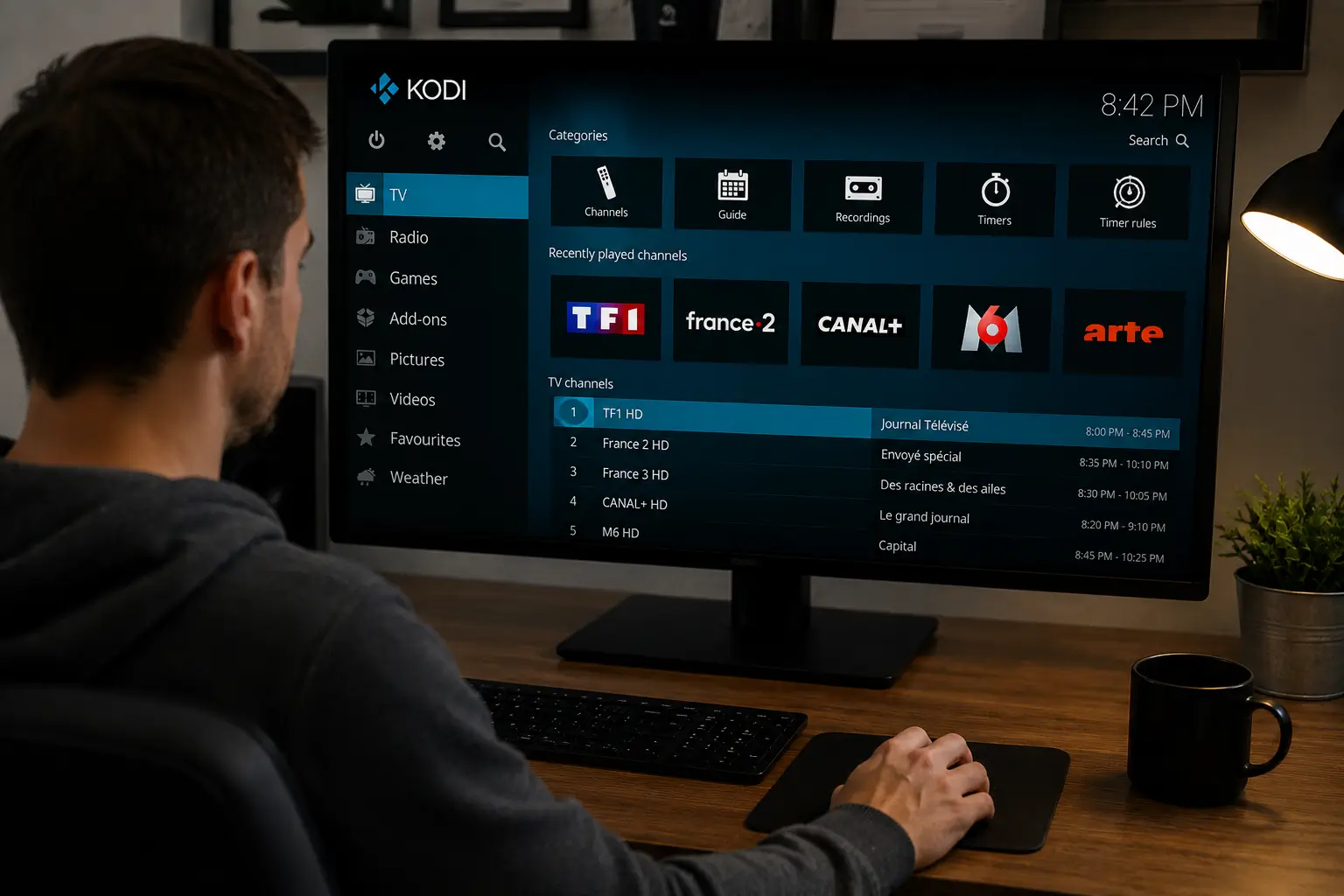
To install IPTV on Kodi you install Kodi from the official website, enable the PVR IPTV Simple Client add-on, enter your M3U URL and EPG link, then reload Kodi so your channel list appears, a 15-minute job on most devices. This guide covers every step, including the full sideload walkthrough for putting Kodi on a Firestick, and a reliable IPTV Canada subscription supplies the M3U and EPG links that make the whole setup painless.
1. How IPTV on Kodi Works
Kodi is a free, open-source media center, and IPTV runs on it through a small add-on called the PVR IPTV Simple Client that reads your provider’s playlist and turns it into a live TV interface. Kodi itself ships with no channels. The add-on connects to an M3U playlist or Xtream-style URL from your provider, pulls in the channel list, and pairs it with an EPG program guide so you get schedules, categories and a polished TV experience at zero software cost.
Because the PVR IPTV Simple Client is developed by the Kodi team and pre-bundled with the app, no third-party download is needed. That makes it the safest route to IPTV on Kodi, with none of the risks that come with unverified add-ons.
2. What You Need Before You Start
Four things cover the prerequisites: a device that runs Kodi, a stable internet connection of at least 25 Mbps, your IPTV credentials, and about 15 minutes. The checklist:
- A compatible device. Windows or Mac, an Android TV box, an NVIDIA Shield, or a Firestick (covered in section 5). Kodi does not run natively on most Samsung or LG smart TVs, so those need an external device.
- Internet speed. 25 Mbps for stable HD, 50 Mbps or more for 4K. Wired Ethernet beats Wi-Fi during live events.
- Your credentials. The M3U playlist URL from your provider, plus the XMLTV EPG link if they supply one. Keep both handy before you begin; our guide on where to get a URL for IPTV explains what these links look like.
- The latest stable Kodi. Kodi 22 “Piers” or newer is the recommended release for IPTV. Avoid nightlies and pre-release builds.
No subscription yet? Grab a free IPTV trial first so you have real credentials to test with.
3. The Recommended Method: PVR IPTV Simple Client with an M3U URL
The PVR IPTV Simple Client loaded with your M3U playlist URL is the right method for almost everyone. Your options at a glance:
- PVR IPTV Simple Client + M3U URL (recommended). Official, stable, pre-bundled, works with virtually any provider.
- PVR IPTV Simple Client + Xtream credentials. Some builds accept a server URL, username and password directly; otherwise use the M3U URL with embedded credentials that Xtream providers also supply.
- Third-party IPTV add-ons. These sometimes add features but bring stability problems, security risks and legality question marks. Skip them.
- A dedicated IPTV app instead of Kodi. If you only want live TV and no media-center features, a standalone player can be simpler; see our roundup of the best free IPTV apps.
M3U is a static playlist link, while Xtream Codes adds auto-updates and richer EPG support through a server URL, username and password. Either works fine in Kodi; use whichever your provider sent.
4. Step 1: Install Kodi from the Official Website
Download Kodi only from kodi.tv, the official source. On a computer, Android box or Shield:
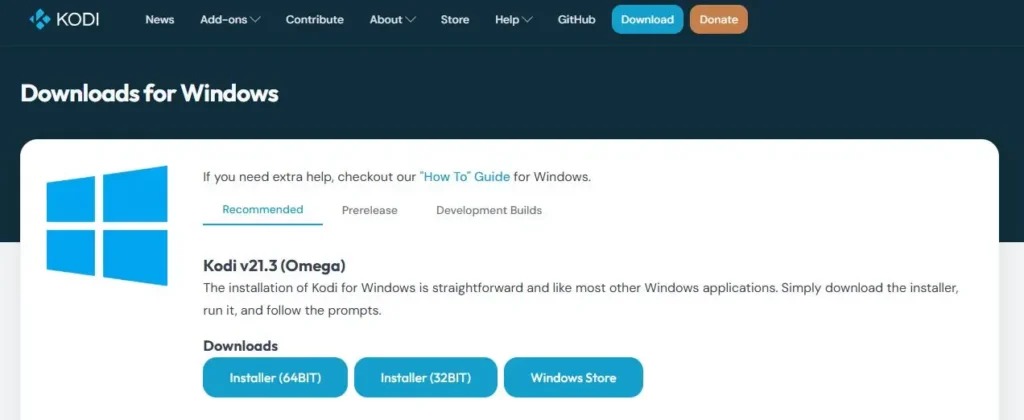
- Visit kodi.tv and open the Download section.
- Select your operating system and download the latest stable release.
- Run the installer and follow the prompts.
- Launch Kodi once to confirm the install worked.
Official downloads matter more than they sound. The Internet Society Canada Chapter points to verified sources as one of the most effective defences against malware, and Kodi is a favourite target for tampered clones and “fully loaded” builds you should never touch.
On a Firestick, Kodi is not in the Amazon Appstore, so it needs a short sideload. That full walkthrough is next.
5. Installing Kodi on a Firestick (Full Sideload Walkthrough)
Sideloading Kodi onto a Firestick takes four stages: allow unknown apps, install the Downloader app, fetch Kodi from kodi.tv, and install the APK. No computer required, and the whole thing takes under 10 minutes.
Enable apps from unknown sources:
- Open Settings from the Fire TV home screen and select My Fire TV.
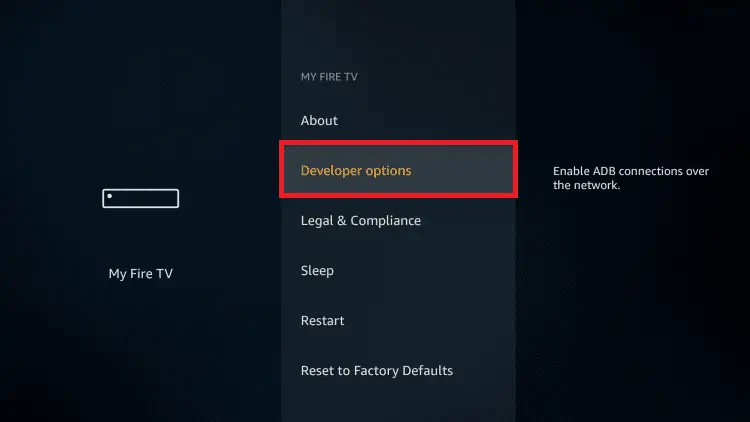
- Open About, highlight your device name and press OK on the remote seven times to unlock Developer Options.
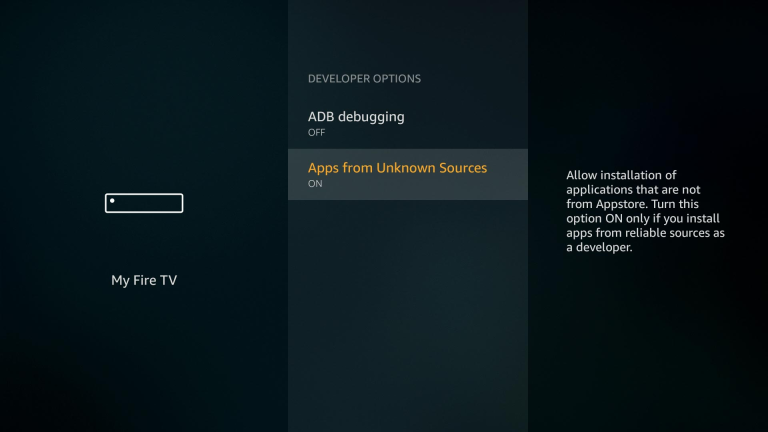
- Go back, open Developer Options, then Install Unknown Apps.
- You will toggle the Downloader entry to ON after the next stage.
Install the Downloader app:
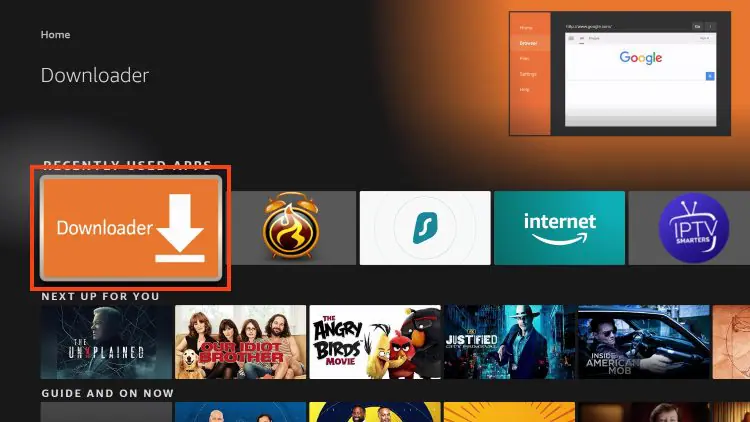
- From the home screen, open search and type “Downloader”.
- Select the orange Downloader app and install it. It is free and comes straight from the Amazon Appstore.
- Return to Install Unknown Apps and toggle Downloader to ON.
- Open Downloader and allow file access when prompted.
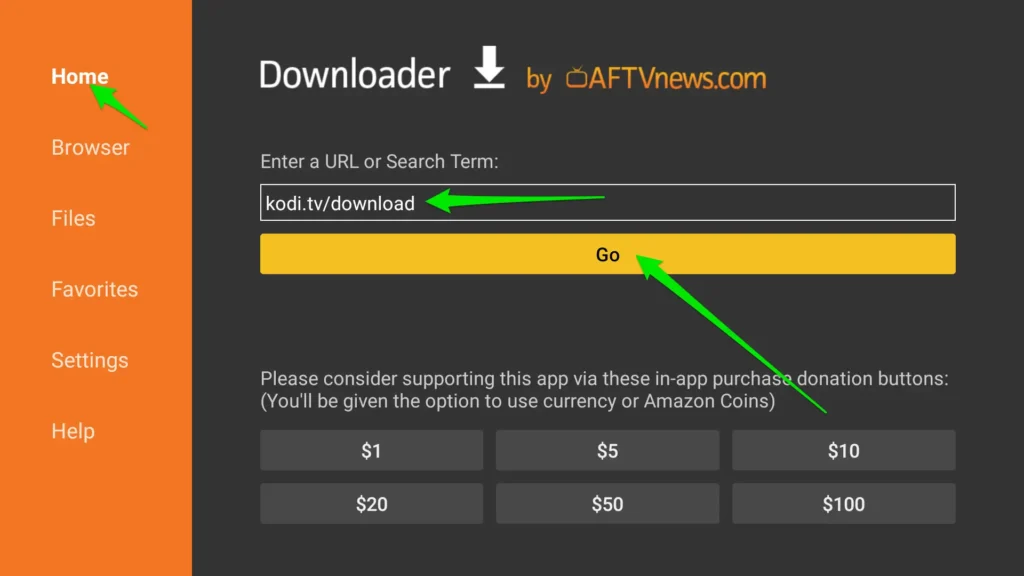
Fetch and install Kodi:
- In Downloader’s URL field, type https://kodi.tv/download carefully. One wrong character stops the download.
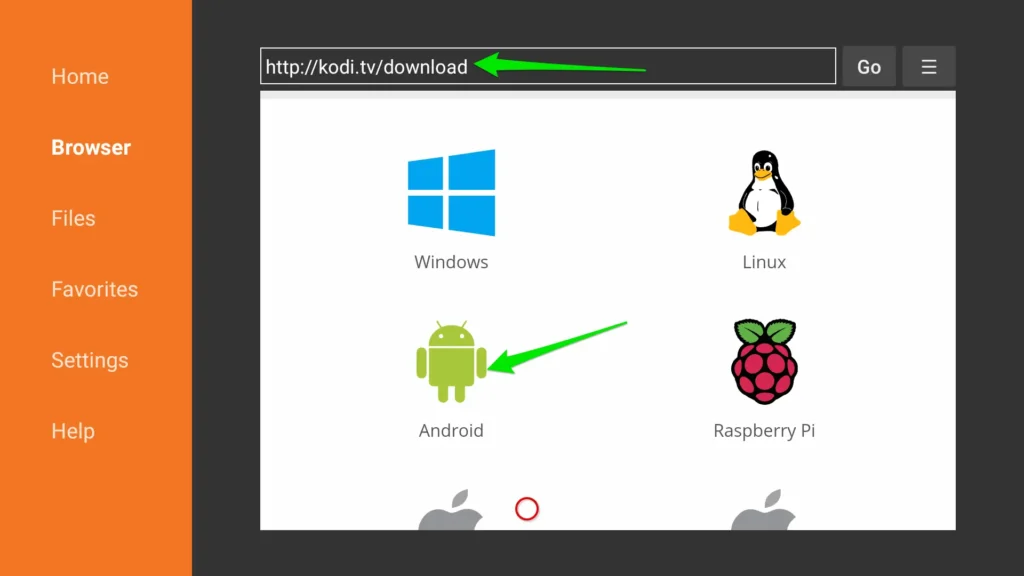
- On the Kodi site, choose the Android (ARM) build.
- Wait for the download, then select Install when the screen appears.
- After “App installed”, choose Done, then Delete twice to remove the setup file and free storage.
Open Kodi from Apps and Channels, let the first launch finish preparing its files, and move Kodi toward the front of your apps list for quick access. Sideloaded apps do not auto-update, so repeat the Downloader steps whenever a new official Kodi version ships. If your model refuses to sideload at all, some newer Fire TV devices run a locked-down system; check Settings, My Fire TV, About to see your device type.
6. Step 2: Install the PVR IPTV Simple Client Add-on
The add-on installs from Kodi’s own repository in six clicks, on every platform:
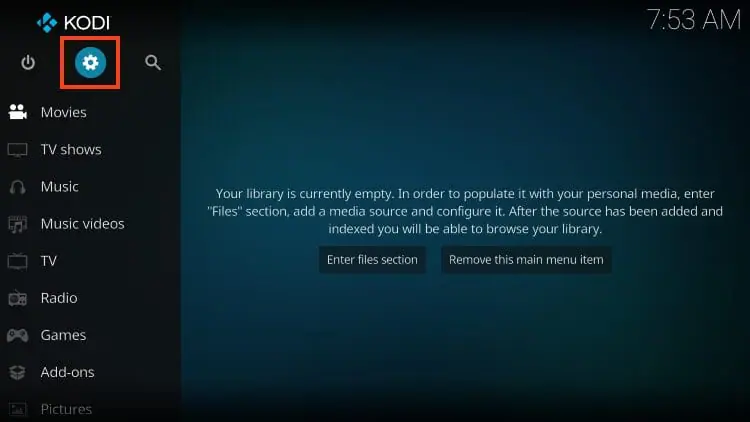
- From the Kodi home screen, open Settings (the gear icon), then Add-ons.
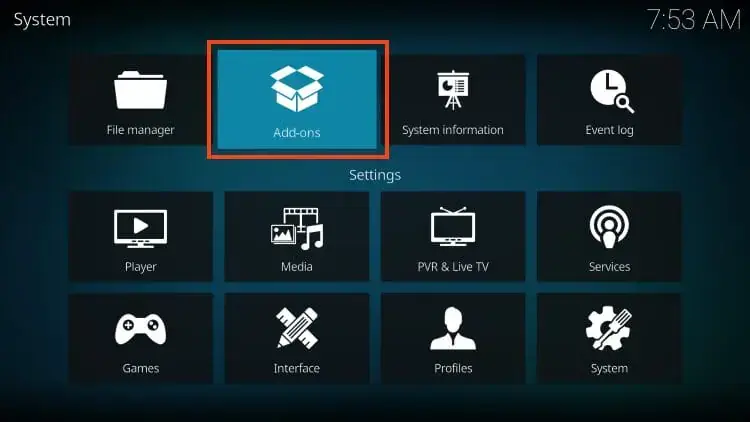
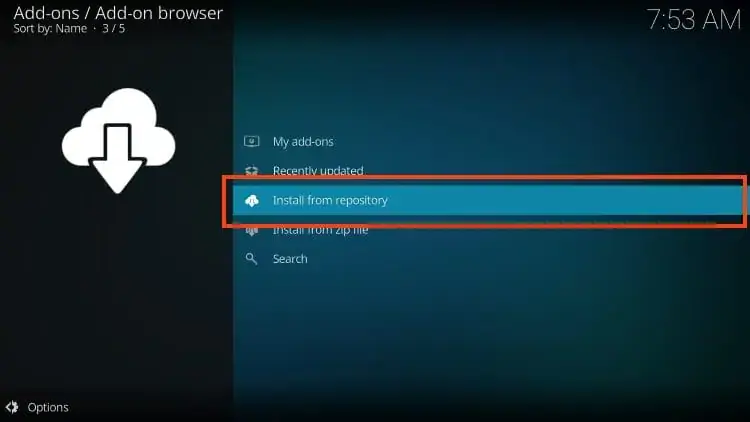
- Select Install from repository, then Kodi Add-on Repository.
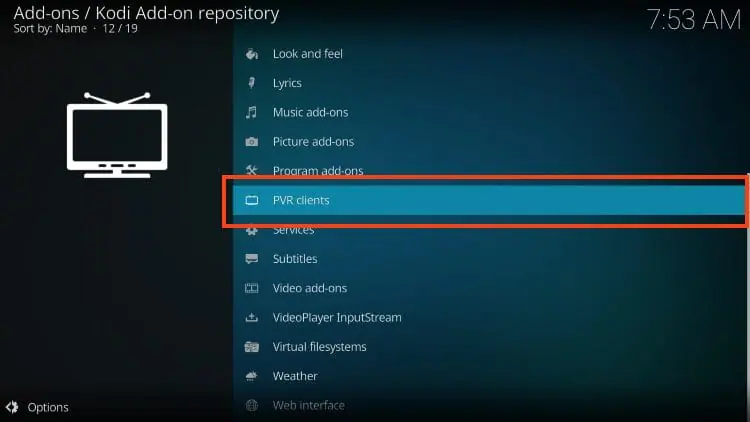
- Open PVR Clients.
- Find PVR IPTV Simple Client and select it.
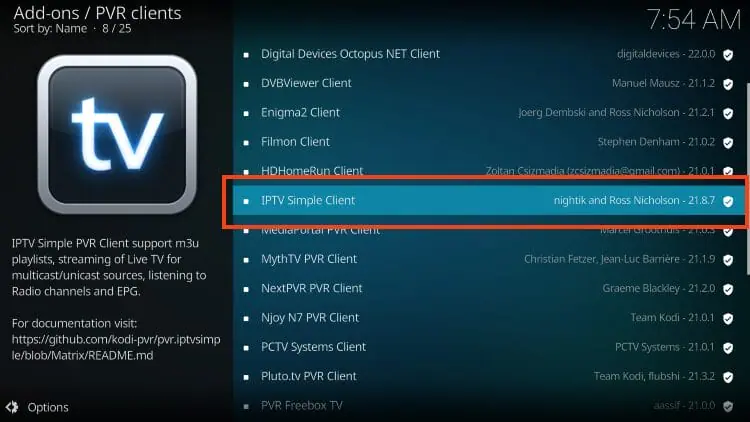
- Hit Install and wait for the confirmation message.
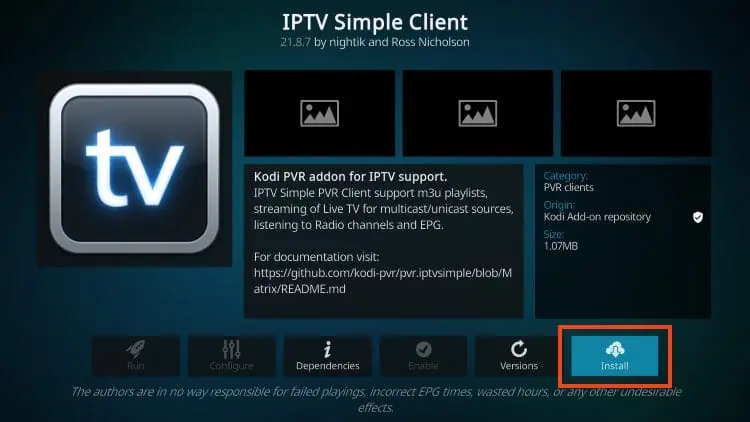
If Kodi asks about unknown sources at any point, you only need that toggle (Settings, System, Add-ons, Unknown Sources) for third-party repositories, which this method avoids entirely. The Simple Client comes from Kodi’s official catalog.
7. Step 3: Configure the Add-on with Your Credentials
Your M3U playlist URL is what connects the add-on to your subscription. Enter it like this:
- On the PVR IPTV Simple Client page, click Configure.
- Open the General tab. On recent versions, edit “Migrated Add-on Config” if it appears.
- Set the location to Remote path and select M3U Playlist URL.
- Paste your M3U URL exactly as provided and click OK.
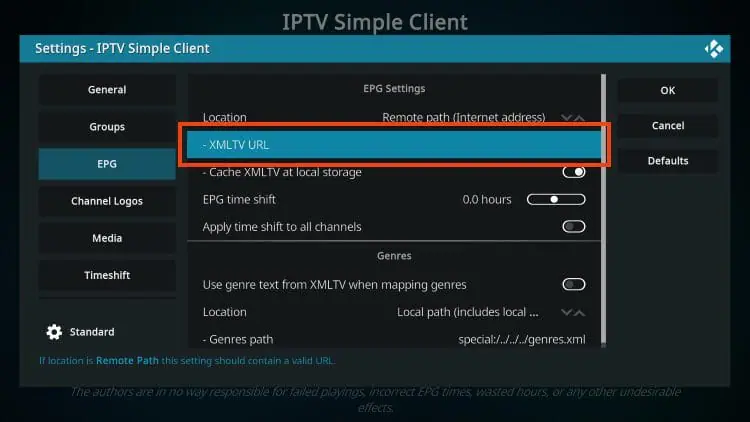
- Open the EPG tab, paste your provider’s XMLTV EPG URL, and click OK again.
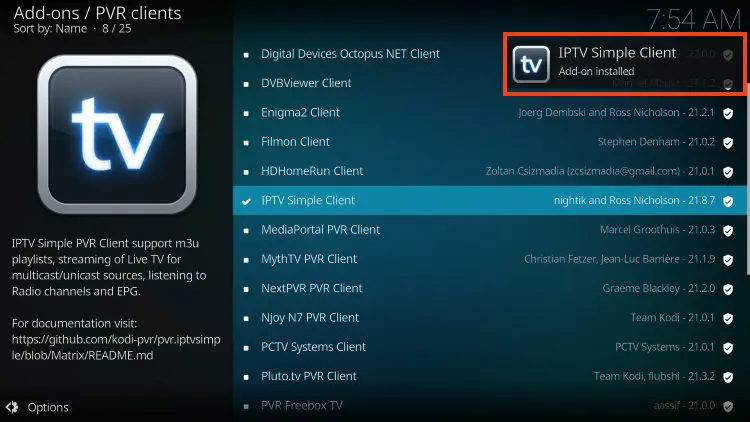
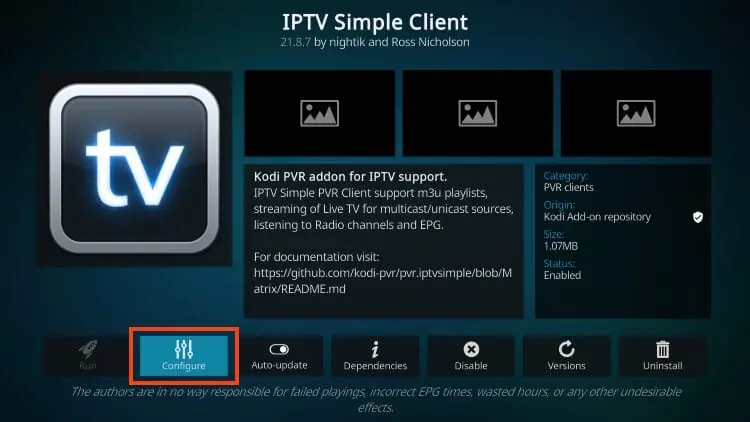
Open Edit “Migrated Add-on Config” if your Kodi version shows it.
Under General, select M3U Playlist URL.
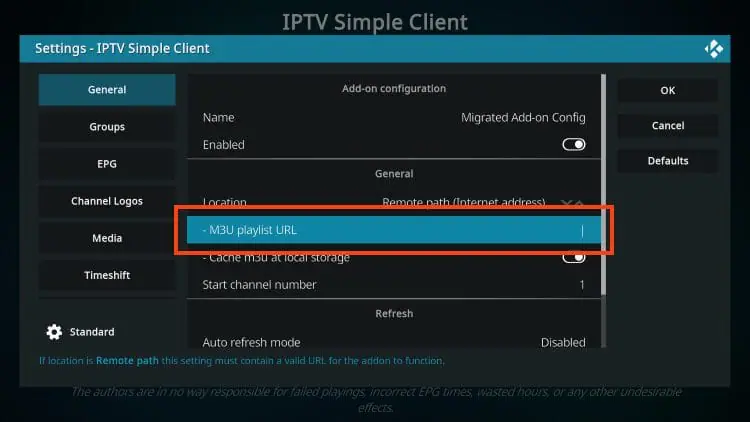
Enter your M3U URL from your provider exactly, then click OK.
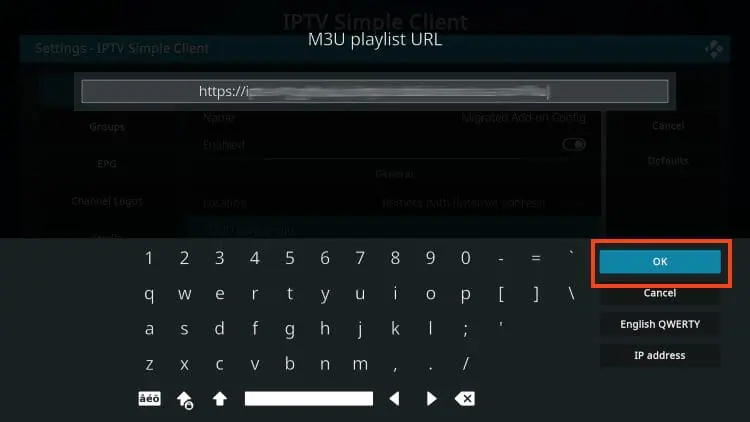
Double-check the URL character by character. A single typo is the number one reason a channel list never loads. Xtream-style providers work here too, either through the Xtream option where your build supports it or through the M3U link with embedded credentials.
(Optional) Add your EPG via the XMLTV URL field, then click OK.
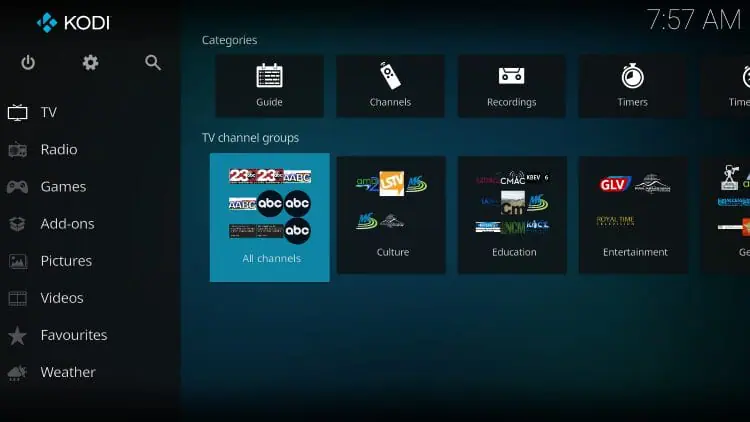
Return to the Kodi home screen and open the TV tab — your channels now appear.
8. Step 4: Enable the Add-on, Reload Kodi and Set Up the Guide
A full restart of Kodi is what loads your playlist for the first time:
- Return to the PVR IPTV Simple Client screen and click Enable if it is not already on.
- Close Kodi completely, then reopen it.
- Wait 30 to 60 seconds while the channel list populates.
- Open TV from the main menu to see your channels.
If nothing appears, restart Kodi a second time; some installs need a full reload to fetch the entire list. Once channels are in, spend two minutes on quality-of-life settings: mark favourites so game-day channels are one click away, browse the guide to confirm the EPG shows current and upcoming shows, and explore the category groups your provider includes. An empty guide almost always means the EPG URL was skipped or mistyped; go back to the configuration, verify it, and trigger a manual refresh.
9. Step 5: Test, Optimize and Fix Common Problems
Test a handful of channels across different categories, and do it during evening peak hours (7 to 10 PM) when weak servers show their true performance. Channels should load within about 3 seconds. If they do not:
- Channels fail to load consistently: the M3U URL or the provider’s servers are the issue, not Kodi. Verify the link, then test the same playlist in another app to isolate it.
- Buffering on certain channels: slow connection, underpowered device or an overloaded server. Try Ethernet, close background apps, or increase Kodi’s cache in advancedsettings.xml. Our guide on fixing IPTV buffering on any device goes deeper.
- Kodi slows down over weeks: clear the cache periodically and restart the device weekly; on a Firestick this makes a bigger difference than the hardware’s age.
- 4K streams stutter: 4K needs hardware with HEVC decoding (Fire TV 4K, NVIDIA Shield, recent Android boxes) plus 50 Mbps of steady bandwidth.
Kodi also includes useful extras many users miss: parental controls with a 4-digit PIN under Settings, PVR & Live TV, and recording support when you enable timeshift in the add-on and point it at storage, which we cover in how to record live TV with IPTV. A VPN is optional; it helps if your ISP throttles streaming traffic, and our VPN for IPTV guide explains when it is worth it.
10. Legal and Safety Considerations in Canada
Kodi itself is fully legal in Canada, and so is the PVR IPTV Simple Client; what matters legally is the source of the streams you load into it. Using a provider that holds proper rights keeps you on the right side of Canadian copyright law, while unverified free playlists and “fully loaded” Kodi boxes are where the legal and security trouble lives. Two practical rules keep you safe: download Kodi only from kodi.tv, never from a link in a forum or a pre-loaded device, and feed it credentials from a provider you have actually vetted. The quality of the source matters for performance too. A perfect Kodi setup on an unstable provider still buffers, while a basic setup on a well-run service is flawless, so test the service properly with a trial before paying for months upfront.
Frequently Asked Questions (FAQ)
Is installing IPTV on Kodi legal in Canada?
Yes. Kodi and the PVR IPTV Simple Client are both legal software. The legality depends on your stream source, so use a licensed provider.
Do I need to pay for Kodi?
No. Kodi is free, open-source software from a non-profit foundation, with no subscription or licence fee for the software itself.
Why is Kodi not in the Amazon Appstore?
Amazon does not list Kodi, so Firestick users sideload it with the Downloader app. It is a normal, safe process that takes a few minutes when you use the official kodi.tv link.
Can I install Kodi on my Smart TV?
It depends. Kodi runs natively on Android TV and Fire TV. Samsung, LG and most other smart TVs need an external device such as an Android box or Firestick running Kodi.
Why don’t my channels load after installing the add-on?
A typo in the M3U URL or an expired link is the usual cause. Re-check the URL character by character, confirm your subscription is active, and restart Kodi.
Why is the EPG empty?
The EPG URL was not entered or points to an invalid source. Open the add-on configuration, paste your provider’s XMLTV link, refresh, and allow 30 to 60 seconds for the first sync.
Does Kodi support 4K IPTV?
Yes, on capable hardware. You need a device with HEVC hardware decoding and a stable connection of at least 50 Mbps for smooth 4K playback.
Can I use multiple IPTV providers in one Kodi setup?
Yes. Recent versions of the PVR IPTV Simple Client support multiple instances, or you can swap M3U URLs in the same configuration.
Will Kodi update automatically on a Firestick?
No. Sideloaded apps do not auto-update, so rerun the Downloader steps with the latest official link when a new version is released.
Does IPTV on Kodi need a VPN?
Not necessarily. A VPN helps if your ISP throttles streaming or you want extra privacy, but a reliable provider with stable servers does not require one.
Conclusion
Kodi plus the PVR IPTV Simple Client turns any device, Firestick included, into a full IPTV hub in about 15 minutes: official install, add-on, M3U and EPG links, reload, test. The setup is the easy part; the stream source decides whether it runs beautifully or buffers, so put your effort into choosing a stable, licensed provider. Final tip: keep a note of your M3U and EPG links somewhere safe, because they turn every future reinstall into a 2-minute job.