
To set up IPTV on a Formuler box, open MyTVOnline 3, add a portal with the URL from your IPTV Canada provider, send them the MAC-ID the screen shows, and select Connect once they’ve activated it. MAG, Dreamlink and AVOV boxes use the same pairing of MAC address and portal URL; only the menu where you type it changes.
Learn that pairing once and you can set up any of the four, or move a box to a new provider without a reset. Each box has its own section below with a picture for every step. For TVs, sticks and phones, use our IPTV setup guide.
1. How Portal Boxes Work, and Which One You Have
A portal box connects to your provider’s server through a portal URL and identifies itself by its MAC address, rather than through a username and password typed into an app you downloaded. That’s the difference between these four boxes and a Fire Stick or a generic Android box, and it’s why the setup steps look unfamiliar the first time.
| Box | Made by | System | Where the portal lives | MAC address needed? |
|---|---|---|---|---|
| Formuler (Z8 Pro, Z10 Pro, Z11 Pro Max) | Formuler | Android TV | MyTVOnline 3 app, pre-installed | Usually, but also takes Xtream Codes or M3U |
| MAG (254, 322, 324, 424, 524 and others) | Infomir | Proprietary, no app store | Settings, System settings, Servers, Portals | Yes, always |
| Dreamlink (T1, T1+, T6) | Dreamlink | Android-based | Dreamlink Online (DOL2) app | Yes |
| AVOV (TVOnline, TVOnline+, TVOnline N) | AVOV | Proprietary, small built-in Market | TVOnline app, Server Settings | Yes |
The portal on MAG, Dreamlink and AVOV is usually a Stalker (Ministra) type, which is why the same portal URL and MAC activation work across all three. Among Dreamlink boxes, the T1 was the first with 4K support, the T1+ upgraded its hardware, and the T6 is the newest and most powerful; all three set up identically, and Dreamlink boxes are a common sight in Canadian living rooms for that reason.
Formuler is the outlier in a useful way: because it runs Android TV, it also installs ordinary player apps, so it works with providers who send Xtream Codes or an M3U link instead of a portal. The other three are portal-only. If you’re still deciding which to buy, our guide on choosing a good IPTV box covers the trade-offs.
2. What to Have Ready Before You Plug In
Portal boxes are unforgiving about details. The box is almost never the problem: one wrong character in the portal URL, or a MAC address the provider hasn’t activated yet, and you’re looking at an empty screen. Have these to hand first.
- The portal URL from your provider, usually in the email that arrives after you order. On a Formuler you can use Xtream Codes or an M3U link instead. No provider yet? An IPTV free trial sends a portal URL and activates your box so you can test it before paying.
- The box’s MAC address, which the provider activates on their side. Section 4 shows where each box displays it.
- An Ethernet cable. These boxes live under the TV, usually close enough to the router for a cable, and a wired line stops 4K from stalling. Our internet speed guide explains how to test yours.
- The power adapter that came in the box. MAG and AVOV boxes in particular can be damaged by a mismatched supply.
3. Connect the Box and Get It Online
Connect HDMI, then network, then power, and confirm the box has an internet connection before you touch any portal setting, because without a live connection the portal will never load and every later step looks broken.
- Plug the HDMI cable from the box into the TV and select that input.
- Plug in Ethernet from the router, or have your Wi-Fi password ready (MAG boxes need a compatible Wi-Fi adapter; the others have Wi-Fi built in).
- Connect the power adapter. Most boxes boot on their own.
- Run the setup wizard where there is one (Formuler and Dreamlink): language, network, terms.
- Check the network screen shows an IP address: on MAG under System settings, Network; on the others under Settings.
- Install any update the box offers before you go further.
4. Find Your MAC Address
Your MAC address is the box’s unique ID, six pairs of characters, and each box shows it in a different place:
- Formuler: the MAC-ID shown under ID on MyTVOnline 3’s Add Portal screen (on Z11 boxes it starts with 00:1E:B8), or the label on the back of the box. Use that MAC-ID, not the network MAC; Formuler explains the Z11 change on its support page.
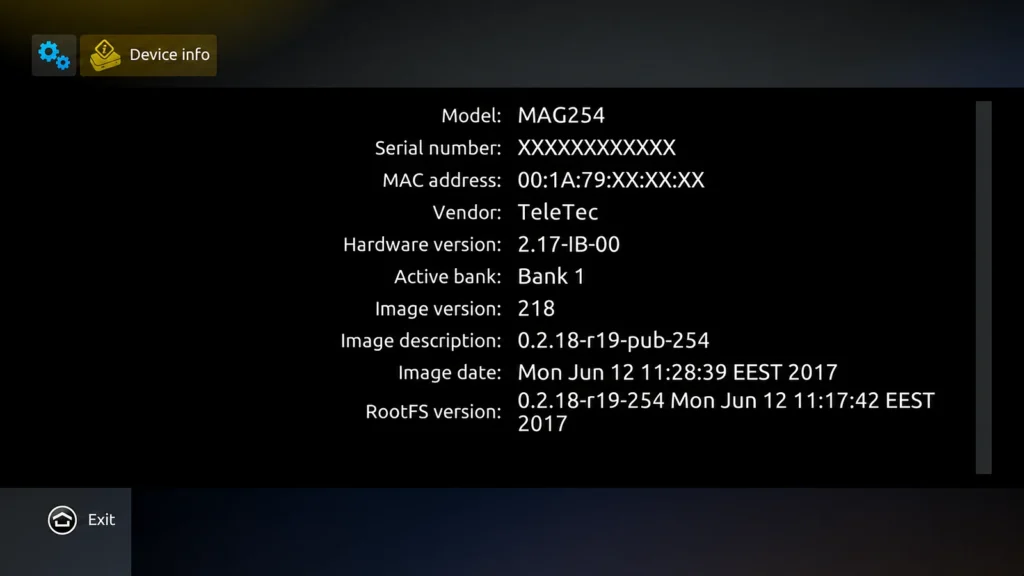
- MAG: under System settings, Device info, or on the label on the box.
- Dreamlink: on the main Dreamlink Online (DOL2) screen.
- AVOV: open the TVOnline app, then Server Settings; it’s in the top-right corner.
Write it down exactly, colons included. Many providers ask for it at checkout when you buy an IPTV subscription, so if you already entered it then, you can skip the next step.
5. Send the MAC Address to Your Provider
Your provider has to register the MAC address on their server before the portal will show anything, so send it as soon as you have it, by email or through your account area, and wait for confirmation. Activation usually takes minutes, occasionally longer. Until it’s done, the box shows an empty portal or an “STB Blocked” message even when the URL is right. Ask for the exact portal URL in the same message if you don’t already have it.
6. Formuler: Set Up MyTVOnline 3
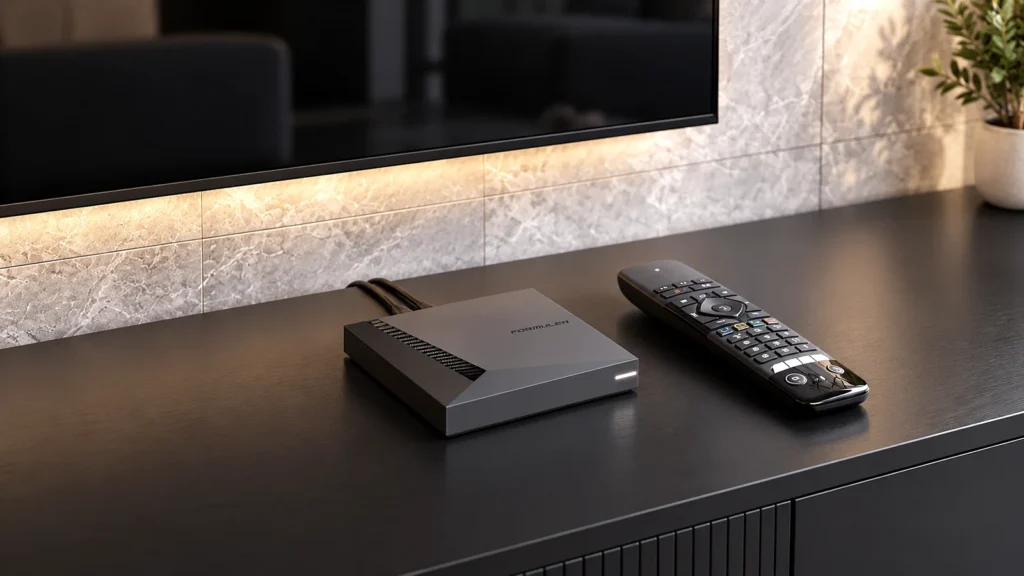
Formuler boxes come with MyTVOnline 3 (MTO) pre-installed, and there’s a dedicated MTO button on the remote. You add your provider as a portal under Content Sources.
Step 1: Connect the box
Connect the box to the TV by HDMI, plug in the power and connect it to your router by cable or Wi-Fi, then finish the setup wizard.
Step 2: Open Add Portal
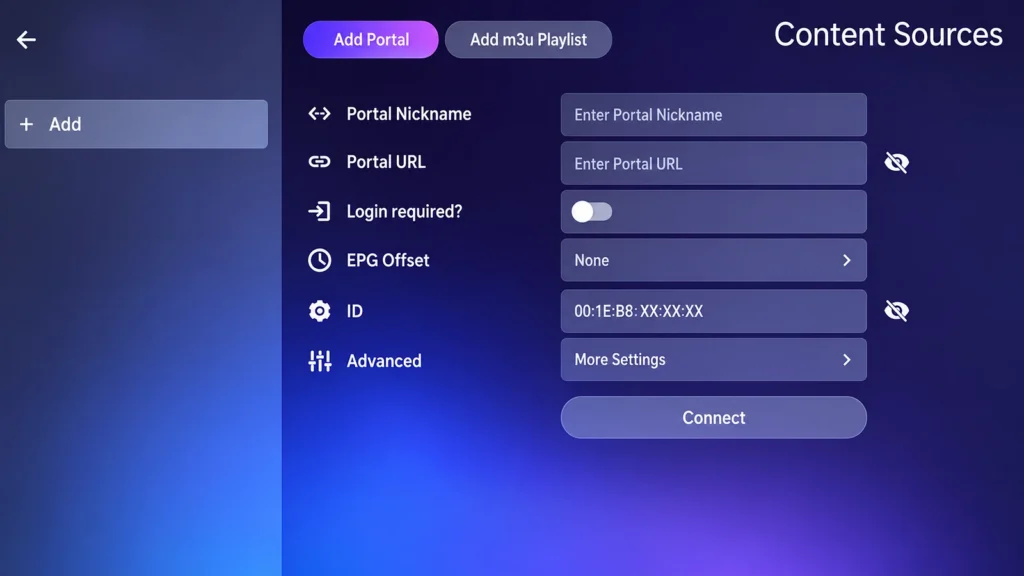
Open MyTVOnline 3, then Menu, Content Manager, Content Sources, and select Add Portal.
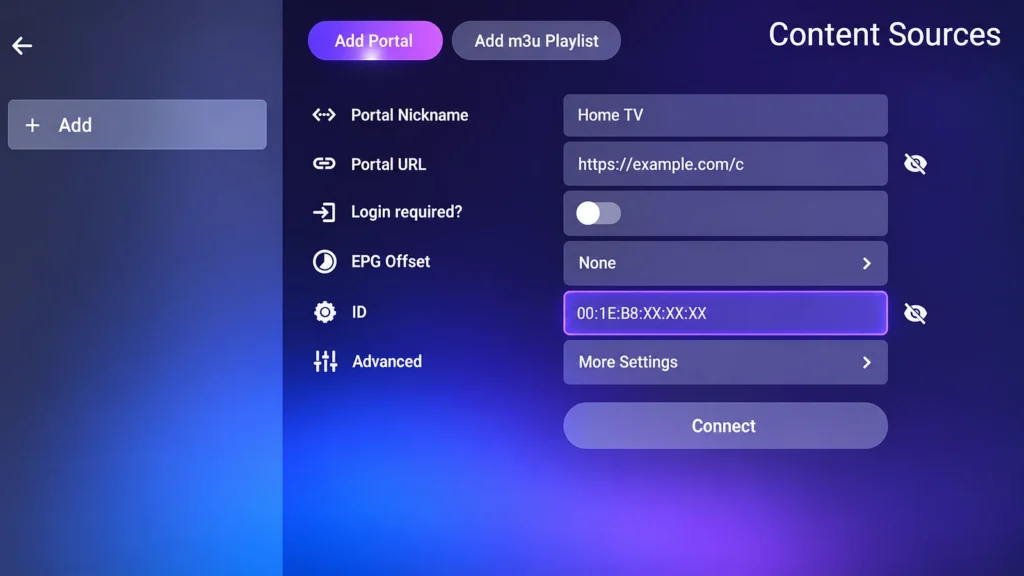
Step 3: Enter a nickname and the portal URL
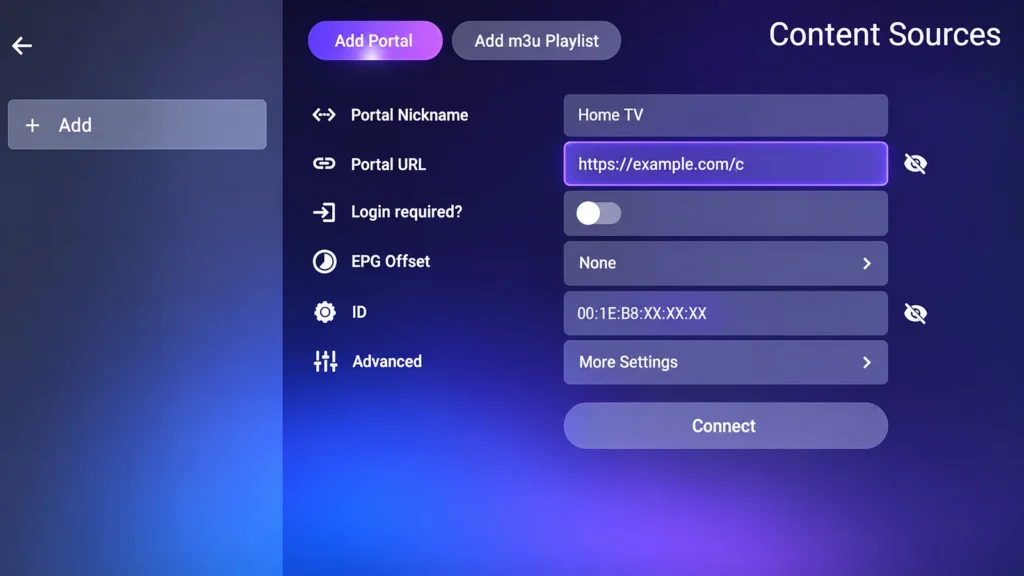
Enter a nickname and the portal URL exactly as your provider sent it. With MAC-ID activation, leave Login required off; if your provider gave you a username and password, turn it on and enter them.
Step 4: Send the MAC-ID for activation
If your provider activates by MAC address, send them the MAC-ID shown under ID on the Add Portal screen (on Z11 boxes it starts with 00:1E:B8), not the network MAC, then wait for activation.
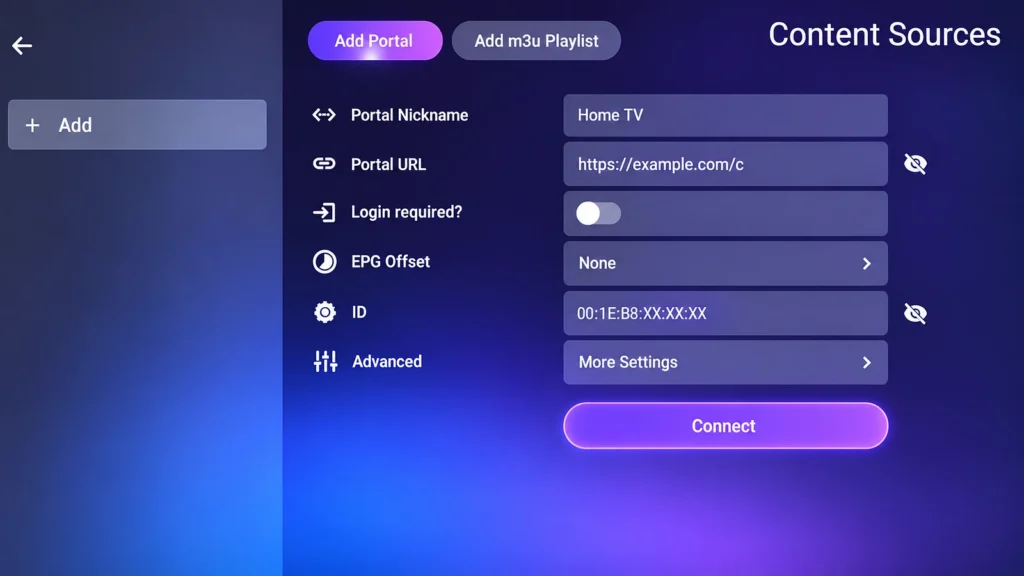
Step 5: Select Connect
Select Connect. Your channels and videos load once your provider has activated the box, in four sections: Live TV, Movies, Series and TV Catch-up.
Formuler explains every portal option, including MAC-ID, Xtream Codes and M3U, in its portal setup article. If your provider sent Xtream Codes or an M3U link instead of a portal, MTO accepts those directly, and because the box runs Android TV you can also install TiviMate or IPTV Smarters Pro from the Play Store; our Android TV guide covers that route.
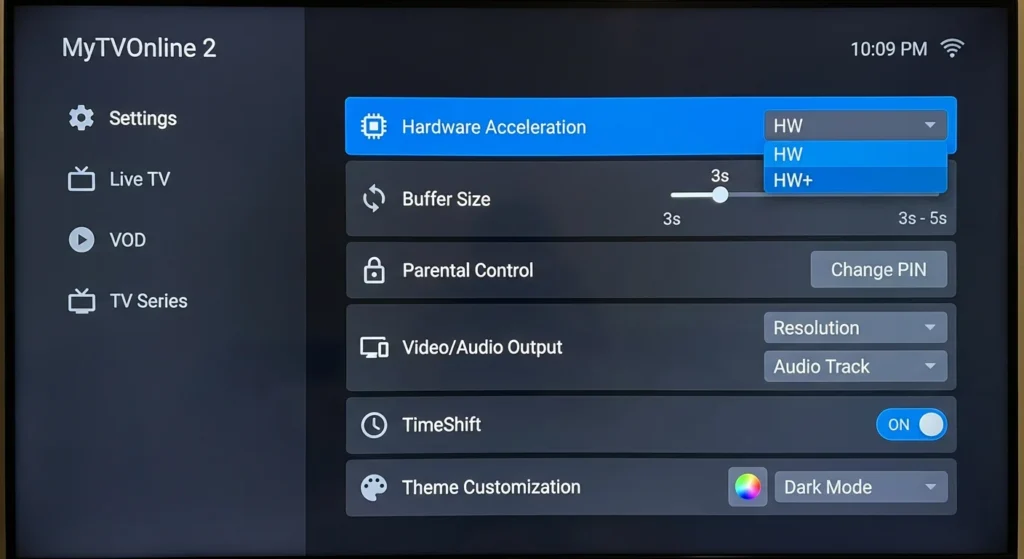
Formuler settings worth changing once channels load: open Settings in MTO and set Hardware Acceleration to HW+, then pick your preferred video and audio output. Leave the buffer at the default unless streams stall (then raise it a step at a time), set a parental PIN, set the EPG refresh to daily, and adjust the theme to taste. Add your most-watched channels to favourites, and if your provider supports them, test TimeShift and recording once so you know they work before you need them.
7. MAG: Enter the Portal URL and Restart
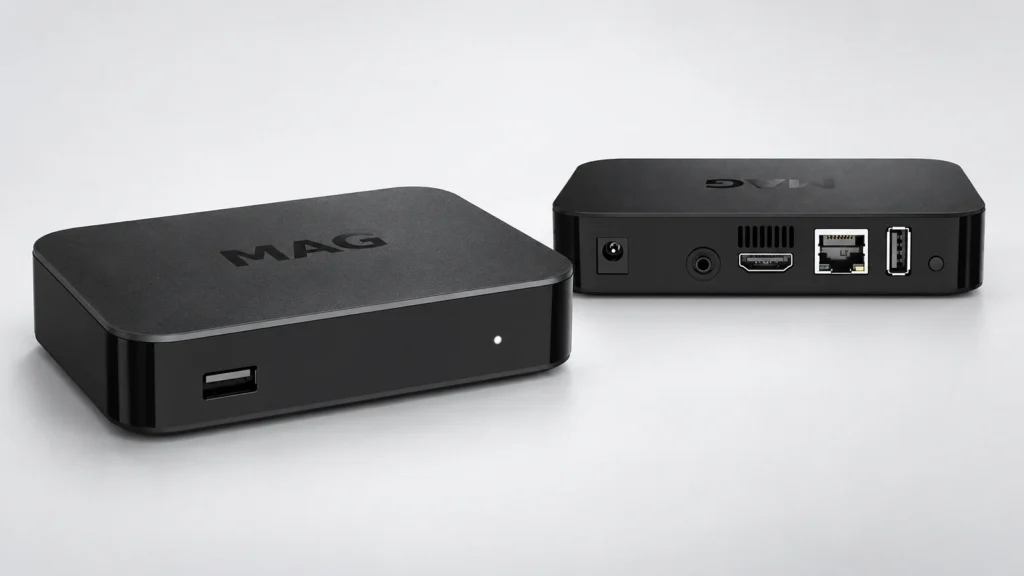
On a MAG box you enter the portal URL in the system settings and restart the portal; there’s no app to install, because MAG boxes from Infomir run their own system rather than Android. Infomir documents these menus on its system settings page.
Step 1: Connect the box
Connect the box to the TV by HDMI and to your router by Ethernet, then plug in the power.
Step 2: Send your MAC address to the provider
Send your provider the MAC address from System settings, Device info, or from the label on the box.
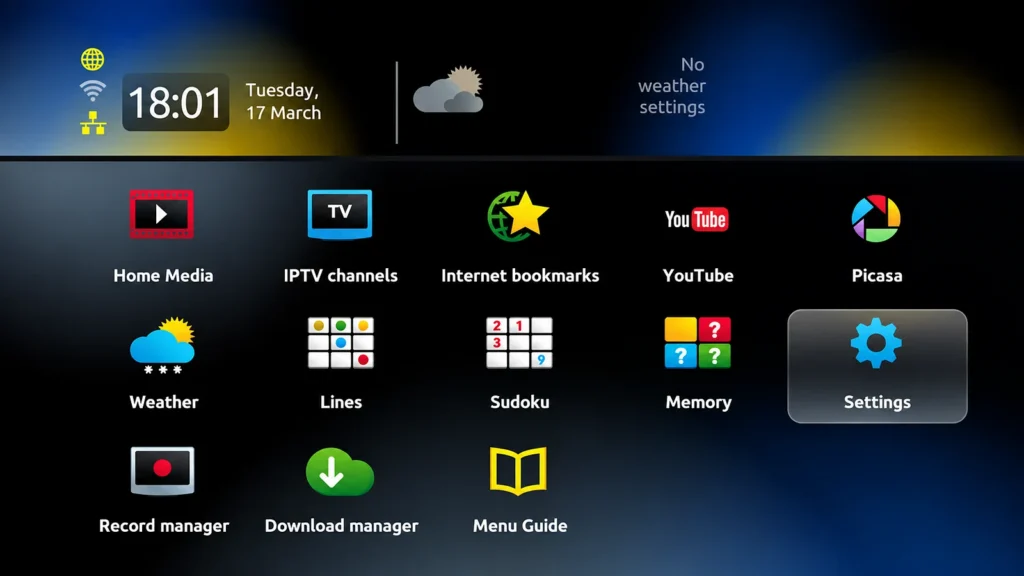
Step 3: Open the Portals screen
Open Settings, then System settings, Servers, Portals.
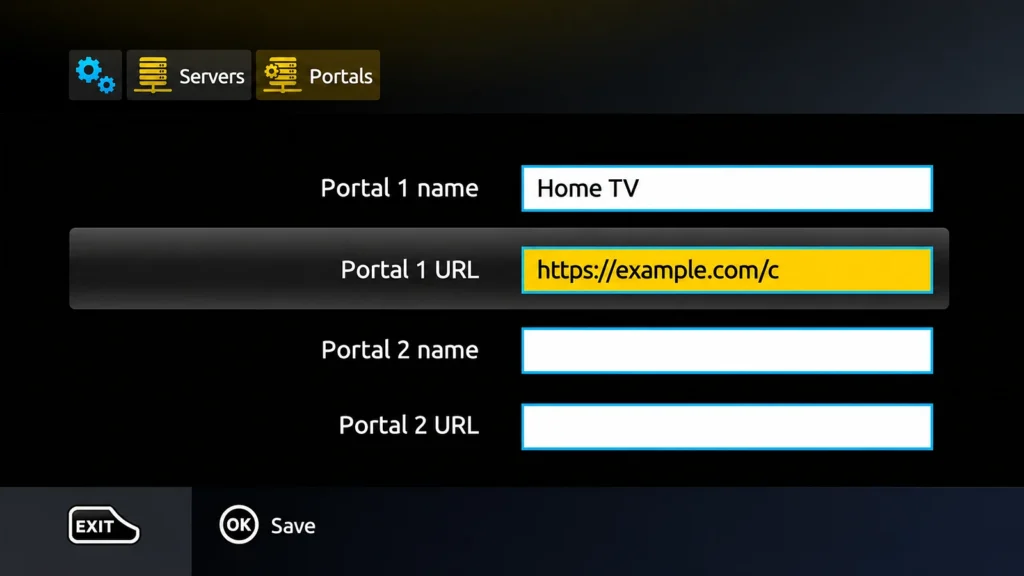
Step 4: Enter the portal URL
Enter a name for Portal 1 and the portal URL exactly as your provider sent it, with no spaces, then select OK to save.
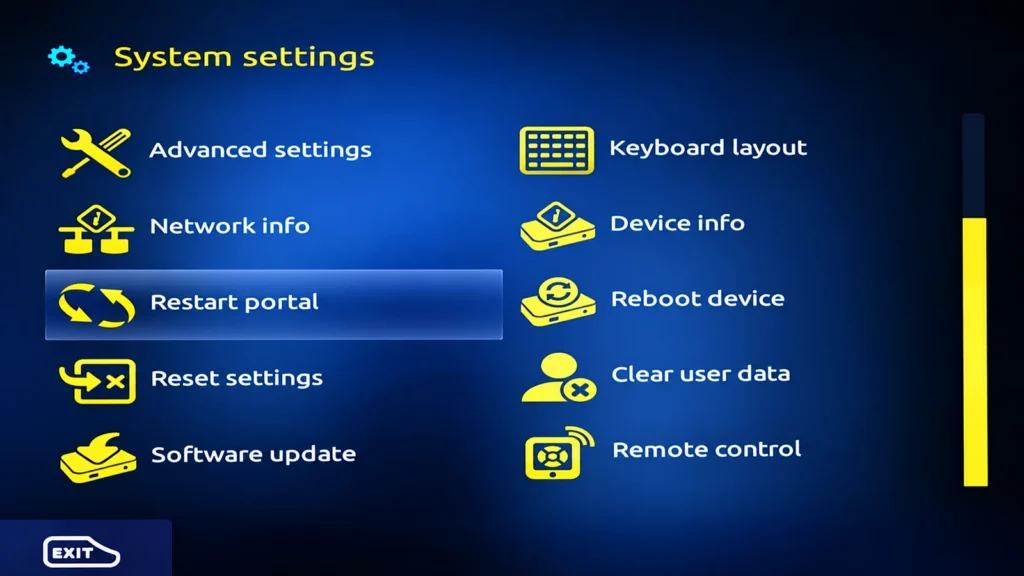
Step 5: Restart the portal
Go back to System settings and select Restart portal (confirm if asked). Your provider’s channel list loads once your service is active.
MAG boxes keep a second portal slot, which is handy for holding a backup URL from your provider. To switch providers later, replace the URL in Portal 1 and have the new provider activate your MAC; our guide on changing the URL on an IPTV box covers the same process on other hardware.
8. Dreamlink and AVOV: Portal Setup in the Built-In App
Dreamlink and AVOV both use a small built-in portal app, and the setup is the same idea as MAG with the settings living inside the app instead of the system menu.
Dreamlink T1, T1+ and T6
Step 1: Connect and update the box. Connect the box, follow the setup prompts and install any update it offers.
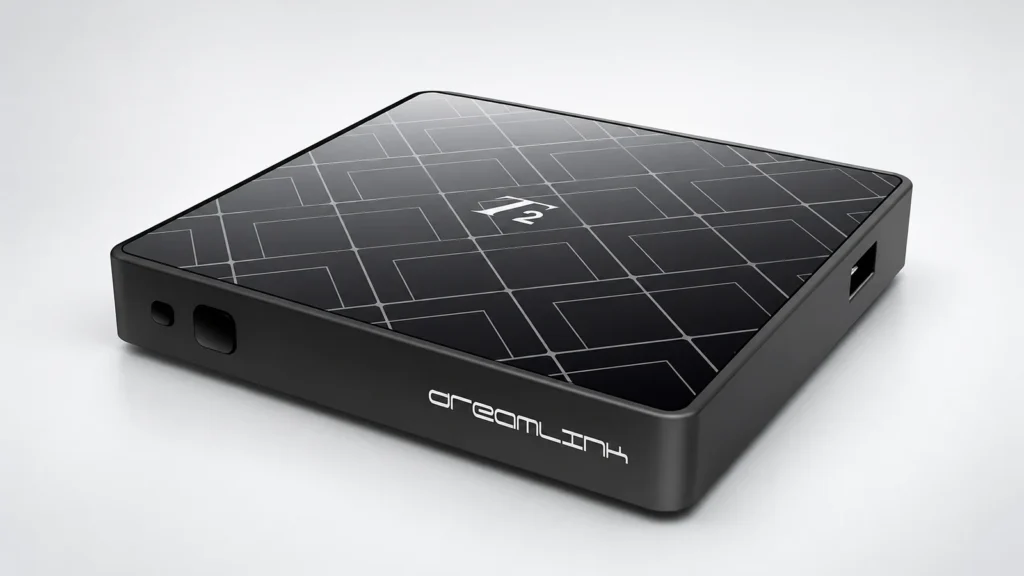
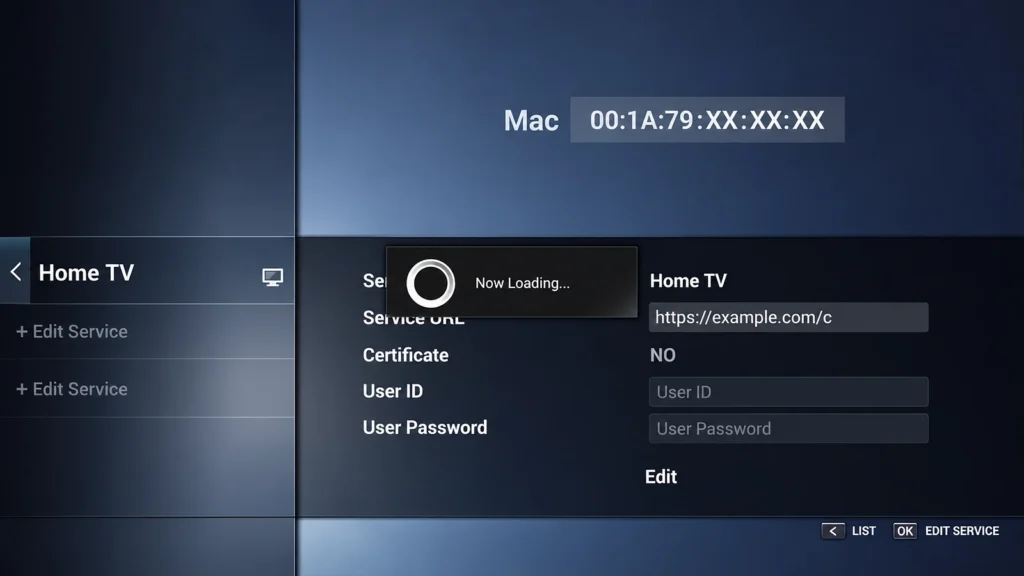
Step 2: Note the MAC address. Open Dreamlink Online (DOL2) and note the MAC address it shows. Send it to your provider.
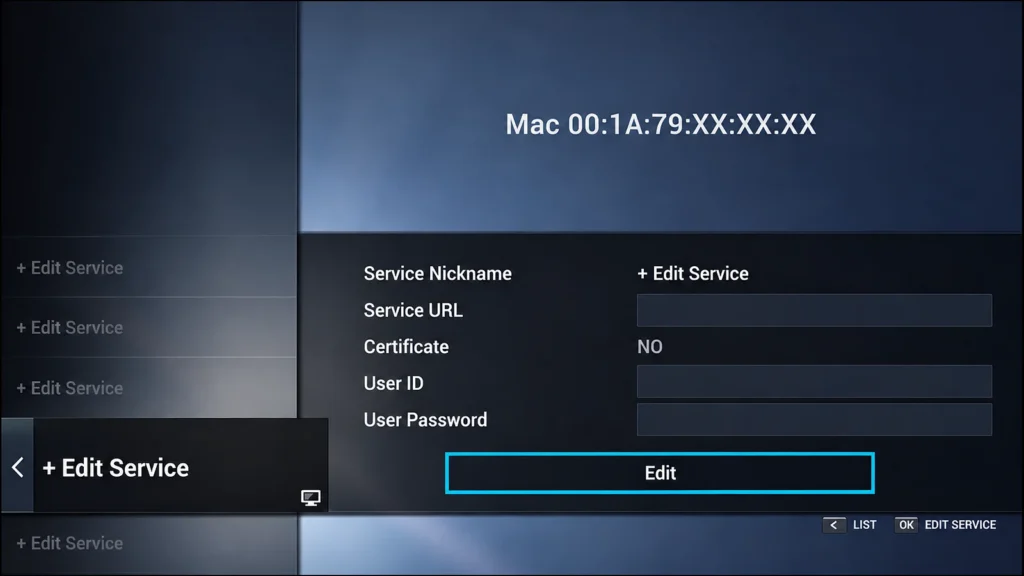
Step 3: Edit the service. Select + Edit Service, press OK to edit it and enter a service nickname.
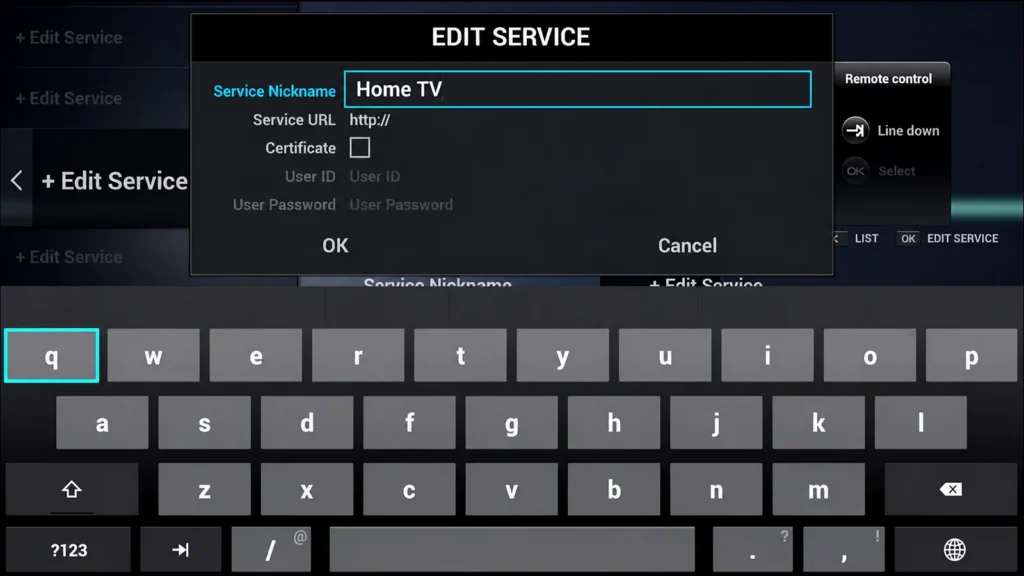
Step 4: Enter the service URL. Enter the service URL from your email, checking every character. With MAC activation, leave Certificate unchecked and the user fields blank.
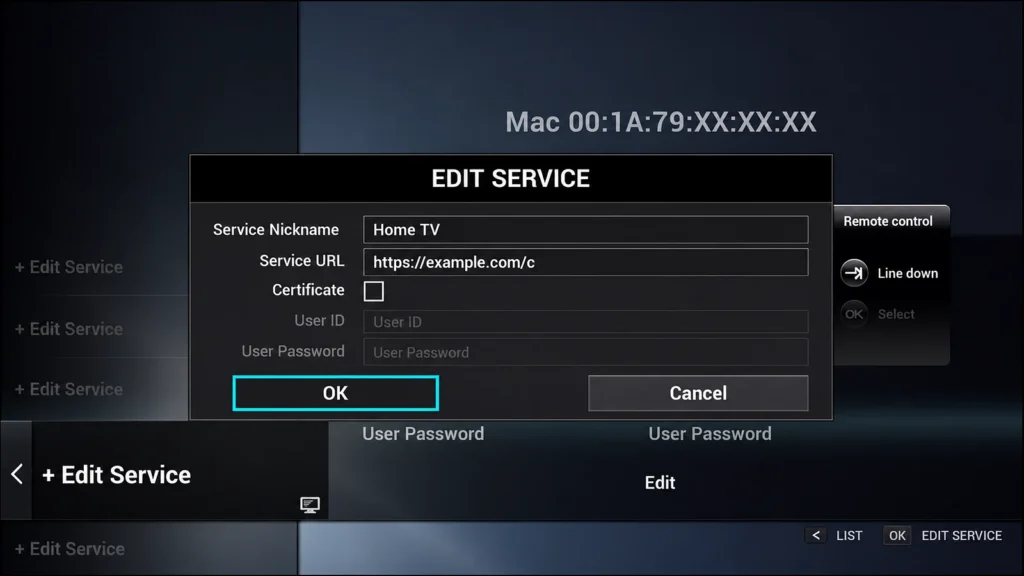
Step 5: Confirm and load. Confirm with OK and let the service load. Channels, movies and the guide appear once your provider has activated the box.
Dreamlink boxes are Android-based, so like Formuler they can also run other player apps if your provider sends Xtream Codes or M3U rather than a portal. DOL2 remains the standard route on this hardware.
AVOV TVOnline, TVOnline+ and TVOnline N
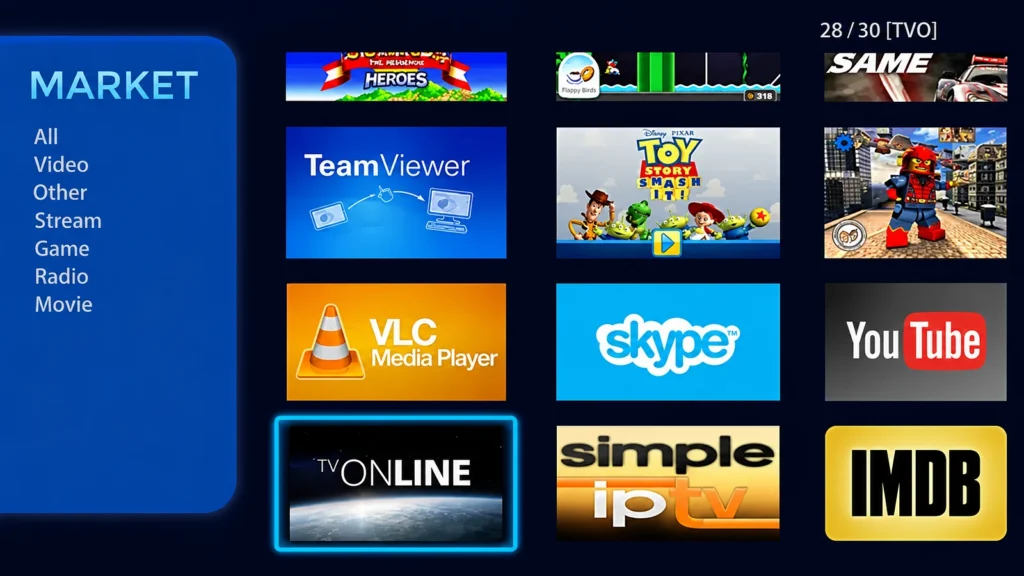
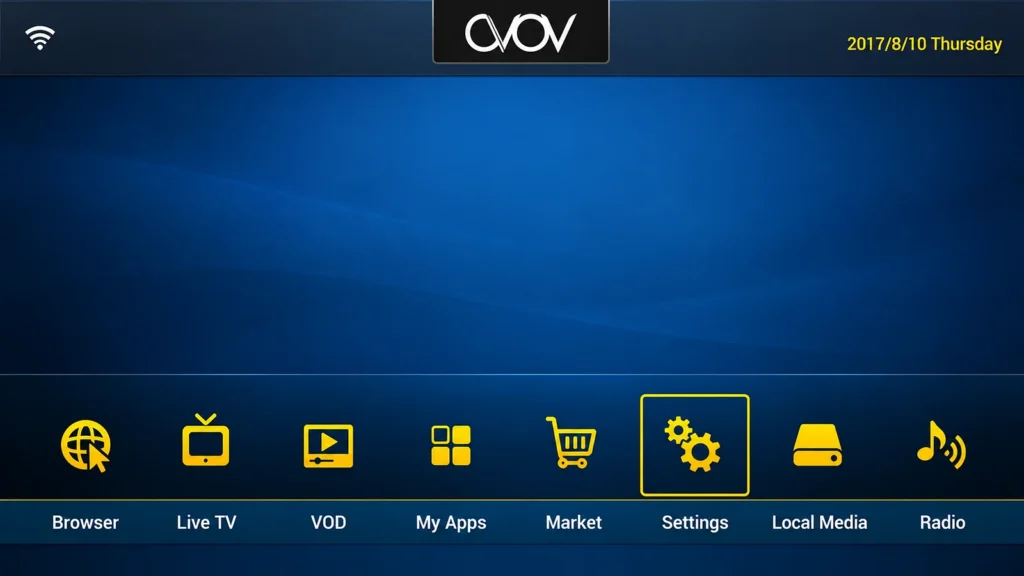
Step 1: Install TVOnline. Open the Market, select TVOnline, install it and open it.
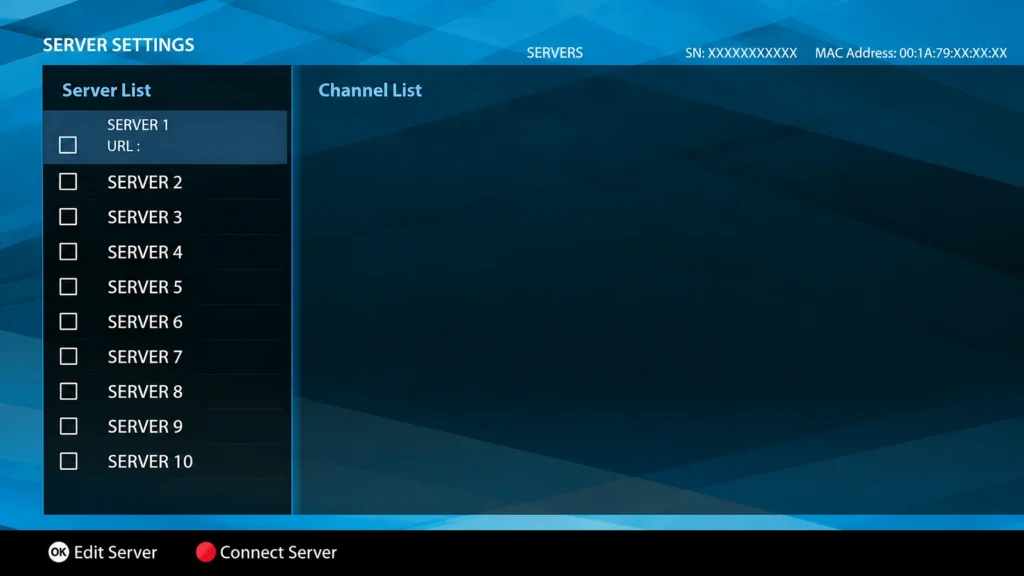
Step 2: Note the MAC address. Open Server Settings and note the MAC address in the top-right corner. Send it to your provider.
Step 3: Enter the server. Select a server slot and press OK to edit it. Enter a nickname and the server URL from your email, with no spaces. With MAC activation, leave Use Credentials unchecked.
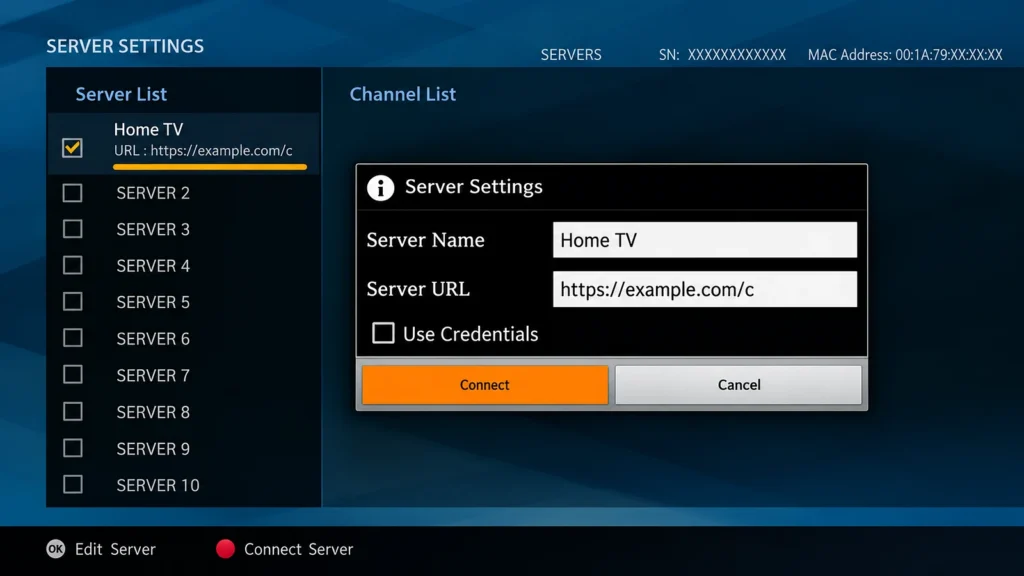
Step 4: Connect. Select Connect and wait while the channels load.
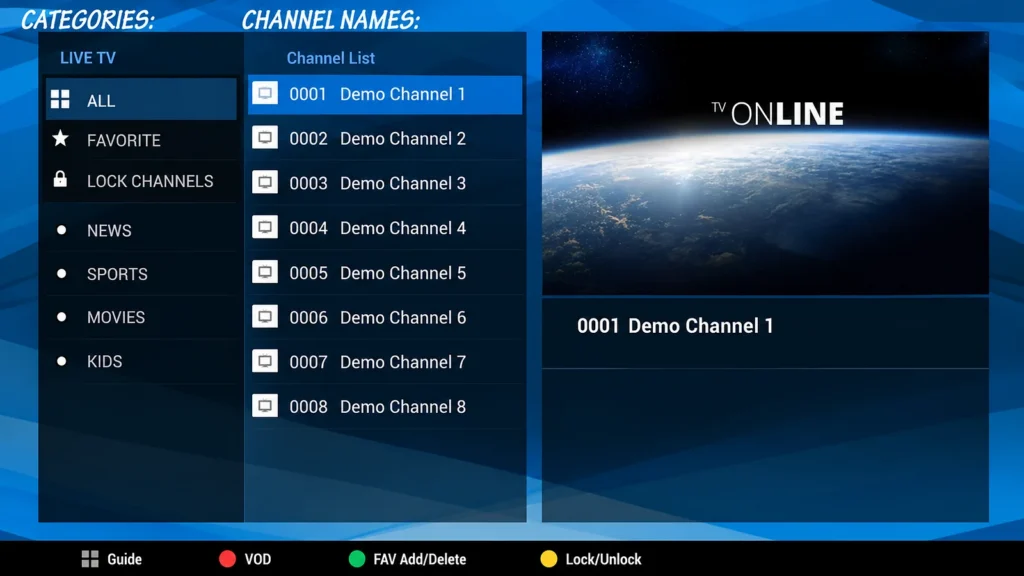
Step 5: If it won’t connect. Open Settings from the home screen to check the network, then check the server URL and MAC activation with your provider.
9. Load Channels, Set Up the Guide, and Fine-Tune
Once the portal loads, test a few live channels, open the Movies and Series sections, and confirm the programme guide shows listings before you settle in, because a portal that half-loads is easier to fix now than after you’ve reorganized favourites.
- Guide. On portal boxes the EPG arrives with the portal, so it should fill in on its own. If it’s empty after a minute, reload the portal; if times are off, check the box’s time zone. Our EPG guide covers the rest.
- Favourites. Mark your most-watched channels on each box so you’re not scrolling a long list every evening.
- Catch-up and recording. Formuler and Dreamlink support catch-up and recording to a USB drive where the provider allows it; MAG supports timeshift on most models. Our guide on recording live TV with IPTV covers the options.
- Parental controls. Set a PIN on the box or in MTO before children get the remote; see our parental control guide.
- DNS. If channels take a long time to open, set the box’s DNS to 1.1.1.1 or 8.8.8.8 in the network settings (or on the router, which covers every device).
- Firmware. Check for updates every month or two. Portal boxes lose compatibility with providers’ servers when firmware gets old.
- Two TVs. One box drives one TV over HDMI. Our guide on watching IPTV on more than one TV covers the ways around that.
10. Troubleshooting, Switching Providers, and Legal Basics in Canada
An empty portal or an “STB Blocked” message almost always means the MAC address hasn’t been activated yet, so check that first, before the URL and before the network.
| Symptom | Most likely cause | Fix |
|---|---|---|
| Empty portal or “STB Blocked” | MAC not activated, or a typo in it on the provider’s side | Confirm activation with the provider; check the MAC they hold matches the box (on Formuler Z11, the MAC-ID from MyTVOnline 3) |
| Portal loads, then error | Portal URL mistyped | Re-enter it exactly, no spaces, then restart the portal |
| Nothing loads at all | Box isn’t online | Check the network screen shows an IP; restart the router and the box |
| Channels load but buffer | Wi-Fi or evening congestion | Wire the box; drop to HD; see our outage and buffering guide |
| Worked yesterday, empty today | Subscription expired, or provider changed servers | Check your renewal date (recharge guide); ask the provider for the current portal URL |
| Box frozen or menus unresponsive | Stale data or old firmware | Restart, update firmware, then follow our IPTV box reset guide |
Switching providers works the same on every box here: enter the new provider’s portal URL, have them activate your MAC, and keep the old settings until the new portal is confirmed working. None of these boxes is tied to one service for life.
On legality: the boxes themselves are ordinary hardware and completely legal in Canada. What matters is the service on the other end of the portal. A licensed provider holds the rights to what it streams; an unlicensed one doesn’t, and Canadian ISPs are ordered by the Federal Court to block a named list of them, with a July 2026 order letting rights holders add new targets without returning to court. Portal boxes are a common way unlicensed services are sold, often “pre-loaded” with a portal already entered and thousands of channels promised for a few dollars, so treat that combination as the warning sign it is. Enforcement reaches the operators too: a Nova Scotia man behind an illegal streaming service was ordered to pay several million dollars, and five men running another were sentenced to prison, which is exactly when their subscribers’ portals go dark. Our guide on whether IPTV is legal in Canada covers what to check.
Frequently Asked Questions
Why does my provider need my MAC address?
Portal boxes identify themselves by MAC address rather than a username, so the provider registers it on their server to link your subscription to that exact box. Until it’s registered, the portal shows nothing even with the right URL.
Where is the MAC address on a Formuler box?
In MyTVOnline 3, open Menu, Content Manager, Content Sources, Add Portal: the MAC-ID is shown under ID. On Z11 boxes it starts with 00:1E:B8. Use that MAC-ID, not the network MAC in the box’s settings.
What does “STB Blocked” mean on my box?
The provider’s server doesn’t recognize your box’s MAC address yet. Wait a few minutes after sending it, then confirm with the provider that the address they hold matches the one on your screen.
Do I need an app on a MAG box?
No. MAG boxes connect straight to the portal from Settings, System settings, Servers, Portals. There’s nothing to download or update on the app side.
Can I use Xtream Codes or an M3U link on these boxes?
On Formuler and Dreamlink, yes: MyTVOnline 3 takes Xtream Codes and M3U, and both boxes can install player apps. MAG and AVOV are portal-only, so ask your provider for a portal URL and MAC activation.
Which is better, a Formuler or a MAG box?
Formuler, for most people, because it runs Android TV and works with both portals and apps, and its MyTVOnline software is more capable. MAG is simpler and very stable if your provider works by portal and you never want to touch an app.
Can I switch providers on the same box?
Yes, on all four. Enter the new portal URL, have the new provider activate your MAC address, and keep the old configuration until the new one loads.
What internet speed do these boxes need?
25 Mbps for HD and 50 Mbps for 4K, per stream. Because they’re fixed boxes on big screens, wire them by Ethernet; it removes most buffering on its own.
Is a pre-loaded portal box legal in Canada?
The box is; the pre-loaded service usually isn’t. Boxes sold with a portal already entered and thousands of channels promised for a few dollars almost always point at an unlicensed service that ISPs are ordered to block.
Can I record on a Formuler or Dreamlink box?
Yes, to a USB drive, where your provider allows recording. A USB 3.0 drive works best on Formuler, formatted the way the box asks when you first plug it in. MAG supports timeshift on most models. Check the provider’s terms first.
Can I use two IPTV subscriptions on one Formuler box?
Yes, but not at the same time. MyTVOnline 3 stores several portals and you switch between them from the portal list; only one runs at a time.
Why won’t the TVOnline app load my portal on an AVOV box?
Check the network first in Settings on the home screen, then confirm the server URL and the MAC activation with your provider. An empty or failed connection is almost always one of those two.
Have another question? Find more answers in our IPTV FAQ.
Conclusion
Once you’ve set up one portal box, you’ve effectively learned all four. The menus differ (MyTVOnline 3 on Formuler, System settings on MAG, DOL2 on Dreamlink, TVOnline on AVOV), but the job is always the same: an activated MAC address plus the exact portal URL. That’s also why an empty screen almost never means a faulty box; the activation usually just hasn’t gone through yet.
If you’re still choosing, Formuler is the most flexible of the four because it also takes Xtream Codes and ordinary Android apps, while MAG suits people who want a box that does one thing and never changes. Whichever you own, update the firmware every month or two and it will keep running for years.