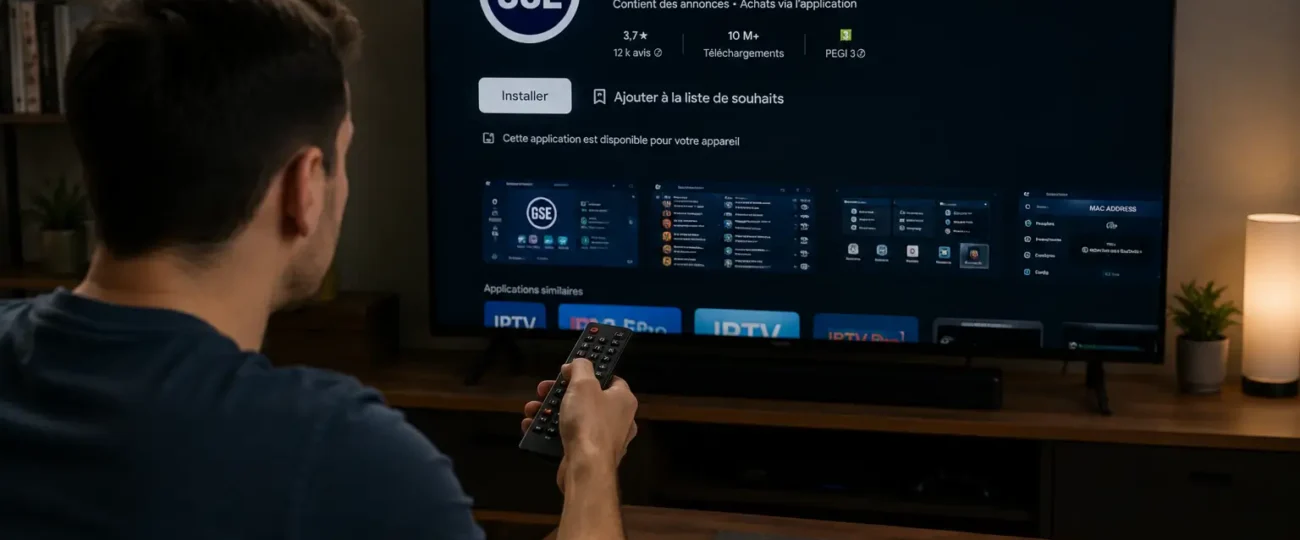


 Written by Rana
Installing IPTV on GSE Smart IPTV takes 7 steps: download and install the app, open the main menu, select Remote Playlists, enter your M3U URL or Xtream Codes credentials, save and wait for channels to load, configure your EPG, then test playback.
The app supports Android, iOS, macOS, and Fire TV, with Xtream Codes being the recommended connection method for full EPG support and stable VOD libraries. Pairing GSE Smart IPTV with a reliable IPTV Canada provider turns a basic player into a complete streaming solution.
If you’re serious about streaming live TV, sports, and on-demand content, GSE Smart IPTV belongs at the top of your list. This guide walks you through every platform, configuration step, and common troubleshooting fix.
Before configuring playlists, you need the app running on your device. GSE Smart IPTV isn’t available directly through the Amazon Appstore, so on Firestick the first step is unlocking sideloading.
Navigate to Settings
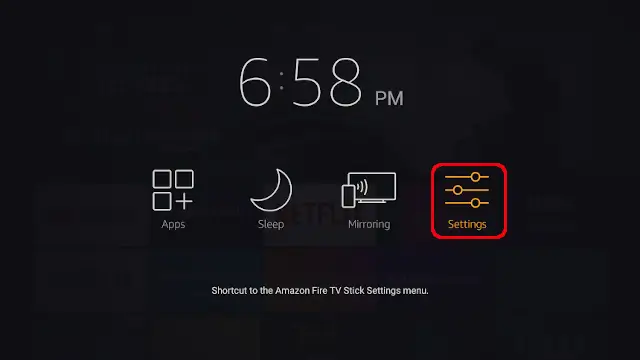
→ My Fire TV
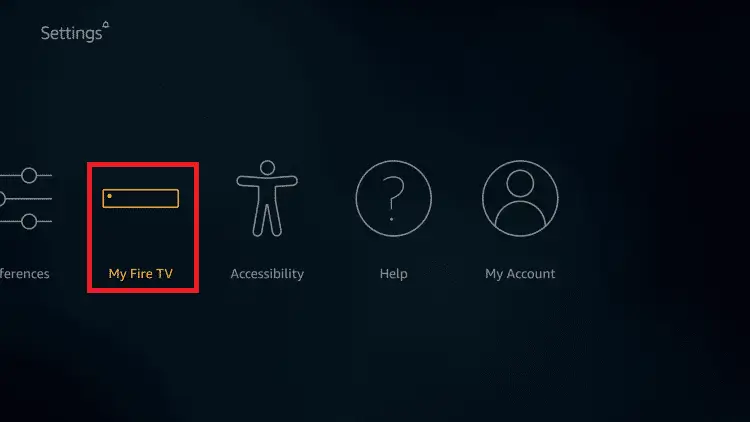
→ Developer Options,
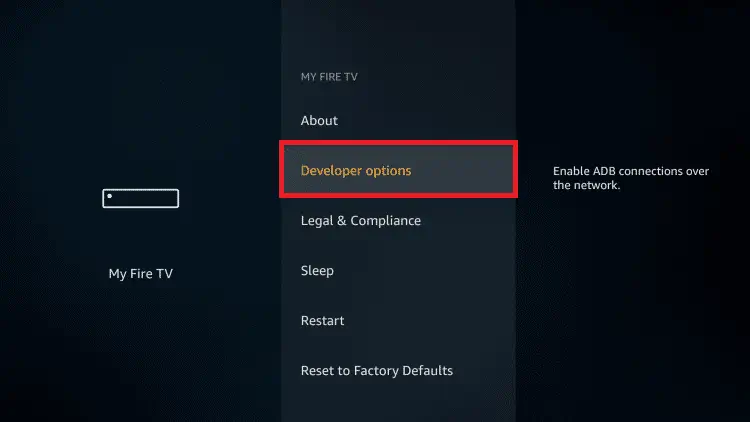
then toggle Apps from Unknown Sources to “On.”
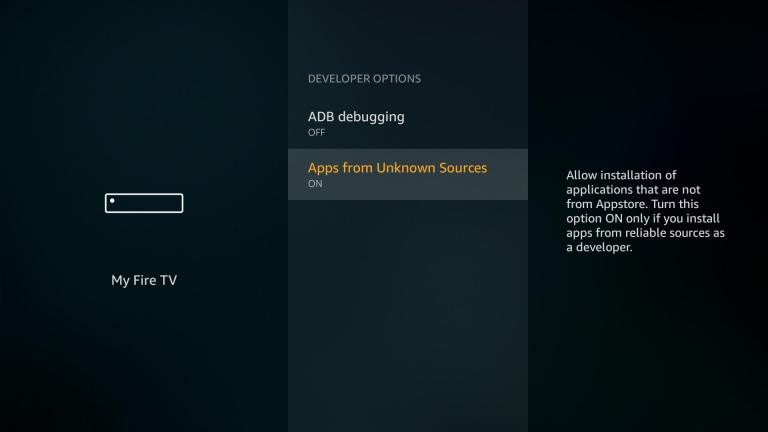
Amazon will display a warning — acknowledge it and proceed.
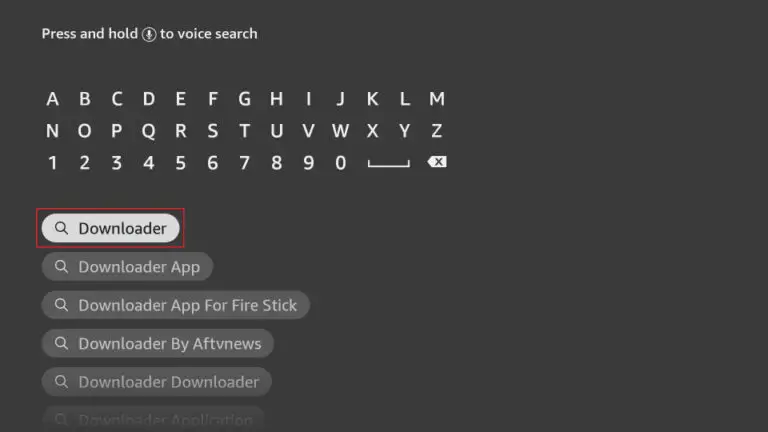
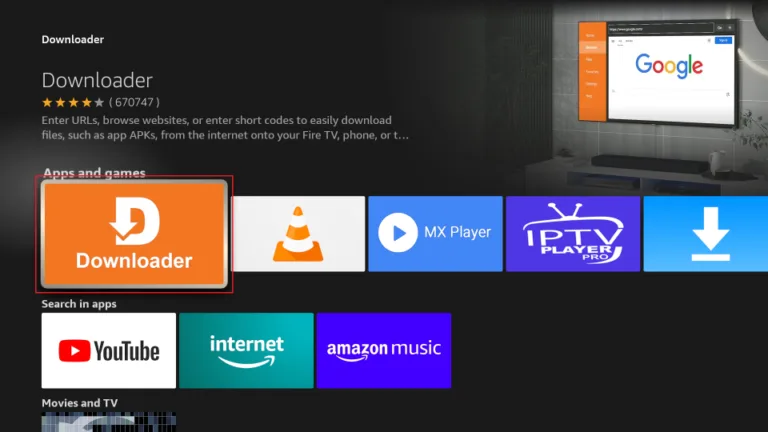
The cleanest installation method is the Downloader app, available free in the Amazon Appstore:
Install Downloader from the Amazon Appstore.
Open Downloader and select the URL bar.
Enter the direct APK download link for GSE Smart IPTV (from the developer’s official site).
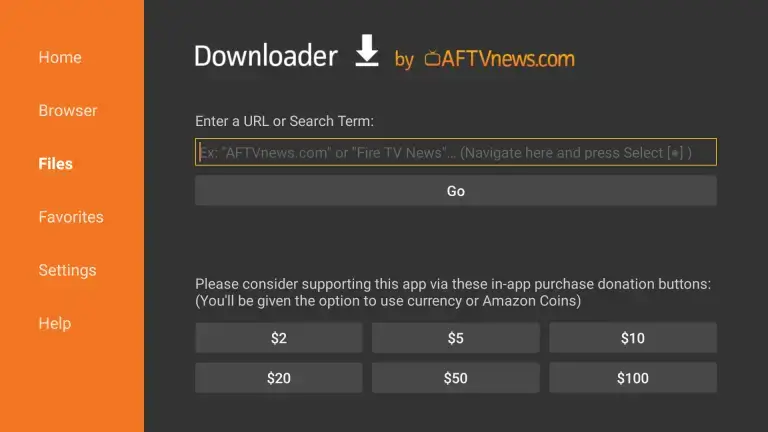
Tap Go — the file downloads automatically.
Select Install when prompted, then Done.
If installation fails on Android TV, the most common causes are insufficient storage (free at least 200MB), a corrupt download (retry on a stable connection), or an Android version conflict (GSE requires Android 5.0+).
On Apple devices, install directly from the App Store, search for “GSE Smart IPTV Pro” and verify the developer is “GSETECH” before downloading.
With the app installed, launch it and accept the initial permissions when prompted. The main menu appears with a left-side navigation panel containing all key sections:
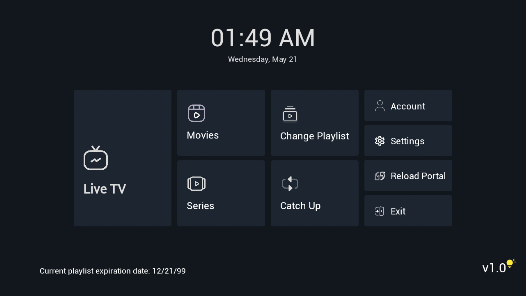
Remote Playlists, Local Playlists, EPG, Settings, and Player options.
For iOS and macOS users, one standout advantage is iCloud playlist syncing. Once you’ve configured playlists on an iPhone, settings carry over automatically to your iPad or Apple TV, no manual re-entry required.
On Apple TV, navigate using the Siri Remote’s swipe gestures, and adjust touch sensitivity in Settings if you’re scrolling through large channel lists.
Take a moment to explore the interface before adding content. Familiarity here saves time during configuration.
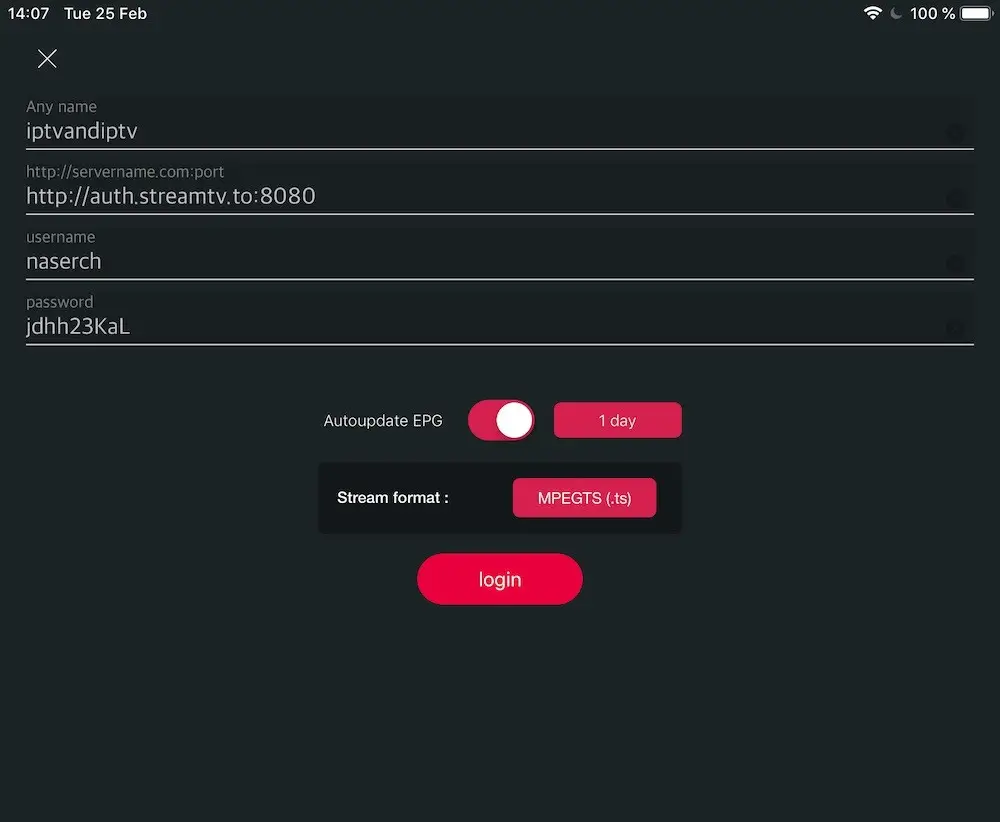
Tap or click Remote Playlists from the left-side menu panel. This section handles all externally hosted content sources, streams that live on your provider’s servers rather than on your device locally. You’ll see a “+” button in the top corner, this is where every new source gets added.
A reliable playlist method is the single biggest factor separating smooth IPTV from a frustrating experience. GSE Smart IPTV supports two primary input types:
For Xtream Codes, format your server URL exactly as provided (typically http://yourdomain.com:port) with no trailing slash. Incorrect port formatting is the leading cause of failed connections.
Tap the “+” button and select your input type. For M3U, paste your provider’s playlist link directly into the URL field, give it a recognizable name, and tap Add.
For Xtream Codes, enter the server URL, username, and password in their respective fields.
Once your playlist is saved, head to Settings → Parental Supervision to set a PIN restricting access to specific channels — a practical step for any household with younger viewers.
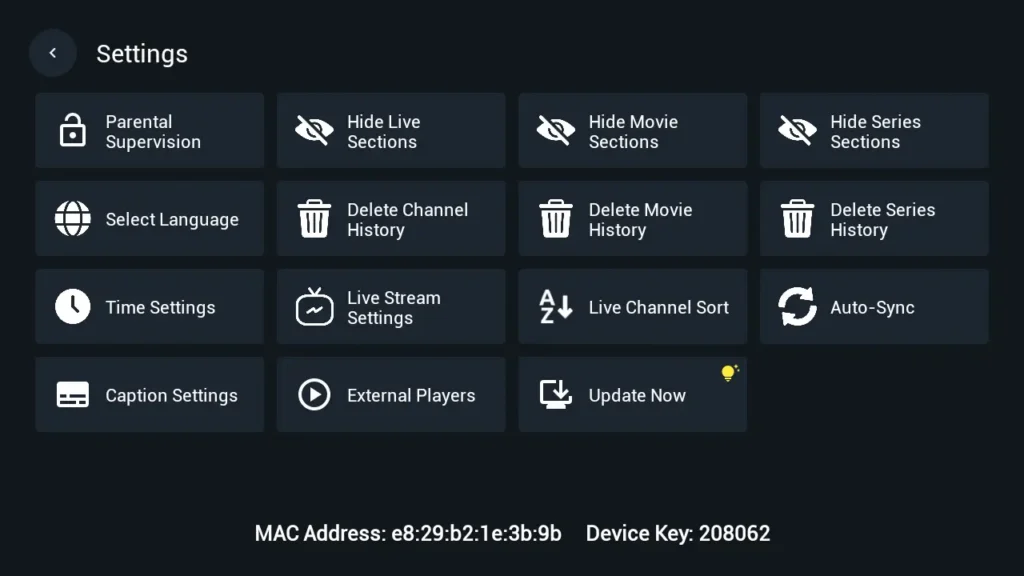
Then enable hardware acceleration in the player settings to offload video decoding to your device’s GPU. Hardware acceleration is critical for 4K streams, where software-only decoding frequently causes buffering on mid-range hardware.
If you want to customize the look, GSE Pro lets you switch between dark and light themes, adjust grid versus list layouts, and reorder channel categories.
After entering your credentials, tap Add or Save to confirm. GSE will immediately begin pulling your channel list from the server.
What to expect during loading:
A failed load almost always points to a typo in the URL or expired credentials, not an app issue. Double-check both before troubleshooting further. Once complete, your channels appear organized by group category, ready for the next step.
Without an EPG, you’re browsing a raw channel list with no scheduling context — no way to see what’s on now or what’s coming up next.
GSE Smart IPTV supports XMLTV-format EPG URLs, which most reliable IPTV providers supply alongside your playlist credentials.
To add one, navigate to Settings → EPG Settings and paste your provider’s EPG URL into the designated field. Set a refresh interval — every 24 hours is the standard recommendation — so your guide data stays current automatically.
Two practical tips:
A properly synced EPG is what separates a frustrating channel hunt from a polished, living-room-ready setup.
Before settling in for a full viewing session, run a quick test. Tap any channel from your list and observe the load time, a healthy stream typically buffers and plays within 3–5 seconds.
If you experience consistent freezing or pixelation, the issue is usually one of three things: a weak internet connection, an overloaded server from your provider, or an incorrect stream URL format.
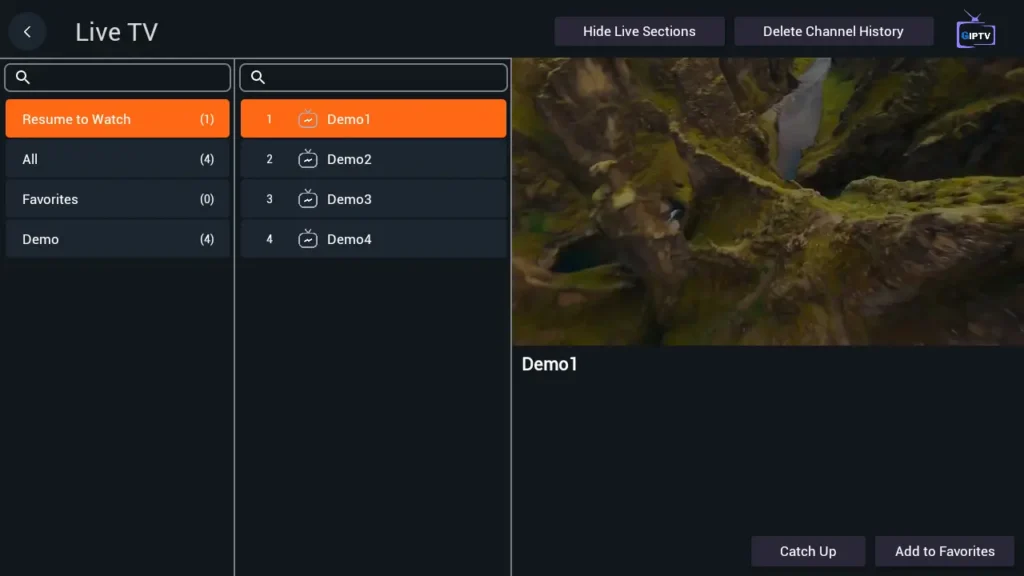
From the player settings, fine-tune these options:
A well-optimized playback setup makes the difference between a frustrating stream and a seamless, broadcast-quality experience. Hardware decoding generally delivers smoother performance on capable devices.
Setting up GSE Smart IPTV in 2026 is a straightforward process when you follow the right steps. From installing the app across Android, iOS, Firestick, and Smart TVs, to loading your M3U playlist, configuring your EPG, and fine-tuning playback, each step builds toward a seamless streaming experience.
The key takeaways are simple: use a reliable IPTV provider like IPTV Canada, keep your app updated, and test your channels before committing to a long viewing session. Small optimizations like buffer adjustments and EPG alignment make a noticeable difference in daily use.
Yes. The base app is free on both the Google Play Store and Apple App Store. The Pro version unlocks advanced features like Xtream Codes API support, full EPG integration, and parental controls — features that genuinely matter for a complete IPTV setup.
Absolutely. Because Firestick runs Android, you can sideload GSE Smart IPTV using the Downloader app. Step 1 of this guide covers the full process.
The app supports both M3U URLs and Xtream Codes API connections. Xtream Codes is the recommended method for stability, EPG support, and organized VOD libraries.
Buffering typically signals a slow network or an overloaded server. Try switching to a wired Ethernet connection, lowering stream quality, or checking with your IPTV provider to confirm server status. A reliable provider with redundant Canadian servers eliminates most buffering issues.
Yes — install it on each device separately and load the same playlist credentials. There’s no built-in device limit on the app side, though your IPTV provider’s plan may restrict simultaneous connections.

Premium IPTV subscription built for Canadian viewers