
Fixing a slow or broken IPTV box works in three levels: clear the app’s cache first, restart the box (a soft reset) if that doesn’t help, and only factory reset it as a last resort, then reload your subscription from your IPTV Canada provider. Most problems are fixed at the first or second level in a few minutes. This guide covers how to tell which level you need, how to clear the cache on each device, how to remove or reset your favourites, and the full reset steps for MAG, Android TV, Fire Stick and TVIP boxes.
1. Clear Cache, Soft Reset or Factory Reset: Which One Do You Need?
Start with the lightest fix. Clearing the cache removes temporary files, a soft reset restarts the box, and a factory reset wipes everything back to out-of-the-box settings.
| Level | What it does | What you lose | Use it when |
|---|---|---|---|
| 1. Clear cache | Deletes the app’s temporary files (thumbnails, cached guide data, stream fragments) | Nothing: login, playlist and favourites stay | The app is slow, menus lag, the guide is stuck, or a few channels won’t open |
| 2. Soft reset (restart) | Power cycles the box and clears its memory | Nothing | The whole box is sluggish, frozen or acting strangely |
| 3. Factory reset | Wipes every app, setting and saved playlist | Everything on the box (not your subscription) | Problems survive levels 1 and 2, or you’re selling the box |
Your IPTV subscription is never affected by any of these. It lives on your provider’s server, not on the device, so you only need to re-enter your login after a factory reset.
According to the Canadian Centre for Cyber Security, a factory reset removes data from the user interface but doesn’t always erase external storage like SD cards, so take those out first if you plan to sell or recycle the box.
2. Diagnose First: Why Is Your IPTV Box Not Working?
Your IPTV box is most likely failing because of one of five causes: a weak or dropped internet connection, a loose power or HDMI cable, an expired subscription or outdated playlist URL, a corrupted app or cache, or a temporary problem on the provider’s servers. The box hardware itself is rarely the fault, so run through this table before wiping anything:
| Symptom | Likely cause | Quickest fix |
|---|---|---|
| No light or blank screen | Power or HDMI cable | Reseat cables, confirm the TV input |
| Constant freezing or buffering | Weak internet | Switch to Ethernet, reboot the router |
| App opens but no channels | Expired subscription or old URL | Check subscription status and credentials |
| App crashes or runs very slowly | Corrupted app or cache | Clear the cache (section 3), then soft reset |
| Nothing loads, other apps work | Provider server issue | Wait it out or contact support |
| Box freezes across all apps | Device-level glitch | Power cycle, then factory reset |
A quick test that saves hours: open another streaming app on the same box. If it also struggles, your network is the problem, not your IPTV service. Our guide on the best internet speed for IPTV without buffering explains the numbers to aim for, and if the app is just sluggish, clearing the cache (section 3) often fixes it without any reset at all.
If channels stopped for everyone at once, the outage is on the provider’s side. Check whether IPTV is down today before touching your box.
3. How to Clear the IPTV Cache on Any Device
Open your device’s app settings, select your IPTV app, and choose Clear cache, not Clear data. Clearing the cache removes only temporary files, so your login, playlist and favourites stay put.
Clear cache vs clear data:
| Option | Removes | Keeps | When to use it |
|---|---|---|---|
| Clear cache | Temporary files: thumbnails, cached guide data, stream fragments | Login, playlist, favourites, settings | First fix for a slow or glitchy app |
| Clear data (or Clear storage) | Everything the app has saved | Nothing (the app is like new) | Only when clearing the cache didn’t help; have your login details ready |
Fire Stick and Fire TV:
- Go to Settings > Applications > Manage Installed Applications.
- Select your IPTV app (IPTV Smarters Pro, TiviMate or others).
- Choose Force stop, then Clear cache.
- Reopen the app.
Android TV, Google TV and Android boxes (including Formuler):
- Go to Settings > Apps (on Google TV, Settings > Apps > See all apps).
- Select your IPTV app (or MyTVOnline on a Formuler).
- Choose Force stop, then Clear cache.
Samsung TVs: on recent models, go to Settings > Support > Device Care > Manage Storage, select the IPTV app, choose View details and then Clear cache. On older models without Device Care, turn the TV off at the wall for a minute, which clears its memory.
LG TVs: LG’s webOS doesn’t have a per-app cache button. Turn off Quick Start+ (under Settings > General > Devices > TV Management, or Settings > General on older models) so the TV does a full restart when switched off. If an app still misbehaves, delete and reinstall it.
iPhone, iPad and Apple TV: Apple devices don’t have a clear cache button. Delete the app and reinstall it from the App Store. This also removes your login, so have your details ready.
MAG boxes: there’s no app cache to clear. Restart the portal from the settings menu, or unplug the box for 30 seconds.
Inside the app: some players have their own option. Look in the app’s settings for Clear cache, Refresh playlist or Reload EPG, which rebuilds the channel list and guide without touching your login.
After clearing the cache: reopen the app, give it a minute to reload the guide, and test the channels that were misbehaving. How often? Clearing the cache monthly, or whenever the app starts to lag, is plenty. If the problem is still there, move on to a soft reset (section 5).
4. How to Remove or Clear Favourites on IPTV
To remove one favourite, open your app’s Favourites list, highlight the channel, long-press OK (or tap its star or heart) and choose Remove from Favourites. To clear them all at once, delete and re-add your playlist or profile, or use Clear data on the app, which wipes everything it has saved.
Where your favourites are saved decides what clearing them affects:
- In most player apps (IPTV Smarters Pro, TiviMate, XCIPTV, GSE Smart IPTV), favourites are saved on the device, inside the profile or playlist you added. Removing them on the living-room TV doesn’t touch the list on your phone.
- On MAG and other portal boxes, favourites can be saved with your portal account on the provider’s side, linked to the box’s MAC address. That’s why they sometimes come back after a factory reset.
- Each profile keeps its own list. If your household uses separate profiles, clear favourites inside the right one. Our guide on watching IPTV on multiple devices explains how profiles work.
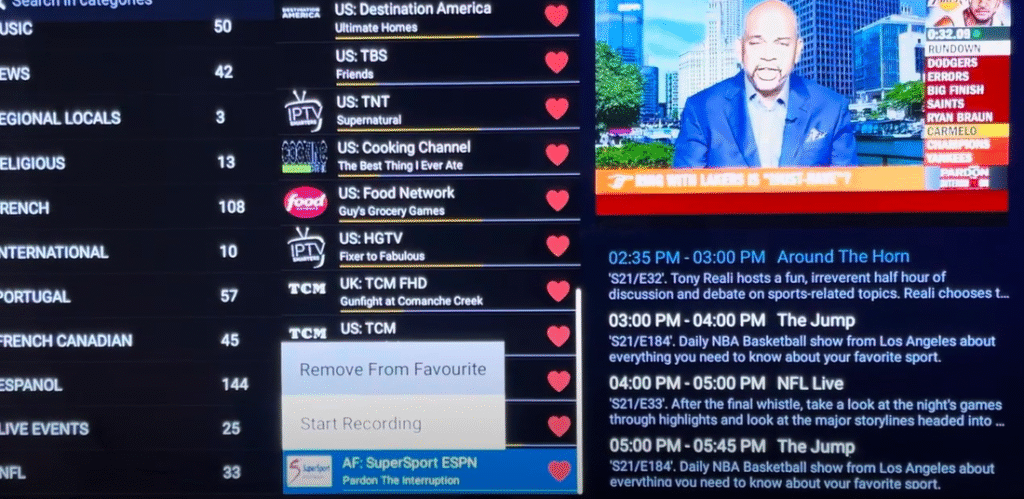
Remove favourites, app by app (labels shift slightly between versions):
| App or box | Remove one favourite | Clear all favourites |
|---|---|---|
| IPTV Smarters Pro | Live TV > Favourites, long-press the channel (or hold OK), Remove from Favourites | No single button in most versions: remove the user profile and add it again, or clear the app’s data |
| TiviMate | Open the Favourites group, long-press the channel, Remove from favourites | Remove the playlist under Settings > Playlists and add it again |
| XCIPTV | Long-press the channel in Favourites and remove it | Clear the app’s data, then log in again |
| GSE Smart IPTV | Tap the star (or heart) on the channel again, or use the edit option in the Favourites list | Delete and re-add the playlist |
| MAG boxes | In the TV channel list, highlight the channel and press the favourite key shown at the bottom of the screen | Ask your provider: portal favourites can be stored on their side |
| Formuler (MyTVOnline) | Highlight the channel, open the options menu (long-press OK) and toggle Favourite off | Edit the Favourites group, or clear MyTVOnline’s data (section 3) |
Clear and rebuild your favourites when:
- Your provider changed servers, or you switched providers. Favourites point to the old channel entries, so they show “no signal” or play nothing. Clear the list, refresh the playlist, and add your channels again.
- The playlist was updated and channels appear twice. Remove the duplicates, or clear the list and rebuild it from the fresh playlist.
- Someone else’s picks crowd your list. Set up a separate profile instead of sharing one Favourites list.
Before you clear everything: take a photo of your Favourites list so rebuilding takes two minutes. TiviMate (Premium) and XCIPTV have a backup option that saves favourites with your settings; use it first if you have it. Clearing favourites never touches your login, your subscription or your parental controls. PIN locks are a separate setting, covered in our parental control guide.
5. Before a Factory Reset: The 2-Minute Backup Checklist
Write down four things before any factory reset: your portal URL or M3U playlist link, your username and password, your Wi-Fi credentials, and your EPG link if you use a custom one. Most consumer IPTV boxes have no built-in backup function, so a written record (or a photo of the settings screen) is the fastest insurance you can get.
Also worth doing:
- Screenshot your favourites list. Locally saved favourites are erased by a factory reset.
- Sign out of any linked Google account on Android boxes. Skipping this can trigger Factory Reset Protection (FRP) and lock the box until you re-authenticate.
- Remove SD cards or USB drives so nothing external gets touched.
- Confirm your subscription is active. A reset will not fix an expired plan. If yours has lapsed, recharge your IPTV box online first.
6. Soft Reset: Power Off the Box and Disconnect All Cables
A soft reset is a clean power cycle: switch the box off, unplug it for 30 seconds, and plug it back in. It’s the most skipped step in IPTV troubleshooting, and it fixes a surprising number of problems on its own. Do it properly:
- Power off the device through its on-screen menu if you can reach it.
- Unplug the power cable from the wall.
- Wait a full 30 seconds so the capacitors discharge.
- Reseat the HDMI cable at both ends and confirm the TV is on the right input.
- If the box still won’t respond and you need a hardware reset, locate the RESET pinhole (back panel, bottom, or inside the AV port) and press it with a straightened paperclip, straight in, never at an angle.
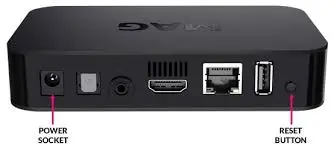
Once a hardware reset triggers, the screen goes black briefly and then shows a recovery or boot menu. Nothing within 90 seconds means the sequence did not register, so try again.
7. Factory Reset: Find the Right Reset Path for Your Device
The factory reset menu is in a different place on every box, so match the steps to your hardware:
MAG 250 / MAG 254 (older models):
- Power on the device.
- Immediately press and hold the Setup button on the remote.
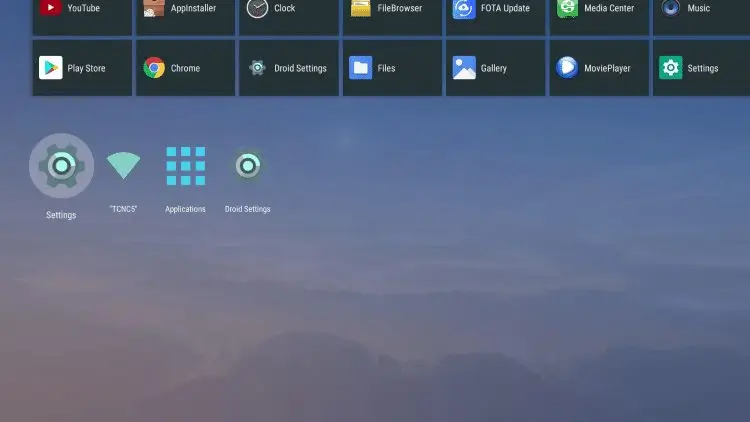
- Find Storage and Reset.
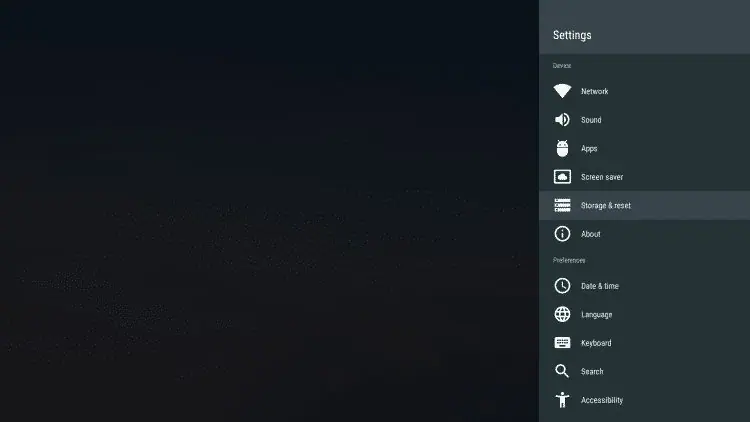
- Then Factory Reset in the system menu.
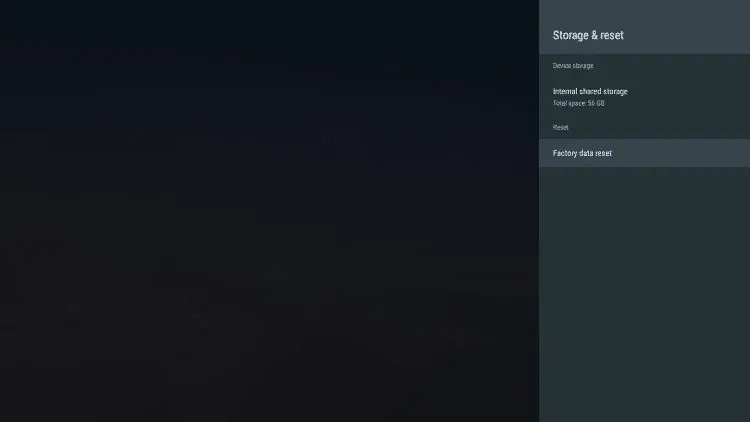
- Confirm.
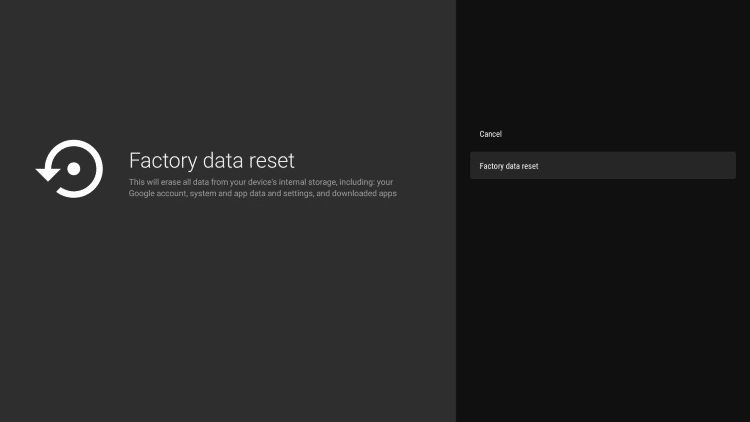
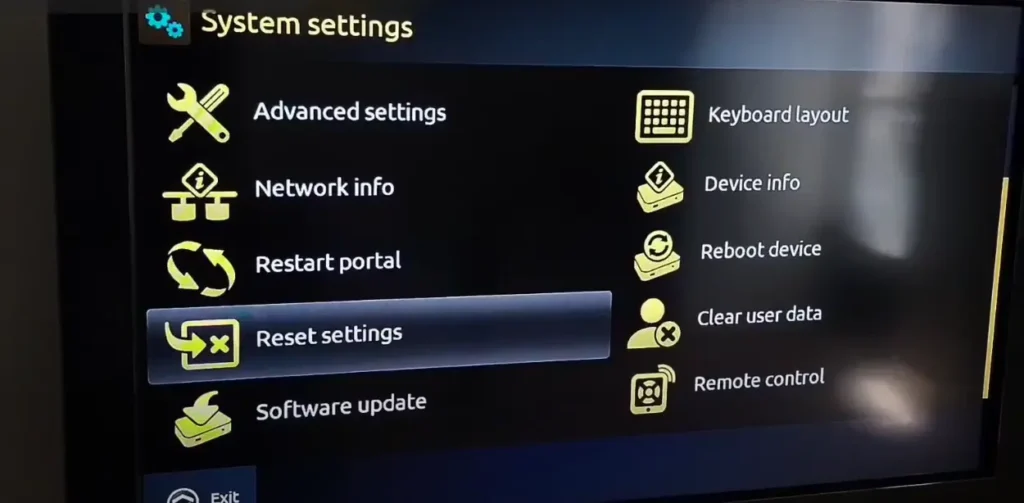
MAG 524 (modern interface): open System Settings, then Advanced.
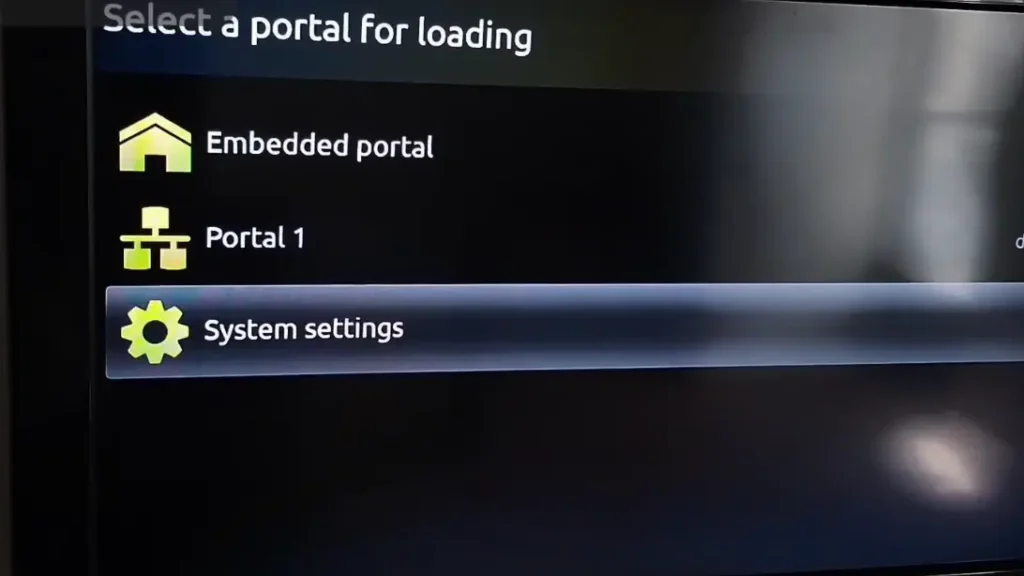
→ Select Reset Settings and confirm. There is also a hidden remote-code method on MAG boxes: press S.INFO, 4, 9, S.INFO to unlock a specialized reset menu.
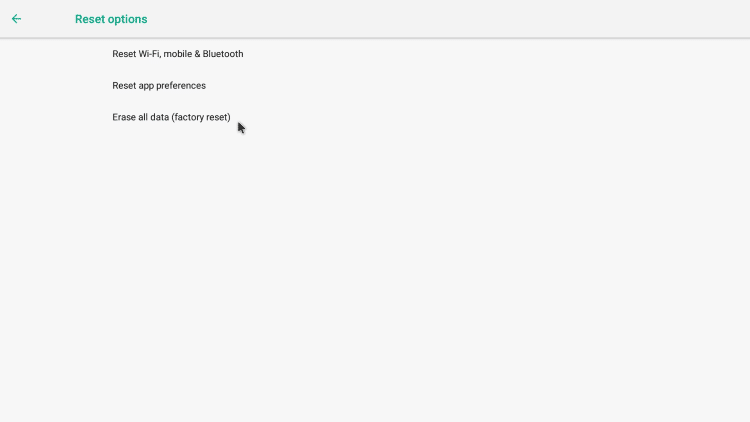
Android TV boxes: go to Settings, System, Reset options, Factory reset. Android shows two choices. Reset wipes apps and settings but may keep some data; Erase Everything does a full wipe. Pick Erase Everything for a complete fix, and remember to sign out of Google first.
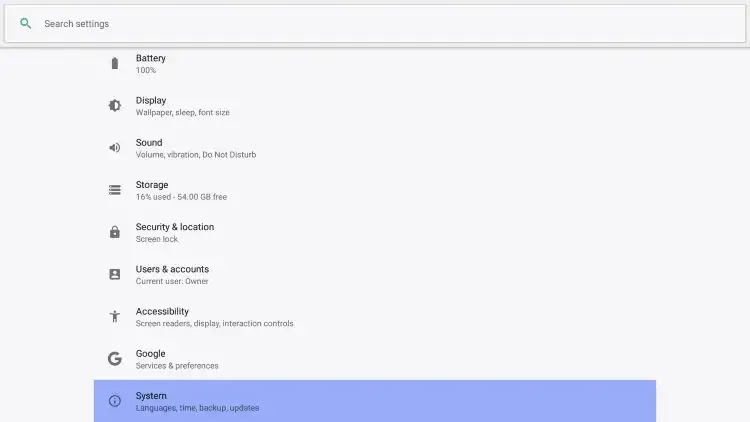
→ Go to Reset option
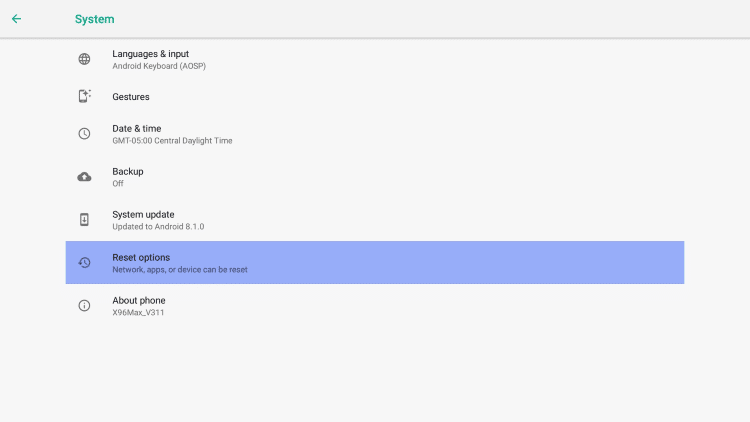
→ Factory reset.
Fire Stick and Fire TV: go to Settings > My Fire TV > Reset to Factory Defaults and confirm. You’ll need your Amazon account login to set it up again.
TVIP boxes: the system menu appears during boot, not in the normal interface. Power cycle the box, watch for the TVIP splash screen, and press the designated remote key before the main interface loads. Miss the window and you reboot and try again.
Any network-connected box with a dead interface: type the device’s local IP address into a browser, log in with the admin credentials, and use Restore Default Settings from the web panel. No remote required.
8. Run the Factory Reset and Let It Finish
Once you confirm the reset, the device takes over, and the one rule is never unplug it mid-reset, because a cut power feed at this stage can permanently brick the box. Typical completion times:
- MAG devices: 2 to 5 minutes
- Android TV boxes: 5 to 10 minutes
- TVIP devices: 3 to 7 minutes
The screen goes dark, a progress bar appears, and the box reboots once or twice on its own. If the remote stops responding during setup, plug a USB keyboard or mouse into the box, or use the Google Home app on your phone as a temporary remote. A box that freezes entirely usually recovers with a cold boot: unplug, wait 30 seconds, replug.
9. Reconfigure the Box and Reload Your Subscription
Reconnecting your service takes three inputs: your network, your portal URL or M3U link, and your personal settings. Work through them in order:
- Reconnect to Wi-Fi or plug the Ethernet cable back in (wired is always the more stable choice).
- Re-enter your portal URL or M3U playlist link exactly as your provider sent it. A single typo is the most common reason a subscription fails to load after a reset. If you are unsure where to find yours, see where to get a URL for IPTV.
- Restore your language, parental controls and display resolution.
- Re-mark your favourite channels and reload your EPG.
If you switched providers or your server address changed, follow our walkthrough on changing the URL on an IPTV box rather than guessing at menus.
10. Still Not Working? Work Up the Chain, Then Keep It Running
If streams still buffer, freeze or fail after a clean reset, the problem is no longer your box, so move up the chain: network first, then subscription, then provider. Check them in this order:
- Network: test another app on the box. Struggling too? Reboot the router, move to Ethernet, or test at 5 GHz. IPTV needs a steady 25 Mbps for reliable HD.
- Subscription: an expired plan or outdated server URL shows up as an app that opens with empty categories or a login error. Confirm your renewal date and credentials.
- Provider servers: if every other app works and only IPTV fails, the outage is upstream. Server overload during big live events and scheduled maintenance both cause this, and the only fix is waiting or contacting support. A dependable provider keeps these outages rare and short.
Freezing that only happens in the evening is its own pattern, usually network congestion; the evening-freezing section of our outage and buffering guide covers it.
Maintenance that prevents most problems. You rarely need a factory reset; once or twice a year at most, or when problems survive everything else. In between:
- Soft reset (restart) the box weekly to clear its memory.
- Clear the app cache monthly to keep menus responsive.
- Update firmware after a reset, not before. Resetting first clears corrupted system files; updating on top of unstable firmware can cause boot loops.
- Keep the box ventilated and off other warm electronics. Overheating is a top cause of random restarts.
- Keep your written record of credentials current so the next reset takes 5 minutes, not an evening.
11. Safety, Privacy and the Legal Baseline in Canada
Streaming IPTV in Canada is legal when the service holds the rights to the content it distributes, and a reset changes nothing about that equation. Two practical points are worth knowing. First, cheap unbranded boxes occasionally ship with firmware-level malware that survives a factory reset; sticking to known hardware like MAG, Formuler or mainstream Android TV devices avoids the problem, and our guide to choosing a good IPTV box lists safe options. Second, if you are disposing of a box, remember the factory reset does not wipe external storage, so remove SD cards and USB drives.
On the service side, unverified third-party streams carry real risks: dead channels, disappearing servers and zero support when something breaks. A licensed, reliable provider is the difference between a 5-minute reconfiguration and a wasted evening. If you are evaluating services, start with an IPTV free trial so you can test stability before paying.
Frequently Asked Questions (FAQ)
Will a factory reset delete my IPTV subscription?
No. Your subscription lives on your provider’s server, so the reset only clears local settings and app data. You re-enter your portal URL or M3U playlist afterward and everything comes back.
Why is my IPTV box not working even though the internet is fine?
An expired subscription, an outdated server URL or a provider-side outage are the most likely causes. If the app opens but channels are empty, check your credentials and renewal date first.
How long does a factory reset take?
Most resets finish within 2 to 5 minutes. Android boxes can take up to 10 minutes if they download a fresh system image during the restore.
Can I reset a MAG box without the original remote?
Yes. A USB keyboard works as a substitute; navigate with the arrow keys and Enter. The web-interface method also works if the box is on your network.
Will clearing the cache delete my login or favourites?
No. Clearing the cache only removes temporary files. Your login, playlist, favourites and settings stay. It’s Clear data (or Clear storage) that wipes them.
How often should I clear the IPTV cache?
Once a month, or whenever the app starts to lag or the guide gets stuck. Clearing it more often doesn’t help, because the app rebuilds the cache as you watch.
Will resetting fix buffering?
Sometimes. A bloated cache and misconfigured network settings are common buffering culprits, and clearing the cache or resetting fixes both. Buffering that persists after a clean reset is upstream, either your connection or the provider’s servers.
Why does my box show a black screen?
A black screen is usually a cable, HDMI input or power issue rather than a software one. Reseat every cable, select the correct TV input and do a full power cycle before considering a reset.
Will I lose my favourite channels after a factory reset?
Yes. Locally saved favourites and channel groups are erased, so screenshot your list before you start and re-mark them after reconnecting.
Why won’t my box turn on after a reset?
An interrupted reset, a corrupted firmware update or a failing power adapter are the usual suspects. Unplug for 60 seconds, try a different adapter, and if it still will not power on, the box may need repair.
Should I update firmware before or after resetting?
After. A reset clears corrupted system files first, so the new firmware installs on a clean base. Updating before a reset can trigger boot loops if the old firmware was already unstable.
When should I contact my provider’s support?
After you have checked cables, internet, subscription and the app. If all four are fine and channels still fail, the provider should investigate their side.
Conclusion
Fix a misbehaving IPTV box from the lightest step up: clear the app’s cache first, restart the box next, and save the factory reset for problems that survive both. Clearing the cache keeps your login and favourites, clearing favourites only resets your channel list, a soft reset loses nothing, and a factory reset only costs you the five minutes it takes to re-enter your details, as long as you wrote them down first. If problems keep coming back no matter how cleanly you reset, the weak link is the stream source rather than your hardware. Test a better one with a free trial before you commit.