
You can watch IPTV on PS5 with the same IPTV Canada login you use on your TV, even though the PlayStation Store has no IPTV app: open the console’s hidden web browser and sign in to a web player, or stream through Plex from a computer on your network.
Xbox is the easier console, because MyIPTV Player is free in the Microsoft Store and Edge is built in for web players. Each method takes about 10 minutes and has a picture for every step. For a TV, stick or phone, our IPTV setup guide has the right steps instead.
1. Why Consoles Handle IPTV Differently From Streaming Sticks
Sony does not approve third-party IPTV players for the PlayStation Store, so the apps you find on a Fire Stick or Android TV have no PS5 version. The PS5 runs a closed system with no sideloading, no APK installs and no developer mode for consumers. What it does have is a working web browser, hidden behind the account-linking screens, and a small set of approved media apps, one of which (Plex) can show your own channels.
Xbox is more open. The Microsoft Store on Xbox Series X, Series S and Xbox One lists MyIPTV Player, and Microsoft Edge runs on the console as a normal app. That gives Xbox owners a direct install route that PS5 owners don’t have.
2. What Your PS5 or Xbox Needs First
The console itself needs almost nothing: no download at all on PS5, and one free app on Xbox. What holds people up is everything around it, so check these before you pick up the controller.
- Your playlist details on paper or a phone. Typing with a controller is slow, so have them in front of you. They’re in the welcome email for your IPTV subscription: usually an M3U link, plus Xtream Codes (server URL, username and password) for web players that take them. Not sure which line is which? Our guide on where to get your IPTV URL shows what each one looks like.
- A signed-in console. The PS5 browser route starts in Settings, Users and Accounts, Linked Services, which needs your PlayStation account signed in. On Xbox, the Microsoft Store needs your Microsoft account.
- For Plex on PS5 only: a computer that stays switched on while you watch, running Plex Media Server and Threadfin, and a Plex Pass, which Plex requires for live TV.
- A cable, if the console is far from the router. Consoles often sit at the other end of the house from it. Ethernet keeps HD (around 25 Mbps) and 4K (around 50 Mbps) steady where Wi-Fi drops frames.
- No details yet? An IPTV free trial gives you a working playlist to try on the console tonight.
3. Choosing Your Method
The browser method is the right choice for most PS5 owners, and MyIPTV Player is the right choice for most Xbox owners.
| Console | Method | Setup time | Needs a computer | Best for |
|---|---|---|---|---|
| PS5 | Hidden web browser + web player | About 10 minutes | No | Almost everyone on PS5 |
| PS5 | Plex + Threadfin | 30 to 45 minutes | Yes, always on | A full TV guide on the PS5 |
| Xbox | MyIPTV Player from the Microsoft Store | About 10 minutes | No | Almost everyone on Xbox |
| Xbox | Microsoft Edge + web player | About 5 minutes | No | Logging in with Xtream Codes |
| Either | Screen mirroring from a phone or PC | About 10 minutes | No | Occasional viewing only |
4. PS5 Method 1: Open the Hidden Web Browser and Load a Web Player
The PS5 browser has no icon on the home screen, so you reach it through the YouTube account-linking screen in Settings. Sony’s own YouTube linking page explains that screen.
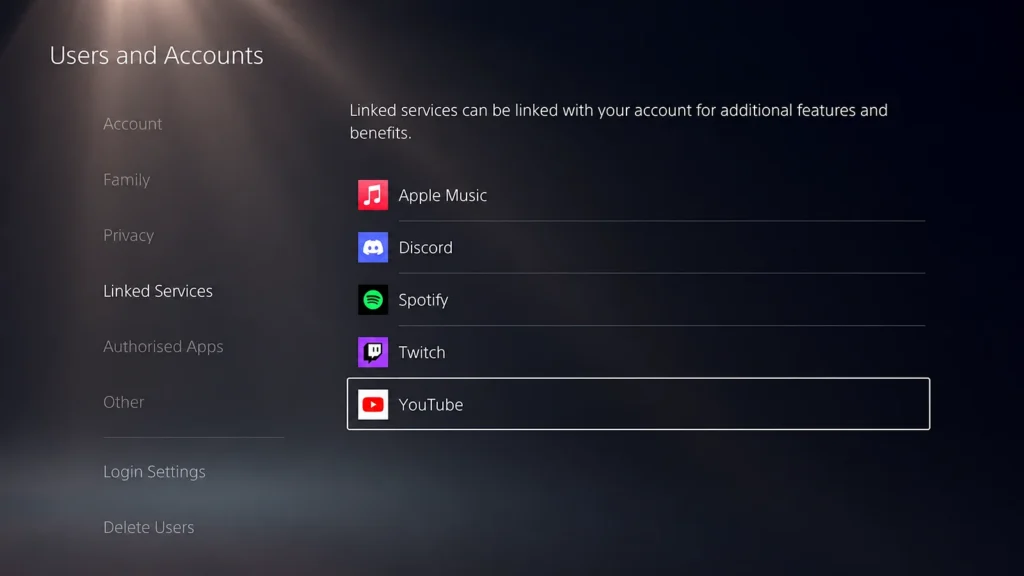
Step 1: Open Linked Services and select YouTube
Go to Settings, then Users and Accounts, then Linked Services, and select YouTube.
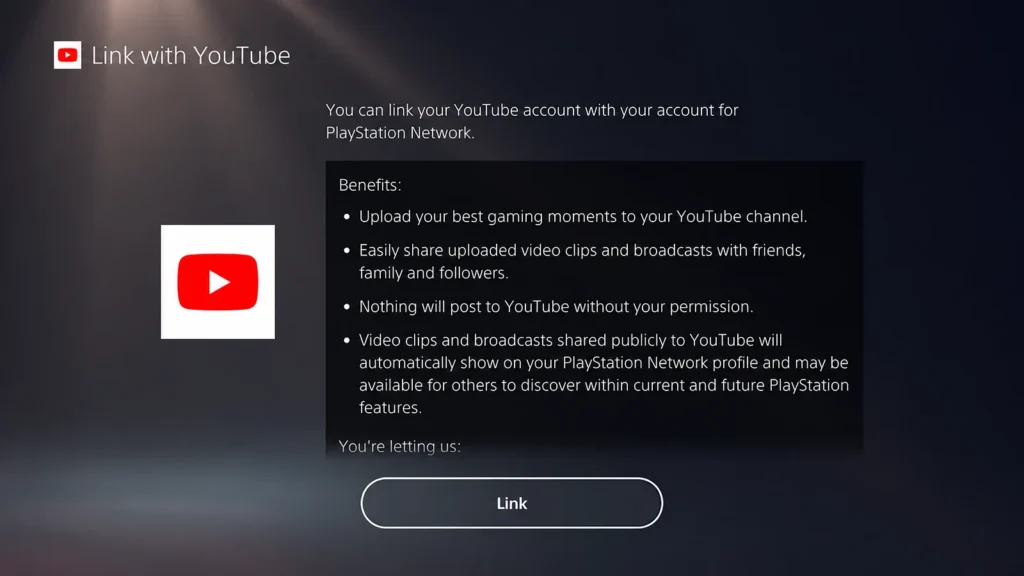
Step 2: Select Link
Select Link to open the account-linking screen. The PS5 shows a page with a QR code and a pairing code.
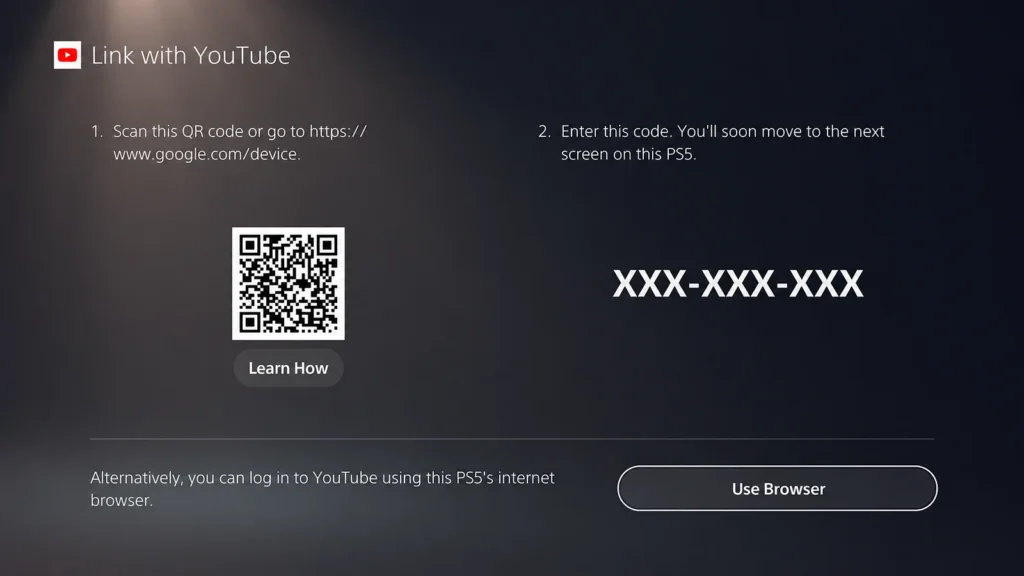
Step 3: Choose Use Browser
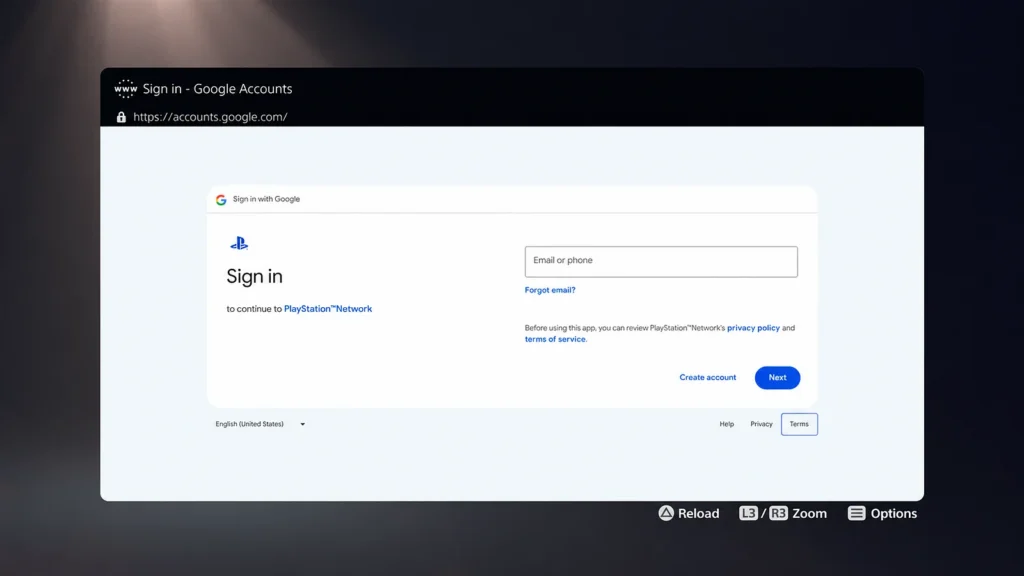
Select Use Browser instead of scanning the code. A Google sign-in page opens in the PS5’s browser.
Step 4: Open Google from the Terms page
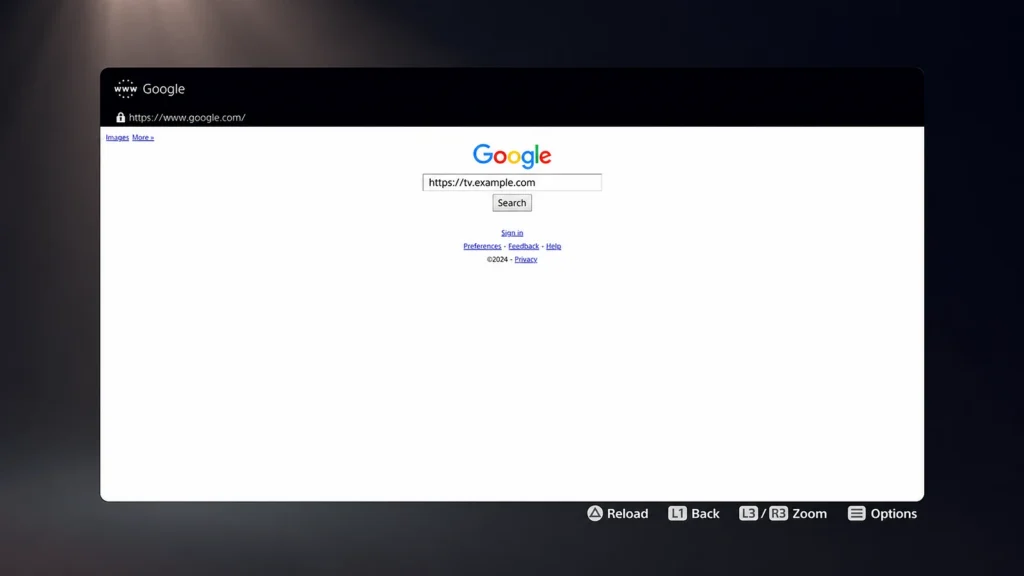
Don’t sign in. Select Terms at the bottom of the sign-in page, then the Google link at the top of the Terms page. You are now on a normal Google search page.
Step 5: Search for your web player
Search for your web player’s website and open it from the results.
Step 6: Add your playlist
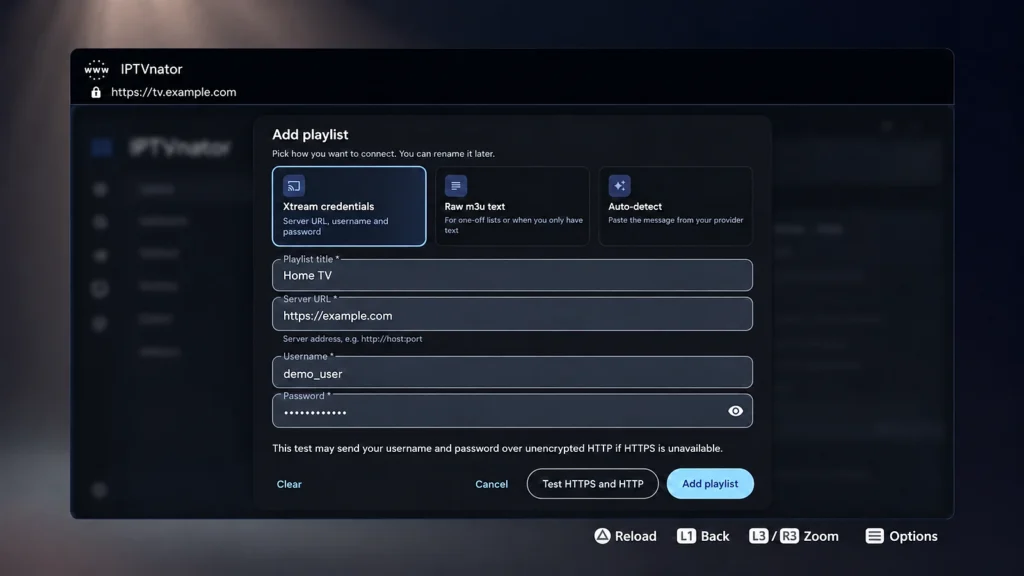
Choose Xtream Codes (or M3U), enter a playlist name, then your server URL, username and password, and select Add playlist. Type carefully: one wrong character returns an empty channel list.
This browser has no bookmarks, so repeat these steps next time you want to watch. If the browser closes unexpectedly, start again from step 1; it is a quirk of the console, not a fault with your setup. If no channels load, the usual causes are a mistyped server URL, a missing http:// at the start or an expired subscription. Our guide on changing the URL on an IPTV box covers the same login problems in more detail.
5. PS5 Method 2: Set Up Plex With Your Playlist
Plex is the only PlayStation Store app that can show your own live channels, with a real TV guide. Plex’s live TV only accepts a tuner, though, not an M3U link, so a free tool called Threadfin sits between your playlist and Plex and presents it as a tuner. Both run on a computer that stays on. The same setup works on Xbox, since Plex is in the Microsoft Store too.
Step 1: Install Plex on the PS5
Install Plex on the PS5 from the PlayStation Store and sign in with your Plex account.
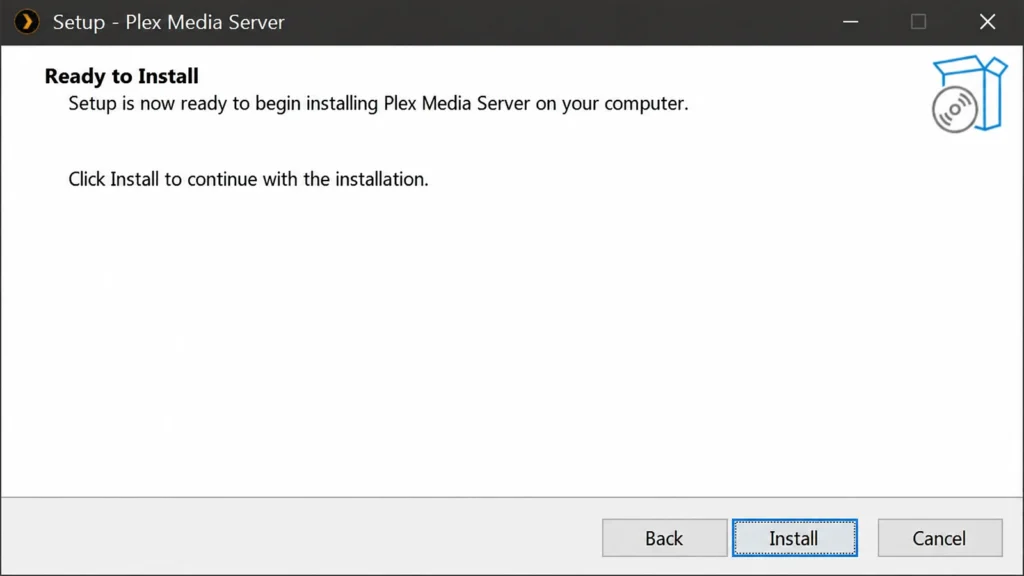
Step 2: Install Plex Media Server on a computer
On a computer that stays on, install Plex Media Server and sign in with the same Plex account. Live TV in Plex needs a Plex Pass.
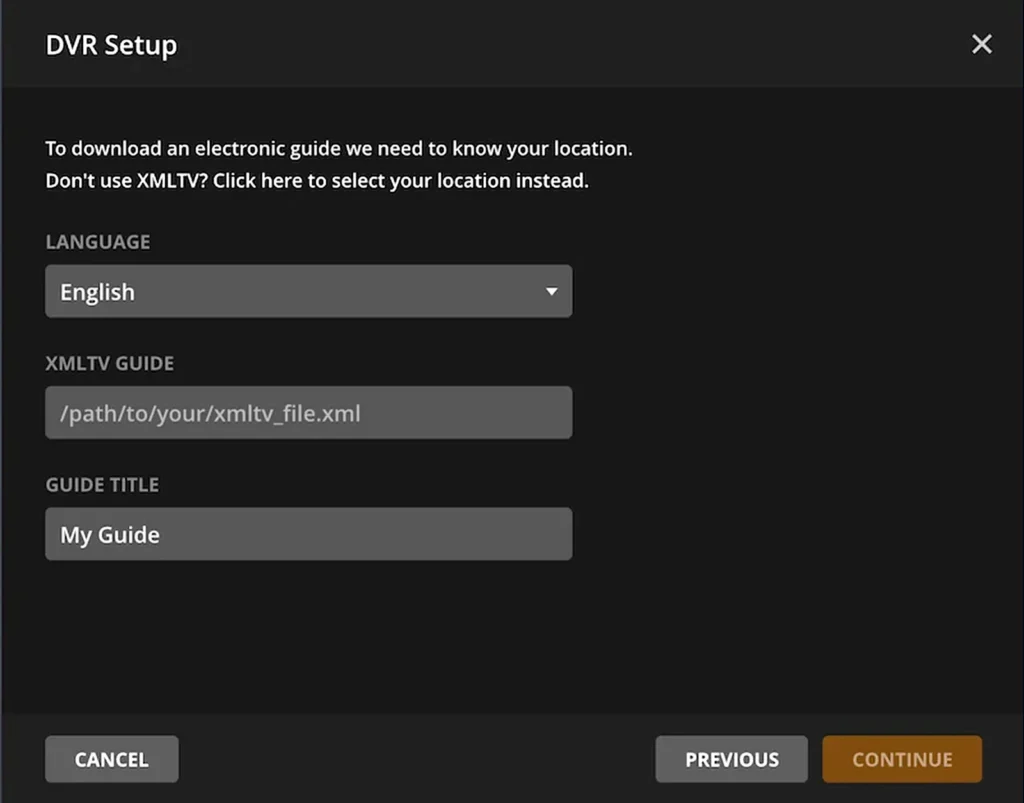
Step 3: Add your playlist through Threadfin
On the same computer, install Threadfin and add your M3U link and EPG (XMLTV) link to it. Then in Plex, open Settings, Live TV & DVR, select Set Up Plex DVR, add Threadfin as the tuner and choose the XMLTV guide.
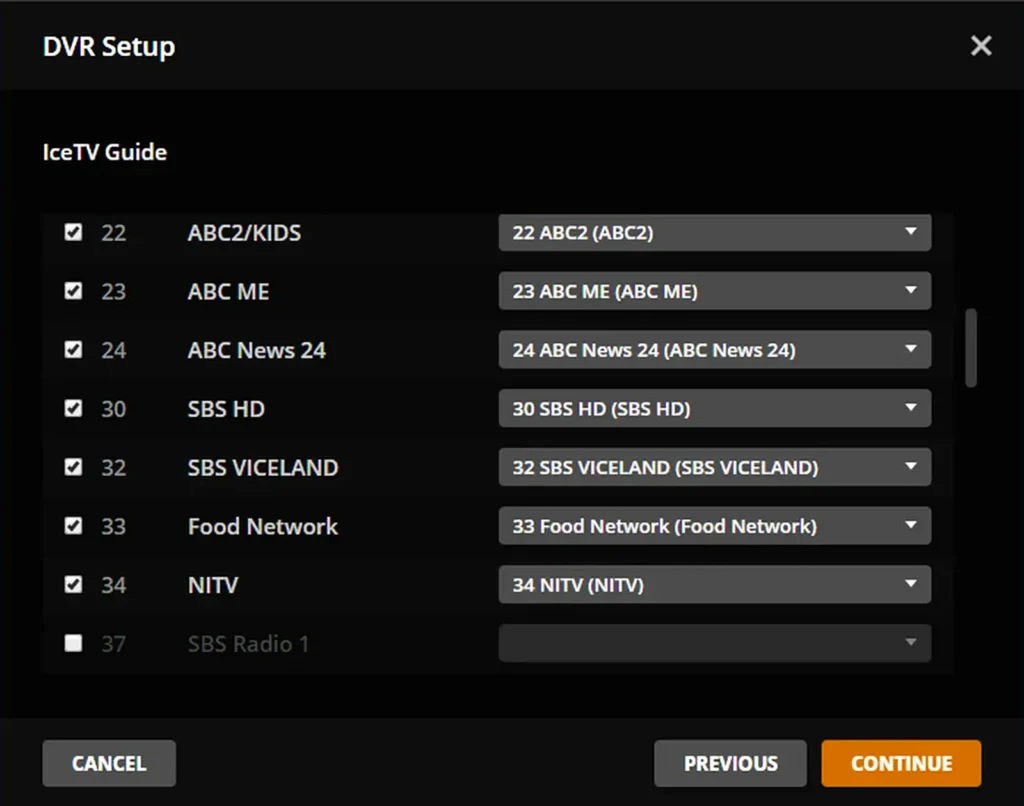
Step 4: Let Plex map the channels
Let Plex scan and map the channels to the guide. This takes a few minutes on a large playlist.
Step 5: Watch Live TV on the PS5
Open Plex on the PS5 with the same account and select Live TV. Your channels appear with the programme guide.
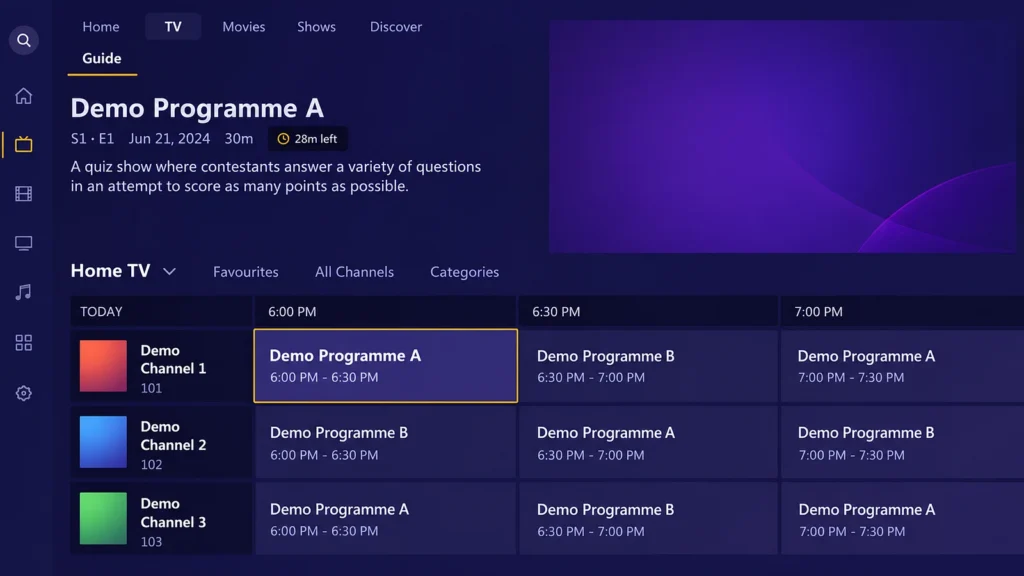
The payoff is a real guide and easier channel browsing. The cost is that the computer has to stay on whenever you want to watch. Guide data is the step people most often skip; our EPG guide explains how XMLTV data works and why the times sometimes need a shift.
6. Xbox Method 1: Install MyIPTV Player From the Microsoft Store
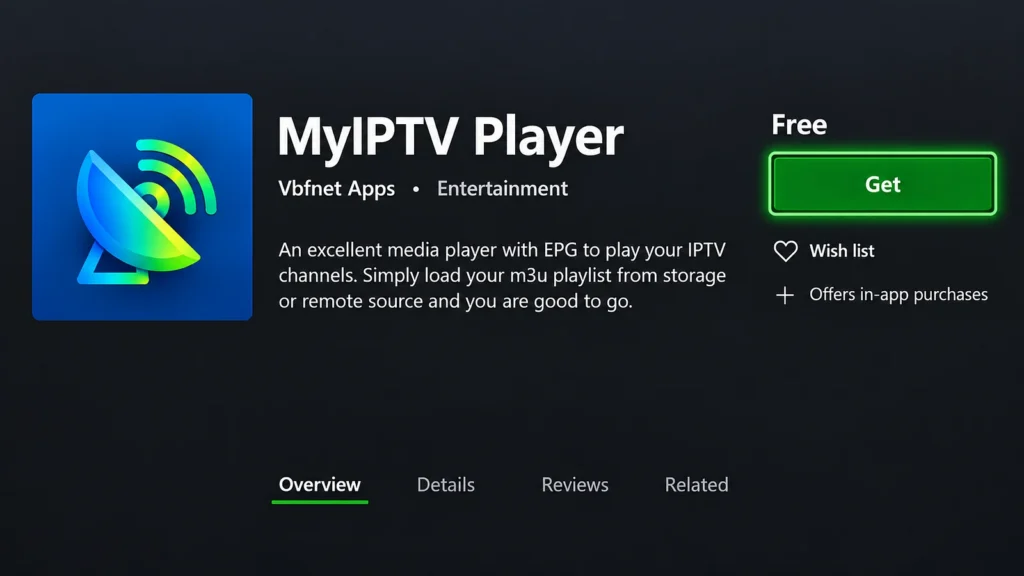
MyIPTV Player by Vbfnet Apps is the established M3U player for Xbox, and it is free. Store listings can change by region, so if it doesn’t appear, search “IPTV” in the Store and pick a player that accepts M3U links.
Step 1: Find MyIPTV Player in the Store
Press the Xbox button, open Store and search for MyIPTV Player (by Vbfnet Apps).
Step 2: Install it and open Settings
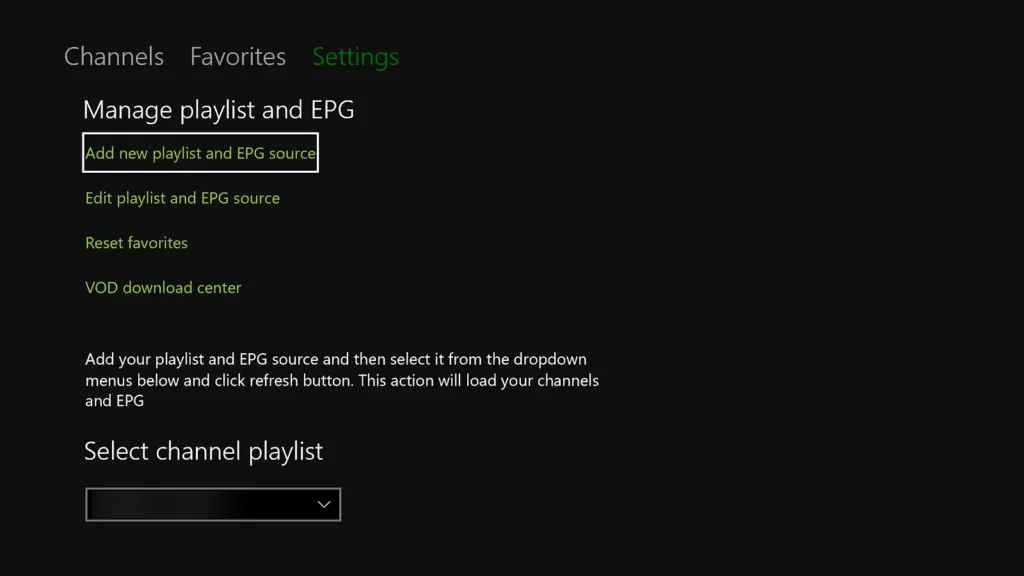
Select Get or Install, then open the app and go to Settings.
Step 3: Add your M3U link
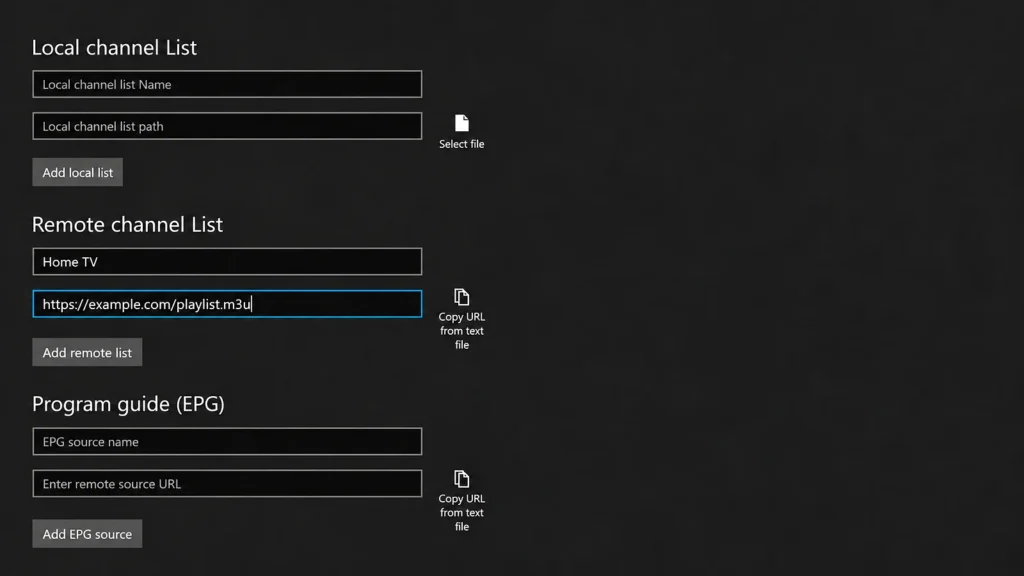
Choose Add new playlist and EPG source. Under Remote channel list, enter a name, paste your M3U link and select Add remote list.
Step 4: Add your EPG link
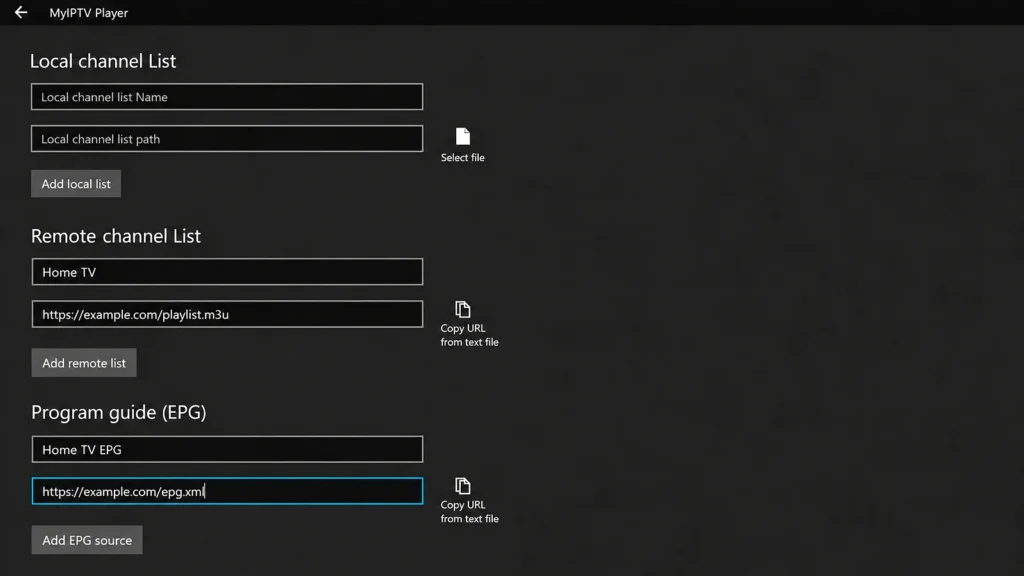
Under Program guide (EPG), enter a name, paste your EPG (XMLTV) link and select Add EPG source. Add remote list in step 3 does not save the guide, so this step is needed for the TV guide.
Step 5: Refresh and open Channels
Back in Settings, select your playlist and select Refresh, then select your EPG source and refresh it too. Open the Channels tab to start watching.
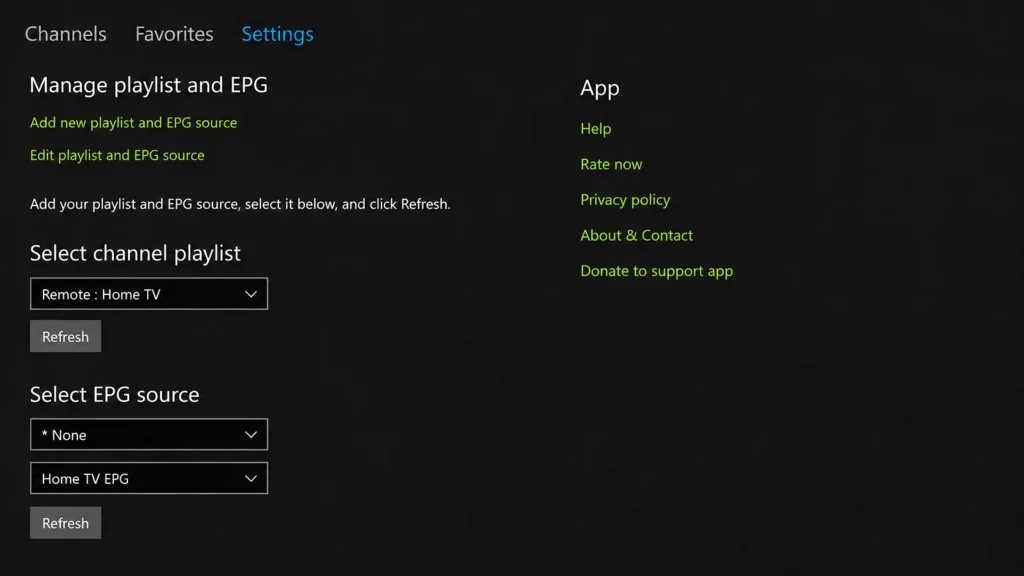
MyIPTV Player takes M3U links rather than an Xtream login form. If your provider only sent Xtream Codes details, ask support for the M3U link of the same account; most providers make it from the same username and password. The settings screen is the same as on a computer, which our guide to IPTV on a Windows PC covers in more depth.
7. Xbox Method 2: Use Microsoft Edge With a Web Player
Use Microsoft Edge on Xbox when you would rather log in with Xtream Codes, or when MyIPTV Player won’t load your playlist. Edge on Xbox is a full desktop-class browser, so web players run more smoothly there than in the PS5’s hidden browser.
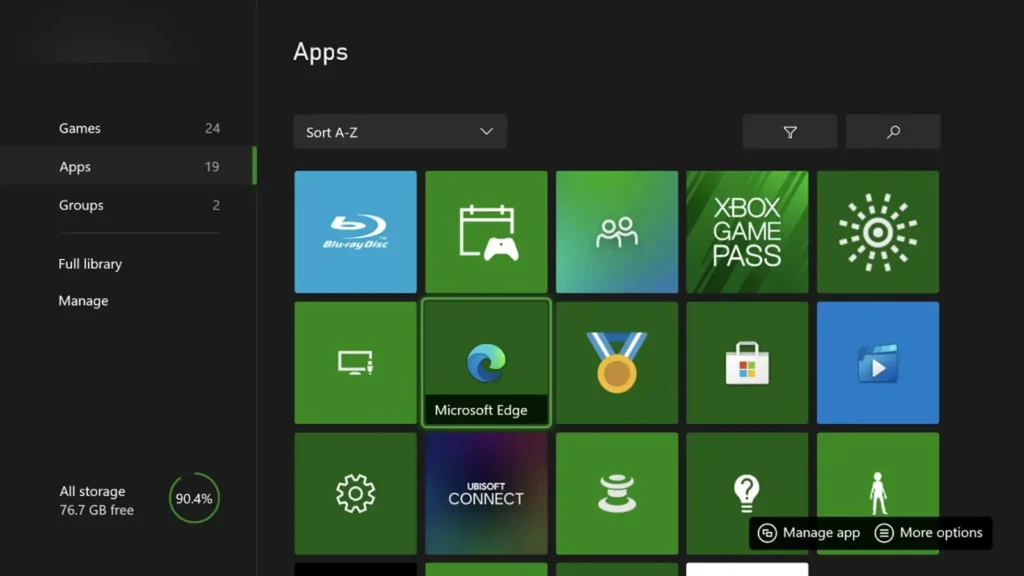
Step 1: Open Microsoft Edge
Open My games & apps and launch Microsoft Edge. Install it from the Store first if it isn’t there.
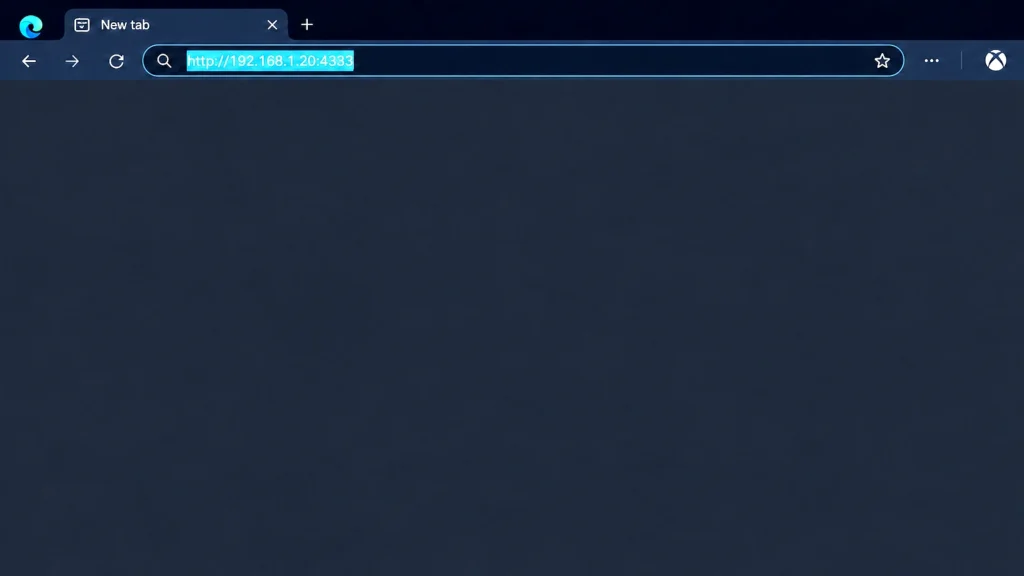
Step 2: Go to your web player
Type the address of your web player in the address bar.
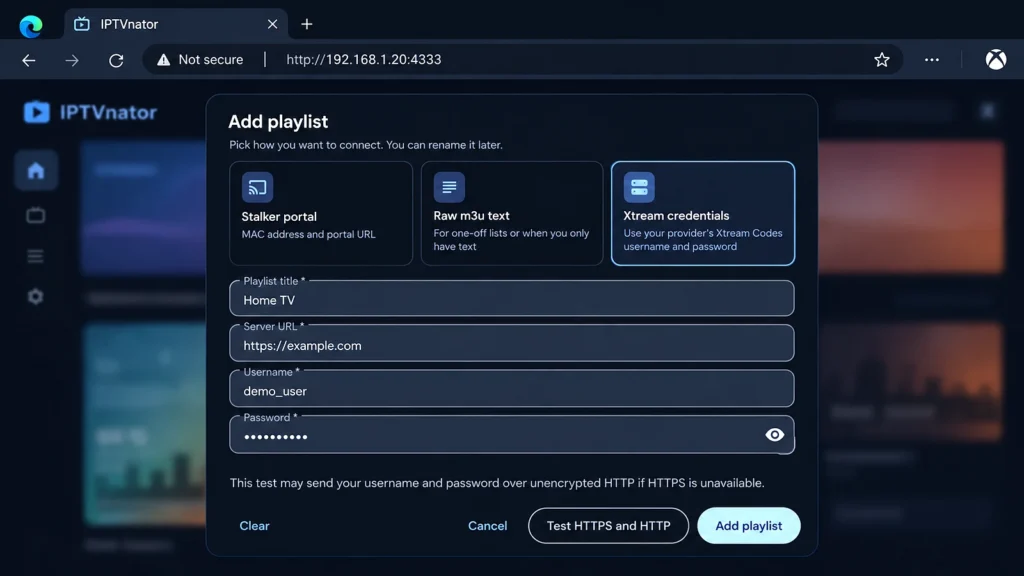
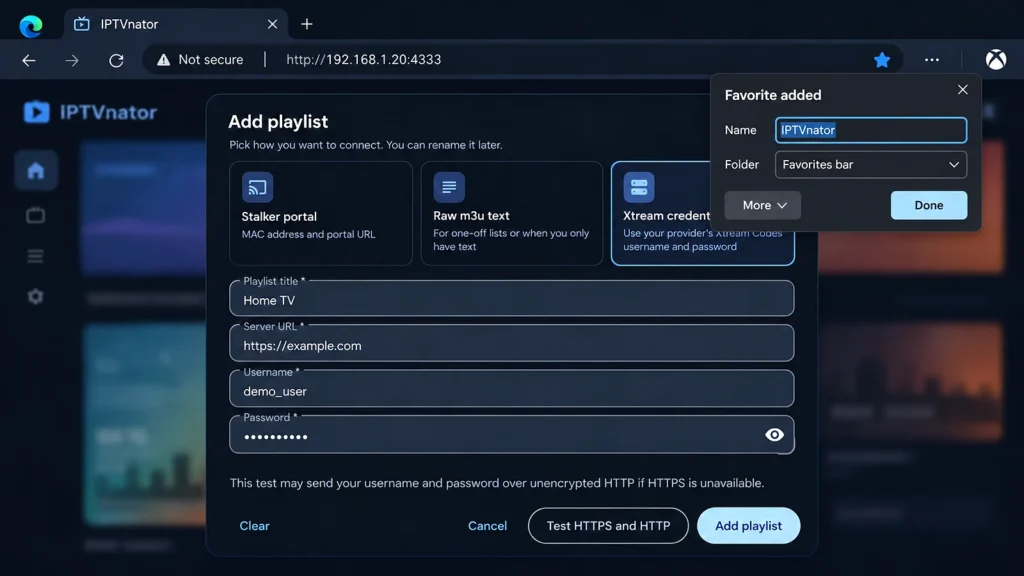
Step 3: Add your playlist
Select Add playlist, choose Xtream Codes (or M3U), enter a playlist name, then your server URL, username and password, and select Add playlist.
Step 4: Save it to your favourites
Select the star to add the page to your Edge favourites, name it and select Done, so it’s one click away next time.
Plug in a USB keyboard if you have one. Typing a long server URL and password with a controller is where most Xbox setups go wrong.
8. Fallback for Either Console: Screen Mirroring or a Streaming Stick
Screen mirroring is the backup when no other method suits you, though it adds lag and drains the phone.
- Install a player app on your phone, tablet or PC and log in with your details.
- Put the console and the other device on the same network.
- Turn on casting or screen mirroring on the sending device and pick the console.
- Start playback on the phone; the picture appears on the TV.
Treat this as occasional viewing rather than a daily setup. If you watch every night, a Fire TV Stick plugged into the same TV gives a far better experience than either console, and our Fire Stick guide has it running in about ten minutes.
9. Smooth Playback and Troubleshooting on Consoles
A wired connection is the single biggest improvement you can make, because consoles usually sit furthest from the router.
- Run Ethernet to the console if you can. A powerline adapter works where a cable will not reach.
- Close the game first. A suspended game (Quick Resume on Xbox, rest mode on PS5) holds memory and bandwidth, so quit it fully before streaming.
- Drop to 1080p in the player if the stream stutters. Both consoles upscale well, and 1080p is far steadier than 4K over Wi-Fi.
- Test your speed at the console: Settings, Network, Test Internet Connection on PS5, or Settings, General, Network settings, Test network speed on Xbox. Under 25 Mbps explains most buffering; our IPTV buffering guide and internet speed guide cover the fixes.
- Channels load but won’t play: usually an expired subscription or a connection already in use on another screen. Our guide to watching IPTV on multiple devices explains how connection limits work.
- Audio out of sync: restart the stream, then the app or browser. Consoles handle audio passthrough poorly in browser playback.
- Privacy: neither console can run VPN software, so a VPN has to go on the router. Our VPN for IPTV guide explains the router setup, and can IPTV be blocked by internet providers covers what Canadian ISPs actually do.
10. Legal and Practical Considerations in Canada
Streaming IPTV in Canada is legal when the provider holds distribution rights for the content it carries; the service, not the console, decides that.
Using a browser, Plex or a Microsoft Store player on a console breaks no rules and voids no warranty, since each is approved software used in a supported way. What matters is the source. Canadian courts have ordered ISPs including Bell, Rogers, Telus and TekSavvy to block a list of unauthorized IPTV brands, and that list can now be expanded without a fresh court review, so unlicensed services tend to disappear mid-subscription. A licensed provider with transparent business details and real payment processing avoids the problem entirely. Our full breakdown is in is IPTV legal in Canada.
Frequently Asked Questions
Can I download an IPTV app on PS5?
No. The PlayStation Store carries no dedicated IPTV player, and the PS5 does not allow sideloading. The working routes are the hidden web browser with a web player, or Plex with Threadfin on a computer.
Does the PS5 have a web browser?
Yes, though it is hidden. Go to Settings, Users and Accounts, Linked Services, YouTube, select Link, then Use Browser. From the Google sign-in page, open Terms and then the Google link to reach a search page.
Can I install an IPTV app on Xbox?
Yes. MyIPTV Player is in the Microsoft Store on Xbox and plays M3U playlists, and Microsoft Edge runs web players that accept Xtream Codes logins.
Can Plex play an M3U playlist?
Not directly. Plex live TV only accepts a tuner, so a tool such as Threadfin turns your M3U and XMLTV links into a tuner that Plex can add. Live TV in Plex also needs a Plex Pass.
Is Xbox or PS5 better for IPTV?
Xbox, by a clear margin. It has an installable player and a full Edge browser, while the PS5 relies on a hidden browser or a Plex setup running on a separate computer.
Can I use Xtream Codes on Xbox?
Yes, through a web player in Microsoft Edge. MyIPTV Player takes M3U links instead, so ask your provider for the M3U link of your account if you want to use the Store app.
What internet speed do I need for IPTV on a console?
25 Mbps for HD and 50 Mbps for 4K, measured at the console rather than at the router. A wired connection makes a bigger difference on a console than on most devices.
Will using IPTV on my PS5 or Xbox void the warranty?
No. Every method here uses approved software in supported ways. Nothing is modified, jailbroken or sideloaded.
Conclusion
The PS5 has no IPTV app, so the hidden browser is the route most owners will stick with: link YouTube in Settings, choose Use Browser, and open your web player. Plex with Threadfin is the upgrade for anyone who wants a proper channel guide and already has a computer running all evening. Xbox owners have it easier, with MyIPTV Player handling the playlist and the guide in one free app.
Whichever console you have, treat it as a good second screen rather than the main one. Close the game before you start a stream, keep the console wired, and if you end up watching on it every night, a streaming stick in the same TV will be simpler for a small one-time cost.