

 Written by Rana
Lowering the buffer limit in IPTV Smarters Pro means the app stores less video before it starts playing. This can make channels start faster, especially on older devices or weak TV boxes, and may reduce lag on low-power hardware.
But don’t change this first. Always check your internet and your IPTV provider, because many buffering problems come from them, not the app. If you do test it, try around 10–20 seconds on Android TV sticks or old devices, and 5–10 seconds on mobile data.
If the video starts cutting, freezing, or losing sound, raise the buffer again and test. In the next steps, you can use safer methods to fix IPTV problems without creating new ones.
Lowering the buffer limit might make IPTV Smarters Pro start playing a little faster, but it only works in certain cases.
It’s most useful when channels take a long time to open, your internet is stable, and you already know the problem is not coming from your IPTV provider or your network.
Reduce the buffer little by little and test after each change. If the channel starts faster and stays smooth, you can keep the new setting. But if the video begins to freeze, reload, or lose sound, raise the buffer again because it is now too low.
On weak or older devices, use simple video settings and avoid options that push the device too hard. For live sports, don’t use a very low buffer or the motion will look jumpy. Always change only one setting at a time and test on the same channel so you know what really made the difference.
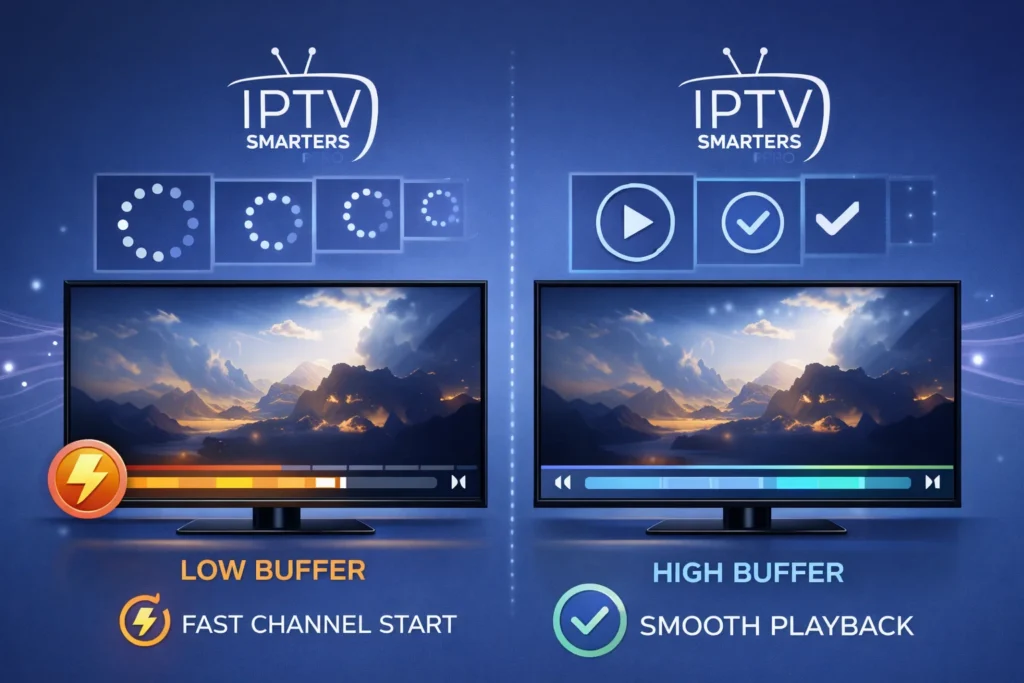
The buffer limit decides how much video the app loads before and while it is playing. This setting changes two main things: how fast a channel starts and how smooth it stays during playback. A smaller buffer makes channels open faster, while a bigger buffer helps protect you from pauses if your internet slows down for a moment.
Here’s how it works in simple terms:
The goal is to find a balance so channels start quickly but still play smoothly without stopping.
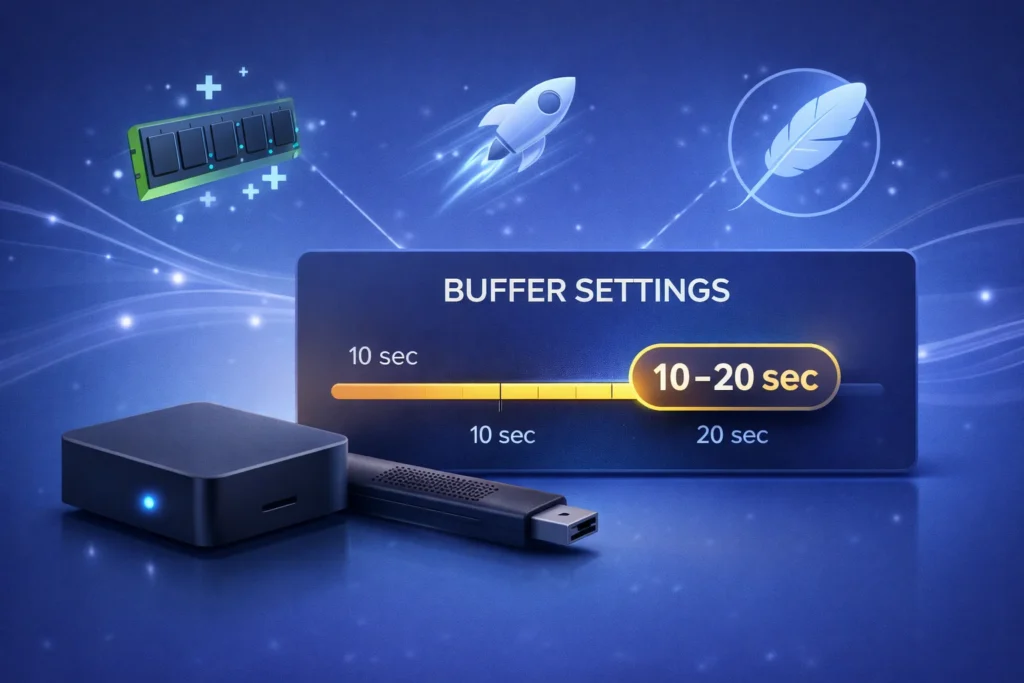
Lowering the buffer limit can be useful when your device is slow, heats up, or takes too long to open channels. Since the app loads less video in advance, it uses less memory and runs lighter, which is helpful on older TV boxes, streaming sticks, or budget phones.
A good place to start is 10–20 seconds on Android TV sticks, older devices, or basic IPTV boxes. If you are using mobile data, try 5–10 seconds so the stream can adjust faster when your signal changes.
After you change the buffer, test it properly. Open a channel from the beginning, switch to another channel, and skip forward or backward once or twice. If everything feels faster and smoother, you can keep the new setting.
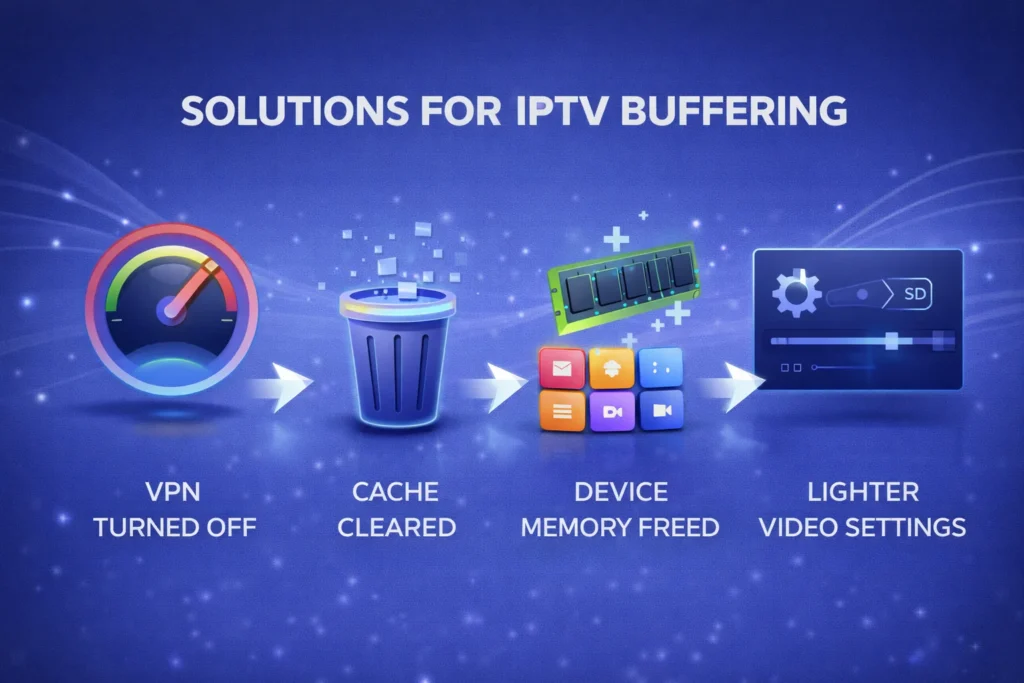
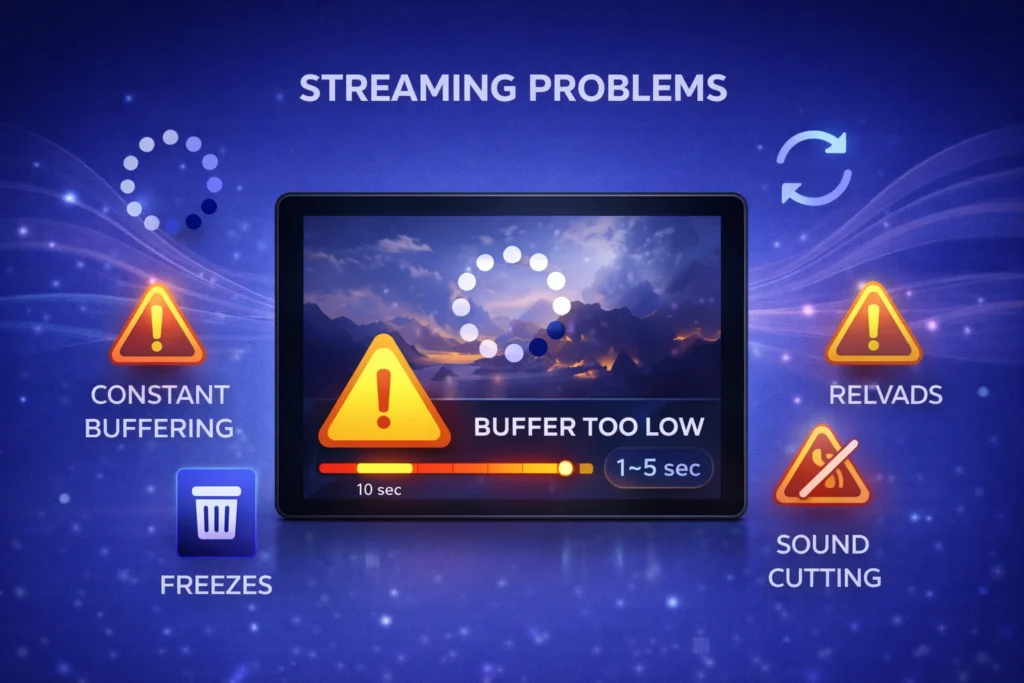
Lowering the buffer too much can create more problems instead of solving them. When the app does not keep enough video ready in advance, even small drops in your internet speed can empty the buffer faster than it can refill. This causes the stream to stop often, reload, and break your viewing experience.
You may start to see clear warning signs, such as constant buffering, short freezes every few seconds, sound cutting in and out, or a video that never feels smooth. If these problems appear right after you change the buffer in setting IPTV, it means the value you chose is too low for your internet connection or for the channel you are watching.
In this case, go back to the buffer option and raise it little by little. After each change, test the same channel again. When the video starts playing smoothly without stopping, you have found a better balance for your setup.
Buffer limit doesn’t change total data usage much; it mainly shifts network traffic timing. You’ll still download the same bitrate stream, but with less prefetch. It’s bandwidth management, affecting burstiness, not average consumption overall.
Changing buffer limit won’t significantly improve EPG responsiveness; EPG loading is HTTP/XML retrieval, not playback buffering. It may slightly affect channel switching by reducing Channel buffering, but increases stall risk. Test empirically with identical network conditions.
Yes, buffer limit behavior can differ across platforms: Android behavior varies by decoder and network stack; Firestick’s constrained RAM affects caching; iOS quirks include stricter backgrounding and HLS buffering rules, impacting latency.
Yes, it can: you’ll reduce end-to-end latency by buffering fewer segments, but you’ll increase stalls under network jitter and packet loss. You can’t beat broadcast real-time; ABR/HLS/DASH adds unavoidable encoding, CDN, player delays.
Lowering buffer limit usually won’t meaningfully reduce overheating or battery drain; you’re still decoding continuously. Any gains depend on CPU throttling and thermal management. Use power profiling to verify, and check background processes impacting load.

Premium IPTV subscription built for Canadian viewers