
 Written by Rana
To install IPTV on Google TV, connect the device to the internet, open the Google Play Store, install a compatible IPTV player app, open it, then enter your subscription login or M3U playlist to start watching. Because Google TV runs on Android TV with full Play Store access, there is no sideloading required, and the entire setup takes just a few minutes.
With a dependable IPTV Subscription from a trusted provider, your channels load quickly and stream smoothly through the Google TV interface. This clear, step-by-step guide walks you through the whole process of installing IPTV on Google TV, even if you have never added a streaming app before.
Start by making sure your Google TV device is updated and connected to a stable internet connection. Google TV runs on Chromecast with Google TV as well as many modern smart TVs, and IPTV depends on a steady, uninterrupted data stream regardless of which device you use.
Checking the connection first prevents buffering problems later and saves you from troubleshooting after setup. Google TV supports both Wi-Fi and wired Ethernet, and a wired link is by far the most stable option for high-resolution streaming. A quick system update and a restart make sure everything runs smoothly before you begin the installation.
1- Power on the device and reach the Google TV home screen.
2- Connect to Wi-Fi or, ideally, a wired Ethernet adapter.
3- Confirm your speed is at least 15 to 25 Mbps for HD.
4- Open Settings and install any pending system updates.
5- Restart the device once if it feels slow.
Next, make sure you have an active subscription and your login details on hand, since the app needs them to load your channels.
A reliable provider sends you either an M3U playlist link or Xtream Codes credentials by email after sign-up. Having these ready before you start keeps the setup quick and uninterrupted.
The provider’s stability matters more than the device, because even Google TV will buffer with a weak service. Keep the credentials somewhere easy to access during setup.
1- Choose a trusted provider with stable servers and clear terms.
2- Complete your subscription and open the confirmation email.
3- Locate your M3U URL or username, password, and server.
4- Save the details on your phone or write them down clearly.
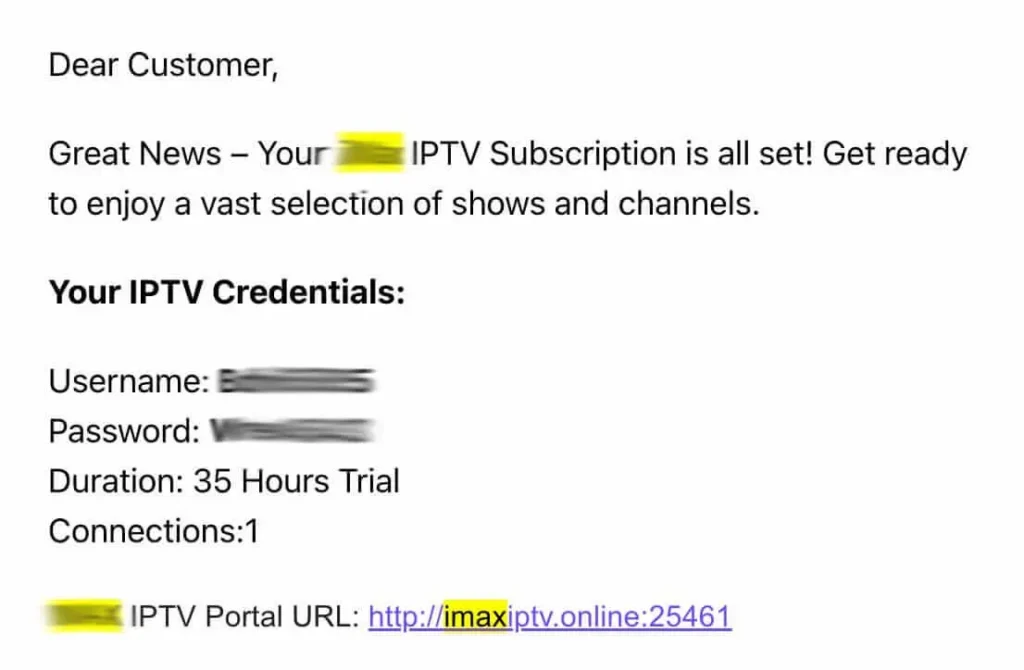
5- Check the spam folder if the email does not arrive quickly.
Now open the Google Play Store, which comes built into every Google TV device. This is the safest place to install an IPTV player, because apps there are checked before they appear in the store.
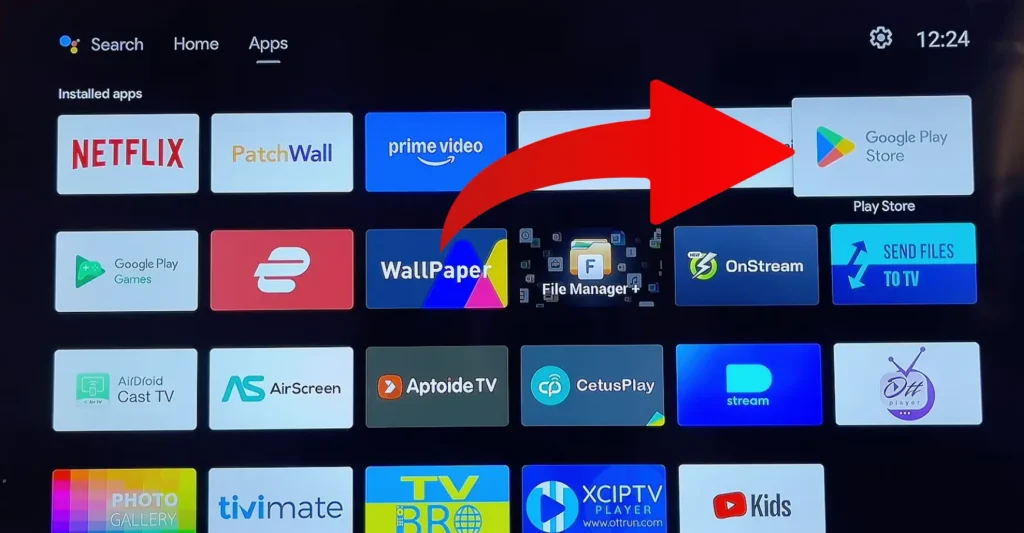
Unlike some streaming sticks, Google TV has full Play Store access, so no sideloading is needed for the vast majority of players. You can find the Play Store from the Apps tab on the Google TV home screen, usually near the top. Spending a moment to locate it now makes the next step much faster and smoother.
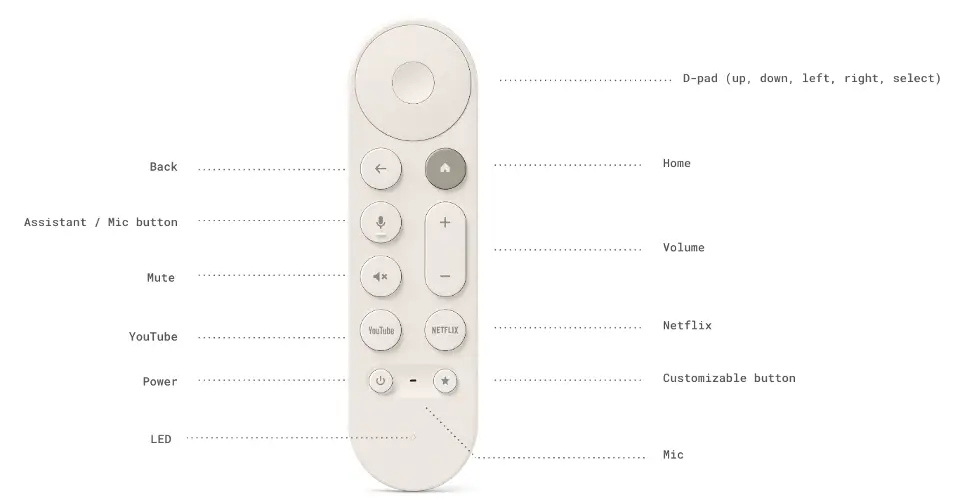
1- Press the Home button on your Google TV remote.
2- Open the Apps tab on the home screen.
3- Select the Google Play Store icon.
4- Sign in with your Google account if prompted.
5- Wait for the store to fully load.
This is the key step: find a compatible IPTV player in the Play Store and install it on Google TV. Google TV is built on Android TV, so most popular IPTV player apps are fully supported and well optimized for the remote control.
Choosing a well-known, stable player gives you the smoothest experience and the fewest issues over time. It also helps to confirm with your provider which app they officially recommend, since some players work better with certain services and login methods. You can use the on-screen search or the Google Assistant voice button on the remote to find the app much faster.
1- Open search in the Play Store or press the voice button.
2- Type or say the name of a known IPTV player (Exemple: IPTV Smarters Pro).
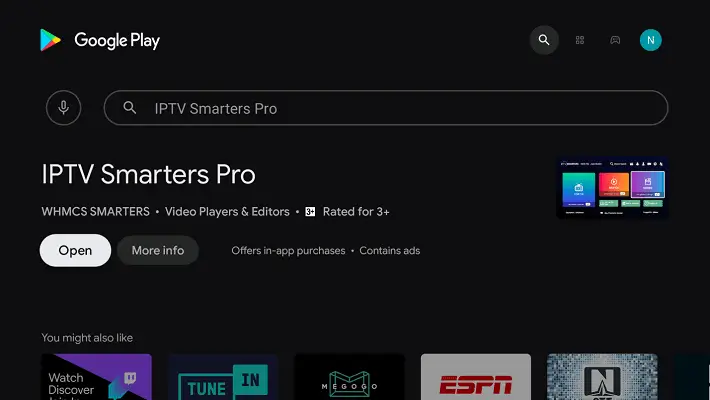
3- Select the correct app from the official results.
4- Press Install and wait for the download to finish.
5- Avoid unofficial apps or links from outside the store.
After installation, open the app and connect it to your subscription using your login details or M3U playlist. The app itself includes no channels; it only plays the content delivered by your provider.
You can sign in with Xtream Codes or an M3U URL, depending on what your provider sent you. Entering the details exactly as provided avoids login errors and empty channel lists. Once the details are correct, the app loads your full lineup automatically.
1- Open the installed IPTV app from the Apps tab.
2- Accept the terms of use to reach the main screen, and select your device.
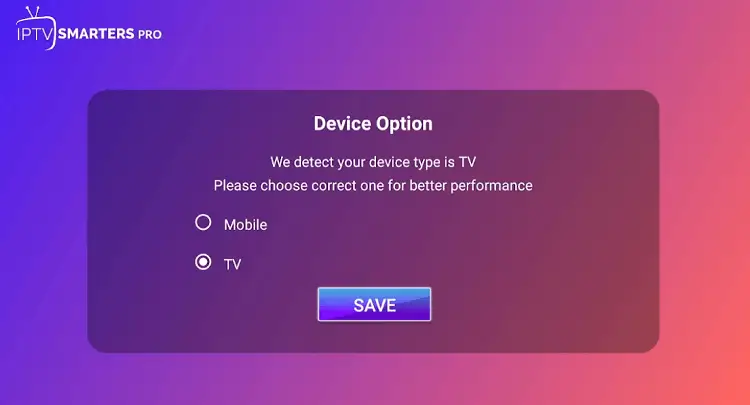
3- Choose Login with Xtream Codes API or M3U URL.
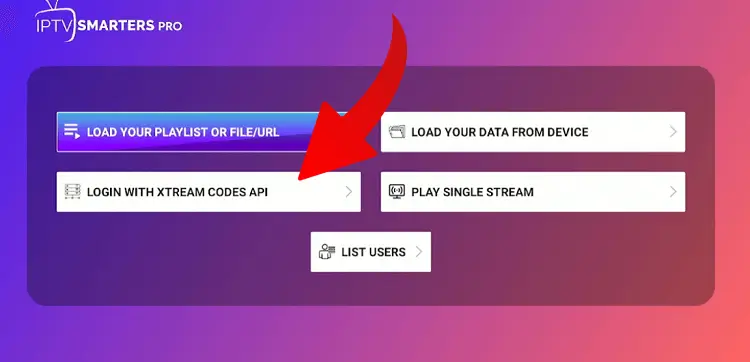
4- Enter your username, password, and server details exactly.
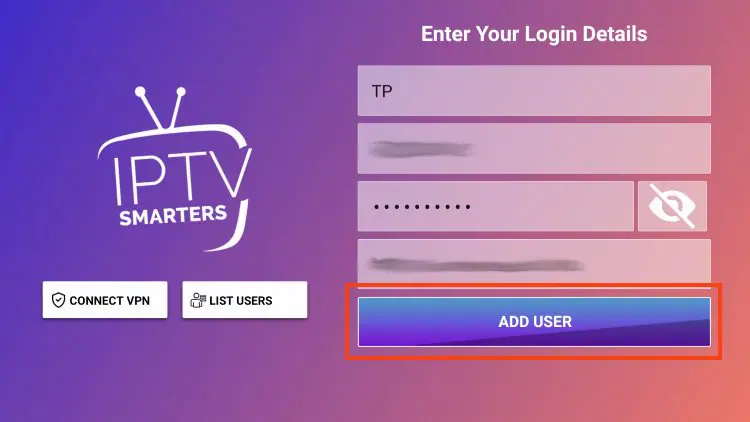
5- Submit and wait for your channels to load.
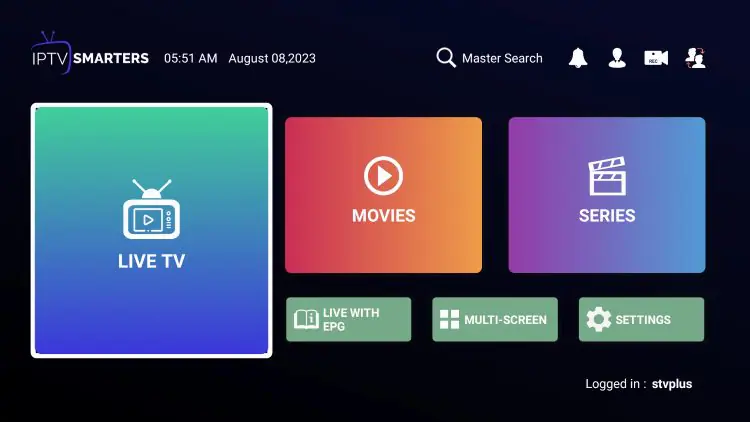
Once connected, let the app load your channels, then organize the experience for easier daily use. The first load may take a moment while the full channel list and program guide download in the background. Setting the right streaming quality for your connection prevents buffering during busy evening hours.
Adding favorites and using the app’s own categories makes navigation much faster every time afterward. Note that Google TV recommendations mostly come from installed media apps, so the bulk of your IPTV browsing will happen inside the player itself rather than the Google TV home screen.
1- Wait for the full channel list and guide to finish loading.
2- Browse the categories to confirm the channels appear.
3- Set the streaming quality to match your internet speed.
4- Add favourite channels for quicker access later.
5- Enable the program guide if the app offers one.
Finally, start watching and apply a few quick checks if something does not work right away. Most early problems come from the connection or the login details rather than Google TV itself. Knowing these simple fixes helps you solve issues in under a minute.
A wired connection and the right quality setting prevent the large majority of buffering. For a broader overview that covers other Android-based devices too, see our general Android TV setup guide.
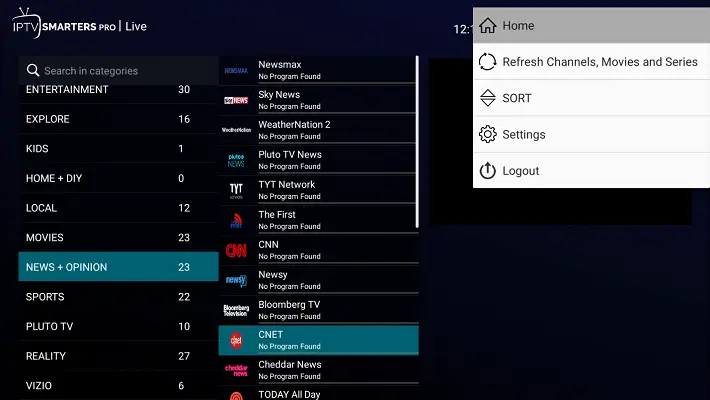
1- Select a channel and confirm the stream plays smoothly.
2- If channels are empty, recheck your M3U or login details.
3- If buffering occurs, lower the streaming quality setting.
4- Restart the app or the device if the app freezes.
5- Contact your provider’s support if problems continue.
A few simple habits keep IPTV running smoothly on Google TV over the long term. A stable connection and an updated app make the biggest difference in everyday viewing quality, far more than any single hidden setting on the device.
Keeping the system and the app fully updated also helps everything load faster and reduces glitches over time. These small routines take only seconds each but prevent most of the common frustrations people run into after a few weeks of regular use.
No, Google TV has full Google Play Store access, so most IPTV players install directly. Sideloading is only needed for apps not listed in the store.
Google TV runs on top of Android TV, so they share the same app support. Google TV mainly adds a different home interface and recommendations.
Use a stable IPTV player available on the Google Play Store and recommended by your provider. Always install from the official store, not outside links.
This is usually a login or playlist error. Recheck your Xtream Codes or M3U details and confirm your subscription is still active.
Voice search mainly finds apps and Google TV content. Most IPTV browsing happens inside the player app, using its own search and categories.
Yes, the app is only a player and includes no channels. You need an active subscription that provides your login or M3U playlist.
Both work, but a wired Ethernet connection is more stable and reduces buffering, especially during peak hours or high-resolution streaming.
Installing IPTV on Google TV is a quick and simple process: prepare your connection, get your subscription details, open the Google Play Store, install a compatible player, enter your login or M3U, load the channels, and start watching.
Because Google TV runs full Android TV with native Play Store access, there is no sideloading, and almost all early issues come down to connection speed or login details, which are easy to fix with a quick check rather than a reinstall.
The device itself is rarely the problem, so a stable connection and a reliable provider matter most. With these clear steps, Google TV becomes a complete entertainment hub, delivering a smooth and stable IPTV experience straight from your living room.

Premium IPTV subscription built for Canadian viewers