How to Install IPTV Smarters Pro on a Smart TV ?
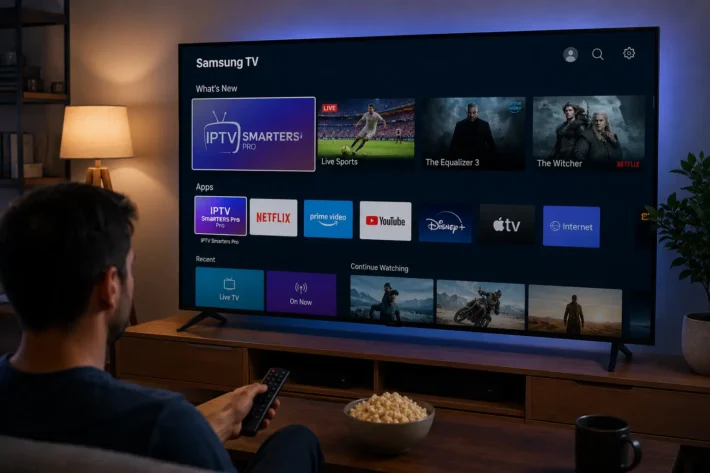
To install IPTV Smarters Pro on a Smart TV, open your TV’s app store (Google Play Store on Android TV and Sony, the App Store on Samsung, the Content Store on LG), search for “IPTV Smarters Pro,” install the app, then log in with your Xtream Codes credentials or your M3U playlist.
IPTV Smarters Pro is a free player: it doesn’t broadcast any channels on its own and needs a reliable IPTV Subscription a legal service from a licensed provider, to load your live channels, movies, and series.
This guide walks you through all ten steps depending on your Smart TV’s system (Android TV, Samsung’s Tizen, LG’s webOS), with an external-box fallback and troubleshooting tips.
1. Understand What IPTV Smarters Pro Really Is
Before installing anything, it’s important to understand what the app is, because many users wrongly assume it provides channels. In reality, IPTV Smarters Pro is just a player: it acts as an interface for a stream you supply. Without a valid subscription, the app opens but stays empty. Here’s what to keep in mind before you begin.
- IPTV Smarters Pro is a free media player, not a channel provider.
- It works with your Xtream Codes credentials or an M3U playlist.
- It organizes live TV, movies, and series in a clean interface.
- You therefore need an active, legal IPTV subscription first.
2. Gather the Prerequisites Before Installing
Most installation problems come from a lack of preparation: missing credentials, an unstable connection, or a misidentified TV model. So take a few minutes to gather everything before you start. This step saves you from interrupting the install halfway to hunt for a missing detail.
- Have your credentials ready: username, password, and server URL (or M3U link).
- Make sure your Smart TV is connected to the internet.
- Prefer a wired Ethernet connection for 4K.
- Note the exact brand and model of your TV.
3. Identify Your Smart TV’s Operating System
The installation method depends entirely on the system your TV runs, since each brand uses its own app store. An Android TV won’t follow the same procedure at all as a Samsung or LG model. Identifying this system up front saves time and points you to the right section of this guide.
- Sony and “Android TV / Google TV” sets: direct access to the Google Play Store.
- Samsung: Tizen system, the “Samsung Apps” store.
- LG: webOS system, the “LG Content Store.”
- When in doubt, check under Settings > About TV.
4. Install on Android TV, Google TV, or Sony Bravia
This is by far the simplest path, because these TVs have the Google Play Store built in, where the app is officially published. Installation takes just a few clicks, like any other app. If your TV runs Android TV or Google TV, follow these steps.
Press the Home button on the remote.
Open the Google Play Store and start a search.
Type “IPTV Smarters Pro,” then select Install.
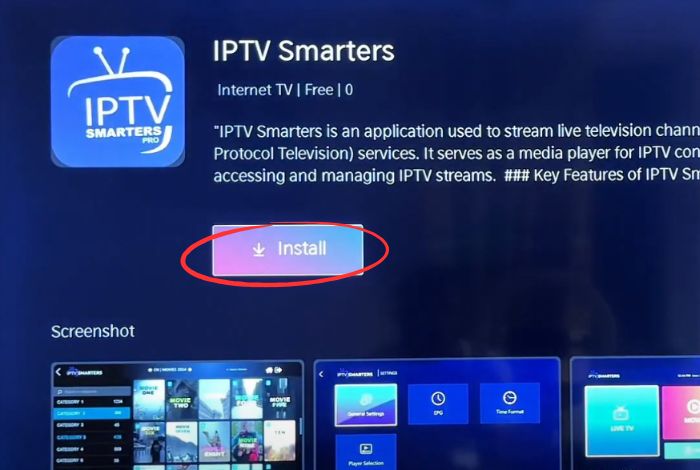
Wait for the download to finish and open the app.
5. Install via the Downloader App (If the App Is Missing)
In some regions, IPTV Smarters Pro doesn’t appear in the Play Store due to the local catalogue. You then need to manually install the APK file using the Downloader app, a common and reliable method on Android TV. Proceed carefully and only use the developer’s official source for the file.
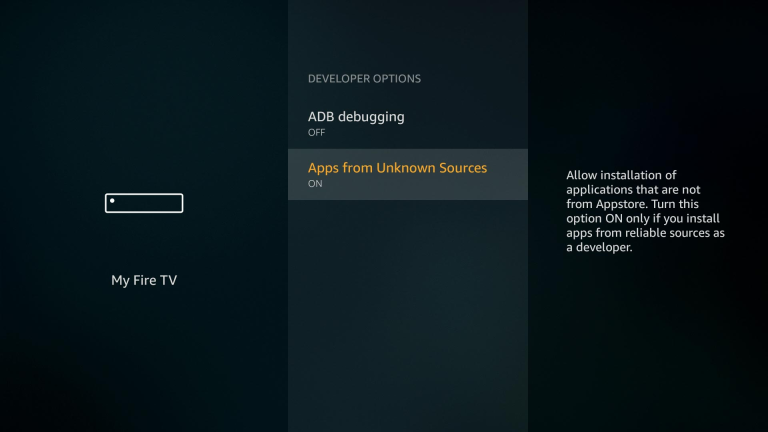
Enable “Unknown sources” in the Android TV developer settings.
Install the Downloader app from the Play Store.
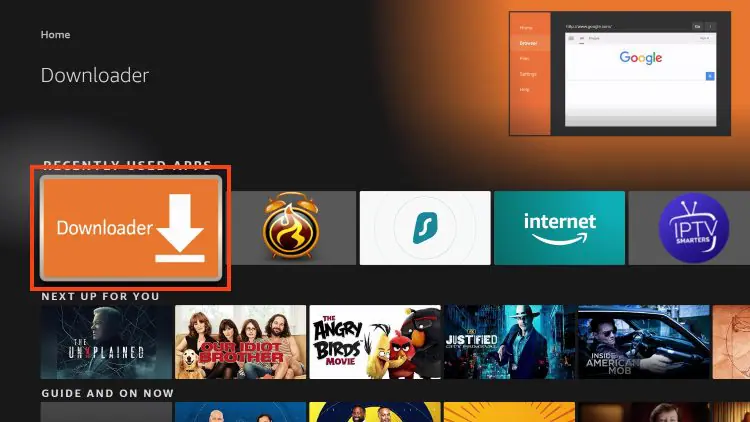
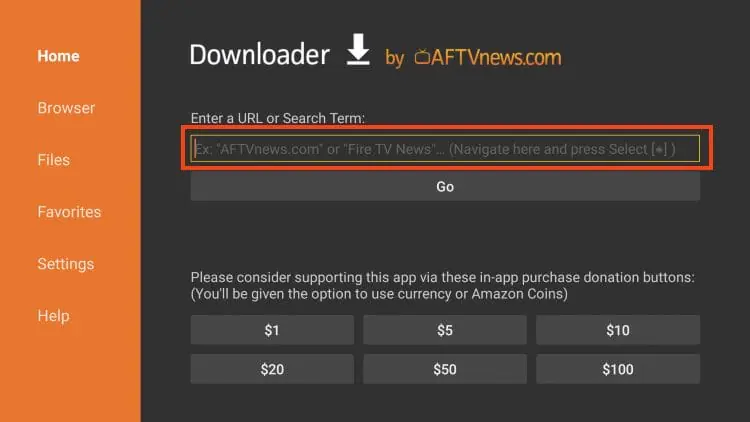
Enter the official APK address provided by the developer.
Launch the installation, then open the app.
6. Install on a Samsung Smart TV (Tizen)
Samsung TVs run on Tizen and can’t read Android apps, which makes the procedure different. Depending on your model and region, the app may or may not be in the Samsung store. If it’s missing, several fallback options exist, including using an external box.
Open the Smart Hub and go to the Apps section.
Search for “IPTV Smarters“; install it if it’s available.
If the app is missing, try an alternative (e.g., SS IPTV) or a file on a USB drive.
Otherwise, connect an external box (see Step 8).
7. Install on an LG Smart TV (webOS)
Like Samsung, LG uses its own system, webOS, and availability depends heavily on the version installed on your TV. Newer webOS models often give direct access to the app, while older ones need a workaround. Check the store first before considering an alternative.
Open the LG Content Store and start a search.
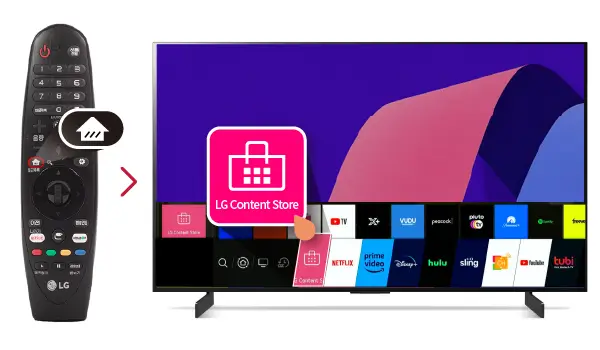
Search for “IPTV Smarters” or “Smarters IPTV.”
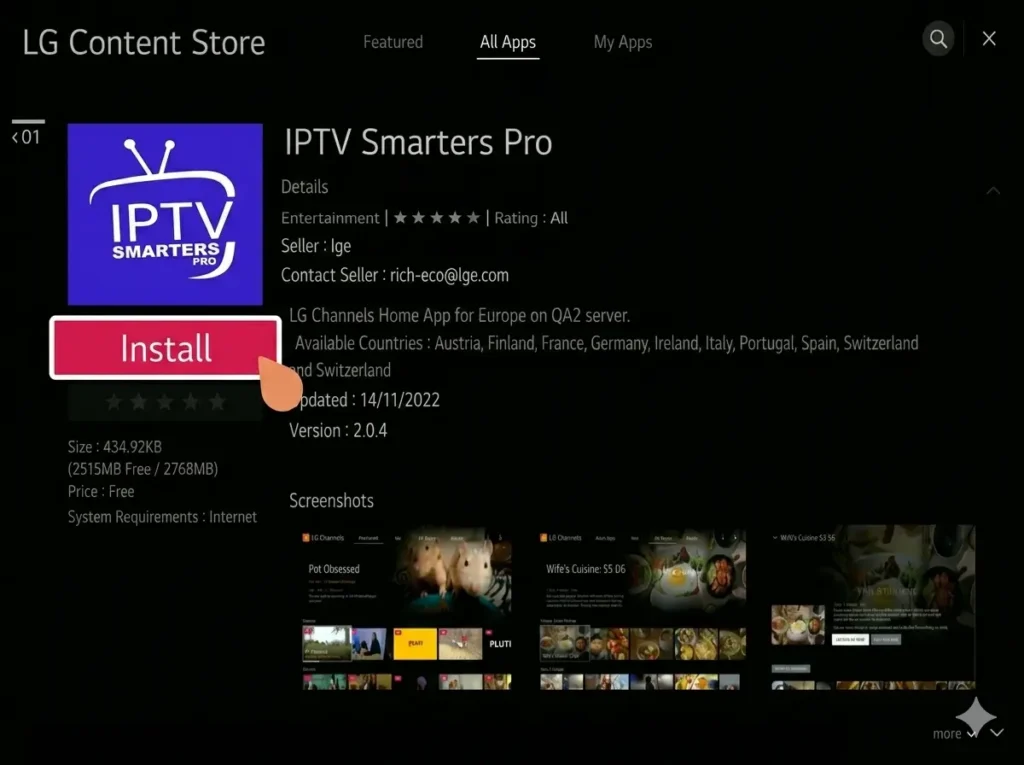
On recent webOS, install the app like any other.
On an older model with no result, use an alternative app or an external box.
8. Use an External Box as a Fallback
When your TV doesn’t support the app, a small device plugged into an HDMI port solves the problem for good — and often performs better. This option is even recommended for older TVs, since it offers a smoother interface and the app’s full feature set. It’s the most versatile option, whatever your TV.
Plug an Amazon Fire TV Stick or an Android TV box into an HDMI port.
Select the correct HDMI input on your TV.
Install IPTV Smarters Pro on the box (via the Play Store or Downloader).
You then get every feature on any TV.
9. Configure the App With Your Subscription
Once the app is installed, the last big step is linking it to your service using your credentials. This is where the subscription comes in: without these details, the app stays empty.
The simplest, most stable method is connecting via Xtream Codes, though importing an M3U playlist works too — and if you get stuck, our guide on how to log in to the IPTV Smarters player walks through it screen by screen.
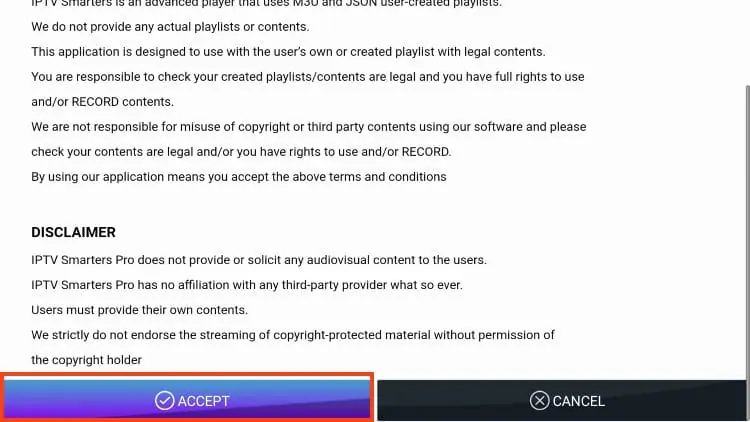
Open the app and accept the terms of use.
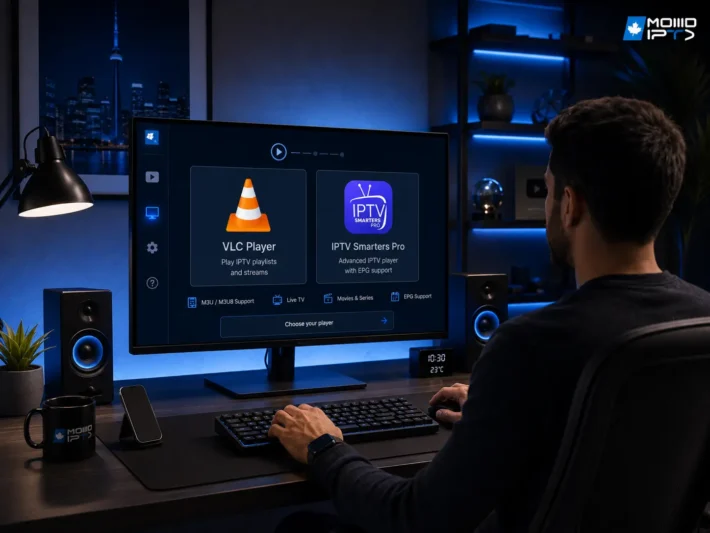
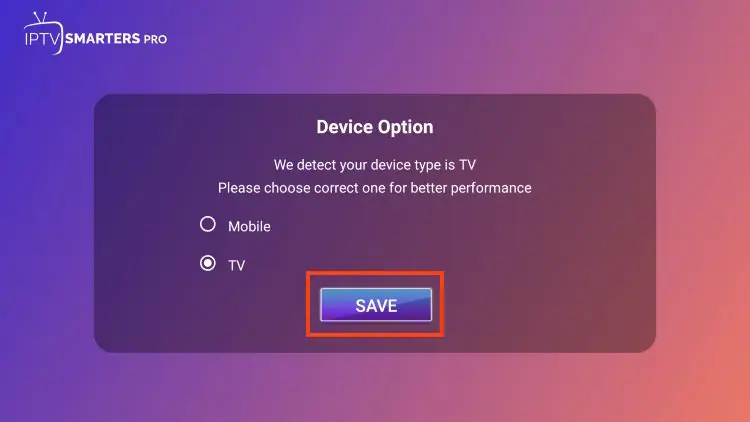
Choose you device.
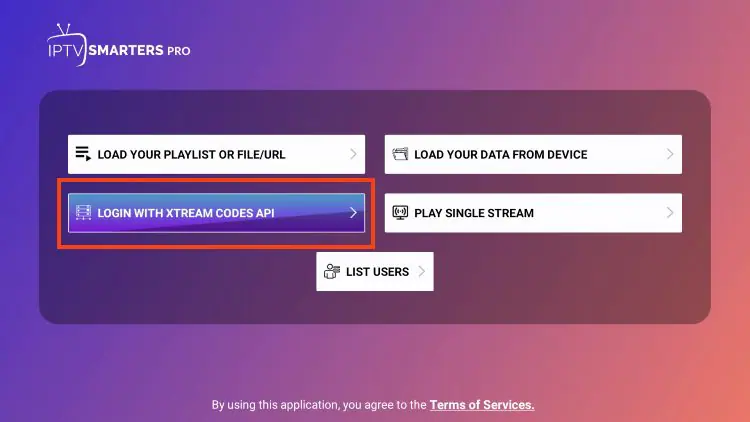
Choose “Add New User” or “Login with Xtream Codes.”
Enter a name, your username, your password, and the server URL (or import your M3U link).
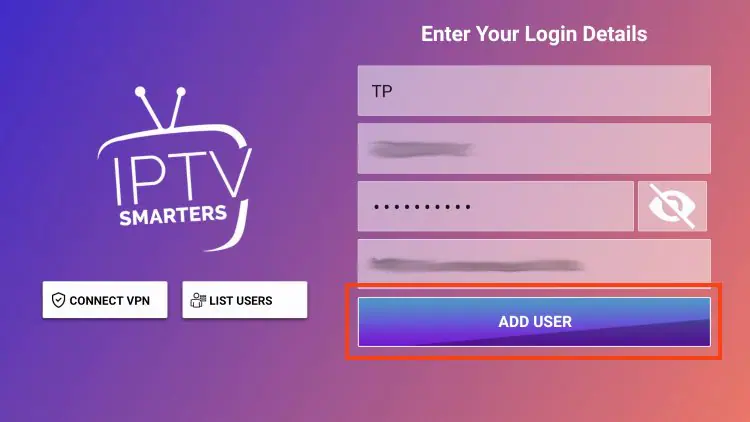
Confirm: your channels, movies, and program guide load automatically.
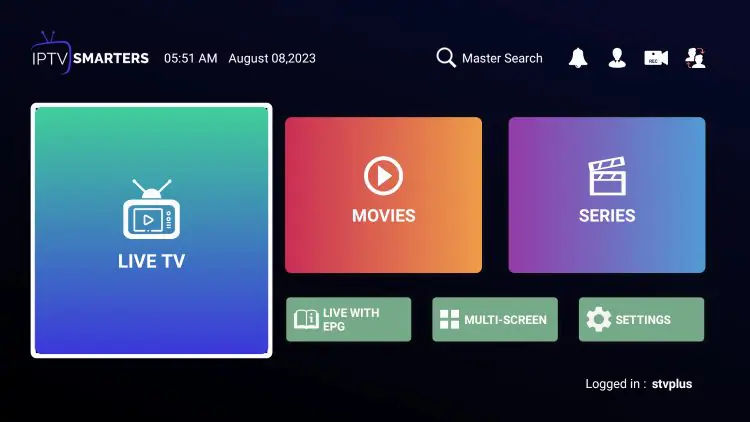
10. Optimize, Secure, and Troubleshoot
A few final adjustments ensure smooth playback and fix the most common issues, like buffering. The quality of your experience depends mostly on your connection: enough bandwidth and stability changes everything. Also remember to keep the app updated for the latest fixes.
- Aim for at least 25 Mbps for HD and 50 Mbps for 4K.
- Prefer Ethernet or 5 GHz Wi-Fi if the picture freezes.
- Update the app regularly and reload the playlist if channels are missing.
- Enable a VPN at the system level if you want to protect your privacy.
Frequently Asked Questions (FAQ)
Is IPTV Smarters Pro free?
Yes, the app is completely free to download and use, whether on a Smart TV, phone, or box. However, it doesn’t give you access to any content on its own: you need a separate IPTV subscription, provided by a third-party service, to load channels.
In other words, the real cost comes from your subscription, not the app. Be sure to choose a legal, licensed provider to avoid any risk.
Does the app provide channels on its own?
No, IPTV Smarters Pro is only a player, a bit like a browser that needs an address to display a website. Without credentials, the app opens but stays completely empty.
You need to enter your Xtream Codes (username, password, server URL) or import an M3U playlist supplied by your subscription service. Only then do the channels, movies, and series appear.
Why doesn’t IPTV Smarters Pro show up on my Samsung or LG?
This is because Samsung (Tizen) and LG (webOS) don’t use the Android system, and their respective stores don’t always carry the app depending on the model and region.
On some newer models, the app is present and installs normally. If it’s missing, you can use a compatible alternative app, a USB-drive installation, or — more simply — an external box plugged into an HDMI port. The box remains the most reliable solution for these TVs.
What internet speed do I need for smooth playback?
For uninterrupted high-definition viewing, plan for at least 25 Mbps per stream, and at least 50 Mbps for 4K. Beyond raw speed, connection stability matters most: an irregular connection causes more dropouts than a slightly slower but steady one.
For the main TV, a wired Ethernet connection is always preferable to Wi-Fi. If several devices stream at once, add up each one’s needs.
Do I need a VPN to use the app?
A VPN isn’t required for IPTV Smarters Pro to work, but it’s often recommended to protect your privacy and stop your ISP from throttling your streams.
If you choose to use one, connect it at the operating-system level before launching the app, and pick a server close to you to keep speeds up.
For broader, free online protection, Canadians can also look at CIRA’s Canadian Shield, a DNS-based privacy and security service run by Canada’s non-profit internet authority. Note that no tool makes an unlicensed service legal — it never replaces choosing a properly licensed subscription.
How do I log in to my subscription in the app?
After opening the app and accepting the terms, select “Add New User,” then “Login with Xtream Codes.” Next, enter a profile name of your choice, your username, your password, and the server URL given by your provider.
You can also import an M3U playlist if your service offers one. Once confirmed, the app automatically downloads your channels and the program guide.
What should I do if the picture keeps buffering?
Buffering is almost always connection-related: start by switching to Ethernet or 5 GHz Wi-Fi, and move the TV closer to the router. Run a speed test to confirm your bandwidth is sufficient and that no other device is saturating the network.
Then restart your router and the app, and reload your channel list. If the problem persists while your connection is fine, it’s likely coming from your provider’s server: contact their customer support.
Conclusion
Installing IPTV Smarters Pro on a Smart TV is within anyone’s reach, as long as you use the right method for your TV: a direct install from the Play Store on Android TV and Sony, a search in the Samsung or LG store, or an external box when the app isn’t available. The key step is the setup: it’s by entering your Xtream Codes or M3U playlist that the app comes to life.
Keep in mind, though, that the app is only a player, the quality, stability, and above all the legality of your experience depend on choosing a reliable subscription from a licensed provider. By combining good bandwidth, a stable connection, and a trustworthy service, you’ll enjoy smooth viewing on the big screen with complete peace of mind.