How to Change URL on IPTV Box ?
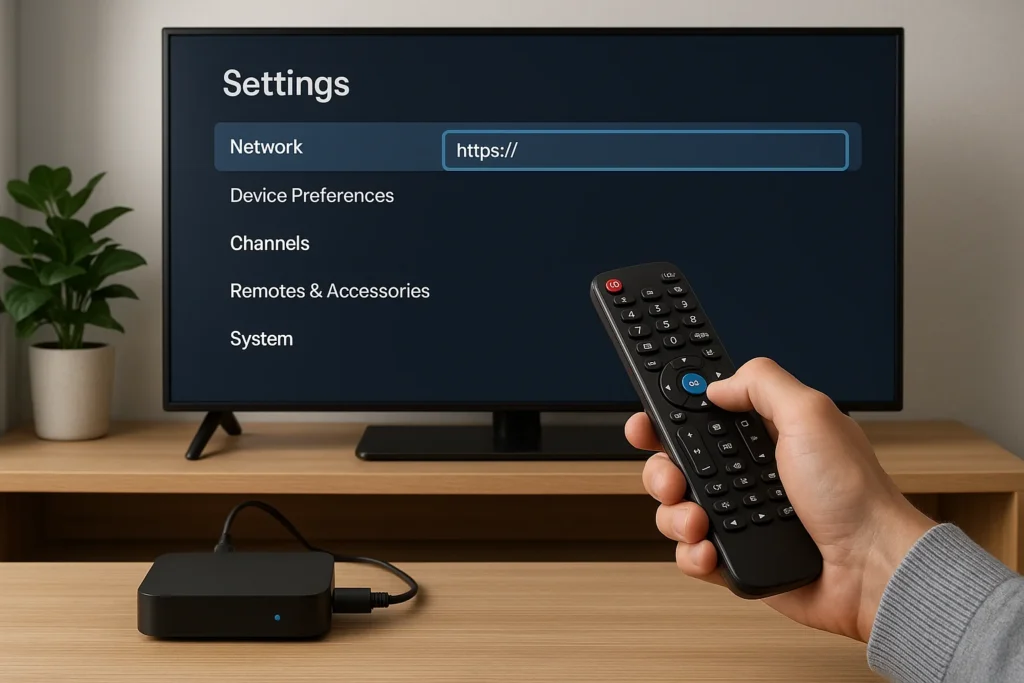
Changing the URL on your IPTV box takes 6 steps: power on the device and open your IPTV app, navigate to the playlist or settings menu, locate the existing M3U or Xtream Codes URL, delete or replace it with the new URL provided by your IPTV service, save the changes and refresh the playlist, then test the new connection by playing a few channels.
The whole process takes under 10 minutes on most modern IPTV boxes. A reliable IPTV Subscription from a trusted Canadian provider always gives you the latest, working URL with full setup instructions and 24/7 support if you get stuck.
This guide walks you through the exact steps to update your URL safely and avoid the small mistakes that cause the most setup failures.
Step 1 — Power On Your IPTV Box and Open the App
Start with the basics, get your IPTV box ready and access the right app:
- Power on your IPTV box and connect it to your TV via HDMI.
- Verify your internet connection is active (Wi-Fi or Ethernet).
- Open the IPTV app you normally use (TiviMate, IPTV Smarters Pro, XCIPTV, GSE Smart IPTV).
- If the app shows an error like “playlist failed to load” or “no channels”, that’s the signal you need to update the URL.
- Have your new M3U URL or Xtream Codes credentials ready before going further.
A clean start avoids confusion later. Make sure no other apps are running in the background, since some IPTV players cache old playlists and may need a fresh launch to fully reset.
Step 2 — Navigate to the Playlist or Settings Menu
Once your app is open, head to the section where playlists are managed:
Look for a gear icon (⚙️) in the top-right or bottom-right corner of the home screen.
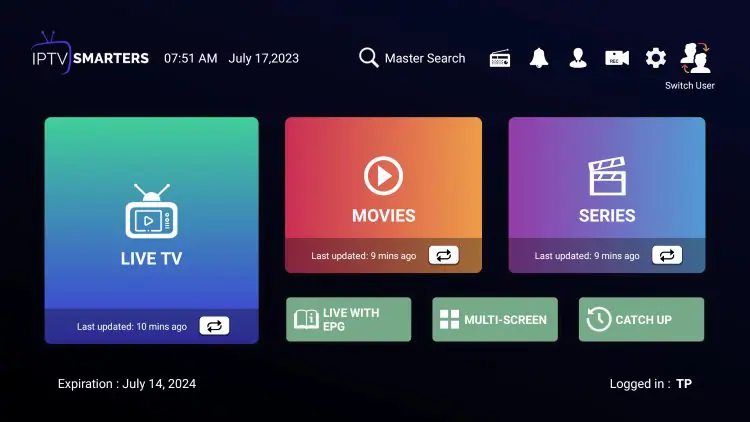
Open Settings or Playlists depending on your app.
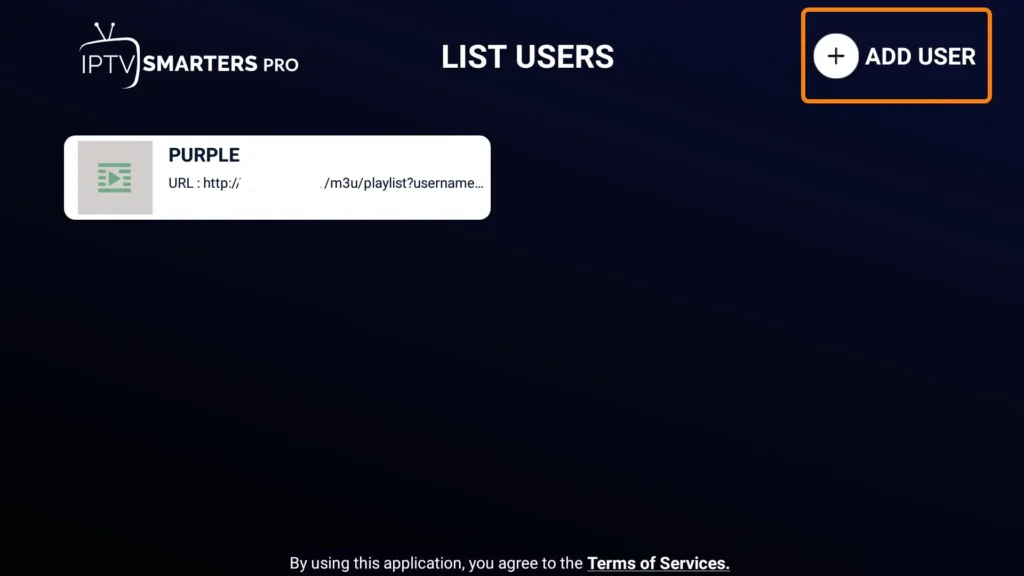
In IPTV Smarters Pro, tap Add User → Playlist Section.
In XCIPTV or GSE Smart IPTV, look for Manage Playlists or Profile Settings.
If you can’t find the playlist option, your app version may be outdated. According to MediaSmarts, Canada’s center for digital media literacy, keeping apps and devices updated is one of the most effective ways to stay protected against bugs, security flaws, and outdated configurations that cause connection issues.
Step 3 — Locate the Existing URL
Now that you’re in the right menu, find the URL you currently have configured:
You’ll see a list of saved playlists or one active playlist.
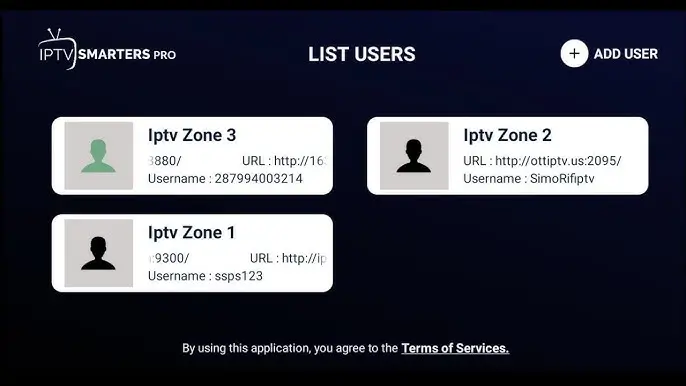
Each entry typically shows a name, the URL, and last update time.
Select the playlist tied to your previous IPTV provider.
Take note of the old URL format, M3U links start with http:// and end with .m3u or include credentials in the URL.
Xtream Codes setups display three separate fields: server URL, username, and password.
Knowing exactly which playlist to replace prevents accidentally deleting the wrong one. If you have multiple playlists saved, make sure to identify the one tied to the service you’re updating before making any changes.
Step 4 — Delete or Replace the Old URL
This is the core action — swap the old URL for the new one:
Click on the existing playlist and choose Edit or Replace.
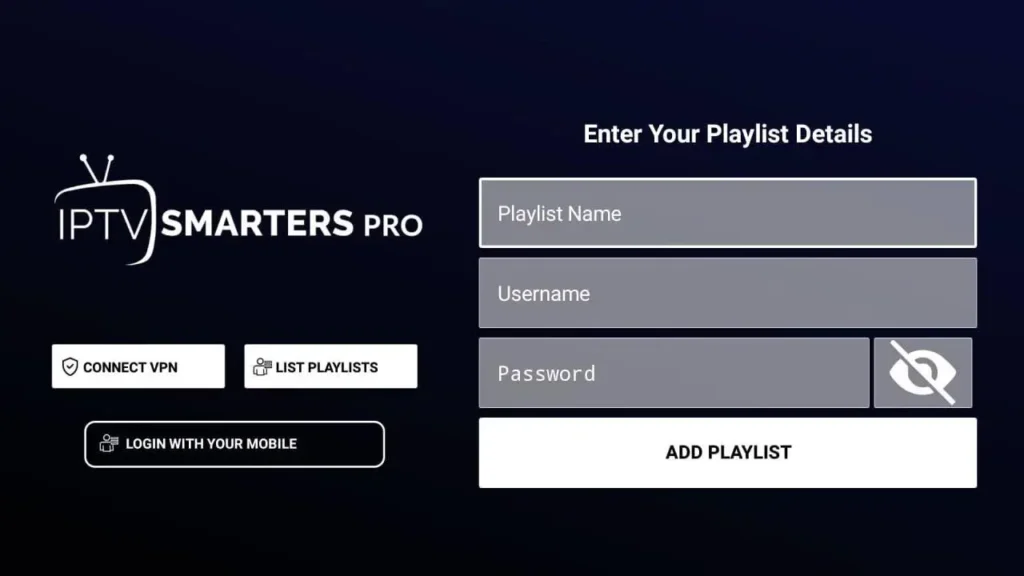
Delete the old M3U URL or Xtream Codes credentials.
Carefully paste your new URL exactly as provided by your IPTV service.
Avoid extra spaces, missing characters, or copy-paste errors.
For Xtream Codes, separately enter the new server URL, username, and password.
Double-check spelling — even one wrong character will break the connection.
This step is where 80% of users fail. A single typo in the URL is the most common reason new playlists don’t load. Always verify each character — particularly the protocol (http:// vs https://), the port number (often :8080 or :25461), and any trailing slashes or special characters in usernames.
Step 5 — Save the Changes and Refresh the Playlist
After updating the URL, save and reload your channel list:
Click Save, Apply, or OK to confirm changes.
Most apps automatically refresh the playlist after saving.
If channels don’t load right away, manually trigger a refresh.
In TiviMate, hold the playlist name and select Reload Playlist.
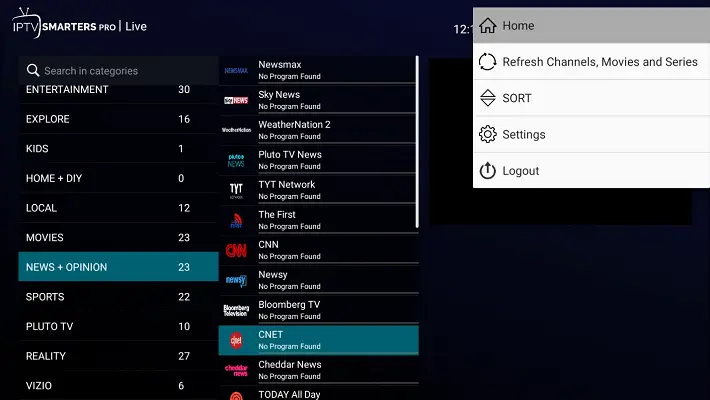
Wait 30–60 seconds for the full channel list to load.
Properly saving the configuration is critical. Some IPTV apps require a manual playlist reload to pull the new content from the updated URL, without it, you’ll still see the old (broken) channel list. If your app freezes during the refresh, close and reopen it; the saved URL will persist while the cache resets.
Step 6 — Test the New Connection
Verify that everything works as expected before you call it done:
- Browse the channel list and pick a frequently-used category.
- Open 3 to 4 channels from different groups (sports, news, kids, etc.).
- Confirm channels load within 3 seconds.
- Test the EPG (program guide) and confirm the schedule looks accurate.
- Try a VOD title to make sure on-demand content also works.
- Test during peak hours (7–10 PM) for real-world stability.
If channels still fail after a successful URL update, contact your IPTV provider’s support team, there may be a server-side authentication issue that needs to be resolved on their end.
If channels still fail after a successful URL update, contact your IPTV provider’s support team, there may be a server-side authentication issue that needs to be resolved on their end.
The Public Interest Advocacy Centre (PIAC), a Canadian non-profit that defends consumer rights in telecommunications and broadcasting, also reminds users that any URL or service that consistently fails authentication or redirects to suspicious pages should be treated as untrusted and avoided to protect your data and device security.
Conclusion
Changing the URL on your IPTV box is one of those tasks that sounds intimidating but only takes a few minutes once you understand the layout of your IPTV app. The steps are universal:
Open the app, find the settings, locate the existing URL, replace it carefully, save, and test. Whether you’re using TiviMate, IPTV Smarters Pro, or any other modern IPTV player, the logic doesn’t change — only the menu location does.
The most important factor isn’t the technical procedure itself, but the source of the URL. A reliable IPTV provider gives you a stable, properly working URL that doesn’t need to be replaced every few months.
Frequent URL changes are a strong signal that your provider is unstable, switching servers due to enforcement actions, or losing infrastructure. Choose your IPTV service based on stability, transparency, and customer support, and you’ll rarely need to revisit this process again.
Frequently Asked Questions
Why do I need to change the URL on my IPTV box?
The most common reasons are a provider rotating servers, an expired subscription, switching IPTV services, or a previous URL that’s no longer valid.
Will changing the URL delete my channels and favorites?
Yes, replacing the URL typically clears your old channel list and favorites. If your new playlist doesn’t carry over your favorites, you’ll need to re-mark them.
What happens if I enter the wrong URL?
The app won’t be able to load channels. You’ll see an error like “playlist not found” or “invalid URL.” Re-check spelling, double-check http:// or https://, and verify port numbers.
Can I have multiple URLs saved on the same IPTV box?
Yes. Most modern IPTV apps like TiviMate let you save multiple playlists and switch between them anytime, which is useful if you’re testing different providers.
How often does an IPTV URL change?
A stable provider rarely changes URLs. If yours changes more than once or twice a year, that’s a sign of an unreliable service.
Is changing the URL the same as renewing my subscription?
No. Renewing your subscription is paying your provider; changing the URL is a separate technical step you do inside your IPTV app to refresh the playlist source.
What if the new URL still doesn’t work?
Try a different device, test the URL in a browser, restart your IPTV box, or contact your provider’s customer support. If multiple URLs fail repeatedly, the issue is likely with the provider, not your setup.