
Yes, you can watch IPTV on multiple devices at the same time and share one subscription across your household, but how many screens can play at once depends on your plan’s connection limit. Most plans allow between one and five simultaneous connections, so your family can watch different channels on different screens without buying separate subscriptions. This guide covers how connection limits work, setup on every device, and how to run two TVs from one IPTV box, all on a reliable IPTV Canada subscription.
1. How Many Devices Can Stream at the Same Time?
The number of devices that can stream at the same time is set by your plan’s connection count, usually one to five. A connection is one live stream: two TVs and a phone playing at once use three.
| Household | Connections to look for |
|---|---|
| One person, one TV | 1 |
| A couple, TV plus phone or tablet | 2 |
| Family with two or three TVs | 3 |
| Large family or several rooms at once | 4 or 5 |
Count the screens that play at the same time on a busy evening, not the total number of devices in the house. You can install the app on ten devices; only the ones playing at once count. If your household grows, most providers let you add a connection or move up a plan from your account.
2. What Devices Are Compatible?
IPTV runs on virtually anything with an internet connection, one of its biggest advantages over IPTV runs on almost any screen with an internet connection, and the same login works on all of them:
- Smart TVs: Samsung, LG, and any TV running Android TV or Google TV.
- Streaming sticks and boxes: Fire Stick, Android TV boxes, NVIDIA Shield and Apple TV.
- Phones and tablets: Android, iPhone and iPad.
- Computers: Windows and Mac.
- Game consoles: PlayStation and Xbox, through a browser or a player app.
- Portal boxes: MAG, Formuler and Dreamlink.
The recipe is the same everywhere: install a player app such as IPTV Smarters Pro or TiviMate, enter your Xtream Codes or M3U details, and start watching. Our list of the best free IPTV apps compares the options.
3. Set Up IPTV on Each Device
Install the player app from the device’s app store, enter the same login on every device, and each one is ready to use a connection when it plays.
Smart TV or Android TV box
- Connect the TV or box to the internet. Ethernet is best for the main TV.
- Open the app store: the Samsung or LG store, or Google Play on Android TV.
- Search for your player app, for example Smarters Pro (the current name of IPTV Smarters Pro), and install it.
- Open the app and enter your login exactly as your provider sent it.
- Wait for the channels and guide to load, then pick a channel.
Device guides: Samsung, LG and Android TV.
Fire Stick
- Plug the Fire Stick into the TV, connect power, and join your Wi-Fi.
- Install your player from the Appstore, or sideload it with the Downloader app if it isn’t there. Only install from a developer’s site or a link your provider gives you.
- Open the app, enter your login, and let the channels load.
Our Fire Stick guide has the full sideloading steps.
Phone, tablet or computer
- Install a player from Google Play or the App Store. On a computer, use a desktop player or your provider’s web player.
- Enter the same login you use on the TV.
- Pick a channel. It uses one connection while it plays.
See our guides for iPhone and iPad and Windows.
4. Can You Share One IPTV Subscription Across Your Household?
Yes, you can share one IPTV subscription with everyone in your household, as long as you stay within your plan’s connection limit and your provider’s terms. The limit is on streams playing at once, not on the number of people.
Going past the limit by sharing your login outside the household or cloning your playlist breaks most providers’ terms and can get the account suspended. Keep it simple:
- Check your connection limit before adding devices.
- Use your provider’s device management, if it has one, to see which sessions are active.
- Ask about sub-accounts. Some providers issue a separate login per family member on the same plan.
- Keep your login private. Share it in person or through a password manager, not a group chat.
- Upgrade instead of working around the limit if you regularly need more screens.
5. Give Each Family Member Their Own Profile
A profile is a separate setup inside the app with its own favourites, channel order and restrictions, and it costs nothing extra. A connection decides how many people can watch at once; a profile decides what each person sees when they open the app.
Pick an app that supports profiles
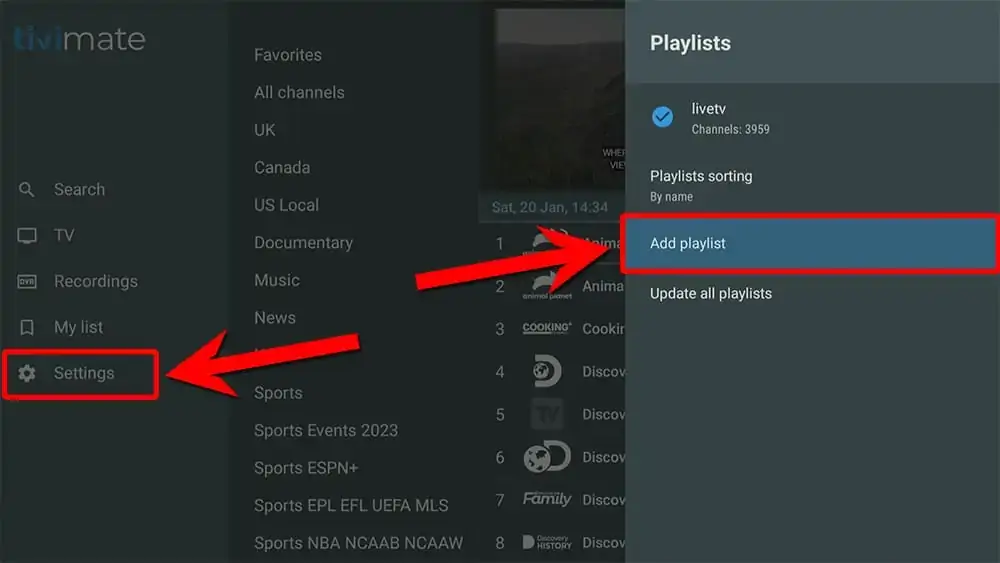
TiviMate on Android TV and Fire Stick has built-in profiles, each with its own favourites, channel order and guide settings. IPTV Smarters Pro lets you add several logins or playlists and switch between them, which works the same way in practice. On iPhone and iPad, GSE Smart IPTV holds several playlists you can switch between.
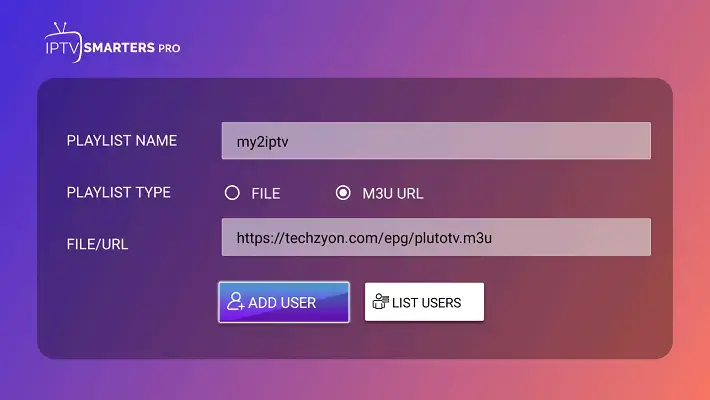
If TiviMate is not available on your device, use IPTV Smarters Pro which allows you to add multiple playlists under different usernames.
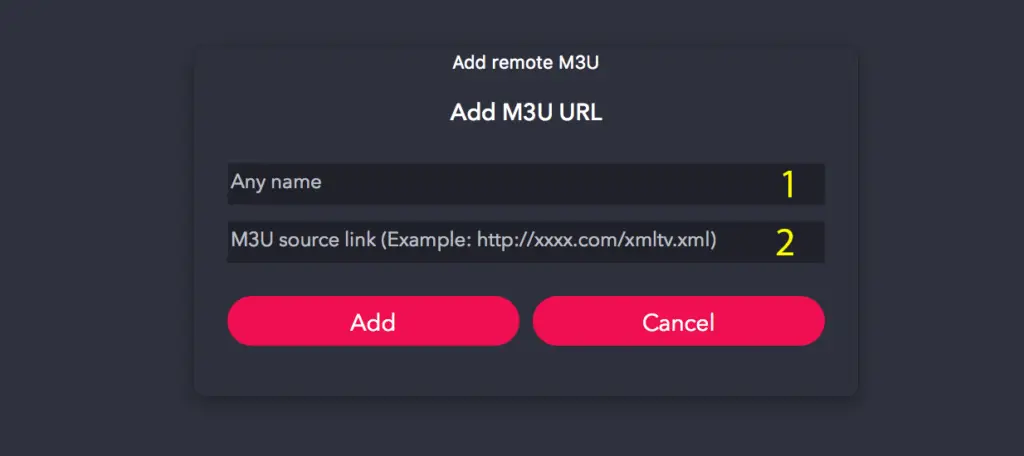
On iPhone or iPad, GSE Smart IPTV lets you add several playlists and switch between them as separate profiles.
Our roundup of the best free IPTV apps covers what each one supports.
Set up a profile for each person
- Open the profile or account section in the app’s settings.
- Create one profile per person and name it clearly.
- Add the login to each profile (or each person’s sub-account login, if your provider issues them).
- Set the language, categories and guide layout for that person.
- On a child’s profile, lock adult categories behind a PIN. Our parental control guide covers the default PINs and how to change them. In TiviMate you can also PIN-protect the settings so children can’t switch profiles.
Tidy and test each profile
Switch into each profile, mark that person’s favourites, hide categories they never watch, and move their most-watched channels to the top. If a list gets messy, our guide on clearing favourites shows how in each app. Then play a few channels in each profile and check that a locked channel asks for the PIN on a child’s profile.
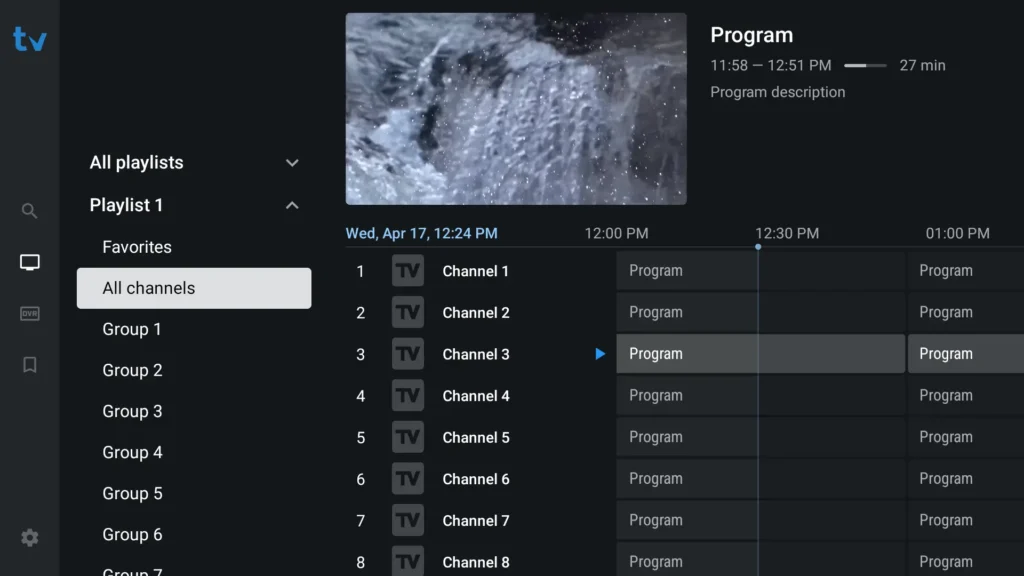
6. Can You Connect One IPTV Box to Two TVs?
Yes, but one box can only show one channel at a time, so both TVs will show the same picture. If you want to watch different channels on each TV, the second TV needs its own device (a smart TV app or a streaming stick), which uses a second connection from your plan.
Pick the method by what you want on the second TV:
| You want | Best method | Connections used | Notes |
|---|---|---|---|
| The same channel on two TVs in the same area | HDMI splitter (1 in, 2 out) | 1 | Cheapest; both TVs show exactly the same thing |
| The same channel in another room | Wireless HDMI kit, or a long HDMI cable or extender | 1 | No new cables through walls with wireless; check range and lag |
| The same channel on an older TV with only a coax input | HDMI-to-RF (coax) modulator | 1 | Works on old TVs, but the picture is lower quality |
| Different channels on each TV | A second device: the TV’s own app, or a Fire Stick or Android TV stick | 2 | The only way to watch two channels at once |
Option 1: HDMI splitter (same picture)
- Buy a powered 1×2 HDMI splitter that supports HDCP 2.2 and, if you watch in 4K, 4K at 60 Hz.
- Connect the box’s HDMI output to the splitter’s input.
- Run an HDMI cable from each splitter output to each TV.
- Power on in this order: TVs, then the splitter, then the box.
If one TV is 4K and the other is 1080p, a basic splitter may drop both to 1080p or leave one screen blank. Look for a splitter with a scaler or EDID switch, which lets each TV get a resolution it supports.
Option 2: Wireless HDMI or a long cable (same picture, another room)
- Wireless HDMI kits send the picture from a transmitter at the box to a receiver at the second TV. Range indoors depends on walls and floors, and cheaper kits add a little delay. Check the kit supports the resolution you watch in.
- Long HDMI cables work reliably up to about 10 metres. For longer runs, use an active (powered) or fibre HDMI cable, or an HDMI extender that runs over an Ethernet cable.
- Remote control: the box’s remote won’t reach it from another room. An IR extender (a small receiver at the second TV wired back to the box) lets you change channels from either room.
Option 3: A second device (different channels)
Install the player app on the second TV if it’s a smart TV, or plug in a Fire Stick or Android TV stick, and log in with the same details. Each TV then picks its own channel, and your plan needs at least two connections. For most homes, a second stick costs about the same as a good wireless HDMI kit and gives each room its own channel, its own guide and its own remote. Our guide on choosing a good IPTV box compares the options.
Fix the common two-TV problems
- Second TV shows “no signal”: usually an HDCP handshake failure. Use an HDCP 2.2 splitter, reseat the cables, and power on in order (TVs, splitter, box).
- One TV has no sound: set the box’s audio output to PCM or stereo instead of passthrough, so both TVs can play it.
- Picture drops to a lower resolution: the splitter is matching the weaker TV. Use a splitter with a scaler, or the second-device option.
7. Does Multi-Device Streaming Reduce Quality?
Only if your internet can’t carry every stream at once. The service doesn’t lower quality as devices join; your connection does. Plan for 25 Mbps per HD stream and 50 Mbps per 4K stream, and add them up for every screen playing at the same time. Our internet speed guide has the full table.
If streams buffer when a second screen starts:
- Run a speed test on the device that buffers.
- Wire the main TV with Ethernet.
- Drop secondary screens to HD instead of 4K.
- Pause big downloads and game updates while you watch.
- Check your router can handle several streams; older routers struggle with three or more.
A splitter or wireless HDMI kit uses no extra internet at all, since it’s still one stream.
8. Can You Use the Same Account From Different Locations?
Usually yes, within your connection limit: someone can watch at home while another family member streams on a phone while travelling. Two cautions apply. Some providers limit how many different internet addresses can use one account at once, and too many can flag it. Sharing with people outside your household is also against most providers’ terms. If you need IPTV at two homes, ask your provider about extra connections rather than risking the account.
9. What Happens If You Exceed the Device Limit?
The extra device is blocked, usually with a “maximum connections reached” message, until another device stops playing. To fix it:
- Close the app fully on devices you’re not using, rather than leaving it in the background.
- Log out of forgotten devices, like an old phone or a box in a spare room.
- Restart the app on the device you want to use, so the server updates your connection count.
- Add a connection or upgrade the plan if it happens every week.
- Agree on household rules for busy evenings.
Our buffering and outage guide helps if a device won’t play even when you’re under the limit.
10. Sharing IPTV Legally and Safely in Canada
Using one licensed subscription on several devices in your own home is legal in Canada, as long as you stay within your provider’s connection limit and terms. What matters legally is whether the service is licensed, not how many screens you use.
- Use a licensed provider. Unlicensed services re-stream content without permission, and Canadian courts order ISPs to block them. Our guide on whether IPTV is legal in Canada explains how to tell the difference.
- Don’t resell or redistribute your login. Sharing outside your household breaks your provider’s terms; selling access is a different thing altogether, and our IPTV reseller guide explains how that works legitimately.
- Protect your account. Anyone with your login can use your connections and lock you out.
- Test before you buy. An IPTV free trial lets you check two screens at once on your own internet.
Frequently Asked Questions
Can I watch IPTV on my phone and TV at the same time?
Yes, if your plan includes at least two connections and your internet can carry both streams.
Do I need a separate subscription for each device?
No. One subscription works on all your devices. You only need enough connections for the screens playing at the same time.
How many devices can use one IPTV subscription?
You can install it on as many devices as you like, but most plans let one to five play at once, depending on how many connections you pay for.
Can I share my IPTV account with someone in another household?
Usually not under the provider’s terms. Sharing outside your household can get the account flagged or suspended. Ask your provider about extra connections instead.
What’s the difference between a profile and a connection?
A connection is one stream playing at once, set by your plan. A profile is a separate setup inside the app, with its own favourites and restrictions, and it doesn’t cost anything.
Can I create profiles without buying a second subscription?
Yes. Profiles live inside the app, so one subscription covers them. You only need extra connections if several profiles watch at the same time.
Can I connect one IPTV box to two TVs?
Yes, with an HDMI splitter, a wireless HDMI kit or a long HDMI cable, but both TVs will show the same channel. To watch different channels, the second TV needs its own device.
Do I need two IPTV subscriptions for two TVs?
No. One subscription with two connections covers two TVs watching different channels. A splitter showing the same channel on both uses only one connection.
Can two TVs watch different channels from one IPTV box?
No. One box sends one picture. Put a streaming stick or the TV’s own app on the second TV and use a second connection from your plan.
Why does my second TV show no signal with an HDMI splitter?
Usually an HDCP handshake problem. Use a powered splitter that supports HDCP 2.2, reseat the cables, and turn on the TVs first, then the splitter, then the box.
Does an HDMI splitter work with 4K?
Yes, if it supports 4K at 60 Hz and HDCP 2.2. If one TV isn’t 4K, choose a splitter with a scaler so the 4K TV doesn’t drop to 1080p.
Will watching on multiple devices cause buffering?
Only if your internet can’t carry every stream. Plan for 25 Mbps per HD stream, wire the main TV, and drop secondary screens to HD if needed.
How do I stop my kids switching to another profile?
Lock the child’s profile with a parental PIN, and PIN-protect the settings in apps that allow it, such as TiviMate.
Conclusion
One IPTV subscription can power every screen in your home, as long as your plan has enough connections for the screens playing at once and your internet can carry them. Install the same login on each device, give each person a profile with their own favourites and a PIN on the kids’ one, and close the app on devices you’re not using. For a second TV, decide what you want: the same channel works with one box and a splitter, while different channels need a second stick and a second connection. Wire the main TV, plan for 25 Mbps per HD stream, and test two screens at once on a free trial before you choose a plan.