


 Written by Rana
To fix IPTV buffering on any device, start by switching from Wi-Fi to a wired Ethernet connection, clear your IPTV app cache, activate a VPN to bypass ISP throttling, change your DNS settings to a faster server, and lower the stream quality if your bandwidth is limited.
Buffering is the most common frustration for IPTV users, but in the vast majority of cases it is caused by problems on your end, not your provider’s servers, and can be resolved in minutes with a few targeted adjustments.
A reliable IPTV subscription paired with the right setup ensures smooth, buffer-free streaming across Smart TVs, Fire Sticks, Android Boxes, phones, and computers. Follow these five steps in order, starting with the fix that works most often, and you will eliminate buffering for good.
Wi-Fi is the number one cause of IPTV buffering, and switching to a wired connection fixes the problem instantly in most cases. Here is how to do it on any device:
1- Connect an Ethernet cable directly from your router to your device : This gives you a stable, interference-free connection that delivers your full internet speed without drops.
2- Use an Ethernet adapter for Fire Stick : The Fire TV Stick does not have a built-in Ethernet port, so purchase an Amazon Ethernet adapter or a compatible USB OTG adapter.
3- Use a powerline adapter if the router is far away : Powerline adapters send your internet signal through your home’s electrical wiring, giving you a wired connection in any room.
4- Disable Wi-Fi after connecting Ethernet : Go to Settings > Network and turn off Wi-Fi to make sure your device uses the wired connection and does not switch back automatically.
5- Test the difference immediately : Open your IPTV app and stream a channel for a few minutes to confirm that the buffering has stopped with the wired connection.
A bloated cache is the second most common cause of IPTV buffering, and clearing it takes less than 30 seconds. Here is the process for every major platform:
On Fire Stick : Go to Settings > Applications > Manage Installed Applications > Select your IPTV app > Clear Cache > then Force Stop and reopen the app.
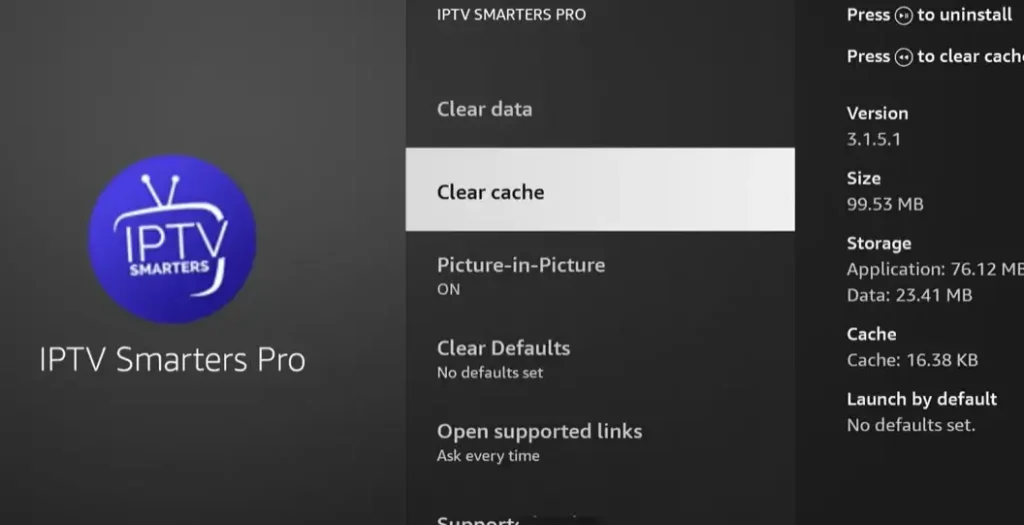
On Android TV Box : Go to Settings > Apps > find your IPTV app >
Storage >
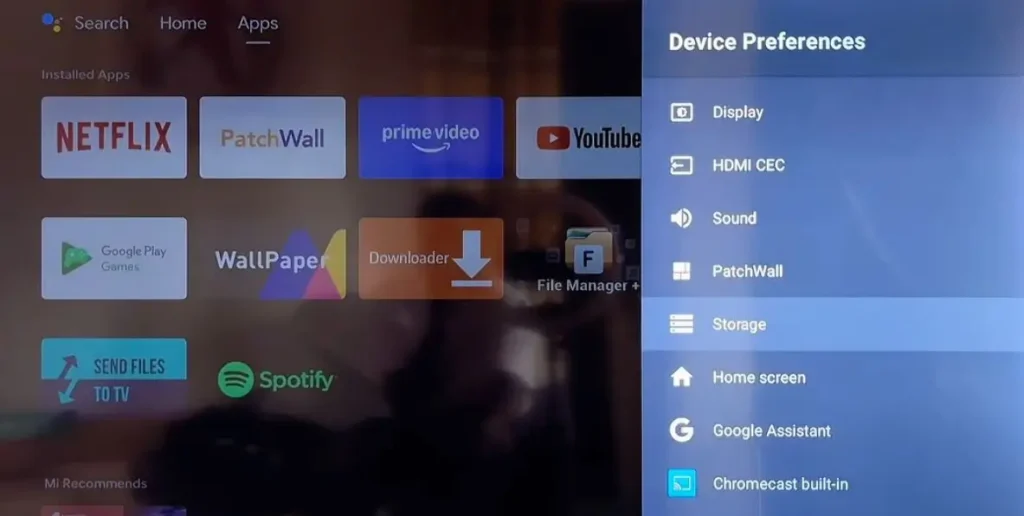
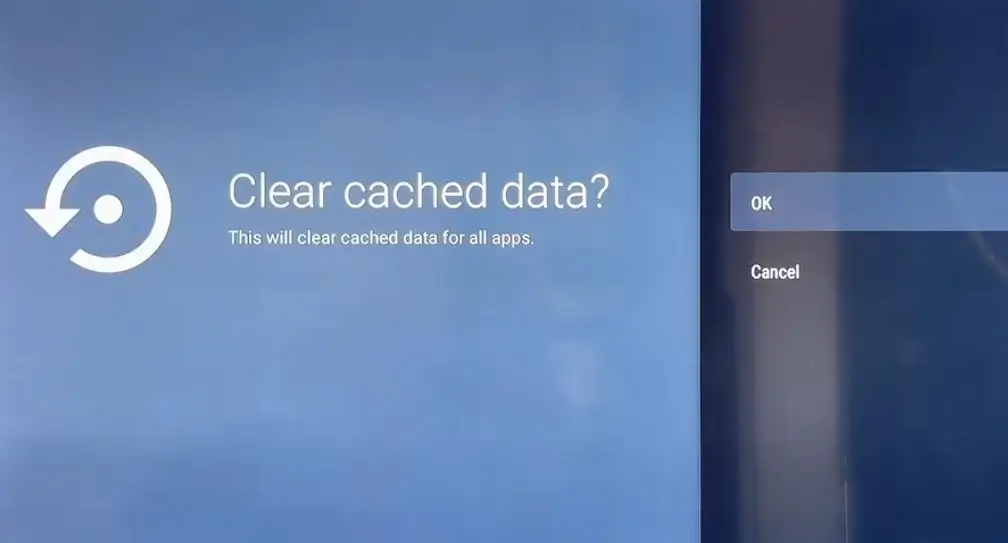
Clear Cache,
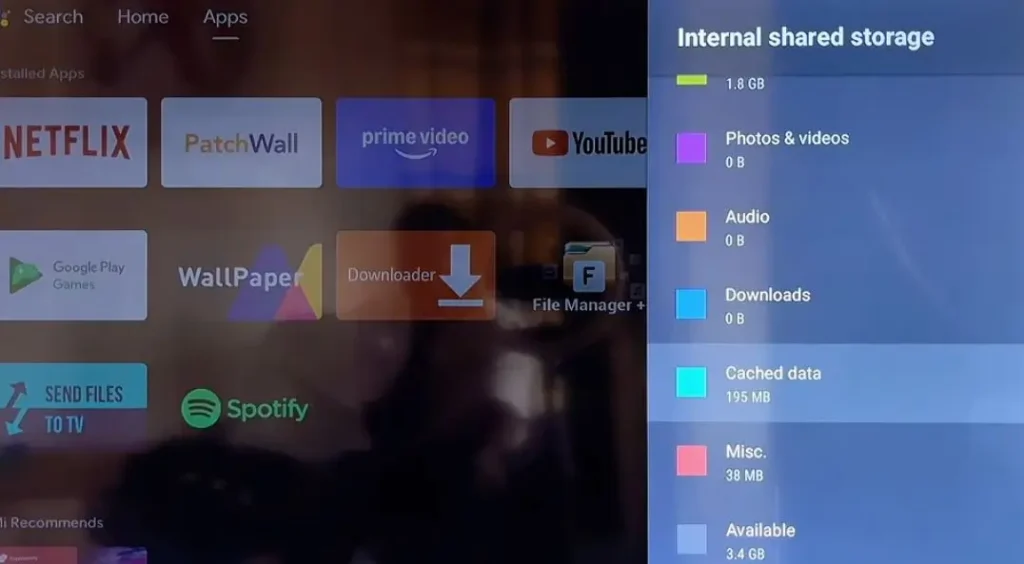
then restart the app from the home screen.
On Smart TV (Samsung/LG) : Uninstall and reinstall the IPTV app, as most Smart TVs do not offer a direct cache clearing option in the settings menu.
On iPhone or iPad : Delete the IPTV app completely, restart your device, then reinstall the app from the App Store and re-enter your credentials.
On Windows PC : Open the IPTV app settings and look for a cache or temporary files option, or uninstall and reinstall the app for a clean start.
Do this at least once a week, set a reminder to clear the cache regularly so temporary files do not build up and slow down your streaming over time.
Many internet providers in Canada intentionally slow down streaming traffic during peak hours, and a VPN is the only way to bypass this throttling. Here is how to set it up:
1- Download a reputable VPN app on your device : Install it from the App Store, Google Play Store, or Amazon App Store depending on your streaming device.
2- Create an account and log in : Open the VPN app, sign in with your credentials, and make sure your subscription is active before connecting.
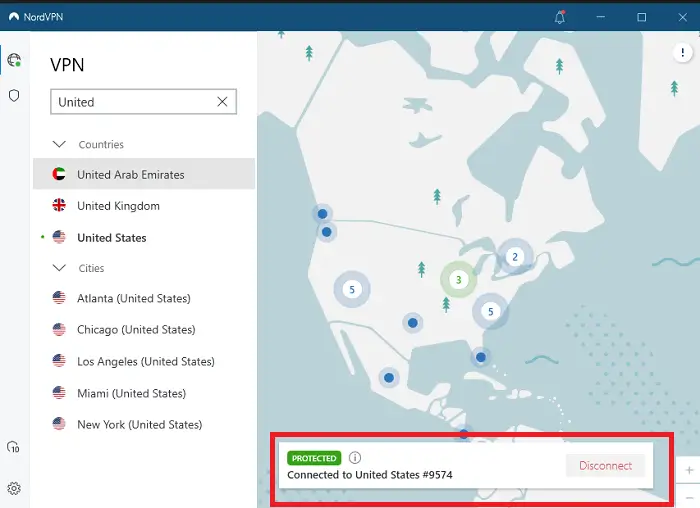
3- Connect to a server close to your location : Choose a server in your country or nearby region to minimize latency and keep your speeds as fast as possible.
4- Enable the kill switch : Turn on the kill switch feature in the VPN settings so your connection drops entirely if the VPN disconnects, preventing unprotected streaming.
5- Launch your IPTV app after the VPN is active : Always start the VPN first, wait for the connection to establish, then open your IPTV app to ensure all traffic is routed through the tunnel.
6- Test with and without the VPN : If buffering stops with the VPN active but returns when you disconnect it, your ISP is confirmed to be throttling your streaming traffic.
Slow DNS servers can cause delays when loading channels and EPG data, leading to buffering at the start of each stream. Switching to a faster DNS fixes this instantly:
1- Open your device or router network settings : You can change DNS either on the individual device or on the router itself to apply the change to all connected devices.
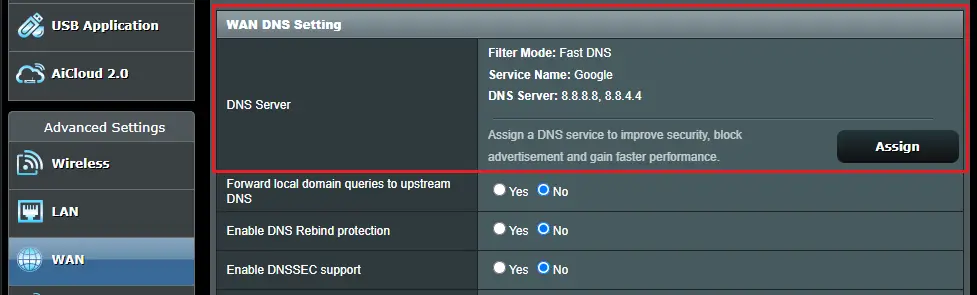
2- Replace the default DNS with Google DNS : Set your primary DNS to 8.8.8.8 and secondary to 8.8.4.4 for fast, reliable DNS resolution worldwide.
3- Or use Cloudflare DNS for even faster speeds : Set primary to 1.1.1.1 and secondary to 1.0.0.1, which is often the fastest public DNS option available.
4- Restart your device after changing DNS : Reboot your streaming device and router to make sure the new DNS settings take effect properly before testing your IPTV.
If your internet speed is limited or shared with many devices in your household, reducing the stream quality can eliminate buffering without requiring any hardware changes. Here is how:
1- Switch from 4K or Full HD to HD (720p) : Open your IPTV app settings and manually select a lower resolution, which cuts the required bandwidth roughly in half.
2- Disable auto-quality in the player settings : Auto mode tries to load the highest resolution available, which causes buffering when your speed fluctuates during peak hours.
3- Change the video player engine : In apps like IPTV Smarters or TiviMate, switch between the built-in player, ExoPlayer, or VLC engine to find which one performs best on your device.
4- Increase the buffer size in app settings : Some apps let you adjust the buffer duration from 1 second to 5 or more seconds, giving the stream more time to preload before playing.
5- Close all other apps running in the background : Background apps consume RAM and bandwidth, both of which your IPTV app needs for smooth playback.
6- Disconnect unused devices from your network : Every phone, tablet, laptop, and smart home device on your Wi-Fi takes a slice of your bandwidth, so disconnect anything not actively in use.
Because fast internet does not guarantee stable delivery to your device. Wi-Fi interference, ISP throttling, a full app cache, or slow DNS can all cause buffering even on a 100 Mbps connection.
Yes, in most cases. Wi-Fi is the single biggest cause of IPTV buffering. A wired Ethernet connection eliminates signal drops, interference, and speed fluctuations that cause freezing.
At least once a week. The cache stores temporary data that builds up over time and eventually slows down the app, causing stuttering and buffering during playback.
A VPN can reduce your speed by 10 to 20 percent, but if your ISP is throttling you, a VPN actually makes your IPTV faster by preventing that throttling. The net result is usually better performance.
You need at least 15 to 25 Mbps for smooth HD streaming on one device. For 4K content or multiple simultaneous streams, aim for 50 Mbps or more.
Yes. An outdated router may not handle multiple streams efficiently. Upgrading to a dual-band Wi-Fi 6 router improves speed distribution across all your devices and reduces buffering significantly.
If you have tried Ethernet, cleared the cache, activated a VPN, changed DNS, and lowered the quality and IPTV still buffers — the issue is likely on the server side. Contact your provider’s support team to check server status or request a server change.

Premium IPTV subscription built for Canadian viewers