How to Install IPTV on Android ? (Phones and Tablets)

To watch IPTV on an Android phone or tablet, install a compatible player from the Google Play Store, open it, and connect your source using either an M3U link or Xtream Codes credentials. The whole thing takes under a minute per app, and the way you add a source is the same across almost every player. That’s the short version; the step-by-step detail follows below.
Android is one of the friendliest platforms for IPTV: most players sit right in the Play Store, install like any other app, and need no advanced setup. As with any player, though, none of them carry channels of their own, each is simply fed by a legitimate, authorized source such as an IPTV subscription or a playlist you’re entitled to use.
This guide covers the best apps, how to configure each, sideloading when an app isn’t in the store, plus settings and troubleshooting.
What You Need Before You Begin
Gather these items first. On Android, most problems trace back to a mistyped credential or an invalid playlist link.
- An Android phone or tablet (any reasonably recent version works).
- Your M3U link, or your full Xtream Codes credentials: server URL with its port (for example, http://server.example:8080), username, and password.
- The program-guide link (EPG/XMLTV) if your source provides a separate one.
- A stable internet connection, Wi-Fi or mobile data, ideally 25 Mbps or more for HD.
- A legitimate, authorized content source.
Step 1 — Install a Player from the Play Store
The core steps are the same regardless of which app you choose.
Open the Google Play Store on your phone or tablet.
Tap the search bar and type the player’s name (for example, “IPTV Smarters Pro“).
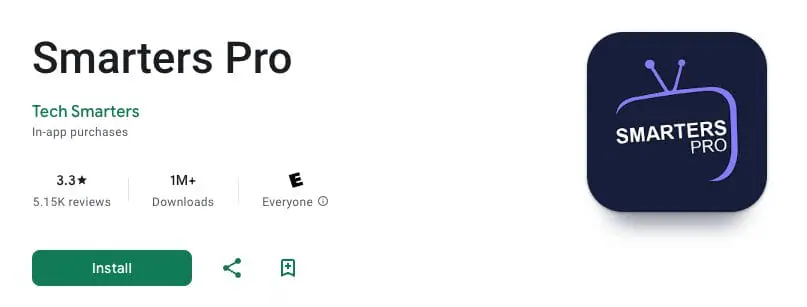
Choose the app from the results and tap Install.
Wait for the download, then tap Open.
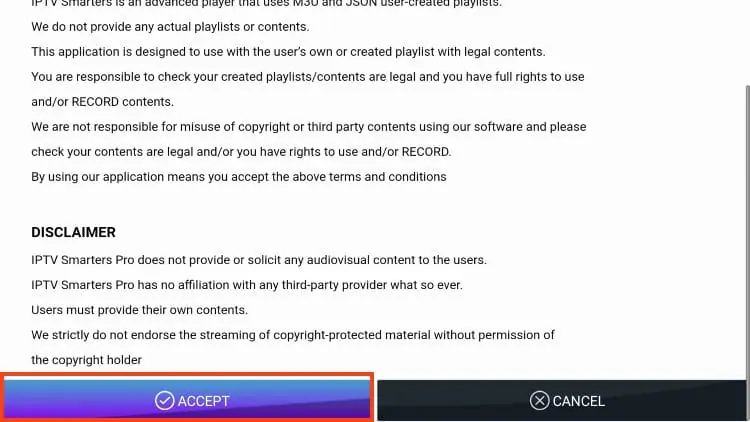
On first launch, grant the permissions the app requests (storage, network) by tapping Allow, and accept the license agreement if prompted.
Step 2 — Add Your Source
Once the app is open, connecting your source is nearly identical from one player to the next. You pick a login method based on the format your source gave you, then copy the details exactly, the smallest typo prevents loading.
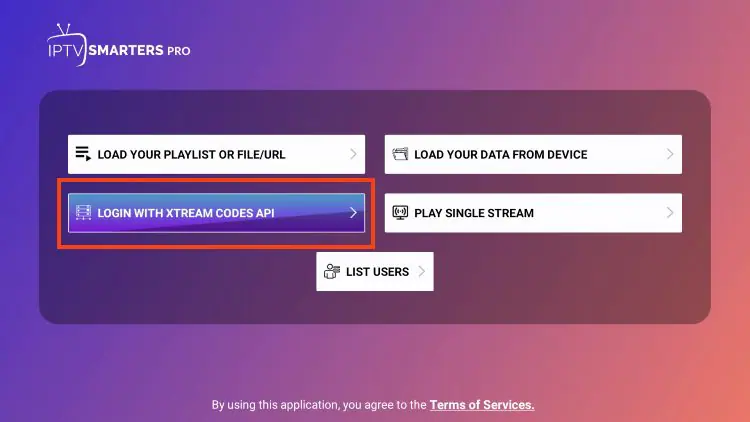
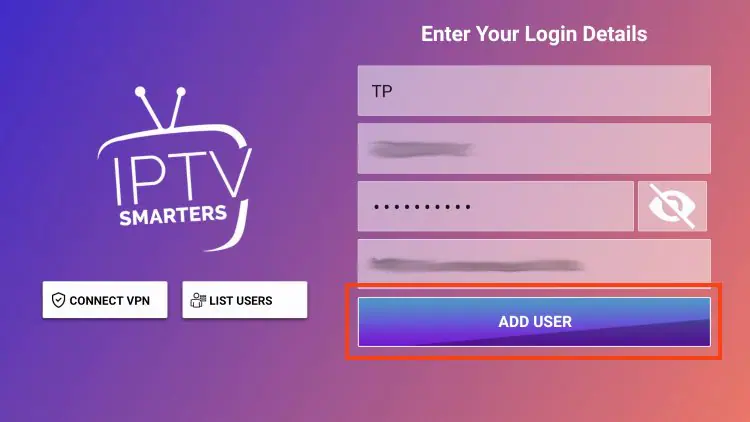
Xtream Codes method. Choose the Xtream login option, then enter a free label to recognize the source, your username and password (both case-sensitive), and the server URL in the format http://server:port.
The port, the number after the colon, is the most commonly forgotten piece, and its absence blocks everything.
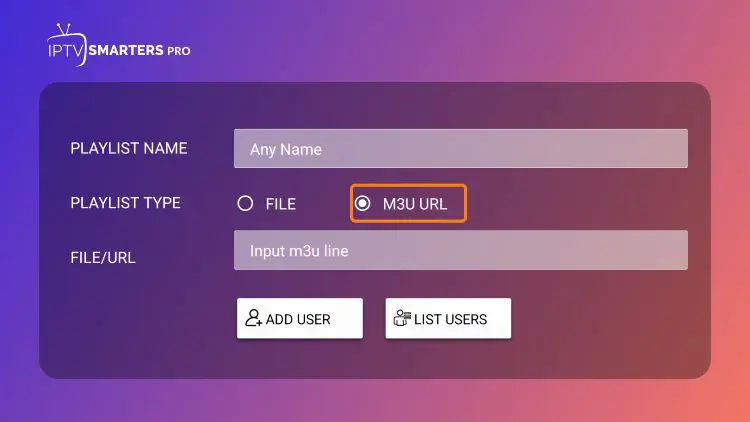
M3U method. Choose the “load playlist / URL” option, enter a label, then paste your full M3U link (it must start with http:// or https://, with no space at the start or end).
To load an M3U file already saved on the device, use the file-browse option instead.
Once the source loads, your channels, movies, and series appear, sorted into categories.
The Best IPTV Players for Android
Several strong players run on Android phones and tablets, each with a slightly different focus.
| App | Where to get it | Model | How you add a source | Best for |
| IPTV Smarters Pro | Play Store | Free | Xtream / M3U in the app | A consistent, all-round layout |
| OTT Navigator | Play Store | Free (optional premium) | Xtream / M3U in the app | Deep customization and a rich guide |
| TiviMate | Play Store | Free (Premium for extras) | M3U / Xtream (Premium) | A polished, TV-style guide |
| XCIPTV | Play Store / APK | Free | Xtream / M3U in the app | A modern, feature-heavy player |
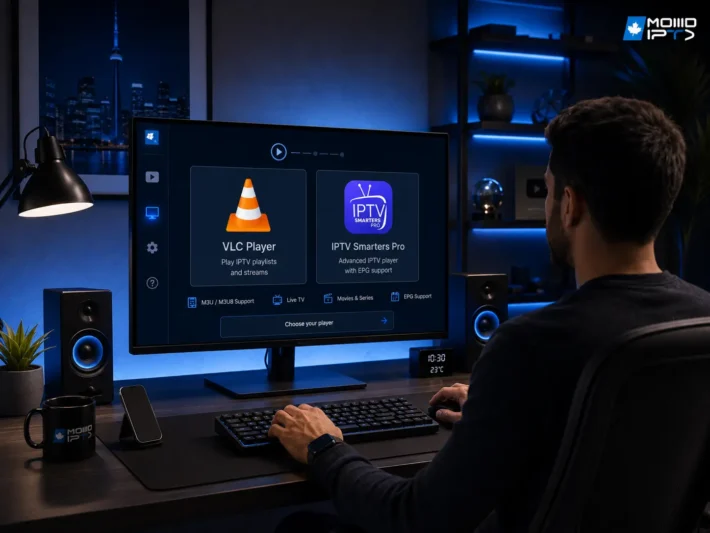
| VLC | Play Store | Free | M3U network stream | Quick tests, no program guide |
For a plain phone-and-tablet experience, IPTV Smarters Pro or OTT Navigator are the easy starting points. Using VLC for IPTV is the fastest way to check that a source works, though it offers no program guide.
Sideloading an App That Isn’t in the Play Store
Some players are distributed as APK files rather than through the Play Store. Installing one means allowing your device to accept it.
- Go to Settings → Apps → Special app access → Install unknown apps (the exact path varies by Android version and brand).
- Select the app you’ll install from (usually your browser or a file manager) and enable Allow from this source.
- Download the APK only from the developer’s official site.
- Open the downloaded file and tap Install, then Open.
Only sideload from official sources, and turn the “unknown apps” permission back off afterward if you prefer.
Settings Worth Knowing
A few adjustments make everyday use smoother. If a channel won’t play, open its options and switch the video decoder, most players offer Hardware, Hardware+, or Software modes, until one works. If the program guide is empty, add your source’s EPG/XMLTV URL in the settings and refresh, then set your time zone if the schedule looks shifted.
Add your most-watched channels to favorites to avoid scrolling through hundreds of entries. And for the smoothest playback, favor a strong Wi-Fi signal or 5 GHz band over a weak mobile connection.
Is It Safe and Legal?
The players themselves are legitimate apps with no content of their own, they simply open whatever source you provide. Installed from the Play Store or from a developer’s official site, they pose no risk. The safe habit is to download only from official sources and to be cautious with APKs found on random sites.
What determines the legality of your viewing is the source of the stream, not the app. A source that holds the rights to its content is fully within the law, unlike services that broadcast without authorization. Point any of these players at a transparent, legal source and you’re in the clear.
Troubleshooting on Android
- No channels appear: the M3U link or Xtream credentials are likely the cause. Open the M3U link in a browser — it should return a list, not an error, and recheck the server URL, port, username, and password, respecting capitalization.
- Playback stutters or freezes: switch the video decoder in the channel options, move closer to the router or use 5 GHz Wi-Fi, and lower the resolution if your connection is limited.
- The guide is empty or off: add the EPG/XMLTV URL in the settings and refresh, and correct your time zone.
- The app slows down: clear its cache in Android settings and restart it.
- A single channel won’t start: that stream may be down on the source’s side while the others keep working.
Frequently Asked Questions
What’s the easiest IPTV app for Android?
IPTV Smarters Pro and OTT Navigator are among the simplest, both free and installed straight from the Play Store. VLC is the quickest option if you only want to test a source.
Do I need a subscription to use these apps?
The apps are separate from your channels. Most are free to install, but you still need a legitimate, authorized content source to have anything to watch.
M3U link or Xtream Codes — which is better?
Both work. M3U is the simplest to paste, while Xtream Codes usually organizes channels, movies, and series better and often loads the guide automatically. Use whichever format your source provided.
Can I watch on mobile data?
Yes, though live TV uses significant data. Wi-Fi is preferable for HD or 4K, and a strong signal keeps playback stable.
Why isn’t an app in my Play Store?
Some players are distributed as APKs, or availability varies by region. In that case, sideload the app from the developer’s official site after allowing installs from unknown sources.
Why does the picture keep buffering?
Usually an unstable connection or a decoder mismatch. Switch the video decoder, favor 5 GHz Wi-Fi, and lower the resolution if needed.
Conclusion
Installing IPTV on an Android phone or tablet is quick and beginner-friendly: pick a player from the Play Store, open it, and connect your source with an M3U link or Xtream Codes credentials. From there, the fuller apps let you organize favorites, load a program guide, and fine-tune the video decoder for stable playback, while VLC stays the fastest way to test a source on the go.
As always, the app is only a tool. The quality and legitimacy of your viewing depend on the source you connect and the stability of your connection. Pair a legitimate, authorized source with a solid Wi-Fi signal and you’ll get clean, consistent playback on any Android device.