
How to Install and Watch IPTV with VLC ?

VLC is one of those programs almost everyone already has installed without fully realizing what it can do. Beyond playing ordinary video files, it’s perfectly capable of opening IPTV streams.
The whole process comes down to three moves: open the network stream tool, paste an M3U URL from an IPTV subscription into it, and start playback. Your channels then line up in the playlist, ready to browse.
Its biggest strength is that it runs everywhere, Windows, macOS, Linux, Android, and iOS, with no specialized app to install and no complicated setup. That’s exactly what makes it the go-to tool for quickly testing a source from an IPTV subscription or watching now and then.
What VLC Does — and What It Doesn’t
One thing to be clear about up front: VLC is a media player, not a full IPTV platform. It shows your channels and stops there. Don’t expect a program guide laid out in a grid, neatly organized categories, advanced favorites management, or the ability to rewatch a show that already aired.
That bareness is the flip side of its simplicity. For plenty of uses, checking that a stream works, troubleshooting, watching occasionally, it does the job just fine.
What You Need Before You Start
The requirements are minimal. The one thing that really matters is a valid link.
- VLC installed on the device of your choice: computer, smartphone, tablet, or Android box.
- The M3U URL supplied by your source. (VLC doesn’t accept Xtream Codes credentials as-is; we’ll cover the workaround below.)
- A stable internet connection.
- A legal, properly licensed content source.
Step 1 — Install VLC on Your Device
VLC stays free on every platform; only the place you download it changes.
On a computer (Windows, macOS, Linux). Head to the official VideoLAN website in your browser and click the download button — the page detects your system automatically.
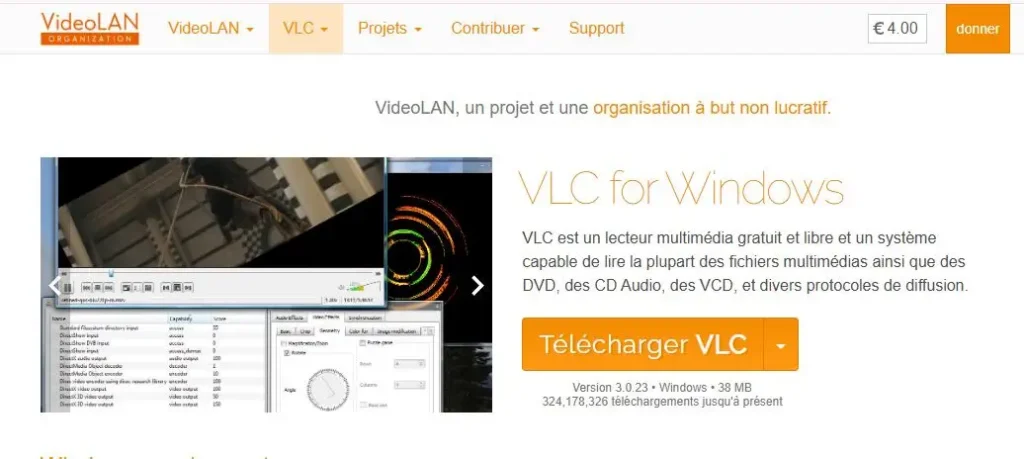
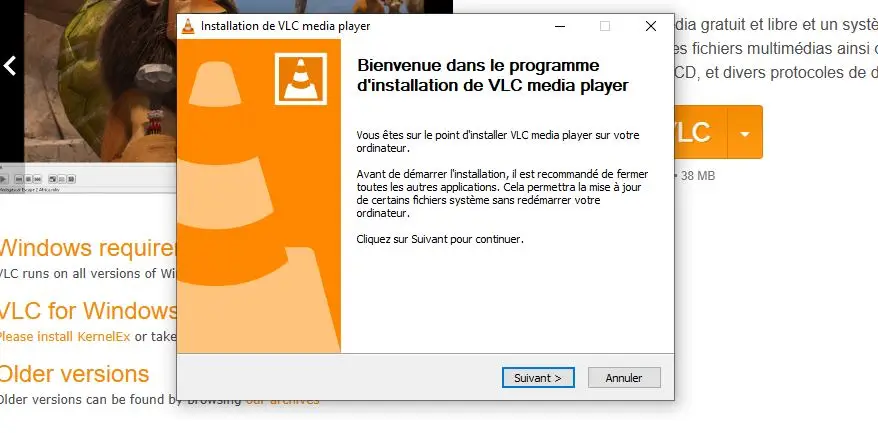
Open the downloaded file and run through the installer, confirming each screen (welcome, license, component selection).
Open the downloaded file and follow the installation instructions.

Click Next on the welcome screen, then click Next again on the license agreement screen.
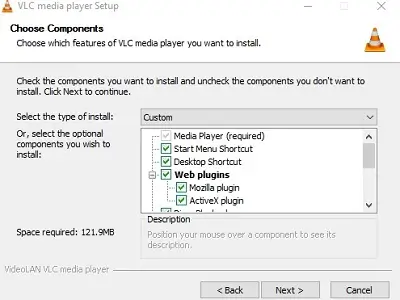
On the component selection screen, the default options work perfectly for IPTV. Click Next.
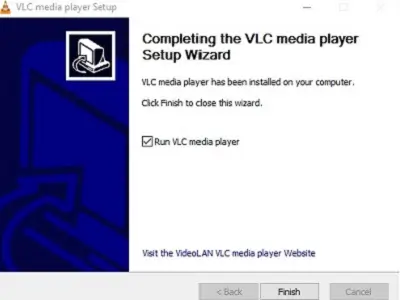
Click Install, then click Finish once the operation is complete.
On Android, Android TV, or Fire TV. Open your device’s store (Google Play or the Amazon Appstore), search for “VLC,” and pick the app published by VideoLAN. Install it, then open it.
On iPhone or iPad. Go to the App Store, search for “VLC,” tap “Get,” and launch the app once the download completes.
Step 2 — Load Your Playlist on a Computer
This is the most common and most comfortable method. Menu labels differ slightly between systems, but the logic is identical.
Launch VLC.
Open the Media menu on Windows, or the File menu on macOS.
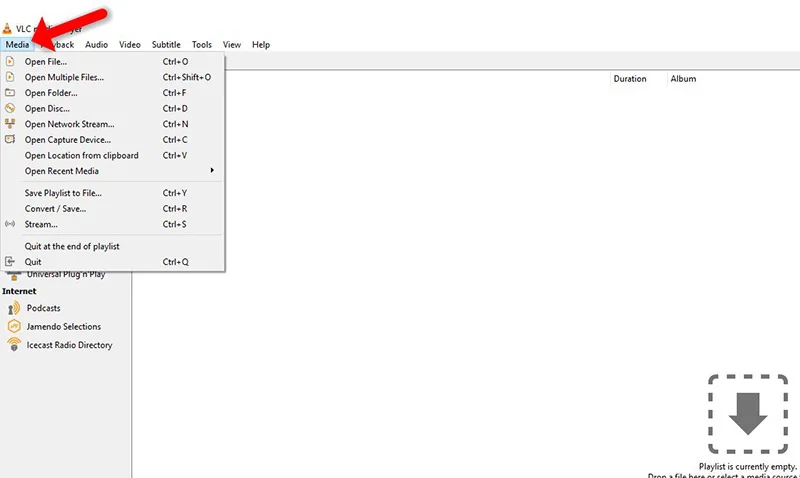
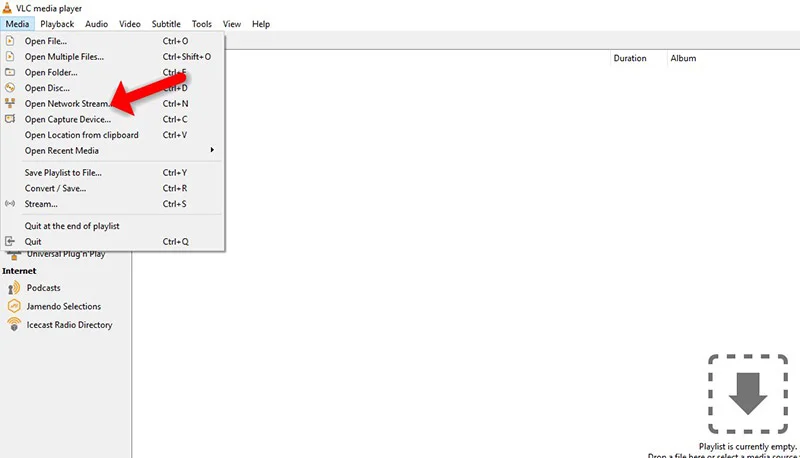
Select Open Network Stream (Windows) or Open Network (Mac).
Paste your M3U URL into the dedicated field.
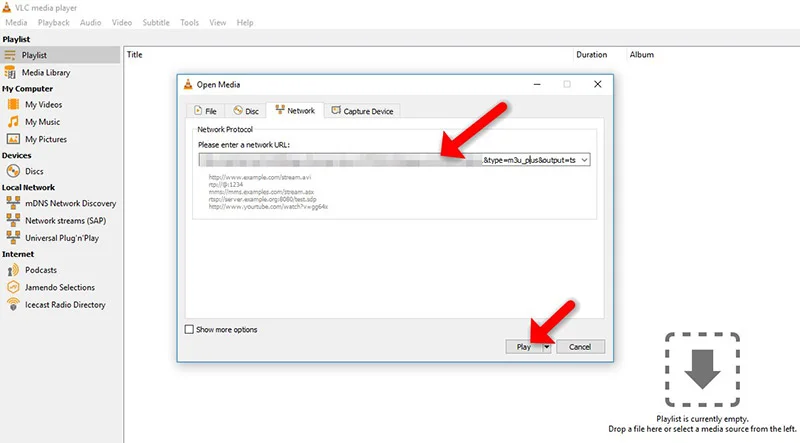
Click Play (Windows) or Open (Mac).
Once it finishes loading, the shortcut Ctrl + L brings up the full playlist showing all your channels. Clicking one starts playback.
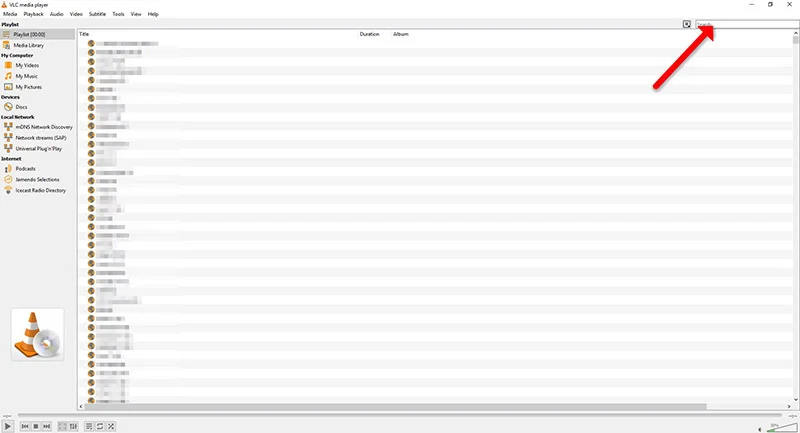
If you have an M3U file saved locally rather than a link, go through Media → Open File and select it directly.
Step 3 — Load Your Playlist on Mobile or Android TV
On a phone, tablet, or box, everything happens in the app’s network tab.
- Open VLC and expand the side menu (icon in the top-left corner).
- Choose New Stream (or the Stream tab).
- Paste your M3U URL and confirm to start playback.
For a playlist stored on the device, use the Browse option instead to locate and open the M3U file.
The Special Case of Xtream Codes Credentials
Many sources hand out not an M3U link but a trio of username, password, and server address in the Xtream Codes format. VLC has no form built specifically for that standard, but the fix is straightforward: every Xtream account has an equivalent M3U URL, built like this:
http://server:port/get.php?username=YOUR_USER&password=YOUR_PASS&type=m3u_plus
Just use that address as a network stream, exactly like a regular M3U link. Copy it carefully, and don’t drop the port that follows the colon.
Tuning VLC for Smooth, Drop-Free Playback
Two subtle adjustments are enough to make streaming noticeably more stable.
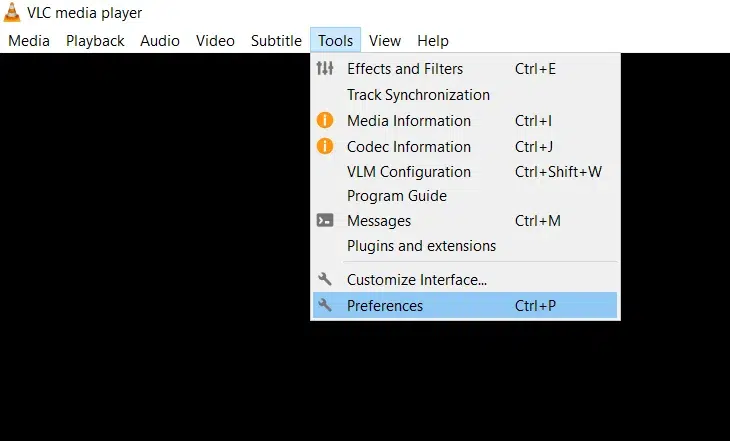
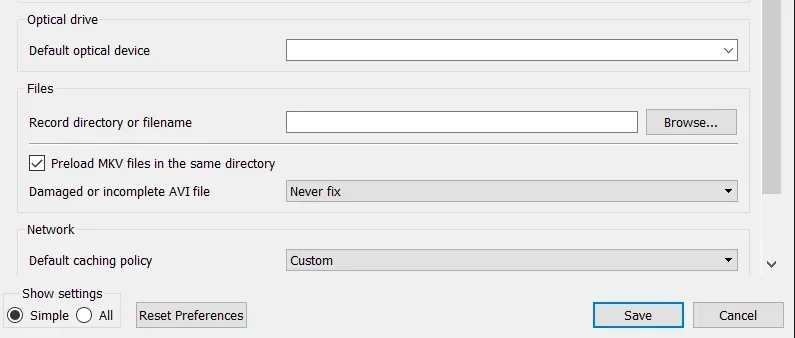
Increase the network buffer. Open Tools → Preferences, make sure the Simple view is active at the bottom-left,
Then go to the Input / Codecs section.
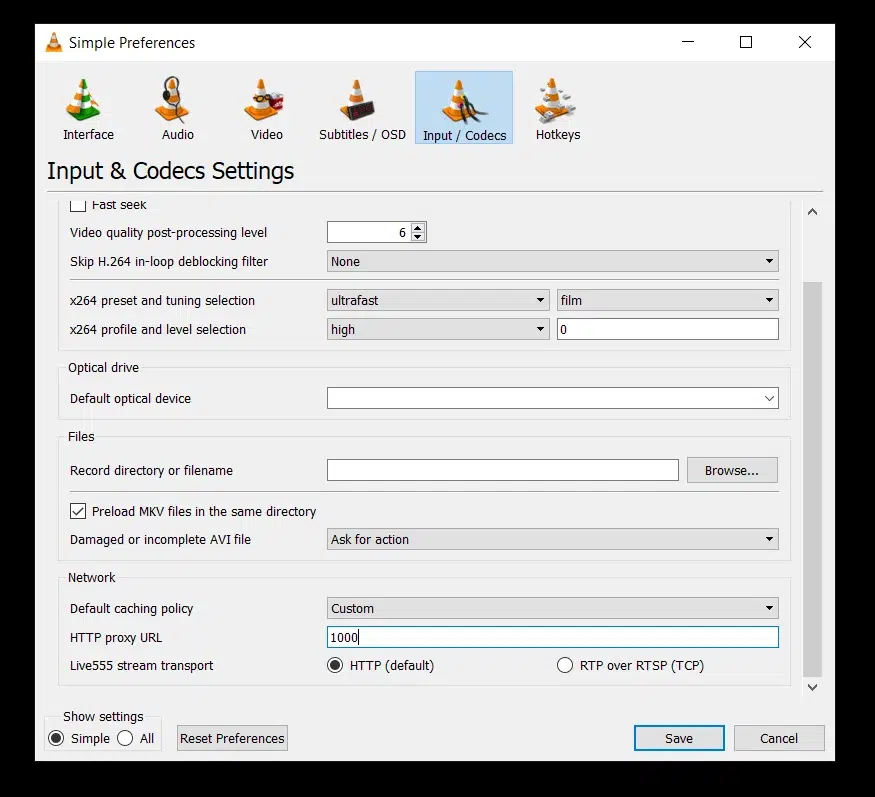
Under Network, change the network cache value: set to 1000 ms by default,
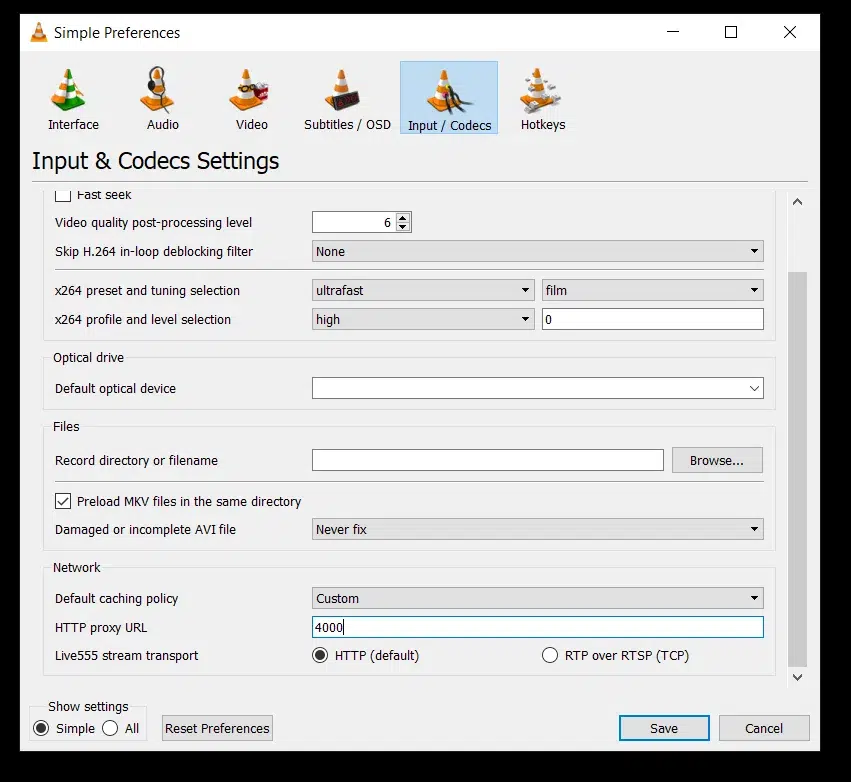
it benefits from being raised to somewhere between 3000 and 5000 ms to absorb the hiccups of live streams.
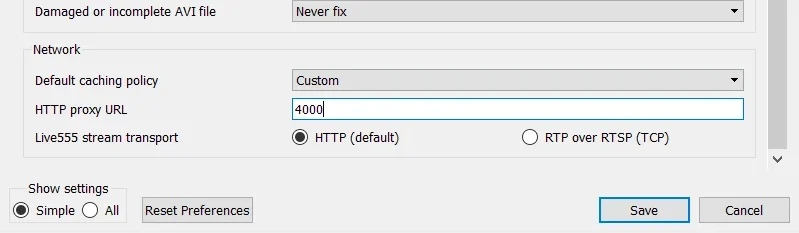
Save, then restart VLC.
Enable hardware decoding.
Still under Tools → Preferences → Input / Codecs,
set the Hardware-accelerated decoding line to Automatic (or, on Windows, to DirectX Video Acceleration (DXVA) 2.0).
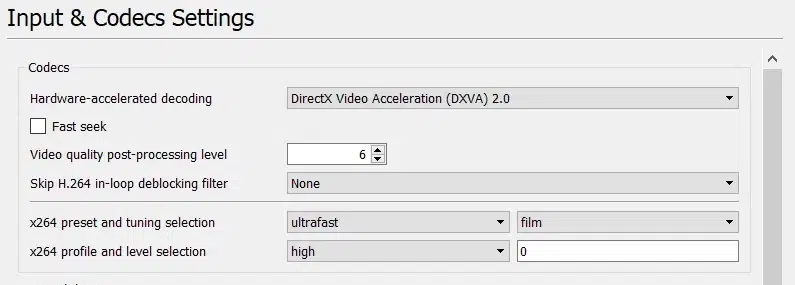
This eases the load on your processor and makes HD and 4K playback smoother. Save and restart.
VLC or a Dedicated IPTV Player: Which to Pick?
VLC wins on price and universality, but it hits its limits quickly against software built specifically for IPTV. The table below sums up the differences that matter day to day.
| Criterion | VLC | Dedicated IPTV player |
| Price | Free | Often free, sometimes premium |
| Program guide (EPG) | No | Yes |
| Favorites and categories | Basic | Full-featured |
| Catch-up / rewind | No | Frequent |
| Cross-platform support | Excellent | Variable |
| Ease of setup | Excellent | Good |
In short: VLC is unbeatable for checking a source, troubleshooting, or watching occasionally. For a true day-to-day television experience, with a program grid and polished favorites, a specialized player feels more pleasant.
Is VLC Safe and Legal?
The software itself is among the most trustworthy out there: no ads, no bundled content, and development backed by the VideoLAN nonprofit. Downloaded from the official site, it poses no risk, and its legality is beyond doubt, like any player, it simply opens whatever you feed it.
What determines the legality of your viewing, then, comes down entirely to the source of the stream. A source that holds the rights to its programming is perfectly within the law, unlike services that broadcast without authorization. The right habit is to always point VLC at a transparent, legal source.
Fixing the Most Common Problems
Issues are rare and quick to resolve.
- No channels appear? The M3U link is the likely culprit. Open it in a browser: it should return a list, not an error message.
- The picture keeps freezing? Raise the network buffer as described above, or improve your connection.
- A single channel won’t start? That specific stream may be down on the source’s side; the others keep working normally.
- The playlist stays hidden? Show it manually through the View menu; on a computer, VLC doesn’t always open it on its own.
Frequently Asked Questions
Can VLC really play IPTV?
Yes, as long as you have an M3U link to open as a network stream. That said, VLC doesn’t provide any channels on its own.
Does VLC handle Xtream Codes credentials?
Not directly. Use your account’s equivalent M3U URL (the get.php link) as a network stream.
Does VLC show a program guide?
No. It’s a media player, with no EPG grid, no advanced categories, and no catch-up for past shows.
Which devices does it run on?
Windows, macOS, Linux, Android, Android TV, Fire TV, and iOS — it’s one of the most universal players available.
Why does the picture freeze?
Usually because of an unstable connection or a buffer set too low. Increase the network cache and favor a wired link.
Is VLC free?
Entirely, and ad-free. It’s developed by the VideoLAN nonprofit.
Do I need a subscription to use it?
VLC costs nothing, but you’ll need a legal, licensed content source to access any channels.
In Short
VLC is the simplest and most universal gateway to IPTV: free, reliable, present on every system, it opens an M3U link in seconds with no setup at all.
Its plainness no grid, no elaborate favorites, no catch-up, makes it best suited to quick testing, troubleshooting, or occasional viewing. For a complete, everyday television experience, a dedicated player takes over.
Even so, as an always-ready tool that can play any valid source on any device, VLC fully earns its place in any IPTV user’s toolkit. The rest, as always, depends on the quality of your connection and the legitimacy of the source you connect it to.