How to Configure IPTV on Mac ?

To watch IPTV on a Mac, the quickest route is to install a compatible player, open it, and feed it your source, either an M3U link or Xtream Codes credentials. VLC handles this in seconds through its network stream tool, while a dedicated app like IPTV Smarters Pro gives you a fuller television layout with a program guide and categories. That’s the short version; the step-by-step detail follows right below.
macOS isn’t tied to a single IPTV app. Because a Mac runs full desktop software, you have several solid choices, from the ultra-simple VLC to purpose-built IPTV players.
What they all share is that none of them carry channels of their own: each is just a player, fed by a legitimate, authorized source such as an IPTV subscription or a playlist you’re entitled to use. This guide covers the main methods, how to configure each, and how to keep playback smooth.
What You Need Before You Begin
Gather these items first. On macOS, most problems trace back to a mistyped credential or an invalid playlist link.
- A Mac running a reasonably recent version of macOS (Intel or Apple Silicon both work).
- Your M3U link, or your full Xtream Codes credentials: server URL with its port (for example, http://server.example:8080), username, and password.
- The program-guide link (EPG/XMLTV) if your source provides a separate one.
- A stable internet connection, ideally 25 Mbps or more for HD, and 50 Mbps for 4K.
- A legitimate, authorized content source.
Method 1 — VLC (the simplest, most universal option)
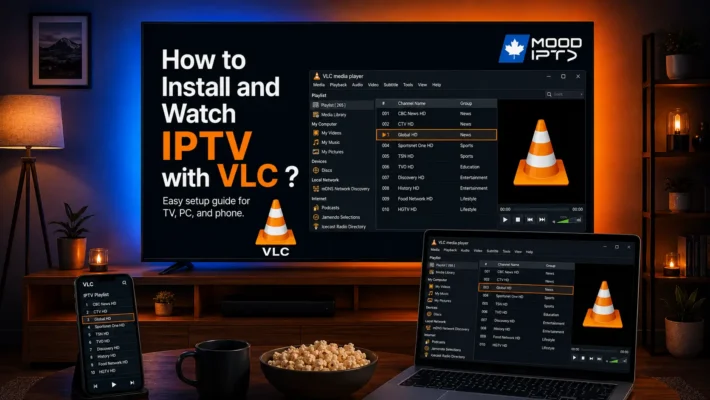
VLC is free, open source, and already familiar to most people as a video player. Fewer realize it also opens IPTV streams, as long as you have an M3U link. It’s the ideal way to test a source or watch occasionally, though it stays a plain player: no program grid, no polished categories, no catch-up.
Download VLC from the official VideoLAN site
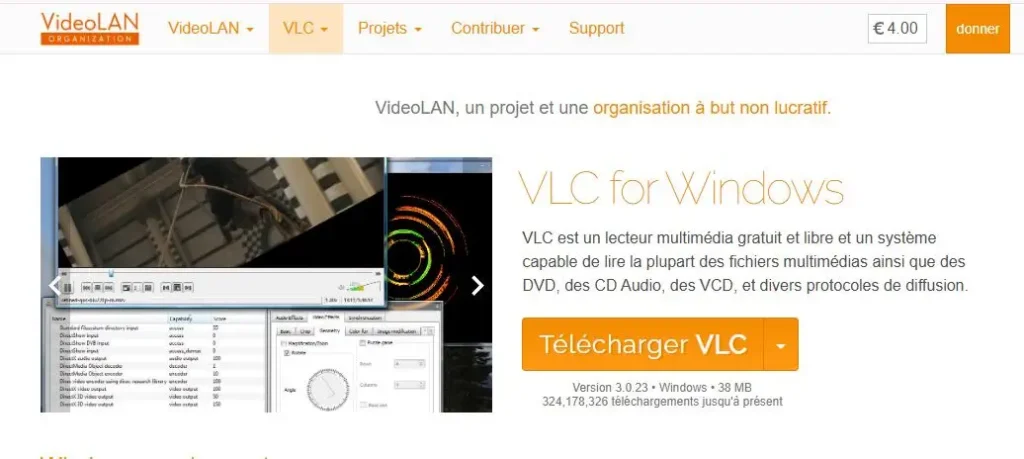
Open the downloaded file to start the installation.

Click Next on the welcome screen,
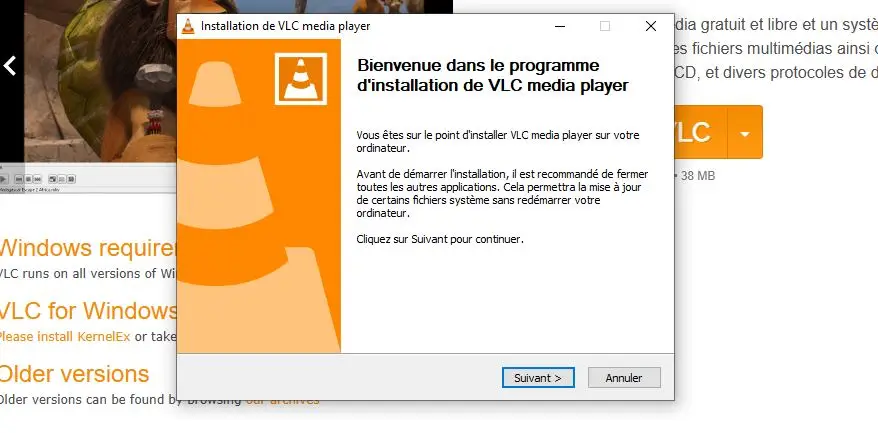
Then click Next again on the license agreement screen.
Leave the default components selected (they work perfectly for IPTV) and click Next.
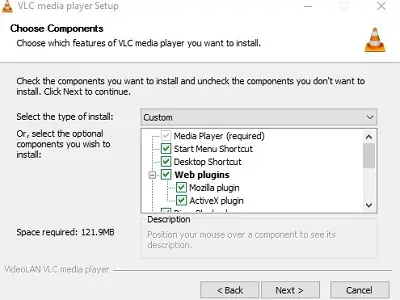
Click Install, then click Finish once it is done.
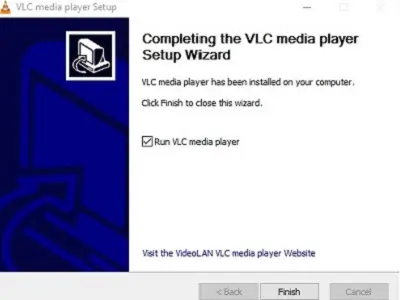
Launch VLC Media Player
- Windows: Click on the Media menu at the top left.
- Mac: Click on the File menu in the top bar.
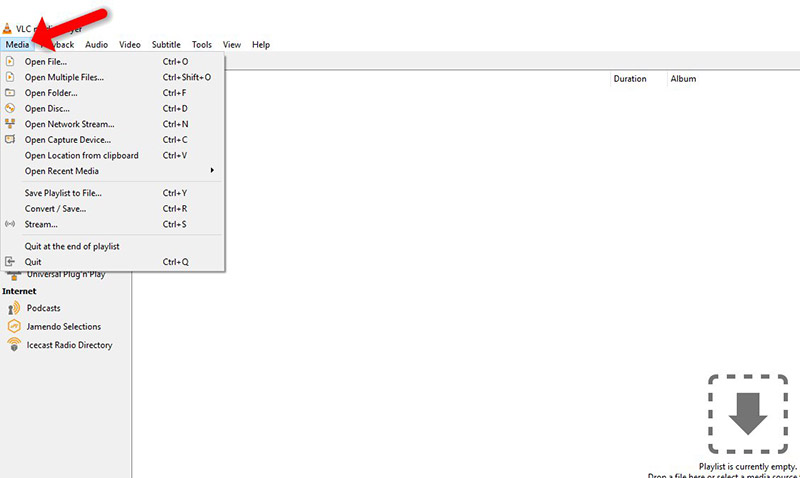
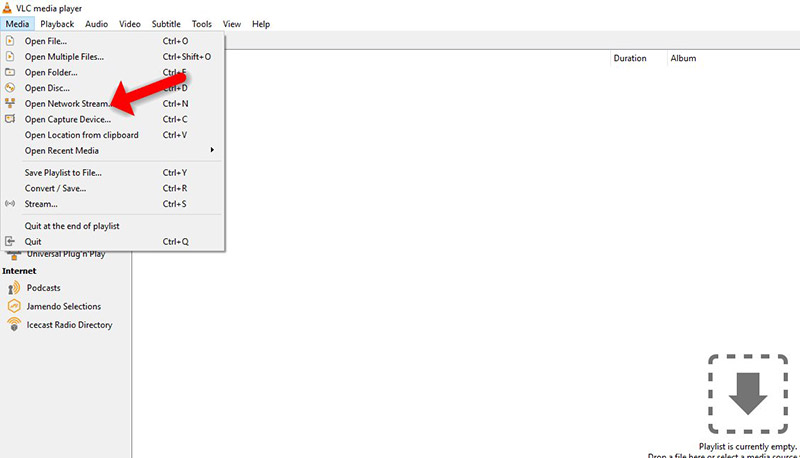
Open the Network Stream
- Windows: Select Open Network Stream…
- Mac: Select Open Network…
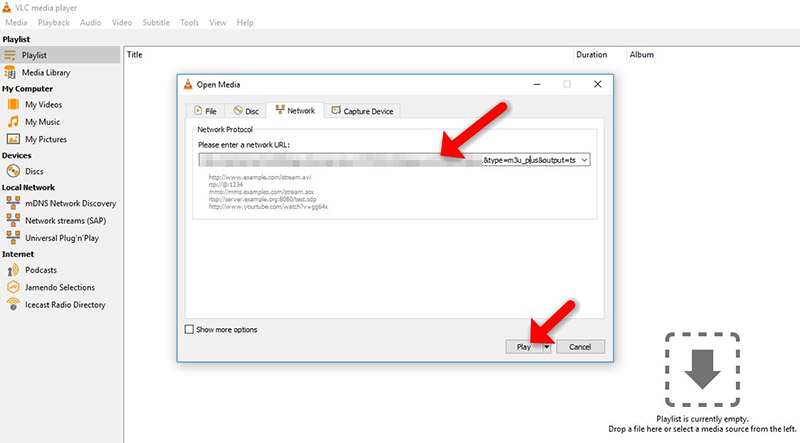
Load Your Stream
- Paste your M3U URL into the network protocol field.
- Click Play (Windows) or Open (Mac) to start loading.
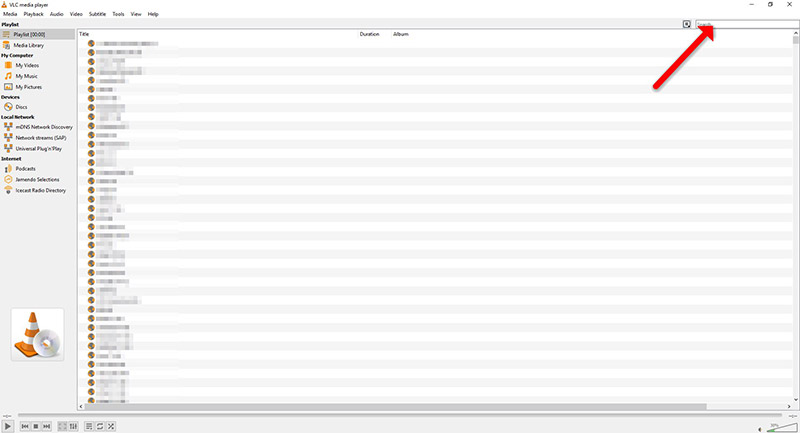
Access Your Channels
All your IPTV channels will appear here; simply double-click any channel to start watching.
Once loaded, press Ctrl + L (or Cmd + Alt + L on Mac) to bring up the full playlist view.
Method 2 — IPTV Smarters Pro (a fuller TV experience)
If you want a proper television layout — live TV, movies, series, favorites, and a program guide — a dedicated player suits macOS better. IPTV Smarters Pro offers a macOS build, though it isn’t in the Mac App Store, so you download it from the official IPTV Smarters site.
Open the official IPTV Smarters site and click Downloads.
Select the macOS download, then wait for the file to finish.
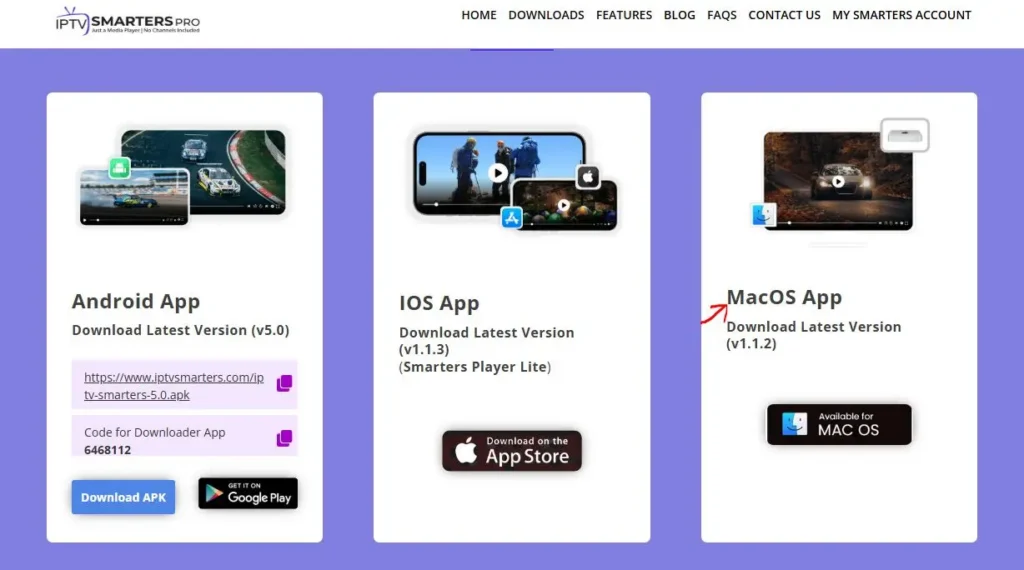
If your browser flags the file, choose to keep it, then open it to install.
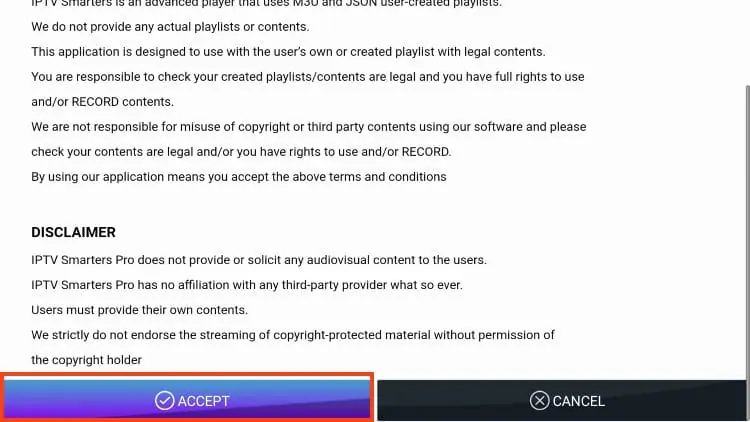
Launch the app, accept the license agreement,
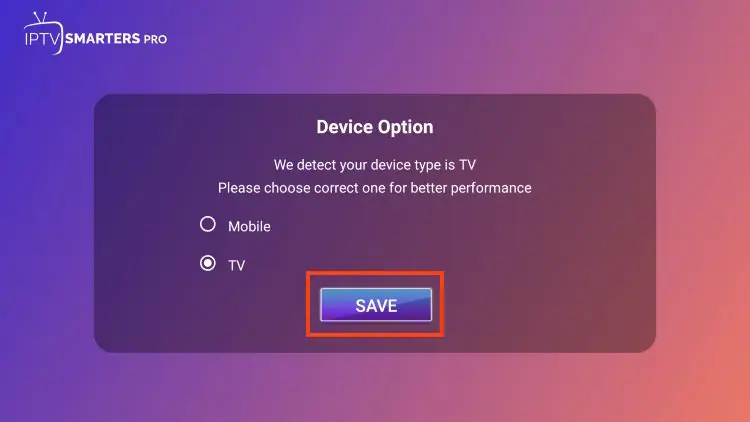
Choose your device.
And choose your login method.
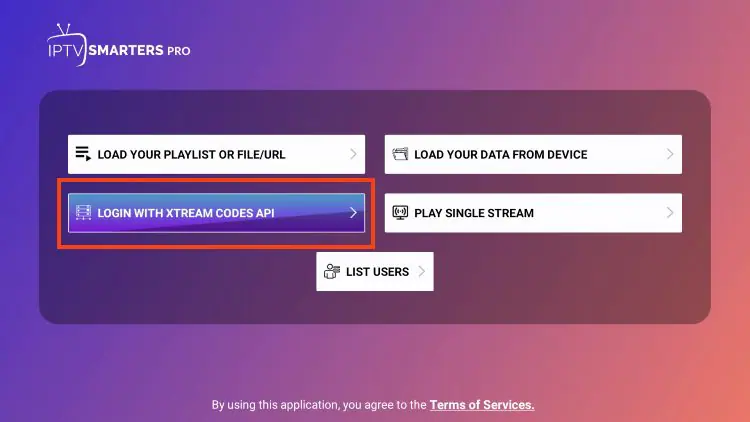
And choose Add User.
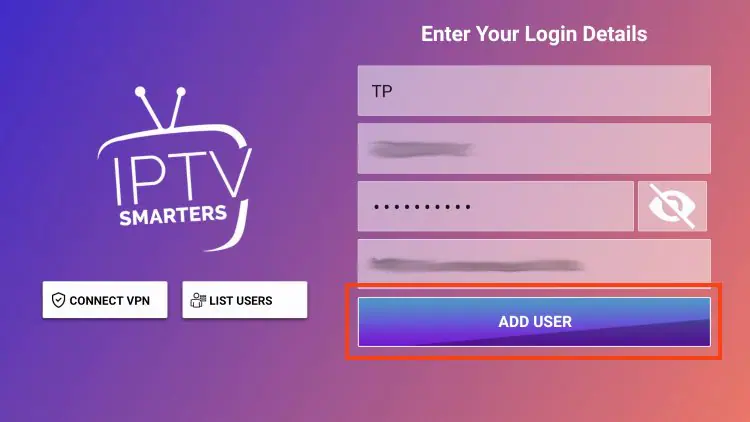
Pick your method: Login with Xtream Codes API or Load Your Playlist or File/URL.
For Xtream Codes, fill in a label, username, password, and the server URL in the format http://server:port, the port is the most commonly forgotten piece and its absence blocks everything. For M3U, paste the full link starting with http:// or https://.
Once the source loads, add your most-watched channels to favorites, confirm the EPG is enabled in the settings, and set your time zone if the guide’s times look shifted.
Method 3 — Other players worth knowing
A few more options run natively on macOS:
- IINA is a modern, open-source Mac player with a clean interface. Like VLC, it opens a network stream from an M3U URL through its Open URL option, a good middle ground if you find VLC’s look dated.
- Kodi turns a Mac into a full media center. With the PVR IPTV Simple Client add-on, you point it at your M3U link and EPG to get live TV with a guide, at the cost of a more involved setup.
- Hot Player offers a macOS version too, configured through MAC-address activation on its official page rather than inside the app.
Which Method Should You Pick?
| Player | Setup style | Program guide (EPG) | Best for |
| VLC | M3U network stream | No | Quick tests, occasional viewing |
| IPTV Smarters Pro | M3U or Xtream in-app | Yes | A full TV experience |
| IINA | M3U network stream | No | A cleaner alternative to VLC |
| Kodi | M3U + EPG via add-on | Yes | A full media-center setup |
| Hot Player | MAC address + website | Yes | Cross-device use with one app |
In short: reach for VLC or IINA to check a source or watch now and then, and for IPTV Smarters Pro or Kodi when you want favorites, categories, and a real program guide.
Is It Safe and Legal on macOS?
The players themselves are legitimate software with no content of their own, they simply open whatever you feed them. Downloaded from an official source (the VideoLAN site, the developer’s own site, or the Mac App Store where available), they pose no risk.
On a Mac, if Gatekeeper warns that an app is from an unidentified developer, that’s expected for installers fetched outside the App Store; only proceed with files you got from the official page.
What determines the legality of your viewing is the source of the stream, not the player. A source that holds the rights to its content is fully within the law, unlike services that broadcast without authorization. The right habit is to connect any of these players to a transparent, legal source.
Troubleshooting on macOS
- No channels appear: the M3U link or Xtream credentials are likely the cause. Open the M3U link in a browser — it should return a list, not an error — and recheck the server URL, port, username, and password, respecting capitalization.
- The picture freezes: raise the network cache (in VLC) or switch video players (in IPTV Smarters Pro), and prefer a wired Ethernet connection or a 5 GHz Wi-Fi band.
- An app won’t open (“unidentified developer”): right-click the app and choose Open, or allow it under System Settings → Privacy & Security, provided you trust the source.
- The guide is empty: add the EPG/XMLTV URL in the player’s settings and refresh; fix your time zone if the schedule looks off.
- A single channel won’t start: that stream may be down on the source’s side while the others keep working.
Frequently Asked Questions
What’s the easiest way to watch IPTV on a Mac?
VLC. Install it, open a network stream, paste your M3U link, and play. It needs no configuration, though it offers no program guide.
Does macOS have a dedicated IPTV app?
There’s no single built-in one, but several IPTV players run on macOS — VLC, IINA, Kodi, IPTV Smarters Pro, and Hot Player among them. You choose based on whether you want a plain player or a full TV layout.
Can I use Xtream Codes on a Mac?
Yes. IPTV Smarters Pro accepts Xtream credentials directly. For VLC or IINA, use your account’s equivalent M3U URL (the get.php link) as a network stream instead.
Why does macOS warn me about an unidentified developer?
That’s Gatekeeper flagging an app installed from outside the Mac App Store. It’s normal for official installers; open it via right-click → Open, or allow it in Privacy & Security, only if you trust where you got it.
Do I need a subscription to use these players?
The players are separate from your channels. VLC and IINA are free; some players charge for activation. In every case you still need a legitimate, authorized content source to have anything to watch.
Why does playback stutter?
Usually an unstable connection or a buffer set too low. Increase the network cache, favor Ethernet or 5 GHz Wi-Fi, and lower the resolution if your bandwidth is limited.
Conclusion
Configuring IPTV on macOS is flexible precisely because a Mac runs full desktop software: you can keep it minimal with VLC or IINA, or go for a complete television experience with IPTV Smarters Pro or Kodi. Whichever you choose, the logic is the same — install the player, feed it an M3U link or Xtream Codes credentials, and, for the fuller apps, set up your guide and favorites.
As always, the player is only a tool. The quality and legitimacy of your viewing come down to the source you connect and the stability of your connection. Pair a legitimate, authorized source with a solid network, ideally a wired one, and you’ll get clean, consistent playback on your Mac.