
How to Set Up IPTV on Hot Player ?

Setting up Hot Player comes down to a short sequence: install the app, open it to reveal the MAC address, go to the official hotplayer.app/upload page from a computer or phone, pair that MAC address with your M3U link, then reload the app, your channels load. On Windows, the app installs straight from the Microsoft Store, with no emulator involved. That’s the summary; the button-by-button detail follows right below.
Hot Player is a cross-platform IPTV player available on Android, iOS, Windows, macOS, smart TVs, and the Firestick, with support for both M3U playlists and Xtream Codes. Its distinguishing feature is MAC-address activation: on most devices, you don’t type the source into the app itself but pair it to the device through a web page.
Hot Player carries no channels of its own, it’s simply a player, fed by whatever source you provide, such as an IPTV subscription. This guide covers everything: installation by device, finding the MAC address, activation, loading your channels, useful settings, and troubleshooting.
What You Need Before You Begin
Gather these items before diving in. On Hot Player, most problems come down to a mistyped MAC address or an invalid M3U link.
- A compatible device: Windows, macOS, Android, iPhone/iPad, smart TV, or Firestick.
- Your M3U link (or your Xtream Codes credentials) and, if available, an EPG guide URL.
- A computer or phone to reach the official activation page.
- A stable internet connection and a legitimate, authorized content source.
Installation, Button by Button
Installation differs from one device to the next; the activation steps that follow are then the same for all.
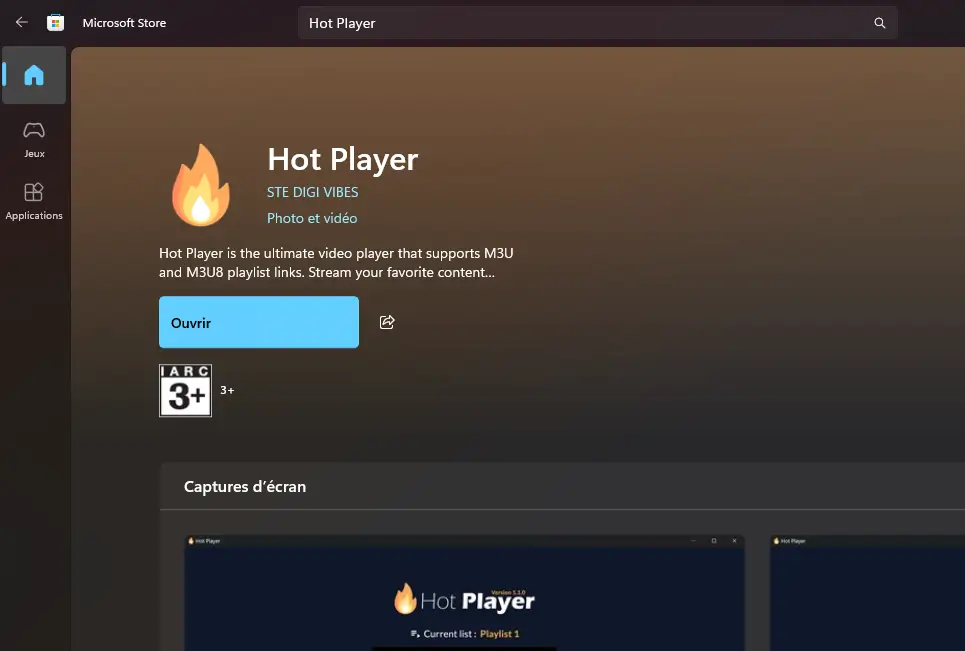
On Windows. Open the Microsoft Store, search for “Hot Player,” select the app, and click Install. Launch it once it’s installed.
On Android or a smart TV.
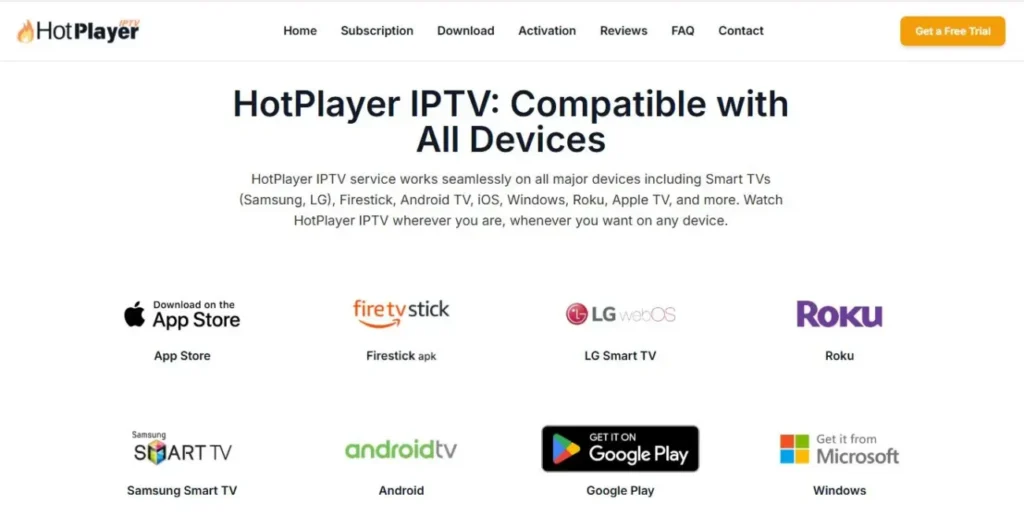
Open your device’s app store (Google Play, Samsung Apps, or the LG Content Store), search for “Hot Player,” and install it.
Alternatively, go straight to the official Hot Player site at hotiptvapp.com/download, find your device, and install the right version. Open the app to reach the startup screen.
On iPhone or iPad. Open the App Store, search for “Hot Player,” and tap Get. Open the app once it’s installed.
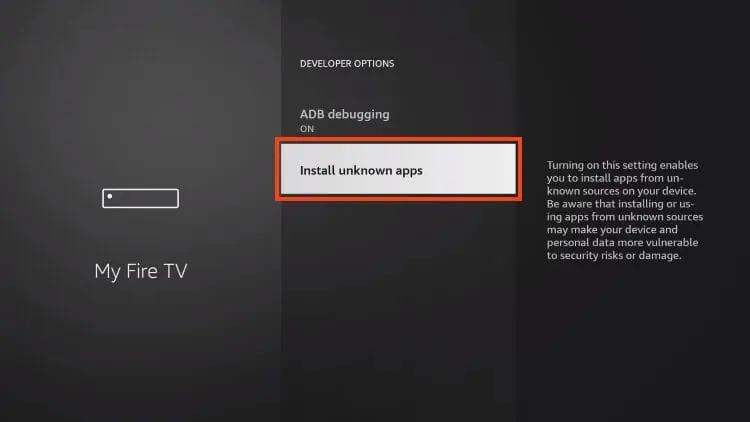
On Fire TV. If the app isn’t in the Appstore, first enable installs from unknown sources:
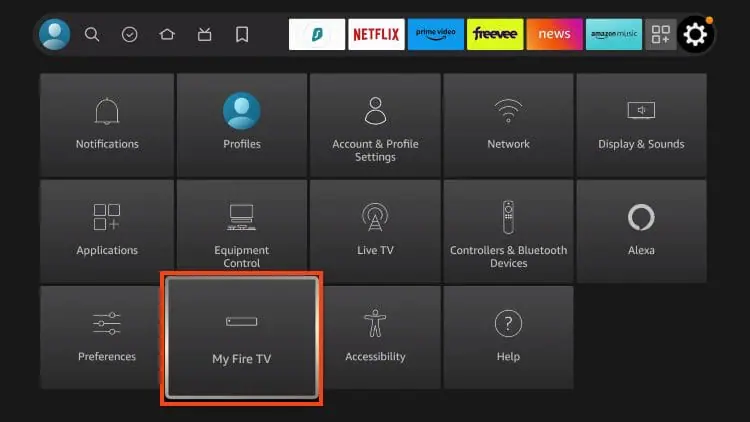
Settings → My Fire TV
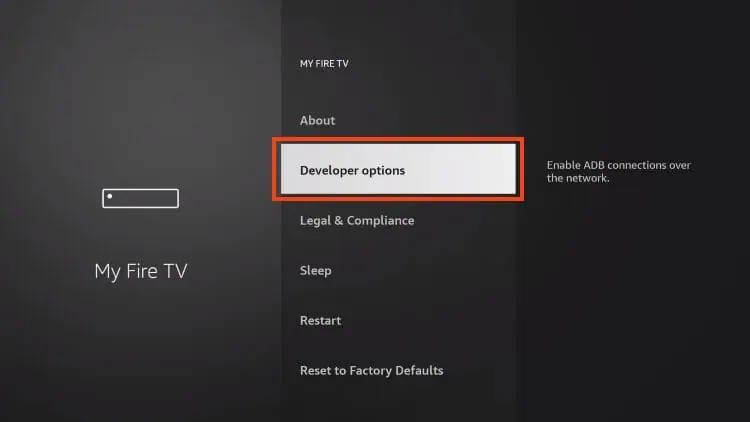
→ Developer Options →
Apps from Unknown Sources.
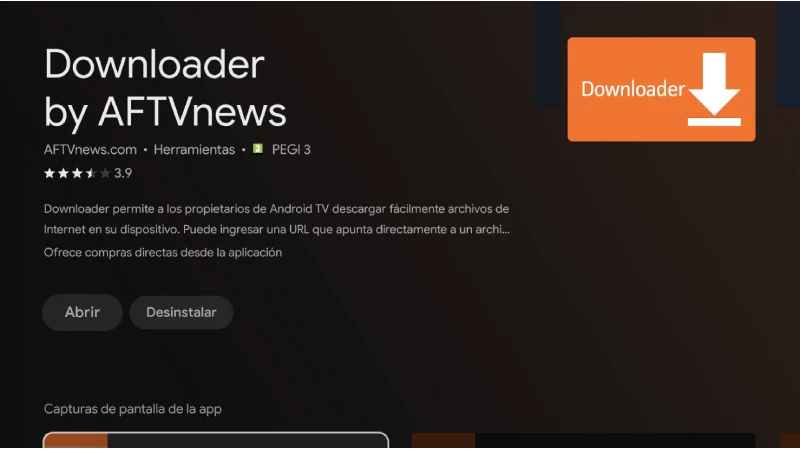
Install a download tool such as Downloader
Open the APK you fetched from the official site,
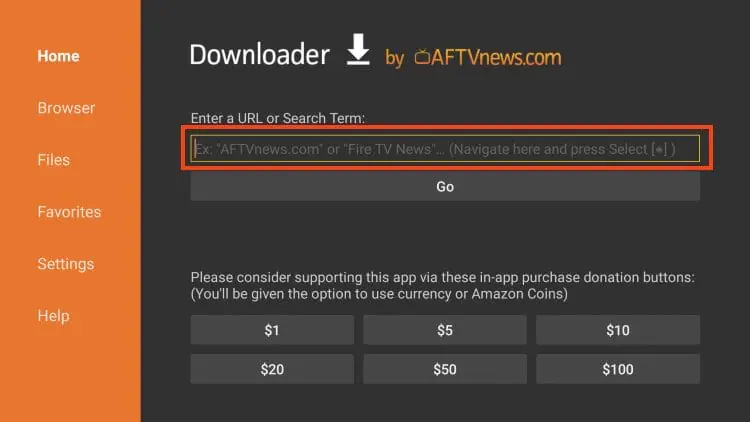
Install it within Downloader, and launch the app.
Finding Your MAC Address
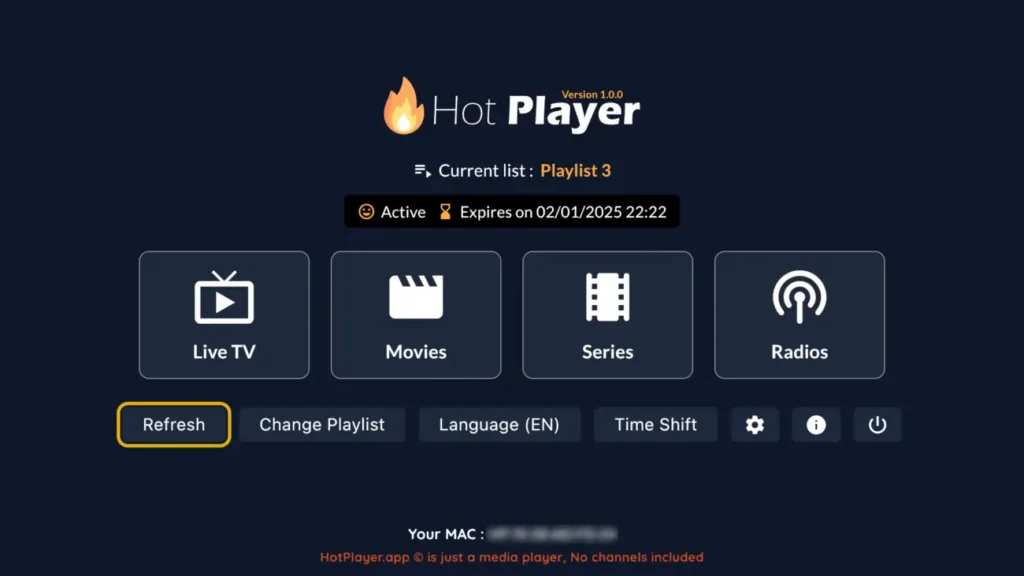
On launch, Hot Player displays the device’s MAC address, the identifier that will connect your playlist to the app. This is the key piece of information in the entire process.
Open Hot Player on the device.
Locate the MAC address shown on the home screen (with colons, in the format XX:XX:XX:XX:XX:XX).
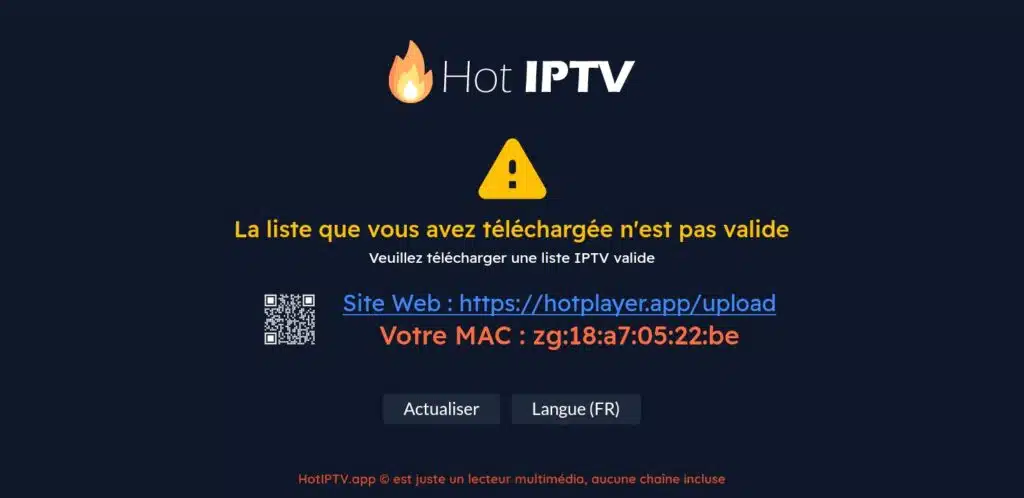
Write it down precisely, character by character.
Keep it handy for the activation step.
Activating Your Playlist
Adding the source happens on Hot Player’s official page, where you pair your MAC address with your playlist. Depending on the device, there are two routes: do it yourself online, or hand your MAC address to your provider.
Open a browser and go to hotplayer.app/upload.
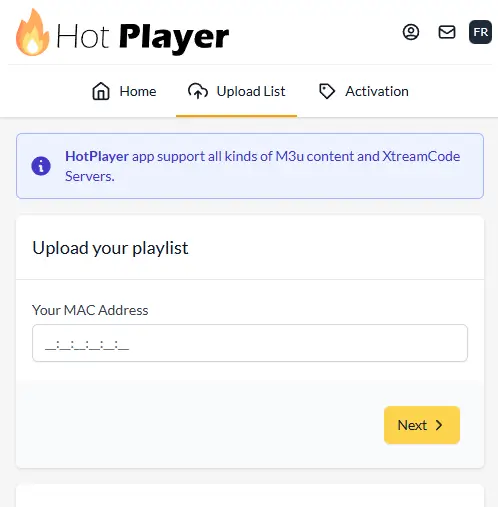
Enter the MAC address you noted from the app, including the colons.
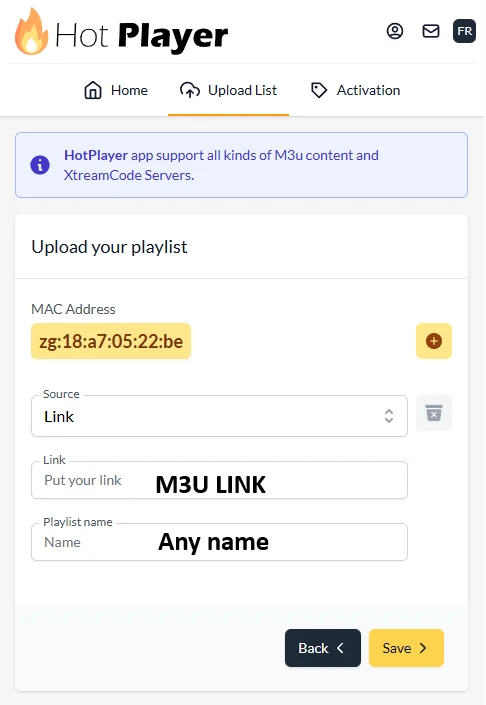
Paste your M3U link (or your Xtream Codes credentials) and give the playlist a name.
Hot Player includes a one-month free trial. After that period, a paid activation is required (by card or PayPal, through hotplayer.app/activation). Activation is tied to the MAC address: each device has its own.
Reloading the App and Loading Channels
Return to Hot Player and refresh or restart the app so it picks up the paired playlist. Within moments, your channels, movies, and series appear, sorted into categories.
Close and reopen Hot Player on the device (or use the Refresh option).
Wait while the channels and guide load.
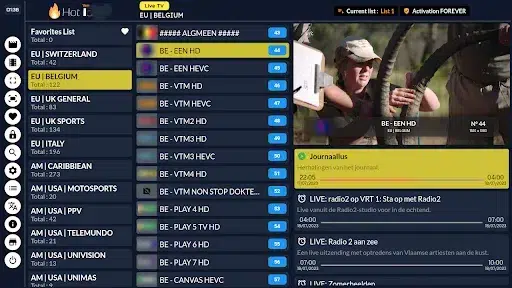
Browse the Live, Movies, and Series categories to confirm everything works.
If nothing shows up, wait a minute and reload, synchronization sometimes takes a short while.
What Hot Player Is, and Who It’s For
Hot Player is a clean-looking cross-platform player designed to turn your IPTV source into a readable television interface, complete with a program guide, subtitles, and resume playback. Its strength is broad compatibility, spanning the Windows PC, the Firestick, smart TVs, and the Apple family.
It suits the user who wants a simple player that runs on nearly anything, even if that means going through MAC-address activation.
| App | Platforms | Model | How you add a source |
| Hot Player | Windows, macOS, Android, iOS, smart TV, Firestick | 1-month trial, then activation | MAC address + hotplayer.app |
| Smart IPTV (SIPTV) | Samsung, LG | Trial, then one-time fee | MAC address + siptv.app |
| IPTV Smarters Pro | Almost all | Free | Xtream / M3U in the app |
| OTT Navigator | Android, Android TV, Fire TV | Free (optional premium) | Xtream / M3U in the app |
Is It Safe, Free, and Available on My Device?
The app is a legitimate player with no content of its own. Three points are worth clarifying.
On price, Hot Player isn’t fully free over time: it offers a one-month trial, then asks for a paid activation tied to each device’s MAC address.
On availability, it runs on a wide range of devices, including macOS, an advantage over players limited to Android.
On security, the one habit that matters is downloading the app from an official store and using only the official hotplayer.app page for activation, so you avoid imitations. The legality of your usage depends, as always, on the source you connect.
Settings Worth Knowing
A few options make everyday use more comfortable. During playback, tap or click the screen to bring up subtitle and audio-track controls — they only appear if the channel or program offers them.
Resume playback lets you pick up a movie or series right where you left off.
If your version supports it, a MAC-address lock prevents anyone else from resetting your playlist. And if the guide is empty, add the EPG URL when uploading the playlist, and set your time zone if the schedule looks shifted.
Common Problems and Quick Fixes
- Channels won’t load: the MAC address entered doesn’t match the app’s, or the M3U link is invalid. Double-check both, then reload.
- The app doesn’t work after activation: restart it and confirm the MAC address was entered with the colons.
- The M3U link doesn’t work: open it in a browser; an error points to a source problem, not an app one.
- Choppy picture: switch to Ethernet or a 5 GHz Wi-Fi band, and lower the resolution if needed.
- The guide is empty or off: add the EPG URL and correct the time zone.
Frequently Asked Questions
Is Hot Player free?
It offers a one-month free trial, then asks for a paid activation tied to the device’s MAC address. The app remains separate from your channel source.
Which devices does it work on?
Android, iOS, Windows, macOS, smart TVs, and the Firestick. On Windows, it installs directly from the Microsoft Store, with no emulator.
Why does Hot Player ask for a MAC address?
Because it links your playlist to the device through that address, on the official hotplayer.app page, rather than entering the source in the app.
Can I use Xtream Codes credentials?
Yes. Hot Player supports both M3U and Xtream Codes; use whichever format your source provides when uploading.
Do I have to activate each device separately?
Yes. Every device has its own MAC address and therefore needs its own activation.
What if the app loads nothing after uploading?
Wait a minute, then refresh or restart the app. If the problem persists, recheck the MAC address and the M3U link.
Conclusion
Hot Player is a versatile player with the rare advantage of covering Windows, macOS, Android, iOS, smart TVs, and the Firestick all at once, with a MAC-address setup that’s simple once the logic clicks: note the MAC, pair it with your playlist on hotplayer.app, reload.
Two things are worth keeping in mind before choosing it: activation is paid after the one-month trial, and it’s done per device.
If you’re looking for a single player that runs across very different devices, it fills that role well. As always, the app is only a tool, the quality and legitimacy of your viewing come down to the source you connect to it and the stability of your connection.