
How to Install IPTV on AVOV TV ?
To install IPTV on an AVOV TV box, open the Market from the home screen, install the TVOnline™ app, go to “Server Settings,” note the MAC address shown on screen and send it to your provider, then enter the server name and portal URL and click “Connect”, your channels load right away.
The AVOV box is a dedicated IPTV set-top box that connects to a portal using your MAC address, much like a MAG box. For everything to work, you’ll need a reliable IPTV Subscription, a legal service from a licensed provider — that supplies your portal URL and activates your MAC address. This guide walks you through all ten steps, from plugging in the box to troubleshooting.
On AVOV, install the TVOnline™ app from the Market, open Server Settings, note the MAC address, send it to your provider, enter the server name and portal URL, then click Connect. Your channels appear on their own.
1. Understand What an AVOV TV Box Is
Before you start, it helps to know how an AVOV works, because it shapes the entire setup. AVOV boxes (TVOnline, TVOnline+, TVOnline N, and similar models) are IPTV set-top boxes that connect to a portal provided by your service, usually through your MAC address.
They include a built-in app store called the “Market,” from which you install the playback app. In other words, it’s a simple device built specifically for IPTV.
- The AVOV is a dedicated IPTV box with its own built-in app store.
- It connects to a portal using a URL and your MAC address.
- The main playback app is called TVOnline™.
- A “Web” app serves as a backup if TVOnline™ fails.
2. Gather Your Equipment and Prerequisites
Most setup failures come from a missing detail at configuration time. Take a few minutes to gather everything before you plug anything in. The key is having an active subscription and the information your provider sends you.
- Have the AVOV box, its remote, and the original power adapter ready.
- Get an HDMI cable and an Ethernet cable (or a Wi-Fi connection).
- Keep the portal URL emailed to you after your order within reach.
- Confirm your subscription is active before you begin.
3. Connect the AVOV Box to Your TV and Network
The physical connection is simple, but be sure to use the correct power adapter, especially if you own more than one box, because the wrong supply can damage it. Your network connection then determines how smoothly everything plays. For a fixed device hooked up to a large screen, Ethernet is better than Wi-Fi.
- Connect the box to your TV using the HDMI cable.
- Plug in the Ethernet cable, or get the Wi-Fi connection ready.
- Insert the correct power adapter; the box powers on automatically.
- Select the correct HDMI input on your TV.
4. Power On the Box and Check the Connection
On first boot, the box shows its home screen and must connect to the internet first. This step is essential: without an active network, the portal will never load. Verify the connection before going any further.
- Let the box boot up to the home screen.
- Go to the network settings and choose Wired or Wireless.
- Confirm the connection and wait for an IP address.
- Make sure the box can actually reach the internet.
5. Open the Market and Install the TVOnline™ App
Unlike a MAG box, the AVOV uses a small playback app that you install from its built-in store. This app is what displays your channels once the portal is configured. The process takes only a few seconds.
On the home screen, open the “Market.”
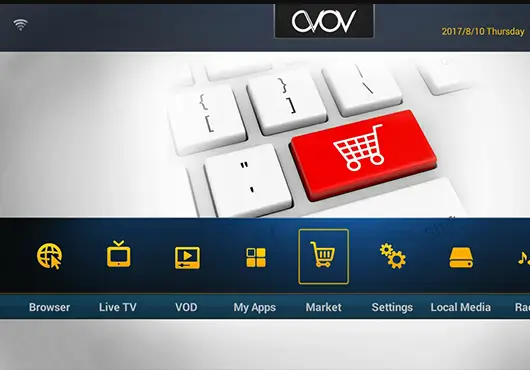
Use the search function to find the “TVOnline™” app.
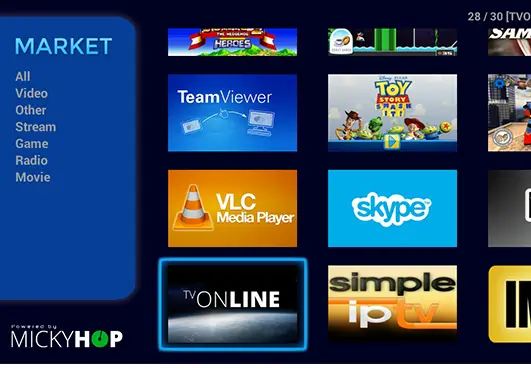
Select Install.
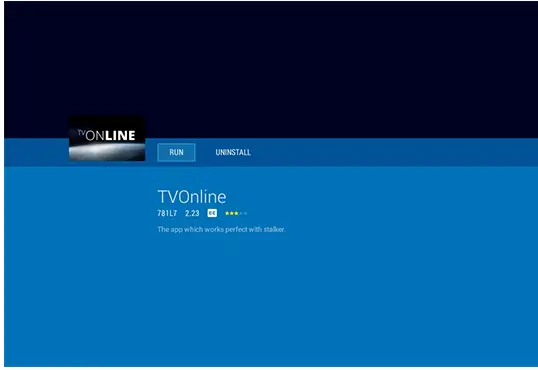
And wait for the download to finish.
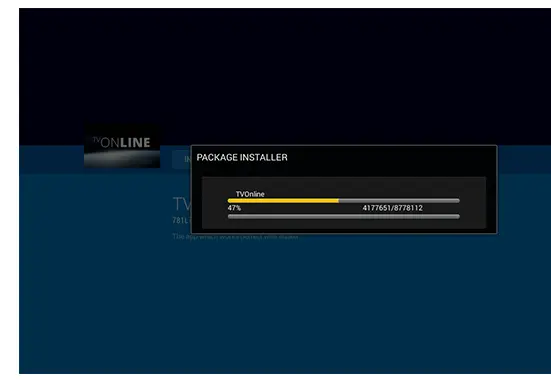
Then open the TVOnline™ app.
6. Find the MAC Address in Server Settings
The MAC address is your box’s unique identifier; your provider needs it to activate your subscription on that specific device. It appears right inside the app as six pairs of characters. Write it down carefully.
In TVOnline™, open “Server Settings“
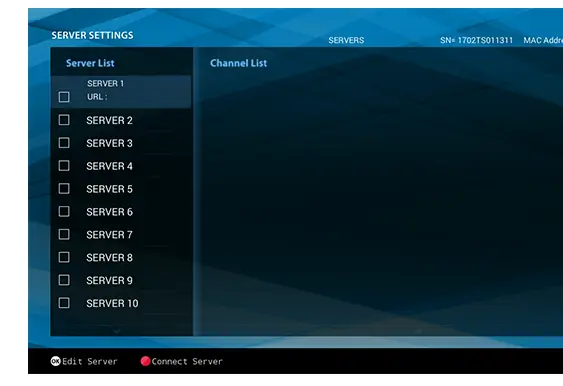
Find the MAC address displayed in the top-right corner of the screen.
It starts with 00:1A:79: followed by characters unique to your box.
Note the full address — you’ll need it in the next step.
7. Send Your MAC Address to Your Provider
This is the key step specific to portal-based boxes: your provider must register your MAC address on their server for the subscription to work. Without this activation, you’ll see an “STB Blocked” message or an empty portal. So send your MAC address right away.
Send your MAC address to your provider (by email or your account area).
Wait for confirmation that the box has been activated.
Ask for the exact server name and portal URL if you don’t have them.
Activation can take a few minutes after you send it.
8. Enter the Server Name and Portal URL, Then Connect
Once your MAC address is registered and you have the URL, all that’s left is linking the box to your service. This is where it all comes together: type the address exactly as provided, because a single typo will stop the connection. If you switch providers later, you’ll simply come back and edit this address, as explained in our guide on how to change the URL on an IPTV box.
In “Server Settings,” enter a server name (for example, your service’s name).
Enter the portal URL from your email, with no spaces or errors.
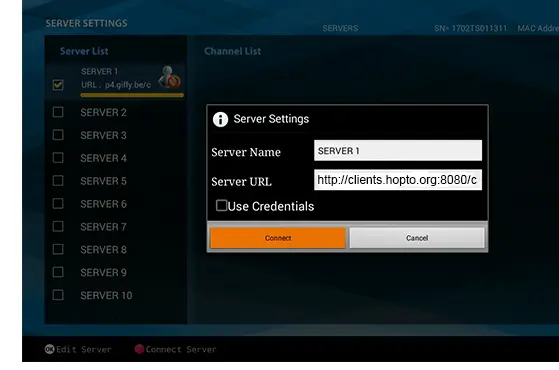
Click “Connect” to establish the connection.
Wait while your channels load.
9. Load and Check Your Channels
Once connected, take a moment to confirm everything displays correctly before you settle in. If the TVOnline™ app won’t load, the box offers a built-in fallback. Browse the sections to verify your content is there.
Open the live channels list and test a few of them.
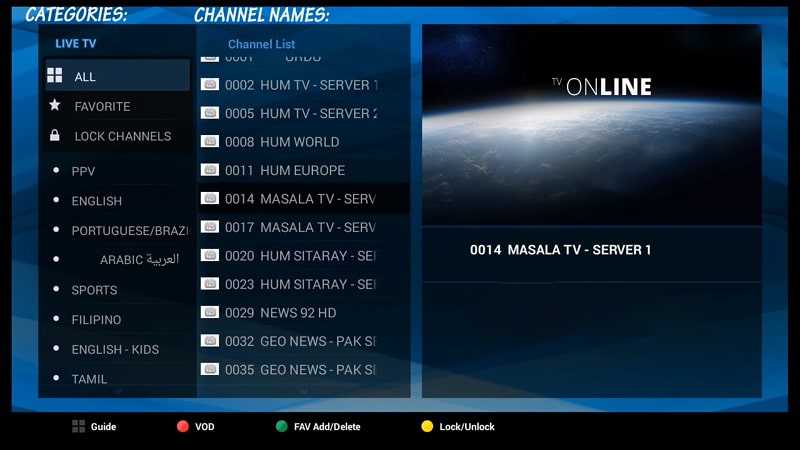
Check the Movies and Series (VOD) sections if your subscription includes them.
Confirm the program guide (EPG) is showing.
If TVOnline™ doesn’t work, install the “Web” app from the Market and try again.
10. Optimize, Secure, and Troubleshoot
A few final adjustments ensure smooth playback and fix the most common issues, like a black screen or buffering. A stable connection remains the deciding factor. Also remember to keep the box updated.
- Aim for at least 25 Mbps for HD and 50 Mbps for 4K.
- Use Ethernet if the picture freezes or buffers.
- If the portal is empty, check the URL, the MAC address, and its activation with your provider.
- Restart the box and the app, then reload the portal if needed.
Frequently Asked Questions (FAQ)
What exactly is an AVOV TV box?
An AVOV box is a set-top box built specifically for internet television, available in several models such as the TVOnline, TVOnline+, and TVOnline N. It stands out for its built-in app store, the Market, and its TVOnline™ playback app.
Unlike a general-purpose Android box, it is entirely IPTV-focused, which makes it simple to use. Its setup relies on the MAC address + portal URL combination, like most dedicated IPTV boxes.
Why do I need to install the TVOnline™ app?
TVOnline™ is the app that acts as the bridge between your box and your provider’s portal. It’s what displays your channels, movies, and program guide once the connection is established.
Without it, the box doesn’t know how to read the stream your service provides. If it ever misbehaves, AVOV offers a “Web” app in the Market that works as a reliable alternative.
Why does my provider need my MAC address?
The MAC address is your box’s unique identifier, comparable to a license plate. Your provider uses it to link your subscription to that specific device and authorize access to their portal.
Until this address is registered on their server, the box will show an “STB Blocked” message or an empty portal, even if the URL is correct. It’s a required step that is specific to portal-based boxes.
The portal is empty or shows “STB Blocked” — what should I do?
This message usually means your MAC address hasn’t been activated by your provider yet: wait a few minutes after sending it, then try again. Next, make sure the portal URL was entered exactly as provided, with no spaces or typos.
Also check your network connection in the settings. If TVOnline™ still won’t load, install the “Web” app from the Market and try connecting through it instead.
What internet speed do I need for an AVOV box?
For smooth, uninterrupted HD playback, plan for at least 25 Mbps, and at least 50 Mbps for 4K. Beyond raw speed, what matters most is connection stability: a wired Ethernet link almost always outperforms Wi-Fi on this kind of fixed device. If several devices use the network at the same time, add up their needs to avoid congestion and dropouts.
Can I switch providers on the same AVOV box?
Yes, without buying new hardware. Just go back to “Server Settings,” replace the server name and portal URL with the new provider’s details, and have them register your MAC address in turn.
Keep the old configuration until the new one is confirmed working. An AVOV box isn’t tied for life to a single service, which makes it a flexible device in the long run.
Is IPTV on an AVOV box legal in Canada?
The AVOV box itself is a perfectly legal device — it’s hardware like any other. Legality depends solely on the service you connect it to. As long as you use a licensed provider that holds the broadcasting rights to its content, you’re in the clear.
Unauthorized services, on the other hand, face heavy penalties in Canada: one illegal IPTV operator was ordered to pay several million dollars, as reported by CBC News. So be wary of offers promising thousands of premium channels for a few dollars — a classic sign of an unlicensed service.
Conclusion
Installing IPTV on an AVOV TV box is well within anyone’s reach, as long as you follow the steps in order: connect the device, get it online, install the TVOnline™ app from the Market, find the MAC address, have your provider activate it, then enter the server name and portal URL before clicking “Connect.” The whole logic rests on the MAC address + portal combination, with the “Web” app standing by in case TVOnline™ gives you trouble.
Once you understand this mechanism, setup takes just a few minutes and stays stable over time. Keep in mind that the box is only a tool: the quality, stability, and legality of your experience depend on choosing a reliable subscription from a licensed provider. With a good connection and a trustworthy service, your AVOV box will deliver smooth viewing on the big screen.