How to Download IPTV Smarters Pro on Firestick ?
To download IPTV Smarters Pro on Firestick, enable “Apps from Unknown Sources” in your Fire TV settings, install the free Downloader app from the Amazon Appstore, open Downloader and enter the IPTV Smarters Pro download link, then install the APK and log in with your subscription details. The whole process is called sideloading because the app is not in the Amazon Appstore, and it takes only a few minutes with no computer required at all.
With a dependable IPTV Subscription from a trusted provider, the app loads your channels instantly once installed and runs smoothly on the Firestick, even during busy evening hours.
This clear, step-by-step guide walks you through the entire download and setup process, from the very first setting to your first channel, even if you have never sideloaded an app before.
Step 1: Prepare Your Firestick and Internet Connection
Start by making sure your Firestick is plugged in, updated, and connected to a stable internet connection.
IPTV Smarters Pro streams video continuously, so a weak or unstable connection is the single most common cause of buffering later on. Checking this first saves you from troubleshooting after the app is already installed.
It also helps to have your subscription login details ready before you begin, so the setup is not interrupted halfway through. A quick restart of the Firestick clears the memory and makes the whole process noticeably smoother, especially on older models.
1- Plug in the Firestick and reach the Fire TV home screen.
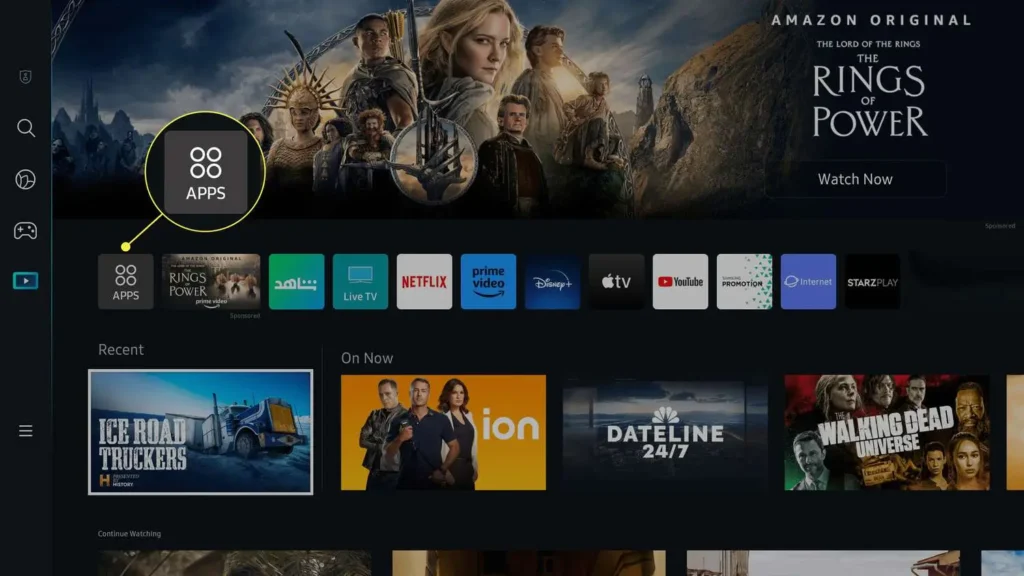
2- Connect it to Wi-Fi or a wired adapter for stability.
3- Confirm your speed is at least 15 to 25 Mbps for HD.
4- Keep your IPTV username, password, and server URL handy.
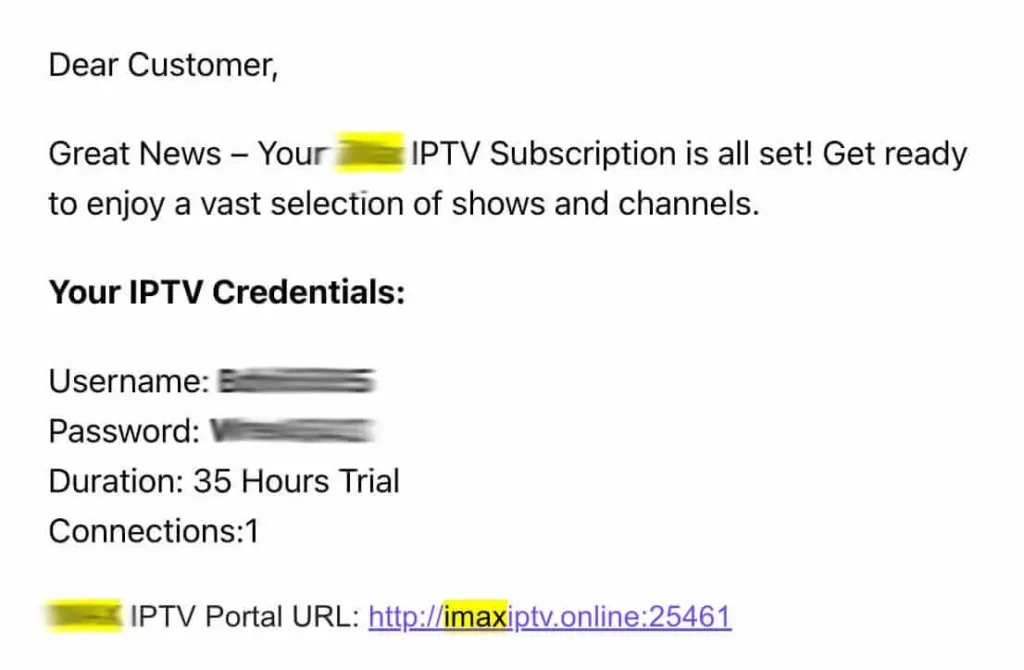
5- Restart the Firestick once if it feels slow.
Step 2: Enable Apps From Unknown Sources
Next, allow your Firestick to install apps from outside the Amazon Appstore, since IPTV Smarters Pro is not listed there and must be sideloaded. This setting lives in the Developer Options menu, which is hidden by default on many newer devices to protect beginners.
Turning it on is a required step before you can install anything from a link. This is perfectly safe as long as you only install trusted apps from reliable sources and avoid random websites. You can always turn the setting back off afterward once the app is installed if you prefer extra caution.
1- Open Settings from the Fire TV home screen.
2- Select My Fire TV,
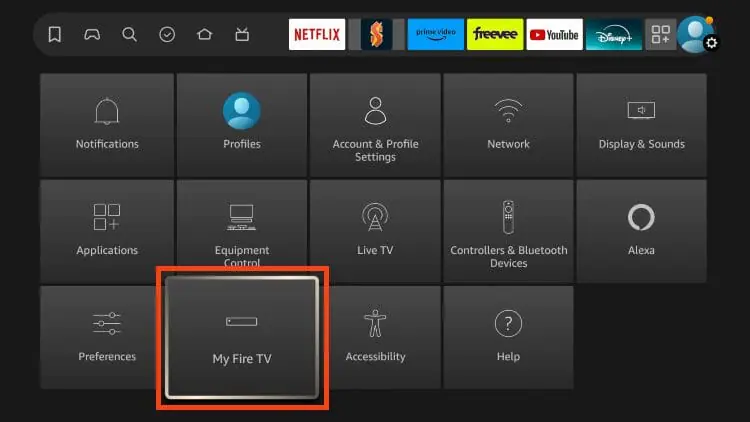
2- Then About
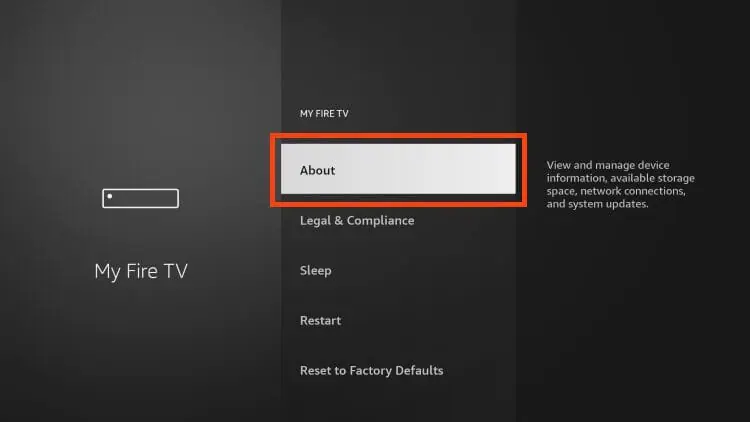
3- Highlight “Fire TV Stick 4K Max” (or your specific device) and press the OK button on your remote seven times to unlock developer mode.
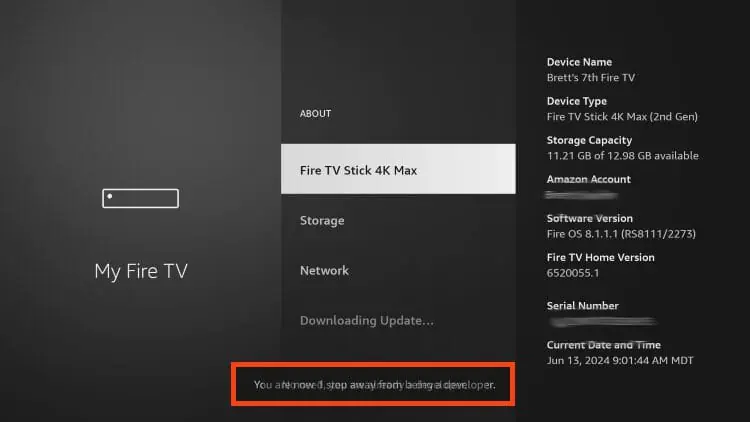
4- Press the back button on your remote, and you’ll see that Developer Options now appears under My Fire TV.
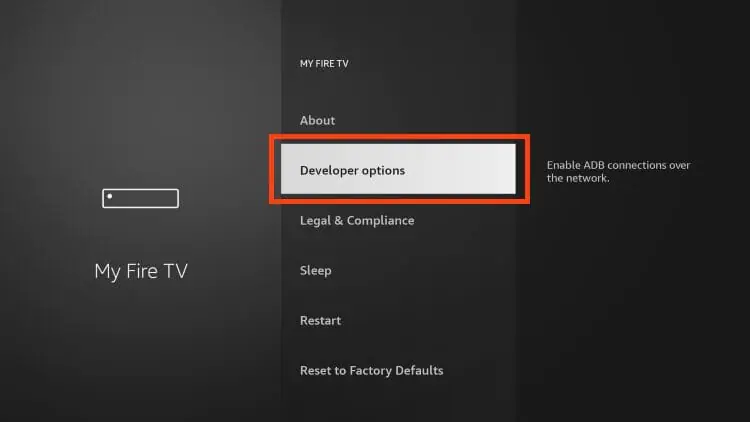
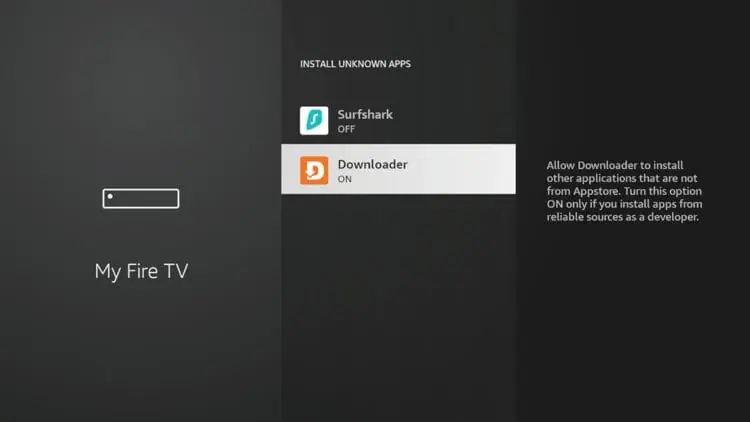
5- Open Developer Options and find Install Unknown Apps.
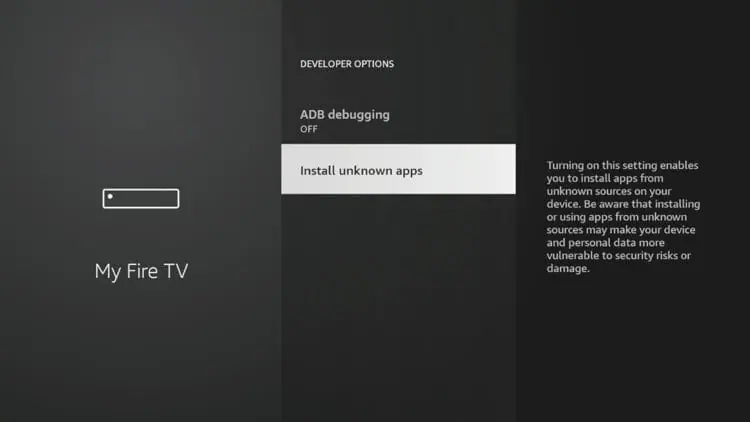
6- Toggle the Downloader entry to ON.
Step 3: Install the Downloader App
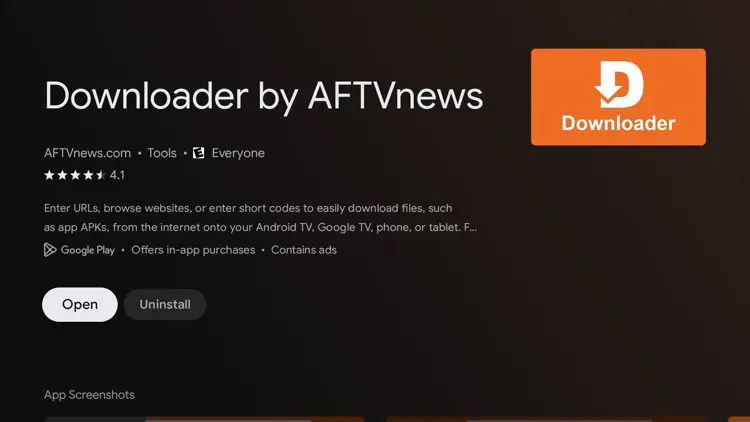
Now install the free Downloader app from the Amazon Appstore, which is the tool used to fetch the IPTV Smarters Pro file. Downloader is an official, extremely popular app available directly on your Firestick, so this step is quick, free, and safe.
It includes a simple built-in browser that lets you enter a download link and pull the file straight onto the device. Installing it first makes every following step much more straightforward. There is no need for a phone, a computer, or any technical knowledge with this method.
1- Return to the home screen and open the search icon.
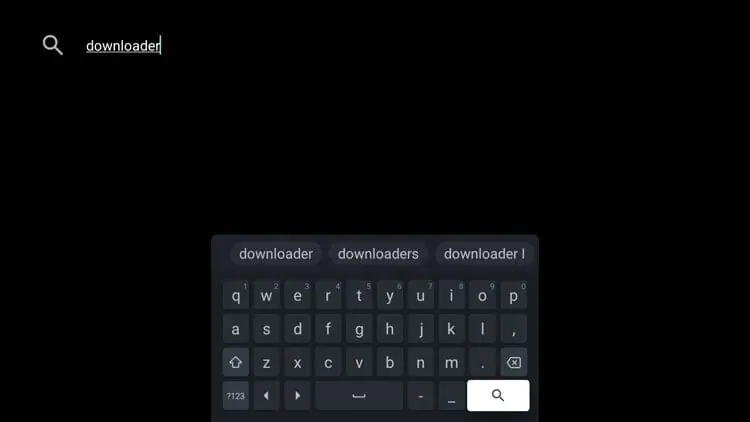
2- Type “Downloader” using the on-screen keyboard.
3- Select the orange Downloader app from the results.
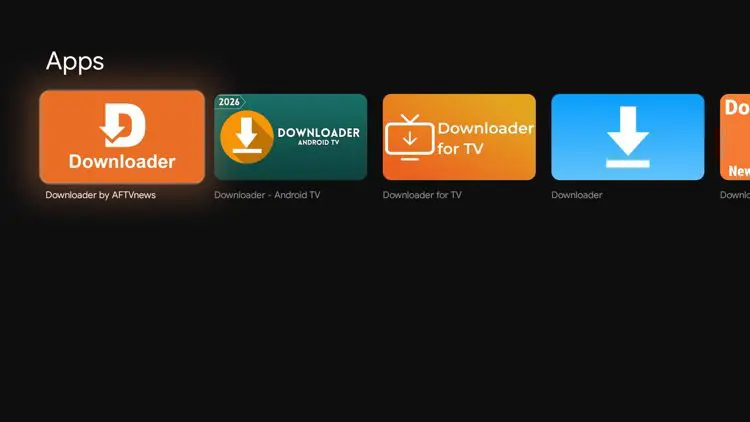
4- Choose Get or Download and wait for it to install.
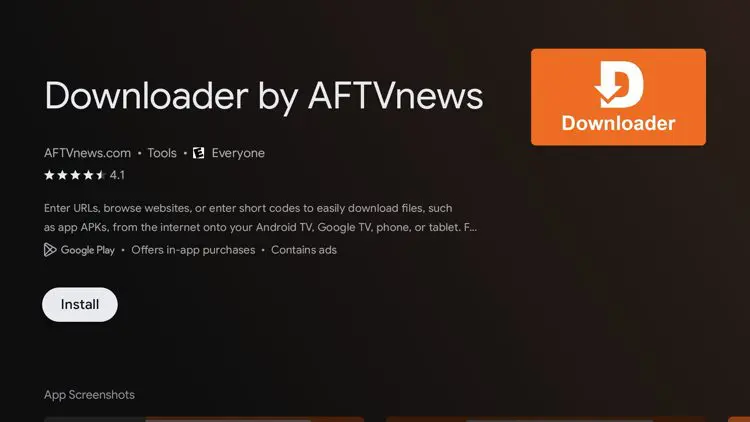
5- Open Downloader and allow file access when prompted.
Step 4: Enter the IPTV Smarters Pro Download Link
This is the key step: open Downloader and type the official IPTV Smarters Pro download link to fetch the app file. Use only a trusted source for the link, and make sure you are using the genuine Downloader app, since installing apps from random websites is a common way devices pick up unsafe software.
Type the address slowly and carefully, since even a small mistake will stop the download or send you to the wrong page.
The Firestick remote keyboard can be fiddly, so double-checking each character is worth the extra few seconds. Once the link is entered correctly, Downloader retrieves the file automatically without any further input.
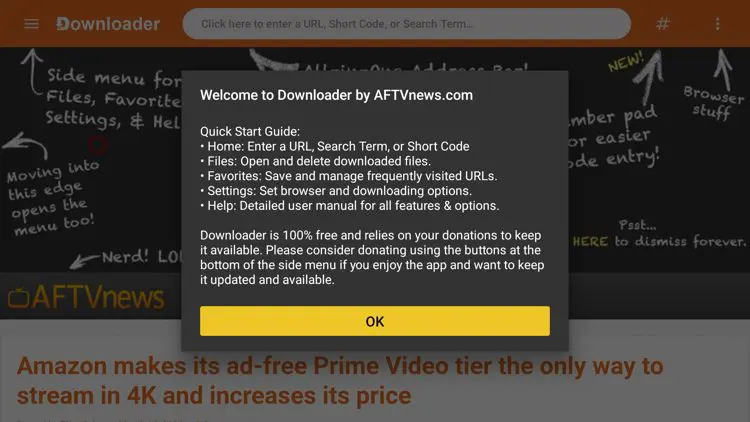
1- Open the Downloader app and click OK for the welcome message.
2- Carefully type the official IPTV Smarters Pro download address, Code or APK link.
- Code for Downloader App 6468112
- APK: https://www.iptvsmarters.com/iptv-smarters-5.0.apk
3- Press Go to start the download.
5- Wait for the download to finish completely.
Step 5: Download and Install the APK
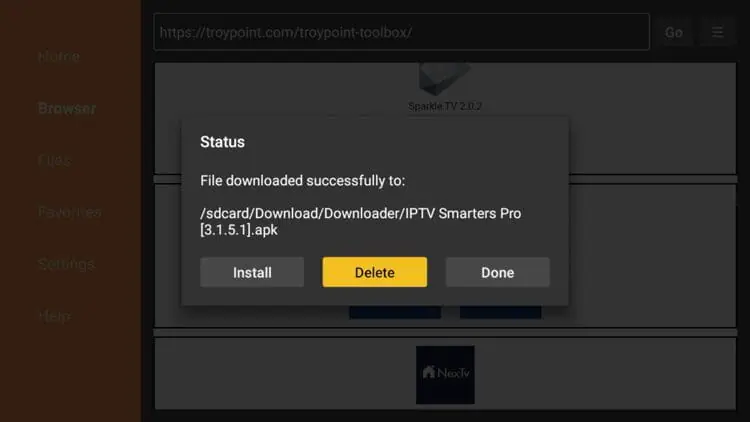
After the file downloads, install the IPTV Smarters Pro APK on your Firestick. The Firestick will automatically show an install screen once the file is ready, so there is no extra search needed. Confirming the installation places the app on your device exactly like any other app.
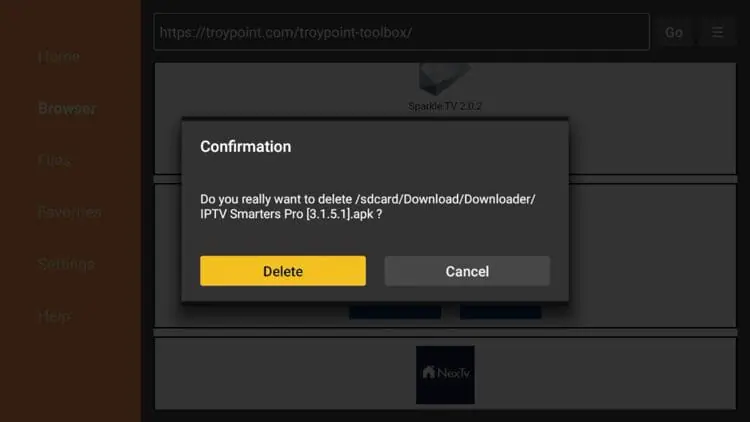
This step usually takes only a few seconds on a normal connection. Deleting the leftover setup file afterward is recommended, since it frees up storage and keeps the device tidy.
1- Wait for Downloader to finish retrieving the file.
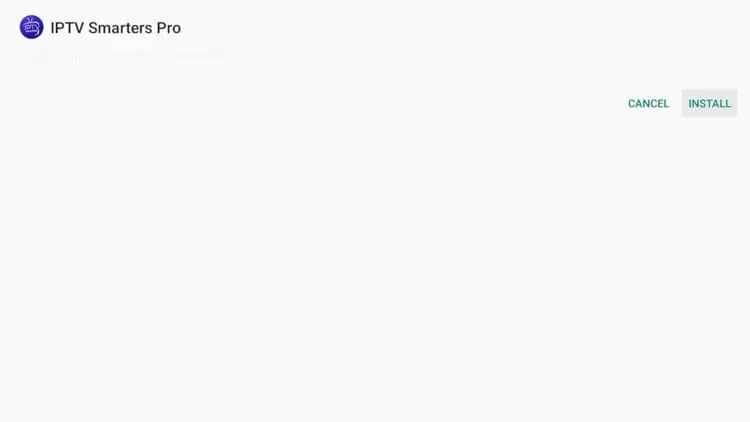
2- When the install screen appears, select Install.
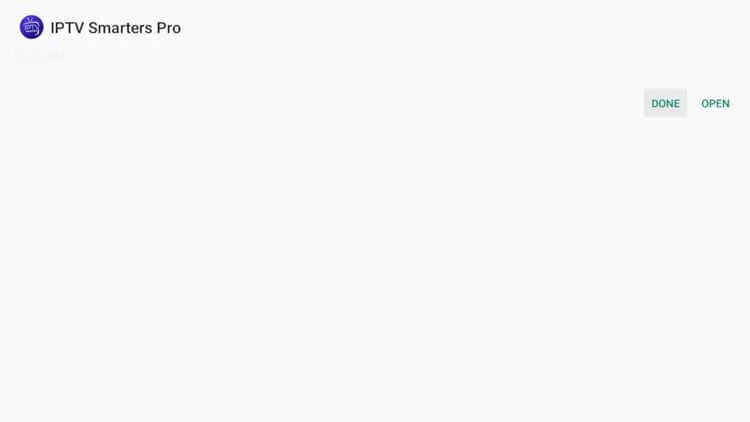
3- Wait for the “App installed” confirmation message, choose Done.
4- Then Delete to remove the setup file.
5- Confirm Delete again to free up storage space.
Step 6: Open IPTV Smarters Pro and Log In
Now open IPTV Smarters Pro and connect it to your subscription so your channels load. The app itself does not include any channels; it only plays the content delivered by your provider.
You can sign in using Xtream Codes or an M3U playlist URL, depending on what your provider sent you by email. Entering the details exactly as provided avoids login errors and empty channel lists, which are the most common first-time problems. If you need help with this part, see our guide on how to log in to IPTV Smarters Player.
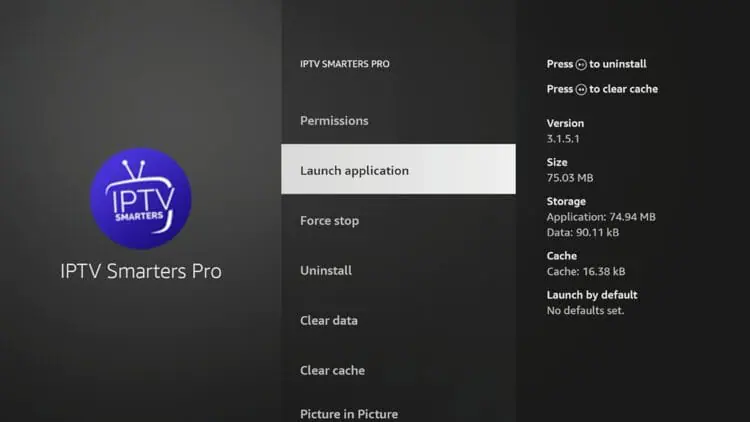
1- Find IPTV Smarters Pro in Apps and Channels and open it.
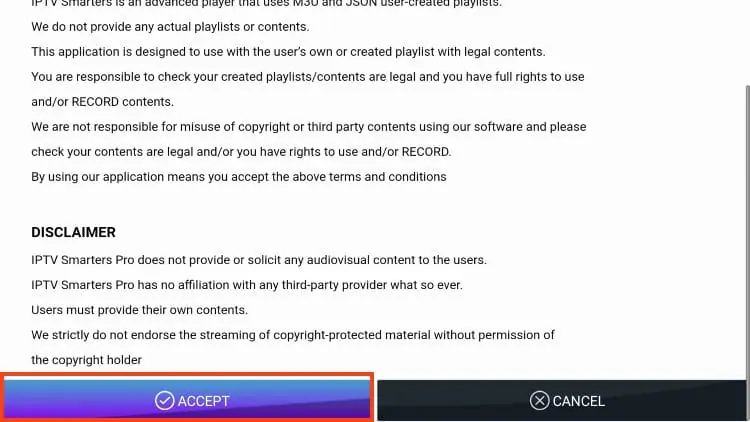
2- Accept the terms of use to reach the home screen.
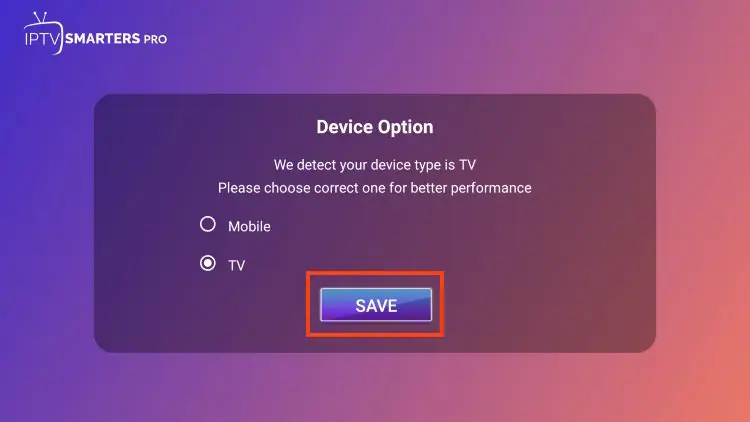
3- Choose your Device.
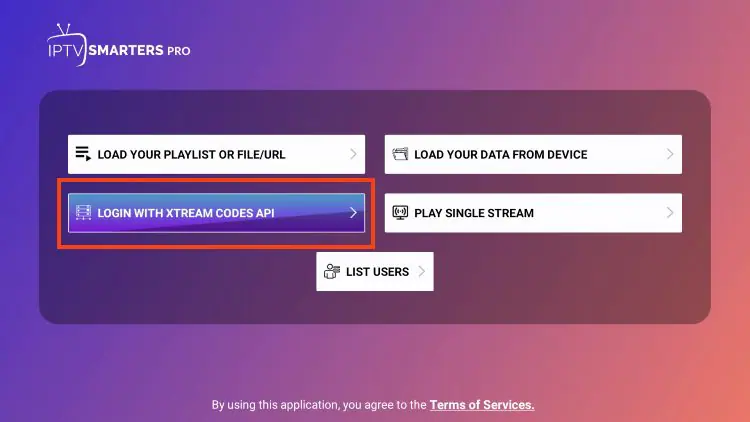
3- Choose Login with Xtream Codes API or M3U URL.
4- Enter your username, password, and server details exactly.
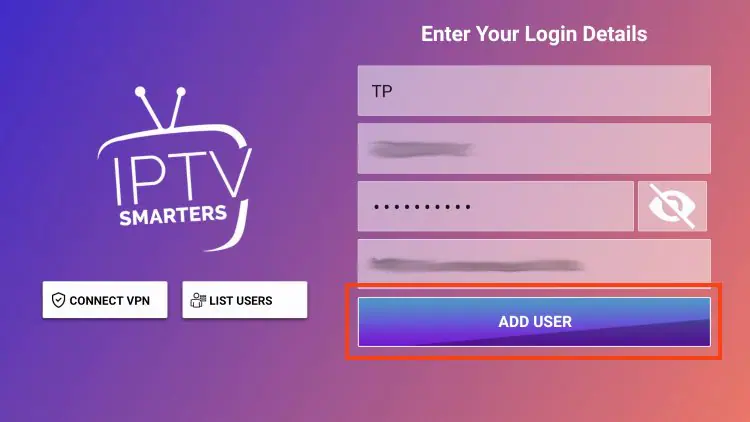
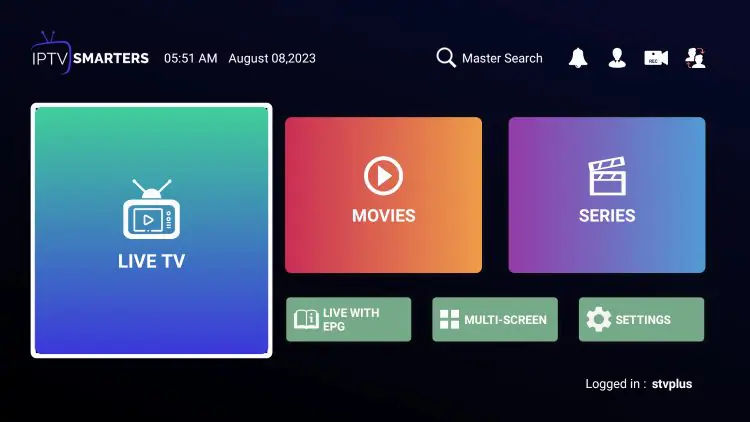
5- Submit and wait for your channels to load.
Step 7: Optimize Settings and Fix Common Issues
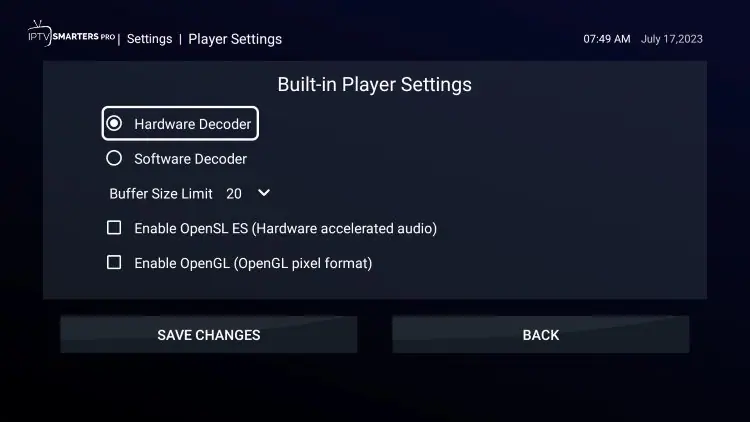
Finally, adjust a few settings for the best experience and apply quick fixes if something does not work right away. Most early problems come from the connection or the login details rather than the Firestick itself, so there is rarely any need to reinstall.
Knowing these simple checks helps you solve issues in under a minute. A wired connection and the right video quality prevent the large majority of buffering problems. Clearing the cache occasionally keeps the app fast and responsive over the long term.
1- Set the streaming quality to match your internet speed.
2- Use an Ethernet adapter during important live events.
3- Recheck your login details if channels are empty.
4- Clear the app cache in settings if it slows down.
5- Restart the app or Firestick if it freezes.
Extra Tips for a Better Experience on Firestick
A few simple habits keep IPTV Smarters Pro running smoothly on a Firestick over the long term. A stable connection and an updated app make the biggest difference in everyday viewing quality, far more than the age of the Firestick itself.
Keeping the device clean and uncluttered also helps the app load faster and reduces glitches. These small routines take only seconds but prevent most of the common frustrations people run into after a few weeks.
- Restart the Firestick weekly to clear memory.
- Use a wired Ethernet adapter for the most stable streaming.
- Keep a note of your login details for future reinstalls.
- Clear the app cache regularly to maintain speed.
- Lower the resolution if you are on a limited data plan.
- Keep your provider’s support contact saved for quick help.
FAQ
Why is IPTV Smarters Pro not in the Amazon Appstore?
Amazon does not list it, so you must sideload it using the Downloader app. This is a normal, common process and only takes a few minutes.
Is sideloading IPTV Smarters Pro on Firestick safe?
Yes, when you use a trusted download link and only install apps you know. Avoid random websites and pop-up links to keep your device safe.
Do I need a computer to install it?
No, the Downloader method works entirely on the Firestick. You only need your remote, an internet connection, and your subscription details.
Why won’t my newer Firestick allow sideloading?
Some newer Fire TV Stick models run a different system that blocks sideloading. Check Settings, then My Fire TV, then About to see your device type.
The app installed but no channels appear. What’s wrong?
This is almost always a login or playlist error. Recheck your Xtream Codes or M3U details and confirm your subscription is active.
Do I need a subscription to use IPTV Smarters Pro?
Yes, the app is only a player and includes no channels. You need an active subscription that provides your login or M3U playlist.
Will the app update automatically on Firestick?
No, sideloaded apps do not auto-update. You repeat the Downloader steps with the latest link when a new version is released.
Conclusion
Downloading IPTV Smarters Pro on Firestick is a quick and simple process: prepare your connection, enable apps from unknown sources, install Downloader, enter the official link, install the APK, and log in with your subscription. Most early issues come down to connection speed or login details and are easy to fix with a quick check rather than a reinstall.
The Firestick itself is rarely the problem, so a stable internet connection and a reliable provider matter most. With these clear steps, you can turn your Firestick into a complete entertainment hub and enjoy a smooth, stable IPTV experience on the big screen in just a few minutes.