How to Install IPTV With MyIPTV Player ?
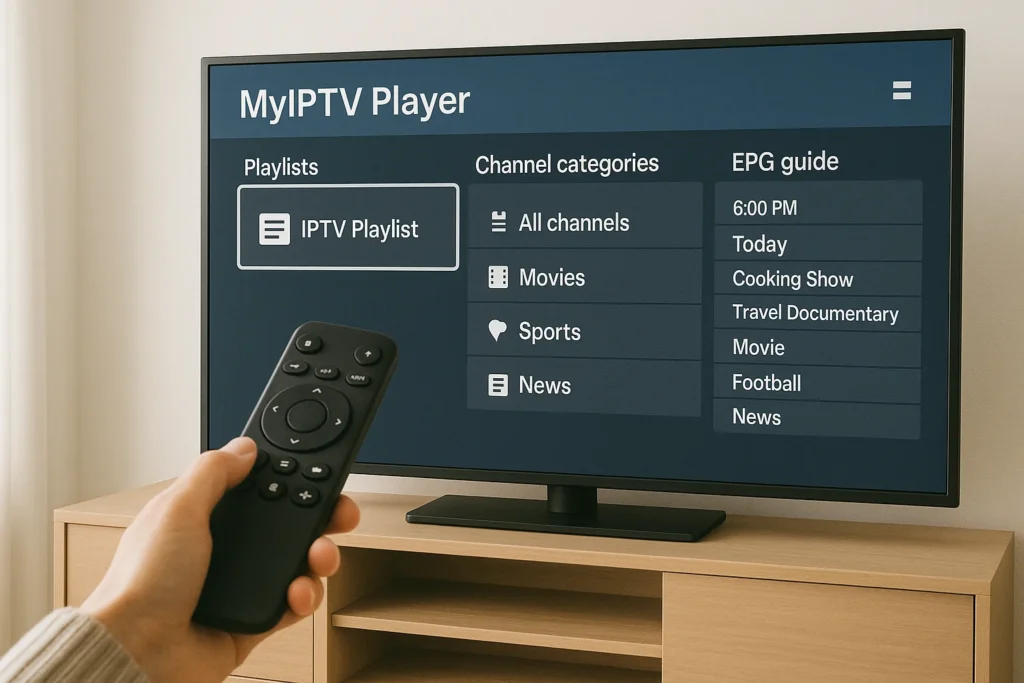
To install IPTV with MyIPTV Player, start by downloading the app from your device’s app store—Google Play Store for Android, App Store for iOS, or your Smart TV’s application marketplace. Once installed, launch MyIPTV Player and tap the “Add Playlist” or “+” button to begin configuration.
Enter your IP TV provider’s credentials by pasting your M3U URL or inputting Xtream Codes details, then save your settings. Your channels will load automatically within 30-90 seconds. Below, you’ll find five detailed steps covering installation, configuration, and optimization for the best streaming experience.
Download and Install MyIPTV Player
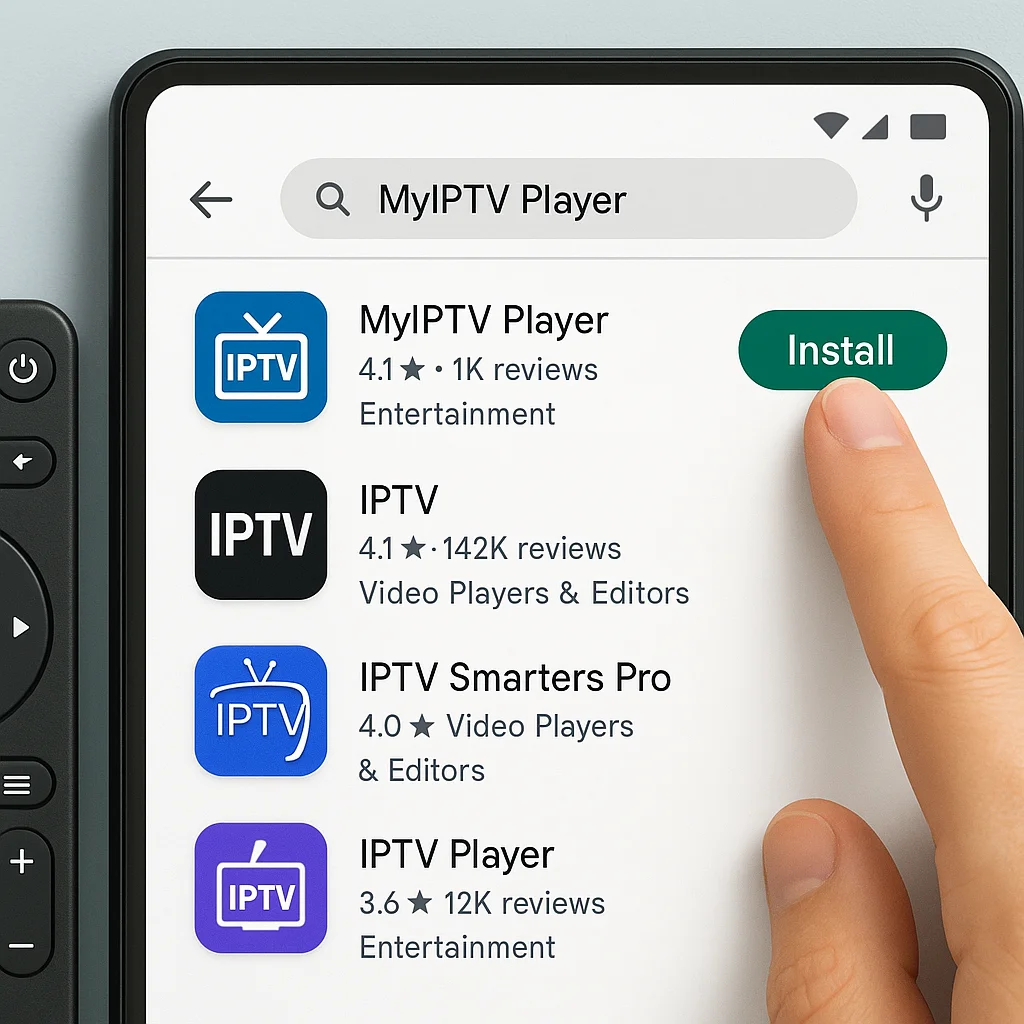
Begin by downloading MyIPTV Player from your device’s app store:
- Open Google Play Store (Android), App Store (iOS), or your Smart TV’s app store
- Search for “MyIPTV Player“
- Select the official app and tap “Install” or “Get“
- Wait for download and installation to complete
- Grant necessary permissions when prompted
- Open the app once installed
Launch MyIPTV Player and Add Your Playlist
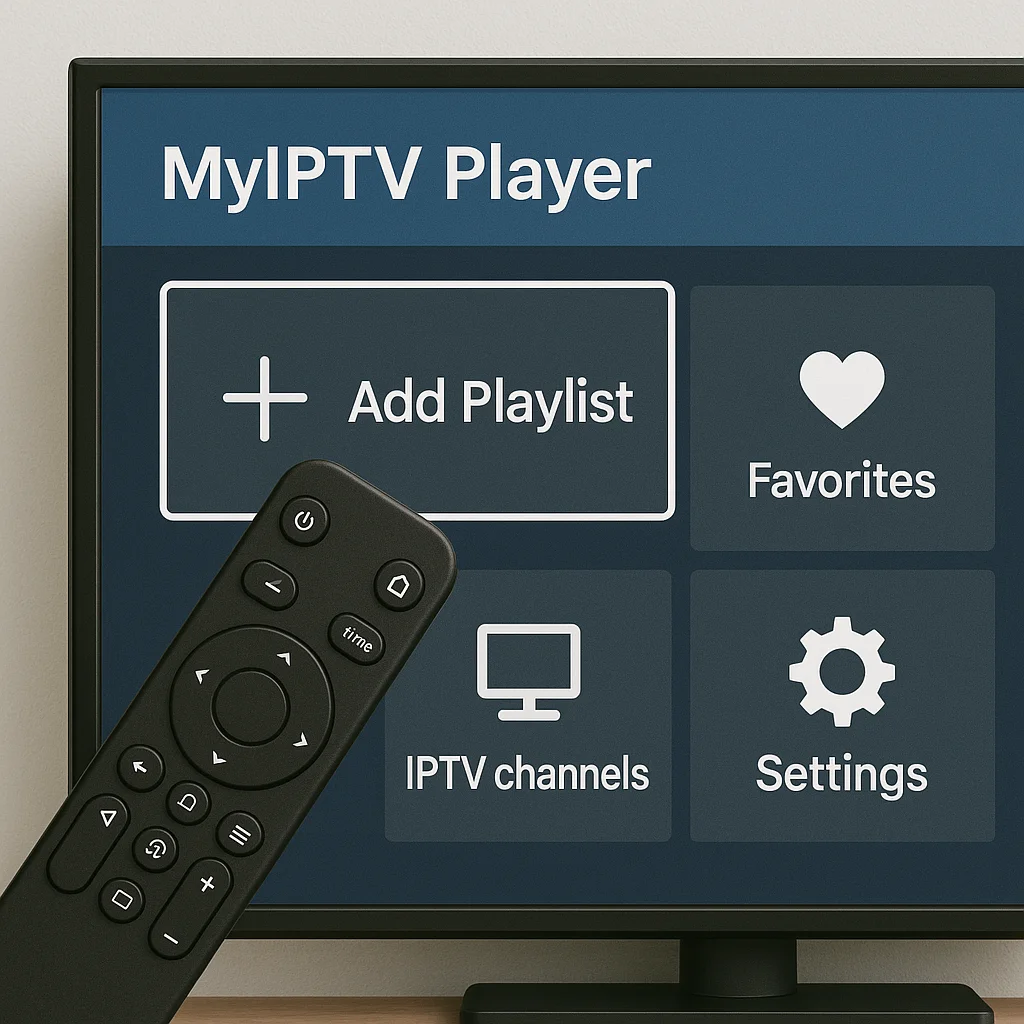
After installing, open the app and prepare to add your content:
- Launch MyIPTV Player from your device
- Tap the “+” button or “Add Playlist“
- Choose your input method: M3U URL, Xtream Codes, or local file
- Select the appropriate option based on your provider’s format
- Have your IPTV credentials ready
Enter Your IPTV Service Credentials
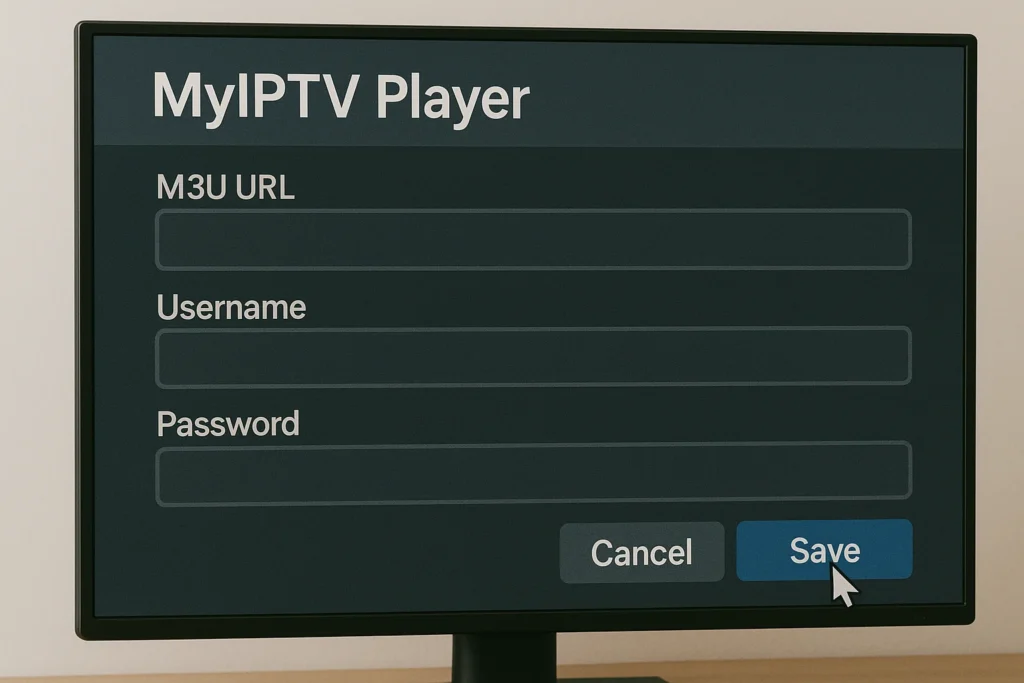
Input your IPTV subscription details into the app:
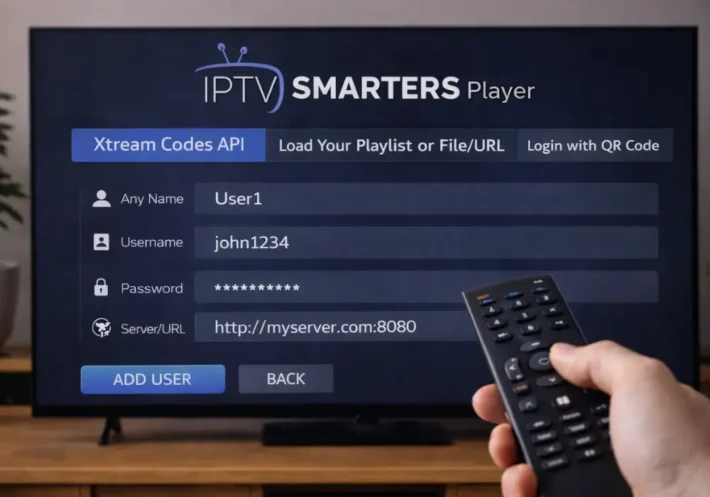
- Paste your M3U URL or enter Xtream Codes details
- Input username and password provided by your IPTV service
- Enter the server URL or portal address
- Give your playlist a custom name for easy identification
- Double-check all entries for accuracy
- Tap “Save” or “Done” to confirm
Configure MyIPTV Player Settings
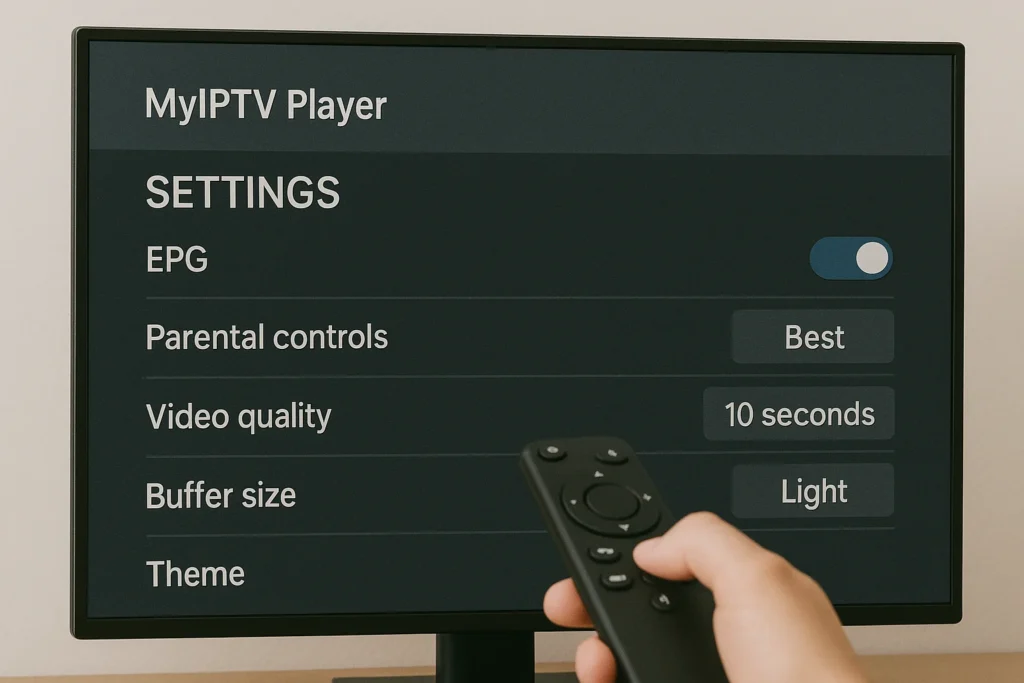
Customize the app for optimal performance:
- Access settings by tapping the gear icon
- Enable EPG if your provider offers it
- Set up parental controls with a PIN if needed
- Choose video quality based on your internet speed
- Adjust buffer size for smoother playback
- Configure interface theme and preferences
- Save your settings
Load Channels and Start Streaming
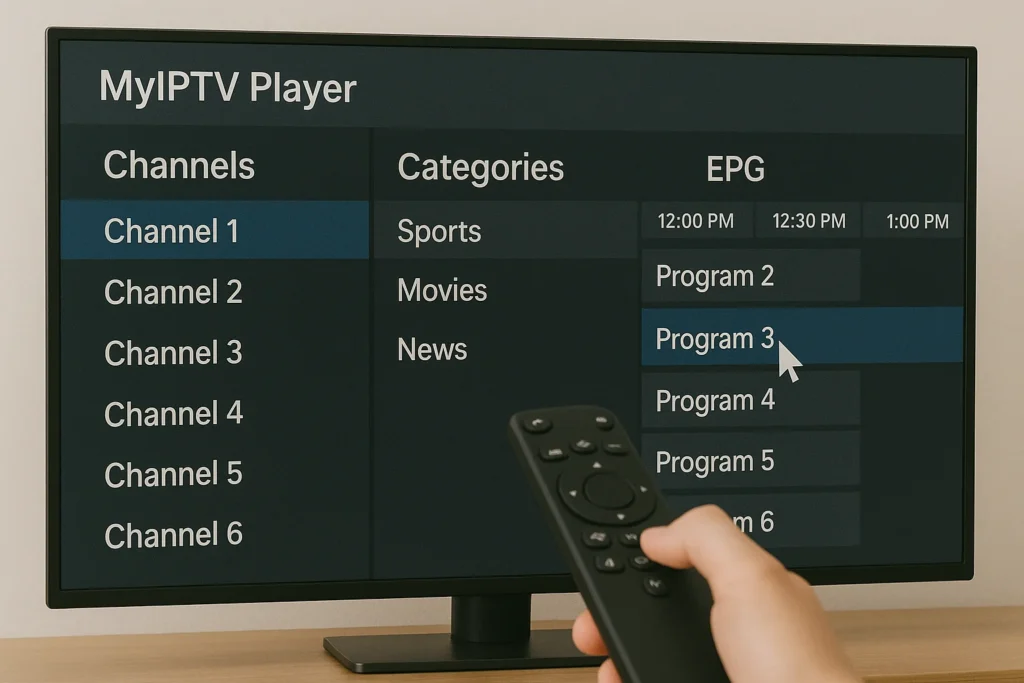
Complete setup and begin watching:
- Wait for channels to load (30-90 seconds)
- Browse channels by category (Sports, Movies, News)
- Tap any channel to start streaming
- Test several channels to verify connection
- Add favorite channels for quick access
- Check VOD and series sections if available
- Contact provider support if issues occur
Frequently Asked Questions
Is Myiptv Player Free or Does It Require a Paid Subscription?
MyIPTV Player is free to download, but you’ll need a paid IPTV subscription to access content. Its MyIPTV features include playlist management and EPG support. MyIPTV compatibility extends to Windows and Xbox devices.
Can I Record Live TV Shows Using Myiptv Player?
Yes, you can record live TV shows using MyIPTV Player. The app’s recording capabilities allow easy live show management. Simply navigate to your channel, click the record button, and you’ll save content directly to your device.
Does Myiptv Player Support Parental Controls for Restricting Content?
MyIPTV Player doesn’t include built-in parental controls for content restriction. You’ll need to use your device’s native parental controls or your IPTV provider’s settings to restrict content. Check your provider’s dashboard for available content restriction options.
How Do I Update Myiptv Player to the Latest Version?
To update MyIPTV Player, open the Microsoft Store, click “Downloads and updates,” then select “Get updates.” This ensures you’ll access the latest MyIPTV Player features and maintain MyIPTV Player compatibility with your device.
Can I Use Multiple IPTV Subscriptions Simultaneously on Myiptv Player?
Yes, you can use multiple IPTV subscriptions simultaneously on MyIPTV Player. To avoid IPTV compatibility issues, add each playlist separately. For subscription management tips, label each source clearly and switch between them easily.