

 Written by Rana
To install IPTV on a MAG box, connect the device to your TV via HDMI and to the internet, find its MAC address, send it to your provider, then enter the portal URL under System Settings > Servers > Portals and restart: your channels load automatically.
Unlike an Android box, a MAG (made by Infomir) works with a dedicated portal rather than an app you download, which makes the setup a little different but very stable.
For everything to work, you’ll need a reliable IPTV Subscription, a legal service from a licensed provider, that supplies your portal URL and links your MAC address. This guide walks you through all ten steps, from plugging in the box to troubleshooting.
A MAG box uses a portal, not an app. Connect it, find the MAC address, give it to your provider, enter the portal URL in the settings, then restart. The channels appear on their own afterward.
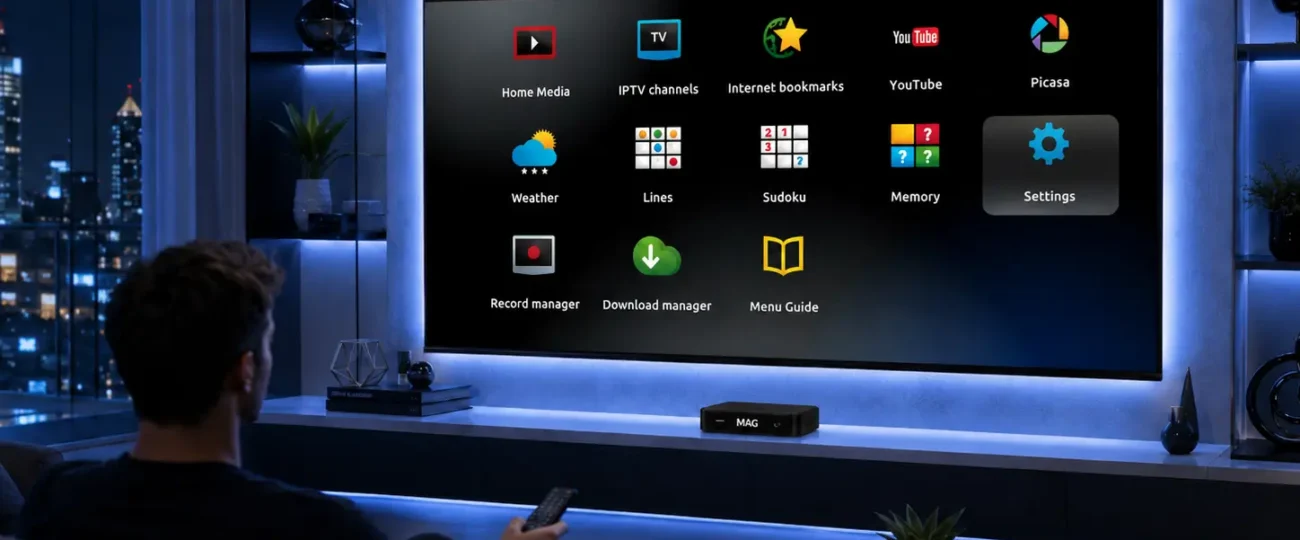
Before you start, it helps to know what sets a MAG apart from other boxes, because it changes the whole installation method. MAG boxes, designed by Infomir, don’t run on Android: they use a proprietary system that connects to a “portal” provided by your IPTV service.
So you don’t download any app: everything goes through a portal URL and your MAC address. If you own a different kind of decoder instead, such as a Formuler box, the procedure is a bit different and relies on a dedicated app.
The MAG is a dedicated IPTV decoder, not an Android box.
It connects to a portal (often Stalker/Ministra type) instead of an app.
Each box has a unique MAC address used to identify it.
It’s your provider who gives you the portal URL.
Most setup failures come from a missing item at configuration time. Take a few minutes to gather everything before plugging anything in. Above all, you’ll need an active subscription and the details supplied by your provider.
Have the MAG box, its remote, and its power supply ready.
Get an HDMI cable and an Ethernet cable (or the compatible Wi-Fi adapter).
Keep the portal URL provided by your service within reach.
Note your box’s MAC address (see Step 5).
The physical connection is simple, but the quality of your network connection will determine how smoothly everything plays. For a fixed box hooked up to a large screen, a wired Ethernet cable is always preferable to Wi-Fi, especially in 4K. Make sure everything is properly connected before powering on the device.
Connect the box to your TV with the HDMI cable.
Plug in the Ethernet cable, or connect the compatible Wi-Fi adapter.
Insert the power supply and turn the box on.
Select the correct HDMI input on your TV.
On first boot, the MAG box shows its internal menu and must first establish its internet connection. This step is essential: without an active network, the portal will never load. Verify the connection before moving on to the portal setup.
Let the box boot up to the home screen.
Go to System Settings > Network.
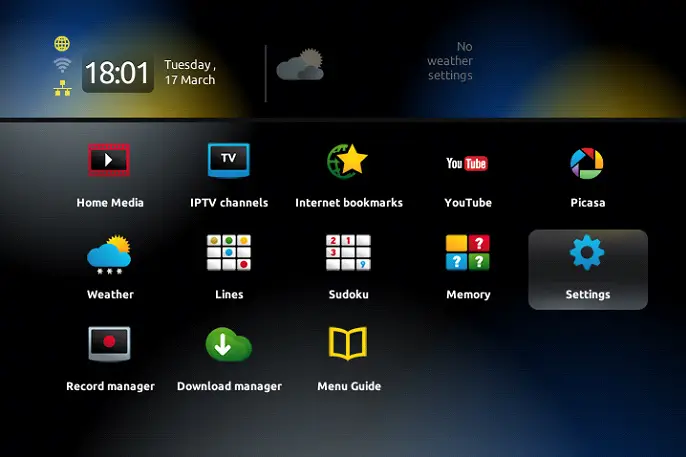
Choose Wired (Ethernet) or Wireless, then confirm the connection.
Make sure the box obtains an IP address.
The MAC address is your device’s unique identifier; your provider needs it to activate your subscription on that specific box. It appears as six pairs of characters separated by colons. You’ll find it in two places.
Look at the sticker on the bottom of the box: the “MAC” label is there.
Otherwise, go to System Settings > System Information.
Note the full address in the 00:1A:79:XX:XX:XX format.
Keep it safe: it will be used to link your subscription.
This is the key step unique to MAG boxes: your provider must “authorize” your MAC address on their portal for your subscription to work. Without this link, the box will show an empty portal or an error message. So send your MAC address as soon as possible.
Send your MAC address to your provider (by email or your account area).
Wait for confirmation that the box has been activated.
Ask them for the exact portal URL to enter.
Also check how long your subscription is valid for.
Once your MAC address is authorized and you have the portal URL, all that’s left is entering it on the box. This is where the MAG connects to your service. Type the address carefully, because the slightest typo will prevent it from loading.
Go to System Settings >
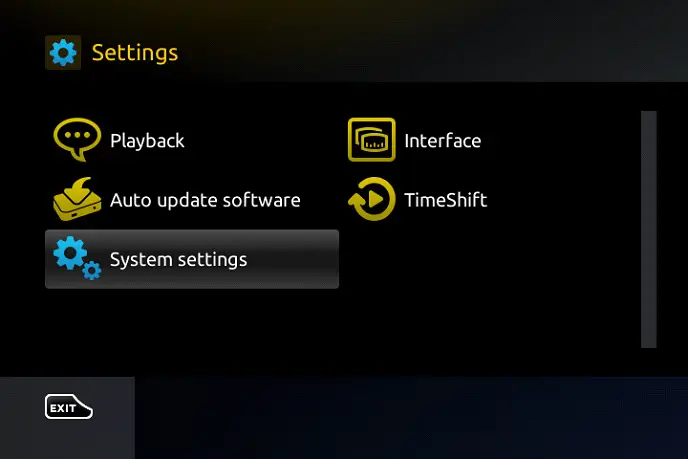
Servers > Portals.
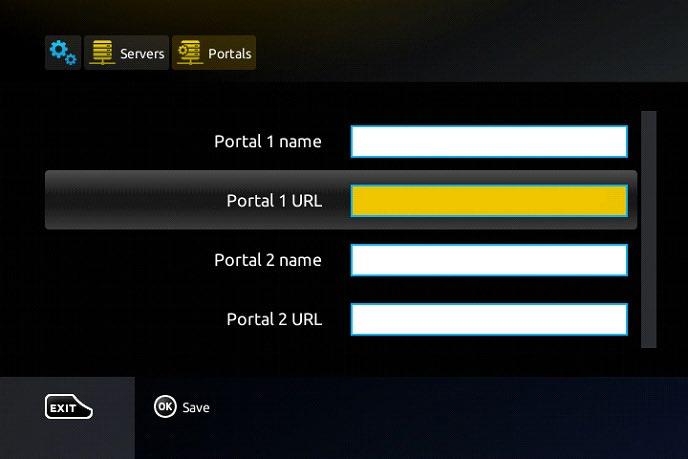
Give Portal 1 a name (for example, the name of your service).
Enter the portal URL exactly as provided by your provider.
Save the changes using the dedicated button on the remote.
For the new configuration to take effect, the box needs to reload the portal. A simple restart is enough in most cases. This is the moment your channels should finally appear.
Return to the main menu after saving.
Choose “Restart Portal,” or turn the box off and on again.
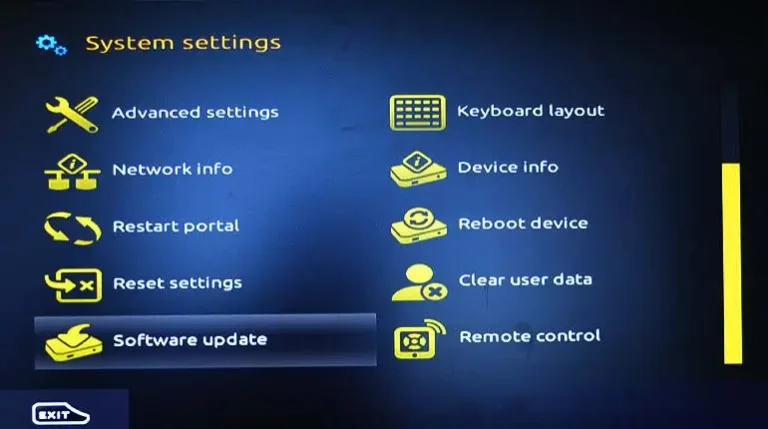
Wait while the portal loads.
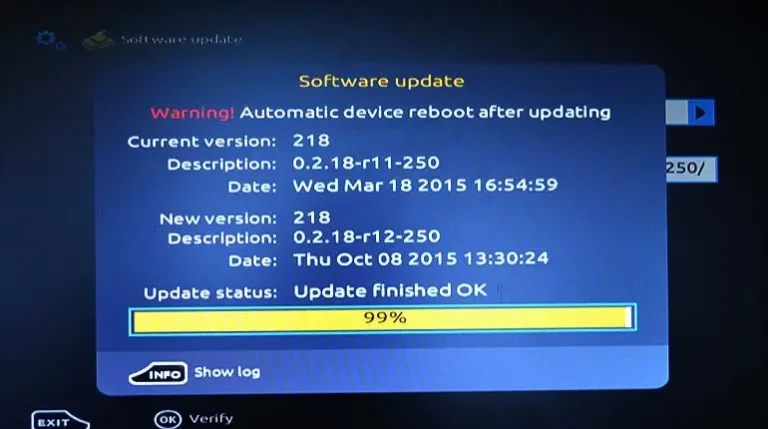
Your IPTV service’s interface then appears.
Once the portal has loaded, take a moment to make sure everything works correctly before settling in. This will save you from unpleasant surprises later. Browse the different sections to confirm your content is there.
Open the live channels list and test a few of them.
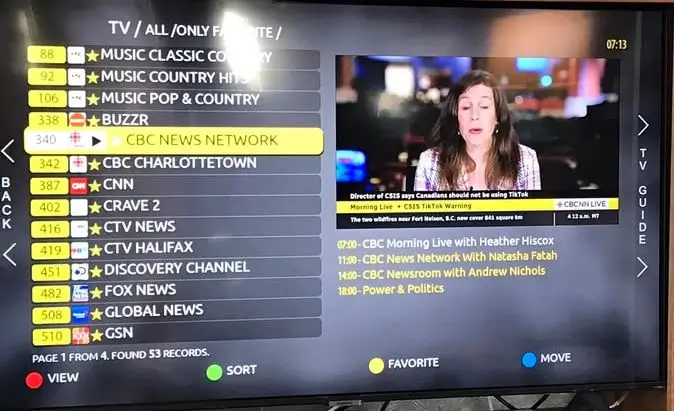
Check the Movies and Series (VOD) sections if your subscription includes them.
Confirm the program guide (EPG) is showing.
Set your favorite channels for quicker access.
A few final adjustments ensure smooth playback and fix the most common issues, like a black screen or buffering. Connection stability remains the most important factor. Also remember to keep the box’s firmware up to date.
Aim for at least 25 Mbps for HD and 50 Mbps for 4K.
Use Ethernet if the picture freezes or buffers.
If the portal is empty, check the URL, the MAC address, and the activation with your provider.
Update the box’s firmware from the system settings.
A MAG box is an IPTV decoder made by Infomir, designed specifically to play television streams over the internet. Unlike an Android box, it doesn’t work with downloadable apps but with a portal provided by your IPTV service.
There are several models (MAG 254, 322, 324, 424, 524, and so on), but the installation logic stays the same: MAC address, portal URL, then restart. It’s a simple, stable device, valued for its reliability on fixed TVs.
The MAC address is your box’s unique identifier, a bit like a license plate. Your provider uses it to link your subscription to that exact device and grant access to the portal.
Without this authorization, the box will show an empty portal or an error message, even if the URL is correct. It’s a required step specific to MAG boxes, unlike apps that use a username and password.
Start by checking that the portal URL was entered exactly as provided, with no spaces or typos. Then make sure your MAC address has been activated by your provider and that your subscription is still valid.
Also check your network connection in the system settings. If everything looks right, restart the box; if it still fails, contact your provider’s customer support.
No, and that’s exactly what sets the MAG apart from Android boxes or Smart TVs. The box has its own built-in system and connects directly to a portal via a URL. So there’s nothing to install or update manually on the app side.
The entire setup happens in the box’s system settings, which makes it very simple for users who don’t want to deal with apps.
For smooth, uninterrupted HD playback, plan for at least 25 Mbps, and at least 50 Mbps for 4K. Beyond speed, what matters most is connection stability: a wired Ethernet link will always give better results than Wi-Fi on this kind of fixed device.
If several devices use the network at the same time, add up their needs to avoid congestion and dropouts.
Yes, but you’ll need to reconfigure the portal. To switch services, you replace the portal URL under System Settings > Servers > Portals with the new provider’s URL, and they in turn must authorize your MAC address.
Be sure to keep the old configuration until you’ve confirmed the new one works. A MAG box is therefore not tied for life to a single service.
The MAG box itself is a perfectly legal device: it’s hardware like any other. Legality depends entirely on the service you connect it to.
As long as you use a licensed provider that holds the broadcasting rights to the content offered, you’re in the clear; you can also review the Canadian broadcasting framework on the Canadian Radio-television and Telecommunications Commission (CRTC) website.
Avoid services that promise thousands of premium channels for a few dollars, a classic sign of an unauthorized offer.
Installing IPTV on a MAG box is simpler than it looks, as long as you follow the steps in order: connect the device, set up the network, find the MAC address, have your provider authorize it, then enter the portal URL before restarting. The big difference from an Android box is the absence of an app: everything rests on the MAC address + portal pairing.
Once you understand this mechanism, setup takes just a few minutes and stays very stable over time. Keep in mind, though, that the box is only a tool: the quality, stability, and legality of your experience depend on choosing a reliable subscription from a licensed provider.
With a good connection and a trustworthy service, your MAG box will deliver smooth viewing on the big screen.

Premium IPTV subscription built for Canadian viewers