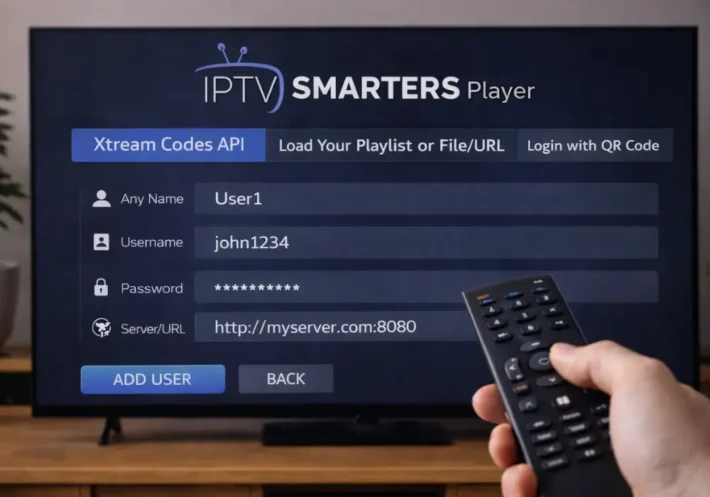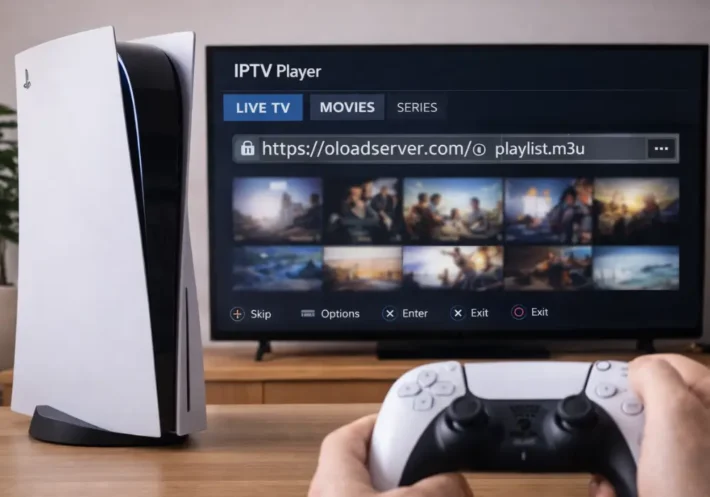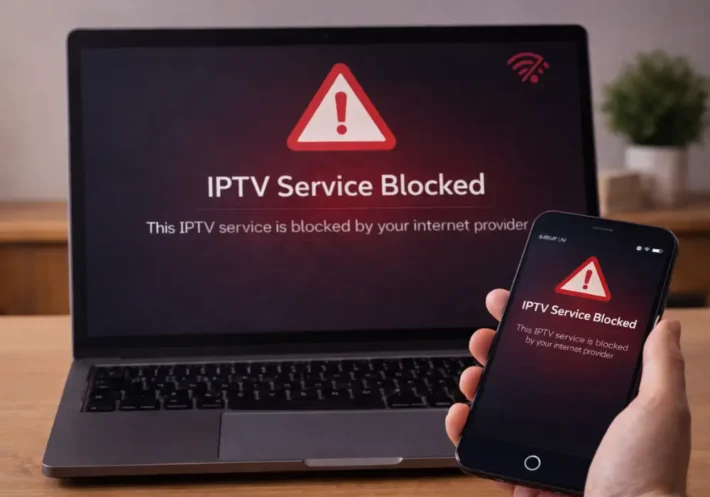
How to Change URL on IPTV Box ?
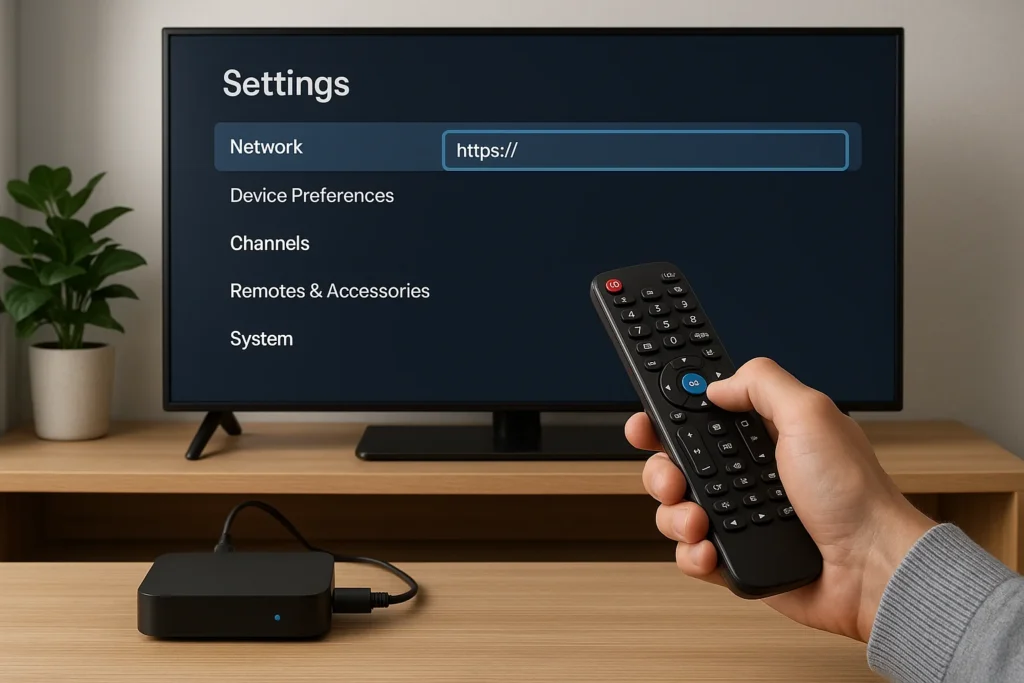
To change the URL on your IPTV box, begin by accessing your device’s settings menu and locating the portal or server configuration section. Navigate to the URL field displaying your current IPTV service address, then delete the old URL and carefully enter your new provider’s URL exactly as given.
Save your changes and restart your IP TV box to establish a fresh connection. After rebooting, verify that your channels load properly and test playback to ensure everything works correctly. If you encounter connection errors or loading issues, follow the five detailed steps below to complete the URL change successfully.
Access Your IPTV Box Settings Menu
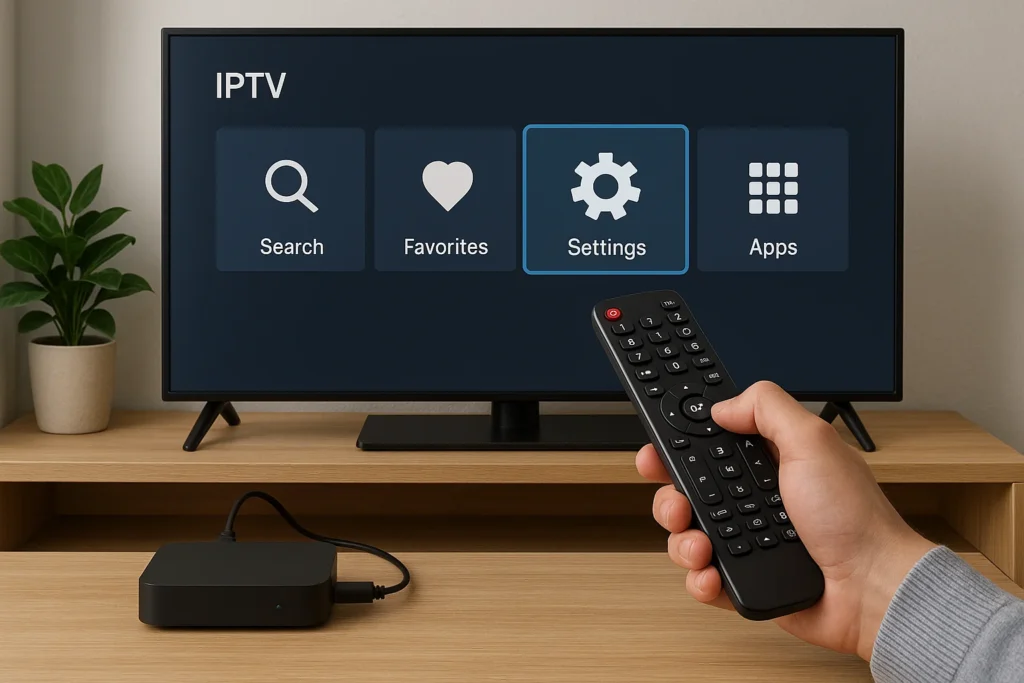
Begin by turning on your IPTV box and accessing the settings menu:
- Turn on your IPTV box and navigate to the home screen.
- Locate and select the settings icon (gear symbol or “Settings“).
- Enter your PIN code if prompted (default: 0000 or 1234).
- Navigate to server settings or IPTV configuration.
- Note your current URL before making changes.
Locate the Portal URL or Server Settings
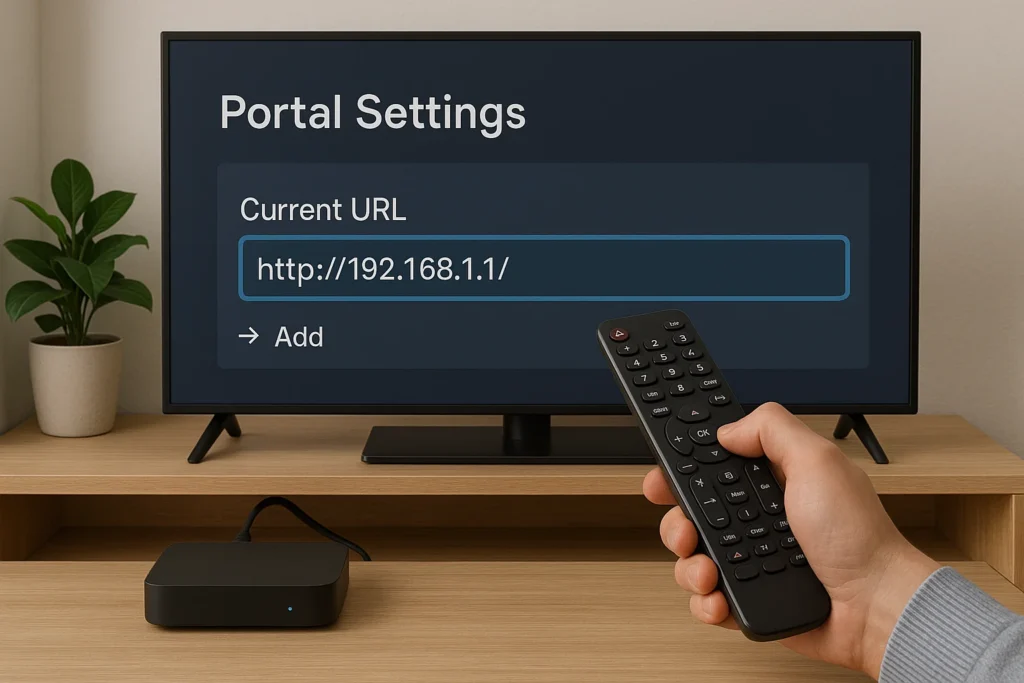
Find the section where your IPTV URL is stored:
- Look for “Portal Settings,” “Server Configuration,” or “M3U URL“.
- Identify the field displaying your current URL.
- Ensure you’re editing the correct portal if multiple exist.
- Highlight the URL field using your remote.
- Have your new URL ready from your provider.
Delete the Old URL and Enter the New One
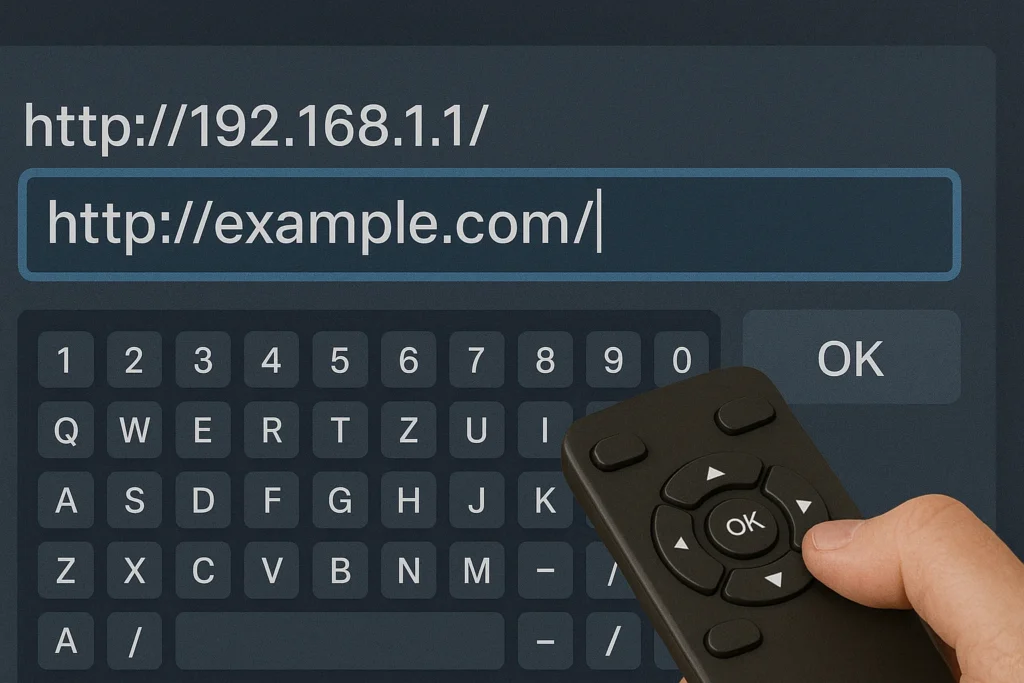
Replace the existing URL with your new one:
- Press OK or Edit to activate text input mode.
- Delete the existing URL completely.
- Enter your new IPTV URL exactly as provided.
- Include http://, domain name, port number, and parameters.
- Double-check for typos or missing characters.
- Verify special characters are entered correctly.
Save Your Changes and Restart the IPTV Box
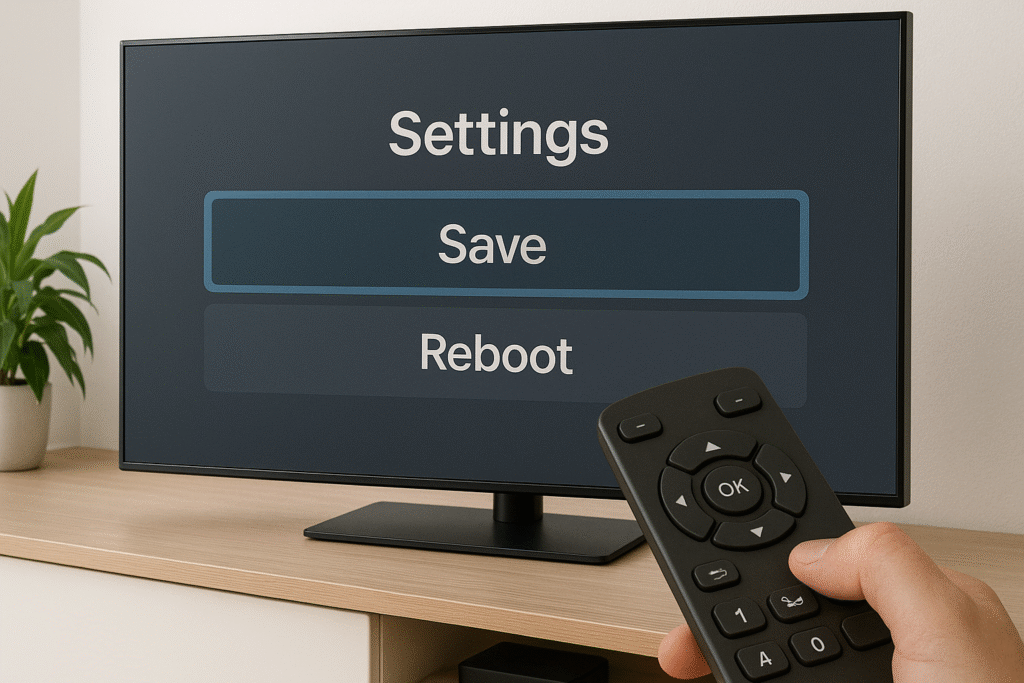
Save your configuration and reboot:
- Select “Save,” “OK,” or “Apply” to save changes.
- Confirm when prompted.
- Exit the settings menu.
- Restart by selecting “Reboot” in settings or unplugging for 10-15 seconds.
- Wait for the box to boot up completely.
Verify the Connection and Load Your Channels
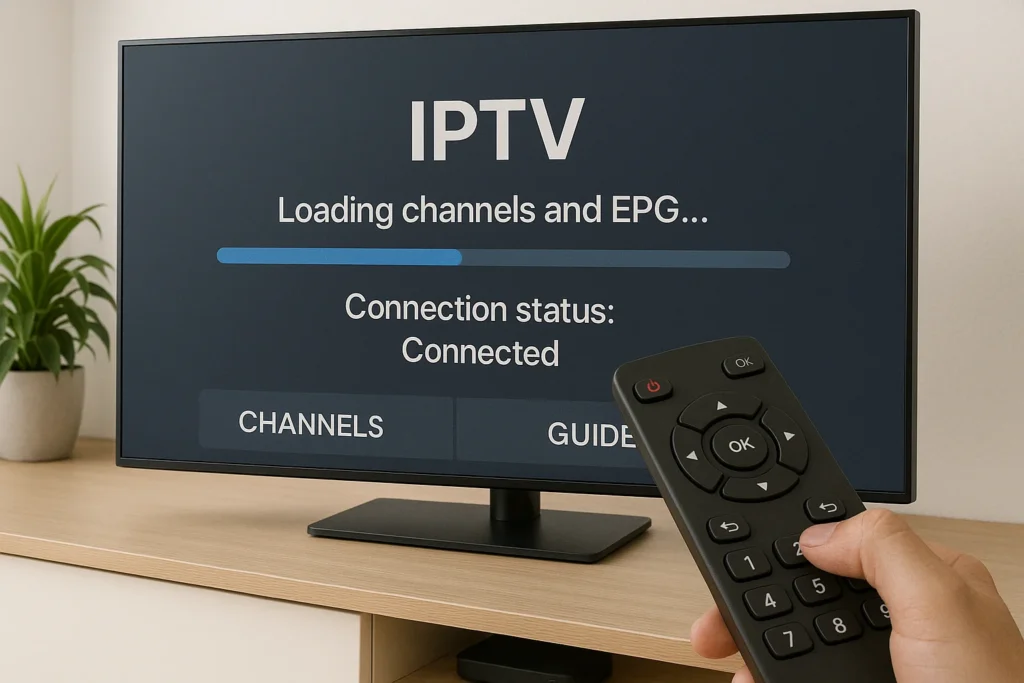
Check that everything works properly:
- Wait for the home screen to load.
- Look for connection status or loading messages.
- Wait 30-60 seconds for channels and EPG to load.
- Test playing a few channels.
- If errors occur, verify URL entry and provider status.
- Contact support if problems persist.
Frequently Asked Questions
Can I Use Multiple IPTV Provider URLS on the Same Box Simultaneously?
Yes, you can use multiple providers on your IPTV box, but simultaneous access isn’t typically supported. You’ll need to switch between provider URLs manually or use apps like TiviMate that manage multiple playlists separately.
How Often Should I Update My IPTV URL for Optimal Performance?
You should update your IPTV URL whenever you’re experiencing buffering, channel failures, or server issues. For optimal update frequency, check with your provider monthly. Performance improvement tips include clearing cache and restarting your box regularly.
Will Changing My URL Delete My Saved Channels and Favorites?
No, changing your URL won’t delete your saved channels and favorites. Your channel organization typically stays intact since it’s stored locally. However, for safe URL management, you’ll want to backup your settings before making changes.
Is It Legal to Change the URL on My IPTV Box?
Changing your URL itself isn’t illegal—it’s simply a configuration step. However, IPTV legality depends on streaming regulations in your region and whether you’re accessing licensed content. You’re responsible for ensuring your provider operates legally.
Can My Internet Provider See When I Change My IPTV URL?
Yes, your ISP monitoring can detect IPTV traffic patterns, though they won’t see specific URL changes. For better IPTV privacy, you’ll want to use a VPN, which encrypts your connection and masks your streaming activity from providers.
How to Choose a Good IPTV Box?
To choose a good IPTV box, look for a device with at least 2GB of RAM and a quad-core processor for smooth HD/4K streaming. Verify it supports M3U and Xtream Codes API formats, has dual-band Wi-Fi (2.4GHz and 5GHz), and runs on Android 9.0 or higher for app compatibility.