Why Is My IPTV Box Not Working ?
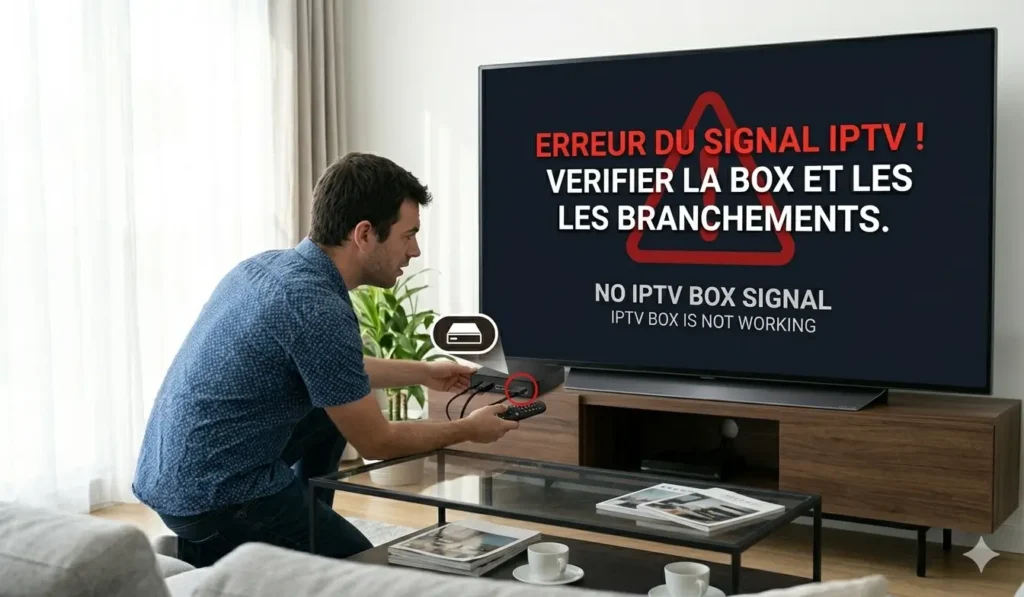
Your IPTV box is most likely not working because of one of five common causes: a weak or dropped internet connection, a loose power or HDMI cable, an expired subscription or playlist, a corrupted app or cache, or a temporary problem on the provider’s servers.
In other words, the box almost always depends on something around it rather than failing on its own. The good news is that the vast majority of these issues are quick to identify and fix, often in just a few minutes, without replacing any hardware at all.
Choosing a reliable IPTV subscription from a trusted provider like IPTV Canada, also prevents many of these problems by keeping servers stable and your playlist valid. This clear guide explains each likely cause, how to recognize it, and exactly what to do to get your IPTV box working again.
IPTV Box Troubleshooting: Quick Reference
The table below matches the most common symptoms with their likely cause and the quickest fix, so you can jump straight to the right solution:
| Symptom | Likely Cause | Quick Fix |
| No light or blank screen | Power or HDMI cable | Reseat cables, set correct HDMI input |
| Constant freezing or buffering | Weak internet | Use Ethernet, reboot router |
| App opens but no channels | Expired subscription or URL | Check subscription and credentials |
| App crashes or is very slow | Corrupted app or cache | Clear cache, restart, or reset box |
| Nothing loads, other apps work | Provider server issue | Wait or contact provider support |
| Box freezes across all apps | Device glitch | Power cycle or factory reset |
Run through this quick checklist before assuming the box is broken:
- Reseat the power and HDMI cables, and confirm the TV input.
- Test another online app on the box to check the internet.
- Reboot the router and the IPTV box together.
- Confirm your subscription is active and credentials are current.
- Clear the app cache or perform a reset if needed.
- Contact your provider’s support if everything else checks out.
In most cases you will find the problem before reaching step six, since cables, internet, and subscription account for the large majority of IPTV box failures. Working through the list calmly and in order is far more effective than randomly restarting the box and hoping it fixes itself.
Why Is My IPTV Box Not Working in the First Place?
In almost every case, an IPTV box stops working because one link in the chain, power, network, subscription, app, or server, has broken. The box needs all of these working together to display a smooth stream, so a single weak point causes a black screen, freezing, or an error message.
Most of the time the box hardware itself is perfectly fine; the real cause is the connection or the software around it. Identifying which link failed is by far the fastest path to a fix, because each cause has a different and specific solution.
The sections below walk through each cause, from the simplest physical check to the more technical ones, so you can pinpoint the exact issue quickly instead of guessing. Treat it like a checklist: most readers find their answer within the first two or three checks.
Is It a Power or Cable Connection Problem?
A surprising number of “not working” cases come down to a loose cable or a power issue, so this is always the first thing to check before anything else. If the box shows no light, no display, or a blank screen, the power adapter or HDMI cable may be loose, damaged, or plugged into the wrong port.
Televisions also need to be set to the correct HDMI input for the box to appear, which people forget after using another device. A quick reseat of every cable and a full power cycle solve a large share of problems on their own. It sounds basic, but checking the physical connections first saves a lot of unnecessary and frustrating troubleshooting later.
Is Your Internet Connection the Issue?
A weak, unstable, or dropped internet connection is the single most common reason an IPTV box stops working properly. IPTV streams continuously, so if the box loses Wi-Fi or your speed drops during peak hours, you get freezing, buffering, or channels that will not load at all.
A quick test is to open another online app on the same box, if it also struggles, the network is the cause, not IPTV itself. Moving the box closer to the router, switching to a wired Ethernet connection, or rebooting the router usually restores stable streaming right away.
A stable connection of at least 25 Mbps is recommended for smooth HD viewing, and more for 4K content. If only your IPTV box struggles while phones and laptops are fine, the problem may be the box’s own Wi-Fi reception rather than the internet plan itself.
Has Your IPTV Subscription or Playlist Expired?
If the box powers on and connects to the internet but no channels load, an expired subscription or playlist is a very likely cause. IPTV access is tied to a validity date, and once it lapses the app will still open but show empty categories or a login error message. The same thing happens if your provider updated the server URL and your box is still pointing to the old address.
Checking your subscription status and confirming the credentials are current usually resolves this almost instantly. This is one of the most overlooked causes, especially when the box, internet, and app all appear to be working perfectly fine on the surface.
Is the App or Cache Causing the Problem?
A corrupted app or an overloaded cache often makes an IPTV box freeze, crash, or load channels very slowly. Over time the app stores temporary files that can become damaged and create conflicts, even when your connection and subscription are perfectly fine. Clearing the cache, restarting the app, or reinstalling it usually restores normal performance within minutes.
Since most IPTV boxes run Android, the official Android TV help center is a useful reference for device-level fixes like clearing data or updating software. When the box itself behaves strangely across several apps, a full reset is the most reliable fix. For a step-by-step walkthrough of this, see our guide on how to reset your IPTV box.
Could the Problem Be on the Provider’s Side?
Sometimes the box, network, and subscription are all fine, and the real issue is a temporary problem on the provider’s servers. Server overload during major live events, scheduled maintenance, or infrastructure issues can make channels stop working for everyone at the same time.
The clearest sign is that nothing loads even though every other app and website on the box works completely normally. In this case, the only real fix is to wait it out or contact your provider’s support to confirm the current server status.
A dependable provider with stable, well-maintained infrastructure keeps these outages rare, short, and clearly communicated to subscribers.
How Do You Fix an IPTV Box That’s Not Working?
The fastest way to fix an IPTV box is to check the causes in order, from the simplest to the most technical. Start with cables and power, then the internet, then the subscription, then the app, and finally the provider’s status.
This logical sequence avoids wasted time and almost always reveals the issue within a few minutes rather than hours. Most problems are solved by a reseated cable, a router reboot, a cache clear, or a quick subscription check, not by buying new equipment.
Only when every one of these is ruled out should you assume a deeper hardware fault, which in practice is actually quite rare on modern boxes.
FAQ
Why does my IPTV box show a black screen?
A black screen is usually a cable, HDMI input, or power issue. Reseat the cables, select the correct TV input, and fully power cycle the box before anything else.
My box is on but no channels load. Why?
This is most often an expired subscription, an outdated server URL, or a temporary provider server issue. Check your subscription status and credentials first.
Why does my IPTV box keep freezing?
Freezing is usually caused by a weak internet connection or an overloaded cache. Try a wired connection, reboot the router, and clear the app cache.
Do I need to reset my IPTV box?
A reset helps when the box freezes across multiple apps or behaves strangely. Try a soft reset first, and only do a full factory reset if it continues.
How do I know if the problem is my provider?
If every other app and website works normally but IPTV does not load at all, the issue is most likely on the provider’s servers, not your box.
Can a slow internet connection stop my IPTV box working?
Yes. IPTV needs a steady connection, ideally 25 Mbps or more for HD. Weak or congested Wi-Fi is one of the most common causes of failure.
When should I contact support?
Contact support after checking cables, internet, subscription, and the app. If all of those are fine and channels still fail, the provider should investigate further.
Conclusion
When an IPTV box is not working, the cause almost always traces back to power and cables, the internet connection, an expired subscription, a corrupted app or cache, or a temporary provider server issue. By checking these in order, from the simplest physical check to the more technical ones, you can usually fix the problem in just a few minutes without any new hardware.
The box itself is rarely the real fault, so there is no need to panic or replace it. Choosing a reliable provider with stable servers and a valid, well-managed subscription prevents most of these issues from ever happening, keeping your viewing smooth, stable, and uninterrupted over the long term.