Why is IPTV Down ?
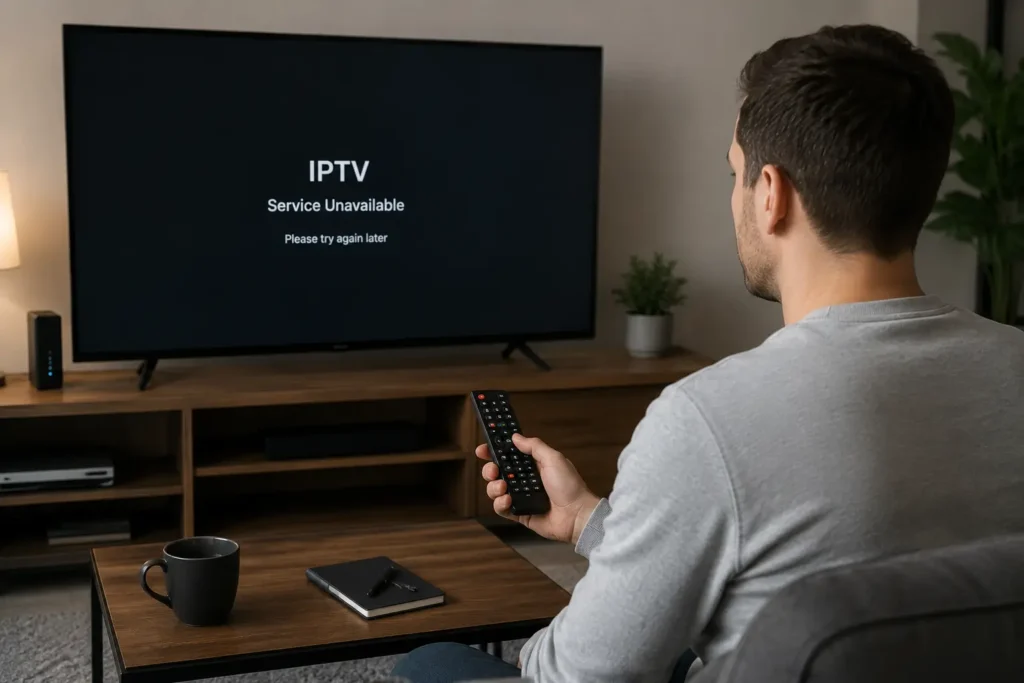
IPTV streams typically go down for one of seven reasons: ISP throttling during peak hours, server overload during live events, expired M3U playlists, outdated EPG data, app cache corruption, device-level issues, or provider infrastructure problems.
Most outages can be fixed within minutes, but persistent downtime usually points to an unreliable provider rather than a setup issue. The most effective long-term fix is choosing an IPTV service with redundant servers, transparent uptime, and 24/7 support, like IPTV Canada.
If your IPTV stream was working yesterday and is now buffering, frozen, or completely dead, you’re not alone. Canadian viewers face sudden outages regularly, driven by ISP crackdowns, enforcement actions, and server failures during peak hours.
The good news? Most outages are fixable,and understanding the cause is the fastest path to getting your stream back.
Why Is My IPTV Not Working Right Now?
When your stream goes dark, the cause isn’t always obvious, and it’s rarely just one thing. Several distinct forces can make IPTV down situations happen simultaneously, which is why a single fix doesn’t always work.
ISP Throttling and Deep Packet Inspection
Your internet service provider can identify IPTV traffic patterns using Deep Packet Inspection (DPI) a technology that reads the “fingerprint” of your data streams. During peak hours (typically 7–11 PM), many Canadian ISPs deliberately slow down streaming traffic to manage network congestion. What typically happens is your picture degrades progressively: first lower quality, then buffering, then a complete drop.
Legal Enforcement and Server Seizures
The landscape shifted dramatically in recent years. Court-ordered blocking initiatives in Canada have required major ISPs to actively block access to unlicensed streaming networks. The first nationwide blocking order, reported by CBC News, set a precedent that has been used extensively since — taking thousands of channels offline with zero warning. When enforcement actions hit a provider’s infrastructure, every subscriber goes dark instantly — no error message, no explanation.
Server Overload During Live Events
IPTV infrastructure buckles under simultaneous demand spikes. Major sporting events, championship matches, and pay-per-view broadcasts can flood a provider’s servers with 10x normal traffic within minutes. Most budget IPTV providers don’t maintain the server redundancy needed to absorb these surges, so your stream drops precisely when you need it most.
Dynamic Blocking Orders
Beyond throttling, some ISPs now execute real-time blocking orders tied to live sports rights windows, automatically restricting certain streams during scheduled broadcast periods.
Understanding which of these forces is actually affecting you right now is the real challenge — and that’s exactly where the next step comes in: figuring out whether the problem is on your end or theirs.
Is IPTV Down for Everyone or Just Me?
Before diving into complex troubleshooting, the first question to answer is whether your setup is the problem, or whether the issue is upstream entirely. Diagnosing this correctly saves serious time.
The 60-Second Power Cycle
The single most underrated fix for IPTV not working scenarios is a full power cycle. Unplug your router, streaming device, and set-top box simultaneously. Wait 60 seconds — not 10 — then power each back on in sequence. In practice, this resolves roughly half of all sudden IPTV failures by flushing stale network sessions and clearing memory overload on your device.
The Mobile Hotspot Test
Switch your streaming device to your phone’s mobile hotspot. If the stream loads immediately, your home ISP is almost certainly throttling or soft-blocking IPTV traffic. If it still fails, the problem is the server itself.
Device vs. Server Diagnostic
Open any major streaming platform on the same device. If those load fine, your network is healthy and the IPTV provider’s server is down. If everything fails, the issue is local.
Reading Your Symptoms
- Spinning wheel or buffering → bandwidth or ISP throttling issue.
- Black screen with no error → server-side outage or authentication failure.
A black screen and a buffering wheel demand completely different fixes, misreading the symptom wastes valuable troubleshooting time. Once you’ve isolated where the fault lives, the next step is dialing in your connection settings for stable, buffer-free streaming.
How to Fix IPTV Buffering and Freezing Issues?
Once you’ve confirmed the problem is on your end rather than the provider’s servers, it’s time to fix IPTV issues at the network level, where the majority of buffering and freezing problems actually originate.
Minimum Bandwidth Thresholds
Your internet connection needs to clear specific speed minimums before IPTV can stream reliably:
- SD (480p): 5–10 Mbps
- HD (1080p): 15–25 Mbps
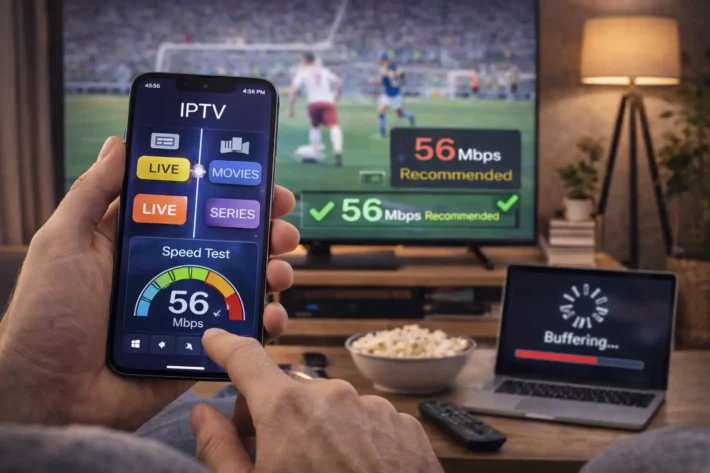
- 4K UHD: 40–60 Mbps
These numbers assume a clean, uncontested connection. Add multiple household devices competing for bandwidth, and you’ll need significantly more headroom. A speed test during peak evening hours often tells a very different story than your plan’s advertised rate.
The Ethernet Advantage
Wi-Fi is the single most common cause of IPTV instability that users overlook. Wireless signals introduce packet loss, latency spikes, and interference from neighboring networks, all of which translate directly into buffering mid-stream. A wired Ethernet connection eliminates that variable entirely. If running a cable isn’t practical, a powerline adapter is a reliable middle ground.
VPN Configuration for ISP Throttling
Some ISPs apply “soft” bandwidth throttling without fully blocking streaming traffic. A properly configured VPN can route around this, though a reliable IPTV provider with stable, geographically distributed servers eliminates the need for one in most cases. The key is selecting a server geographically close to your provider’s infrastructure, a distant server adds latency and can make things worse, not better.
DNS Optimization
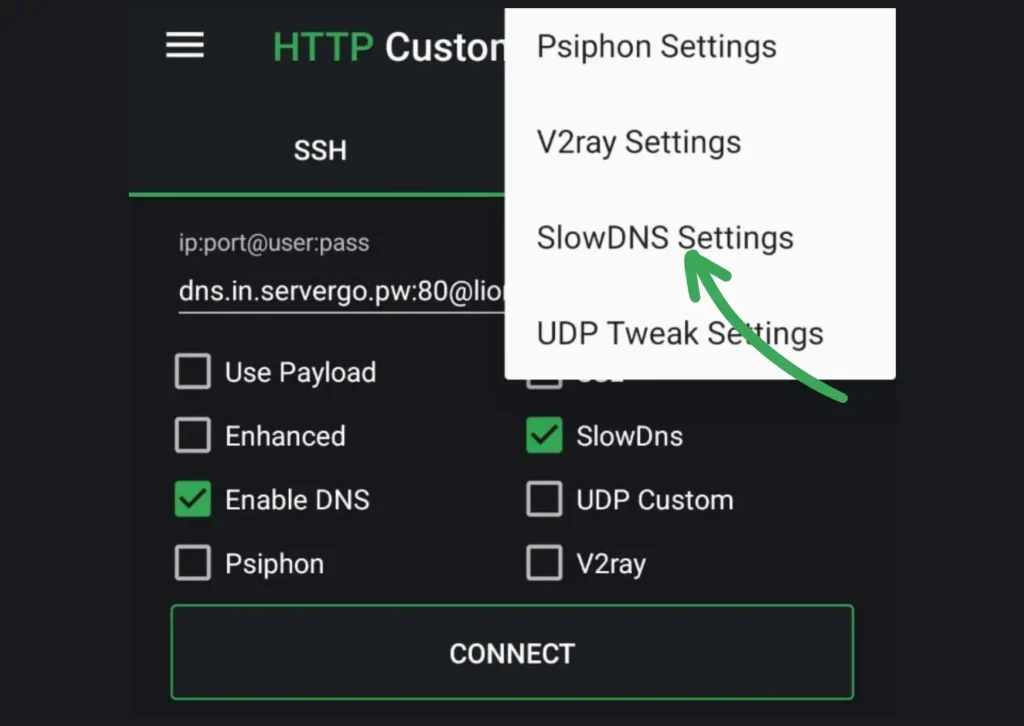
Slow or misconfigured DNS causes loading loops that look like server outages. Switching to Google DNS (8.8.8.8) or Cloudflare DNS (1.1.1.1) resolves many of these invisible delays, particularly on Smart TVs and streaming sticks.
Speaking of devices — even with a perfect network, certain hardware creates its own unique set of problems worth addressing separately.
How to Fix IPTV Not Working on Smart TVs & Firesticks?
Network fixes won’t help much if the problem lives inside your device. Device-level issues are one of the most overlooked causes of IPTV failures — and they’re also among the easiest to resolve once you know where to look.
Firestick-Specific Fixes
The Amazon Firestick accumulates cached data aggressively, and that buildup frequently corrupts playback — even when your IPTV server status is perfectly healthy.
Go to Settings → Applications
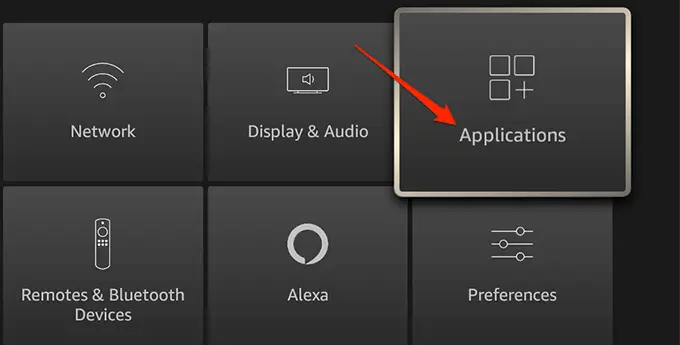
→ Manage Installed Applications
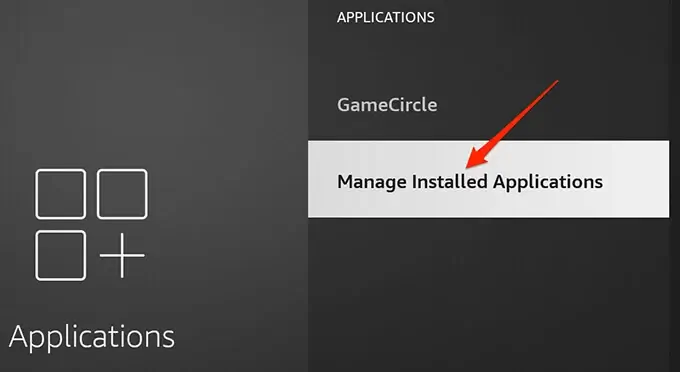
Select your IPTV app (TiviMate, IPTV Smarters, etc.)
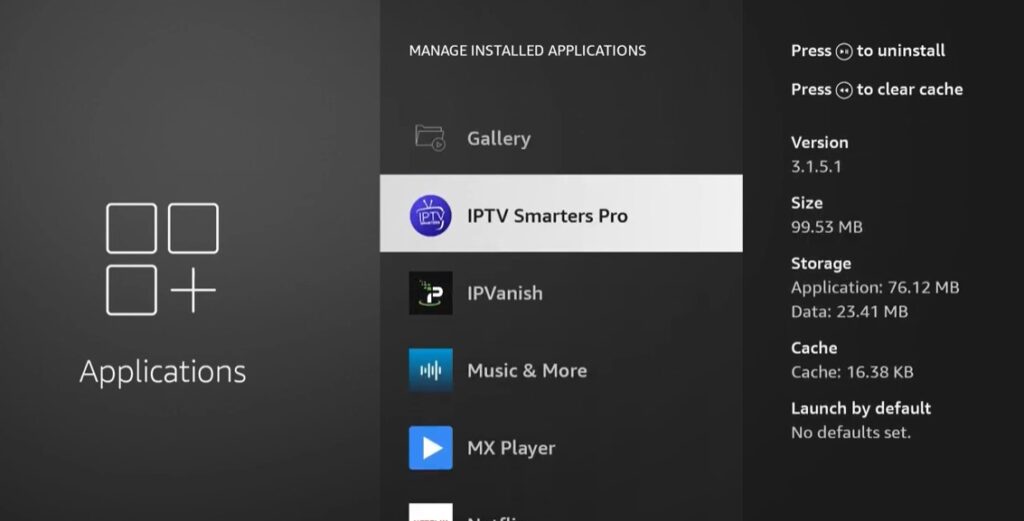
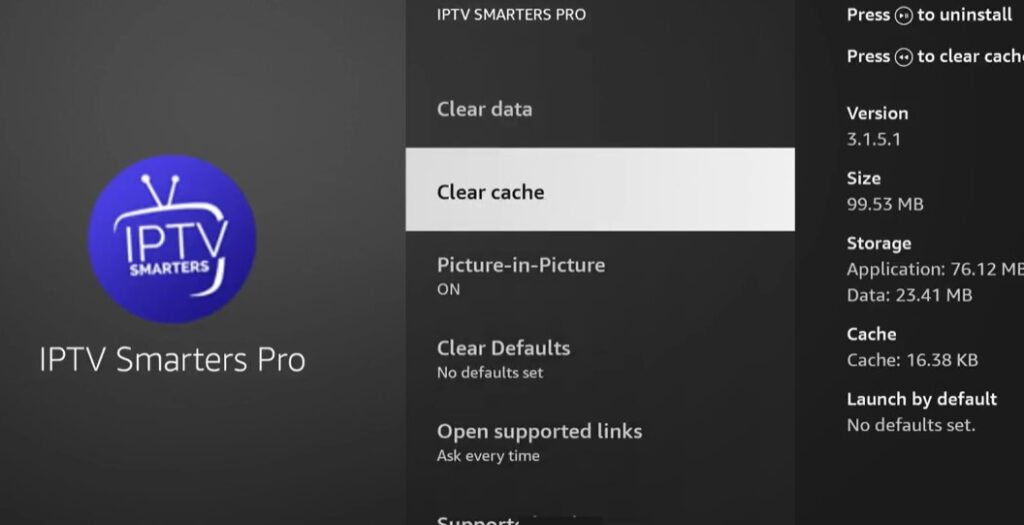
Tap Clear Cache, then Clear Data
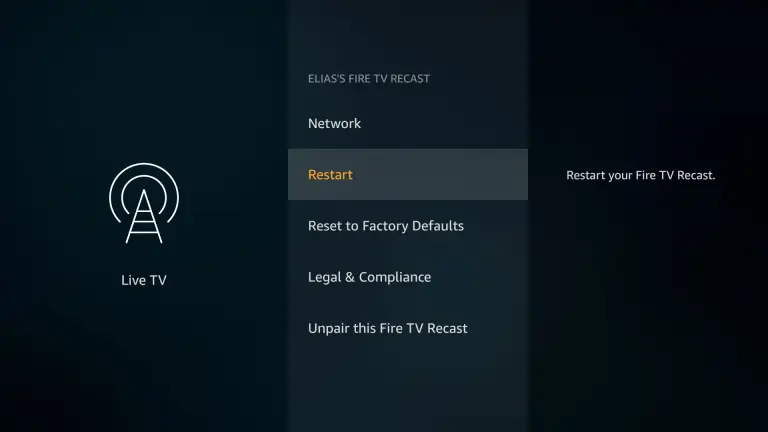
Restart the Firestick completely — unplug it from power for 30 seconds
Relaunch the app and test playback before changing any other settings
If clearing cache doesn’t resolve it, uninstall the app entirely and reinstall a fresh copy. A simple update won’t fix corrupted core files — only a clean reinstall will.
Smart TV Glitches and the Decoder Fix
Built-in smart TV players are notoriously inconsistent with IPTV streams. Unlike dedicated sticks, they often run older media frameworks that struggle with certain stream formats, causing freezing, black screens, or a particularly frustrating issue video with no audio.
That audio-dropout problem typically comes down to a hardware vs. software decoder mismatch. In testing, toggling the decoder setting inside your app’s player options directly resolves this type of playback error. Here’s how to address it:
Open your IPTV app’s Settings → Player Settings.
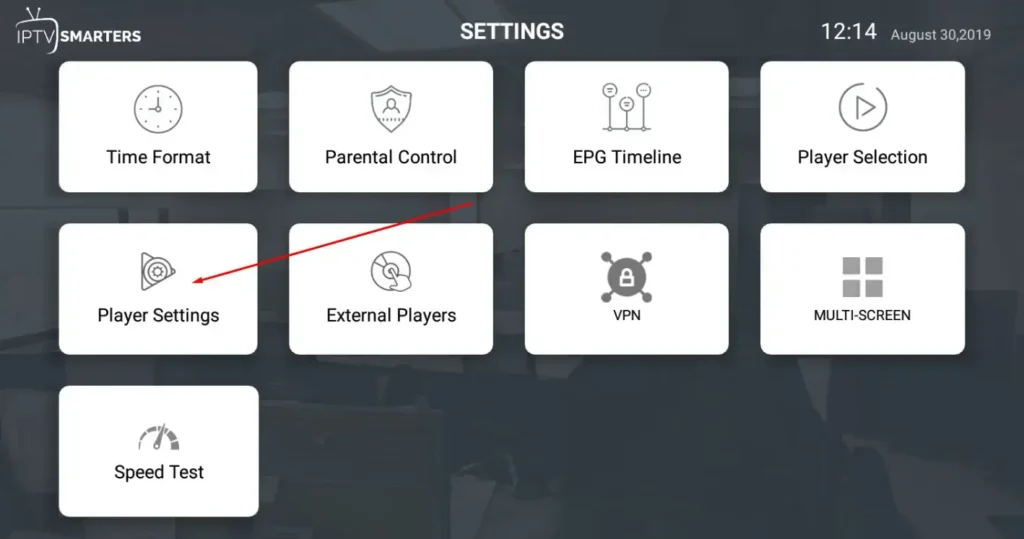
Switch between Hardware Decoder and Software Decoder.
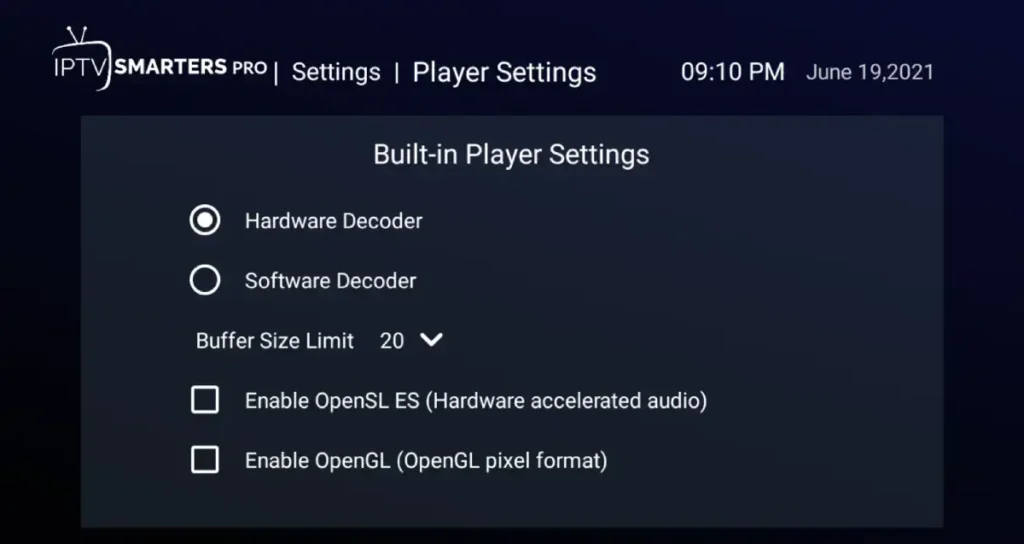
Test a channel with the known audio issue.
If the built-in player still fails, sideload a dedicated app or connect an external streaming stick.
Device compatibility is often the silent culprit behind IPTV failures and ruling it out takes less than five minutes. Once your device is confirmed stable, the next layer to examine is whether the app configuration itself needs a reset.
Is Your IPTV Provider Down or Just Unreliable?
Even after addressing network and device-level problems, IPTV failures often trace back to the app or playlist configuration itself, not the hardware or internet connection. A corrupted app cache, an expired M3U link, or a stale EPG guide can all make a perfectly healthy stream look completely broken.
Step-by-Step App Reset
Start with a clean slate. In TiviMate or IPTV Smarters, navigate to Settings → Playlist → Remove Playlist, then uninstall the app entirely.
Reinstall fresh from the app store. This clears corrupted cache data that quietly causes playback failures. A half-broken install is one of the most common culprits behind channels that load but won’t play.
Updating Your M3U Links
Providers regularly rotate server URLs to manage load balancing or avoid detection. What typically happens is your old M3U link simply stops resolving, channels disappear with no warning.
Contact your provider directly for the updated playlist URL, then re-enter it under Settings → Add Playlist in your app. Don’t assume your link is permanent.
Switch to Xtream Codes API
A more stable alternative to M3U playlists is the Xtream Codes API, which authenticates via username, password, and server URL rather than a static file link. This connection method self-updates, so server-side changes don’t break your setup every few weeks. Most reputable providers offer both options, ask specifically for Xtream credentials.
EPG Refresh Fix
The “No Information” guide error usually means your Electronic Program Guide data is outdated. In TiviMate, go to Settings → EPG → Force Refresh. If the error persists, re-enter the EPG URL your provider supplied.
With app-level issues ruled out, the smarter move is making sure these problems don’t keep returning, which is exactly what proactive maintenance can solve.
How to Prevent IPTV Issues Before They Happen ?
Now that you know how to fix problems when they strike, a smarter play is stopping them before they ever interrupt your stream. Proactive maintenance eliminates the majority of recurring IPTV headaches.
Here’s what consistent, problem-free streaming actually looks like in practice:
- Restart your router weekly : stale connections accumulate and quietly throttle performance.
- Update your IPTV app regularly : outdated builds are a leading cause of sudden playback failures.
- Configure a VPN if your ISP throttles streaming traffic : though a reliable provider with redundant servers reduces the need for one.
- Refresh your M3U playlist monthly : expired URLs cause channels to silently drop
- Monitor your internet speed : IPTV typically demands a minimum of 25 Mbps for stable HD streams.
- Choose a reliable provider : testing across dozens of services shows uptime and server quality vary dramatically.
In practice, most outages are predictable. Devices that aren’t cleared of cache regularly, providers with no redundancy, and weak Wi-Fi signals all telegraph trouble well in advance. Addressing these conditions routinely keeps your setup resilient, which leads naturally into building a long-term prevention strategy.
How to Stay Ahead of IPTV Downtime ?
Building on the proactive maintenance habits covered earlier, there’s one layer most users overlook entirely: understanding what actually triggers service disruptions at the provider level. Downtime isn’t always random in practice, it follows predictable patterns.
Key warning signs to monitor:
- Playlist expiration : M3U links and EPG feeds have expiry dates; mark your renewal deadline in your calendar.
- App version mismatches : outdated player apps frequently lose compatibility with updated server protocols.
- DNS changes : providers occasionally migrate servers, silently breaking existing portal URLs.
One practical approach is keeping a backup playlist URL from your provider stored offline. When your primary stream fails, you’re not starting from scratch.
Reliability isn’t just about your internet connection it’s about knowing your provider’s infrastructure well enough to act before problems compound. It’s also worth recognizing that the IPTV landscape is actively shifting. Recent enforcement actions in Canada have disrupted many services without warning. Knowing those red flags and what to do when you spot them is the next critical conversation.
Conclusion
IPTV downtime rarely comes down to a single cause it’s usually a combination of network hiccups, server overload, outdated apps, and increasingly, the legal pressure reshaping the entire streaming landscape. The good news? Most issues are fixable within minutes if you know where to look.
A reliable stream depends on three fundamentals: a stable internet connection, a trustworthy provider, and properly configured hardware. Get those right, and you’ll eliminate the vast majority of disruptions before they start.
The users who experience the fewest outages are those who stay proactive monitoring their setup, vetting their provider’s track record, and knowing when a problem is on their end versus the service’s. As the IPTV landscape continues to evolve in Canada, staying informed isn’t optional it’s the difference between consistent streaming and constant frustration.
Frequently Asked Questions
Why is my IPTV buffering even with fast internet?
Speed alone doesn’t guarantee smooth streaming. Server-side congestion, ISP throttling, or an overloaded Wi-Fi channel can all cause buffering regardless of your plan. Switch to a wired connection and test during off-peak hours.
Is IPTV legal in Canada in 2026?
It depends entirely on the provider. Licensed IPTV services that pay proper broadcast rights are fully legal. Unlicensed services that rebroadcast premium channels without authorization fall under copyright infringement, and court orders supported by Canadian regulators have empowered Canadian ISPs to actively block them.
Why did my IPTV service suddenly stop working?
The most common causes are server outages, provider shutdowns due to legal pressure, or expired subscriptions. Check your provider’s status page and social channels before troubleshooting your own setup.
How do I know if my ISP is throttling IPTV?
Run a standard speed test, then run one through a VPN. A dramatic speed improvement while using the VPN strongly suggests ISP throttling is the culprit.
What’s the fastest fix when IPTV goes down?
Restart your router, clear the app cache, and switch servers if your provider offers that option — most issues resolve within minutes using this sequence.