How to Install IPTV on Kodi ?
To install IPTV on Kodi, you’ll need an active IP TV subscription with an M3U playlist URL from your provider.
Begin by downloading and installing Kodi on your device, then enable “Unknown Sources” in system settings to allow IPTV add-on installation. Install the PVR IPTV Simple Client add-on from Kodi’s official repository, then configure it by entering your M3U playlist URL and EPG information.
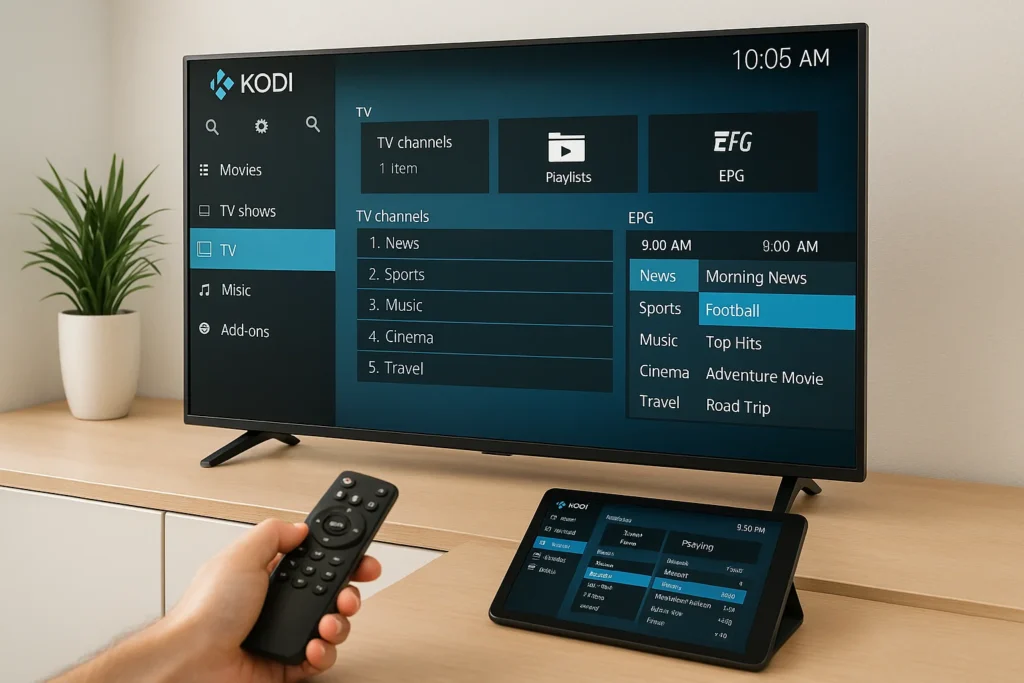
Enable the PVR client and navigate to the TV section to access your channels. Below, you’ll find five detailed steps covering installation, configuration, and optimization for seamless IPTV streaming on Kodi.
Download and Install Kodi on Your Device
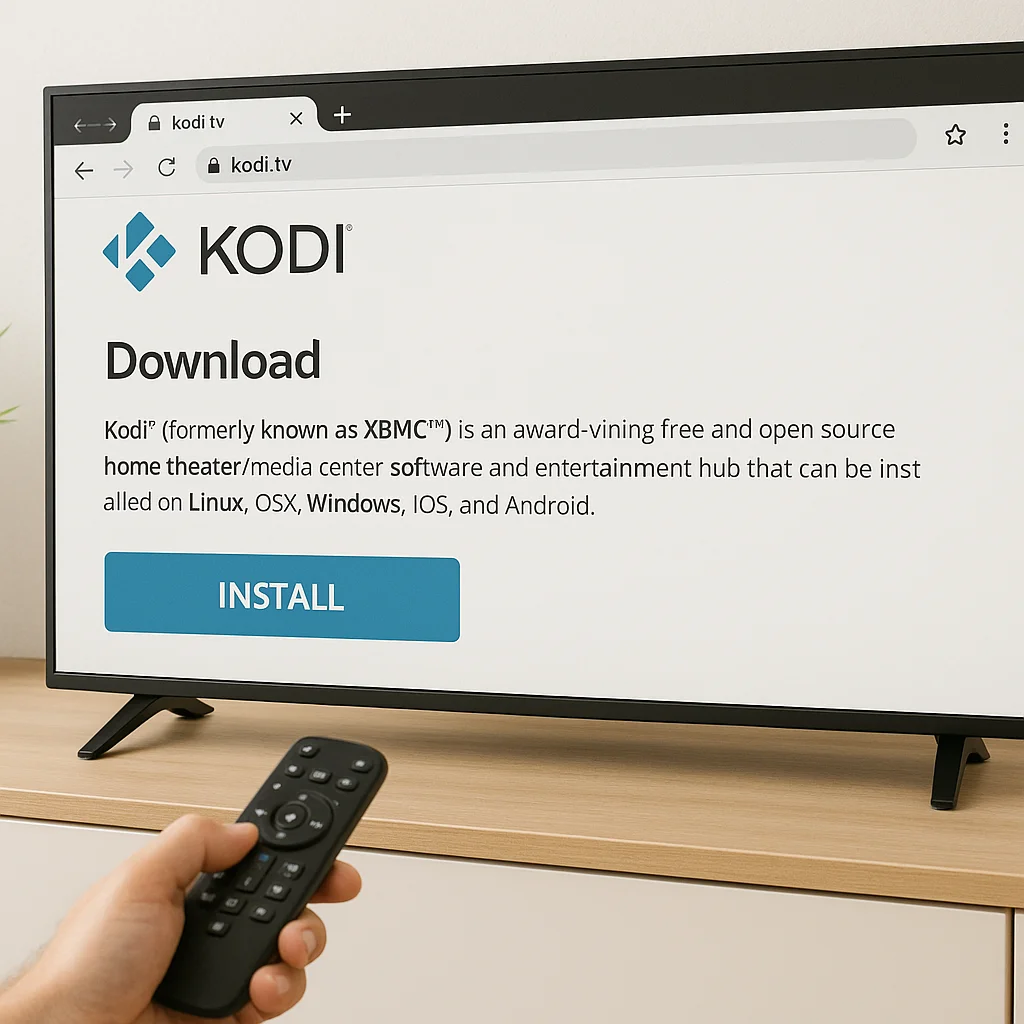
Begin by downloading Kodi from the official source for your specific device:
For Android: Download from Google Play Store or visit kodi.tv.
For Windows/Mac: Visit the official Kodi website (kodi.tv) and download the appropriate version.
For Fire TV Stick: Search “Kodi” in the Amazon Appstore.
For iOS: Download from the App Store (requires jailbreak for full functionality).
For Linux: Use your distribution’s package manager or download from kodi.tv
- Install the downloaded file by following on-screen instructions.
- Launch Kodi once installation completes.
- Familiarize yourself with the main Kodi interface.
Enable Unknown Sources in Kodi Settings
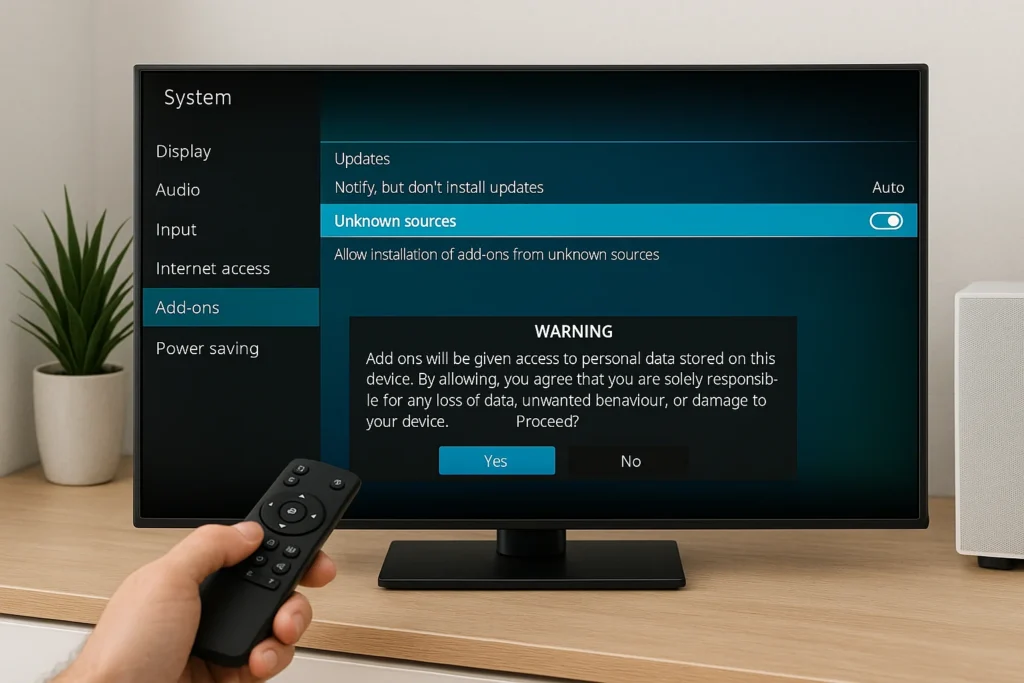
Configure Kodi to allow IPTV add-on installation:
- Open Kodi and click the gear icon to access Settings.
- Select “System” or “System Settings” depending on your Kodi version.
- Navigate to “Add-ons” in the left menu.
- Toggle “Unknown sources” to ON.
- Confirm the warning message by selecting “Yes“.
- This allows installation of third-party IPTV add-ons.
- Keep this setting enabled for add-on functionality.
- Return to the main Kodi home screen.
Install PVR IPTV Simple Client Add-on
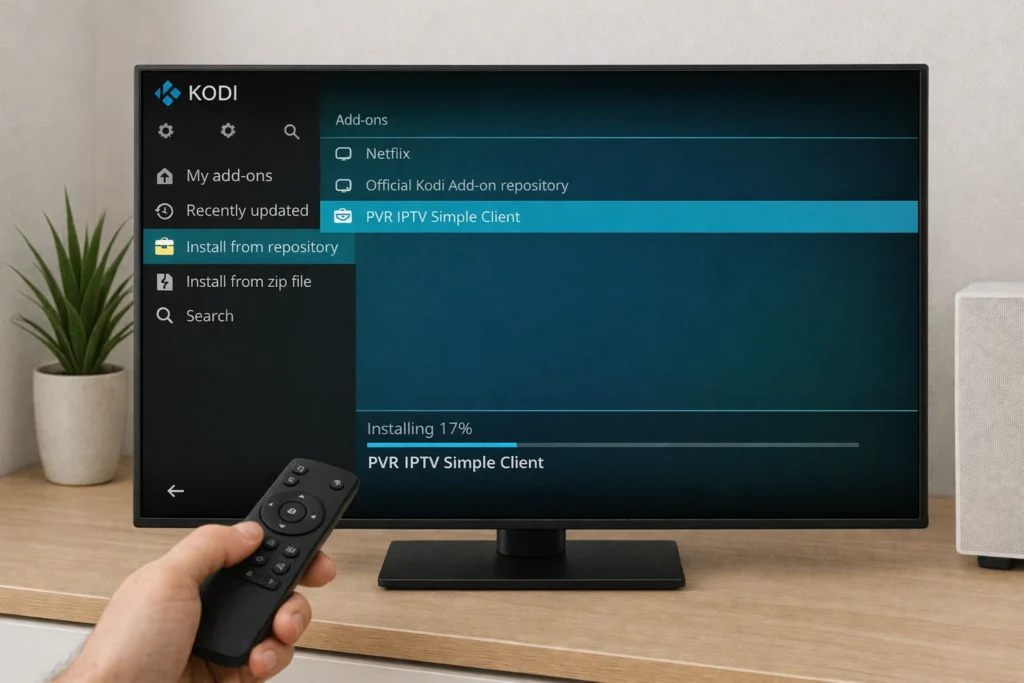
Add the necessary IPTV functionality to Kodi:
- From Kodi home screen, select “Add-ons” from the left menu.
- Click the open box icon at the top left.
- Select “Install from repository“.
- Navigate to “PVR clients“.
- Scroll down and select “PVR IPTV Simple Client“.
- Click “Install” and wait for installation confirmation.
- Alternatively, you can install other IPTV add-ons like “IPTV Merge” or third-party options.
- The add-on will appear in your installed add-ons list.
Configure PVR IPTV Simple Client with Your Playlist
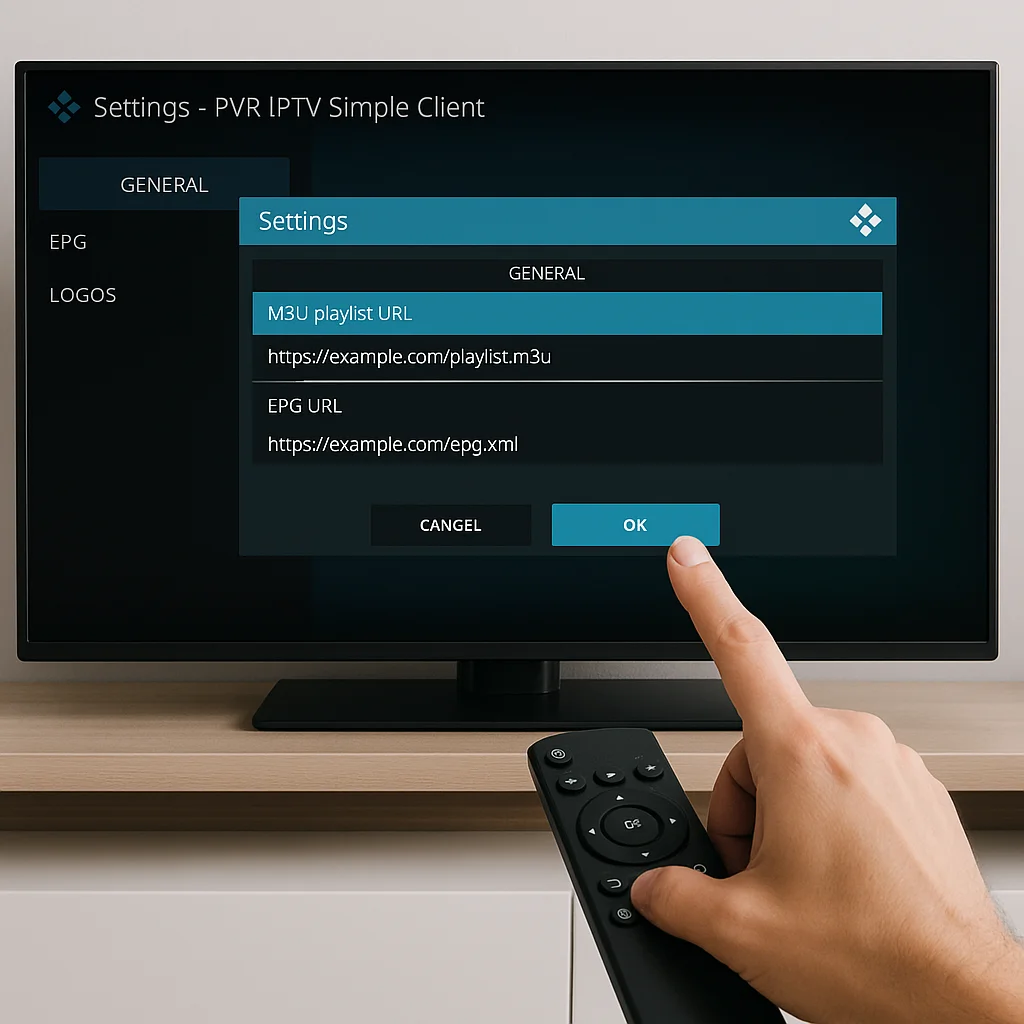
Enter your IPTV service credentials into the add-on:
- Navigate to Add-ons > My Add-ons > PVR clients.
- Select “PVR IPTV Simple Client“.
- Click “Configure” or “Settings“.
- Under “General” tab, set Location to “Remote Path (Internet address)“.
- Paste your M3U playlist URL in the “M3U Play List URL” field.
- If using EPG, enter your EPG URL in the designated field.
- Set refresh interval and other preferences.
- Click “OK” to save settings.
- Enable the PVR client if prompted.
Enable Live TV and Start Streaming
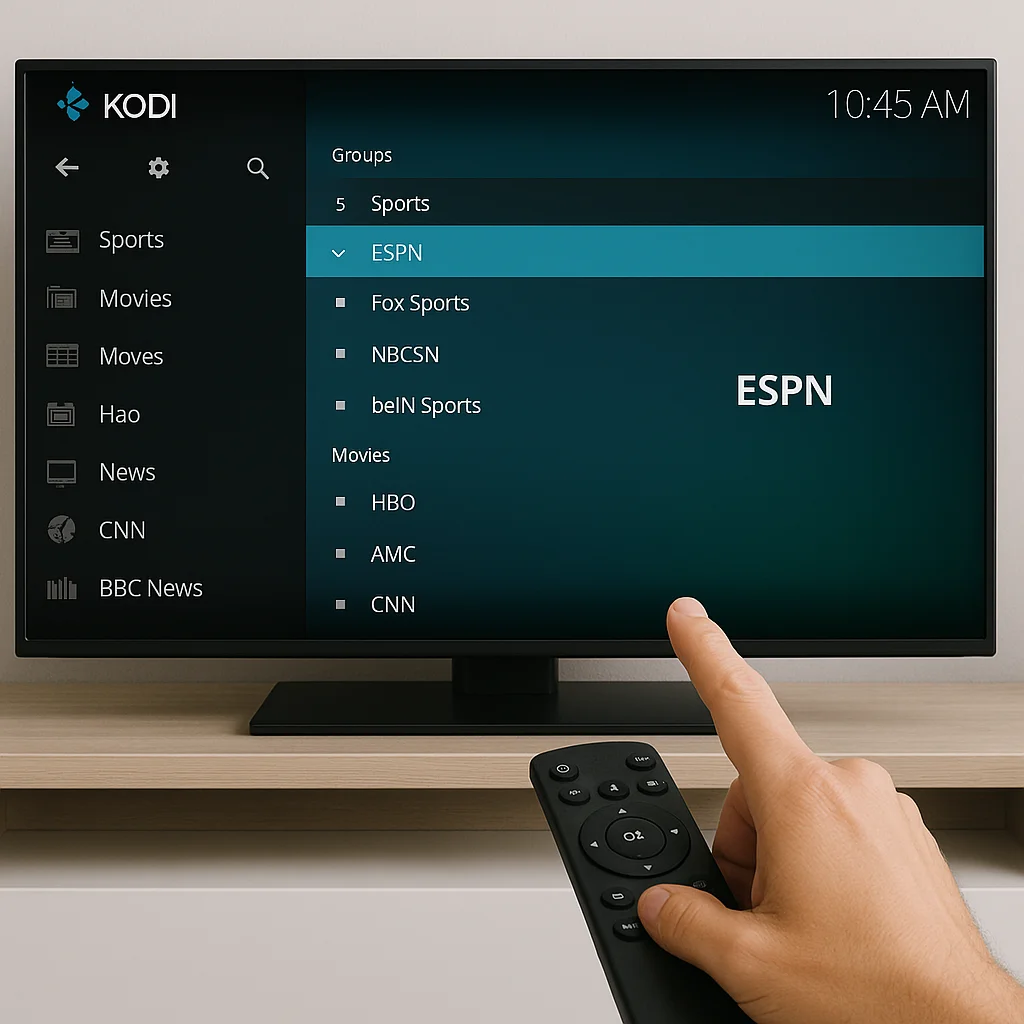
Activate the TV feature and begin watching channels:
- Return to Kodi home screen
- Select “TV” from the main menu (left sidebar)
- Click “Enter add-on browser” if channels don’t appear immediately
- Wait for channel list to populate (may take 1-2 minutes)
- Browse through available channels organized by groups
- Select any channel to start streaming
- Add favorite channels for quick access
Frequently Asked Questions
Is Using IPTV on Kodi Legal in My Country?
You’ll need to check your country’s specific IPTV regulations, as legal implications vary by location. Generally, you’re safe using IPTV with licensed, legitimate services. Research your local laws before streaming to avoid potential legal issues.
Can I Record IPTV Streams While Watching Them on Kodi?
Yes, you can record IPTV streams using Kodi’s PVR recording capabilities. You’ll need to enable the recording function in your IPTV client settings. Stream quality of recordings depends on your source’s original broadcast quality.
Which VPN Works Best for Streaming IPTV on Kodi?
For optimal VPN performance with IPTV on Kodi, you’ll want ExpressVPN, NordVPN, or Surfshark. They’re known for excellent streaming speed and reliability. Simply install your chosen VPN, connect to a server, then launch Kodi.
How Much Internet Bandwidth Does IPTV Streaming Require on Kodi?
For smooth IPTV streaming on Kodi, your bandwidth requirements depend on streaming quality. You’ll need approximately 3-5 Mbps for SD content, 5-10 Mbps for HD, and 25+ Mbps for 4K streaming to avoid buffering issues.
Can I Use IPTV on Kodi With Multiple Devices Simultaneously?
Yes, you can use IPTV on Kodi with multiple devices simultaneously. However, simultaneous streaming depends on your IPTV provider’s plan—some limit connections. You’ll need sufficient bandwidth and separate Kodi installations on each device.