How to Install and Set Up IPTV on Smart IPTV (SIPTV) ?
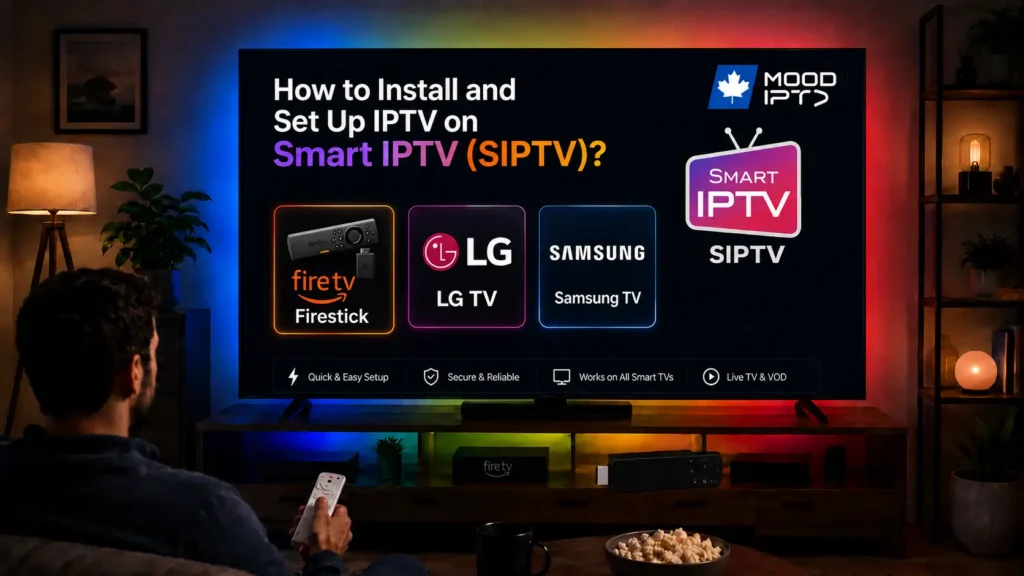
Getting IPTV running on Smart IPTV follows an unusual path: you install the app from your TV’s store (Samsung or LG), open it and jot down the MAC address it displays, then head to the official siptv.app site from a computer or phone, enter that MAC address, upload your M3U link (and your EPG guide), and finally restart the app on the TV. Your channels appear.
Smart IPTV, usually shortened to SIPTV, is one of the most widely used IPTV players that runs straight on Samsung and LG televisions. Its main draw is that it needs no extra hardware: no box, no streaming stick, because the app runs natively on the TV itself. The quirk is that you don’t configure it inside the app at all, but on a website, by pairing your TV’s MAC address with your playlist.
The app ships with zero channels of its own, it simply plays whatever source you feed it through an IPTV subscription. This guide walks through installation and activation step by step on both Samsung and LG, along with uploading your playlist, the settings worth knowing, and how to clear the usual snags.
What You Need Before You Begin
Gather these items first. On SIPTV, nearly every problem traces back to a mistyped MAC address or an invalid M3U link.
- A compatible Samsung (Tizen) or LG (webOS) television.
- Your complete M3U link, plus a separate EPG guide URL if your source provides one.
- A computer or phone to reach the official siptv.app site.
- A stable internet connection and a legitimate, authorized content source.
Step 1 — Install Smart IPTV on Your TV
The app is downloaded from your television’s built-in store, and the process is nearly identical on Samsung and LG.
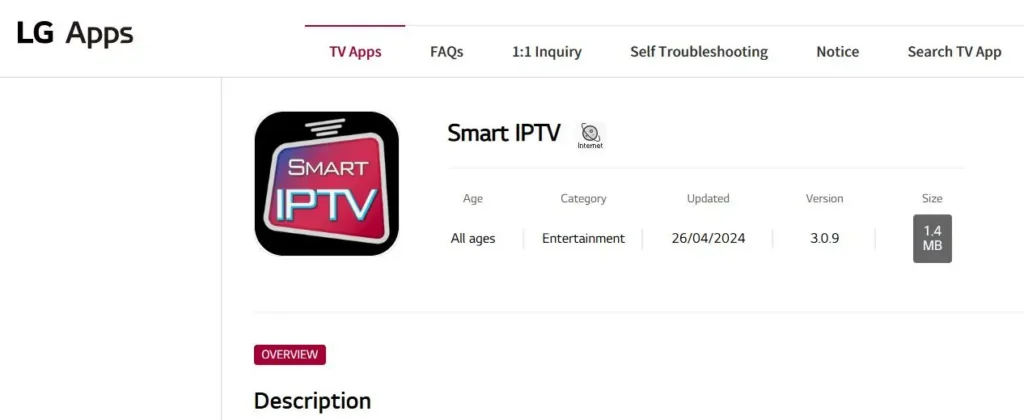
On LG (webOS). Press the Home button on your remote, open the LG Content Store, search for “Smart IPTV,” select the app, and press Install. Open it once installation finishes.
On a Fire TV Stick. Smart IPTV is designed for the smart-TV interface, and even its developer advises against the Firestick, where remote-based navigation is awkward. If you’re set on it, the route is sideloading through the Downloader tool.
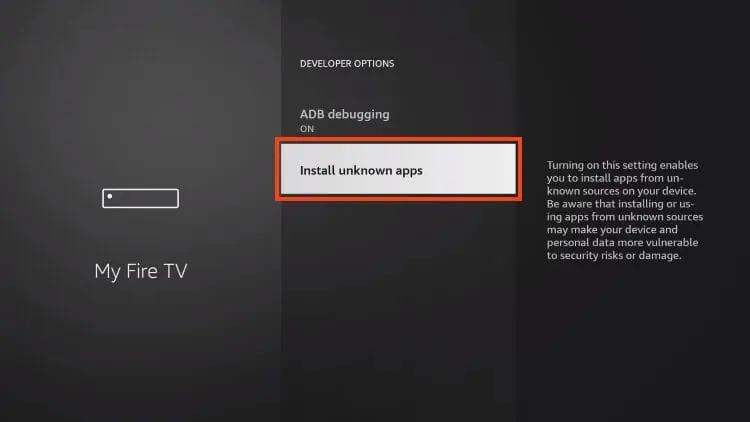
First allow third-party apps:
Settings → My Fire TV
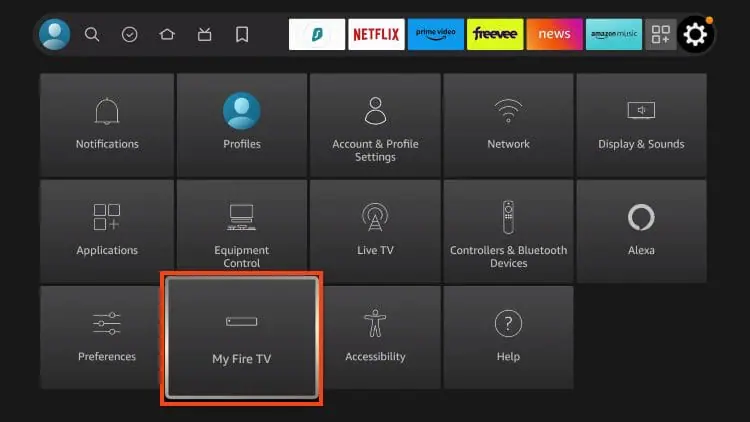
→ Developer Options
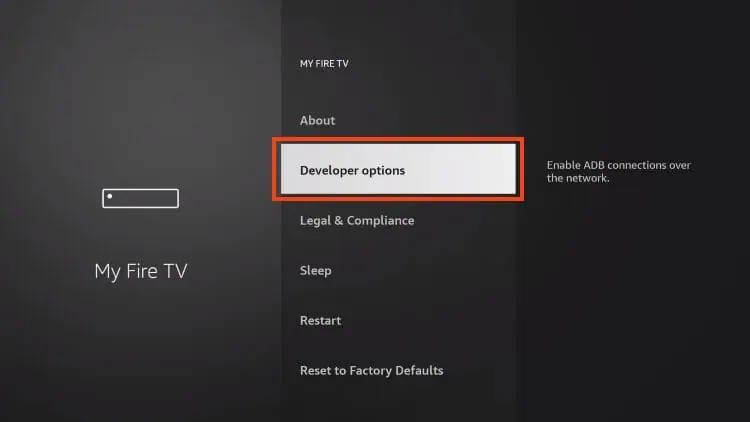
→ Install unknown apps.
Install the Downloader app from the Firestick search and enable it.
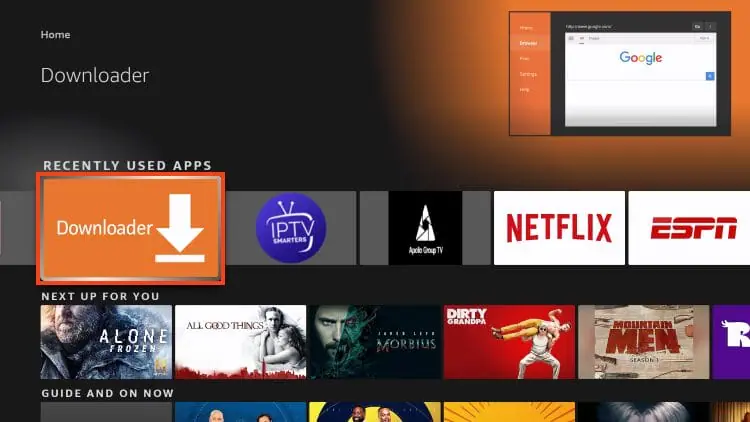
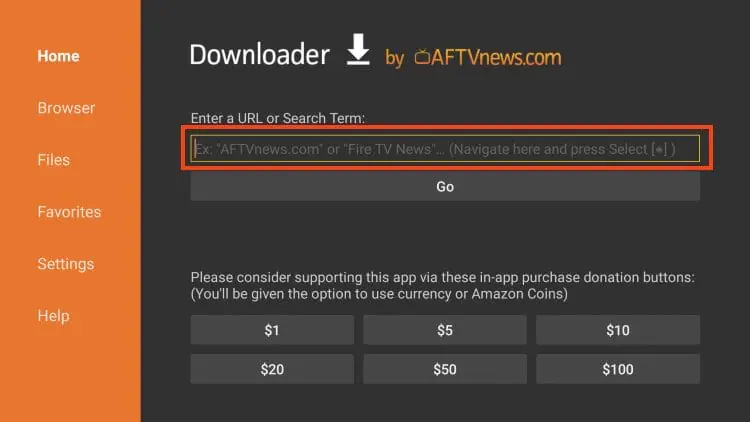
Open Downloader, select the address field, type apk.siptv.app, and press Go.
Once the download finishes,
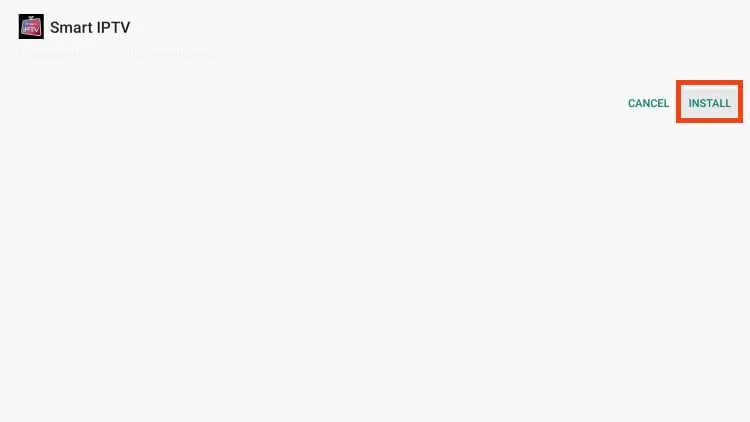
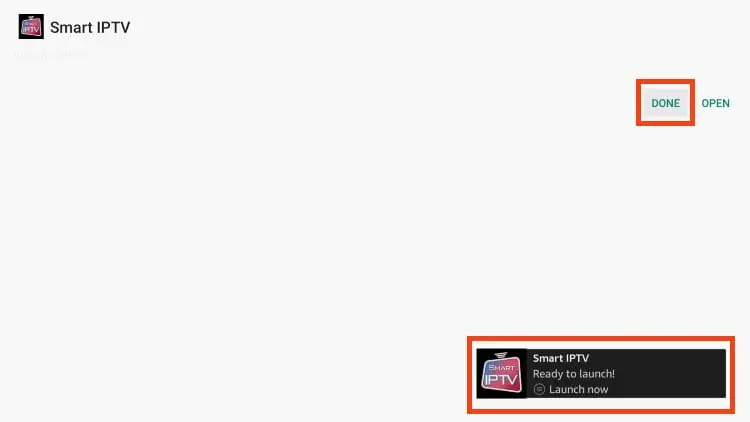
Press Install, then Open.
On Samsung (Tizen). Since the app is no longer listed in Samsung Apps, you install it through its official host using a USB stick. On a computer, open a browser and go to apk.siptv.app to download the app file. Copy that file onto a USB stick, plug the stick into the TV, then open the file from the stick to launch the installation. Once it’s installed, open the app.
Be aware that on Firestick and recent Android devices, the MAC address shown by the app can change on every reboot, forcing you to re-pair the playlist each time. For lasting use, a Samsung or LG smart TV — or an alternative such as TiviMate — stays far more comfortable.
Step 2 — Find Your MAC Address
When it launches, Smart IPTV displays your TV’s MAC address, the unique identifier that links your playlist to the device. This is the single most important piece of information in the whole process.
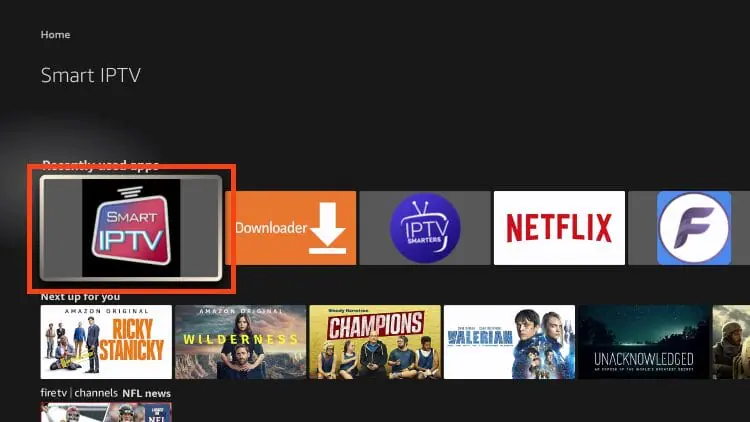
Open Smart IPTV on the television.
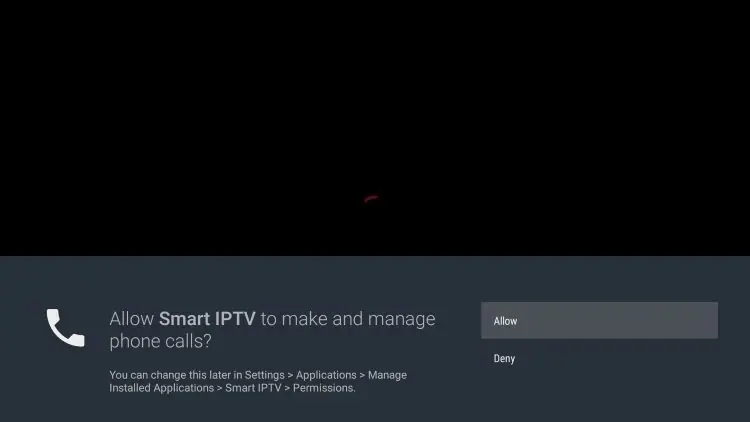
If a permission prompt appears, choose Allow.
On the startup screen, locate the MAC address (in the format XX:XX:XX:XX:XX:XX).
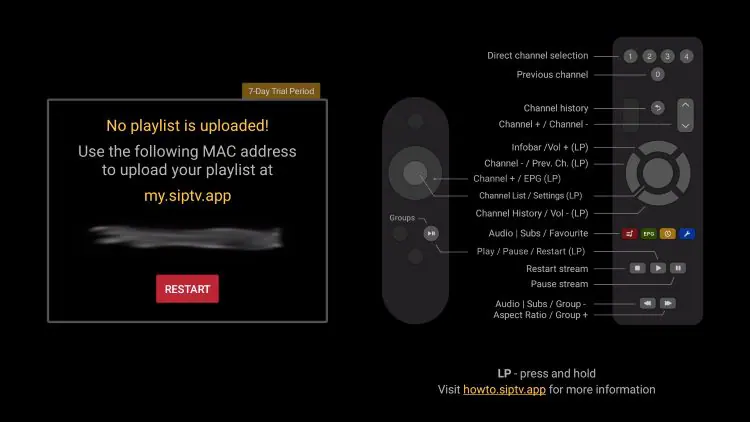
Write it down precisely, character by character.
From any browser, go to my.siptv.app, enter your M3U URL (or another playlist link) along with the MAC address shown on the TV.
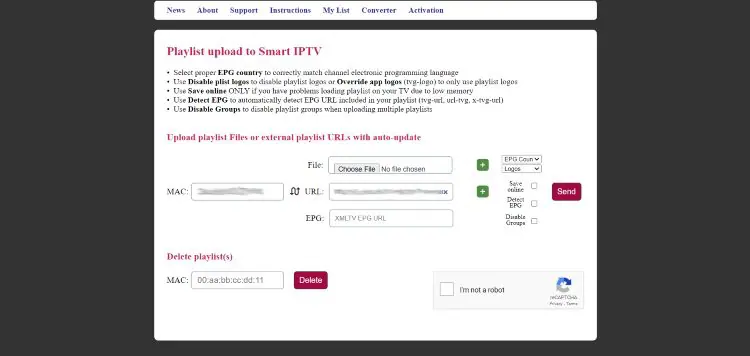
Add the EPG URL in the dedicated field if your source supplies a separate one.
Click Send.
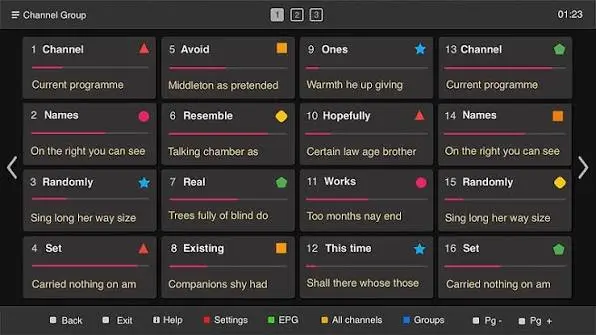
Return to the app and click Restart. Your playlist loads and becomes usable.
The number-one mistake is a MAC address that doesn’t match the app’s exactly. The number-two mistake is an invalid M3U link, to check it, open it in a browser, where it should return a list rather than an error.
Activation: Free Trial, Then a One-Time Fee
One detail to know before investing time: Smart IPTV includes a 7-day free trial from first install. After that, a one-time activation of roughly €5.49 per TV is required to keep using the app, with no recurring subscription afterward.
That activation is permanent for that specific television (it’s tied to its MAC address). It covers the app only — it grants you no channels, since you still need a legitimate content source of your own.
What Smart IPTV Is — and Who It’s For
Smart IPTV is a lightweight player built specifically for connected televisions. It does one thing, and does it well: play your M3U playlist on the TV, complete with groups, logos, and a program guide, with no additional hardware.
It targets the Samsung or LG owner who wants the simplest possible setup, driven straight from the remote. For an Android TV box or a Fire TV, more full-featured and often free players exist.
| App | Platforms | Model | How you add a source | Best for |
| Smart IPTV (SIPTV) | Samsung, LG | Trial, then ~€5.49 once | MAC address + siptv.app | Samsung/LG TVs with no box |
| SS IPTV | Samsung, LG | Free | Connection code | A free option on smart TVs |
| IBO Player | Samsung, LG, others | One-time fee | MAC address + website | Cross-platform alternative |
| IPTV Smarters Pro | Almost all | Free | Xtream / M3U in the app | Multi-device use |
Is It Safe, and Why Isn’t It in the Store?
The app is a legitimate player with no content of its own. Still, two points deserve a straight answer.
First, availability varies: Smart IPTV was pulled from the Samsung store in some regions, so certain users simply can’t find it when they search. If that’s your situation, direct smart-TV alternatives exist, SS IPTV, IBO Player, or Flix IPTV, with a similar or simpler learning curve. This removal from stores isn’t an isolated event; it fits into a broader crackdown on IPTV.
Faced with a surge of unauthorized services, TV makers, app stores, and sometimes internet providers are tightening their stance, going as far as removing apps or blocking certain domains, even when the app itself, like Smart IPTV, contains no content at all.
As a result, your IPTV service can sometimes stay blocked despite a correct install. In that case the problem rarely lies with the app and almost always with the source. On the security side, the one habit that matters is using the official siptv.app portal to upload your playlist, never a copycat site.
The legality, and the stability, of your usage depends above all on the source you connect: a legitimate, licensed source shields you from these blocks, unlike services that broadcast without authorization.
Settings Worth Knowing
A few tweaks head off the most common issues. On LG, if channels don’t play correctly, open the app’s settings and change the Stream Player Type to a value other than the default, a classic fix on webOS. On both Samsung and LG, if the guide is empty, confirm that your playlist includes the EPG, or add the EPG URL in the dedicated field on the siptv.app portal. And after every playlist change, a restart of the app is required for the changes to take effect.
Common Problems and Quick Fixes
- Channels don’t appear: the MAC address entered on siptv.app doesn’t match the app’s exactly, or the M3U link is invalid. Double-check both.
- The M3U link doesn’t work: open it in a browser; if it returns an error, the problem is with the source, not the app.
- The guide is empty: add the EPG URL on the portal, or verify that the playlist includes it.
- Choppy or frozen playback on LG: change the Stream Player Type in the settings.
- The app is missing from the store: it was removed in some regions; use a smart-TV alternative such as SS IPTV or IBO Player.
Frequently Asked Questions
Is Smart IPTV free?
It offers a 7-day free trial, then asks for a one-time activation of about €5.49 per TV, with no recurring fees. You also need a separate content source.
Which TVs does it work on?
Mainly Samsung (Tizen) and LG (webOS) smart TVs. The app provides no channels; it plays your M3U playlist.
Why do I have to go through a website?
Because Smart IPTV works by MAC address: you link the TV to the playlist on siptv.app rather than entering the source in the app itself.
Can I use Xtream Codes credentials?
Smart IPTV is configured with an M3U link. If you have an Xtream account, use its matching M3U URL (the get.php link) as the playlist to upload.
What if I can’t find the app in my TV’s store?
It was removed from the Samsung store in some regions. Use a smart-TV alternative such as SS IPTV, IBO Player, or Flix IPTV.
Do I have to activate again if I change my playlist?
No. Activation is tied to the TV’s MAC address and stays permanent; you can update your playlist on siptv.app without paying again.
Conclusion
Smart IPTV remains one of the simplest ways to watch IPTV straight on a Samsung or LG television, with no box at all: install the app, note the MAC address, upload your playlist on siptv.app, and restart. Two things are worth keeping in mind before choosing it: the app asks for a small one-time activation after the 7-day trial, and it has vanished from the store in some regions, where alternatives step in.
If your TV is a Samsung or an LG and you want a native, long-lasting solution, it does the job very well. As always, the app is only a tool — the quality and legitimacy of your viewing come down to the source you connect to it and the stability of your connection.