How to Download IPTV on PS5 ?
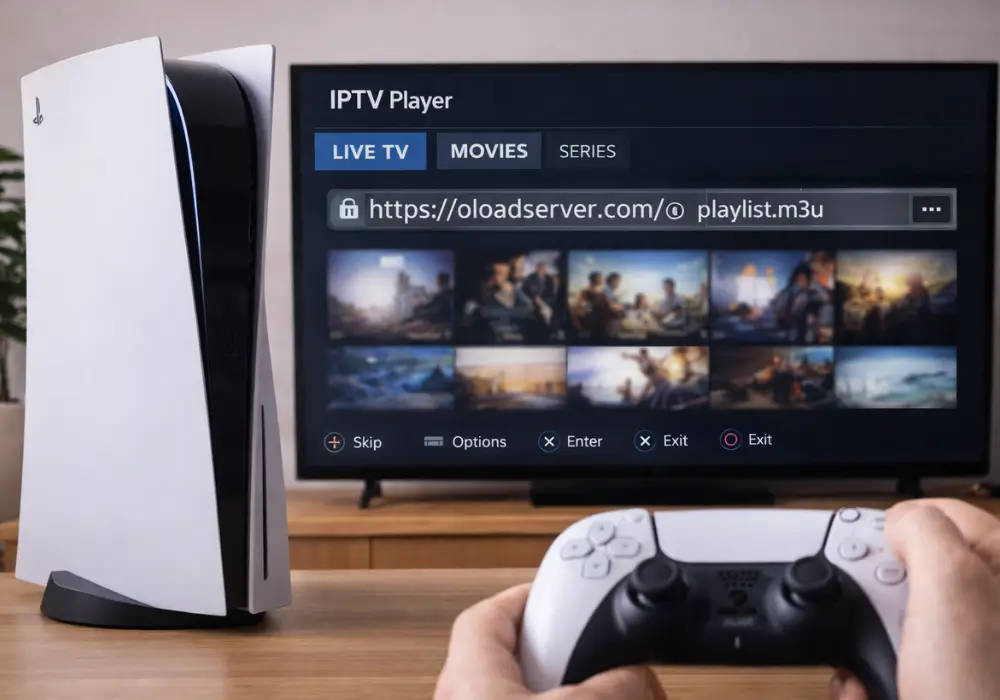
You can’t download a dedicated IPTV app directly on PS5, but you’ve got two solid workarounds.
First, install the Plex app from the PlayStation Store, then set up Plex Media Server on your computer with the IPTV.bundle plugin and your M3U playlist. Alternatively, use the PS5’s built-in web browser to access HLS/M3U web players and enter your stream URL directly. Below, you’ll find detailed steps for each method.
To use either method effectively, you will need an active IPTV subscription that provides you with a valid M3U playlist or Xtream Codes credentials. These methods allow you to stream live TV channels, movies, and on-demand content without modifying your console or installing unofficial software.
1. Check the PS5 Internet Connection
- Open Settings on the PS5.
- Go to Network > Settings > Set Up Internet Connection.
- Choose Wi-Fi or LAN (Ethernet cable).
- Run Test Internet Connection.
- Make sure you have at least 20–30 Mbps for smooth streaming.
2. Access the Hidden Web Browser
- Open Settings > Users and Accounts.
- Go to Linked Services.
- Select Twitter / X (or another service with an external link).
- Click an external link to open the browser.
- Once opened, you can type an IPTV URL.
3. Use an Online IPTV Player
- In the PS5 browser, search for a web IPTV player.
- Open a reliable online M3U player website.
- Enter your M3U URL or Xtream Codes credentials.
- Confirm and wait for channels to load.
- Bookmark the site for quicker access next time.
4. Alternative: Screen Mirroring from Smartphone or PC
- Install an IPTV app on your smartphone or computer.
- Connect both the PS5 and the device to the same Wi-Fi network.
- Enable Screen Mirroring / Cast on the phone or PC.
- Select the PS5 as the display target.
- Start IPTV on the phone and the image will appear on the TV through the PS5.
5. Optimize the Streaming Experience
- Use an Ethernet cable instead of Wi-Fi if possible.
- Close games and background applications.
- Choose 1080p resolution if the connection is average.
- Keep the PS5 system updated regularly.
- Test different web IPTV players to find the smoothest one.
Frequently Asked Questions
Can I Download IPTV on My Playstation?
Yes, you can! Open the PlayStation Store, search for IPTV apps like Plex, and download. You’ll need stable network requirements, valid subscription options, and should verify IPTV legality in your region before streaming.
How to Download TV Apps on PS5?
Open the PlayStation Store, search for your desired TV app, and select Download. You’ll find subscription management in-app settings, adjust parental controls through PS5 settings, and optimize stream quality via your network connection.
Can You Watch Live TV on PS5?
Yes, you can watch live TV on PS5 using IPTV apps like Plex. You’ll get channel guides for navigation, parental controls for restrictions, and minimal streaming latency with a stable wired connection.
What Devices Can I Watch IPTV On?
You can watch IPTV on smart TVs, mobile devices like phones and tablets, streaming sticks such as Fire TV and Roku, gaming consoles, and computers. Simply download a compatible IPTV app on your preferred device.