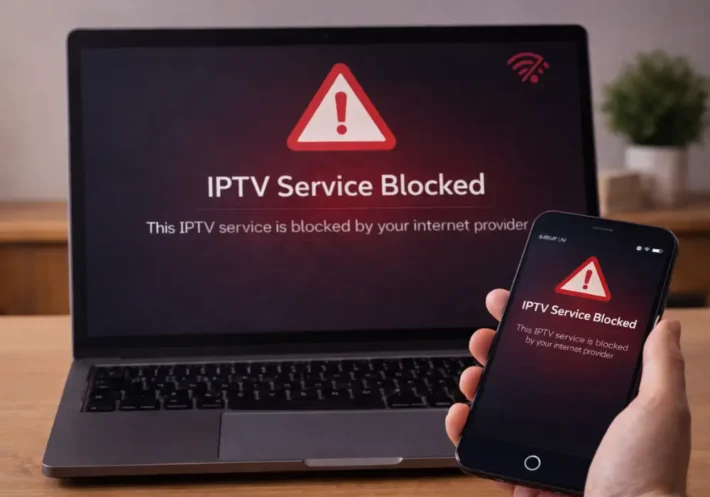
How to clear IPTV cache ?

Clearing your IPTV cache is a simple and effective way to fix common problems like buffering, freezing, or channels that take too long to open. The cache is made of temporary files that help the app load faster, but over time these files can become too many or get damaged. When that happens, the app may start to slow down or act strangely.
By clearing the cache, you remove only these temporary files, not your account or settings. This gives your IPTV app a clean start and often makes it run smoother. In the next steps, you’ll learn how to clear the cache, restart your app, and check if your streaming experience improves.
1 – Open Your IPTV App Settings
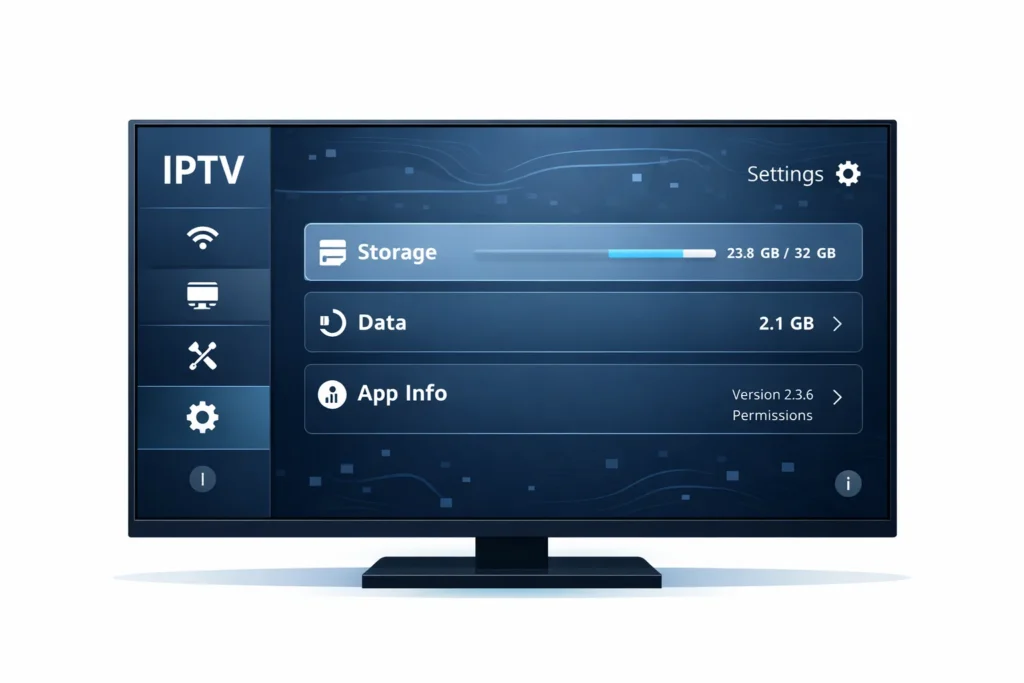
- Open your IPTV app on your TV, box, phone, or tablet.
- Go to Settings or App Settings.
- Look for Storage, Data, or Application Info.
- This is where cache options are usually found.
2 – Find the Cache Option
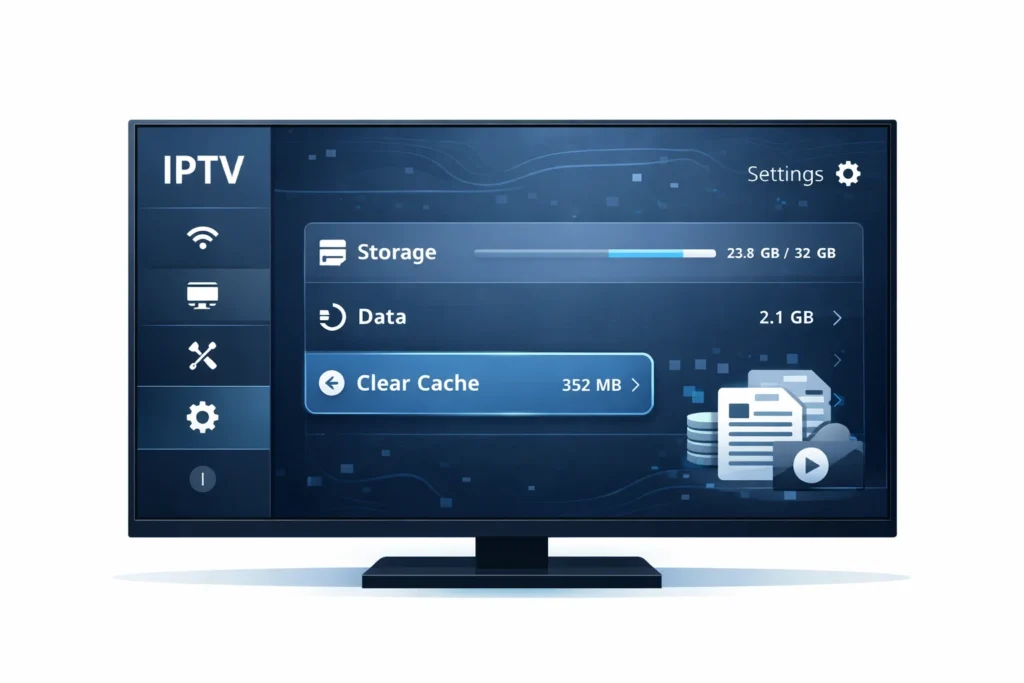
- Inside storage or app info, look for Clear Cache.
- Do not choose Clear Data unless you want to reset the app.
- Cache only removes temporary files, not your login or settings.
3 – Clear the Cache
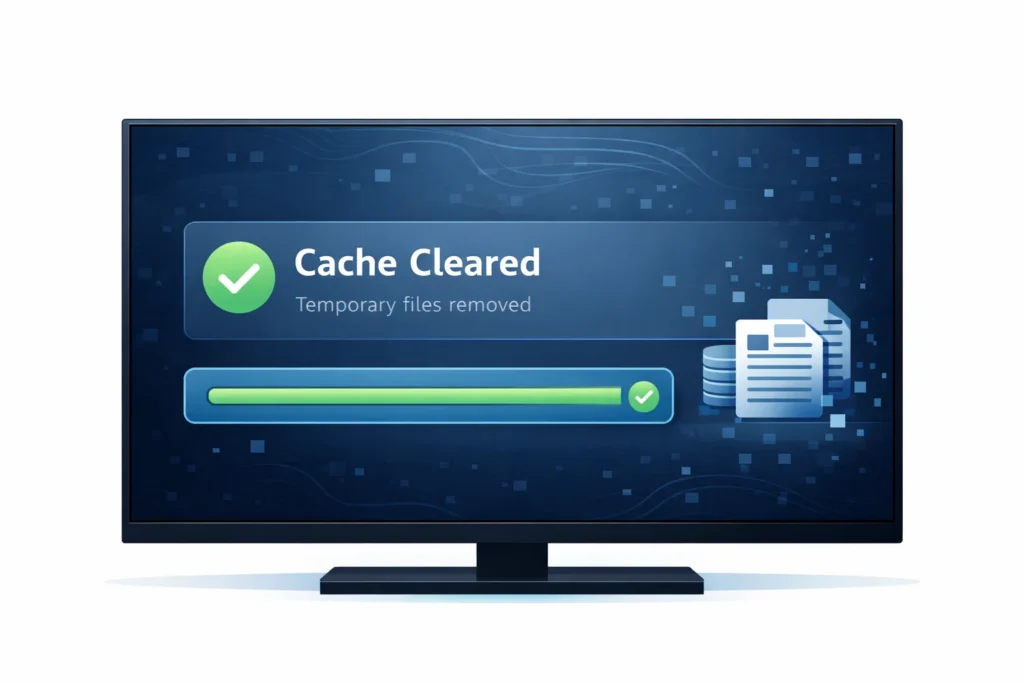
- Click or tap Clear Cache.
- Wait a few seconds for the process to finish.
- You should see the cache size drop to zero.
4 – Restart the App or Device

- Close the IPTV app completely.
- Reopen it and test a few channels.
- If needed, restart your TV, box, or phone for better results.
5 – Check if Problems Are Fixed

- Test channels that were buffering or freezing.
- Check loading speed and picture quality.
- If issues continue, restart your router or try another stream option.
Frequently Asked Questions
What Causes IPTV Apps to Build Cache so Quickly?
You’re seeing rapid cache growth due to app behavior: buffering frequent segments and storing stream metadata. Check bitrate, playlist size, EPG sync frequency, thumbnail previews, and ad overlays; then reduce prefetch, disable thumbnails, and limit EPG.
Will Clearing Cache Delete My Favorites, Playlists, or EPG Settings?
Usually no, clearing cache won’t delete favorites, playlists, or EPG settings. Step 1: Clear cache only. Step 2: Avoid “clear data.” Step 3: Export playlists (data export). Step 4: Recheck account safety.
How Often Should I Clear IPTV Cache for Best Performance?
For best performance, you should clear IPTV cache monthly, then adjust: 1) Do daily maintenance by restarting the app/device. 2) Run weekly checks for buffering. 3) If issues persist, clear cache; repeat after updates or crashes.
Can a VPN or DNS Change Reduce IPTV Buffering Instead of Clearing Cache?
Yes, you can reduce buffering with VPN benefits or DNS switching. First, test baseline speed/ping. Next, try a nearby VPN server. Then switch to 1.1.1.1/8.8.8.8. Finally, compare latency, packet loss, and stream stability.
What Should I Do if Clearing Cache Doesn’T Fix Playback Issues?
If cache clearing doesn’t help, you’ll restart device, test your network speed, and power-cycle router. Then you’ll switch stream to a lower bitrate, update the app, re-login, and check provider status or logs.