How to Record Live TV With IPTV ?

To record live TV with IPTV, you need an IPTV app that supports recording, enough storage space on your device, and an active subscription, then simply press the record button while watching a live channel or schedule a recording in advance through the Electronic Program Guide (EPG).
Unlike traditional cable where you need to rent an expensive PVR box from your provider, IPTV lets you record directly on your streaming device, external USB drive, or even to the cloud, depending on the app you use.
With an IPTV subscription that includes EPG and catch-up features across 15,000+ channels, you will never miss your favourite show, sports event, or movie again. Follow these five steps to start recording live TV on any device.
1 — Choose an IPTV App That Supports Recording
Not every IPTV app includes a recording feature, so the first step is to make sure you are using an app that allows you to capture live TV directly. Here is what to look for:
- TiviMate : The best option for recording on Android TV and Fire Stick, with built-in scheduled recording, series recording, and manual start/stop controls.
- GSE Smart IPTV : Supports recording on both Android and iOS devices, saves files locally and allows you to choose the storage location.
- IPTV Smarters Pro : Offers a basic recording function on some devices, though the feature may be limited depending on the version and platform.
- Kodi with PVR add-on : Turns your device into a full DVR system with scheduled recordings, timer management, and local file storage.
- OTT Navigator : Supports recording with customizable file formats and quality settings, ideal for Android boxes and Fire Stick.
- Avoid apps without recording : Some lightweight IPTV players do not include any recording capability, so confirm this feature exists before committing to an app.
2 — Prepare Your Storage for Recordings
Recorded IPTV files can be large, so you need to make sure your device has enough space to save everything without running out of storage mid-recording. Here is how to prepare:
Check your available storage : Go to Settings > Storage on your device to see how much free space you have before you start recording anything.
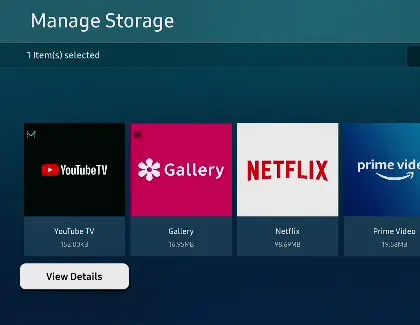
Use an external USB drive : Plug a USB flash drive or external hard drive into your Fire Stick (via OTG adapter), Android Box, or Smart TV for dedicated recording storage.
Estimate file sizes : A one-hour recording in SD takes roughly 1 to 2 GB, HD requires 3 to 5 GB, and 4K can use 10 to 15 GB per hour.
Set a default recording path : In your IPTV app settings, specify where recordings should be saved — internal storage, USB drive, or SD card.
3 — Record a Live Channel Manually
The simplest way to record is to start a manual recording while you are already watching a live channel. Here is how to do it in most IPTV apps:
1- Tune into the channel you want to record : Navigate to the live channel and make sure it is playing without any buffering or freezing issues.
2- Press the record button : Look for a red circle icon or a “REC” button in the player controls, usually accessible by pressing OK or tapping the screen during playback.
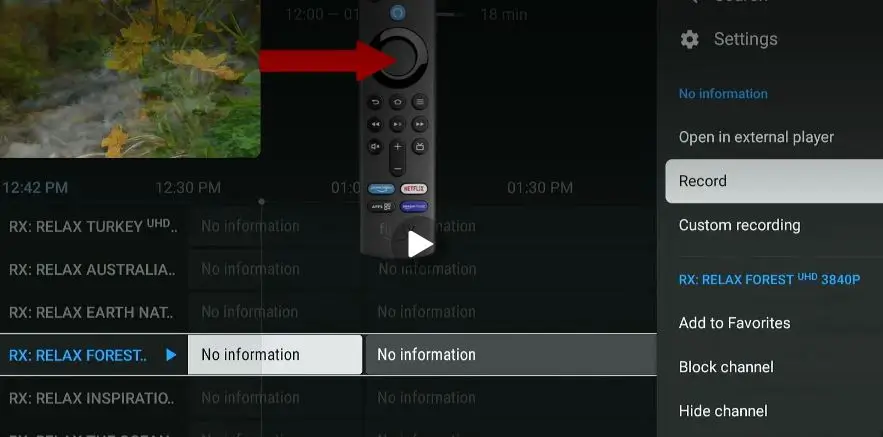
3- Confirm the recording has started : A red dot or “Recording” indicator should appear on your screen, confirming that the stream is being captured and saved.
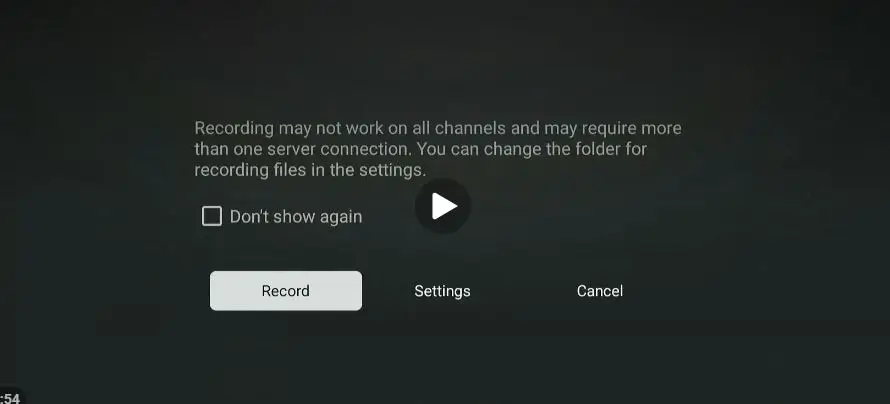
4- Keep the app open during recording : On most apps, switching to a different channel or closing the app will stop the recording, so leave it running.
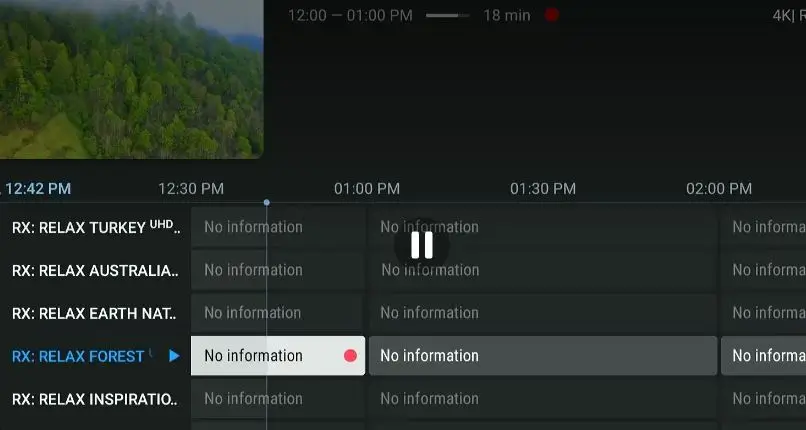
5- Stop the recording manually : When the program is over, press the record button again or select “Stop Recording” from the player menu.
6- Check the saved file : Navigate to your app’s recording folder or your external drive to confirm the file was saved correctly and plays back without issues.
4 — Find and Play Back Your Recorded Content
Once your recordings are saved, you need to know where to find them and how to play them back on any device. Here is how to access your recorded content:
- Open the recordings section in your IPTV app : Most apps have a dedicated “Recordings” or “DVR” tab in the main menu where all captured files are listed.
- Sort by date or channel : Use the built-in filters to find specific recordings quickly, especially if you have saved many programs over time.
- Play back directly in the app : Tap or select any recording to start playback with full controls including pause, rewind, fast forward, and skip.
- Transfer files to another device : If your recordings are saved on a USB drive, you can unplug it and play the files on a computer, laptop, or another streaming device.
- Use a media player for unsupported formats : If your IPTV app cannot play back a recording, open the file with VLC or MX Player, which support virtually all video formats.
- Back up important recordings : Copy your most valuable recordings to a computer or cloud storage so you do not lose them if your device storage gets wiped or fails.
Frequently Asked Questions
Can all IPTV apps record live TV?
No. Only certain apps like TiviMate, GSE Smart IPTV, Kodi with PVR, and OTT Navigator support recording. Check that your app has this feature before relying on it.
Do I need extra equipment to record IPTV?
Not necessarily. You can record directly to your device’s internal storage. However, an external USB drive is strongly recommended for longer recordings and to avoid filling up your device.
Can I record one channel while watching another?
It depends on your app and your subscription plan. Some apps like TiviMate allow background recording on one channel while you watch a different one, but this requires enough bandwidth for both streams.
How much storage do I need for IPTV recordings?
Plan for approximately 3 to 5 GB per hour of HD content and 10 to 15 GB per hour for 4K. A 64 GB USB drive can hold roughly 12 to 20 hours of HD recordings.
Can I schedule a recording and turn off my TV?
You can turn off your TV screen, but the streaming device itself must stay powered on and connected to the internet for the scheduled recording to work.
Is there a cloud recording option with IPTV?
Some providers offer catch-up TV, which lets you replay programs from the last few days without recording. True cloud DVR is less common but available with certain premium providers.
Will recording affect my IPTV streaming quality?
No. The recording captures the stream as it plays, so it does not use extra bandwidth or reduce picture quality. Your stream and your recording will be identical in quality.