How to Use IPTV on Multiple Devices ?
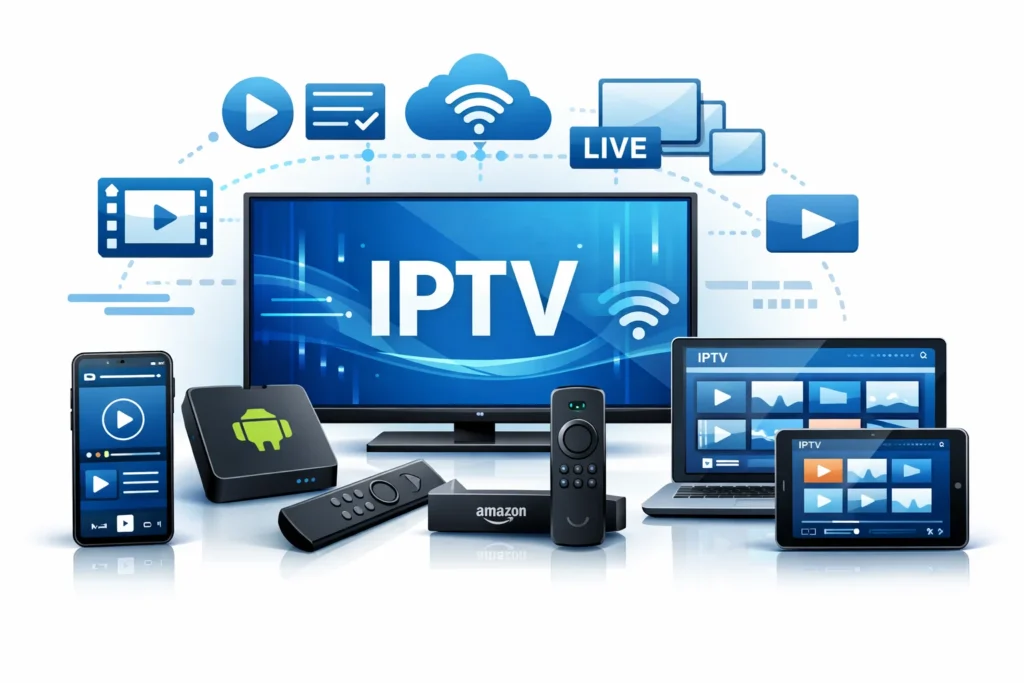
To use an IPTV subscription on multiple devices, you must first check how many screens your plan allows at the same time, then install the app on each device and use the same login or playlist on all of them. Using an IPTV subscription on multiple devices lets you watch on your TV, phone, tablet, or computer without being stuck to one screen.
This is great for families or for switching rooms easily. But to make it work smoothly, you need the right subscription plan, proper setup on each device, and simple habits to avoid getting disconnected. In this guide, you’ll learn how to set up your IPTV subscription on several devices, manage screen limits, and fix common issues so your streaming stays stable everywhere.
1 – How to Use IPTV on Smart TV (Samsung, LG, Android TV)
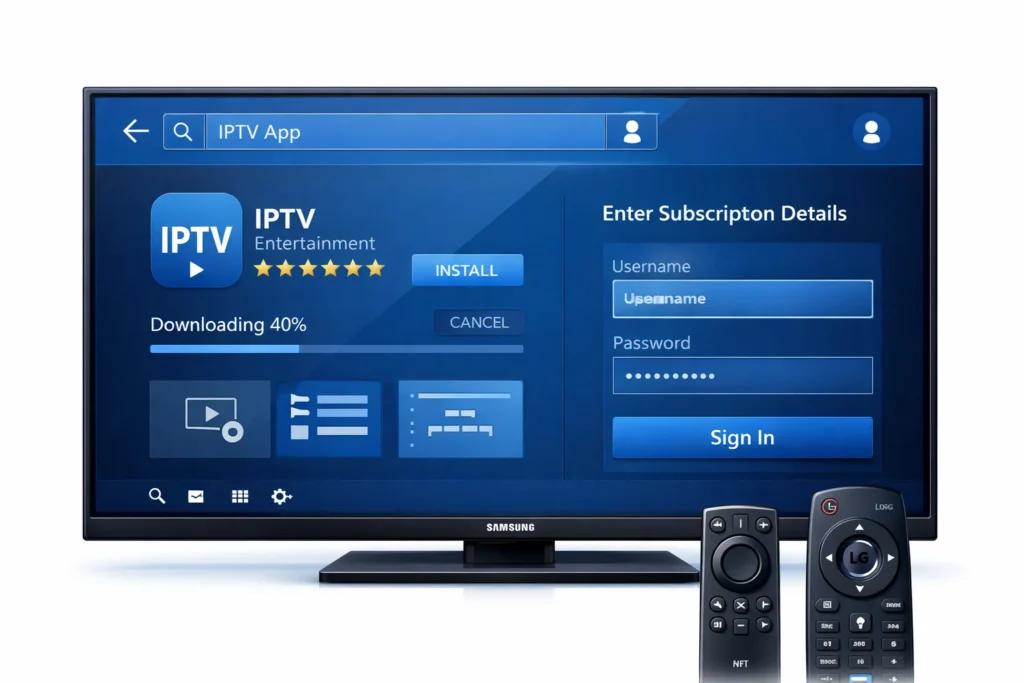
- Turn on your TV and make sure it is connected to the internet (Wi-Fi or cable).
- Open your TV’s app store (Samsung Store, LG Content Store, or Google Play on Android TV).
- Use the search bar and type the name of the app you want to use like (IPTV Smarters Pro..).
- Select the app and press Install, then wait for it to finish downloading.
- Open the app from your home screen or apps menu.
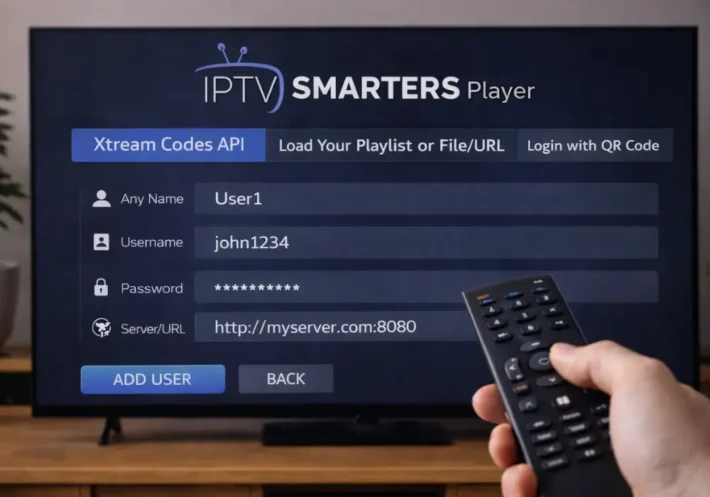
- When the app opens for the first time, it will ask for your IPTV Subscription details.
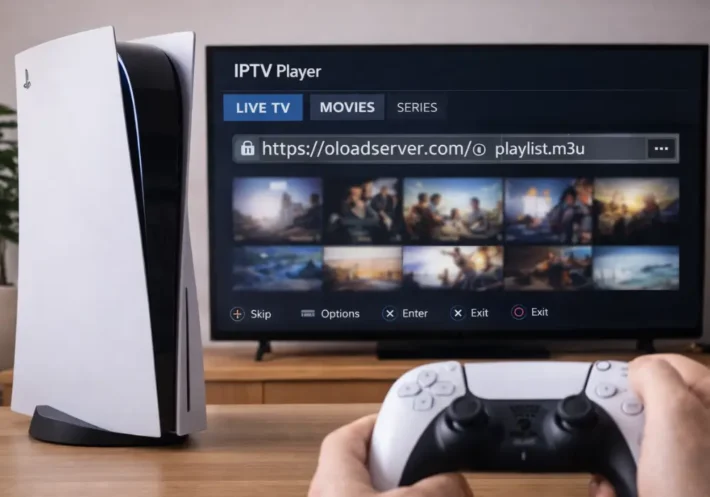
- This can be a playlist link (URL), a code, or a username and password.
- Carefully enter the information given by your IPTV provider.
- Confirm and wait while the app loads your channels and categories.
- This may take a few seconds or minutes depending on your internet speed.
- Once loading is finished, choose a channel, press play, and start watching.
2 – How to Use IPTV on Android TV Box
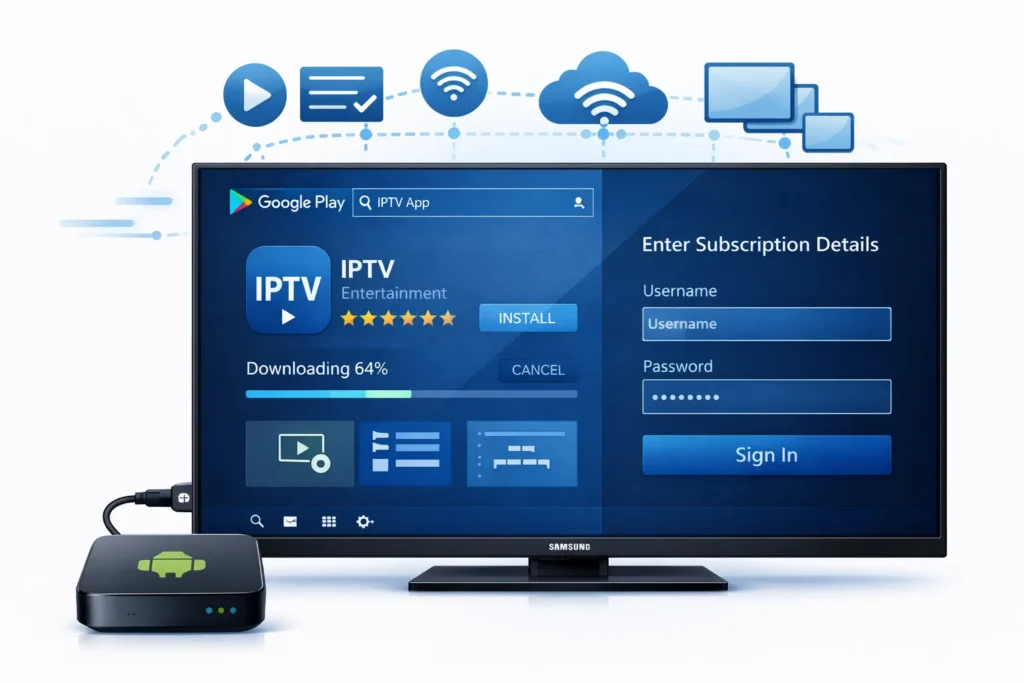
- Connect your Android TV box to your TV using an HDMI cable.
- Turn on the box, and connect it to the internet using Wi-Fi or an Ethernet cable.
- When the home screen appears, open the Google Play Store.
- In the search bar, type the name of the IPTV app you want to use.
- Choose the app and tap Install.
- Wait until the app finishes downloading and installing.
- Open the app from your apps list.
- The app will ask for your IPTV details.
- This can be a playlist link (URL), a code, or a username and password.
- Enter the information exactly as your provider gave it to you.
- Confirm and wait while the channels load.
- This may take a short time depending on your connection speed.
- When loading is done, pick a channel and start watching.
3 – How to use IPTV on Amazon Firestick
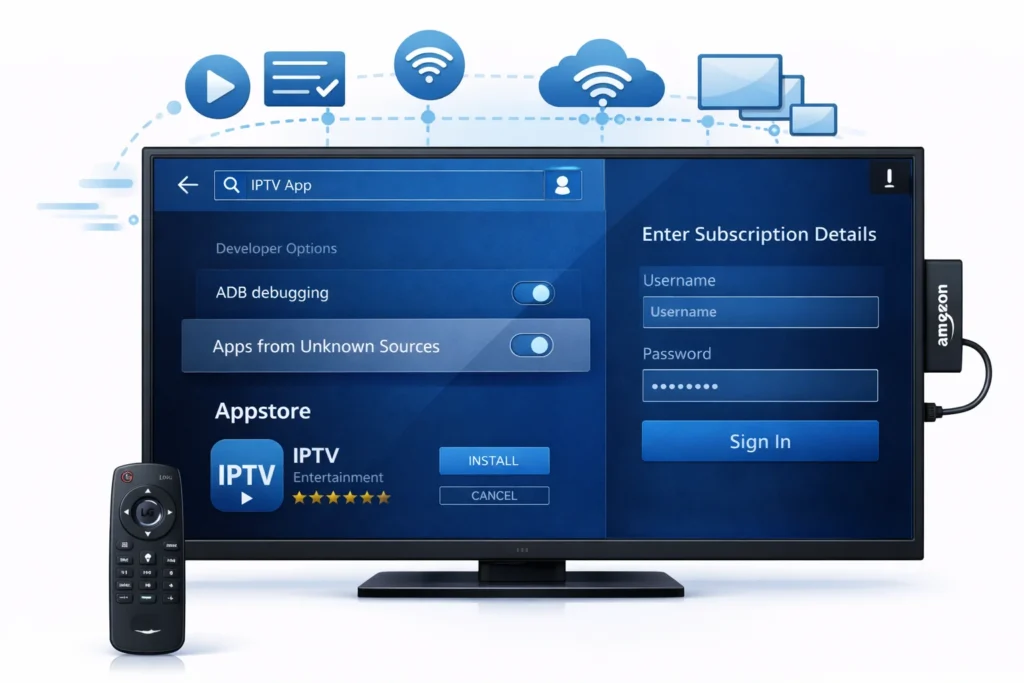
- Plug the Firestick into your TV’s HDMI port and connect power.
- Turn on your TV and connect the Firestick to Wi-Fi.
- Go to Settings > My Fire TV (or Device & Software).
- Open About and click on the Firestick name 7 times to enable Developer Options.
- Go back to My Fire TV > Developer Options.
- Turn on ADB Debugging and Apps from Unknown Sources.
- Go to the home screen and open the App Store.
- Search for an IPTV app and install it.
- Open the app from your apps list.
- Enter your IPTV details (playlist link, code, or login).
- Wait for channels to load and start watching.
4 – How to use IPTV on Smartphone or Tablet (Android / iPhone)
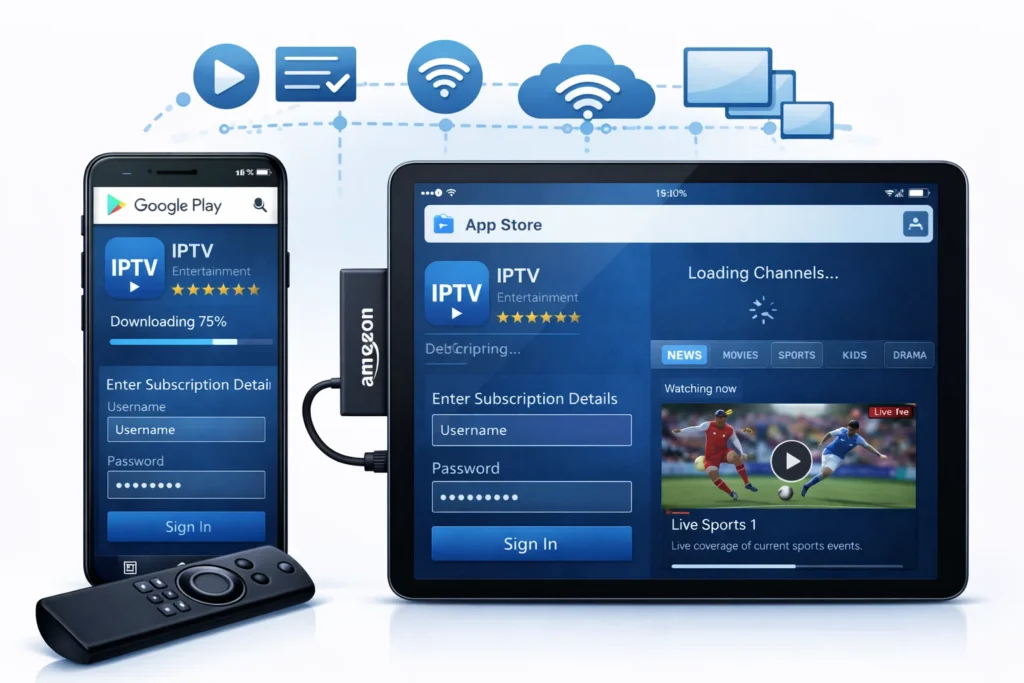
- Connect your phone or tablet to the internet.
- Open the Play Store (Android) or App Store (iPhone).
- Search for an IPTV app and install it.
- Open the app after installation.
- Enter your IPTV details (playlist link, code, or login).
- Wait for channels to load.
- Choose a channel and start watching.
5 – How to use IPTV Computer (Windows / Mac)
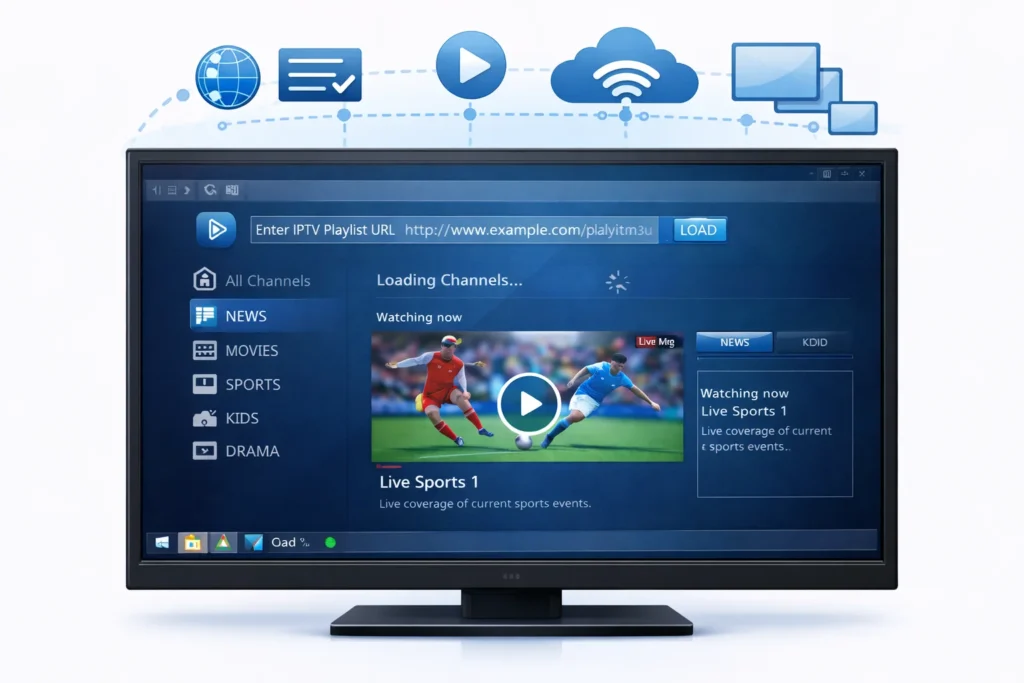
1 – Make sure your computer is connected to the internet, preferably with a stable Wi-Fi or cable connection.
2 – You can watch IPTV in two main ways: through a special IPTV player or directly in a web browser.
If you use a player (VLC Media Player, Kodi…) :
- Download and install an IPTV player on your computer.
- Open the player after installation.
- Go to settings or playlist section.
- Add your IPTV details (playlist link, file, or login).
If you use a browser :
- Open your browser.
- Go to the web player link given by your IPTV provider.
- Log in or enter your playlist link.
3 – Wait for the channels to load.
4 – Choose a channel and press play.
Frequently Asked Questions
Can I Share My IPTV Subscription With Family Members in Different Households?
You can’t always share it across households; check your provider’s household limits. First, review terms for account sharing. Then, confirm allowed simultaneous streams. Finally, if blocked, ask support for multi-home add-ons or extra connections.
Are There Legal Risks to Using IPTV Across Multiple Devices?
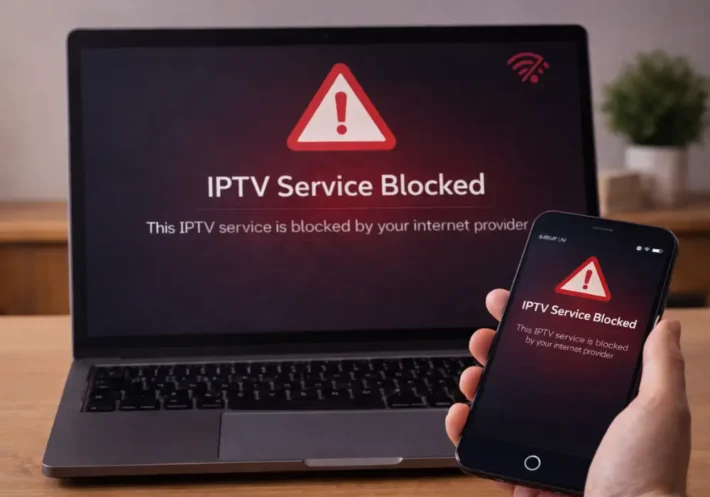
Yes, you can face legal risks if streams aren’t licensed, raising copyright concerns. Check your provider’s terms and your region’s laws. If you hit geo blocking, stop using VPN workarounds and seek legitimate access options.
Does Multi-Device Streaming Reduce Video Quality on Each Device?
Yes, it can if your connection’s limited. Step 1: check bandwidth allocation per stream. Step 2: test speeds. Step 3: verify codec compatibility. Step 4: lower resolution/bitrate. Step 5: pause other traffic, retry.
Can I Record IPTV Streams Simultaneously on Multiple Devices?
Yes, you can, if your provider supports simultaneous archiving and your bandwidth’s sufficient. Check DVR limits, enable device synchronization, test one channel first, then add devices. If recordings fail, reduce streams, update apps, reboot.
Which Payment Plans Support Adding Extra Devices to My IPTV Account?
You’ll need tiered plans that include multi-device slots or offer device add ons. Step 1: open Billing/Plans. Step 2: check “Connections.” Step 3: upgrade or add devices. Step 4: confirm activation.