Does Making Buffer Limit Lower Do Anything IPTV Smarters Pro ?
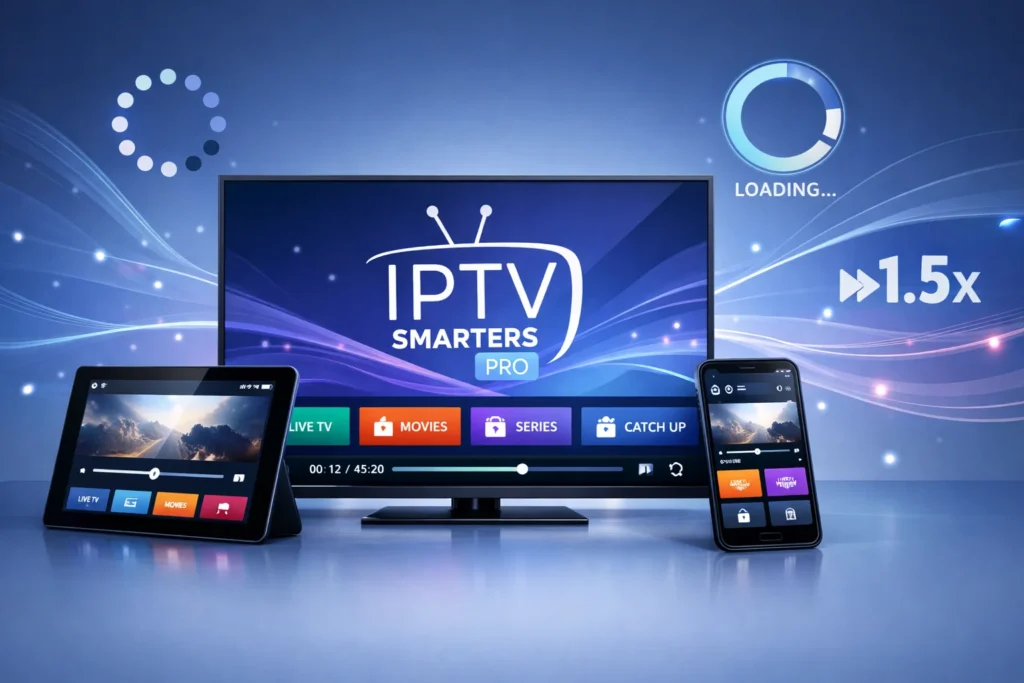
Lowering the buffer limit in IPTV Smarters Pro means the app stores less video before it starts playing. This can make channels start faster, especially on older devices or weak TV boxes, and may reduce lag on low-power hardware.
But don’t change this first. Always check your internet and your IPTV provider, because many buffering problems come from them, not the app. If you do test it, try around 10–20 seconds on Android TV sticks or old devices, and 5–10 seconds on mobile data.
If the video starts cutting, freezing, or losing sound, raise the buffer again and test. In the next steps, you can use safer methods to fix IPTV problems without creating new ones.
Is It Worth Lowering the Buffer Limit in IPTV Smarters Pro?
Lowering the buffer limit might make IPTV Smarters Pro start playing a little faster, but it only works in certain cases.
It’s most useful when channels take a long time to open, your internet is stable, and you already know the problem is not coming from your IPTV provider or your network.
Reduce the buffer little by little and test after each change. If the channel starts faster and stays smooth, you can keep the new setting. But if the video begins to freeze, reload, or lose sound, raise the buffer again because it is now too low.
On weak or older devices, use simple video settings and avoid options that push the device too hard. For live sports, don’t use a very low buffer or the motion will look jumpy. Always change only one setting at a time and test on the same channel so you know what really made the difference.
How the Buffer Limit Works in IPTV Smarters Pro
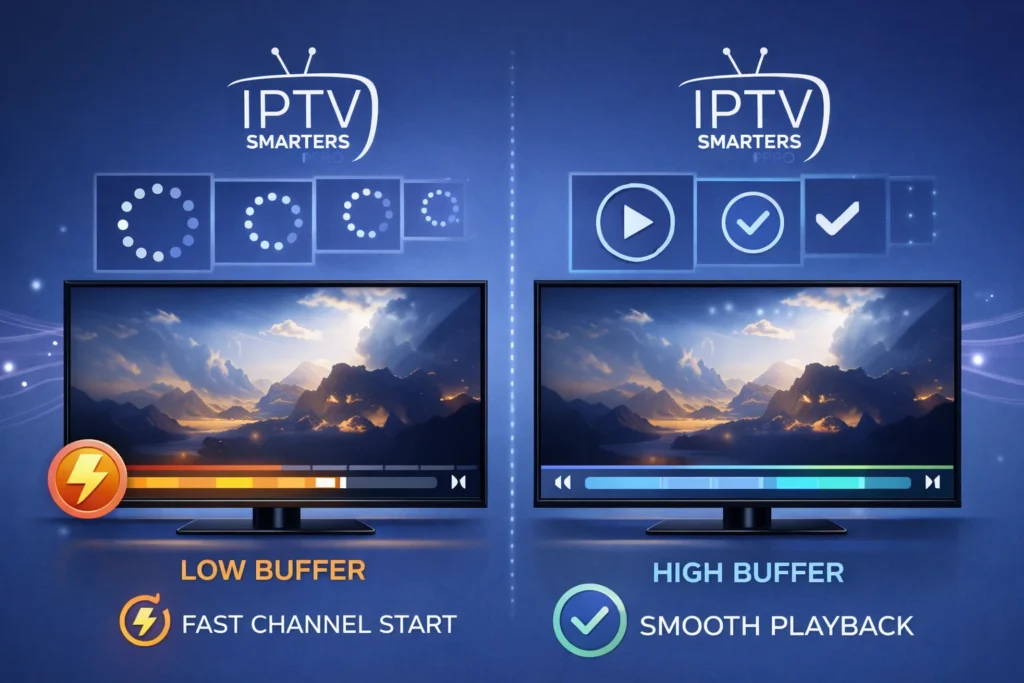
The buffer limit decides how much video the app loads before and while it is playing. This setting changes two main things: how fast a channel starts and how smooth it stays during playback. A smaller buffer makes channels open faster, while a bigger buffer helps protect you from pauses if your internet slows down for a moment.
Here’s how it works in simple terms:
- Lower buffer means faster start and less device memory use, but a higher chance of pauses.
- Higher buffer means slower start but smoother and more stable playback.
- If it’s too low, you may see freezing, sound cuts, or reloading.
- If it’s too high, weak devices can feel slow and take longer to open channels.
The goal is to find a balance so channels start quickly but still play smoothly without stopping.
When to Lower the Buffer Limit and What Settings to Try
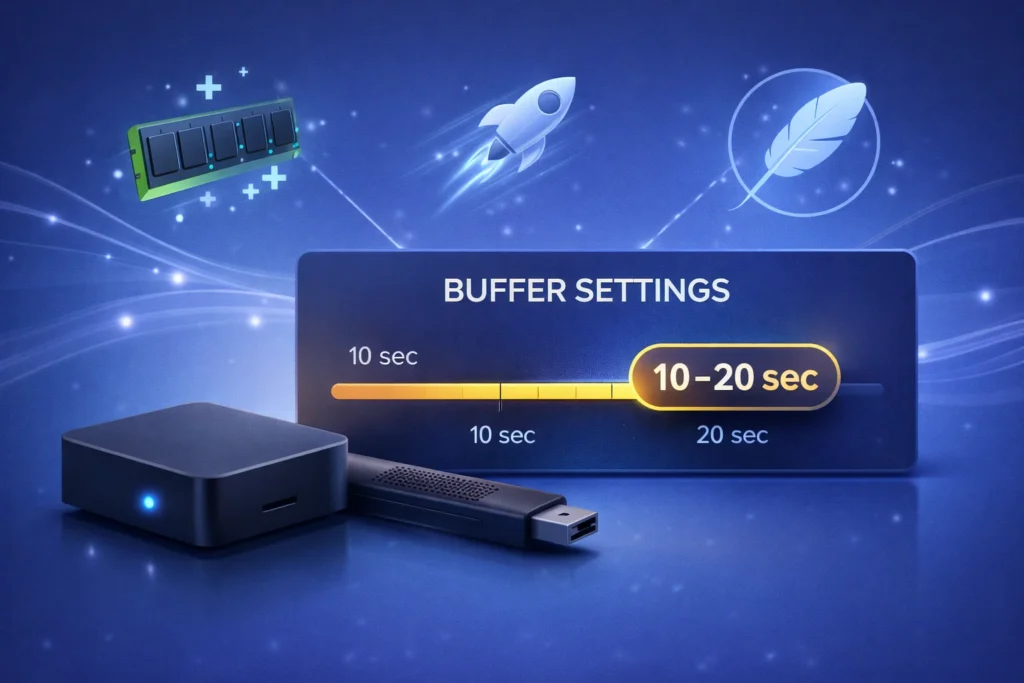
Lowering the buffer limit can be useful when your device is slow, heats up, or takes too long to open channels. Since the app loads less video in advance, it uses less memory and runs lighter, which is helpful on older TV boxes, streaming sticks, or budget phones.
A good place to start is 10–20 seconds on Android TV sticks, older devices, or basic IPTV boxes. If you are using mobile data, try 5–10 seconds so the stream can adjust faster when your signal changes.
After you change the buffer, test it properly. Open a channel from the beginning, switch to another channel, and skip forward or backward once or twice. If everything feels faster and smoother, you can keep the new setting.
Better Fixes for IPTV Smarters Pro Buffering Problems
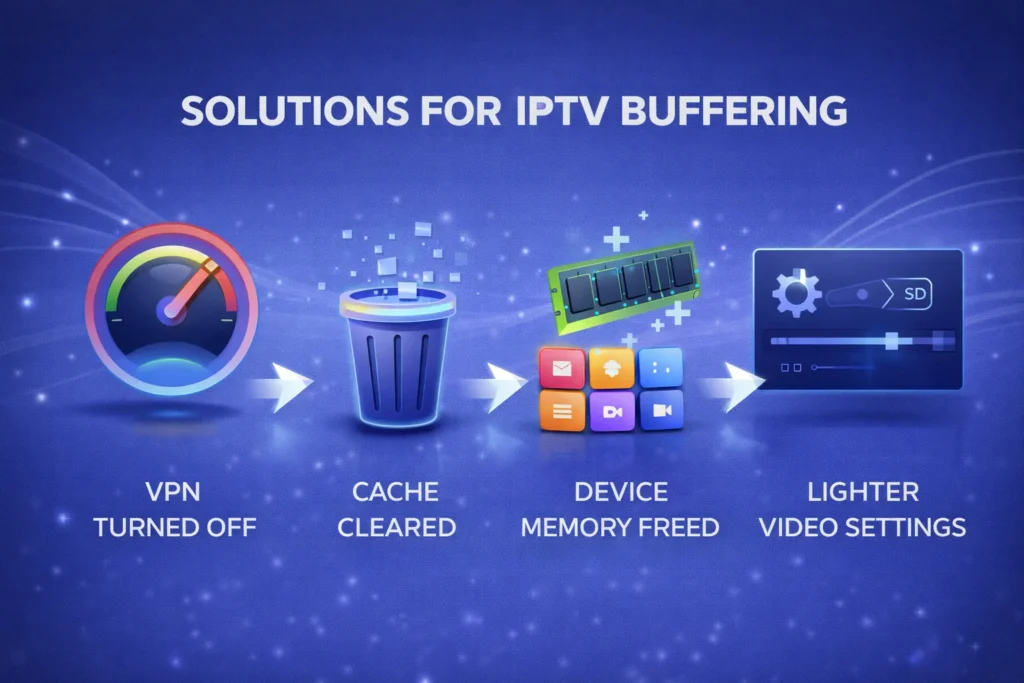
- Turn off VPNs when streams are slow : VPNs often reduce speed and add delay. Disable them and test your IPTV again to see if playback improves.
- Check if the problem is the provider : try the same channel on another app or device. If it buffers everywhere, the issue is with the IPTV service, not your setup.
- Clean the app’s temporary files : clearing the cache removes old files that can cause bugs, freezing, or slow loading.
- Free up your device’s memory : close other apps running in the background so your device can focus on streaming.
- Use lighter video settings : on weak devices, pick basic video options instead of heavy formats that need more processing power.
When Lowering the Buffer Makes Things Worse

Lowering the buffer too much can create more problems instead of solving them. When the app does not keep enough video ready in advance, even small drops in your internet speed can empty the buffer faster than it can refill. This causes the stream to stop often, reload, and break your viewing experience.
You may start to see clear warning signs, such as constant buffering, short freezes every few seconds, sound cutting in and out, or a video that never feels smooth. If these problems appear right after you change the buffer in setting IPTV, it means the value you chose is too low for your internet connection or for the channel you are watching.
In this case, go back to the buffer option and raise it little by little. After each change, test the same channel again. When the video starts playing smoothly without stopping, you have found a better balance for your setup.
Frequently Asked Questions
Does Buffer Limit Affect Data Usage or Bandwidth Consumption?
Buffer limit doesn’t change total data usage much; it mainly shifts network traffic timing. You’ll still download the same bitrate stream, but with less prefetch. It’s bandwidth management, affecting burstiness, not average consumption overall.
Can Changing Buffer Limit Improve EPG Loading or Channel Switching Speed?
Changing buffer limit won’t significantly improve EPG responsiveness; EPG loading is HTTP/XML retrieval, not playback buffering. It may slightly affect channel switching by reducing Channel buffering, but increases stall risk. Test empirically with identical network conditions.
Is Buffer Limit Behavior Different on Android TV, Firestick, and iOS?
Yes, buffer limit behavior can differ across platforms: Android behavior varies by decoder and network stack; Firestick’s constrained RAM affects caching; iOS quirks include stricter backgrounding and HLS buffering rules, impacting latency.
Does Buffer Limit Impact Live TV Latency Compared to Real-Time Broadcasts?
Yes, it can: you’ll reduce end-to-end latency by buffering fewer segments, but you’ll increase stalls under network jitter and packet loss. You can’t beat broadcast real-time; ABR/HLS/DASH adds unavoidable encoding, CDN, player delays.
Will Lowering Buffer Limit Reduce Device Overheating or Battery Drain?
Lowering buffer limit usually won’t meaningfully reduce overheating or battery drain; you’re still decoding continuously. Any gains depend on CPU throttling and thermal management. Use power profiling to verify, and check background processes impacting load.