How to Watch IPTV on iPhone ?
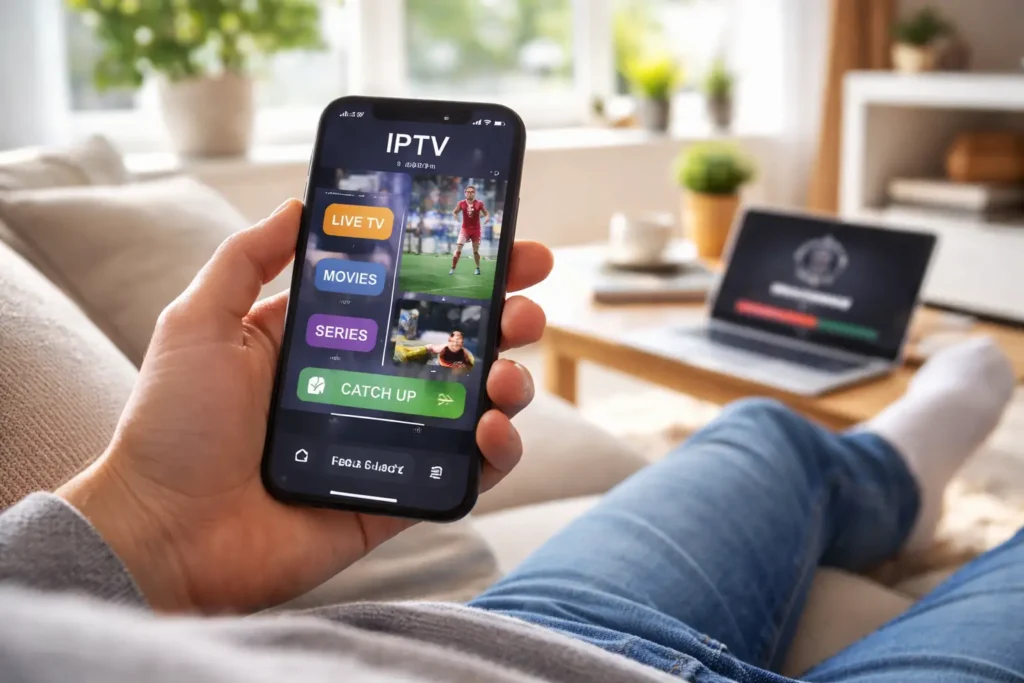
To watch IPTV on your iPhone begins with downloading a free player app from the App Store, entering your IPTV login details, and hitting play, your phone turns into a portable TV with access to live channels, sports, movies, and series anywhere you have an internet connection.
The entire setup takes about three minutes, and once configured, your channels are available every time you open the app with no extra steps. When you use a dependable provider like IPTV Canada, you get instant activation, full iOS compatibility, and a channel list that loads perfectly on any iPhone model running iOS 14 or later. Here is exactly how to do it from start to finish.
Step 1 — Pick the Best IPTV App for Your iPhone
1. Go to the App Store and search for IPTV players, the top-rated options right now are IPTV Smarters Pro, GSE Smart IPTV, IPTVX, and 247 IPTV Player.
2. Choose an app that supports both M3U playlist URLs and Xtream Codes API so you have flexibility with any provider.
3. Read the most recent reviews to make sure the app is still actively updated and compatible with your current iOS version.
4. Paid apps like IPTVX offer a cleaner ad-free experience, while free apps like GSE Smart IPTV work just as well with occasional ads.
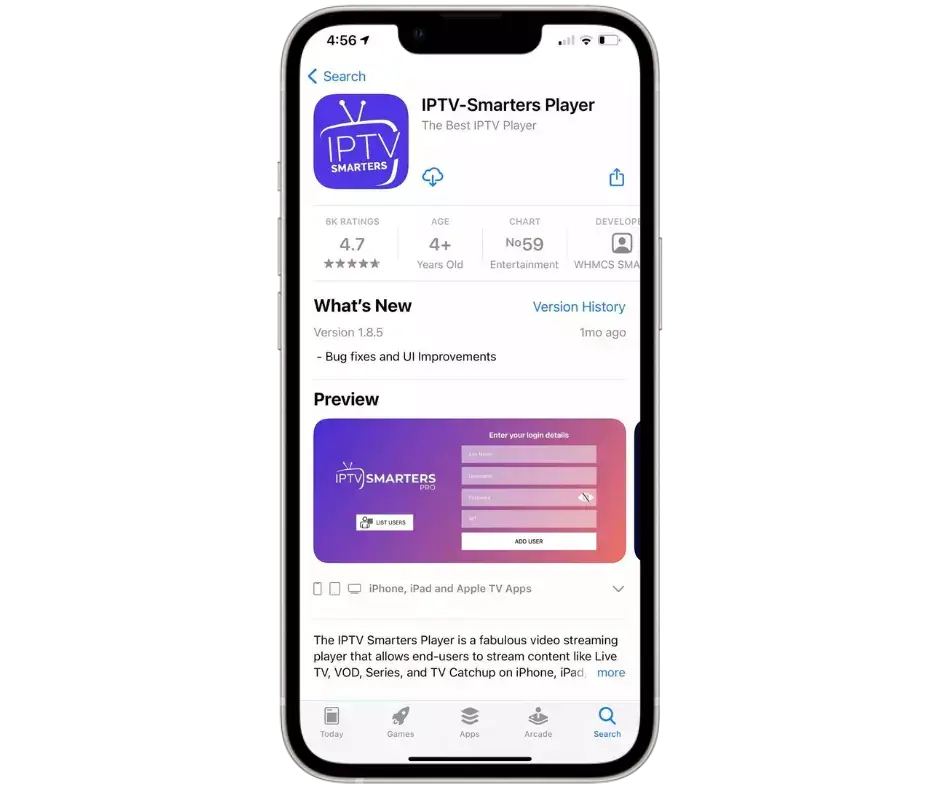
5. Tap “Get” to install the app will be ready on your home screen in under a minute.
Step 2 — Get Your IPTV Login Details Ready
1. Open the welcome email from your IPTV provider it contains either an M3U URL or Xtream Codes credentials (server, username, password).
2. If you cannot find the email, log into your provider’s website and check the client area or dashboard for your active subscription details.
3. Copy the full M3U URL or write down the three Xtream Codes fields, even one wrong character will prevent the app from connecting.
4. If your provider gave you an APK file link instead, ask them specifically for M3U or Xtream Codes details since APK files do not work on iPhone.
5. Keep your credentials saved in the iPhone Notes app or a password manager so you can access them quickly if you ever need to set up again.
Step 3 — Connect Your Provider to the App
1. Open the IPTV app and tap the option to add a new playlist or new user, the wording varies by app but it is always on the first screen.
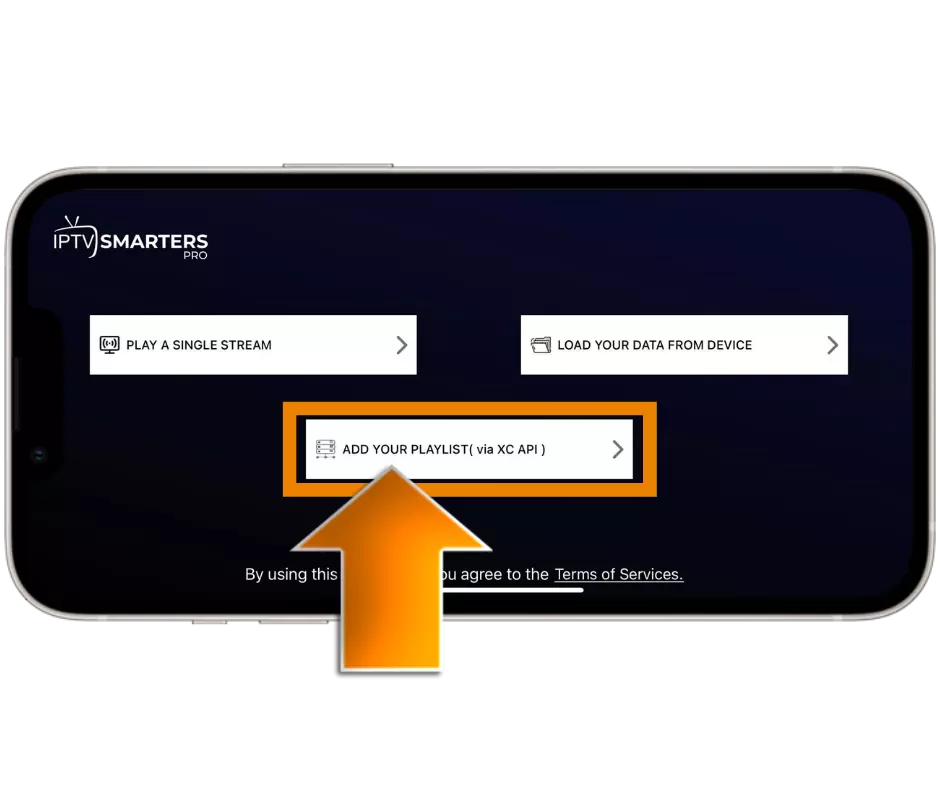
2. Choose your login method: select “Xtream Codes API” if you have server, username, and password — or select “M3U URL” if you have a playlist link.
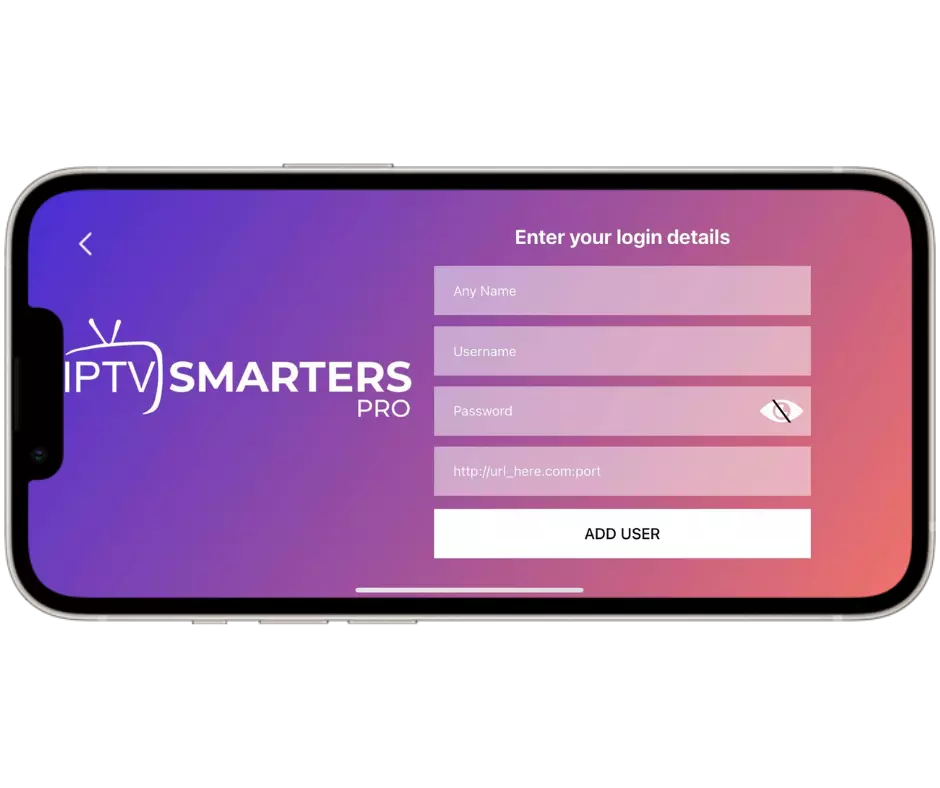
3. Paste or type your details into the fields carefully, then tap “Add” or “Login” to connect.
4. The app will contact your provider’s server and download the full channel list, this can take a few seconds to half a minute depending on the playlist size.
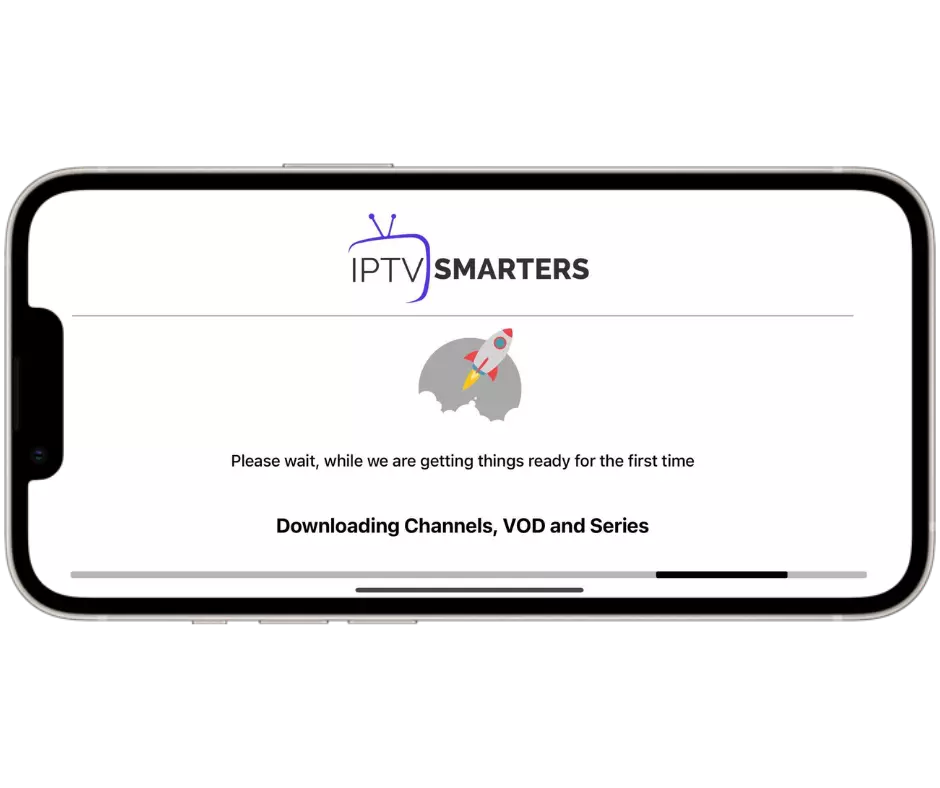
5. Once loaded, you will see categories like Live TV, Movies, Series, Sports, and Kids appear in the app’s main menu.
Step 4 — Customize Your Viewing Experience on iPhone
1. Browse the channel categories and add your most-watched channels to the Favorites list by long-pressing or tapping the star icon.
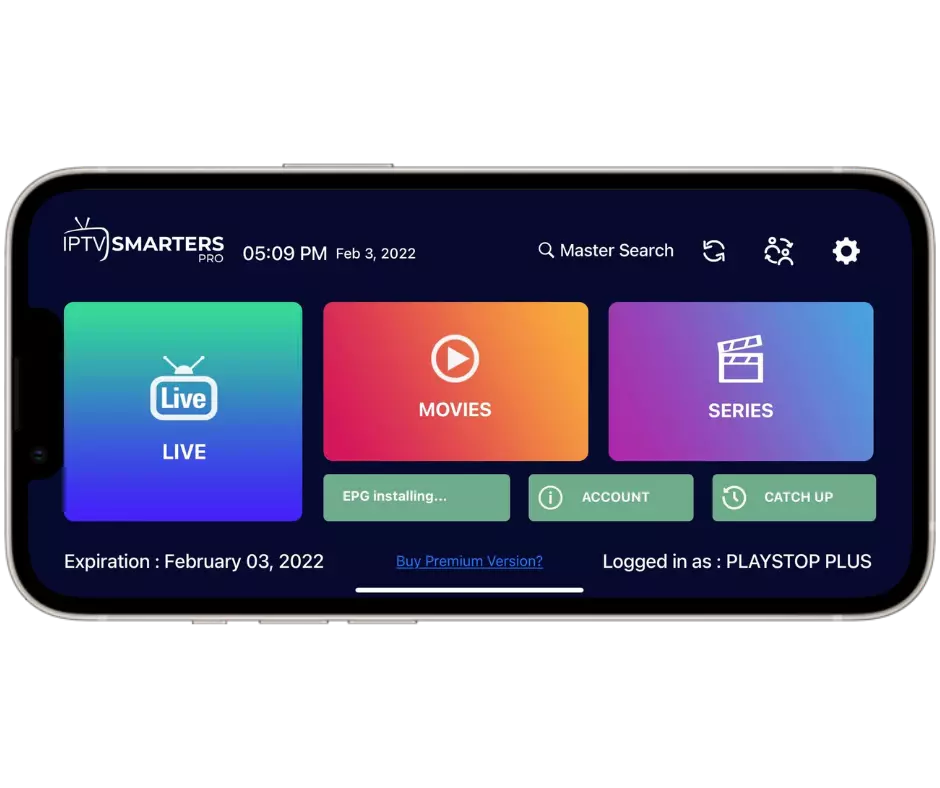
2. Enable the EPG (TV guide) in the app settings so you can see what is playing now and what is scheduled next on every channel.
3. Adjust the video player to use hardware decoding for smoother playback and lower battery usage on your iPhone.
4. Turn on subtitles from the player controls if you need them, most apps let you choose the language and font size.
5. Set the default streaming quality to Auto so the app adjusts between SD, HD, and FHD based on your current internet speed.
Step 5 — Get the Best Streaming Performance on iPhone
1. Connect to a 5GHz Wi-Fi network whenever possible, it is faster and more stable than 2.4GHz for live streaming.
2. Close background apps before watching IPTV to free up RAM and prevent playback interruptions on older iPhone models.
3. If you experience buffering on certain channels, switch the player format from Auto to HLS or MPEGTS in the app settings.
4. Use a VPN app if your ISP throttles streaming traffic, connect the VPN first, then open the IPTV app for encrypted, unrestricted playback.
5. To watch on a bigger screen, use AirPlay to mirror your iPhone to an Apple TV or any AirPlay 2 compatible smart TV without any extra cables.
Frequently Asked Questions (FAQ)
Which iPhone models support IPTV apps?
Any iPhone running iOS 14 or later supports all major IPTV apps. This includes iPhone 8 and newer models. Older devices may work but could experience slower performance.
Can I watch IPTV on iPhone without Wi-Fi?
Yes, you can stream over mobile data (4G or 5G). However, live TV uses significant data expect around 1 to 3 GB per hour depending on stream quality.
Is there a completely free IPTV app for iPhone?
GSE Smart IPTV and 247 IPTV Player have free versions with ads. The app is free, but you still need an active IPTV subscription to get channels.
Can I download IPTV channels for offline viewing on iPhone?
No. IPTV streams live content in real time and does not support offline downloads. You need an active internet connection every time you watch.
How do I fix IPTV channels not loading on my iPhone?
First check your internet connection. Then verify your login credentials are correct. If both are fine, try switching the player format in settings or reinstalling the app.
Can I use Picture-in-Picture with IPTV on iPhone?
Yes, most IPTV apps support iOS Picture-in-Picture mode. Start playing a channel, swipe up to go home, and the stream will continue in a small floating window.
How do I send IPTV from my iPhone to my TV screen?
Use AirPlay tap the AirPlay icon in the video player and select your Apple TV or AirPlay 2 compatible smart TV. You can also use an HDMI Lightning adapter for a wired connection.