How to Test an IPTV Service Before Paying for a Full Subscription ?
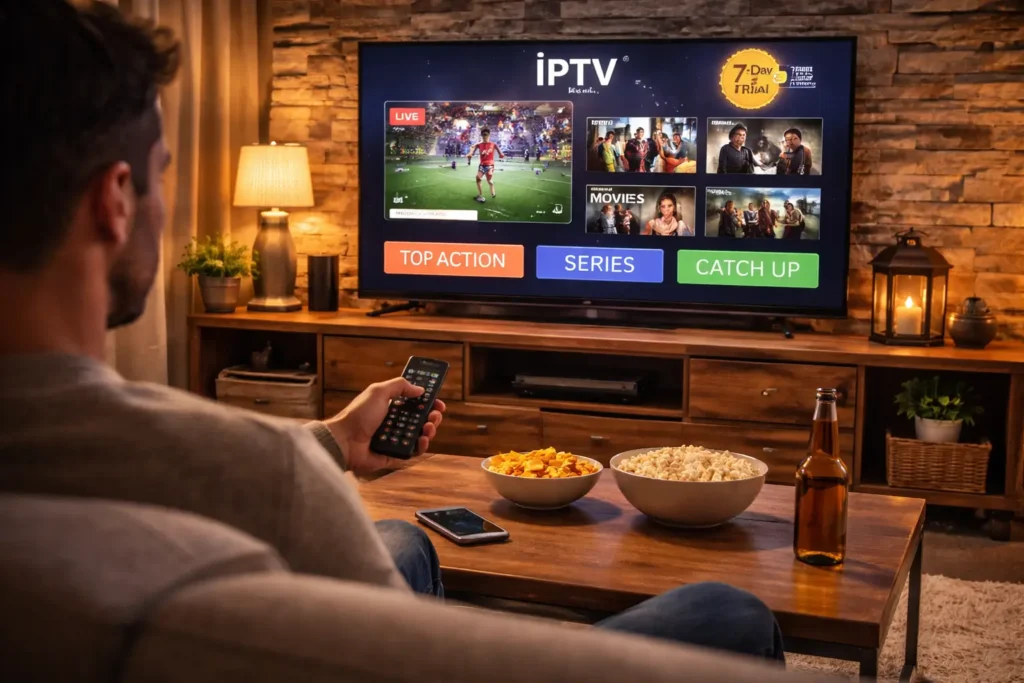
Testing an IPTV service before paying for a full subscription means requesting a free trial or a low-cost short-term plan so you can verify channel quality, server stability, EPG accuracy, and device compatibility with your own eyes before committing any real money.
This is the smartest move you can make because no amount of online reviews will tell you how a service actually performs on your specific device, internet connection, and location. A trusted provider like IPTV Canada offers trial access so you can test everything firsthand and subscribe only when you are fully satisfied. Follow the five steps below to properly test any IPTV service and avoid wasting money on a bad subscription.
1. Request a Free Trial or Short-Term Test Plan
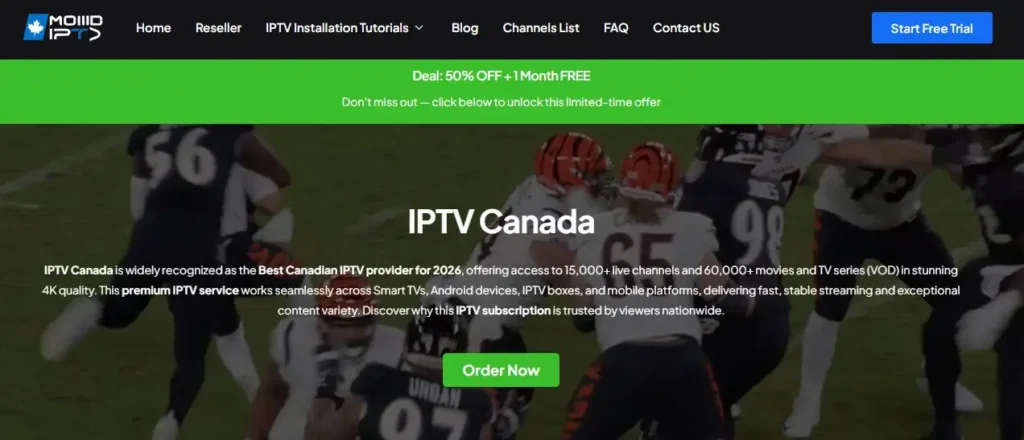
1. Visit the IPTV provider’s website and look for a “Free Trial” or “Test Line” option, most reliable providers display it clearly on the homepage.
2. If no trial is visible, contact their support via live chat, WhatsApp, or email and ask directly for a test before purchasing.
3. Some providers offer a free 24-hour trial while others charge a small fee (usually $1–$3) for a 48-hour test, both are acceptable.
4. Avoid providers that refuse any form of trial and demand a full monthly payment upfront with no refund policy.
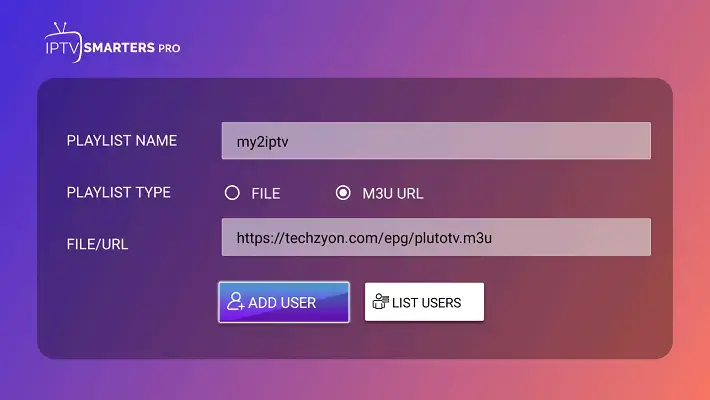
5. Once approved, you will receive login credentials or an M3U playlist URL, save them and move to the next step.
2. Install the IPTV Player and Load the Trial Credentials
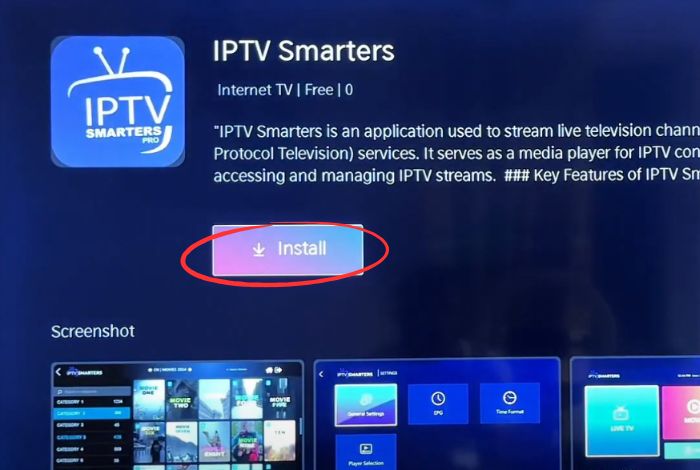
1. Download a reliable IPTV player on the device you plan to use daily, TiviMate, IPTV Smarters Pro, or GSE Smart IPTV are solid choices.
2. Open the app and enter the trial credentials (server URL, username, password) or paste the M3U playlist URL.
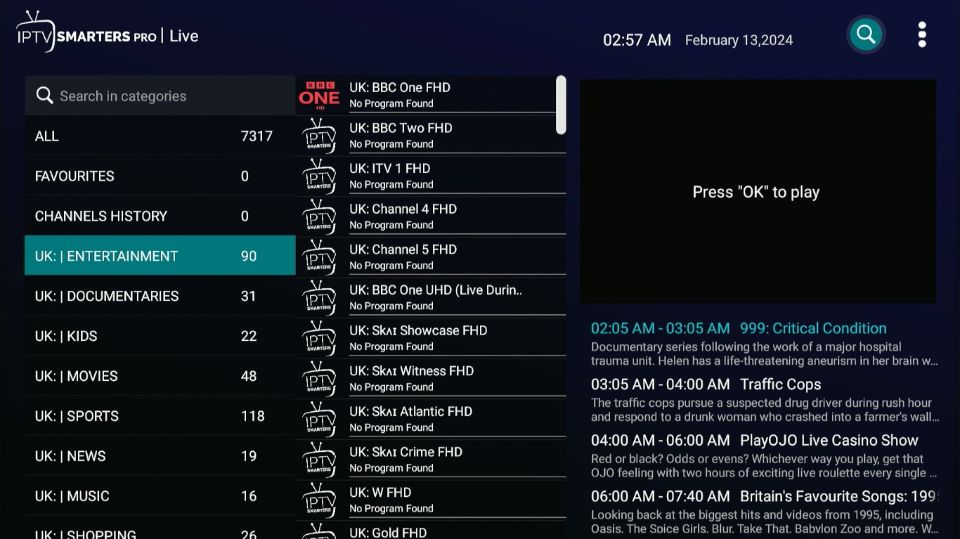
3. Wait for the channel list to fully load, a large playlist with thousands of channels may take 10 to 30 seconds.
4. Make sure the EPG (electronic program guide) loads correctly with current show information and upcoming schedules.
5. If the app fails to connect, double-check your credentials for typos and confirm with the provider that the trial is activated.
3.Test Channel Quality Across Different Categories
- Play channels from multiple categories, sports, news, movies, entertainment, kids to check if the entire library works, not just a few channels.
2. Watch each channel for at least 2 to 3 minutes to see if it buffers, freezes, or drops quality after the initial load.
3. Test HD and 4K channels specifically, SD may work fine on a weak server, but HD and 4K reveal the true server capacity.
3. Check the VOD (video on demand) section if available play a movie or series episode and see if it streams smoothly from start to finish.
4.Test During Peak Hours and on Multiple Devices
1. Watch IPTV during evening peak hours (7 PM to 11 PM) when most users are online this is when weak servers reveal their true performance.
2. If channels work fine during the day but buffer heavily at night, the provider’s servers are likely overloaded and unreliable.
3. Test on every device you plan to use (Smart TV, Firestick, phone, tablet, PC) because performance can vary between platforms.
4. Test on both Wi-Fi and a wired Ethernet connection to isolate whether buffering is caused by the service or your own network.
5. Evaluate Support Response and Make Your Decision
1. Send a support message during your trial and measure how fast the provider responds — anything under 30 minutes is a good sign.
2. Ask a specific question like requesting a server change or help with a channel not loading to test how knowledgeable the support team is.
3. If you experienced frequent buffering, dead channels, or slow support during the trial, move on to another provider and repeat the process.
Frequently Asked Questions (FAQ)
Should I trust an IPTV provider that does not offer a free trial?
Be cautious. Most legitimate providers offer at least a low-cost 24-hour trial. A provider that refuses any test and demands full payment upfront is a higher risk.
How long should I test an IPTV service before subscribing?
A minimum of 24 hours is needed to test during both off-peak and peak times. A 48-hour trial gives you a more complete picture of server reliability.
What should I check first during an IPTV trial?
Start with channel loading speed, then test HD and 4K quality, check the EPG guide accuracy, and play VOD content. Test during evening hours for the most realistic results.
Can I test IPTV on multiple devices during a trial?
Yes, if the trial plan allows multiple connections. Ask the provider how many simultaneous streams are included in the test so you can try all your devices.
Is it normal for some channels to not work during a trial?
A few dead channels out of thousands is normal and happens even with the best providers. However, if entire categories are down or dozens of channels fail, look elsewhere.
What internet speed do I need to test IPTV properly?
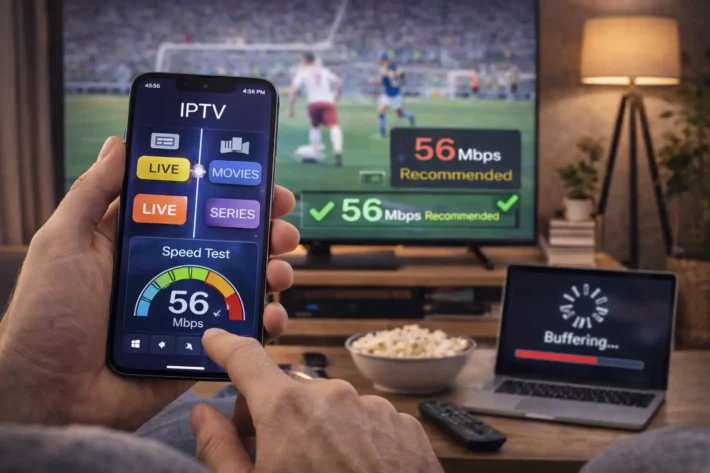
A minimum of 25 Mbps is recommended for HD content and 50 Mbps or more for 4K streams. Test your speed before the trial to rule out bandwidth issues on your end.
What if IPTV works great during the trial but gets worse after I subscribe?
This can happen with unreliable providers. That is why you should verify the refund policy before paying. A provider with a 24-48 hour money-back guarantee gives you a safety net.