How to Create Separate IPTV Profiles for Each Family Member ?
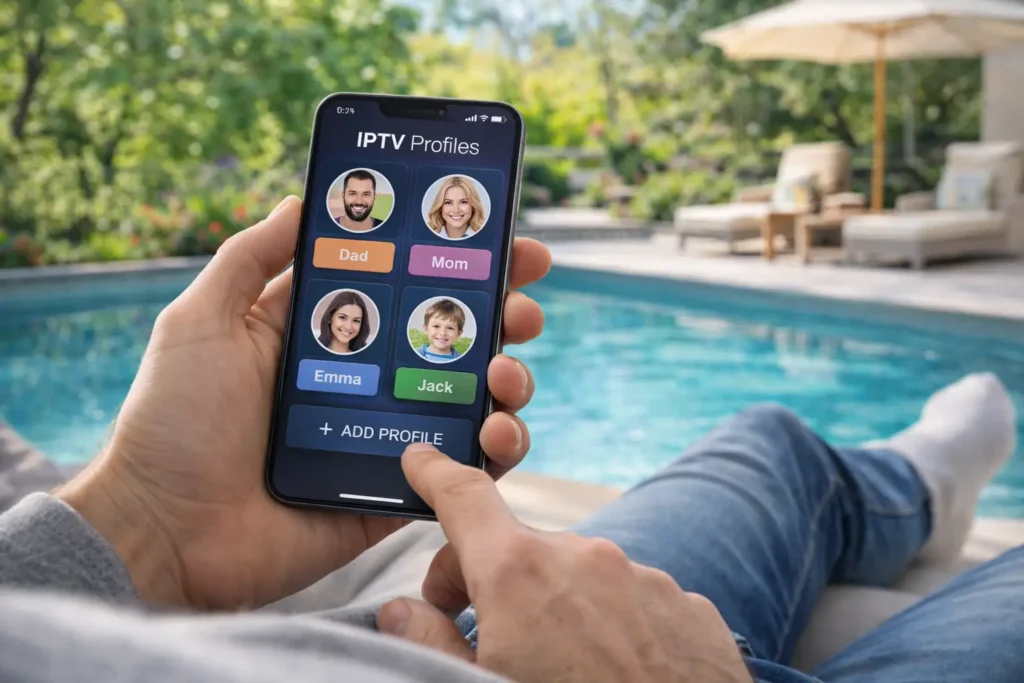
Creating separate IPTV profiles for each family member means setting up individual user accounts or playlist configurations inside your IPTV app so that every person in your household gets their own channel favorites, viewing history, and content restrictions, without interfering with anyone else’s preferences.
A reliable provider like IPTV Canada supports multi-device connections, making it easy to run separate profiles across your household without needing multiple subscriptions. Follow the five steps below to set up individual IPTV profiles for everyone in your family.
Step 1 — Choose an IPTV Player That Supports Multiple Profiles
On Android or Firestick
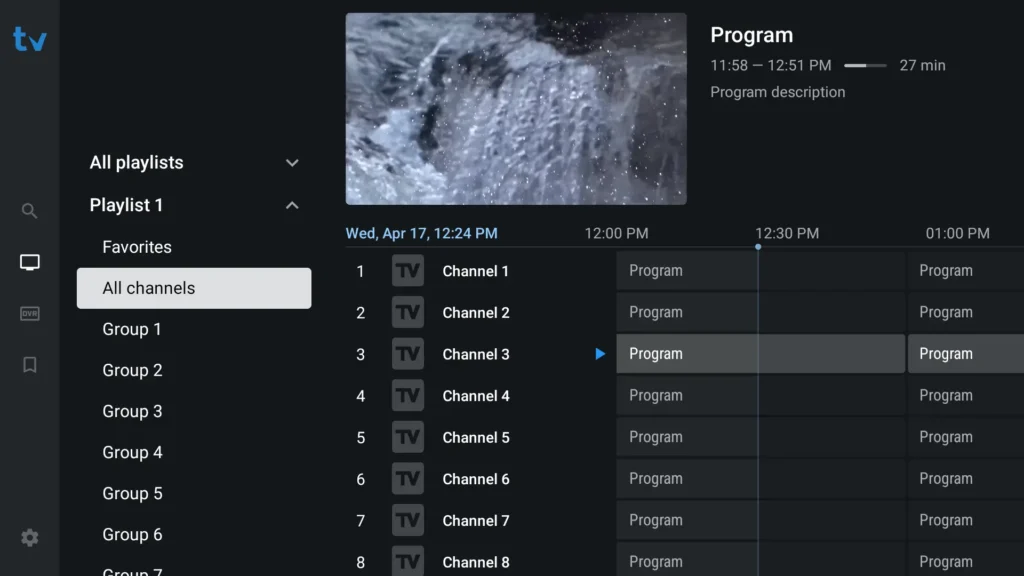
1. Use TiviMate on Android or Firestick, it has a built-in multi-profile feature that lets you create separate user accounts inside one app.
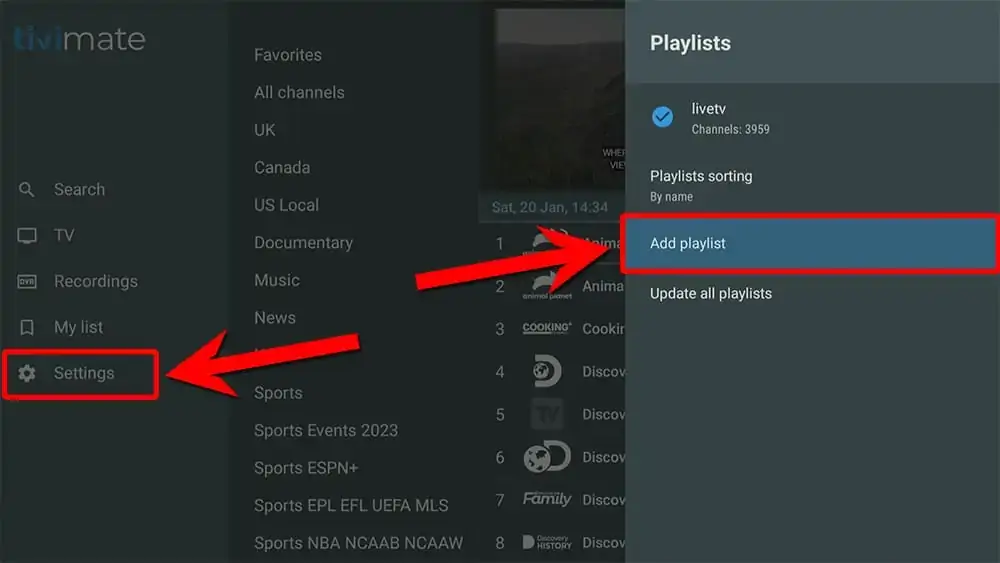
2. Each TiviMate profile keeps its own favorites, EPG settings, and channel order completely independent.
On other devices
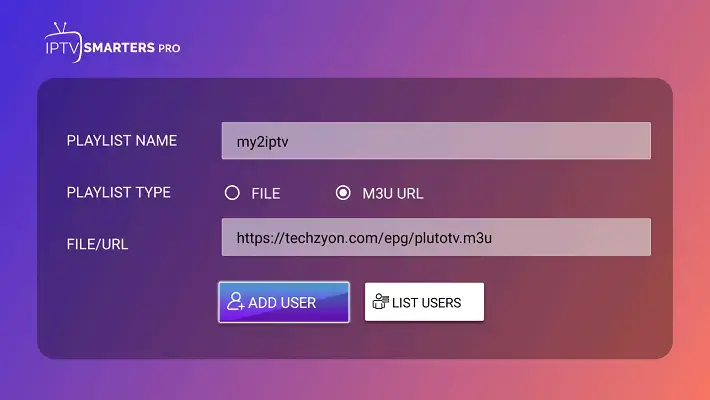
1. If TiviMate is not available on your device, use IPTV Smarters Pro which allows you to add multiple playlists under different usernames.
On iPhone or iPad
1. On iPhone or iPad, GSE Smart IPTV lets you add several playlists and switch between them as separate profiles.
2. Open the app, go to the menu on the left, then select “Remote Playlists“.
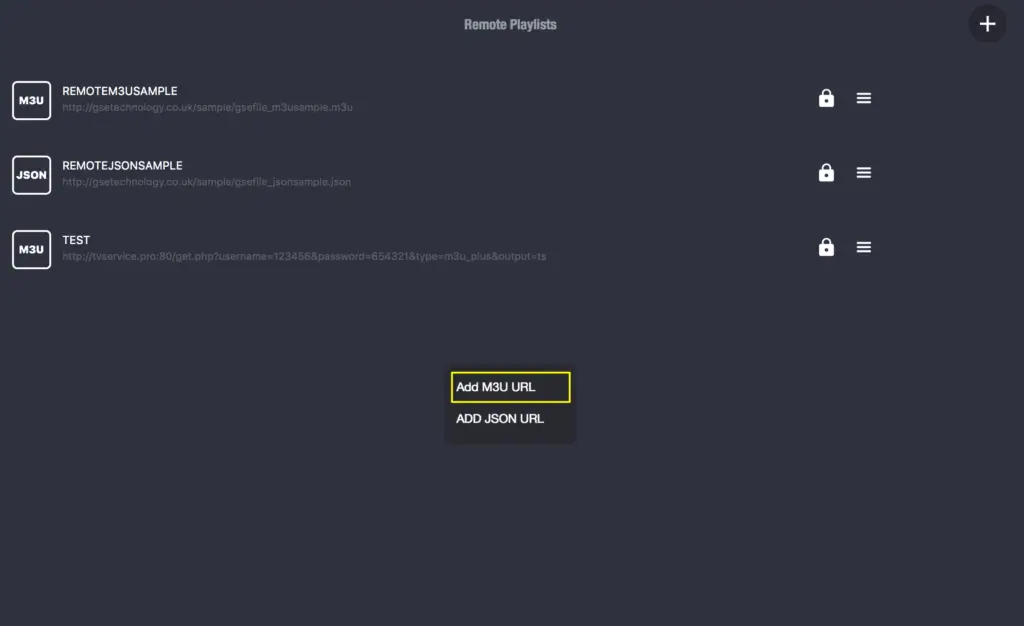
3. Next, click the (+) icon at the top right to fill in your details.
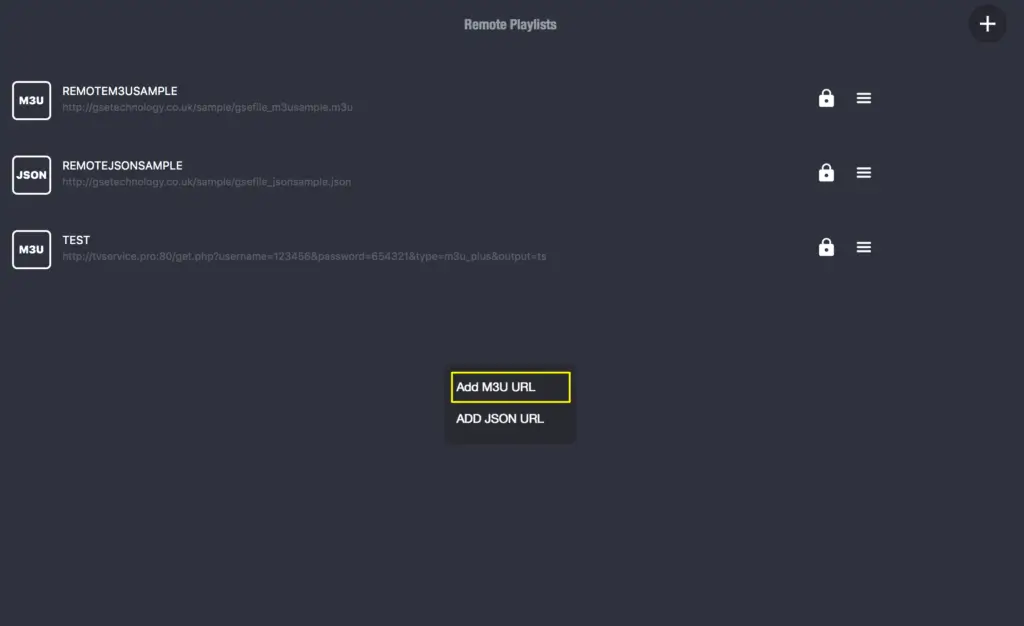
4. Click on “Add M3U URL.”
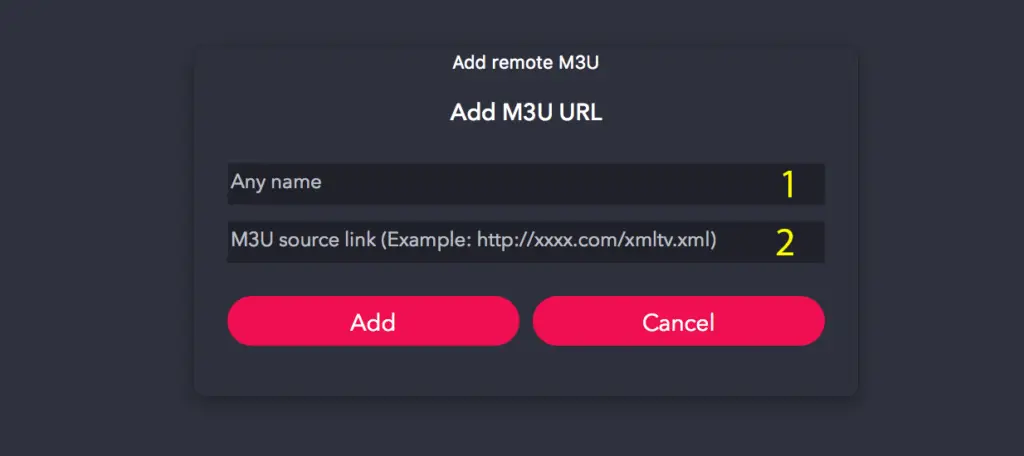
5. Tap on your playlist name and enjoy live channels!
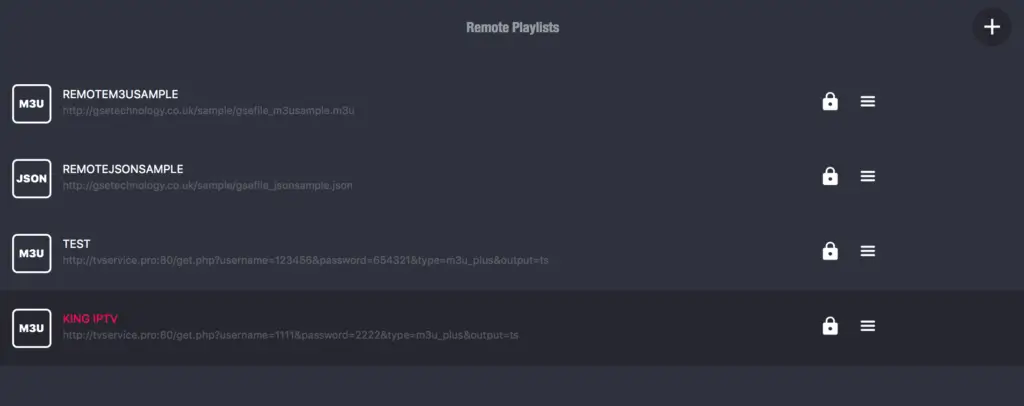
6. Check that your IPTV provider allows enough simultaneous connections to support the number of profiles you want to create.
Step 2 — Request Multiple Connections or Sub-Accounts From Your Provider
1. Contact your IPTV provider and ask if your subscription includes more than one simultaneous connection.
2. Some providers offer 2, 3, or even 5 connections on a single plan, each one can act as a separate family profile.
3. If your plan only allows one connection, ask about upgrading to a multi-device plan for a small extra fee.
4. Request separate login credentials (username and password) for each family member if your provider supports sub-accounts.
5. Having individual logins means each person’s viewing activity stays private and does not mix with others.
Step 3 — Set Up Each Profile Inside Your IPTV App
1. Open your IPTV player and go to the profile or account management section in the settings menu.
2. Create a new profile for each family member, name it clearly (Dad, Mom, Kids, etc.) so everyone knows which one to select.
3. Add the corresponding IPTV login credentials or playlist URL to each profile.
4. Customize each profile by setting preferred channel categories, language, and EPG layout.
5. For kids’ profiles, enable parental controls and lock adult or violent content behind a PIN code.
Step 4 — Organize Favorites and Channel Lists per Profile
1. Switch to each profile individually and mark favorite channels that match that person’s interests — sports for dad, cartoons for kids, news for grandparents.
2. Remove or hide channel categories that are not relevant to each user to keep the interface clean and simple.
3. Rearrange the channel order so the most-watched channels appear at the top of each profile’s list.
4. Set a default channel group to open automatically when each profile launches the app.
5. Save all changes before switching to the next profile to make sure nothing gets overwritten.
Step 5 — Test Each Profile and Adjust Settings as Needed
1. Open each profile one by one and play a few channels to confirm everything loads correctly with the right favorites and restrictions.
2. Verify that parental controls are active on kids’ profiles by trying to access a locked channel — the PIN prompt should appear.
3. Check that profiles do not interfere with each other by switching back and forth and confirming favorites stay separate.
4. If one profile shows another person’s channel list, delete and recreate it with fresh credentials.
5. Update profiles periodically when new channels are added or when a family member’s preferences change.
Frequently Asked Questions (FAQ)
Do all IPTV apps support multiple profiles?
No. TiviMate has built-in profiles, while apps like IPTV Smarters Pro and GSE Smart IPTV allow multiple playlists which work as separate profiles. Basic players may not support this feature.
Can I create profiles without buying multiple subscriptions?
Yes, if your provider offers multiple simultaneous connections on one plan. You can use separate logins or playlists within the same subscription to create individual profiles.
How do I lock a kids profile so they cannot switch to an adult one?
Enable parental controls with a PIN on the kids profile. On TiviMate you can also password-protect access to the settings menu so children cannot switch profiles.
Will separate profiles slow down my IPTV performance?
No. Profiles are just different configurations inside the app. They do not use extra bandwidth unless multiple profiles are streaming at the same time on different devices.
Can each family member use a profile on a different device?
Yes. You can set up one profile per device, for example, the living room TV for parents and a tablet for kids — each with its own login and channel list.
What happens if two profiles try to stream at the same time?
That depends on how many simultaneous connections your IPTV plan allows. If you exceed the limit, one stream will be disconnected. Upgrade your plan if needed.
Do profiles save viewing history separately?
On apps like TiviMate, yes each profile keeps its own history, favorites, and EPG data. On simpler apps, only the favorites and playlist are separated