How to Install Kodi to Firestick?
To install Kodi to Firestick, enable “Apps from Unknown Sources” in your Fire TV settings, install the free Downloader app from the Amazon Appstore, open Downloader and enter the official Kodi download link, then install the APK and open Kodi.
Because Kodi is not listed in the Amazon Appstore, this process is called sideloading, and it takes only a few minutes with no computer required at all.
Once Kodi is installed, you can pair it with a reliable IPTV Canada subscription from a trusted provider to stream live channels smoothly and reliably on the big screen.
This clear, step-by-step guide walks you through the entire Kodi installation on Firestick, from the very first setting to your first launch, even if you have never sideloaded an app before.
Step 1: Prepare Your Firestick and Internet Connection
Start by making sure your Firestick is plugged in, updated, and connected to a stable internet connection. Kodi runs smoothly on Firestick, but streaming through it still depends on a steady, uninterrupted data stream, so the connection matters most of all.
Checking this first prevents buffering and failed downloads later in the process. A wired Ethernet adapter is the most stable option, though Wi-Fi works fine for most users on a normal home connection. A quick restart clears the memory and makes the whole installation noticeably smoother, especially on older Firestick models.
1- Plug in the Firestick and reach the Fire TV home screen.
2- Connect it to Wi-Fi or a wired Ethernet adapter.
3- Confirm your speed is at least 15 to 25 Mbps for HD.
4- Make sure there is enough free storage for the app.
5- Restart the Firestick once if it feels slow.
Step 2: Enable Apps From Unknown Sources
Next, allow your Firestick to install apps from outside the Amazon Appstore, since Kodi is not available there and must be sideloaded. This setting lives in the Developer Options menu, which is hidden by default on many newer devices to protect beginners.
Turning it on is a required step before you can install Kodi from a link. This is perfectly safe as long as you only install trusted apps from official sources and avoid random websites. You can switch the setting back off afterward once Kodi is installed if you prefer extra caution.
1- Open Settings from the Fire TV home screen.
2- Select My Fire TV, then About or Developer Options.
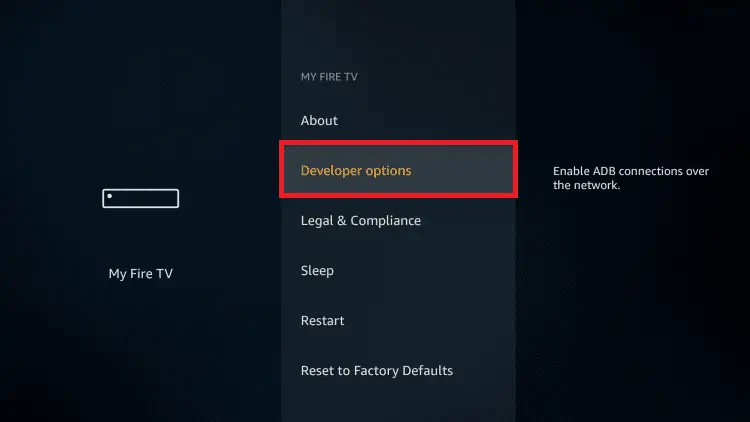
3- If Developer Options is hidden, click the device name several times to unlock it.
4- Open Developer Options and find “Install Unknown Apps” or “Apps from Unknown Sources“.
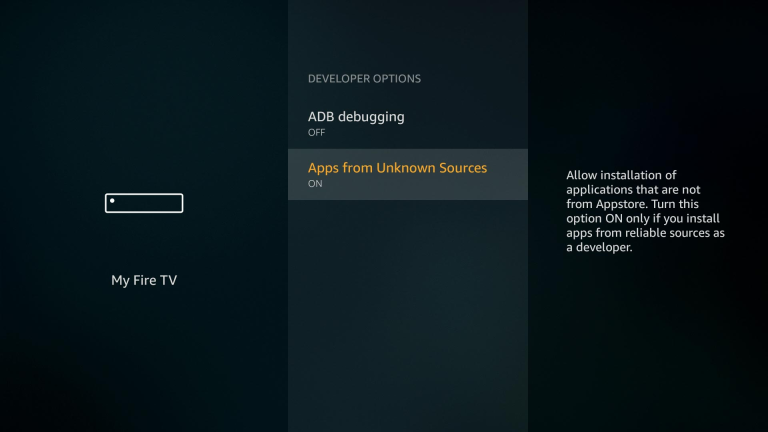
5- Toggle the Downloader entry to ON.
Step 3: Install the Downloader App
Now install the free Downloader app from the Amazon Appstore, which is the tool used to fetch the Kodi file. Downloader is an official, extremely popular app available directly on your Firestick, so this step is quick, free, and safe.
It includes a simple built-in browser that lets you enter a download link and pull the file straight onto the device. Installing it first makes every following step much more straightforward. There is no need for a phone, a computer, or any technical knowledge with this method.
1- Return to the home screen and open the search icon.
2- Type “Downloader” using the on-screen keyboard.
3- Select the orange Downloader app from the results.
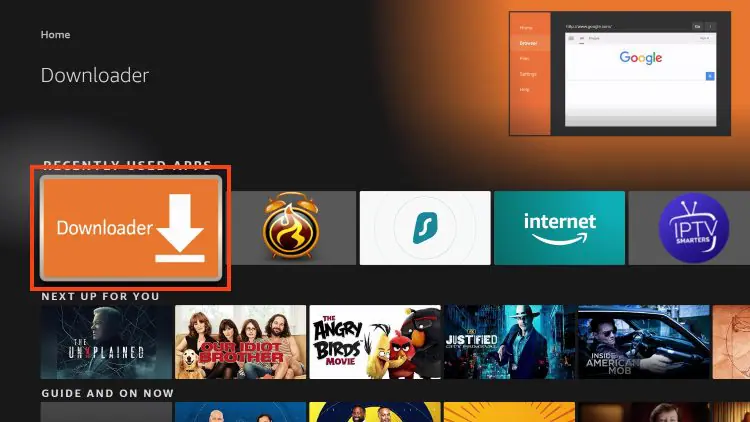
4- Choose Get or Download and wait for it to install.
5- Open Downloader and allow file access when prompted.
Step 4: Enter the Official Kodi Download Link
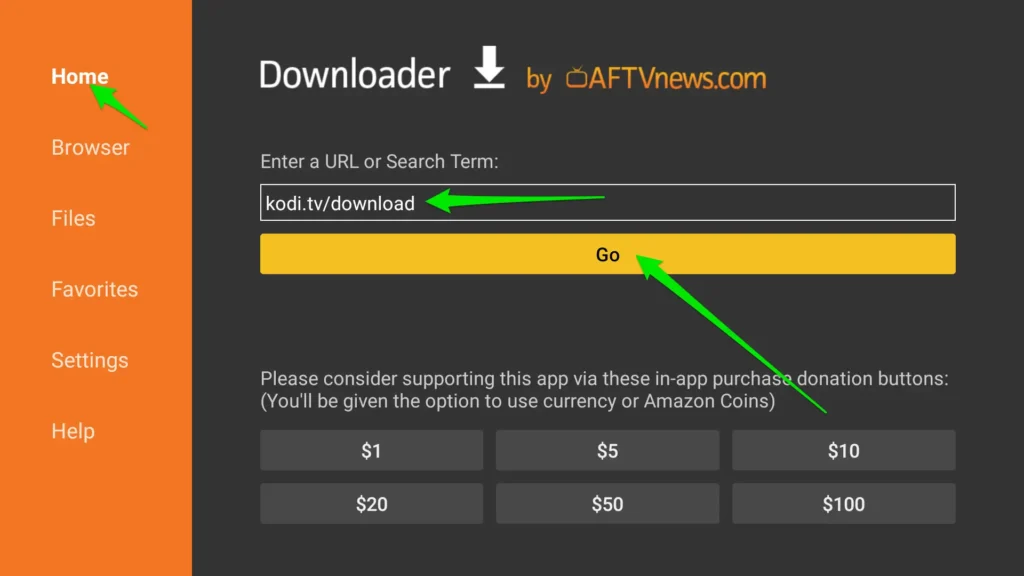
This is the key step: open Downloader and enter the official Kodi download link to fetch the app file. Always get Kodi from its official source, the Kodi website, because installing it from random websites or unofficial “builds” is a common way devices pick up unsafe software.
On the official site, choose the Android version, since the Firestick runs an Android-based system under the hood. Type the address slowly and carefully, as even a small mistake will stop the download or open the wrong page. The Firestick remote keyboard can be fiddly, so double-checking each character is worth the extra few seconds.
1- Open the Downloader app and enter the URL field (https://kodi.tv/download)
3- Choose the Android (ARM) build when prompted on the site.
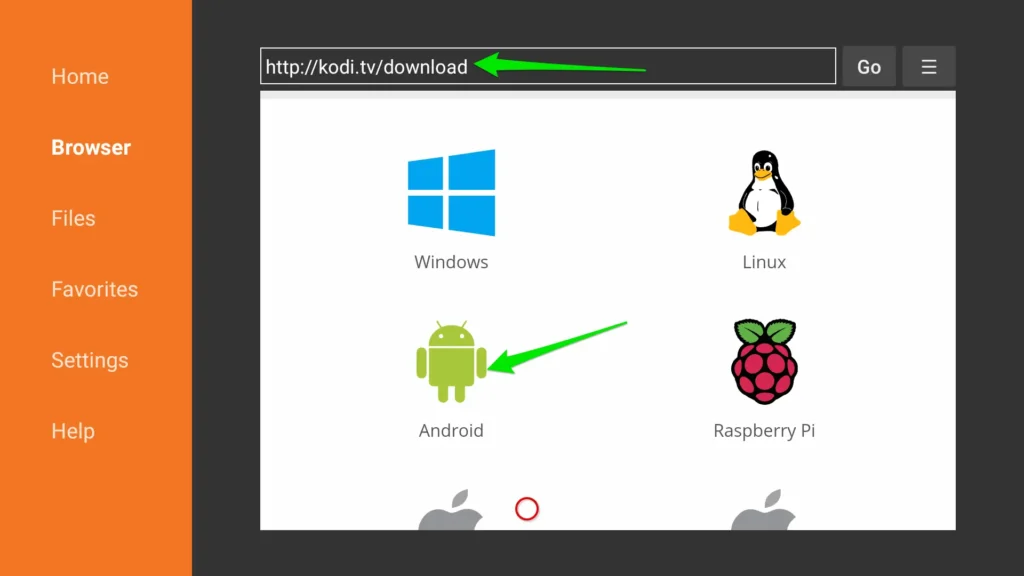
4- Double-check the link for typos before continuing.
5- Press Go and wait for the file to finish downloading.
Step 5: Download and Install the Kodi APK
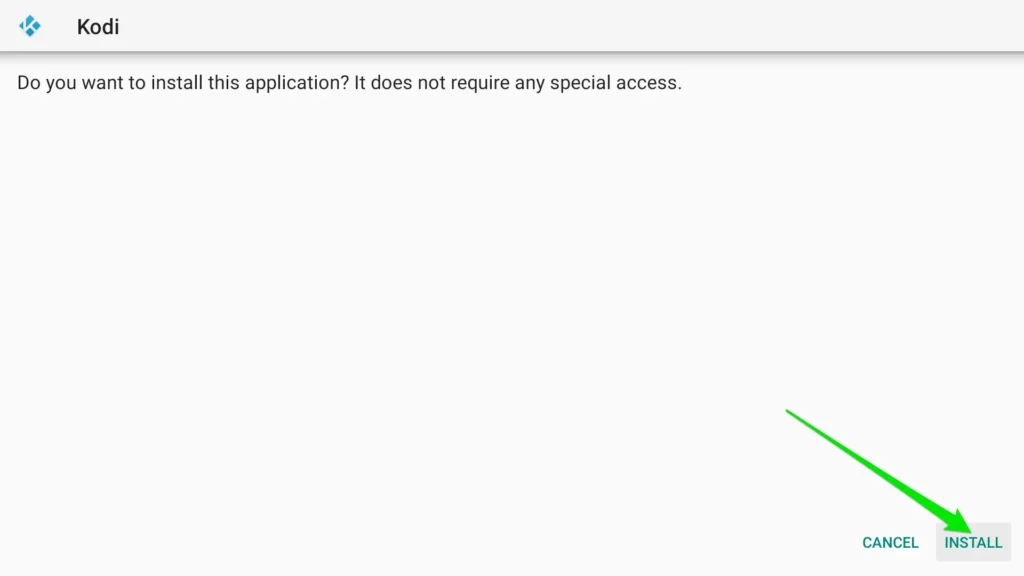
After the file downloads, install the Kodi APK on your Firestick. The Firestick automatically shows an install screen once the file is ready, so no extra search is needed. Confirming the installation places Kodi on your device like any other app. The Kodi file is larger than most apps, so allow a little extra time on slower connections. Deleting the leftover setup file afterward frees up valuable storage space.
1- Wait for Downloader to finish retrieving the file.
2- When the install screen appears, select Install.
3- Wait for the “App installed” confirmation message.
4- Choose Done, then Delete to remove the setup file.
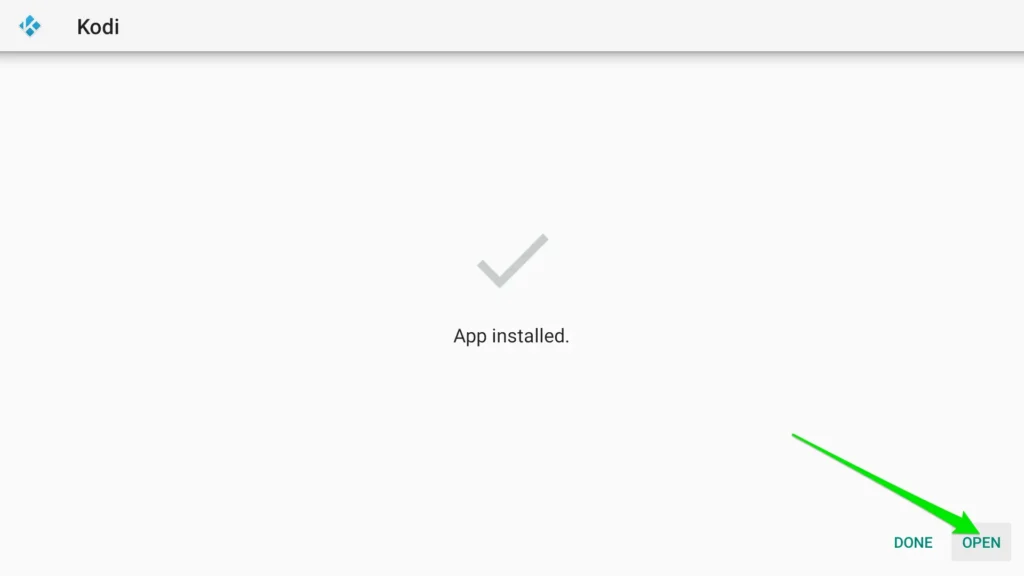
5- Confirm Delete again to free up storage space.
Step 6: Open Kodi and Complete First-Time Setup
Now open Kodi and complete the quick first-time setup so the app is ready to use. The first launch may take a moment while Kodi prepares its files, database, and interface in the background.
A clean, organized start makes adding content and add-ons much easier afterward. It is worth creating a home-screen shortcut, since sideloaded apps are placed at the very end of the apps list by default. Spending a minute here to get familiar with the layout makes daily use far smoother later on.
1- Find Kodi in Apps and Channels and open it.
2- Wait for the first launch to finish loading.
3- Allow any permissions Kodi requests on startup.
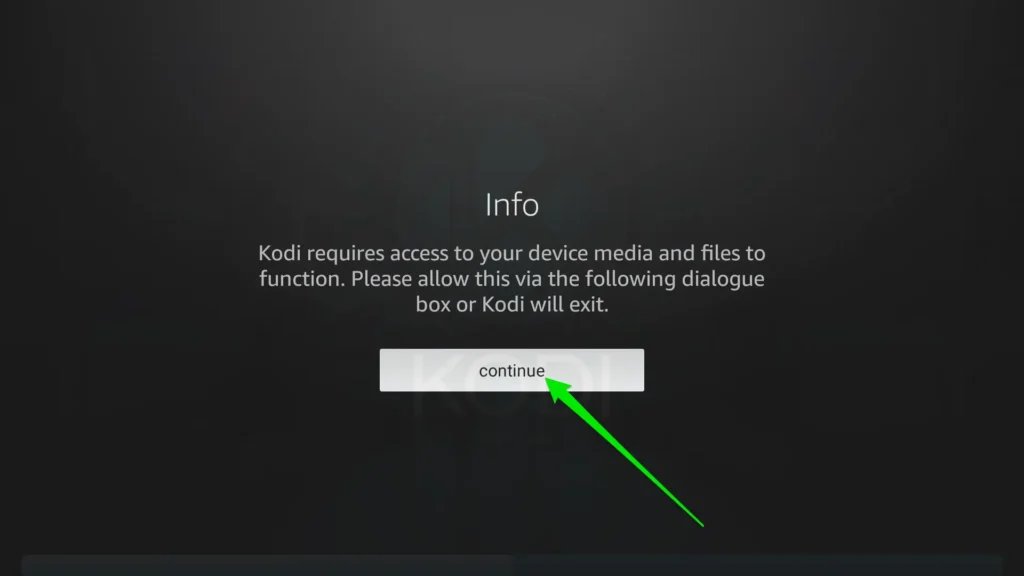
4- Move Kodi to the front of your apps list for quick access.
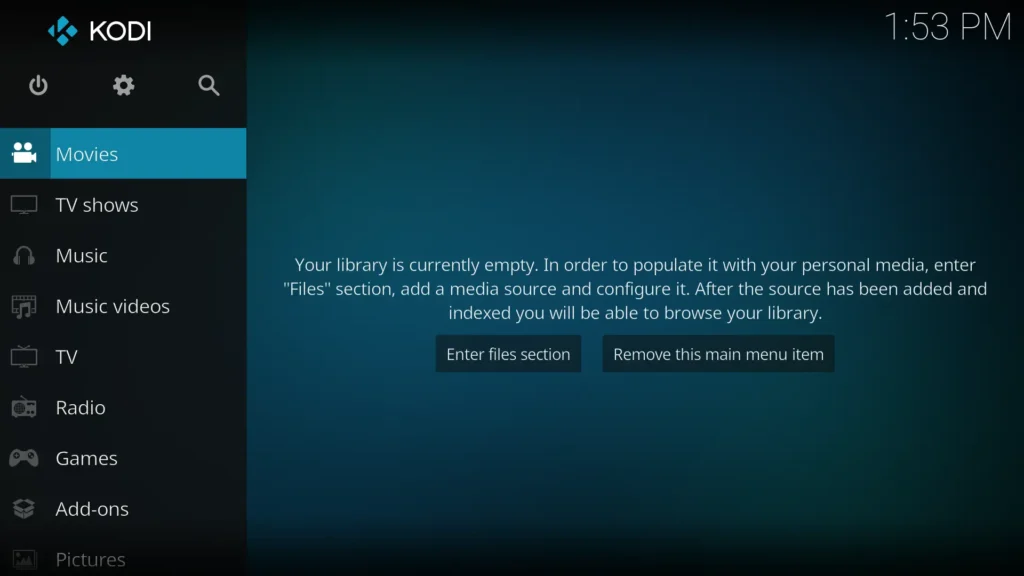
5- Explore the main menu to get familiar with the layout.
Step 7: Add IPTV and Fix Common Issues
Kodi does not include any channels on its own; it needs the built-in IPTV Simple Client add-on plus your M3U URL from your provider. The setup has two short parts: install the add-on, then enter your playlist. Follow the clicks below exactly. For a fuller walkthrough, see our guide on how to install IPTV on Kodi.
First, install the IPTV Simple Client add-on:
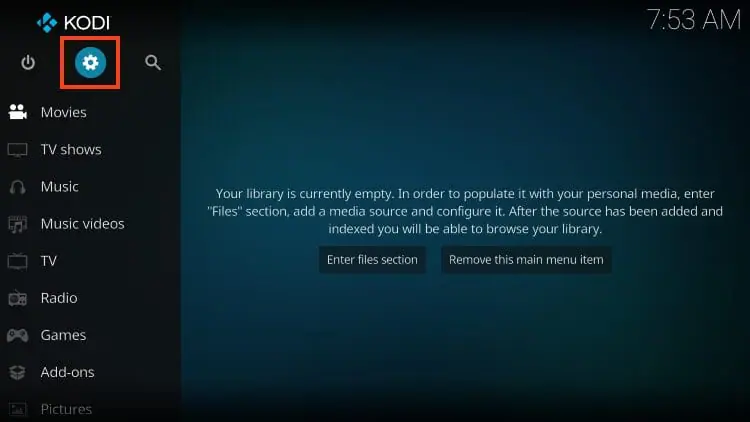
Open Kodi and click the Settings icon (gear).
Click Add-ons,
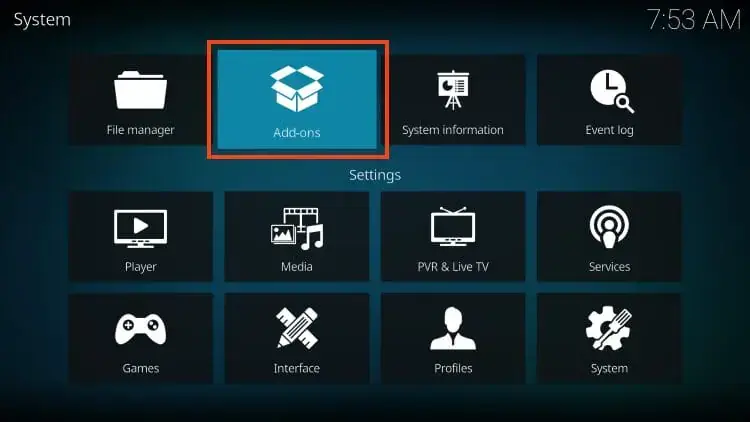
Then Install from repository.
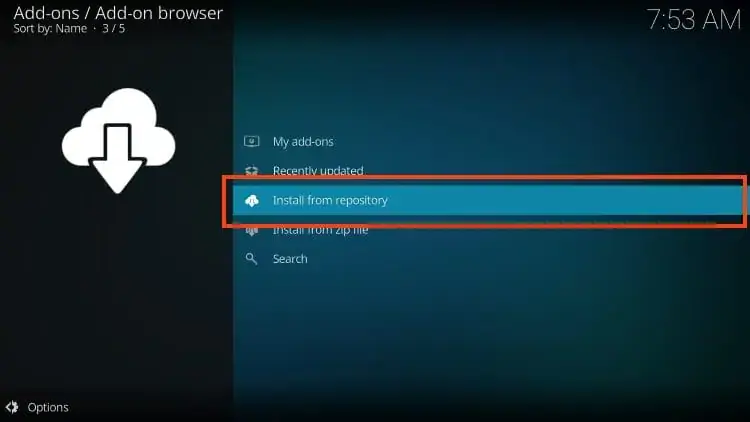
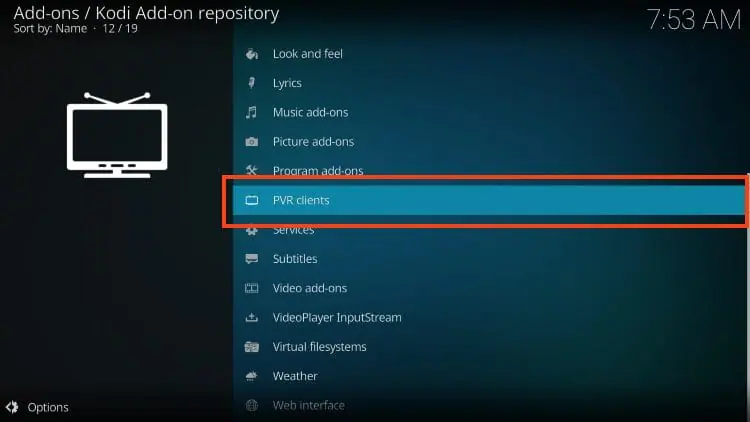
Select PVR clients.
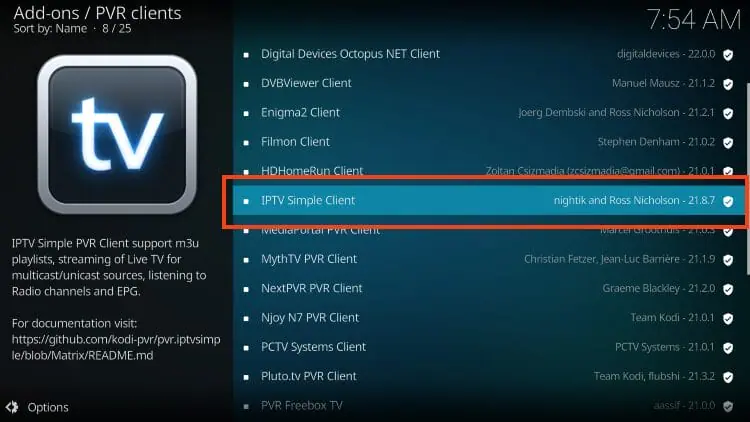
Scroll down and choose IPTV Simple Client.
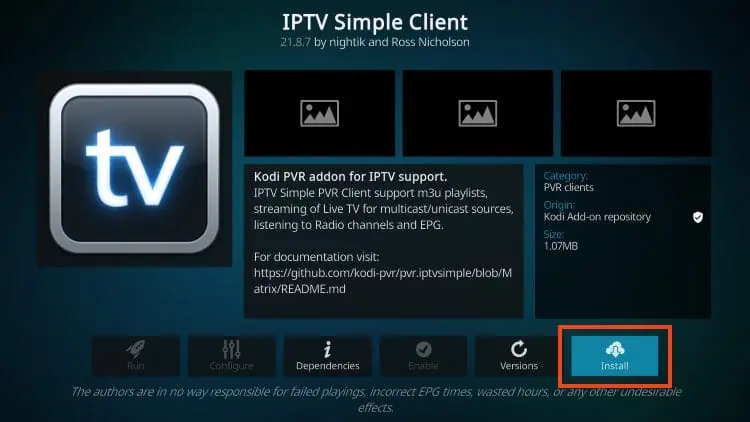
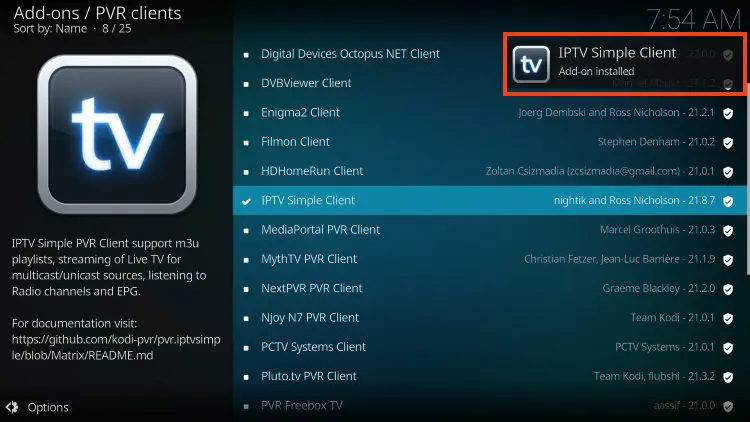
Click Install, then OK, and wait for the “installed” message.
Then, connect your IPTV subscription:
Click IPTV Simple Client again,
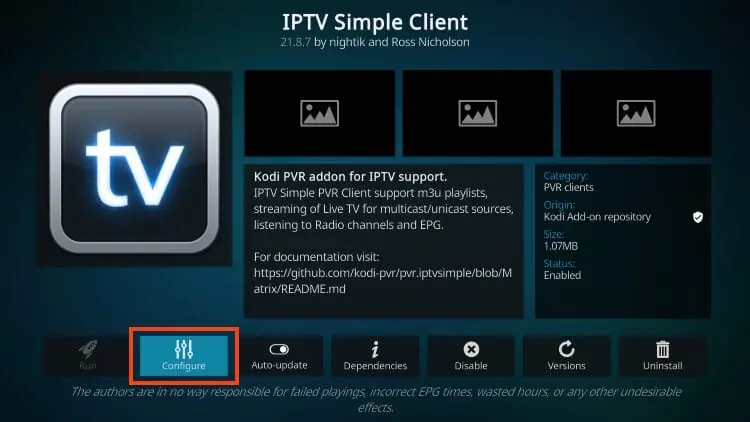
Then Configure.
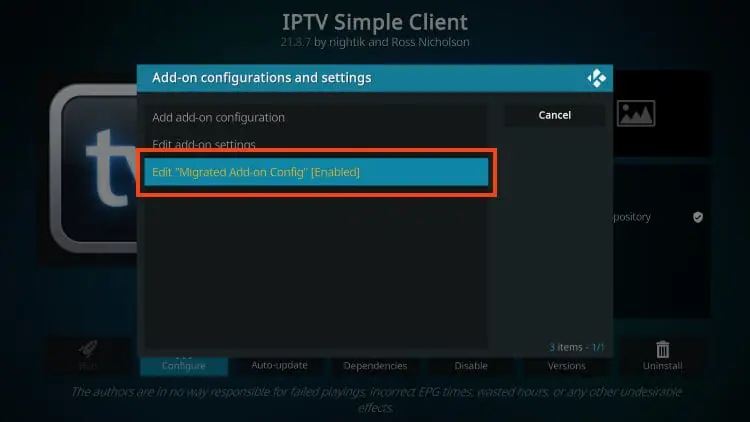
Open Edit “Migrated Add-on Config” if your Kodi version shows it.
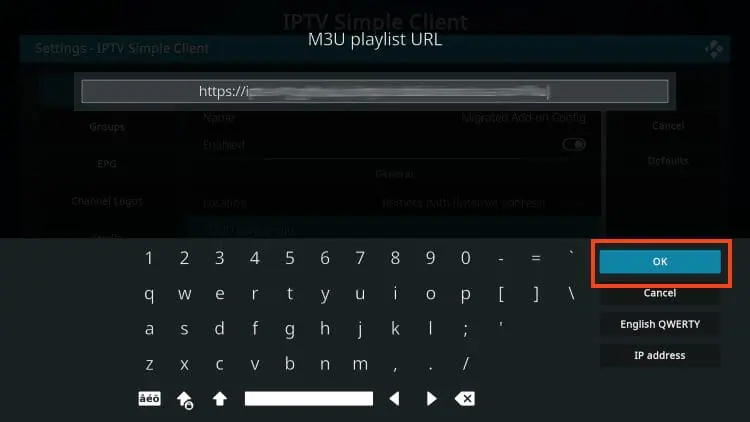
Under General, select M3U Playlist URL.
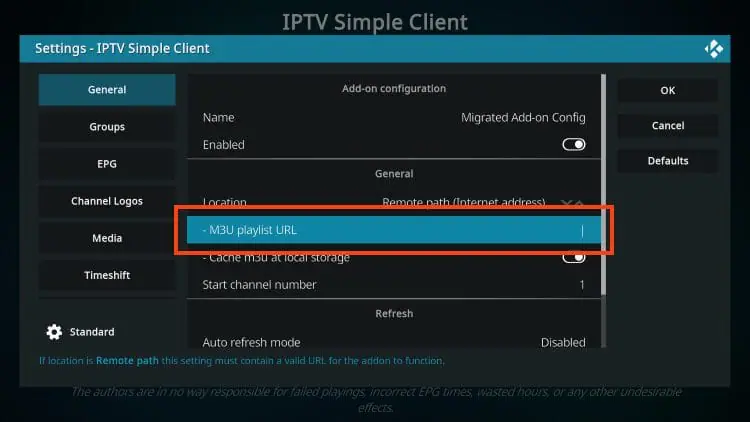
Enter your M3U URL from your provider exactly, then click OK.
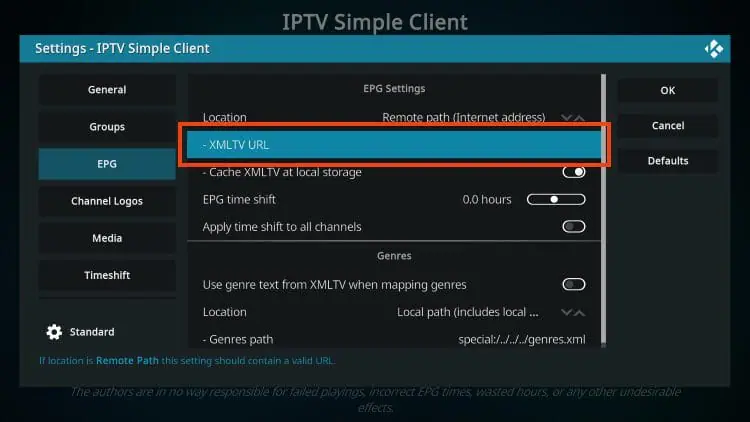
(Optional) Add your EPG via the XMLTV URL field, then click OK.
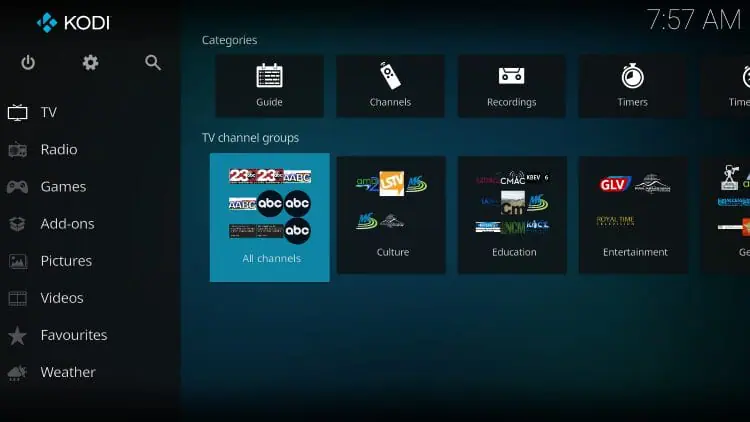
Return to the Kodi home screen and open the TV tab — your channels now appear.
Extra Tips for a Better Kodi Experience on Firestick
A few simple habits keep Kodi running smoothly on a Firestick over the long term. A stable connection and the latest official version make the biggest difference in everyday performance, far more than the age of the Firestick itself.
Keeping the device clean and uncluttered also helps Kodi load faster and reduces glitches over time. These small routines take only seconds each but prevent most of the common problems people run into after a few weeks of regular use.
- Always download Kodi from its official website only.
- Use a wired Ethernet connection during important live events.
- Restart the Firestick weekly to clear its memory.
- Keep a note of your IPTV login details for future setups.
- Update Kodi manually when a new official version is released.
- Clear the Kodi cache periodically to keep it responsive.
FAQ
Why is Kodi not in the Amazon Appstore?
Amazon does not list Kodi, so you must sideload it using the Downloader app. This is a normal, common process that takes only a few minutes.
Is it safe to install Kodi on Firestick?
Yes, as long as you download Kodi only from its official website. Avoid random websites and unofficial builds, which can carry unsafe software.
Do I need a computer to install Kodi?
No, the Downloader method works entirely on the Firestick. You only need your remote and a stable internet connection to complete the process.
Does Kodi include live TV channels?
No, Kodi is only a media player. You need an add-on like the PVR IPTV Simple Client plus an active IPTV subscription to stream live channels.
Why won’t my newer Firestick allow sideloading?
Some newer Fire TV Stick models use a different system that blocks sideloading. Check Settings, then My Fire TV, then About to see your device type.
Will Kodi update automatically on Firestick?
No, sideloaded apps do not auto-update. You repeat the Downloader steps with the latest official link when a new Kodi version is released.
Kodi installed but runs slowly. What can I do?
Clear the Kodi cache, close background apps, use a wired connection, and restart the Firestick. A stable connection is the most important fix.
Conclusion
Installing Kodi to Firestick is a quick and simple process: prepare your connection, enable apps from unknown sources, install Downloader, enter the official Kodi link, install the APK, and open the app. Because Kodi is not in the Amazon Appstore, sideloading is completely normal and safe as long as you use the official source.
Once Kodi is installed and paired with a reliable provider, your Firestick becomes a complete entertainment hub for live TV and on-demand content. Most early issues come down to connection speed or a small typing mistake, not the device itself.
With these clear steps, you can set up Kodi confidently and enjoy a smooth, stable streaming experience on the big screen in just a few minutes.